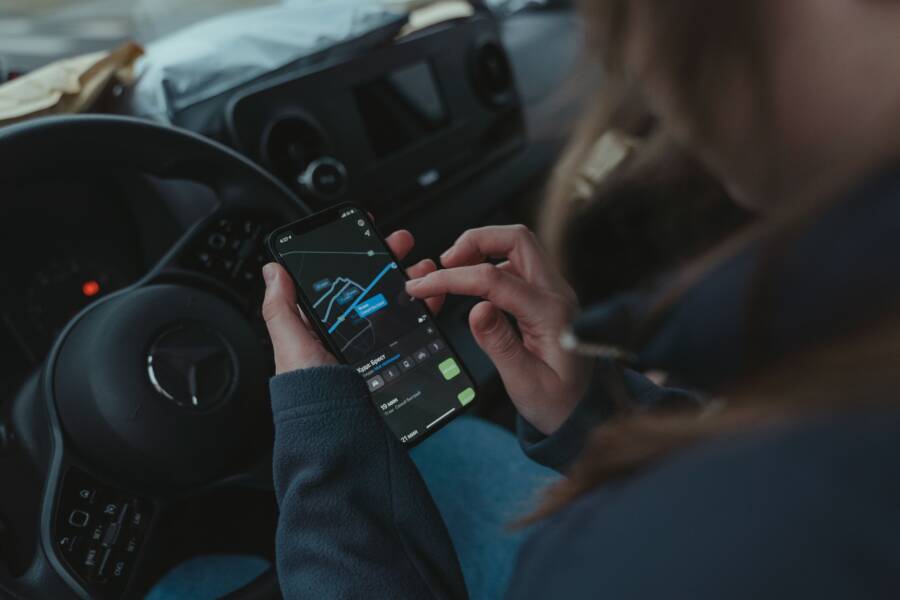
Your smartphone is the most reliable backup GPS when your car system fails because it stays with you and uses real-time data. You don’t need expensive repairs or internal updates to get back on track.
Setting up your phone as a navigation tool takes only a few minutes. Knowing how to configure these settings prevents a stressful road trip and keeps you moving toward your destination.
Why Your Smartphone Is the Best Secondary Navigation Tool
Your smartphone acts as a highly capable backup navigation system because it combines portability with constant connectivity. While car dashboards often rely on static or infrequently updated maps, your device accesses the internet to pull the latest road data. This independence makes it a perfect tool for drivers who need a reliable alternative when their primary system loses its way.
The Benefits of Real Time Traffic and Map Updates
Cellular data allows your phone to adjust routes far faster than most built-in vehicle systems. Built-in navigation hardware typically relies on stored map files that require expensive updates or dealership visits to refresh. By contrast, mobile apps pull fresh information from the cloud every few seconds.
This connectivity means your phone detects traffic jams, road closures, and accidents as they happen. If a primary route slows down, the device suggests an alternative path to save you time.
- Automatic rerouting: The system calculates new paths based on current traffic speed and density.
- Incident reporting: Many apps allow other drivers to flag hazards, which keeps your map accurate.
- Local business data: You gain access to updated operating hours and contact details for stops along your trip.
Because these updates happen in the background, you always have the most current road conditions at your fingertips. You never have to worry about out-of-date maps leading you into a construction zone that finished months ago.
Voice Assistant Integration for Safer Driving
Using your phone behind the wheel requires strict attention to safety, which is why voice assistants are essential. Both Siri and Google Assistant allow you to interact with your device without taking your hands off the steering wheel or your eyes off the road. You can request new directions, find nearby gas stations, or check your estimated arrival time using simple spoken commands.
To get the most out of this setup, you should keep your phone in a secure mount where you can still hear the audio clearly. Relying on voice prompts reduces the urge to touch the screen, which helps you stay focused on traffic.
- Enable the “Always Listening” feature in your phone settings to trigger the assistant hands-free.
- Pair your phone with your car via Bluetooth so navigation instructions play through your vehicle speakers.
- Test your voice commands before you leave the driveway to ensure the microphone picks up your voice over road noise.
This hands-free approach transforms your phone into a passive assistant that manages navigation details while you focus on driving. You maintain full control over your route without adding unnecessary distractions to your trip.
Essential Steps to Prepare Your Phone for GPS Failure
Preparation keeps your smartphone ready for navigation even when cellular signals vanish. Relying on cached data prevents you from getting lost in remote areas. Taking these simple steps before you leave ensures your device functions without a data connection.
Downloading Offline Maps for Areas Without Cellular Data
Most navigation apps allow you to save map sections directly to your storage. This process keeps local routes active when cell towers are out of reach. Google Maps provides a straightforward way to cache specific regions. Open the app, tap your profile icon, and select the Offline Maps menu. You can then choose your own map area to download. Make sure to zoom in or out to capture the entire path you plan to travel.
Apple Maps also stores data for offline access, though it relies on system-wide settings. If you use an iPhone, look for the Downloaded Maps option in your profile settings. You can select an area to save, which the app uses automatically if your signal drops. Keep in mind that offline maps include essential points of interest like gas stations and hospitals.
- Connect your smartphone to a stable Wi-Fi network before starting the download.
- Check the storage capacity on your device to ensure enough space remains for large files.
- Update your saved maps every few weeks to keep road data and speed limits accurate.
Following these steps guarantees you have a functional map regardless of network availability. You won’t face the frustration of a frozen screen or missing turn-by-turn guidance in rural locations.
Setting Up the Best Phone Mounts and Charging Cables
Stability and constant power are the two most important factors for a reliable navigation setup. A phone that vibrates or slips makes it difficult to follow directions, while a dead battery ends your navigation entirely. You should invest in a sturdy mount that secures your device to the dashboard or air vent. A rigid mount keeps the screen visible, which helps you maintain your focus on the road.
Electrical power is equally important because GPS functions drain your battery quickly. Never rely on the internal battery for long trips, as constant screen brightness and satellite tracking consume energy fast. Always keep a high-quality car charger plugged into your vehicle power port. If your car lacks a USB port, a dedicated adapter for the cigarette lighter provides the necessary current.
- Use a coiled cable to prevent tangles that interfere with your gear shift or steering wheel.
- Verify your charging cable supports fast charging to keep up with high energy usage during navigation.
- Keep a backup power bank in your glove box as a failsafe if the car charger stops working.
These accessories turn your smartphone into a dedicated navigation station. By maintaining power and keeping the device steady, you prepare yourself for any road condition or unexpected route change.
Comparing Popular Navigation Apps for Reliability
Google Maps, Waze, and Apple Maps are the most popular choices for navigation. Each application offers distinct strengths regarding data accuracy and signal recovery. Google Maps is often the most reliable choice because it maintains the largest database of road information. Waze relies on community input to provide faster alerts for hazards. Apple Maps offers high performance for users within the iOS environment.
Performance of Google Maps in Various Conditions
Google Maps is a standard for many drivers because it integrates directly with search results. This application excels at finding obscure locations or businesses that other maps might miss. The offline map feature is robust and simple to use during long trips through remote areas.
Most users find the interface familiar and responsive. It calculates routes quickly even when you lose your primary signal. The application updates its traffic data constantly to keep your estimated arrival time accurate. This high level of detail makes it a strong primary or secondary choice for any smartphone user.
Strengths of Waze for Real Time Hazard Reporting
Waze works differently because it gathers information from other drivers on the road. If you encounter a pothole, police activity, or a stalled vehicle, you can report it instantly. Other drivers then receive an alert to slow down or change their route.
This community approach creates a dynamic map that adjusts to sudden changes. It is particularly effective in dense urban areas where traffic patterns change by the minute. Because the app depends on active user reports, it provides the most up-to-date information on road hazards.
Benefits of Apple Maps for iOS Integration
Apple Maps is a native solution that works smoothly with your iPhone hardware. It uses system resources efficiently, which helps preserve your battery life during long drives. The voice instructions are clear and integrate well with vehicle audio systems.
Recent updates have improved its accuracy and detail significantly. If you prefer a clean interface that does not distract you from the road, Apple Maps is a great option. It avoids the clutter of extra social features while providing reliable turn-by-turn guidance.
Each application carries specific advantages depending on your driving needs. You should test these apps on local routes to see which interface feels most intuitive for your preferences. Installing at least two of these apps on your smartphone provides a valuable safety net if one service experiences downtime.
Common Questions About Using a Smartphone for Navigation
Drivers often worry about reliability when they switch from a built-in dash system to a mobile device. You might wonder if your battery will last or if the screen is visible under bright sunlight. These concerns are normal, but they rarely pose a problem if you take basic precautions. A modern smartphone is highly capable of handling long trips when you configure it correctly.
Many users also question the accuracy of mobile GPS compared to factory hardware. While both rely on the same satellite networks, your mobile device processes data much faster. This speed gives you an edge when you encounter unexpected road closures or sudden traffic. Understanding these differences helps you trust your device as a dependable backup or even a primary tool.
How to Manage Battery Drain During Long Trips
Navigation apps demand significant power because they keep the screen bright and the GPS sensor active. You can prevent your battery from draining too quickly by adjusting a few settings before you hit the road. These adjustments help your smartphone stay charged even during eight-hour drives.
Start by dimming your screen brightness slightly if the sun allows for it. Displays consume more power than any other component on your device. You should also turn off unnecessary background processes like social media updates or email syncing while you drive. These apps create data overhead that increases power usage and heat.
Consider these power management tactics for your next trip:
- Set your map app to Night Mode during daylight hours to reduce the load on your screen.
- Disable Wi-Fi and Bluetooth if you don’t need them for your audio or hands-free calls.
- Close any heavy applications you aren’t currently using to free up processing resources.
- Use a high-amperage car charger that provides at least 2.4 amps to keep the battery level stable.
Check your phone battery health settings before leaving on a long journey. If your battery capacity is below 80 percent, the device might struggle to hold a charge while running power-intensive tasks. In these cases, a reliable portable power bank acts as a safety net. Plugging your phone into a portable battery prevents the device from shutting down if your car’s charging port fails. By managing these variables, you keep your navigation active for the duration of your trip.
Conclusion
Your smartphone is a highly effective backup navigation system that keeps you moving when your primary car hardware fails. By preparing your device with offline maps, a sturdy mount, and a reliable power source, you remove the stress from unexpected technical issues.
Planning ahead is the best way to handle navigation failures on the road. Test your chosen app and ensure your mount is secure before you start your drive. You now have a complete, functional plan to reach your destination even if your car system stops working.