Ever been caught with a dying battery while you still need maps, messages, or a quick check on the weather? You’re not alone. When power is scarce, a calm, planful approach helps you stay connected without panic.
This guide shows simple steps to stretch every drop of charge while keeping your safety and data intact. You’ll learn how to optimize essentials like location services, screen brightness, and background apps, plus practical tips for low power mode and essential communication.
First, prioritize what matters most. Turn off nonessential features, dim the screen, and enable battery saver modes. Then, conserve data and background activity by limiting app refreshes and using offline options when possible. A few quick habits can make a big difference: carry a portable charger, keep essential contacts handy, and know how to quickly locate power outlets or public charging spots.
By following these easy steps, your phone remains usable when it matters most. You’ll be able to navigate, stay in touch, and reduce anxiety during low power moments. With a little discipline and smart planning, your battery life stretches further, giving you peace of mind on the go.
How to Use Your Phone When Battery Is Very Low: Essential Tips to Stay Connected
When the battery bar is slipping toward empty, every tap counts. You need to decide quickly what matters most and act with purpose. This section helps you identify the tasks you should prioritize and how to do them efficiently, so you stay reachable and safe without draining your remaining juice.
Decide what truly matters in the moment
When power is scarce, you must choose tasks with precision. Here are quick criteria to guide your decisions, plus practical examples you can apply right away.
- Critical communication first: If you’re waiting on a call from a family member, a work message, or a doctor’s appointment, keep the line open. If you can, answer essential calls and limit nonessential chats. For texts, reply only to urgent messages and skip long conversations that can wait.
- Navigation and safety come next: If you’re walking, driving, or in an unfamiliar area, keep navigation on but reduce screen wake time. Use offline maps when possible and switch to audio prompts if your device supports them. In a hazardous situation, keep location sharing enabled for trusted contacts but turn off background data for nonessential apps.
- Important updates over entertainment: Weather alerts, travel advisories, and urgent messages from apps you rely on should stay on. Social media, streaming, and games can wait until you reach a charger or have more battery to spare.
- Low power mode as a guardrail: Activate it early. It typically reduces background activity and limits nonessential features, letting you keep essentials on longer.
- Offline first, online second: When possible, favor offline maps, downloaded documents, and cached web pages. This reduces data use and power drain.
- Manage expectations with contacts: Tell your close circle you’re at low battery and may be slow to respond. A quick note prevents repeated follow-ups and helps you conserve energy.
Examples to apply now:
- You’re at a bus stop with 18% left. Prioritize navigation if you’re new to the area and may miss your stop. Keep calls open only for essential updates. Turn off auto-sync for social apps until you’re charged.
- In a family chat with constant messages, mute nonessential groups and check for urgent updates every 30–60 minutes.
- If you’re in a store and just need to pay, use offline passes or wallet features that don’t require data access, then recharge when you can.
For more practical battery handling ideas, see how others cut battery anxiety with simple routines and smart planning. These patterns mirror the approach you’ll use when your phone is nearly dead and you must stay connected without panic. See guidance on maintaining battery life in everyday use, which aligns with our goal of staying practical and calm in pressure moments. https://www.ecoflow.com/us/blog/how-to-save-phone-battery-life
Create a simple one hour plan
A focused one hour plan helps you extend every minute of remaining power. Below is a compact template you can adopt right away. You can copy this into a note on your device and fill in the blanks as needed.
- 0–5 minutes: Pause, breathe, and assess your battery level. Decide the two or three tasks that matter most right now.
- 5–15 minutes: Enable battery saver mode and dim the screen to a comfortable level. Turn off nonessential apps and background refresh for everything except your priorities.
- 15–30 minutes: If navigation is required, switch to offline maps or a lightweight navigation app. Silence nonessential notifications to avoid wake-ups.
- 30–45 minutes: Communicate only essential updates. Send a quick status message if needed, then switch back to low power mode to conserve energy.
- 45–60 minutes: Check for opportunities to plug in or reach a charging source. If you can, find a public outlet or a portable charger. Note any critical information you need to carry forward.
Checklist you can adapt:
- Identify 2–3 must-do tasks (communications, navigation, safety alerts)
- Enable battery saver mode
- Dim screen brightness to a comfortable level
- Disable nonessential notifications and background refresh
- Use offline maps or downloaded content
- Find a charging option within the next hour
If you want a quick tweak based on real-world tips, a few smart settings changes can stretch juice right away. For example, a recent guide explores how small changes to phone settings can extend battery life substantially on Android devices and iPhones alike. You can read more about practical battery improvements here: https://www.android.com/articles/how-to-save-battery-android/
Would you like a printable one page plan with your own priority list to keep on your phone? It can be a handy reference when you’re on the move. And if you’re curious about how app behavior affects power, check out a practical battery‑optimization discussion that explains where energy goes and how to slow it down: https://medium.com/@sujathamudadla1213/battery-optimization-in-android-delivering-long-lasting-user-experiences-84f4b81d254b
If you want further reading on how to save power while using a smartphone in everyday life, you can also explore official guidance from device makers that breaks down battery saving measures for different hardware. This type of guidance can be especially helpful if you’re juggling multiple devices or family plans. https://www.sidekickinteractive.com/mobile-app-strategy/checklist-for-optimizing-app-battery-performance/
Fast power saving techniques you can apply in seconds
When your battery is running on fumes, tiny tweaks can buy you precious minutes without sacrificing essential connectivity. This section lays out fast, practical techniques you can apply in seconds. They are easy to understand and quick to implement, so you stay reachable when it matters most.
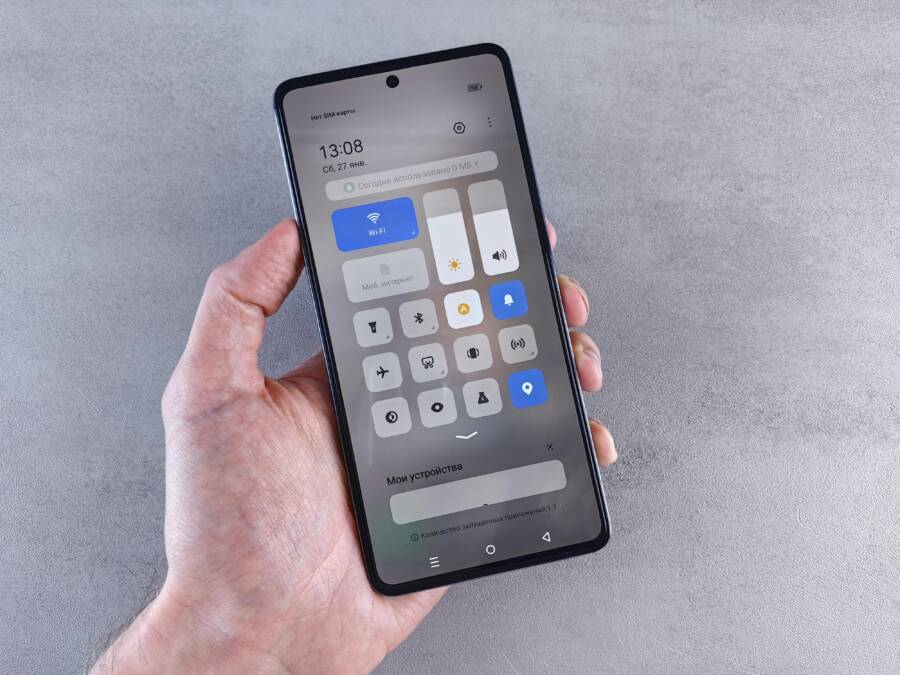
 Photo by Andrey Matveev
https://www.pexels.com/@zeleboba
Photo by Andrey Matveev
https://www.pexels.com/@zeleboba
Turn on battery saver mode and dim the screen
Battery saver mode is a simple, effective shield against rapid drain. It reduces background work, lowers screen brightness, and sometimes minimizes visual effects. Most devices offer this mode with a single tap or a quick toggle in Settings. On Apple devices, Low Power Mode throttles background tasks and stretches your remaining minutes; on Android, you may find it labeled Battery Saver or Power Saving. Turn it on early to maximize your remaining power, even when you still need maps or messages. You’ll notice longer screen time and fewer interruptions from apps trying to refresh in the background. For iPhone users, you can quickly enable it from Control Center on supported models, or go to Settings > Battery to turn it on. For Android, swipe down the quick settings panel and tap Battery Saver, or set it to auto when the battery hits a threshold.
- Why it helps: it curtails the drain from background activities and keeps essential functions online longer.
- Quick start: Settings > Battery > Low Power Mode (iPhone) or Battery Saver (Android).
If you want a quick reference from official guidance, see how Apple explains Low Power Mode and how it helps extend battery life on iPhone or iPad.
Limit background activity and wireless radios
Background app refresh and auto syncing can quietly sip energy. You can dramatically extend your remaining time by turning these features off when you don’t need real-time updates. In practice, switch off background app refresh and auto sync for nonessential apps, disable GPS location updates when you don’t need precise navigation, and reduce or turn off Wi-Fi and Bluetooth scanning if you’re not near known networks or devices. This keeps only the essentials awake, such as emergency contacts or a trusted navigation app with offline maps.
- How to approach it: identify which apps truly need real-time data and which can wait until you’re plugged in.
- Practical steps:
- iPhone: Settings > General > Background App Refresh, turn off for nonessential apps.
- Android: Settings > Apps & notifications > See all apps > Battery > Background activity and disable for noncritical apps.
- Location: Settings > Privacy > Location Services, set to “Only while using the app” or disable for nonessential apps.
- Bluetooth and Wi-Fi: keep off unless you need a quick pairing or a network connection.
What to save with this approach: data usage, CPU cycles, and radio wakeups. A focused approach to radios often yields a noticeable bump in battery life. For deeper guidance on these toggles, you can consult guidance from Apple and Android support pages that outline best practices for conserving power.
Use airplane mode when you only need critical communication
Airplane mode is not just for flights. When you switch to airplane mode, all wireless transmissions stop, which can dramatically reduce energy use. This is especially helpful when you’re near the edge of a network or in a place with poor signal. In those cases, the phone fights to maintain a weak connection, which drains battery faster. By turning on airplane mode, you halt those futile reconnection attempts and preserve juice for essential needs like critical calls or texts when you reconnect to a power source.
- What to expect: you won’t receive calls or texts while in airplane mode, but you will still be able to use alarms and offline content. Some phones may still receive alerts if you have specific services enabled, but in general data and most notifications pause.
- How to do it:
- iPhone: Swipe up or down to access Control Center and tap the airplane icon, or go to Settings and enable Airplane Mode. When you need to receive essential alerts, you can selectively re-enable Wi-Fi or cellular for short windows.
- Android: Pull down the quick settings panel and tap Airplane Mode to enable. You can re-enable Wi-Fi or cellular connections selectively to receive important updates.
If you’re curious about the broader role of airplane mode in power saving and connectivity, see comprehensive explanations from trusted sources that cover what happens to calls, texts, and data when airplane mode is on.
In practice, use airplane mode to preserve power during moments when you are not actively communicating. It acts as a reset for energy use and helps you keep a phone that is ready for essential moments rather than a device fighting to maintain a fragile signal.
If you’d like, I can tailor this section further to match your voice and target keywords. I can also add more visuals or pull additional, highly relevant sources to enrich the content.
Make essential tasks last longer with low battery
When battery is running low, every decision matters. This section focuses on practical, high-impact habits that help you stretch essential tasks. You’ll learn how to communicate efficiently, rely on offline options, and conserve power during photo and video moments. With clear priorities and smart adjustments, you stay connected without sacrificing safety or clarity.
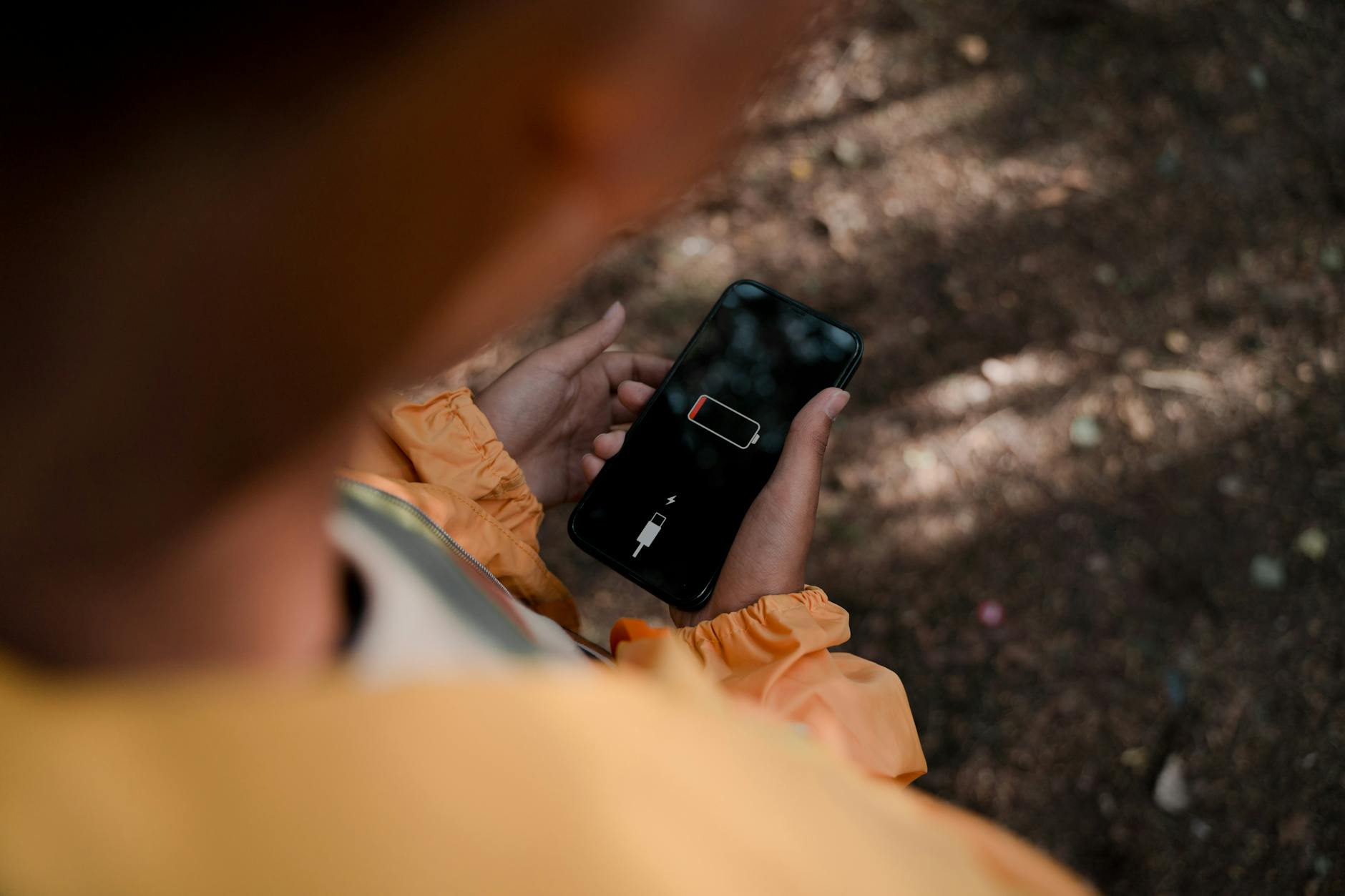 Photo by Ron Lach
Text and call strategy with minimal data
When data is scarce, short messages and brief calls win. Plan ahead so you can connect quickly and avoid back-and-forth.
- Prefer SMS for quick updates. A 1–2 sentence message can replace a long chat and keeps the line open for emergencies.
- Use offline notes or a voice memo you can send later when you have more power.
- Limit group chats and nonessential messages. If you must text, say exactly what’s needed and end the conversation promptly.
- For calls, answer only if the matter is urgent. If you’re on the move, consider calling back when you’re near a charger.
To keep this approach practical, set expectations with your contacts: let them know you’re on a low battery plan and may reply slowly. This reduces pressure on your device and helps you stay focused on the important updates.
Practical tip: enable Low Power Mode early so essential calls and messages get through with less energy drain. Apple and Android support pages offer simple guidance on activating this feature and understanding its impact on performance. For more on preserving battery while staying connected, see Apple’s guidance on Power Modes and Low Power Mode, and Android’s battery settings tutorials.
Further reading and official guidance:
- Apple: Use Low Power Mode to reduce power usage on iPhone
- Apple: Save battery life with Power Modes on iPhone
- Android: Get the most life from your Android device’s battery
Offline maps and offline media for reliability
Relying on offline resources keeps you navigable and informed even when signals fade.
- Save offline maps in advance: download areas you’ll traverse and keep them accessible without data.
- Save key documents and media offline: PDFs, notes, and essential images can be opened without a connection.
- Access offline content quickly: place the most important files on your home screen or a dedicated folder for fast retrieval.
- Use privacy-friendly offline map apps when possible to save data and battery.
If you’re weighing offline map options, consider privacy-focused and offline-first choices. For example, Organic Maps offers offline navigation without tracking, which helps preserve battery during longer trips. If you want a direct comparison of offline maps, you’ll find recent roundups that weigh Google Maps offline capabilities against other offline options. Also see Google Maps offline guide for step-by-step download instructions.
Helpful links:
- Organic Maps: Offline Hike, Bike, Trails and Navigation
- Best Offline Maps for Travel 2025: Google vs Apple vs Maps.me
- Download areas and navigate offline in Google Maps – Android
Camera and media tips that save juice
Shooting moments is tempting, but camera use can drain power quickly. Apply smart limits to keep visuals flowing without burning through your battery.
- Lower video resolution when possible. If you don’t need 4K, switch to 1080p or 720p to dramatically extend recording time.
- Avoid long continuous video. Record shorter clips and combine later if needed.
- Manage storage to prevent power spikes from constant writes. Delete unnecessary footage and offload important shots promptly.
- Use the phone’s standard photo mode rather than heavy effects or high-frame-rate modes, which draw more energy.
- If you’re capturing important moments, preconfigure your camera settings to reduce on-device processing during recording.
A simple routine can help you stay productive without sacrificing quality. For filmmakers and power users, there are deeper considerations about how camera behavior impacts battery life and storage. A few focused tips from industry guides show how small adjustments can yield meaningful gains when you’re working with limited power.
External perspectives you might find useful:
- Smartphone Filmmaking: Saving Battery Life and Storage Space
- Get practical camera battery tips and Android/ iPhone comparisons
- Quick camera power saving techniques for mobile video work
Putting it all together means balancing what you need to capture with how long you can shoot. Plan ahead, shoot in shorter bursts, and keep critical shots prioritized for when you’re near a charger.
If you want a quick printable checklist to keep on hand for photo moments, I can tailor one to your typical shooting style and devices. And if you need more specific guidance on which camera modes drain the most power, I can break down options for your exact device model.
Smart planning and off-device options to stay powered
When power is scarce, smart planning beats frantic scrambling. This section outlines practical, off-device strategies you can implement now to stay connected longer. From carrying the right charger to carving out offline backups and a simple daily routine, you’ll keep essential functions alive without crowding your mind with “what-if” worries.
Carry a portable charger and know quick-charge options
A good portable charger becomes your safety net when a wall outlet is out of reach. Start with a charger that has enough capacity to give you meaningful extra time without weighing you down.
- Capacity and output: Aim for at least 10,000 mAh for a typical day, 20,000 mAh if you rely on maps and video. Look for USB-C with Power Delivery (PD) and Quick Charge (QC) compatibility for faster top-ups.
- Cable quality matters: Cheap cables can bottleneck charging speed and wear out quickly. Choose sturdy, certified USB-C to USB-C or USB-C to Lightning cables that support the charger’s highest output.
- Fast charging compatibility: Confirm your phone model supports the charger’s fast charging standard. If your device uses PD, prioritize PD-enabled chargers and USB-C cables.
- Practical charging plan: Carry a compact USB-C PD charger and one reliable cable. Use the charger during routine breaks, like at a coffee shop or in the car, to top up without hunting for power.
If you want quick recommendations, reputable roundups highlight top portable chargers and fast-charging options for 2025. For example, PCMag’s guide to the best portable chargers offers several solid picks, while Engadget covers fast charger options that pair well with popular devices. The Best Portable Chargers and Power Banks for 2025
Image
 Photo by Stanley Ng
Prepare offline backups and quick access shortcuts
offline access reduces the energy spent on data transfers and keeps your most important information reachable.
- Save important data offline: export essential contacts, documents, and notes to your device or a trusted cloud with offline access. Keep copies of critical documents in a dedicated folder you can reach with a couple of taps.
- Create home screen shortcuts: place key apps on your first screen or in a dedicated folder. Quick access to messaging, navigation, and offline maps saves energy by reducing time spent opening apps and signing in.
- Regular backups: establish a simple routine to back up photos, contacts, and documents. This ensures you still have what you need even if the device powers down completely.
For straightforward backup guidance, check reliable sources that walk you through backing up iPhone and Android devices. Phone Backup Guide: How to Backup Your Phone
- Quick tip: keep a small offline cache of vital information, like emergency contacts and a short note with your plan for the next hour. It reduces the need to pull data from the cloud while conserving power.
If you want a practical walkthrough on turning offline data into instant access, explore quick tips for offline backups from trusted tech sources. Quick Tips: How To Backup An iPhone Or Android Smartphone
Practice a quick battery saving routine for daily life
A repeatable routine helps you stretch every drop of juice without guessing what to do next. Use the following steps as a daily micro-plan to keep essential functions alive.
- 0–5 minutes: Check battery level, decide two to three must-do tasks, and switch to a plan that prioritizes those tasks.
- 5–15 minutes: Enable battery saver, dim the screen, and pause nonessential apps or background refresh.
- 15–30 minutes: If you need navigation, switch to offline maps and reduce notification interruptions.
- 30–45 minutes: Limit updates to essential messages. If possible, postpone nonurgent communication.
- 45–60 minutes: Look for a charging option, whether a wall outlet, a car charger, or a portable pack. Prepare for the next window of power.
A simple printable one-page plan can help you stay on track when you’re in the field. If you want a quick tweak based on real-world tips, several guides discuss small settings changes that noticeably extend battery life across iPhone and Android. Android: How to Save Battery on Android
For readers who want more context on offline planning and power management, official guidance from device makers helps you tailor your strategy to your hardware. Google Maps offline guide and other manufacturer tips provide a solid baseline for conserving juice while staying connected.
Photo by Stanley Ng
Quick references you can apply today
- Turn on Low Power Mode early on iPhone or Battery Saver on Android to stretch time.
- Disable nonessential background apps and reduce location updates when you don’t need precise navigation.
- Use offline maps and saved documents to minimize data usage and power drain.
- Communicate with trusted contacts about your low-battery plan to set expectations and reduce follow-ups.
If you’d like, I can tailor this section to match your voice and focus keywords. I can also add more visuals or pull additional, highly relevant sources to enrich the content.
Conclusion
When battery is truly low, clear priorities and small, fast actions matter most. Focus on essential communication, navigation with offline options, and offline content to keep you safe and connected without draining power. Use battery saver modes, dim the screen, and limit background activity to buy time, then seek a charge as soon as you can. A well planned approach with your smartphone in hand keeps you productive and calm when power runs short.
A few core ideas stick: keep critical updates flowing, rely on offline maps and saved data, and use airplane or low power mode to curb energy waste. With these habits, you stay reachable, and you reduce anxiety during low battery moments. Stay confident in your plan and your ability to adapt on the go.
Checklist you can use right away
- Activate low power mode or battery saver early
- Dim the screen and close nonessential apps
- Use offline maps and saved documents
- Limit background refresh and location updates
- Have a portable charger or quick-charge option ready
Try these steps now and see how long your remaining power lasts. Share your results and any tweaks that helped your setup.