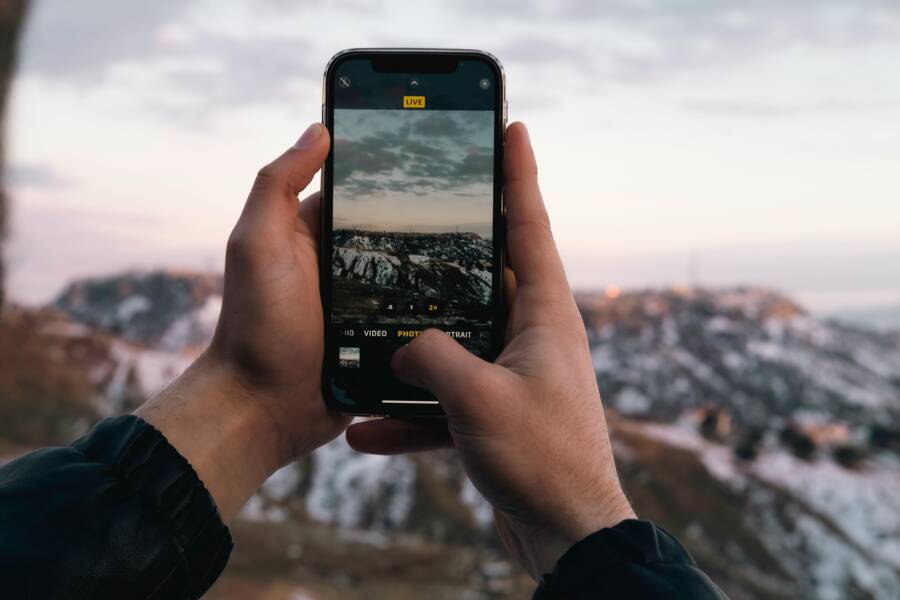
You don’t need a bulky flatbed scanner to digitize your paperwork. Your smartphone camera captures clear, professional documents in seconds, effectively replacing expensive hardware for your school or work tasks.
Using this built-in technology saves you time, desk space, and money. You can organize your files immediately after taking a photo, so your digital archives stay clutter-free and accessible.
Learn how to transform your device into a portable scanning tool for your daily needs.
Why Use Your Mobile Device for Document Scanning
Most people carry a powerful imaging tool in their pocket every day. Using a smartphone for document scanning replaces the need for dedicated hardware that consumes valuable workspace. You gain instant access to digitize contracts, receipts, or notes without waiting for a machine to warm up.
Save Time and Space at Your Desk
Traditional scanners often become permanent fixtures on desks, collecting dust when they remain unused. Removing this equipment clears your physical area, giving you more room for essential tasks. A clean desk helps you focus and reduces the mental weight of physical clutter.
Your mobile device functions as a portable office that fits inside a briefcase or pocket. Capture a page in seconds by pointing your camera at the document. Most apps automatically crop edges and adjust for lighting, so you obtain a clean image on the first try. You then send the file through email or upload it to cloud storage immediately. This speed is helpful when you need to send a signed form or save a receipt while you are away from the office.
Professional Quality Results Anywhere
Modern smartphone optics and processing apps produce images that match the quality of desktop hardware. High-resolution sensors capture small text and fine details with clear contrast. Developers design these scanning apps to flatten curved pages and remove dark shadows from corners. Your digital copies look sharp, professional, and easy to read on any screen.
You can use these results for various important tasks:
- Submitting homework assignments to teachers through digital portals.
- Signing employment contracts or legal documents on the go.
- Archiving paper records to keep your home files organized.
- Sending expense reports to your accounting department from the field.
The image quality satisfies requirements for most official submissions. Because you carry your smartphone everywhere, you are never restricted by the lack of a scanner at home or in a library. Digitization happens when you need it, ensuring your workflow stays productive regardless of your location.
Step by Step Guide to Scanning Documents With Your Phone
You can achieve clean, legible scans using only your smartphone. Good results rely on preparation and physical technique before you even tap the shutter button. Follow these steps to ensure your digital copies look sharp every time.
Getting the Perfect Capture Every Time
Start by finding a flat, stable surface for your document. A desk or table works best because it prevents the paper from curling. If the page is wrinkled, smooth it out with your hand to remove bumps that create confusing shadows. Poor lighting ruins many scans, so choose an area with even, natural light. Avoid sitting directly under a single bright bulb, as this often creates harsh glares on glossy paper or dark patches on matte textures.
Your smartphone camera needs stability to focus properly. Hold the device parallel to the paper, keeping your arms tucked close to your body to minimize shaking. If you struggle with shaky hands, try resting your elbows on the table while holding the phone. Always wait for the autofocus to lock on the text before you trigger the capture. Taking a moment to align the device properly saves time on later edits.
Using In-App Features to Improve Clarity
Most modern scanning applications provide automated tools that do the heavy lifting for you. Once you take the photo, the software typically attempts an auto-crop to identify the edges of your document. If the app misses a corner, use the manual handles to drag the borders precisely to the edges of the page. This step removes distracting backgrounds, such as your desk surface or carpet, making the file look like it came from a dedicated office machine.
Filters act as your final polish for document readability. Use these settings to maximize contrast and fix common capture issues:
- Black and white filter: Use this for text-heavy documents. It removes gray backgrounds and turns weak pencil marks or faint ink into crisp, readable black text.
- Color mode: Choose this if the document contains charts, diagrams, or highlighted sections that require the original colors to remain clear.
- Tilt correction: Many apps include a perspective fix. This tool flattens the image if you accidentally took the photo at an angle, restoring a top-down view of the page.
Test these filters on different types of documents to see which setting works best for your needs. A quick review of the preview screen allows you to spot errors before you save or share the final file. Most apps also allow you to adjust the brightness and contrast manually if the automated filters feel too aggressive for your specific document.
Top Recommended Apps for Turning Phones Into Scanners
You do not need to hunt for specialized scanning software to digitize your paperwork. Modern mobile devices include capable tools right out of the box that handle everyday document tasks with ease. These native features allow you to create clean, high-resolution PDFs without adding clutter to your storage or dealing with advertisements.
Built-in Tools You Likely Already Have
Apple devices include a powerful scanning feature tucked inside the Notes app. To use it, create a new note, tap the camera icon, and select Scan Documents. Your phone automatically detects the page edges, adjusts the contrast, and saves the file as a PDF. You can then share this file through email, messages, or cloud services directly from the note interface.
Android users have similar functionality through Google Drive. Open the Drive app on your phone and tap the plus button, then select the Scan option. This tool captures your document and immediately converts it into a searchable PDF file. It also offers basic cropping and rotation tools to ensure your final scan looks professional. These built-in options are often enough for basic document needs and provide the most direct path to getting your paper records into a digital format.
Because these tools are pre-installed, you avoid the security concerns associated with third-party scanning apps. They do not request unnecessary permissions or track your activity across other applications. Using these integrated features keeps your data private while providing the same quality as standalone software. You can test these tools today by scanning a simple receipt or a short letter to see how well they handle your specific lighting conditions.
Best Practices for Organizing and Sharing Your Scans
Managing your digital documents prevents the frustration of searching for lost files. Once you finish scanning with your smartphone, establish a standard process to move files from your device to long-term storage. Consistent habits protect your data and make specific information easy to find later.
Keep Your Digital Files Secure and Accessible
Your digital records need protection against accidental deletion or unauthorized access. Storing scans directly on your phone carries a risk because devices get lost, broken, or stolen. Move files immediately into encrypted cloud storage solutions such as Google Drive, iCloud, or OneDrive. These services sync your data across devices, so you can access your important paperwork from a computer or a new phone if yours stops working.
Standardize how you name every file to save time during future searches. Avoid generic labels like “Scan 1” or “IMG_001,” as these do not help you identify the document’s contents. Use a clear, descriptive format like YYYY-MM-DD_DocumentTitle_Type. For example, a receipt for a laptop would look like 2023-10-25_LaptopPurchase_Receipt.pdf.
Follow these rules to maintain a tidy digital archive:
- Create folders categorized by year or document type, such as Taxes, Medical, or Receipts.
- Rename files immediately after the scan to keep your download folder empty.
- Enable two-factor authentication on your cloud accounts to prevent unauthorized access.
- Delete the original image from your camera roll once you verify the file exists in your secure cloud folder.
Consistency matters more than complexity when it comes to organization. If you decide on a specific naming convention, stick to it for all your documents. This habit transforms your scattered digital images into a searchable, professional library that works for you.
Conclusion
You now possess the tools to transform your smartphone into a portable scanner for any task. This simple habit removes the need for bulky hardware and helps you maintain an organized digital record from anywhere.
Start by using the native scanning features already installed on your device. Consistent file naming and cloud storage will keep your documents secure and easy to locate.
Small changes in how you handle paper records improve your daily productivity. You can now manage school assignments or work contracts with efficiency using nothing more than the phone in your pocket.