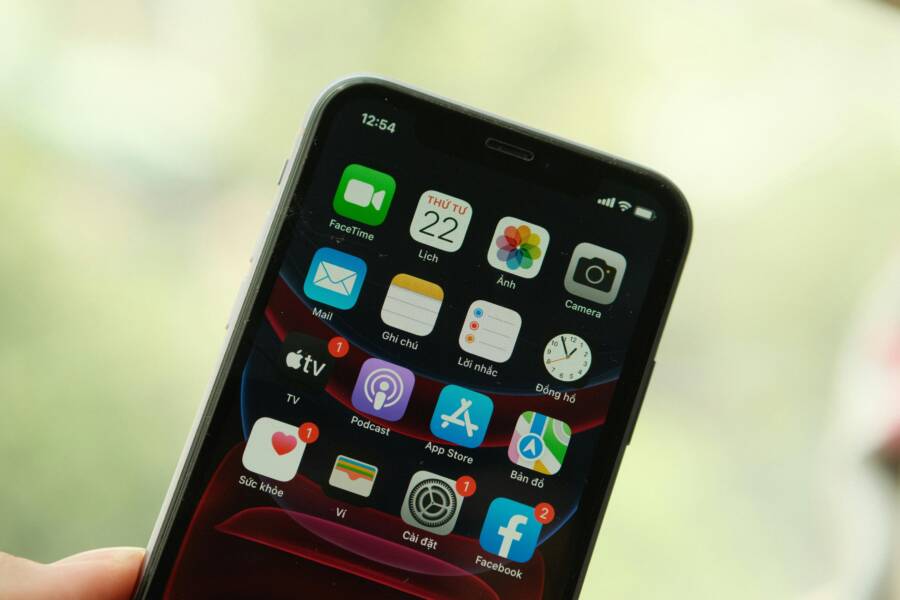
Push notifications are how we stay in the loop. When a VPN starts interfering with them, it can feel like your phone is sending you radio silence instead of alerts. This guide breaks down why VPNs can disrupt push notifications and how to fix the issue on both Android and iPhone devices. You’ll learn practical steps you can take today to restore reliable alerts without giving up the protections a VPN offers.
The problem often pops up in two places: the VPN app itself and the phone’s background and network settings. A misconfigured kill switch, strict battery limits, or DNS changes can block delivery of alerts from apps you rely on. The good news is that most fixes are straightforward and don’t require a full reset of your device.
Understanding why VPNs affect push notifications
A VPN creates a private tunnel for your internet traffic. That tunnel can interact with notifications in a few ways:
- Kill switch behavior: Some VPNs route all traffic through the tunnel and block traffic outside it. If an alert comes through a service that isn’t allowed to bypass the VPN, you may miss it.
- Background limits: Modern smartphones restrict background activity to save battery. A VPN can trigger extra restrictions for apps that still need to run quietly in the background to receive pushes.
- DNS routing: When a VPN changes DNS settings, some notification servers may become unreachable or slow to respond, delaying or dropping alerts.
- Per app VPN settings: Some VPNs only tunnel certain apps. If a notification app isn’t included, its data can arrive late or not at all.
If you notice missed alerts after connecting to a VPN, these are good places to start your troubleshooting.
Quick checks you can try right now
- Confirm the issue with and without the VPN: Turn the VPN off for a moment and test push notifications from a couple of apps. Then turn the VPN back on and test again. This helps confirm whether the problem is VPN related.
- Check general notification settings: Make sure notification permissions aren’t blocked for the apps you rely on. If a particular app has notifications disabled, that’s the core issue, VPN or not.
- Test with different apps: If only one app misses alerts, focus on that app’s settings. If many apps miss alerts, the issue is more likely a system or VPN setting.
- Ensure your phone has a stable connection: Wireless networks can sometimes interfere with background tasks. Try a strong cellular connection if you’re on Wi Fi.
Review VPN settings that commonly cause problems
Kill switch and background rules
- Kill switch status: If your VPN turns on and immediately blocks all traffic, some notification services may not reach their servers. Try disabling the kill switch or reconfiguring it to allow essential background traffic.
- Per app tunneling: If the VPN uses per app rules, add the notification apps to the allow list. This lets notifications slip through while the rest of your traffic stays protected.
Split tunneling
- Enable selective routing for notifications: If your VPN supports split tunneling, set your notification apps to bypass the VPN. This keeps alerts fast and reliable while still protecting the rest of your traffic.
- Avoid overly broad bypass rules: Make sure you’re not bypassing critical apps by mistake. Keep the rules precise.
DNS and protocol choices
- Change DNS settings: Some VPNs use their own DNS servers. If notification servers rely on a domain that’s slow or blocked by those DNS servers, alerts can fail. Switch to a reliable DNS option you trust, or use the VPN’s option to switch DNS off for specific apps.
- Protocol impact: Certain VPN protocols may influence how quickly data reaches notification servers. If your VPN lets you switch between protocols, try a different one to test stability.
Device level checks for Android and iPhone
Android specifics
- Battery optimization: Android often blocks background tasks to save power. Go to Settings > Battery > Battery optimization. Exclude your notification apps and the VPN app from optimization. If your phone has a “Adaptive Battery” feature, consider turning it off for a quick test.
- Background data and data saver: Ensure background data isn’t restricted for your notification apps. In Settings > Apps > [App name] > Data usage, confirm background data is allowed. If Data Saver is on, disable it for the affected apps and the VPN.
- Notification delivery: Some manufacturers add extra layers of control. Check Settings > Apps > [App name] > Notifications to confirm channels are enabled and not paused by mistake.
- VPN app permissions: Make sure the VPN app has all necessary permissions, including allowing it to run in the background and control data usage.
iPhone and iOS specifics
- Background App Refresh: Ensure the affected apps are allowed to fetch data in the background. Go to Settings > General > Background App Refresh and verify it is enabled for both the VPN and the notification apps you rely on.
- Push notification settings: Confirm that push notifications are enabled for the apps in Settings > Notifications. If alerts are allowed but not received, try toggling the option off and back on.
- Per app VPN options: If you use iOS per app VPN, verify the configuration. Some profiles route certain apps through the VPN in ways that may block push services. Adjust the VPN profile if needed.
- System updates: Outdated iOS versions can create odd issues with background tasks. Check for updates and install them if available.
Testing and verification plan
A clear test plan helps you verify fixes quickly. Follow these steps:
- Step 1: Establish a baseline. With the VPN off, confirm that you receive push notifications for all critical apps.
- Step 2: Enable VPN with kill switch off and per app rules relaxed. Send test alerts and observe whether pushes arrive.
- Step 3: Reintroduce selective rules. If notifications fail, re enable per app tunneling one app at a time to identify the culprit.
- Step 4: Test across networks. Try a different Wi Fi network and a cellular connection to rule out network quirks.
- Step 5: Check app updates. Make sure both the VPN and the notification apps are updated to the latest versions.
Practical fixes you can apply now
- Disable the kill switch for notifications: If you notice alerts stop when the VPN connects, temporarily disable the kill switch. You may instead set a rule to allow essential traffic while keeping other traffic protected.
- Use split tunneling for alerts: Enable split tunneling and route only the sensitive apps through the VPN. This keeps notifications fast while preserving privacy for other apps.
- Exclude notification apps from battery optimization: Add the apps you rely on for alerts to the exception list. This prevents the phone from throttling their background tasks.
- Review DNS settings: If the VPN provides a DNS service, try switching to the default DNS or a trusted alternative. Some users find that Cloudflare or Google DNS improves reliability for notification domains.
- Reinstall or switch VPN providers: If the problem persists after trying settings adjustments, reinstall the VPN app or try a different provider. A fresh install can clear hidden conflicts.
- Reset app preferences on Android: This resets all app notification settings to default without removing apps. It can fix misconfigured channels that block alerts.
- Reset network settings on the phone: As a last resort, a full network reset can clear mis aligned DNS or proxy settings that interfere with pushes. Note that you’ll need to reconnect Wi Fi and Bluetooth devices afterward.
When to seek help
If basic checks and the above fixes don’t restore reliable push notifications, consider these steps:
- Check with the VPN provider’s support: They know which settings often cause issues and can offer device specific guidance or beta features to test.
- Review app logs if available: Some notification apps offer diagnostic logs. They can reveal if the notifications reach the server but fail to display.
- Test with a different VPN: If a second VPN works well, you’ve identified a compatibility issue with your original choice.
- Get a device health check: In rare cases, underlying OS or hardware issues cause background tasks to fail. A factory reset is a last resort after backing up data.
A few practical tips to keep notifications reliable
- Keep software current: Regular updates for the OS, VPN, and notification apps reduce the chance of conflicts.
- Favor per app VPN when possible: It minimizes disruption to other apps while still offering coverage where you need it.
- Document your changes: When you adjust settings, note what you changed and the results. A small log helps you reproduce a fix or revert if needed.
- Consider a dedicated notification stack: If you rely on specific alerts for work, create a separate setup where critical apps have guaranteed delivery even when other apps run through the VPN.
A quick example to illustrate the approach
A user reports missing banking updates after enabling a VPN. They test with the VPN off and confirm alerts arrive. They then enable the VPN with a split tunneling rule that excludes the banking app, and push notifications return to normal. They keep the VPN on for browsing, but all critical alerts now come through unblocked. This illustrates how precise routing can save the day without sacrificing privacy for other tasks.
Key takeaways
- The kill switch and per app routing are common culprits. Tuning these features often resolves missing alerts.
- Battery and data restrictions on Android and iOS can block background notifications. Whitelist the affected apps and adjust system settings.
- DNS changes caused by the VPN can hinder notification servers. A DNS switch or bypass can restore reliability.
- A systematic test plan helps identify the exact cause. Start with baseline tests and then iterate with targeted changes.
Final thoughts
Your smartphone should deliver alerts when you need them most. By methodically checking VPN settings, device restrictions, and network behavior, you can reclaim dependable push notifications without giving up the protection of a VPN. If you stick to targeted adjustments and test each change, you’ll quickly find a configuration that balances privacy and timely alerts. Share which fixes worked for you or describe new quirks you’ve encountered. Your experience can help others facing the same hitches.
If you found this guide helpful, consider bookmarking it for quick reference. And if you have specific app or device details, tell me what you’re using and I’ll tailor the steps to fit your setup.