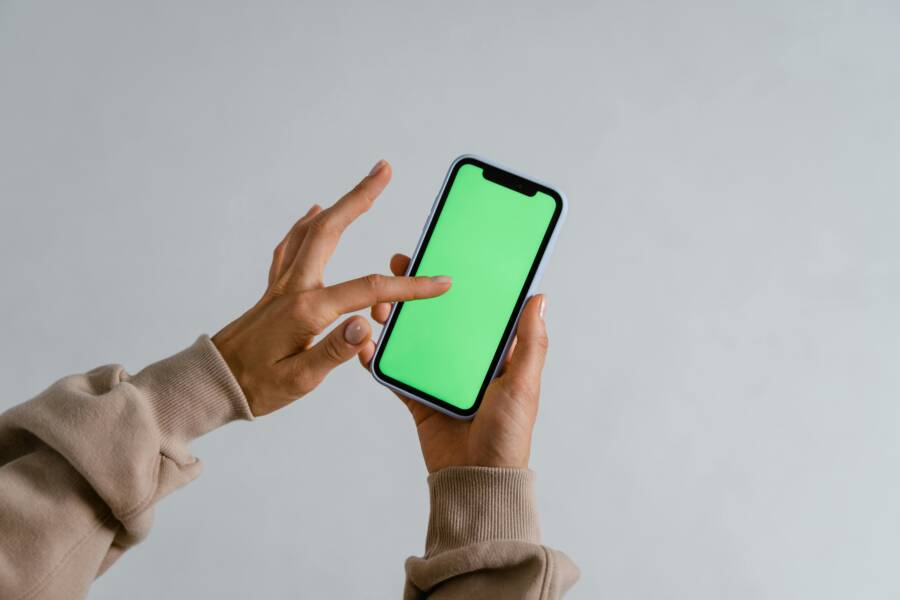
Swipe typing can feel like magic when it works. Then one day, the words you tap into a message arrive with extra space or the wrong letters. If your swipe typing accuracy suddenly worsens, you’re not imagining it. This guide walks you through practical steps to diagnose the problem, fix it fast, and keep your smartphone keyboard reliable again.
Swipe typing relies on a mix of software smarts and touch input data. When one of these elements shifts, accuracy drops. The good news is most issues are fixable with small tweaks rather than a full reset. Let’s start with quick checks you can do in minutes and then move to deeper fixes if the problem sticks around.
Quick checks that usually fix it
A lot of swipe typing issues come from simple, above-board causes. Start with these fast checks; they cost almost nothing and can be done while you’re chatting.
- Clean the screen and your finger tips Grime, oils, or sweat on the screen can throw off swipe detection. Use a microfiber cloth to wipe the display gently. Dry your hands if they’re damp.
- Check your screen protector and glass A thick or warped screen protector can misread swipes. If you’ve recently applied one, test with and without it. If the protector is cracked or peeling, replace it.
- Pause and restart the keyboard app Close the keyboard, then reopen it. If your phone has a quick restart option, a short reboot can fix minor glitches that accumulate over time.
- Try a fresh typing session Open a blank note and run a few lines of text with a steady pace. If accuracy improves, the issue may be related to a specific app or context.
- Consider the lighting and screen angle Harsh light or a tilted grip can shadow the keys in your sense of touch. Adjust your grip and lighting to see if the accuracy improves.
- Check for a lagging background app If another app is hogging processor time, the keyboard might respond slowly. Close unused apps and observe any change.
If these quick steps don’t restore accuracy, it’s time to dive deeper. In many cases, the root cause sits in language settings, keyboard data, or software updates rather than hardware.
Image may fit here to illustrate a moment of keyboard frustration Photo by Andrea Piacquadio https://www.pexels.com/@olly
Understand the common triggers behind drops in accuracy
To fix swipe typing, you need to know what usually breaks it. Here are the most frequent culprits and how they affect performance.
- Language and input settings A change in the primary language or an added one can alter how the keyboard interprets swipe paths. Ensure the correct language and input method are active.
- Dictionary and learned words If the keyboard’s learned words become cluttered with typos or unusual terms, it can produce odd corrections. Rebuilding the dictionary often helps.
- Autocorrect and prediction Aggressive autocorrect makes wrong assumptions about what you’re typing. Tuning prediction levels or turning autocorrect off temporarily can reveal if this is the issue.
- App-specific quirks Some apps use their own input field and ignore the keyboard’s settings or memory. If the problem only happens in one app, the issue is likely app-specific.
- Keyboard version and OS compatibility Outdated keyboard apps or an aging OS can misread touch input. Keeping both up to date reduces this risk.
- Screen hardware changes A swollen battery, swollen screen, or a loose connection inside the phone can alter touch sensitivity. If you notice a physical change or heat, seek professional help.
Knowing these triggers helps you pick the right fix quickly. Next, we’ll get practical with steps you can take across the most common scenarios.
Quick wins you can try today
These focused steps address the most frequent problems and often restore accuracy without a full reset.
- Update the keyboard app Open the app store, check for updates, and install any available. App makers push small improvements that can sharpen swipe detection, especially after OS updates.
- Review language and input options Go to Settings > System > Languages & input. Confirm the active keyboard and language matches your preference. Remove any extra languages you don’t use to simplify processing.
- Reset keyboard settings In the keyboard app, look for a reset or revert to default option. This clears custom gestures, layouts, and learned words that may have gone off track.
- Clear keyboard cache and data If the option exists, clear cache first. If problems persist, you can clear data, keeping in mind you’ll lose personalized data like saved phrases and learned words. Reintroduce them gradually.
- Re-download language packs Some keyboards require separate language packs for swipe typing. Reinstall or update these packs to improve accuracy.
- Disable or adjust autocorrect and predictions Switch off autocorrect temporarily to see if the raw swipe path is still off. If the handwriting is accurate without autocorrect, you know the issue is the prediction layer.
- Test in another app Try the keyboard in a simple notes app and in a messaging app. If it works in one but not the other, the problem is app-specific.
Tune keyboard settings for better swipe accuracy
If the quick wins start to help but not fully fix things, a deeper tuning of the keyboard can help. Here are setting areas to examine and adjust.
- Key size and layout Some keyboards let you scale key height, width, and spacing. A slightly larger or more generous layout can improve swipe accuracy, especially on smaller screens.
- Swipe sensitivity If your keyboard has a slider for swipe sensitivity, try a medium setting first. High sensitivity can cause false positives on short swipes; low sensitivity can miss long gestures.
- Gesture and swipe options Some keyboards support glide typing, one-handed modes, or corner gestures. Disable any features you don’t use, then reintroduce them one by one to isolate the effect.
- Personal dictionary management Rebuild or prune the learned word list. Add a few common names or terms you use frequently to reduce miscorrections.
- Theme and contrast A high-contrast theme can improve key legibility and reduce mis-taps. If you notice more mistakes in dim light, try a brighter theme.
These tweaks can feel small, but they often translate into meaningful gains in accuracy.
When to consider deeper fixes: OS and hardware checks
If the problem sticks after trying the app level fixes, it’s time to look at the bigger picture. The following steps cover systemic causes that affect all keyboards, not just one app.
- Update your operating system A fresh OS version can fix touch sensitivity issues and improve how input is processed. Check for updates and install what’s available.
- Check for battery or thermal issues A phone that runs hot or has a shrinking battery can degrade touchscreen responsiveness. If you notice heat during typing or short battery life, consider service options.
- Inspect for physical damage Cracks, moisture, or screen swelling can impair touch input. If you see any signs of damage, stop using the device and consult a professional.
- Test with a different keyboard Install a well-known alternative such as Google’s Gboard or SwiftKey. If the new keyboard performs better, the issue is likely with the original keyboard app.
- Reset device as a last resort If all else fails, backing up data and performing a factory reset can remove stubborn software glitches. This should be a last step after you have tried the other options.
A systematic approach helps you avoid guesswork. Start with simple app updates and progress toward hardware checks only if needed.
Hardware and environmental factors that matter
Sometimes the problem isn’t software at all. A few hardware and environmental factors can affect swipe typing accuracy.
- Screen wear and texture A worn screen or rough surface can alter how your finger slides. Regular cleaning and checking for scratches helps.
- Screen protector compatibility A low quality protector or one with a bubble can distort touch input. If you suspect this, test with no protector for a day or try a high-quality option.
- Moisture and skin conditions Wet or sweaty fingers reduce grip. Dry hands or use a small towel before typing in risky conditions.
- Temperature and humidity Very hot or very cold environments can temporarily affect touch responsiveness. If you notice timing changes with weather, take note of the pattern.
Caring for the physical device matters as much as software maintenance. A well functioning screen leads to more reliable swipe typing.
How to retrain your keyboard for the road ahead
A refreshed mindset can improve long term accuracy. Rebuilding the keyboard’s understanding of your typing style is a practical step.
- Start with a clean slate Remove old learned words that cause odd corrections. Add a few essential words you use daily to reestablish accuracy.
- Type intentionally for a while In a notes app, type longer phrases you use often. This helps the keyboard learn your patterns and reduces misinterpretations later.
- Use built in training features Some keyboards offer mini training exercises or practice prompts. Regular use can improve prediction accuracy.
- Periodic resets Plan a monthly reset of learned words if you rely heavily on swipe typing. It prevents drift over time and keeps corrections reasonable.
A bit of regular maintenance goes a long way. With consistent practice, the keyboard retrains itself to your handwriting.
Third party keyboards: pros, cons, and safe choices
If you’re using a third party keyboard, you have more control but also more variables to manage. Here are pragmatic considerations.
- Compatibility and updates Popular keyboards receive frequent updates that fix bugs and improve accuracy. Keep them current.
- Privacy and data handling Review the privacy policy and what data is collected. If you type sensitive information, choose a keyboard with clear data practices.
- Customization options Third party keyboards often offer more layouts, theme options, and language packs. Use these to tailor the experience to your needs.
- Community feedback Look at recent reviews; if users report similar accuracy issues, you may need to switch or adjust settings.
If one keyboard consistently underperforms, trying another is a sensible step.
Practical tips to prevent future accuracy dips
Prevention beats repeated troubleshooting. Try these habits to keep swipe typing sharp.
- Keep the keyboard and OS up to date Set updates to automatic if possible. New builds fix known issues and improve touch input handling.
- Maintain a clean device Regularly clean the screen and remove apps you don’t use. A clean system runs smoother.
- Protect your screen Use a high quality screen protector that does not interfere with touch sensing. Check periodically for wear.
- Limit heavy workloads When the device runs many tasks at once, input latency may increase. Close unnecessary apps during heavy typing tasks.
- Create a quick reset plan Put a simple one page checklist in your notes: update keyboard, reset app, clear cache, test. A quick plan reduces downtime.
Small habits, big gains when you need swipe typing accuracy most.
When to seek professional help
If the problem persists after all the above steps, professional help can save time and frustration. Reach out to:
- The device maker’s support for hardware or OS issues
- The keyboard app developer for persistent software problems
- A local technician if you suspect a hardware fault like a damaged screen
Document the steps you tried and the patterns you observed. A clear history speeds up diagnostics.
Conclusion
Swipe typing accuracy can dip for many reasons, from a dirty screen to a software glitch. The path back is straightforward: start with quick checks, adjust keyboard settings, and test in different contexts. If the issue persists, consider updates, resets, and, as a last resort, professional help. With a little method, your phone’s keyboard can return to its reliable self.
If you found this guide useful, try the checks in the order listed and share your experience in the comments. Do you notice a pattern, like accuracy dropping in bright light or after a system update? Your insight can help others troubleshoot faster. And if you’d like more practical tips on mobile tools, follow along for future guides that cut straight to the fix.