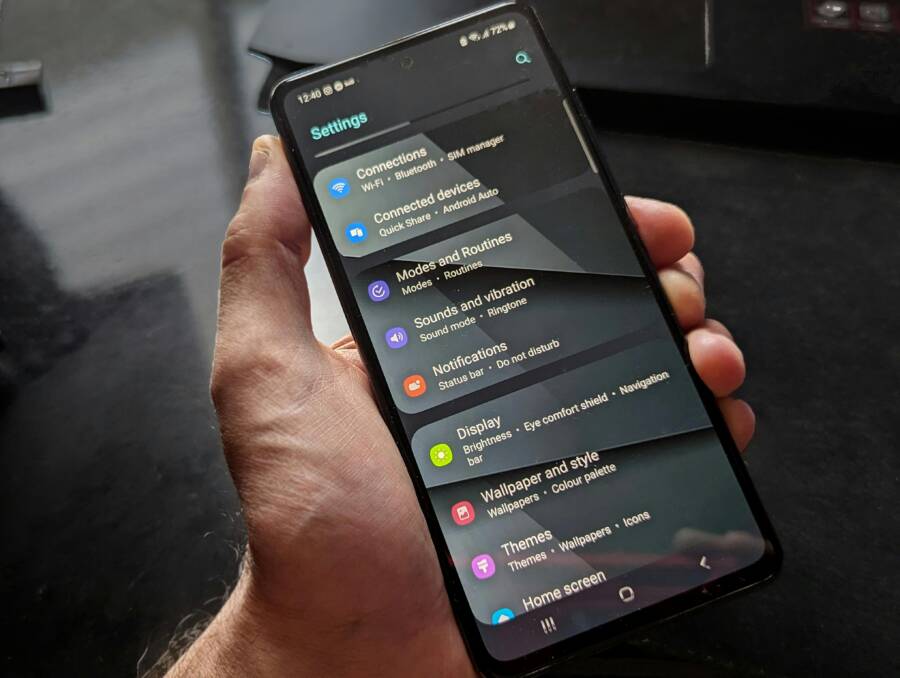
Ever try to connect your phone to WiFi and see it stall on obtaining an IP address, leaving you staring at the network sign with a stubborn message? An IP address is like your device’s home address on the network, and without it your phone can’t join the internet or reach local devices. When DHCP fails, that address assignment never happens, and the WiFi connection seems to hang mid step.
This guide walks you through practical fixes that work for both Android and iPhone users. You’ll learn quick checks you can do right away, plus a few steps that diagnose whether the issue sits with your router or your device. By the end, you’ll know how to narrow down the cause and try targeted solutions without wading through vague instructions.
We’ll cover what to try first, then move to more deliberate troubleshooting. Expect tips like resetting network settings on your phone, forgetting networks, and adjusting IP settings when necessary. You’ll also see how to verify that your router is handing out IP addresses properly, and what to do if the problem seems tied to a specific network rather than your device.
If your phone still won’t pull an IP address after simple fixes, the guide digs into deeper options. We’ll explain how to check DHCP on the router, update firmware, and experiment with different WiFi channels. There are clear steps for both Android and iPhone users, plus quick pointers to keep in mind during router troubleshooting. Finally, you’ll be able to tell whether the problem is with the device or the network, so you can move toward a reliable fix faster.
Quick fixes that solve most IP address problems on Wi‑Fi
When your device won’t get an IP address on a Wi‑Fi network, it’s usually a quick misstep in the handshake between the router and your phone. These fast, non-technical checks solve the majority of DHCP issues and get you back online fast. Below you’ll find short, actionable steps you can perform on both Android and iPhone. Try them in order and observe if the connection improves. A few of these tricks involve toggling radios or rebooting devices, but they’re simple and safe.
Airplane mode toggle
- Swipe down or up to open Quick Settings or Control Center.
- Tap Airplane Mode to turn it on. Wait 5 to 10 seconds.
- Tap Airplane Mode again to turn it off. Your device will search for networks.
- If you don’t see your Wi‑Fi immediately, open Wi‑Fi settings and select your network.
- Repeat the toggle once more if the device still shows no IP.
- Reconnect to the network and check the IP address assignment.
Why this helps: Airplane Mode resets the wireless radios. It clears stuck DHCP handoffs and forces the device to renegotiate an address with the router. It’s quick, and you can do it without leaving the spot.
Notes:
- This works similarly on most Android phones and iPhones.
- If your device doesn’t reconnect automatically, manually select the network after the toggle.
Restart router and phone
- Unplug the router’s power cord.
- Wait 30 seconds.
- Plug the router back in.
- Wait for the router to come up fully, indicated by stable lights.
- Restart your phone.
- After the phone boots, rejoin the Wi‑Fi network and test the connection.
Why this helps: A simple reboot clears temporary router glitches and refreshes the DHCP pool. It forces both ends to renegotiate the IP assignment, which resolves many DNS and address conflicts. It’s a reliable first step when you suspect a network-side hiccup.
Tips:
- If your router has a separate modem, reboot both devices in sequence: modem first, then router.
- If you have multiple devices failing, focus on the router reboot first, then test one device.
Forget and reconnect to the network
- Open your phone’s Wi‑Fi settings.
- Tap the network you’re connected to and choose Forget.
- Rejoin the network by selecting it from the list of available networks.
- Enter the Wi‑Fi password and connect.
- Confirm that the device shows an IP address and has internet access.
Why this helps: Forgetting the network clears old or corrupted settings that can block DHCP. Reconnecting creates a clean handshake and a fresh IP lease from the router. It’s a quick way to reset a stubborn network profile on your device.
Notes:
- After reconnecting, give the connection a moment to settle.
- If you’re using a captive portal or enterprise Wi‑Fi, ensure you complete any login steps after reconnecting.
- If you frequently see “no IP address” on a specific network, consider deleting and re-adding the network on that device to reset persistent settings.
Check DHCP and router health
When a phone or tablet won’t receive an IP address, the root cause is often the router not handing out addresses correctly. This section helps you verify that DHCP is active and the router is in good health. The steps apply to both Android devices and iPhone, and you’ll see how to confirm settings, test the pool, and keep the network running smoothly. Think of DHCP like the post office in your home network: it assigns addresses so every device can reach the internet and local resources. A healthy DHCP server means fewer connection hiccups and faster recoveries when something goes wrong.
Verify DHCP is enabled on the router
- Open the router’s admin page (usually at a local IP such as 192.168.0.1 or 192.168.1.1).
- Log in with the router’s admin credentials. If you’re not sure, check the sticker on the device or your ISP’s setup guide.
- Navigate to the DHCP section. Common paths include Network > DHCP Server, Advanced > Network > DHCP Server, or LAN DHCP.
- Confirm that DHCP Server is set to Enabled. If it isn’t, switch it on.
- Save your changes. If the router prompts you to reboot, do so.
- Reboot the router to apply the new setting, then reconnect your smartphone and verify it obtains an IP address.
Why this matters: If DHCP is off, devices won’t receive an IP and the network appears as a captive or stalled connection. A quick enable and reboot often fixes the issue.
Tips:
- If you have a modem in front of the router, consider disabling DHCP on the modem to avoid double NAT.
- After changing settings, give devices a minute to renegotiate their IP leases.
Ensure IP pool has available addresses
- In the DHCP settings, locate the IP Address Pool or Range.
- Check the start IP and end IP to see how many addresses are available.
- Ensure the pool isn’t exhausted by too many devices connected at once. If you’re close to the limit, a few options exist:
- Increase the pool size by widening the range (for example, 192.168.1.100 to 192.168.1.254).
- Decrease the lease time to free up addresses sooner.
- Remove unused devices from the pool or turn off DHCP for a few devices that use static IPs.
- Save the changes and reboot the router.
What to watch for: A small pool can fill up quickly in busy homes or with guests. If your network regularly hits the limit, expanding the pool reduces DHCP conflicts and helps devices get online faster.
Alternative approach: If you’re in a double NAT situation or you’ve recently changed to a larger network, consider re-evaluating the entire IP plan to avoid overlaps with other subnets.
Check for MAC filtering or device limits
- Look for a MAC Filtering or Access Control page in the router UI. This may be under Security, Wireless, or Advanced settings.
- Review the list of allowed or blocked devices. If MAC filtering is enabled, confirm that your phone’s MAC address is permitted.
- Check any device limit or maximum connected devices setting. If the limit is too strict, increase it or disable the limit temporarily.
- Save changes and reboot the router.
- Rejoin the network on your smartphone and see if it obtains an IP address.
Why this matters: A strict MAC filter or a low device cap can block a new device from getting an IP even when DHCP is functioning. Adjusting these settings is often the fastest fix.
Tips:
- If you suspect a blocked device, temporarily disable filtering to test a connection.
- After verifying a phone can connect, re-enable filters with only trusted devices allowed.
Update router firmware
- Check the router’s status page or a dedicated firmware section for updates.
- If an update is available, read the release notes focusing on DHCP, stability, and security fixes.
- Back up current settings if the router offers a backup option.
- Apply the firmware update and allow the router to reboot fully.
- After the update, reboot the network and test a smartphone connection to confirm that IP assignment works again.
Why this matters: Firmware updates fix known DHCP bugs and improve overall stability. They also patch vulnerabilities that could affect network reliability. Keeping the router software current helps prevent future IP address issues.
Checklist:
- Confirm you have a stable power connection during the update.
- Save a backup of current configurations if the option exists.
- Reboot all network devices after updates to ensure a clean handoff for new leases.
Additional notes:
- If you’re using a separate modem, you may want to update it as well and then reboot both devices in sequence.
- Some routers require manual re-application of certain settings after a firmware update, so test a few common devices (smartphone, tablet, laptop) to confirm DHCP is healthy across the board.
This section helps you confirm that your router is actively handing out IP addresses and operating without basic faults. If the steps above don’t resolve the issue, you’re ready to move to more targeted checks that identify where the fault lies—whether the problem sits with a specific network or a device trying to join it.
Phone level troubleshooting
If your phone still won’t pull an IP address after the quick fixes, it’s time to tackle settings at the device level. These steps focus on how the phone handles network profiles, cached data, and software updates. They are safe, practical, and often resolve stubborn DHCP issues without touching the router.
Reset network settings
Resetting network settings on both Android and iOS clears saved networks, VPNs, and cellular configurations that could block DHCP. This action does not affect your personal files, but you will need to reconnect to WiFi afterward and may need to reconfigure VPNs or carrier settings.
- Android
- Open the Settings app.
- Tap System (or General management on some devices) and then Reset options.
- Choose Reset Wi‑Fi, Mobile & Bluetooth.
- Confirm with your PIN or password. The device restarts automatically.
- After reboot, reconnect to your WiFi network and re-enter credentials.
- iPhone
- Open Settings and go to General.
- Tap Transfer or Reset iPhone.
- Choose Reset and then Reset Network Settings.
- Enter your passcode to confirm. The iPhone will restart.
- Reconnect to WiFi and re-establish any Bluetooth connections you use.
Notes and quick counsel:
- This step clears stale DHCP data and network profiles that might block a proper lease.
- After the reset you’ll reconnect to networks, so keep your WiFi passwords handy.
- If you use VPNs or corporate profiles, you’ll need to set those up again.
Clear app cache and network data
For Android users, clearing cache for WiFi related apps and, if needed, resetting network data can remove corrupted or stuck information that interferes with DHCP. This is a low risk, quick fix that often resolves the issue.
- Clear cache for the WiFi and network-related apps:
- Go to Settings > Apps (or Apps & notifications).
- Find apps like your browser, WiFi analyzer, or any network management tools.
- Tap Storage & cache and choose Clear cache.
- If problems persist, reset network data for specific apps:
- In the same App info screen, choose Clear Storage or Clear Data for particular apps.
- Reopen the app and reconfigure if needed.
Why this helps: Corrupted cache can disrupt how apps request or handle IP leases.
Android only note:
- If you still face issues, you can reset all network settings (as described above) after clearing caches.
Update OS and apps
Keeping your OS and apps up to date matters because updates fix bugs that can affect WiFi and DHCP. An update can patch known DHCP quirks and improve compatibility with more routers.
- Update OS
- Android: Settings > System > Software Update (or About phone > Software update). Check for updates and install.
- iPhone: Settings > General > Software Update. If an update is available, download and install.
- Update apps
- Android: Open Google Play, tap your profile icon, then Manage apps & devices to update all or select updates.
- iPhone: Open the App Store, tap your profile, and update available apps.
- Backup before updating:
- Sync photos, documents, and contacts to the cloud or a computer.
- For Android, consider backing up to Google Drive or your preferred service.
- For iPhone, ensure iCloud Backups or local backups are current.
Simple update checklist:
- Confirm battery is charged or device is plugged in.
- Connect to WiFi only if you’re updating over the internet.
- Apply all critical updates first, then optional ones if time allows.
Why this matters: Updates fix DHCP bugs and improve overall network reliability. After updating, reboot the phone to ensure a clean handshake with the router.
In short, these device-level steps are about giving the phone a clean slate for DHCP negotiations. If only one network gives you trouble, testing after each step helps you identify whether the issue lives in the device or the network. If the problem persists across multiple networks, you’ll be ready to broaden the diagnostic to the router and its settings.
Advanced steps and workarounds
When quick fixes don’t seal the deal, it’s time to take more precise control of network settings on the phone. These advanced steps help you test whether the problem sits with the device or the router, and they provide concrete, repeatable actions you can perform to restore DHCP and get the device online again. Below are practical methods you can apply on both Android and iPhone.
 Photo by Watford London Media
Set a static IP on the phone
A temporary static IP can help when DHCP is flaky or the router is slow to lease addresses. It forces the phone to use a specific address for the duration of the test, which lets you determine if the network can support a device on that subnet. If the test works, you can revert to DHCP and observe whether the issue reappears.
- Android
- Open Settings and go to Network & Internet > WiFi.
- Tap the network name to view its settings.
- Tap Advanced and change IP settings from DHCP to Static.
- Enter:
- IP address: choose a free address in your router’s range (for example, 192.168.1.50)
- Gateway: your router’s IP (usually 192.168.1.1)
- DNS 1: 8.8.8.8
- DNS 2: 8.8.4.4
- Save and reconnect. Verify you can browse.
- iPhone
- Open Settings and select WiFi.
- Tap the info icon (i) next to your network.
- Tap Configure IP and choose Manual.
- Enter:
- IP address: a free address in your subnet (for example, 192.168.1.50)
- Subnet Mask: 255.255.255.0
- Router (gateway): 192.168.1.1
- DNS: 8.8.8.8 (and 8.8.4.4 as secondary)
- Save and test. If the connection works, you’ll know the router can handle a stable address.
Why it helps: A controlled address helps you confirm whether the router can assign an IP in your network. If the device connects with a static IP, the DHCP service or lease pool may be the culprit. Don’t forget to revert to DHCP after testing to avoid IP conflicts.
Tips:
- Pick an address well outside the current lease range to avoid overlaps.
- If you have many devices, keep a simple list of reserved addresses to prevent duplicates.
Configure manual DNS and gateway when needed
If you can pull an IP but pages won’t load or names don’t resolve, set a known DNS and confirm the gateway works properly. This is a diagnostic step, not a long term fix, but it can quickly reveal where the breakdown happens.
- Android
- In the network’s detailed page (as above), switch to Static IP.
- Enter:
- IP address: a valid static address in your range
- Gateway: the router’s IP
- DNS 1: 8.8.8.8 (Google DNS) or 1.1.1.1 (Cloudflare)
- DNS 2: 8.8.4.4 or 1.0.0.1
- Save and test by loading a webpage or running a quick DNS check, like pinging a domain.
- iPhone
- In Configure IP set to Manual and fill in:
- IP address, Subnet Mask, Router, DNS
- Use primary DNS 8.8.8.8 and secondary DNS 8.8.4.4 for a quick test.
- Save and try loading sites.
Notes:
- If the device resolves domains after changing DNS, but still can’t access local resources, the issue may be the router’s route table rather than the DNS server.
- Return to automatic DNS after testing to avoid long term misconfigurations.
Examples you can try right away:
- DNS 8.8.8.8 / 8.8.4.4 for Google DNS
- DNS 1.1.1.1 / 1.0.0.1 for Cloudflare
- If you know your ISP’s DNS, you can swap in those values for a more native feel
Why this matters: DNS problems can masquerade as DHCP issues. Is the device getting an IP but failing to resolve hostnames? This step helps you separate the two.
Check for IP conflicts and duplicate devices
IP conflicts happen when two devices try to use the same address. They are common in networks with static IPs or when DHCP allocations clash with devices set to fixed addresses. A quick check can save hours of troubleshooting.
- How to spot conflicts on the router
- Look for a warning or error message in the router’s status or connected devices page indicating an IP in use by another device.
- Review the DHCP lease table. Note any devices showing the same IP as your phone.
- If your router supports client isolation or a device list, scan for duplicates.
- How to resolve conflicts
- Reassign one device to a different IP within the DHCP range.
- If you have a few devices with static IPs, ensure they’re outside the dynamic pool (for example, use 192.168.1.100 and up for static devices while DHCP covers 192.168.1.2–192.168.1.99).
- Remove duplicates: delete old entries for devices that no longer exist, then reconnect.
- Reboot the router after changing IP allocations to refresh the lease table.
- Quick phone checks
- On Android, check the network details for the device’s current IP. If another device is using the same address, adjust one device to a different static IP.
- On iPhone, forget the network, reconnect, and observe if the issue recurs. If yes, reassign a static IP on the phone or adjust the router’s DHCP pool.
Checklist to prevent future conflicts:
- Keep a small, documented map of devices and their reserved IPs.
- Use a dedicated DHCP range for dynamic addresses and reserve a block for static devices.
- Regularly reboot the router during network maintenance windows to refresh the lease table.
Why this matters: An IP conflict can stall DHCP and leave devices with no network access. Systematic reallocation clears the path for a clean handshake between the router and your phone.
This advanced section gives you precise knobs to turn when DHCP behaves oddly. If these steps fix the problem, you’re done. If not, you’ll be in a strong position to pinpoint whether the fault lies with a specific network or the device. The next steps will guide you through deeper router checks and firmware considerations to restore reliable wireless access.
Determine if the device is the bottleneck and prevention
When troubleshooting DHCP issues, it helps to confirm whether the problem sits with the device or the network. This section focuses on practical checks you can perform to isolate the phone from the router, and it offers simple prevention tips to avoid repeat problems. Think of it as a quick sanity check before you dive deeper into router settings or firmware updates. A clear signal from these tests saves time and frustration, especially on a busy home network with several smartphones and tablets in play.
Test with another device
Connecting a different smartphone or tablet to the same WiFi network is the fastest way to tell where the fault lies. If the second device pulls an IP address without issue, the original device is likely the culprit. If the other device also stalls on obtaining an IP, the network or router may be at fault.
- Try a laptop, tablet, or another phone on the same network.
- Note whether the second device receives an IP and gains internet access.
- If the second device works, target the original phone for the next steps.
- If the second device fails too, focus on the router or the main network configuration.
What to look for: consistent failure across multiple devices points to the network; isolated failure points to the device. This simple test can prevent unnecessary router changes and help you schedule targeted fixes.
Rule out interference and channel issues
A crowded 2.4 GHz space or poor channel selection can disrupt DHCP handshakes. Interference from microwaves, cordless phones, and nearby networks often causes devices to fail at obtaining an IP address.
- Check if your router is on a crowded channel. If you can switch channels, try a less congested one.
- Prefer the 5 GHz band when both the router and the phone support it. It usually offers clearer airwaves and fewer collisions.
- If you must stay on 2.4 GHz, ensure the channel is not shared with several strong networks in your area.
Practical tips:
- Use the router’s admin interface to change channels and test connectivity after each change.
- Move the phone closer to the router to rule out range issues as a factor in DHCP failures.
Why this matters: Better channel quality reduces packet loss and speeds up the DHCP process. A quick channel swap can be enough to restore reliable IP assignment on both iPhone and Android devices.
Use a separate test network or guest network
Setting up a guest network creates a separate space with its own DHCP scope. This helps determine whether your main network’s configuration is the issue, or if the problem lies with the device.
- Enable a guest network in your router settings.
- Connect the phone to the guest network and try to obtain an IP address.
- Compare results with the primary network. If the phone gets an IP on the guest network but not on the main network, focus on the main network’s DHCP or access controls.
Keep it simple:
- Use a distinct SSID and a strong password for the guest network.
- Turn off guest network isolation if you need devices on the same subnet to talk to each other during testing.
What this reveals: If the phone connects fine to the guest network, you know the device can work but the main network is restricting DHCP. If it still can’t obtain an IP, the issue likely sits with the phone or its WiFi settings.
These targeted checks help you narrow down the culprit quickly. Use them in sequence to move from broad symptoms to precise fixes, and remember to keep notes of what you test and the results. Your next steps will depend on whether the problem appears to be device related or network related, guiding you toward the most effective solution.
Conclusion
Troubleshooting DHCP on a phone comes down to isolating the network from the device and then tightening the handshake between them. Start with quick fixes like rebooting devices, rejoining networks, and resetting network settings on the phone, then verify that the router is handing out IP addresses and not blocking the lease. If the problem sticks, test with another device and consider manual IP or DNS settings to pinpoint where the fault lies. Keep this guide handy so your smartphone can reconnect quickly, and if a single network continues to fail, address the router or firmware next to restore reliable Wi Fi access.
One-page quick checklist
- Quick fixes: Airplane mode on and off, restart router and phone, forget and reconnect to the network.
- Check DHCP: Confirm DHCP is Enabled on the router, confirm the IP pool isn’t exhausted, review MAC filtering and device limits.
- Device tasks: Reset network settings, clear app caches related to network data, update OS and essential apps.
- Advanced tests: Set a temporary static IP on the phone, test with a separate network or guest network, check for IP conflicts.
- Prevention and care: Document your DHCP range, reserve addresses for static devices, reboot the router during routine maintenance, keep firmware up to date.
- When to seek help: If several networks fail or the issue recurs after testing, consult your router support or a local technician.
- Quick remotes: Bookmark this guide for fast reference next time you troubleshoot a stalled IP address on a smartphone.
Stay proactive, and your Wi Fi moves from a snag to a smooth, stable connection.