When your phone shows an offline error even though you’re online, it can be confusing and frustrating. This guide covers both Android and iPhone, and it walks you through quick checks that you can do in minutes, then deeper fixes if needed. We’ll look at both Wi Fi and mobile data issues, including APN settings, SIM problems, router questions, and the possibility of a carrier outage.
If you’re not sure where the problem lies, start with simple steps you can repeat on both networks. First, double check that airplane mode isn’t on, then toggle Wi Fi and mobile data off and back on. Clear any app glitches that might trigger the message and verify your device’s date and time are correct for accurate network authentication.
Most people solve the issue without a trip to a repair shop. This post guides you through practical steps from easiest to more involved, with clear actions you can take today. You’ll learn how to reset network settings, verify APN configurations, and test with another network to rule out coverage problems, all while keeping your data safe.
Why your phone shows offline when you are not
When your phone says offline but you still have a light on the Wi Fi or mobile data indicator, it can feel like a puzzle. This section explains what’s really happening and why the internet can be unreachable even if the device is connected. Think of it like a road map: your phone has a route to the network, but a detour or fault blocks the data from flowing to apps and services. Understanding this gap helps you pick the right fix quickly.
 Photo by Castorly Stock
Understand the gap between connection and internet
Your device might show it’s connected to Wi Fi or a mobile network, yet the internet remains out of reach. Here are simple ways to picture why this happens.
- Router issues: The phone joins the home network, but the router isn’t passing internet from the modem to your devices. A loose cable, an old modem, or a misconfigured router can block access even though the signal is strong.
- Network congestion: Too many devices or heavy traffic on the network can slow things down to the point where requests time out. The phone stays connected, but pages won’t load and apps stall.
- Bad APN or misconfigured settings: For mobile data, the phone needs correct APN settings to reach the carrier’s data network. If APN is wrong or missing, data may not flow even with full signal.
- Service path problems: Sometimes the issue is outside your home, in the wider internet route or your carrier’s network. The connection to the router is fine, but the path to websites is blocked or slow.
- Software hiccups: A stuck app or a background process can pretend there’s no internet by failing to fetch data, even while the connection shows green.
By recognizing these gaps, you can separate a true outage from a simple misconfiguration. If a quick check shows the router is online and your phone still can’t access sites, you’re likely facing a path problem rather than a signal problem.
Common causes to check first
Before you dive into deeper troubleshooting, start with the most likely culprits. These are the issues you can often fix in a few minutes, and addressing them usually clears the offline message for both Wi Fi and mobile data.
- Software glitches: A stray app or background process can glitch the network stack. A quick restart of the phone often clears it and refreshes the connection.
- Outdated system: An old operating system may have compatibility problems with the latest networks or apps. Updating to the latest version keeps things running smoothly.
- Misconfigured network settings: A wrong proxy, VPN, or DNS setting can block access even when you appear to be online. Resetting network settings or reconfiguring them to default can fix this.
- SIM card issues: A loose or damaged SIM can disrupt mobile data. Reseating the SIM or testing with another SIM helps determine if the card is the culprit.
- Carrier outages: Sometimes the problem isn’t on your end. A temporary outage or maintenance window can leave your device appearing connected but unable to reach the internet. Checking your carrier’s status page or social updates can confirm this.
Tackling these four areas first gives you a fast path to a solution. If you fix the obvious misconfigurations and still see the offline message, move on to deeper checks like APN verification, router health, and cross-testing with other networks.
Fast, practical checks you can run now
If your phone shows offline even when you have internet, you can fix many issues with quick, hands-on checks. These steps work for both Wi Fi and mobile data and don’t require technical know-how. Think of it as a quick health check for your network stack. Start with the simplest actions and move to small tweaks if needed. You’ll often see a clear improvement within minutes.
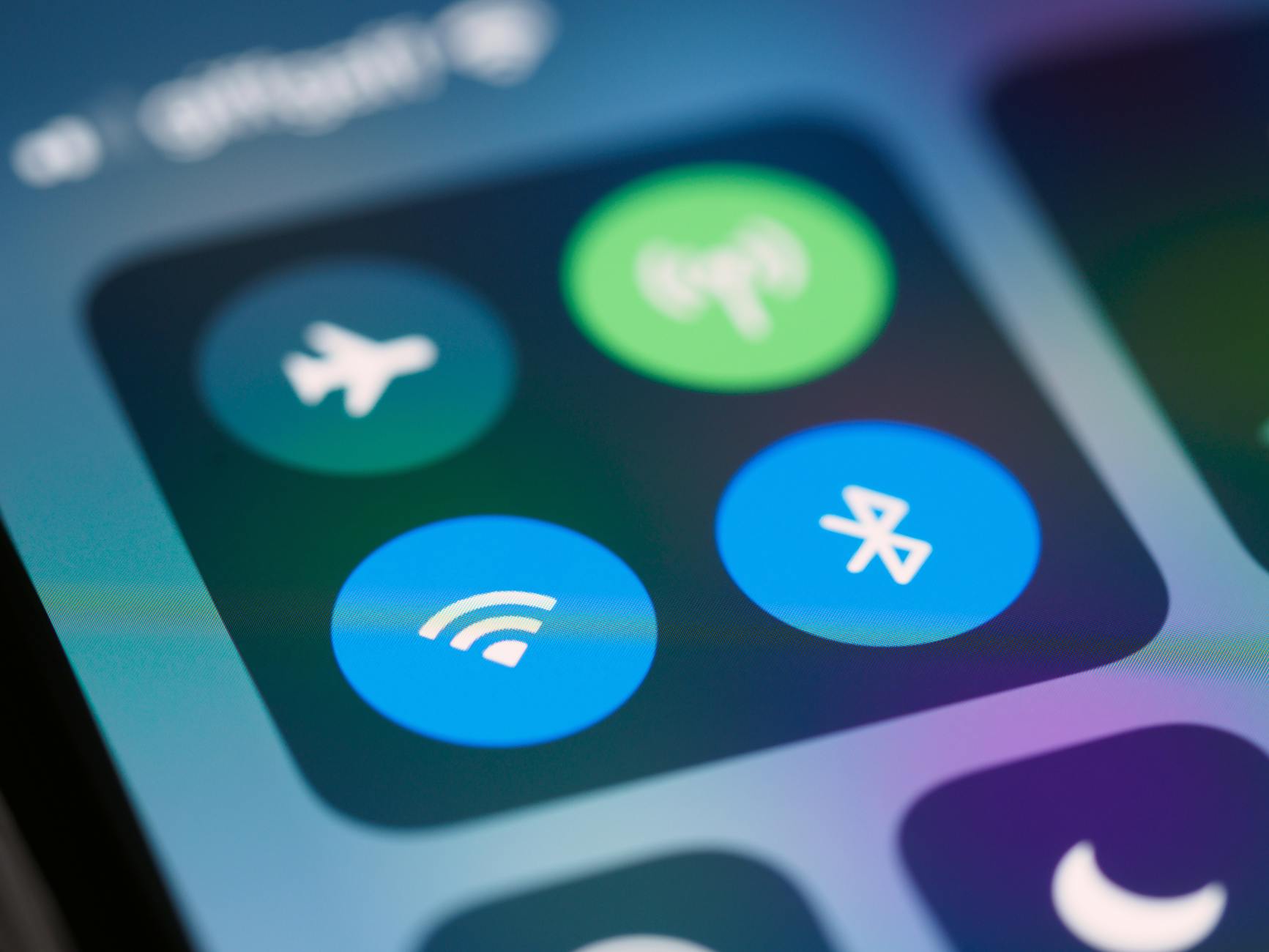
Photo by Brett Jordan
Restart devices and toggle airplane mode
Sometimes a tiny glitch is all that stands between your phone and the internet. A simple reset can clear it.
- Turn the phone off and keep it off for about 30 seconds. This gives the device’s network stack a fresh start.
- Reboot the router or modem. Unplug it, wait 30 seconds, then plug it back in. Give the network a minute to come fully online.
- On the phone, toggle airplane mode on for about 15 seconds, then turn it off. This forces the device to rejoin the network and reestablish both Wi Fi and mobile data paths.
- After these steps, recheck your apps. If one app still shows offline, try opening a web page to confirm the broader connection, not just a single service.
This sequence resets the connections, clears temporary glitches, and often fixes the offline message for both networks. It’s especially effective when the problem is a minor handshake error between the device and the router or carrier.
Check for service outages and status alerts
Outages can affect Wi Fi and mobile data alike. A quick outage check can save you from chasing phantom problems.
- Look in your phone’s own status area: open the Settings app, find Network or Cellular settings, and look for any alert about service maintenance or outages.
- Check official carrier status pages or apps for your account. If you’re logged in, you’ll see network alerts for voice, data, or home internet.
- Verizon, AT&T, and Spectrum/Xfinity offer dedicated status pages or in-app notices.
- T-Mobile relies on the app and support site for real-time updates.
- Use crowd-sourced outage trackers for a quick read on local conditions. These sites show user-reported problems and can reveal spikes in outages in your area.
- Downdetector is a common go-to for many readers, but try a second source if you want confirmation.
Remember, outages can impact both Wi Fi and mobile data. If you see a confirmed outage in your area, the fix may be waiting for the network to come back rather than anything on your device. If the outage is local to your home, you’ll usually see status alerts that point to the problem and estimated restart times. In most cases, carriers restore service within a few hours, sometimes sooner. If the outage persists beyond a reasonable window, contact your provider for more details or possible escalations.
Wi Fi offline fix steps
When a phone shows offline but you still see a network signal, it usually means something in the devices’ path to the internet isn’t working, not a lack of signal. This section walks you through practical, mostly quick fixes you can perform in minutes. You’ll learn to verify the home network, reset and reconnect, and then apply deeper settings checks if needed. Follow these steps in order to rule out common causes and restore access across both Wi Fi and mobile data.
Check the router and home network
Verify that the physical setup is solid and the router is behaving as it should. Start with the basics: ensure all cables are securely connected, including the power cable and the ethernet line from the modem to the router if you have one. A loose cord is a silent blocker of internet access.
Next, perform a fresh router reboot. Unplug the router, wait about 30 seconds, plug it back in, and give the network a minute to come fully online. A clean restart clears temporary glitches that can trap the phone in a stale online state.
To confirm a true network outage, check whether other devices in your home can reach the internet. If a laptop, tablet, or another phone also struggles to load pages, the issue is likely with the router or internet service provider rather than your device. In that case, contact your ISP for status updates or to reset service from their end.
If everything looks healthy on the router but the problem persists on your phone, perform a quick test by loading a simple webpage or retrying another app. This helps confirm that the issue isn’t isolated to a single application. When multiple devices fail to load content, that’s a strong cue to investigate the router, modem, or service path rather than the phone itself.
Reset Wi Fi on the phone and reconnect
A reset on the device can clear stubborn network hiccups that don’t show up in a simple reboot. Start by turning off Wi Fi on your phone, wait a moment, and turn it back on. Then forget the home network and reconnect by entering the password again.
- On Android: open Settings → Network & Internet (or Connections) → Wi Fi. Tap the network name, choose Forget, then reconnect by selecting the network and entering the password again. If the SSID (network name) appears but won’t connect, retype the SSID exactly as shown on the router and try again.
- On iPhone: go to Settings → Wi Fi. Tap the info icon next to your network and choose Forget This Network. Reconnect by selecting the network from the list and entering the password. If the SSID isn’t appearing, manually enter it in the network name field when you reconnect.
After rejoining the network, test with a web page or a simple app to confirm that the connection is working. If the offline message persists, move to the next step and reset the device’s broader network settings.
Reset network settings and check software
If forgetting the network and rejoining doesn’t fix the issue, reset the network settings. This returns all network-related configurations to their defaults. Be aware this will remove saved networks and passwords, as well as any custom VPN or proxy configurations.
- Android: Settings → System (or General) → Reset → Reset Network Settings. Choose the data to reset, then confirm and let the device restart.
- iPhone: Settings → General → Transfer or Reset iPhone → Reset → Reset Network Settings. The phone will reboot and you’ll need to rejoin your networks afterward.
Once the reset completes, install any pending OS updates. Updates often include important fixes for the network stack and compatibility with routers and access points. After updating, reconnect to your home Wi Fi and run a quick test to ensure the phone can load pages and apps normally.
If problems still exist after a full reset and updates, double check other settings that can influence connectivity, such as DNS or VPN configurations. A misconfigured DNS can make even healthy connections feel broken. Temporarily switch to a public DNS like 8.8.8.8 to see if that resolves the issue.
Tips for staying ahead
- Keep automatic updates enabled for OS and security patches.
- Periodically recheck router firmware, especially if you notice performance dips.
- Maintain a simple, unique SSID for your network to avoid compatibility quirks with older devices.
This triad of checks — router health, phone level resets, and a network settings refresh — covers the majority of offline-with-internet symptoms. If you complete these steps and still see the offline banner, it’s time to test on another network and consider deeper carrier or hardware diagnostics.
Mobile data offline fix steps
If your phone shows offline even when you have a working internet connection, the issue is usually a misconfiguration or a hardware hiccup rather than a total outage. This section provides targeted, practical steps you can take to restore mobile data and keep both Wi Fi and cellular paths healthy. Start with the simplest checks and move to deeper fixes as needed. You’ll learn how to inspect the SIM, set the right network mode, reset APN, and verify carrier status.
Inspect SIM card and network mode
A loose or dirty SIM can disrupt mobile data without affecting the Wi Fi connection. Here’s how to handle it quickly and effectively.
- Remove the SIM card using the ejector tool. Wipe the metal contacts gently with a clean microfiber cloth to remove dust or fingerprints.
- Reinsert the SIM firmly, making sure it sits properly in the tray. If the device supports dual SIM, test each slot one at a time.
- Ensure the correct network mode is set for your situation. On most devices, you want 4G LTE or 5G Auto as the default. If your signal is weak, temporarily switch to 3G or LTE only to see if data improves.
- After adjusting, restart the phone and test data by loading a webpage or opening a data-heavy app.
Why this helps: a misaligned SIM, dirty contacts, or a wrong network mode can block data traffic even when the phone shows a strong signal. A clean, properly seated SIM with the right mode opens the path to the data network.
Reset APN and test with another SIM
Resetting the Access Point Name (APN) returns mobile data settings to the carrier defaults. If the APN is wrong or corrupted, data won’t flow even with a good signal.
- APN reset basics:
- Android: Settings > Network & Internet > Mobile Network > Access Point Names > (menu) Reset to default.
- iPhone: APN settings are usually automatic; if you’ve customized them, revert to default or reset network settings to apply carrier defaults.
- After resetting APN, test mobile data immediately. If it still fails, try a different SIM from another carrier or a friend’s SIM.
- If the other SIM works, the issue is likely with your original SIM or the carrier account.
- If the other SIM also fails, the problem may lie with your device or the carrier’s network.
Why this helps: APN settings tell the phone how to reach the internet through the carrier. A wrong or missing APN stops data access, even with full signal. Testing another SIM rules out a bad card and narrows the cause to the carrier or device.
Check for carrier outages and plan limits
Outages and plan restrictions can mimic an offline state. Verify your status and any limits that might slow or block data.
- Check the carrier’s status page or app for real-time outage alerts in your area. If you’re traveling, roaming outages can also affect data.
- Review your data plan in the carrier app or website. Look for:
- Data caps or throttling flags
- Data roaming settings and any active data saver
- Plan changes, new policies, or device-specific restrictions
- If you’re on roaming, ensure roaming is enabled and your device is configured for roaming data. In some cases, roaming data is disabled by default to save costs.
Tips for staying ahead
- If you’re nearing a data cap, switch to Wi Fi when possible to avoid throttling.
- Enable data usage alerts in the carrier app so you see approaching limits before data is slowed.
- When traveling, confirm roaming rates and ensure the correct APN settings for the foreign network if you plan to use data abroad.
Why this helps: a carrier outage or a changed plan can look like a device issue. Verifying status and limits helps you decide whether to wait, adjust settings, or contact support for a SIM swap or plan correction.
Advanced troubleshooting and when to seek help
When your phone shows offline despite having internet, you’re troubleshooting two paths at once: the device itself and the network it uses. This section covers practical diagnostics you can run, plus clear signs you might need help from a professional or your carrier. Use these steps in order, moving to deeper fixes only when simpler checks don’t solve the problem.
Safe Mode and app interference
Booting into Safe Mode helps you determine if a third party app is hijacking the network stack. Here’s how to do it on the two major platforms and how to act if internet works in Safe Mode.
- Android:
- Method 1 (easiest): Press and hold the Power button until the power menu appears. Tap and hold “Power Off” until a prompt to reboot into Safe Mode appears. Confirm. Your screen will show “Safe Mode” in the corner.
- Method 2 (if the screen is unresponsive): Power off, then power on. As soon as the device lights up, press and hold the Volume Down button until you see Safe Mode.
- If internet works in Safe Mode, go back to normal mode and review recently installed or updated apps. Start by uninstalling the newest ones, or disable them one by one to identify the culprit. Common culprits include apps that modify network settings, VPNs, or data-saving tools.
- iPhone:
- Apple devices don’t have a Safe Mode. If you suspect an app is behind the problem, focus on app level fixes.
- Force restart as a first step to clear stubborn glitches. Then reinstall or update problem apps, and check for iOS updates that can fix compatibility issues.
- How to proceed if Safe Mode points to an app issue
- Uninstall the suspect apps and test network access again.
- If the problem disappears, reintroduce apps one at a time to confirm the exact cause.
- When in doubt, back up data and perform a clean reinstall of the OS, but only after you’ve exhausted app-level fixes.
Key takeaway: if the issue disappears in Safe Mode on Android, you’re likely dealing with a misbehaving app rather than a device fault. For iPhone users, focus on app updates, reinstallation, and system updates to chase the same result.
Clear cache and data, then try again
A clogged cache or corrupted app data can cause an offline message to linger. Clear cache for essential apps and, where possible, clear system caches without risking personal data.
- For apps that use internet heavily (browsers, messaging, streaming):
- Android: Settings > Apps > [App] > Storage > Clear Cache. If issues persist, you can also choose Clear Data, but be aware this signs you out from the service and resets local preferences.
- iPhone: Reinstall apps that show erratic behavior or clear cache by offloading the app and reinstalling it.
- For system cache (where applicable):
- Android devices often benefit from a reboot into recovery mode to clear cache partitions, but this varies by model. A simple reboot can also help refresh temporary system files.
- iPhone does not provide a user-accessible system cache clear. A full restart and, if needed, a reset network settings can help clear stale data.
- Important caution: do not delete essential data, such as app login details or local files, unless you’ve backed them up or the app guarantees data removal does not erase your account data.
Why this matters: cache and data blocks are common choke points for data requests. Clearing them reduces the chance of a corrupted file clogging the pipeline between your phone and the internet.
Factory reset as a last resort
When the offline issue persists across networks and after all targeted fixes, a factory reset can restore the baseline software environment. This move wipes all personal data and apps, returning the device to its original state.
- When it makes sense:
- Repeated network misbehavior that follows the device through network changes.
- Config errors that resist all other fixes.
- No visible hardware fault but the OS clearly mismanages the network stack.
- How to back up data first:
- Android: Back up photos, contacts, messages, and app data to Google Drive or a local computer.
- iPhone: Use iCloud or a computer backup via Finder or iTunes.
- Steps to perform the reset:
- Android: Settings > System > Reset > Factory data reset. Confirm and wait for the device to reboot.
- iPhone: Settings > General > Transfer or Reset iPhone > Erase All Content and Settings. After setup, restore from the backup you created.
- Important reminder: a factory reset erases personal information, accounts, and apps. Plan for reinstalling apps and reconfiguring settings after the reset.
When to seek help
- If you suspect a hardware issue, such as a faulty SIM tray, damaged antenna, or persistent radio problems, don’t push the device too far. A professional technician or your carrier store can run deeper diagnostics.
- If you’ve ruled out software with a clean OS reinstall and the problem remains on multiple networks, contact your carrier to check for device provisioning or SIM-related issues.
- If outages are widespread and contact with multiple devices shows the same symptom, the problem likely lies with the service provider. Use their status pages or chat support to confirm.
Tips for getting the best help fast
- Note the exact symptoms and when they occur (time, network type, app in use).
- Tell the agent the steps you’ve already tried, including Safe Mode results, cache clears, and APN checks.
- Have your device model, OS version, and current SIM card handy.
- If you’re visiting a store, bring a secondary SIM or a different phone to reproduce the issue quickly.
This advanced troubleshooting guide helps you sort out the usual suspects from the unusual. By following these steps in order and documenting what you observe, you’ll know precisely when to push for professional help and when the fix is in your hands.
Conclusion
Fixing the offline message is usually a matter of tracing the path from the device to the internet. Start with quick resets, check for outages, and then move to APN, router, or SIM checks as needed. By following the steps in this guide, you can usually restore reliable connectivity on your smartphone without a factory reset.
Simple checklist
- Backup important data before deep fixes
- Restart devices, toggle airplane mode, and test both Wi Fi and mobile data
- Check for service outages and verify carrier status
- Reset network settings if needed, then reconfigure
- Test with another network or SIM to rule out hardware issues
- Seek help from your carrier or device maker if problems persist
Monitor after fixes and know when to reach out
- Observe for intermittent drops or slow loading over the next 24 to 48 hours
- If the issue repeats on multiple networks, contact your carrier or device manufacturer
- If hardware faults are suspected, visit a store or service center with a second device for comparison
Thanks for reading. Save this guide for quick reference and share it with friends who run into offline but online symptoms.