Captive Wi‑Fi pages can be stubborn. You see the network, but your phone doesn’t pull up the login screen, leaving you staring at a blank page or a ‘no internet’ message. A captive portal is the gateway some venues use to sign in or accept terms, and phones sometimes miss it because the network’s test requests don’t reach or the page is blocked.
This quick guide explains why a phone might skip the portal and what to try first. You’ll learn simple checks for Android and iPhone, how to test whether the portal appears, and when to switch to mobile data. The goal is to get you back online fast with steps you can follow right now. Expect clear, actionable actions that work in real life, not tech jargon.
Most issues come from how the network handles the phone’s automatic checks. If those checks fail, the portal never appears, even though you’re connected to Wi‑Fi. We’ll cover practical fixes you can apply in minutes, plus tips for testing after each step. By the end, you’ll know when it’s time to ask for help or use a portable hotspot. This guide keeps things simple for a smartphone user at a busy cafe, hotel, or airport.
Understand captive portals and why phones miss the login page
Captive portals are common in places like cafes, airports, and hotels. They show a login screen or terms page before you access the internet. Sometimes your phone connects to Wi Fi but never sees that page. This section explains what a portal does and how the login flow works, in plain language, with a quick example to illustrate the process.
What a captive portal does and how the login flow works
A captive portal sits between your device and the internet. When you join a public Wi Fi network, the network watches for your first browser request. If you try to open any site, the router redirects that request to a special page. That page asks you to accept terms, sign in, or agree to rules before the internet opens up.
- Step 1: Connect to the Wi Fi network on your phone.
- Step 2: Your browser tries to load a normal site.
- Step 3: The network intercepts the request and redirects you to the portal page.
- Step 4: You read and accept terms or sign in. After that, regular internet access begins.
Note that not all portals require a password. Some only need you to accept terms or sign in once. Imagine walking into a hotel lobby and agreeing to the hotel’s terms before you can browse the web. That agreement is the gatekeeper for the network for that visit.
Example: You’re at a coffee shop. You connect to the Wi Fi, open a browser, and try to load a news site. Instead of the news site, a page appears asking, “Agree to terms to use this network.” After you tap Accept, the portal grants access and you can browse normally.
Why the page sometimes does not load on phones
Several simple factors can stop the portal from appearing, especially on a phone. Here are the common reasons and what to do about them, in plain terms:
- VPNs or private DNS blocking redirects: A VPN or custom DNS can stop the portal from being detected. Turn off any VPNs and revert DNS to automatic to see if the portal shows up.
- Cached network settings: Old settings can confuse the portal. Forget the network and reconnect, or reset network settings if needed.
- HTTPS certificate issues: Some networks force the first page to load via HTTPS. If your phone trusts the wrong certificate, the portal may not load. Trying a different browser or checking date/time settings can help.
- Weak signal or high interference: If the signal is unstable, the redirect may fail. Move closer to the router or remove obstacles.
- Ad blockers or security apps: These apps can block redirects by mistake. Temporarily disable them to test.
- Phone security features: Some phones enforce strict privacy rules that block redirects. Check built in privacy or security settings and try again.
Actionable tips:
- Disable VPNs and any custom DNS temporarily.
- Forget the network and reconnect fresh.
- Open a private/incognito window to test if the portal appears.
- If you still don’t see it, try a different browser.
- Check signal quality and move to a better spot if possible.
How to tell if the portal is present or not
There are quick tests you can run to confirm whether the portal is there and being blocked by your device or the network. Use these steps to pinpoint the issue without guessing.
- Test with a known portal trigger site: On most devices, trying to load a non HTTPS site or a simple address should trigger the portal. If nothing happens, the redirect may be blocked.
- Use dedicated portal test pages: Some devices have built in checks to detect captive portals. If your device shows a test page, the portal is present but not loading as expected.
- Try multiple devices: If other devices on the same network see the login page, the issue is with your phone. If none show the portal, the network likely blocked redirects or needs a different approach.
Practical tests you can perform now:
- On iPhone, connect to the network and open any web page. If you’re redirected to a login or terms page, the portal is active.
- On Android, try visiting a simple site like example.com. If you’re redirected to a login page, the portal is present.
- If none of these work, manually visit known portal trigger URLs in your browser when connected to the network:
- iPhone/mac users: captive.apple.com
- Android/Chrome users: google.com/generate_204
- Windows users: www.msftncsi.com/ncsi.txt
If the portal appears on one device but not another, focus on device settings for the non-appearing device.
By understanding the flow and common blockers, you can troubleshoot quickly and get back online. If you still cannot reach the login page after trying these steps, alternate options like using mobile data or asking staff for guidance are a good next step.
Practical fixes for Android phones to trigger the captive login
When you connect to a public Wi Fi network, the captive portal page is supposed to load automatically. If it doesn’t, you’re left staring at a login screen nowhere in sight. These practical fixes are designed to reset the network state on your Android device and nudge the portal to appear. They’re quick, easy to follow, and work in cafes, hotels, airports, and other shared networks. Try them in order and test after each step.
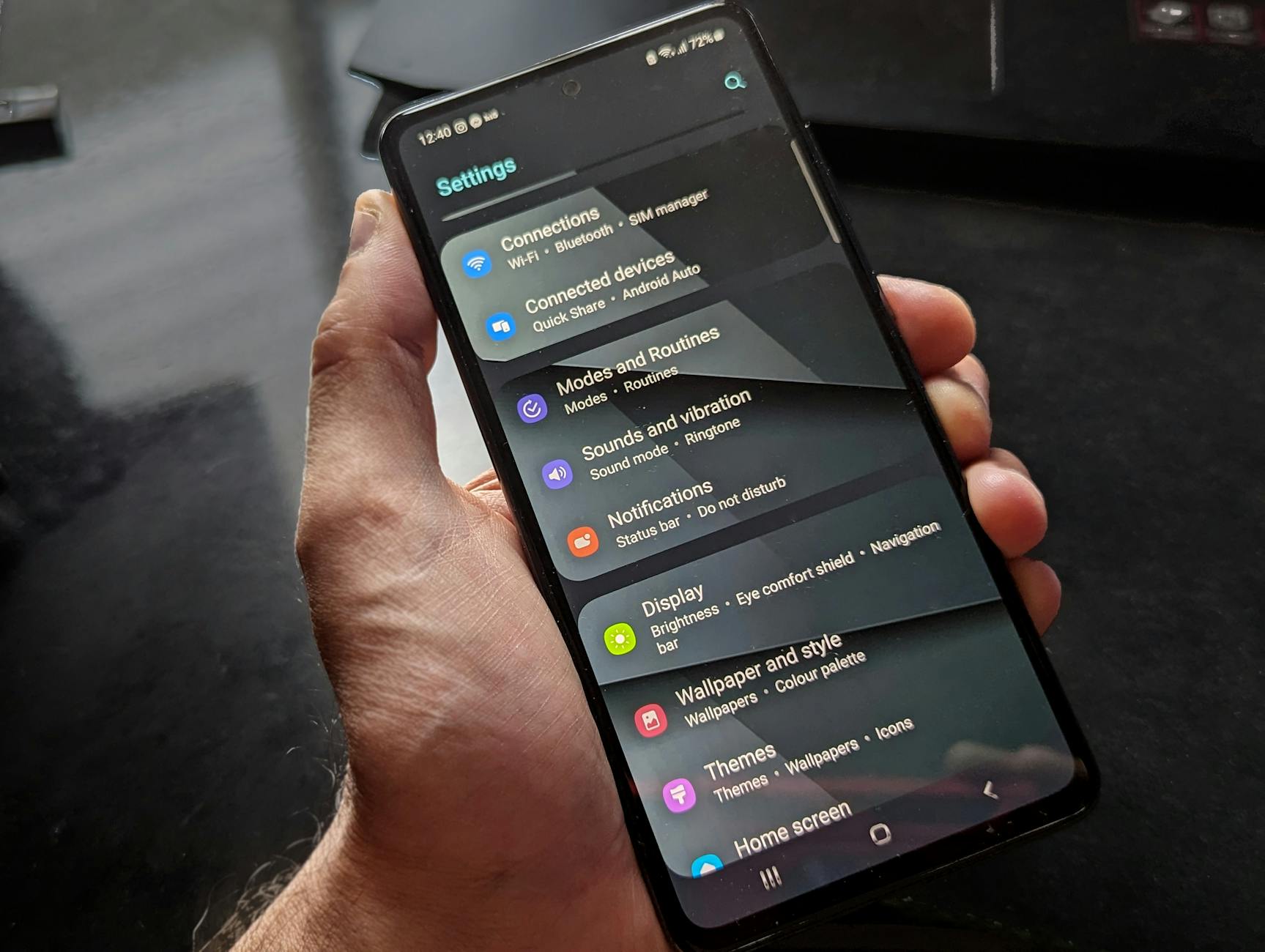 Photo by Watford London Media
Turn off VPN and Private DNS
VPNs and custom DNS settings can interfere with captive portals. The moment the network detects a VPN or an alt DNS, it may stop redirecting you to the login page. Here’s how to check quickly on common Android versions:
- Locate VPN settings: On most devices, go to Settings > Network & Internet > VPN. If a VPN is connected, switch it off.
- Check Private DNS: In the same Settings area, look for Private DNS and set it to Automatic (or Disabled) if you’ve configured a custom provider.
- Recheck the login page: After turning off VPN and Private DNS, open a browser and try to load a simple page. The portal should appear if the network allows redirects.
- If the portal still won’t load, a quick reboot after these changes helps clear transient blocks.
Forget and reconnect to the Wi Fi network
Old network settings can trap you in a state where the portal never loads. Forgetting the network clears those settings and prompts a fresh connection.
- Forget the network: Open Settings > Wi‑Fi, find the network you’re connected to, and choose Forget.
- Reconnect: Tap the network name again to reconnect. If prompted, enter the password and join.
- Test the portal: After rejoining, open a browser and navigate to a non secure site to trigger the portal.
Toggle Airplane mode and reboot
A simple toggle can reset the radio and bring the portal back into view.
- Turn on Airplane mode: Swipe down the quick settings shade and enable Airplane mode.
- Wait a few seconds, then turn it off: Disable Airplane mode to restore wireless radios.
- Reboot if needed: If the portal still doesn’t appear, restart the phone. A fresh start can prompt the login page to load.
Clear browser data or use incognito
Cached redirects can trap you in a loop where the portal won’t show up. Clearing the cache or using incognito ensures you’re not fighting old redirects.
- Clear browser data: In your browser settings, clear cookies and cached images and files.
- Try incognito: Open a new incognito/private window and attempt to load a web page.
- Test with a simple site: After this step, try a basic page like neverssl.com to see if the portal triggers.
Check for updates and adjust data saver settings
Outdated software or aggressive data saving can block redirects and prevent the portal from loading.
- Update Android OS and apps: Go to Settings > System > System Update and update any network related apps.
- Review data saver: If you have Data Saver on, disable it temporarily to test the portal. Some networks block redirects when data saver is active.
- Re-try loading the portal: After updates and adjustments, connect to the network again and check for the login page.
Practical fixes for iPhone and iOS devices
When a captive login page won’t appear on your iPhone, a few simple checks can often restore access quickly. These fixes focus on the iOS behavior that detects the portal and redirects you to the sign-in page. Follow them in order and test after each step. Your goal is to trigger the portal so you can sign in and continue using WiFi.
Turn off VPN and set DNS to automatic
VPNs and custom DNS settings can block the portal redirect. Disable any active VPNs and revert DNS to automatic so the network can redirect your web requests to the login page.
- Open Settings > VPN & Device Management (or Settings > General > VPN on older iOS).
- If a VPN is on, switch it off.
- For DNS, go to Settings > Wi‑Fi > your network > Configure DNS and select Automatic.
- Reconnect to the network and try loading a non HTTPS site to prompt the portal.
Why this helps: the portal relies on redirecting your first browser request. VPNs or custom DNS can disrupt that process, so turning them off clears the path for the portal to appear.
Forget and reconnect the network
Old credentials or stale network settings can keep the portal out of reach. Clearing those forces iOS to start fresh with a clean handshake.
- Go to Settings > Wi‑Fi.
- Tap the information icon (i) next to the network and choose Forget This Network.
- Reconnect to the same network, enter the password if prompted, and join.
- Open Safari and navigate to a simple site to test whether the login page shows up.
Tip: Removing the saved network prevents a corrupted credential from blocking the portal. A fresh connection often triggers the redirect as it should.
Force captive portal with Safari
If the portal does not push automatically, you can nudge iOS to check for it by forcing a browser to load a non secure page.
- Open Safari and go to a known portal trigger URL such as captive.apple.com or, for older devices, neverssl.com.
- If the login screen appears, you’re in the portal. If you see a certificate warning, don’t panic—just proceed to login if you trust the network.
- If nothing happens, clear Safari data by going to Settings > Safari > Clear History and Website Data, then retry.
Pro tip: use Safari first, as other apps may not trigger the redirect reliably. A quick trigger in Safari often reveals the portal without extra steps.
Restart and update iPhone software
A quick restart can clear temporary glitches that keep the portal from showing.
- Restart your iPhone: press and hold the side button and either volume button, then slide to power off. After 30 seconds, turn the device back on.
- Check for iOS updates: go to Settings > General > Software Update. Install any available updates, as they can fix portal detection issues that block the page from appearing.
Why this matters: software bugs or minor glitches can affect how iOS detects captive portals. A fresh restart and current software improve reliability.
Check Low Data Mode and content blockers
Content blockers or data saving features can interfere with the portal redirect.
- Low Data Mode: Settings > Wi‑Fi > your network > toggle off Low Data Mode if it’s on.
- Content blockers: Settings > Safari > Extensions (or Content Blockers if shown) and disable any blockers for testing.
- Re-test: after turning these off, re-open a browser and try to load a page to trigger the portal.
If you use a security app or a VPN profile that routes traffic, temporarily disable it to confirm whether it’s filtering redirects. This helps you determine whether the issue is on the device or the network side.
If you need more help after trying these steps, consider testing on another known network or using mobile data briefly to confirm the SIM and carrier aren’t adding extra blocks. A quick check across different environments often reveals whether the problem is specific to a venue or your device. And if one portal works on another device but not your iPhone, you’re likely dealing with device-specific settings that can be adjusted with the steps above.
When fixes fail and advanced checks
When basic tweaks don’t move the needle, it’s time to escalate. This section guides you through more precise checks and smarter cross-checks so you can pinpoint whether the issue lies with the device, the network, or the portal itself. Think of it as a mini investigation that saves time and frustration. You’ll learn how to verify portal presence across devices, test with multiple networks, and communicate findings clearly to staff or support.
Test with multiple devices and networks
If the portal still won’t appear after you finish the initial fixes, broaden your testing to rule out device or venue quirks. Try a different smartphone or tablet on the same network. If another device sees the login page, the problem is almost certainly specific to your original device. Conversely, if no device on that network triggers the portal, the issue likely sits with the hotspot or its captive portal configuration.
- Swap devices on the same network: bring a friend’s phone or a tablet and see if the portal shows up.
- Use your device on a different public network: try a nearby cafe, hotel lobby, or airport lounge to compare results.
- Compare results side by side: note whether one device consistently triggers the portal while another does not.
If you do find that the portal appears on a different device but not on yours, concentrate on device-specific settings. If no device triggers the portal on that network, escalate to the venue staff or network administrator with your findings.
Why this matters: isolating the variable helps avoid unnecessary changes to your own device. It also reveals whether the venue’s portal is inconsistent or broken during a particular window.
Ask hotspot staff to check portal settings
When you reach the limits of self-troubleshooting, involve the people who control the network. Venue staff or IT support can verify backend settings that affect whether the portal redirects work as intended. They may find issues that aren’t visible from your device.
Focus your conversation on these points:
- DNS settings: confirm the guest network’s DNS responses are correct and consistent.
- SSL certificates: ensure the portal uses valid certificates and that devices don’t reject the login page due to certificate errors.
- Captive portal page: verify the page loads correctly and contains the expected login or terms elements.
- Security software: check whether any firewalls or security features at the venue block redirects. Some networks apply protections that inadvertently hinder portal redirects.
- Provider-side problems: remember that sometimes the issue is with the hotspot provider rather than your device. A brief check on status boards or asking if others have similar complaints can help.
What to ask for or provide when you contact staff:
- The exact steps you took and the results of each test.
- The network name (SSID) and whether the network is open or password protected.
- Screenshots or descriptions of any error messages you see.
- A quick test using a different device on the same network, if possible.
Why this matters: staff often can reconfigure the portal or switch to a different authentication method that works for more devices. It also gives them actionable data to fix the issue faster.
Tips for productive communication:
- Be concise but specific about the symptoms you observed.
- Request a quick DNS/SSL check and a test of the portal page from a guest device.
- If the venue has a guest portal status page, ask whether there are known issues or maintenance outages.
In many cases, staff can resolve misrouted DNS, certificate warnings, or misconfigured firewall rules that block the initial redirect. This path often yields results when device-level tweaks fail to produce the login screen.
Best practices to avoid captive portal issues in the future
Captive portals can be a headache for all of us who rely on public WiFi. The goal here is to prevent those hiccups before they happen. By tweaking settings, staying mindful of how networks handle redirects, and preparing for common scenarios, you can reduce the chances of being stuck on a login screen. The following subsections offer practical, future-proof strategies you can apply now.
Keep devices updated and clear caches
Regular updates matter. They keep the operating system and apps equipped to handle new network behaviors and security rules. Make it a habit to install the latest OS updates and app patches as soon as they’re available. These fixes often include improvements to how your device negotiates captive portals and processes redirects.
- Schedule a monthly check for system updates and essential app updates.
- After updates, clear any stale data that might interfere with redirects. This includes app caches, browser caches, and saved network credentials.
- Periodically review storage and cache data. A clean slate helps prevent misfires when you connect to a new network.
A simple routine can pay off: once a month, run a quick cache purge on your browser and apps that handle connections, then reconnect to a public network to confirm the portal surfaces as expected. If you notice repeated failures after updates, try a cache reset in stages—first the browser, then the system, then the network settings.
Store trusted networks and review security apps
Smart choices about networks and security tools can prevent many portal problems. Save only networks you trust and keep security software in check. Some tools, especially aggressive privacy or firewall apps, can block the redirects that trigger the login page.
- Limit saved networks to places you actually visit. Remove old or forgotten networks.
- Review security apps and browser extensions. Temporarily disable anything that could block redirects while testing.
- If a security tool blocks the portal, add a safe exception. Create a list of known, trusted portals and allow traffic to those domains.
- Keep a clear picture of what each security feature does. If you’re unsure, disable temporarily and recheck.
Think of this as pruning a garden. You want the network footholds you trust and a safety net that doesn’t block the gate to the internet. If you rely on a VPN or private DNS, test the portal with them off to confirm whether they’re the root cause.
Be mindful of public networks and DNS settings
Public networks are convenient, but their behavior can vary a lot. A few practical steps help you handle them without getting tripped up by DNS or redirect rules.
- Use automatic DNS settings when available. Static DNS can sometimes prevent the portal from being detected.
- If you must use a private DNS, test with the default DNS temporarily to verify whether the portal appears.
- Avoid heavy VPN usage on open networks. A VPN redirects your traffic in ways that can hide the portal from your device.
- When possible, connect to networks that have clear terms and straightforward login flows. This reduces surprises when you first open a browser.
A simple tactic is to disable any VPN or custom DNS for a moment after joining a new network. Then try loading a non-secure page to prompt the portal. If the page appears, you know the network is capable of portal redirection and the issue was on the device or with the VPN/DNS path.
In most cases, a quick refresh of network settings, a sanity check of DNS, and a moment of testing across a couple of sites is enough to lock in reliable behavior for future connections. This approach helps you strike a balance between security and usability while traveling or working remotely.
Conclusion
Most captive portal issues are fixable with a few quick checks on your smartphone. A clean start—forgetting the network, turning off VPNs and private DNS, and testing with a non secure page—usually triggers the login page to appear. If one device sees the portal but another does not, focus on device settings before asking staff for help. Share your experiences in the comments and tell us which steps helped you reclaim access on your smartphone.
Quick checklist
- Turn off VPNs and set DNS to Automatic
- Forget and reconnect to the Wi Fi network
- Try a non secure page or portal trigger URL
- Clear browser data or use incognito
- Test on another device or another network if possible
If you still can’t reach the login page after these steps, consider using mobile data briefly to confirm the issue isn’t with the device.