There Is a Frequency That the Wealthiest Families Have Used for Generations and Most People Will Never Know It Exists
>>> Open the Door <<<

Tired of your phone locking too soon when you’re reading or watching videos? Auto lock time is the setting that turns off the screen and locks your device after a period of inactivity to save battery and protect privacy. In this quick guide, you’ll learn how to adjust it on both iPhone and Android, why a longer or shorter timeout can help, and simple checks to keep your smartphone secure without interrupting your flow.
Why Adjust Your Phone’s Auto Lock Setting
Your phone is a everyday companion, nudging you toward both convenience and safety. The auto lock setting determines how long your screen stays on after you stop interacting with your device. Getting this right can save battery, protect your data, and keep your workflow smooth. Below, you’ll find practical reasons to adjust auto lock time and how to choose the best setting for different situations.
Battery life and power management
- Shorter auto lock times reduce screen-on time, which can translate to longer battery life over the course of a day. If you’re often away from a charger or using power-hungry apps, a modestly longer timeout might be worth the trade-off, but a shorter timeout generally keeps battery drain lower when you’re not actively using the phone.
- For travelers or workers on the go, a balanced approach helps. You get enough time to glance at notifications without keeping the display running longer than needed. It’s a simple lever that quietly tucks extra minutes or hours into your day.
Privacy and security
- Auto lock is a first line of defense. If your phone falls into the wrong hands, a quick lock reduces the risk of someone peeking at messages or sensitive apps. For sensitive work or personal data, a shorter timeout increases security without requiring you to remember to lock manually.
- Some people worry about leaving a device unlocked in public spaces. In those cases, a faster auto lock setting pairs well with a quick passcode or biometric lock, offering a reliable surge of protection without noticeable downtime.
Reducing eye strain and distraction
- A screen that stays on for too long can contribute to eye fatigue, especially if you’re reading long-form content or watching videos in dim environments. A reasonable auto lock time helps your eyes rest between tasks and can prevent accidental taps that wake the device during meetings.
- If you frequently attend long Zoom calls or presentations, a slightly longer timeout might be practical, but you still benefit from locking after key moments to avoid screen burn and battery drain.
App behavior and uninterrupted tasks
- Some apps need your attention for a moment, while others require a longer reading or setup period. By tweaking auto lock, you can tailor how your phone behaves during tasks like drafting emails, editing photos, or following a recipe video.
- For people who use their phone as a quick reference tool, a longer timeout means fewer interruptions from the lock screen. You can still rely on gestures or quick biometric unlock to resume work fast.
Platform differences and best practices
- iPhone users can adjust auto lock to fit how they use their device. For example, you might choose a longer timeout when you’re reading or drafting long messages, and switch back to a shorter timeout for safety when you’re out and about. If you want to explore how to adjust screen timeout on iPhone, this guide offers clear steps and real-world tips. How to Easily Change Your iPhone Screen Timeout
- Android devices offer a variety of options across manufacturers. The core idea remains the same: match the setting to your typical activity, risk level, and battery situation. If you’re curious about how others balance comfort and security, the linked resources show different approaches and practical considerations. For an in-depth look at iPhone timeouts, see the official support article on keeping the display on longer. Keep the iPhone display on longer
Quick guide to decide your auto lock duration
- If you’re in a secure environment or prioritize battery life, aim for a shorter timeout, such as 30 seconds to 1 minute.
- If you frequently read long articles, watch tutorials, or use your phone as a mini tablet, a longer timeout like 2 to 5 minutes can improve your experience.
- In mixed scenarios, set a moderate default (1 to 2 minutes) and adjust on the fly for tasks that require more time or more caution.
How to balance convenience with security
- Pair auto lock with biometric or passcode protection. A quick unlock keeps things smooth while preserving safety.
- Consider enabling features that automatically turn off features when the lock engages, such as disabling sensitive notifications on the lock screen.
- Regularly review what apps have access to your screen time and notifications. Tightening permissions reduces the risk during a short lock period.
Real-world scenario: three simple setups
- Scenario A: You’re a busy professional who frequently references emails and messages. Set auto lock to 1 minute. It keeps the device responsive without draining the battery.
- Scenario B: You read on your phone during commutes. Use 2 to 3 minutes to avoid constant locking while you’re scrolling through long content.
- Scenario C: You work in a shared space. Use the shortest comfortable timeout, paired with strong unlock methods, to protect sensitive information quickly.
A quick note on consistency across devices
- If you own multiple smartphones or share one with a family member, try to keep auto lock settings aligned. Consistency reduces confusion and makes it easier to maintain good habits.
Photo by Safwan C K from Pexels
External resources for deeper guidance:
Thousands of People Were Struggling With Money Until They Discovered This One Ancient Secret Hidden in Sound
>>> Unlock It Now <<<

- How to easily change your iPhone screen timeout: My most used methods. https://setapp.com/how-to/change-screen-timeout-on-iphone
- Keep the iPhone display on longer. https://support.apple.com/guide/iphone/keep-the-iphone-display-on-longer-iph7117338a8/ios
- Adjusting the screen sleep period on your iPhone 17 Pro. https://theiphone17proguide.com/adjusting-the-screen-sleep-period-on-your-new-iphone-17-pro/
- How to keep your phone from turning off automatically. https://www.itarian.com/blog/how-to-keep-your-phone-from-turning-off/
- Prevent your phone from turning off automatically. https://blog.comodo.com/mobile-security/how-to-keep-your-phone-from-turning-off/
Note: The links above provide additional context and practical tips. Always choose the auto lock duration that best fits your daily routine and security needs.
How to Change Auto Lock Time on Your Phone (iPhone and Android)
In this section, you’ll learn a practical, step by step approach to changing the auto lock time on an iPhone. It’s a simple setting, but getting it right can improve battery life, privacy, and your overall reading or viewing experience on your device. Follow these concise steps, and you’ll have the perfect balance between convenience and protection. If you ever need a refresher, see trusted sources for deeper guidance, including official support pages and expert how-tos.
Find and Open the Right iPhone Settings
Locating the auto lock control on your iPhone is quick, and mastering the search saves a bit of time. Start by swiping down from the top of the screen to access the search field, then type “auto-lock” or “auto lock.” The results will show the exact setting you need. If you prefer a manual route, you can navigate through Settings > Display & Brightness > Auto-Lock. This path is reliable on most iPhone models. The Settings app icon looks like gears, so you can recognize it at a glance. Using search is often the fastest route because it bypasses menu guessing and gets you straight to the control you want. For reference, Apple’s guidance on extending display time can be a helpful companion as you adjust preferences: Keep the iPhone display on longer. https://support.apple.com/guide/iphone/keep-the-iphone-display-on-longer-iph7117338a8/ios
Pick Your Preferred Auto Lock Time
Handle Common iPhone Auto Lock Issues
Set Screen Lock Timeout on Android Phones
Choosing the right screen lock timeout is a quick win for battery life, privacy, and a smoother daily experience. The setting tells your phone when to turn off the display and lock after inactivity. On Android, the exact path to adjust this timing can vary by brand, but the core idea is the same: match the timeout to how you use your device. Whether you’re browsing, watching, or drafting documents, a well-chosen timeout helps you stay productive without sacrificing security. Below are practical, brand-specific paths you can follow, plus a few quick tips to keep things consistent across devices you own or share.
Steps for Google Pixel and Stock Android
Pixel users follow a straightforward route to set the screen timeout. Start in the Settings app and head to Display settings. Within Display, look for Screen timeout or Sleep. You’ll typically see options like 30 seconds, 1 minute, 2 minutes, and longer. Pick the duration that aligns with your routine. If you value privacy, enable Secure lock after the timeout so the device locks as soon as the display turns off. This combination keeps your information safe while you stay productive. For a quick visual guide, the Pixel help article walks through the same steps: Manage screen & display settings on a Pixel phone. https://support.google.com/pixelphone/answer/6111557?hl=en
Adjust on Samsung Galaxy Phones
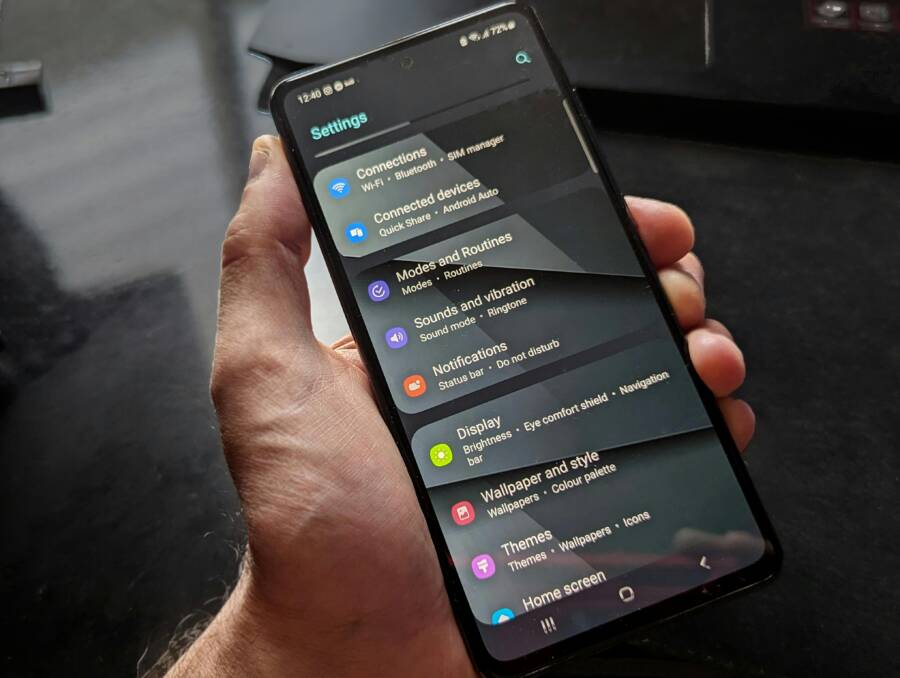
Samsung Galaxy devices place the timeout under Lock screen settings, but you can also adjust it from Display if you’re in a rush. Go to Settings > Lock screen > Secure lock settings and choose Lock automatically to set how quickly the phone locks after inactivity. If you prefer a faster route, you can also open Settings > Display > Screen timeout and select your preferred duration. On some models, the “Never” option may be available in specific firmware versions, though it isn’t universal across all Galaxy lineups. For practical help from the Samsung community on related timing issues, see How can I change the setting on my Samsung Galaxy S23 FE to stop navigating to home screen when screen timeout? https://d2z8fvypt29s4a.cloudfront.net/t5/Galaxy-S23/How-can-I-change-the-setting-on-my-Samsung-Galaxy-S23-FE-to-stop/m-p/3081083#M61165
Tips for Other Android Brands Like OnePlus or Xiaomi
On brands such as OnePlus and Xiaomi, the path is similar but may live under Display or Lock screen depending on the UI skin. Start in Settings, then Display or Lock screen, and locate Screen timeout or Sleep. If you don’t see the exact option, use the search bar at the top of the Settings app and type “screen timeout” or “auto lock.” Differences in wording and menu order are common, so a quick search often saves time. If you want a broader overview, Xiaomi’s guide on automatic lock time provides a helpful baseline. https://www.mi.com/global/support/article/KA-06475/ For a broader Android walkthrough that covers many devices, this general guide is useful: How to Change Screen Timeout on Android. https://www.youtube.com/watch?v=gyNFYdJKjBs
He Was Drowning in Bills and Burnout Until a Simple Daily Ritual Rewired His Brain for Wealth in Less Than a Week
>>> Start Your Shift Today <<<

He Was Drowning in Bills and Burnout Until a Simple Daily Ritual Rewired His Brain for Wealth in Less Than a Week
>>> Start Your Shift Today <<<
Best Practices and Quick Fixes for Auto Lock
A well-tuned auto lock setting keeps your device secure without slowing you down. Here you’ll find practical best practices and fast fixes that apply to both iPhone and Android. The goal is to keep your screen from locking too soon during focused tasks, while still protecting your data when you step away.
 Photo by Watford London Media
Practical best practices for auto lock
- Choose a default that balances safety and usability. Start with 1 to 2 minutes for mixed use, then adjust up or down as needed. This keeps you productive without inviting unnecessary screen time.
- Pair auto lock with strong unlock methods. A quick biometric or passcode keeps your data safer when the device is idle.
- Align auto lock across devices you own or share. Consistency reduces confusion and creates steady habits, especially if you switch between a phone and a tablet.
- Consider the environment. In busy or public spaces, shorter auto lock helps privacy. At home or in a known safe area, a longer timeout can improve reading and viewing comfort.
- Monitor battery impact. A longer idle time can increase screen-on time, which drains the battery more quickly. If battery life is tight, trim the timeout a bit and observe the effect.
Quick fixes that solve common auto lock issues
If the screen isn’t locking as expected or seems stuck, these quick checks often resolve the problem without a full reset.
- Restart the device. A simple reboot clears minor glitches that can affect auto lock behavior.
- Check for software updates. Updated firmware often fixes timing issues and improves power management.
- Confirm a screen lock is active. Auto lock relies on a functioning lock method (passcode or biometrics). Make sure this is set up properly before adjusting the timer.
- Review power-saving modes. Low Power or Battery Saver modes can override or shorten auto lock timers. Disable them temporarily to test changes.
- Test with a shorter timeout. Set a 30 second or 1 minute timer, then leave the screen idle to confirm the device locks as expected.
- Inspect accessibility and developer options. Some features can influence screen timeout indirectly. If you’ve enabled experimental settings, try reverting them.
iPhone specific quick fixes and checks
- Verify Auto-Lock is enabled and not restricted by Screen Time. If Screen Time limits are in play, they can impact how long the display stays on.
- Ensure privacy and security settings allow the lock screen to engage promptly after the timeout. Some privacy settings prompt a longer session in certain apps.
- Check for background tasks that keep the display active. Apps like video players or navigation can temporarily override the lock timing.
- If Low Power Mode is on, it might affect display timing. Toggle it off to see if the auto lock behaves as expected.
- Use the official guidance as a quick reference. For instance, you can keep the display on longer for reading while still protecting data when you step away: Keep the iPhone display on longer. https://support.apple.com/guide/iphone/keep-the-iphone-display-on-longer-iph7117338a8/ios
Android specific quick fixes and checks
- For Pixel and stock Android, set Screen timeout or Sleep to a duration that fits your workflow. Then enable Secure lock after the timeout to lock automatically after the display turns off. Reference: Manage screen & display settings on a Pixel phone. https://support.google.com/pixelphone/answer/6111557?hl=en
- On Samsung Galaxy devices, use Lock screen settings to control automatic locking. If you want a quick path, try Display > Screen timeout first, then Lock automatically under Secure lock settings.
- If you use one of the other brands like OnePlus or Xiaomi, the option usually lives under Display or Lock screen. A quick search in Settings for “screen timeout” or “auto lock” will surface the right control. For a broader Android walkthrough, see How to Change Screen Timeout on Android. https://www.youtube.com/watch?v=gyNFYdJKjBs
Quick reference: deciding your auto lock duration
- Short durations (30 seconds to 1 minute) are ideal for busy environments or when privacy matters most.
- Moderate durations (1 to 2 minutes) fit general everyday use and prevent constant re-authentication.
- Longer durations (2 to 5 minutes) work well for reading, watching, or using your phone as a quick reference tool, especially in calm settings.
- Never or very long timeouts can be convenient for certain tasks, but they reduce security. Use them sparingly and pair with strong unlock methods.
Best practices for consistency and security
- Always pair auto lock with a robust unlock method. Biometric unlocks are fast, but a secure passcode adds a strong layer of protection.
- Turn on features that minimize sensitive notifications on the lock screen. This reduces the risk of exposing private information when the device locks.
- Regularly audit app permissions related to screen overlays and notifications. Limiting access lowers the risk if a lock happens to engage while a sensitive app is open.
Real-world scenarios and recommended settings
- Scenario: You’re drafting emails in a cafe. Set auto lock to 1 to 2 minutes so you can continue drafting without frequent interruptions, yet still secure.
- Scenario: You’re reading eBooks or long articles at home. A 2 to 5 minute timeout can reduce interruptions while you browse.
- Scenario: You work in shared spaces. Use a shorter timeout with a strong unlock method to protect sensitive information quickly.
Consistency across devices you own
- If you use multiple smartphones, try to align auto lock times. It simplifies habits and reduces the cognitive load when switching devices.
Photo by Watford London Media from Pexels
External resources for deeper guidance:
- Keep the iPhone display on longer. https://support.apple.com/guide/iphone/keep-the-iphone-display-on-longer-iph7117338a8/ios
- How to keep your phone from turning off automatically. https://www.itarian.com/blog/how-to-keep-your-phone-from-turning-off/
- Choose when your Android phone can stay unlocked. https://support.google.com/android/answer/9075927
Note: The links above provide additional context and practical tips. Always choose the auto lock duration that best fits your daily routine and security needs.
Conclusion
Changing auto lock time on your iPhone or Android is a quick win for balance between usability and security. For iPhone, open Settings, search for Auto-Lock, and pick a duration that fits your routine. For Android, go to Display or Lock screen, find Screen timeout, and select your preferred time. Then enable a strong unlock method so ease does not come at the cost of safety. This keeps your smartphone responsive during work and relaxed when you step away.
Stress test your new setting by leaving the screen idle for a moment and then waking it with a tap or biometric unlock. If it locks too soon, extend the timeout a bit; if it feels slow to lock, shorten it. The goal is a smooth flow that respects privacy and battery life.
Try this now and share your experience in the comments. A simple adjustment can shave minutes from your day while keeping sensitive information protected. A final tip: pair auto lock with reliable unlock methods and test in real-world settings to keep your workflow steady without nagging security prompts.
Enjoy your customized phone. It’s a small change with a clear payoff for focus, efficiency, and peace of mind.
There Is a Frequency That the Wealthiest Families Have Used for Generations and Most People Will Never Know It Exists
>>> Open the Door <<<