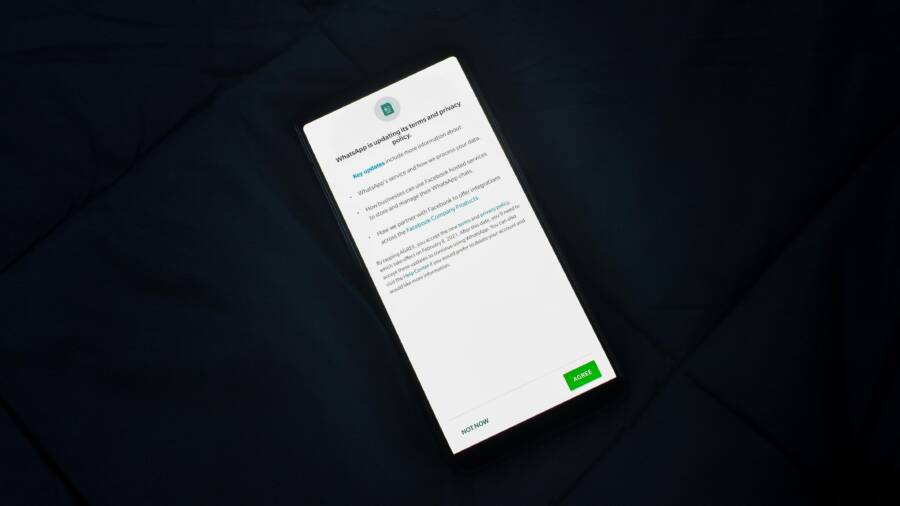
Have you ever shared vacation photos in a family group chat, only to see everyone automatically download every shot without asking? It can be convenient in the moment, but it can also feel invasive and wasteful once those files start piling up on every device. If you value control over your images, you’re not alone.
This post explains why auto download happens and the privacy and storage issues it creates. You’ll learn practical tweaks for Google Photos, Apple Photos, and popular messaging apps that stop unsolicited transfers while keeping your memories easy to share when you want them. We’ll also cover simple, smartphone friendly steps to manage permissions and defaults so you don’t have to hunt for settings later.
By the end, you’ll know exactly which settings to adjust, what to tell family members about sharing, and how to set up smart alternatives that make sharing smoother without over sharing. You’ll gain a clear path to preserving space on your devices and preserving your control over what you publish and when. This guide is written for everyday users who want straightforward, dependable outcomes without complex jargon.
If you’re ready to take back control, you’ll find quick actions you can apply today. Small changes add up to a big difference in how you share, who gets your photos, and how you manage your digital life across devices.
Spot the Common Reasons Behind Auto-Downloads
Sharing photos with family and friends should feel simple, not chaotic. Auto-downloads often sneak into your devices through a mix of cloud sharing, backup settings, and messaging apps. In this section, you’ll learn the typical culprits behind unsolicited transfers and how to spot them quickly. The goal is to keep your memories accessible when you want them, while stopping automatic pulls that gobble space and clutter your gallery. We’ll cover two major areas: Shared albums and backup syncs, and the defaults that push media in through messaging apps. Along the way, you’ll find practical links that explain common setups and how to adjust them.
Shared Albums and Backup Syncs
Shared albums and backup features are designed to make collaboration effortless. Unfortunately, they can also cause automatic saves to multiple devices without explicit confirmation. Here’s what to watch for and how to manage it effectively.
- Google Photos shared libraries and albums: When you enable shared albums, you invite others to add photos. Depending on the app’s settings, new images from the group can automatically appear on each member’s devices. This is convenient for collective projects like events or family trips, but it can flood devices with content you didn’t plan to keep locally. If you’re trying to maintain a lean library, consider turning off auto-downloads on devices you don’t want to expand. For more specifics, Google’s support articles walk through how to control automatic downloads and how shared albums interact with your device. For example, one guide explains the option to automatically download or sync albums and how to manage it across different devices. You can read more here: Can I automatically download all albums?
- Auto-saving from shared albums to Android and other devices: Google Photos also provides guidance on controlling how photos from shared libraries are saved to your device. If you’re using Android, ensure you review the auto-download controls to prevent unexpected copies from appearing in your device gallery. The official discussion covers how to limit automatic downloads from Google Photos to your phone, offering steps to disable or tailor the behavior. Learn more here: Control auto download from Google photos to Android mobile, etc
- Photos added by others to your shared albums: When family members add photos to a shared album, it may be set to save those additions to your library automatically. If your goal is to curate what lands on your device, you should verify who can add content and whether you want those additions to sync to your local storage. There are specific conversations around automatically saving photos added by others to a shared album that can help you adjust permissions and sync behaviors: Automatically save photos added by others to my shared album
Why this matters: Shared albums can turn a group project into a torrent of photos moving across devices. If you value selective sharing, keep a tight leash on who can add content and how it’s saved. It also helps to set device-specific preferences so only the photos you want land on each smartphone.
- Practical checks you can perform now:
- Open the Google Photos app and review the settings for Shared libraries and Albums. Look for an option that mentions automatic saving or syncing to your device and toggle it off if you don’t want new shared content to appear automatically.
- Visit each member’s device and confirm whether their own backup settings are pushing shared content to their phones as well. A single misconfigured device can cause a chain reaction across the group.
- A quick playbook to regain control:
- Decide which albums should sync automatically and which should stay in the cloud only.
- Limit who can add new content to shared albums, or require approval for new uploads.
- If you truly want to pause auto-downloads, disable the feature on the devices that see the most congestion first, then re-enable selectively as needed.
- Best practice tip: Treat shared albums as a collaboration space rather than a primary photo archive. Use dedicated backups for personal photos and keep a separate, clearly labeled shared album stream for family moments. This separation reduces accidental downloads and keeps your personal library tidy.
- Brief case example: A family group uses a shared album for yearly vacation photos. One member habitually uploads hundreds of images daily. Everyone’s devices start pulling in the stream, filling up storage and making it hard to find personal photos. By limiting auto-downloads and moving the bulk of uploads to cloud-only access, they preserve space and maintain a clean primary gallery for each phone.
If you want a more in-depth look at Google Photos behavior with shared albums and auto-downloads, the linked resources provide the official guidance and user discussions that can help you tailor settings to your family’s needs.
- Related reading: find further explanations about how shared albums interact with device storage on Google Photos can be found in the community questions and official help center articles mentioned above.
Messaging Apps and Defaults
Messaging apps are the prime real estate for auto-downloads. Photos, videos, and voice messages often arrive in the background, so your gallery fills up before you know it. Here’s how to spot and curb auto-saving across popular platforms.
- WhatsApp: By default, WhatsApp can save incoming media to your device gallery. The auto-download behavior is often tied to your current network (WiFi or mobile data) and your media visibility settings. If you want more control, turn off auto-download for both new media and profile pictures in WhatsApp settings. You can specify different behaviors for when you’re on cellular data versus WiFi, which helps prevent surprises when you’re on a limited plan. For more details on how to adjust these preferences, you can check WhatsApp’s help articles and settings guides to tailor media handling to your needs.
- Facebook Messenger: Messenger has long offered options to save media automatically on your phone. If you have a lot of group chats, those automatic saves can quickly clutter your gallery. The key is to disable automatic save in the app’s settings and then manually decide which images to keep. This approach gives you control while still letting you access media when you need it.
- LINE: In LINE group chats, media from conversations can auto-download, depending on your settings. If you’re part of several active groups, this feature can overwhelm your device storage. Review LINE’s data usage or storage settings to turn off auto-save for new media and choose to save only what you explicitly want to keep.
- Why this matters for families: When multiple apps save media automatically, a single family photo can turn into dozens of copies across several devices. The result is clutter, confusion about what’s saved where, and a harder time keeping your own library organized.
- Practical steps to regain control:
- Go into each messaging app’s settings and locate the media auto-download or save options.
- Set media auto-download to “off” or “wifi only” if you want to conserve mobile data and reduce automatic saves.
- Create a habit of manually saving anything you want to keep from chat threads. It’s slower, but it’s also more intentional.
- Consider a cloud-based archive that’s separate from your device gallery. This keeps your phone lean while still letting you revisit shared moments later.
- Transitioning to mindful sharing: If family members insist on sharing freely, propose a shared album or a dedicated family drive where everyone can add photos they want to contribute. This keeps your primary gallery clean while preserving the spirit of sharing.
- A short checklist to manage app defaults:
- Disable auto-download for WhatsApp media on mobile data.
- Turn off automatic saving in Messenger and LINE for new media.
- Enable manual saving for anything you want to keep from conversations.
- Review your phone’s backup settings to ensure it isn’t pulling in media you don’t want stored locally.
- A practical tip for busy households: Schedule a monthly quick review of your photo settings across apps. A 10-minute audit can prevent a backlog and help you stay in control of what lands on each device.
- External reference you can consult: If you want a deeper dive into WhatsApp media settings and how to disable auto-download, see WhatsApp’s official help resources and setup guides. While settings can vary by device, the general approach remains consistent across platforms, giving you a reliable method to curb automatic saves.
By taking these steps, you’ll keep your photos organized and accessible on your terms. The goal is to maintain a healthy balance between convenient sharing and personal control, especially when a busy family group chat keeps sending images all day long. With thoughtful adjustments in Google Photos, iCloud, and major messaging apps, you can enjoy shared moments without losing grip on your own photo library. For further context on how different services handle auto-downloads and sharing, the linked resources above offer official guidance and community experiences that many users find helpful.
Lock Down Google Photos Sharing
Controlling how your memories travel through Google Photos is essential for preserving privacy and avoiding a cluttered library. This section focuses on two practical tweaks that stop unwanted auto downloads from shared albums and partner sharing. If you want to keep collaboration simple without losing personal control, these steps deliver immediate results on your smartphone and others’ devices.

Photo by Rahul Shah
Disable Downloads in Shared Albums
Shared albums are a wonderful way to coordinate family moments, but they can also push new photos to devices you don’t intend to keep offline. Turning off downloads protects your local gallery while still letting everyone contribute in the cloud.
- Steps to disable: Open the album > Tap the share icon > Turn off “Allow downloads”. This setting applies to both viewer and owner sides, so you won’t accidentally pull in every addition to your device.
- When to use this: If you share an album for a specific event or project but want to curate what lands on each phone, this is your first line of defense.
- What changes on each device: New photos added to the shared album stay in the cloud, available for viewing in the web interface or on devices with permissions. They won’t automatically save to the local gallery.
Practical tips to maximize impact:
- Review each shared album you’re part of and identify which ones should be limited to cloud access only.
- For family groups, designate a single album as the catch-all for public sharing and keep personal albums private on your device.
- If you notice unexpected downloads after someone adds photos, double-check the album’s sharing settings and confirm that the “Allow downloads” toggle is off on all relevant devices.
Helpful context: Google Photos supports varying behaviors across devices and platforms. By turning off downloads at the album level, you regain control without breaking the flow of sharing. If you want to dive deeper, consult Google’s help resources for step-by-step guidance on shared albums and download settings.
Best practice takeaway: Treat shared albums as a collaborative space rather than a primary archive. This separation reduces accidental downloads and keeps your personal library tidy.
Turn Off Partner Sharing
Partner sharing creates a powerful bridge between accounts, but it can also push your photos to devices you don’t want to populate with every image. Pausing or removing partner sharing is a crisp move to reclaim control.
- Steps to disable or pause: Go to your profile > Sharing > Partner sharing > Pause or remove.
- Why this matters: It stops automatic inflows from the other account, giving you clear boundaries about what lands on your devices.
- When to pause vs remove: Pause if you still want occasional cross-viewing while you evaluate how you prefer your libraries to sync. Remove if you want a hard cut between your memories and the partner account.
What to check next:
- Confirm each device reflects the updated setting. A single device with an active link can still pull content into your gallery.
- Review any linked Google accounts you use on the phone, tablet, or smart TV. Sometimes a secondary device retains lingering permissions.
- Consider a periodic audit, especially after family events or changes in who has access to which albums.
Practical considerations:
- If you rely on shared storage for family projects, switch to a shared drive or a dedicated album that’s explicitly marked for collaboration. This keeps your personal photos separate and helps you manage what’s visible on each device.
- Communicate the change to family members so they understand why certain photos won’t auto-download anymore. A quick explanation helps set expectations and reduces resistance.
Remote management tip: If you’re managing multiple devices for a household, perform the partner sharing adjustments on the devices that are most likely to pull content automatically first. You can re-enable sharing selectively later, once you’re confident in your new defaults.
Closing thought: Partner sharing is a useful feature when used with clear boundaries. By pausing or removing it, you take back control of what travels to each family member’s phone, while still enjoying the convenience of cloud access for viewing and sharing when you want it.
External references for deeper guidance:
- For detailed steps on managing sharing and downloads, check Google’s help center for Google Photos. These official resources walk you through the exact menus and labels you’ll see in the app across devices.
- If you’re using multiple Google accounts, review how account permissions interact with shared content to avoid surprises in other apps or devices.
In this section, you’ve learned concrete actions to lock down how your Google Photos are shared and downloaded. With these controls in place, you can keep your gallery lean and focused on what you want to keep on your own devices, while still enjoying collaborative moments with family. In the next sections, we’ll cover broader tips for syncing, backups, and smarter sharing across platforms to maintain balance and peace of mind.
Fix Apple Photos and iCloud Auto-Saves
If you rely on Apple Photos and iCloud to store memories, you might run into auto-saves that creep onto your devices. This section gives you two precise actions to regain control: exiting the Shared Photo Library and tightening how iCloud Shared Links work. These tweaks keep your personal library lean while still letting you share moments with family when you want.
Exit Shared Photo Library
Turning off the Shared Photo Library ensures that new photos uploaded by others or by you in the shared space don’t automatically land on your device. It’s a simple privacy and storage win that keeps your personal collection clean.
- How to do it: Settings > Photos > turn off the Shared Photo Library feature.
- What changes on your devices: Your personal library remains intact, and content from the shared space stays in the cloud unless you explicitly move or save it.
- Quick validation: Open the Photos app on your iPhone or iPad, check the Library view, and confirm that only your personal photos appear there. If you still see shared content, revisit the toggle and re-sync after a restart of the device.
Why this matters: A shared library can flood your camera roll with images you didn’t intend to keep locally. Exiting it gives you full control over what lands on each smartphone, tablet, or Mac.
Helpful reference: If you want more details on iCloud Photos syncing and library status, Apple’s official support guide walks through common issues and how to verify your settings. See https://support.apple.com/en-us/101559 for guidance on checking library status and syncing across devices.
Smartphone-friendly tip: Do a quick device-wide check after turning off the Shared Photo Library. A short reboot helps your devices refresh their settings and prevents leftover sync attempts from reappearing.
Control iCloud Shared Links
Shared links can be incredibly convenient, but they should not make your albums downloadable by everyone. Make links view-only so recipients can see the photos without pulling copies to their own devices.
- What to adjust: Ensure shared links are set to view-only and disable download options where available. This keeps your originals on your own storage while still enabling you to share a moment via a link.
- How to implement: Use the sharing settings in iCloud to set permissions for each shared link. If a link was created before, revisit its permissions and update them to view-only. This prevents auto-downloading from the link while still letting others browse the album.
- Confirm the result: Send a test link to a family member and verify that clicking the link opens a view-only gallery without a download prompt.
Why this matters: View-only links reduce the risk of your photos getting downloaded en masse by others. It preserves your ability to control what lands on a recipient’s device while keeping sharing friction low.
Practical note: Apple’s help resources cover Shared Photo Library behavior and how to adjust access for collaborators and viewers. For broader context on sharing and downloads, check discussions and guides linked in user communities and official pages. See https://discussions.apple.com/thread/255348417 for user discussions about sharing photos across devices and accounts, which can illuminate common scenarios and workarounds.
Transitioning to safer sharing: After setting links to view-only, consider pairing this with a dedicated shared album or a cloud drive where you approve each addition. This approach keeps your primary library tidy and respects everyone’s access needs.
External reference for deeper guidance: If you’re looking for more detailed steps on managing sharing and downloads, Apple’s official support resources provide structured instructions and visuals to guide you through the menus you’ll see on iPhone, iPad, and Mac.
Closing note: By tightening Shared Library access and converting iCloud Shared Links to view-only, you dramatically reduce how much auto-download content hits your devices. Pair these changes with a clear sharing policy for family members, and you’ll maintain a healthy balance between easy sharing and personal control. If you’re ready for more, the next sections explore syncing, backups, and smarter sharing across platforms to keep your memories organized without the clutter.
Control Downloads in WhatsApp and Messenger
Automatically downloading media from family chats can quickly flood your gallery and drain storage. This section provides clear, practical steps to stop unsolicited saves in two of the most common messaging apps. You’ll learn how to tailor auto-downloads to your needs, so you keep control over what lands on your device while still staying connected with loved ones.
WhatsApp Media Settings
WhatsApp offers robust controls to decide when and what media should be saved to your device. The key is to set the auto-downloads to a manual or selective mode and adjust data usage preferences to prevent surprises when you’re on the move.
- Set media auto-download to Never or Wi-Fi only for each media type (photos, audio, videos, documents). This prevents automatic saves on cellular data and keeps your gallery lean.
- Customize per network: configure different rules for mobile data, Wi-Fi, and roaming, so you’re never surprised by downloads in sensitive data situations.
- Manage visibility: leave profile pictures and status media where you want them, but avoid automatic saves of group media that clutter your device.
Practical steps to apply now:
- Open WhatsApp > Settings > Storage and data.
- In Media auto-download, choose Never or Wi-Fi only for each media type.
- Review any device-specific settings that might override these choices, and test by sending a photo in a test chat to confirm behavior.
If you want a deeper dive, WhatsApp’s official help center explains configuring auto-download in detail. For a quick how-to, see the guidance here: How to configure auto-download | WhatsApp Help Center
Tips to maximize clarity and control:
- Create a habit of saving only what you truly want to keep. Rely on manual saves for important moments.
- Consider a separate cloud backup strategy for family photos, so your phone gallery stays clean while memories stay safe.
Why this matters: WhatsApp can default to saving media across networks. By locking in manual or Wi-Fi only settings, you prevent big bursts of content from landing on your device, especially when your data plan is limited.
Messenger Privacy Options
Messenger can also pull media automatically onto your device. Turning off automatic saves gives you the power to curate what you keep locally, while still enjoying quick access to media when you choose to view or save it.
- Disable automatic saves: turn off the setting that saves incoming media to your device gallery. This keeps your local library under your control.
- Save selectively: after you disable auto-save, decide which images or videos you want to keep by saving them manually from the chat.
- Keep critical media accessible: you can still access media within the app or in the cloud without it automatically appearing in your camera roll.
Actionable steps you can take today:
- In Messenger, go to profile settings > Photos and media.
- Disable the option that saves incoming media to your device.
- Develop a habit of saving only the moments you want to keep from chats, instead of letting every file land on your phone.
For a helpful walkthrough, you can view practical tips on how to stop Messenger from auto saving your photos in a step-by-step format: Instantly Stop Messenger from Auto Saving Your Photos & …
Extra considerations:
- If you participate in several group chats, you’ll likely want to keep auto-save off across the board. This prevents a flood of media when the conversation gets busy.
- If you rely on media for quick references, consider saving only a curated subset to a dedicated album or cloud drive. This keeps your device gallery tidy without losing access to important moments.
By applying these settings, you regain control over your device storage and personal space. The goal is to enjoy easy sharing while preventing automatic downloads from turning your phone into a cluttered archive. If you want a different approach, you can also explore third-party solutions that help you manage media flow across apps, but start with the built-in controls for the most reliable results.
Use Smart Ways to Share Without Full Downloads
Sharing memories should be effortless, not a constant spring cleaning task. In this section, you’ll learn practical, low-friction methods to share your photos and videos while keeping full copies off every device. These approaches reduce clutter, preserve your privacy, and make it easy to share when you want to, not when others push a download button. Think of them as smarter defaults that respect your space and your family’s needs.
Share View-Only Links
View-only links are a simple way to let someone see your albums without pulling copies to their device. This is especially useful for multi-user events, large family gatherings, or when you want to share a portfolio with guests who don’t need offline access. The key is to create links that expire after a set period and to disable download where possible.
- Why it works: View-only links prevent automatic downloads while still giving recipients access to the latest updates in real time. If you’re coordinating a family event, you can keep the album current without filling every phone with duplicates.
- How to set it up: In Google Drive or Dropbox, generate a link with an expiration date and set the permission to view only. This ensures the link remains usable for a window you control, and then it naturally winds down.
- For Google Drive users, you can set expiration on shared files or folders so the link stops working after a chosen date. This is handy for event archives that should live in the cloud for a limited time. Read the official guidance to see exact steps: Set sharing expirations on files and folders in shared drives
- If you’re using Dropbox, you have the option to create view-only links and even set expiration on those links depending on your plan. This is a clean way to share a moment without inviting downloads: Create & Share Dropbox Links Easily
- Best practices you can apply now:
- Use expiration dates for event albums and seasonal shoots.
- Prefer view-only links for public or semi-public sharing; reserve download-enabled links for trusted recipients.
- Test the link yourself in an incognito window to confirm it behaves as expected.
Pro tip: When you need to share quickly with a large group, a single expiring link can replace dozens of messages. It keeps your main gallery tidy and reduces the risk of mass downloads. For a quick reference on how Google Drive handles sharing, see the official help article: Stop, limit, or change sharing – Computer – Google Drive Help
Why this matters: Expiring, view-only links give you granular control over who can see your content and for how long. It avoids the pileup of offline copies while still enabling timely access for family and friends.
Private Albums and Stories
Some platforms offer stronger privacy boundaries through private or locked folders and stories that don’t automatically land on every device. Using these options helps you keep personal memories off shared or public devices while still allowing selective sharing.
- What to look for: Locked folders or private albums that are not included in standard feeds or galleries. These features prevent auto-saving and keep sensitive material out of the main photo stream.
- How to implement:
- In Google Photos, the Locked Folder feature provides a private space that stays off the main grid and isn’t accessible by other apps. It keeps your private captures secure until you choose to move them. Learn more here: Hide your sensitive photos & videos – Android
- For broader sharing controls, consider private albums or stories that aren’t set to automatically sync to all devices. This helps ensure personal moments stay in your control until you want to share them.
- Practical steps for households:
- Create a dedicated private album for family moments you’re not ready to publish broadly.
- Use locked folders or similar features to separate personal work from shared family memories.
- When you do want to share, move items from private spaces into specific shared spaces, then send a view-only link or grant access with strict permissions.
- Real-world scenario: A couple uses a private album for daily life shots and a separate shared album for holidays. They keep personal images out of the group feed, then selectively add highlights to the shared album after they’ve been reviewed. This approach keeps the main gallery clean while preserving the ability to collaborate on meaningful memories.
Helpful context: Google Photos’ private options and discussions around locked folders help you understand how to keep content private without losing convenience. For broad guidance on creating private albums and understanding sharing boundaries, you can explore discussions and official pages such as the Google support article on Locked Folder and related threads.
Best practice takeaway: Treat private albums and stories as your own staging area. It’s where you filter and curate before anything lands in a shared space. This keeps your personal library protected and reduces the risk of accidental downloads.
Practical example: A person keeps daily life photos in a private Google Photos album with a locked folder. They only move a few chosen moments to a shared album after reviewing with family. The rest stays private, accessible only to them, and it never clutters the devices of others.
Where to read more: For a deeper look at Google Photos privacy features and how to manage sharing, see the official support resources and user discussions linked in this section.
External references you can consult for deeper guidance:
- Google Photos privacy and locked folder guidance: Hide your sensitive photos & videos – Android
- A broader look at private albums and sharing settings: Times of India coverage on Private Albums in Google Photos: Create Private Albums in Google Photos: Locked Folders & …
Closing note for this section: View-only links and private albums give you tangible ways to keep your memories in control. They let you share when you want to, and protect your personal archive from unnecessary downloads. In the next sections, we’ll explore how to harmonize these settings with your backup routines and multi-platform sharing strategy, so your photos stay organized across devices—without the download deluge.
Conclusion
Taking back control over auto downloads doesn’t require a full tech reset. It starts with a quick audit of the key settings you’ve touched in Google Photos, Apple Photos, and your messaging apps. A focused tweak now can prevent dozens of copies from piling up later. Start by confirming that shared albums and partner sharing are limited, and that view only links are used where possible. Then lock down auto downloads in your main messaging apps.
If you follow these steps, you’ll keep your primary gallery clean while still enjoying easy ways to share moments with family. A small shift in how you share can save you time, space, and frustration on your smartphone. Keep your personal shots separate from group archives and use cloud links or private albums for broader viewing.
Now is the time to check your settings. A 10 minute review can prevent a cluttered photo library and protect your privacy. Try one fix today, then note the result in the comments so others can learn from your experience.
A quick reminder for smoother conversations at home: set a simple rule about what lands on whose device and why. It makes talking about privacy easier and keeps family sharing pleasant rather than chaotic.