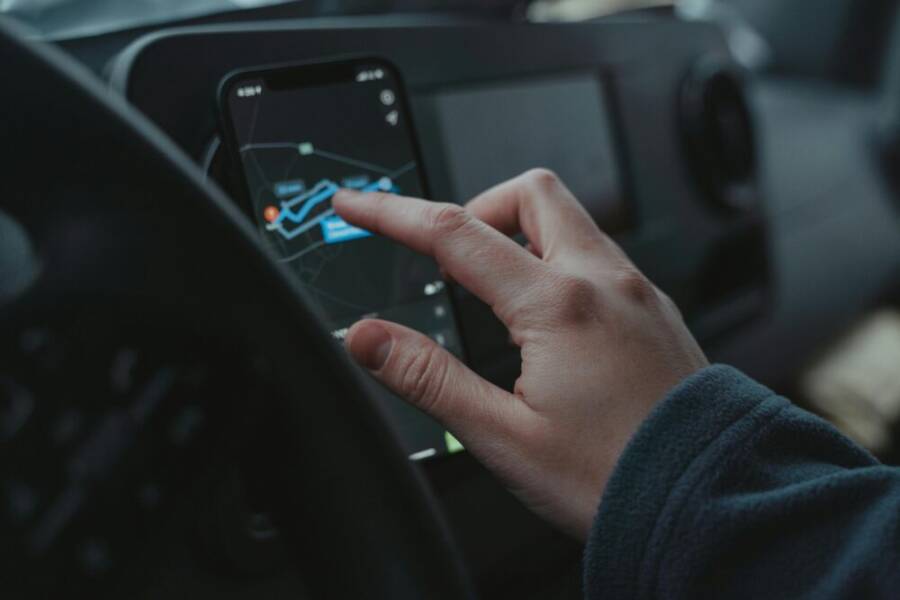
Ever needed to show friends where you are in real time without a phone call or text chase? Sharing your live location can make meetups smoother, boost safety in crowded places, and speed up getting help if something goes wrong. It also helps you control who sees your location and for how long, keeping privacy in check.
This guide walks you through how to share your location from both iPhone and Android devices, with clear steps you can follow today. You’ll learn how to start sharing, what apps to use, and how to stop sharing when you’re done. Along the way, you’ll see practical tips for choosing the right settings in Maps and other common apps, and you’ll understand why privacy matters.
You’ll come away with a simple, reliable routine that fits your everyday life. The post also covers best practices and quick troubleshooting so you’re never left guessing if location sharing is working. Whether you’re coordinating a meetup with friends, staying connected with family, or getting quick help in an unfamiliar area, you’ll have the know-how to share your location confidently.
What is live location sharing and when to use it
Live location sharing lets you share your current GPS coordinates in real time with someone for a set period. It updates as you move, so friends, family, or teammates can see exactly where you are and how far you are from a destination. This feature is built into many maps and messaging apps on both iPhone and Android. It’s helpful when you need to coordinate, reassure someone, or get quick help in an unfamiliar area. In practice, you’ll see your location on a map with a moving dot that represents your device. The accuracy depends on your device, weather, and surroundings, and the sharing session ends when the timer runs out or you stop sharing. For everyday use, think of it as a temporary map you grant to a trusted person, with clear control over who can see you and for how long.
If you’re curious about how accurate location sharing can be, remember that GPS is most reliable outdoors with a clear sky view. In dense cities or indoors, accuracy can dip a bit, but most mainstream services keep updates frequent enough to feel natural. It’s also common for apps to pause updates if you lose a data connection or move into a spot with weak GPS signals. For many people, this tradeoff is worth the peace of mind that comes from knowing a friend can see your progress in real time. For more on accuracy in real world use, you can read about how location sharing performs in different environments through reputable sources like discussions around Apple’s Find My and other location services.
Below are the concrete sections you’ll find in this part of the guide, each designed to help you understand when to use live location sharing and how to make it safe and simple.
SECTION 0: Understand what live location means on phones
Live location sharing on phones means your device transmits current GPS coordinates to another user for a limited time. The coordinates update as you move, so the other person sees your exact position on a map in real time. Most systems let you choose a duration—common options range from 15 minutes to several hours. When the timer ends, sharing stops automatically unless you extend it. You can also revoke access at any moment.
How accuracy works in practice. GPS works best outdoors with a clear view of the sky, but modern phones combine GPS with Wi-Fi and cell data to improve reliability indoors. Your location might jitter a few meters in crowded streets or high-rises, but the updates still give a good sense of direction and proximity. If you’re stationary for a while, updates may slow down to save battery. A quick tip: when you’re in motion, keep your screen on and your data connection steady to maintain smooth updates.
Why sharing stops after time. The built-in safety design ensures you aren’t sharing indefinitely by mistake. The timer is visible to both you and the person you’ve invited. If you no longer want to share, you can end the session early. If you forget to turn it off, most apps will automatically stop sharing when the timer hits zero. This helps protect your privacy while giving you flexibility when plans change.
Extra note on commonly used apps. Both iPhone and Android users often rely on Maps and Messages to share live location. In some cases, you may choose to share only with specific people or groups. You’ll usually see a clear “stop sharing” option, making it easy to revoke access at any time.
SECTION 1: Prime scenarios for sharing live location
Live location sharing shines in a handful of everyday situations. Here are 3 to 4 relatable cases, each highlighting why this feature is convenient and adds a layer of safety.
- Meeting a friend at a busy mall or transit hub. It’s easy for everyone to find the exact meeting point without phone tag. The other person can watch your progress as you navigate through crowds, reducing anxiety and delays.
- Picking up a child or family member. You can see when they’re near the pickup point and ensure they’ve arrived safely. This reduces the back-and-forth and makes the exchange smoother.
- Hiking or walking with a group. A shared live location helps the group stay together, especially on trails with forks or intersections. It’s reassuring when signals are spotty or you split into smaller teams.
- Catching a ride or coordinating pickup. If you’re running late or taking a detour, a live location map helps the driver adjust routes and reduces the need for back-and-forth directions.
For each scenario, the key value is ease and safety. You avoid multiple calls or messages while ensuring your companions know where you are. When you plan to share, set a sensible duration so you’re not left exposed longer than needed. And remember to share only with people you trust, which brings us to the next section.
SECTION 2: Privacy and consent tips before you share
Privacy should come first. Here are practical tips to protect yourself while still gaining the benefits of live location sharing.
- Ask for consent. Before you start sharing, confirm that the other person is comfortable receiving your live location. Mutual agreement is essential for trust and safety.
- Share only with trusted people. Limit access to individuals you know and who have a legitimate reason to track your movements. Consider creating a short list rather than broad sharing.
- Set a time limit. Use a duration that fits the plan. Shorter sessions reduce exposure and makes revoking access straightforward when the meetup ends or the ride is complete.
- Revocation should be quick. If plans change, you should be able to stop sharing immediately from the app. Double-check that the other party no longer has access after you disable the feature.
- Check app permissions regularly. Review which apps have location access on your phone and adjust settings if needed. This keeps your privacy in alignment with your current needs.
If you want to learn more about how real-time location sharing performs in real world settings, you can explore perspectives on how accuracy varies across devices and environments. For practical examples and user experiences, read about Find My and other sharing tools in trusted discussions and reviews. For more on cross-platform reliability, see comparisons between Google Maps location sharing and iPhone location sharing to understand how different ecosystems handle updates and privacy controls.
Sharing live location on iPhone
Sharing your live location on an iPhone is a smart way to keep friends and family in the loop. It works smoothly through Messages and Find My, with clear controls for duration and visibility. This section breaks down the exact steps you need, plus practical tips to stay private and in control.
Share via Messages
- Open the Messages app and enter the conversation with the person you want to share with.
- Tap the Info button (the name or profile picture at the top), then select Share My Location or Share.
- Choose how long you want to share: options typically include 15 minutes, 1 hour, or Until you turn this off. You can also choose to share for a custom duration.
- The other person will see your live location in the conversation and on their map until the timer ends or you stop sharing.
- If you change your mind, return to the same menu and tap Stop Sharing.
Practical note: this method keeps the sharing tightly tied to a single thread in Messages, making it ideal for casual meetups. For more detailed steps, Apple’s guidance covers the exact taps in the Messages flow. You can verify the process here: Share your location in Messages on iPhone.
Smartphone users often appreciate this approach because it requires no extra apps and works where conversations already happen. If you’re coordinating a meetup in a crowded area, this is a quick, reliable option.
Share via Find My
- Open the Find My app and go to the People tab.
- Tap Share My Location or add a person from your Contacts.
- Select the duration you want for sharing: common choices include 1 hour, until end of day, or indefinitely until you stop it.
- Pick the person you want to share with and confirm. The recipient will see your live location on a map, with updates as you move, for the chosen time frame.
- To stop sharing early, return to Find My and select the person, then choose Stop or adjust the duration to end sooner.
Using Find My gives you a broader control surface, especially when you want to share with multiple trusted contacts or across devices. Apple’s official support explains the Find My sharing workflow and duration options in detail: Share your location with iPhone.
If you’re managing a family group or close friends, Find My can be more convenient than Messages because it centralizes location visibility across your devices. It also allows you to see others’ locations if they’ve granted permission, which is handy for planning group outings.
Tips for iPhone users
- Privacy first. Only share with people you trust and set a duration that matches your plan. It’s safer to use shorter windows and revoke access when you don’t need it.
- Battery life. Location updates can drain the battery. If you’re powering through a long day, consider shorter sharing windows or turning off updates when you expect to be idle.
- Turn off sharing promptly. If plans change, stop sharing from the same app you used to start it. Regular checks prevent stray access.
- Check permissions. Regularly review which apps have location access on your iPhone. If a nonessential app has it, revoke the permission to keep things lean and private.
- Test runs matter. Before you rely on location sharing for a meet-up, do a quick test with a trusted friend to confirm updates are visible and timely.
For broader context on location sharing accuracy and cross-app behavior, you can explore Apple’s official support articles and related reviews. See the Find My and Messages sharing references here: Share your location in Messages on iPhone and Share your location with iPhone.
If you want a quick checklist you can print or save, here’s a compact version:
- Decide the sharing method: Messages for quick chats, Find My for multi-person tracking.
- Pick a duration that fits your plan.
- Confirm the recipient(s) and start sharing.
- Monitor the session and stop when done.
- Review privacy settings afterward to tidy up permissions.
By following these steps, you’ll keep your live location sharing straightforward, private, and reliable across common iPhone workflows.
Sharing live location on Android
Sharing your live location on Android offers a simple way to keep friends and family in the loop. Whether you’re navigating a crowded space or meeting up in a new area, real time updates can reduce confusion and boost safety. This section covers how to share via Google Maps, how to use other popular apps, and practical Android privacy and battery tips to keep control of your data.
Share via Google Maps live sharing
Google Maps makes live location sharing straightforward on Android. Here’s how to start, how long it lasts, and how recipients view your movements.
- Start live sharing: Open Google Maps and sign in with your Google account. Tap your profile picture, then choose “Location sharing.” Select the person you want to share with from your contacts or generate a link you can send directly.
- Duration options: Choose from presets like 15 minutes, 1 hour, or Until you turn off sharing. You can also pick a custom duration if you have a specific meetup window.
- How recipients view the map link: The person receives a link that opens in Google Maps or a compatible browser. On their screen, a dot represents your device and the map updates as you move. They can see your distance to a destination and your estimated arrival time. If you ever need to stop sharing, go back to Location sharing and tap Stop, or end the session when the timer expires.
- Practical tip: If you’re concerned about privacy, share with specific people and set shorter durations. For more details, check Google’s official guide on real time location sharing for Android: Share your real-time location with others in Google Maps.
Android users often favor Google Maps for its familiarity and cross-device support. If you’re coordinating in a busy area or a new city, sending a live link through Maps can be quicker than messaging back and forth.
Share via other apps
You don’t have to rely on Maps alone. Many popular apps support live location sharing, with simple steps to start and clear privacy controls. Here’s a quick rundown for WhatsApp and Messenger, plus notes on privacy and stopping sharing.
- WhatsApp:
- Open the chat with the person you want to share with.
- Tap the attachment icon (paperclip) and choose Location.
- Pick “Share live location” and select a duration (15 minutes, 1 hour, or custom).
- Send the live location link. The recipient will see updates in real time within the chat.
- Messenger:
- Open the conversation with the person you want to share with.
- Tap the location icon or the more options menu and choose Location.
- Select “Share live location” and set how long you want to share.
- The recipient gets a live map in the chat with updates as you move.
- Privacy notes:
- Share only with trusted contacts and set a duration that fits the plan.
- Remember you can stop sharing at any time from the same location in the app.
- If your device loses signal, updates may pause until connectivity returns.
If you want more depth on sharing across apps, reputable guides show the exact steps and nuances for different Android versions. For a broader view on Google Maps and cross app behavior, you can read practical comparisons and user experiences in trusted reviews and help articles.
Android privacy and battery tips
Live location sharing can drain battery and expose data if misused. Here are practical tips to keep sharing safe while preserving battery life.
- Control location permissions: Regularly review which apps have location access. On Android, you can limit background access and switch to “While in use” or off entirely when not needed.
- Use shorter sharing windows: A brief window is often enough for a meetup. Short bursts reduce battery drain and limit exposure.
- Disable updates when moving unpredictably: If you’re in areas with poor signal, turning off sharing temporarily avoids wasted updates and battery drain.
- Revoke access when done: End the session in the app you used to start sharing and verify that the other party no longer has access.
- Battery saving tips: Enable battery saver mode, reduce screen brightness, and keep your phone’s camera and GPS from staying active longer than necessary. Keeping your screen on helps keep updates timely, but only when you’re actively sharing.
- Check privacy settings after sharing: After you finish, review which apps had location access and adjust permissions to keep your phone lean and private.
If you’d like deeper guidance on Android privacy and best practices for location sharing, see behavior guides and official support pages that explain how to manage permissions and revoke access. Practical steps and real world tips are often covered in detail in Android help articles and reputable tech sites.
Links to extend your reading:
- Learn how Google Maps handles location sharing on Android: Share your real-time location with others in Google Maps
- General tips on sharing location via Android messages and apps: How to share location on Android quickly via text or Google Maps
By following these steps, you’ll keep live location sharing practical and safe on Android. Whether you’re meeting friends in a crowded venue or guiding a family member home, you have reliable ways to stay connected.
Best practices and safety tips for live location sharing
Sharing your live location can be a smart way to stay connected and safe in dynamic situations. However, it also carries privacy considerations. This section provides practical, easy-to-implement guidance on when and how to share, who should see it, and how to turn sharing off when you’re done. The goal is to give you clear rules of thumb so you can use live location features confidently and responsibly.
Set time limits and auto stop
Choosing sensible durations is the first line of defense for privacy. Shorter time frames reduce exposure while still giving your friends a real-time sense of where you are. A good starting point is 15 minutes for casual meetups, 1 hour for longer outings, and the option to extend only if plans change. If you’re on a time crunch, a 20 to 30 minute window can be enough to navigate a crowded venue or reach a pickup point without lingering too long in the background.
Automatic stop is a key safety feature on major apps. With auto stop, the system ends sharing when the timer runs out, even if you forget to turn it off. This helps prevent accidental exposure. Most apps also provide a fallback: you can end sharing manually at any moment. When you start sharing, make it a habit to pick a duration you can easily remember and set a quick reminder to review it before the session expires.
If you’re coordinating in a busy area, consider combining a short time limit with a quick manual stop check. For instance, set 15 minutes for a quick meetup and plan to review the session 2 minutes before the timer ends. This gives you a moment to extend if everything is going smoothly or to shut down sharing if movement slows to a stop. Always confirm that the other person understands the ending time, so there are no surprises.
- Practical tip: When you’re traveling with a group, use a multi-person sharing option if available. It lets several trusted contacts track your route without duplicating separate sessions.
- Quick test: Before a big meetup, run a 5–10 minute test sharing with a trusted friend to confirm updates are timely and accurate.
For iPhone users, Messages and Find My offer duration controls that are straightforward to use, while Google Maps on Android provides clear presets like 15 minutes, 1 hour, or Until you turn off sharing. If you want more detailed steps, you can explore official guides from Apple and Google.
Images add context here.

Photo by Tima Miroshnichenko
Limit who can see your location
Privacy grows stronger when you control visibility. Share your live location only with people you trust, and use group controls when they exist. When you’re in a public or semi public setting, avoid sharing with broad groups or anyone who doesn’t need to know your movements.
Think about your sharing radius the same way you think about access to your wallet. Keep it tight. If you’re at a large venue, consider sharing with individual friends or a small trusted group rather than everyone in your contacts. Some apps let you manage audiences by creating specific groups or lists; use those features to streamline who can view your location.
A practical approach is to establish a default rule: share only with a small, clearly defined set of people, and use time-bound sessions. You can always adjust the list for a particular trip or event, but starting from a stricter baseline reduces the chance of accidental exposure.
- Use groups wisely: If you must share with multiple people, create a group that includes only essential contacts. Remove anyone who no longer needs access.
- Verify recipients: Before you start sharing, double-check the invitees. A quick glance can prevent accidental sharing with the wrong person.
- Consider cross-platform compatibility: If you’re coordinating with someone on a different platform, ensure the recipient can view the location with the app you’re using. Cross-compatibility matters for seamless coordination.
For broader guidance, see how different platforms handle access controls and sharing permissions. Apple’s Find My and Messages controls provide examples of clear visibility options, while Google Maps offers tiered sharing that can be restricted to individual contacts or shared via private links. Helpful overviews include guidance from ConnectSafely on best practices for location sharing and privacy.
- Learn more: Apple’s control over location information and sharing options, and Google Maps real-time sharing basics, show how to tailor who sees your location and for how long.
Images enhance this concept.
Photo by Tima Miroshnichenko
Turn off sharing when you arrive
Stopping sharing when you reach your destination is essential for privacy. Manually ending a session is quick and gives you immediate control. Relying on auto-stop alone can be risky if plans change or you forget to review the timer.
How to turn off sharing manually is straightforward in each major app:
- In Messages on iPhone, you can stop sharing from the same location where you started. This keeps your control close to your conversation thread.
- In Find My on iPhone, go back to the People tab, choose the person, and select Stop Sharing or adjust the duration to end sooner.
- On Android, you can stop sharing in Google Maps Location Sharing by returning to Location sharing and tapping Stop, or by ending the session when the timer expires.
The reason this matters goes beyond privacy. Ending sharing promptly reduces battery drain and data usage, and prevents confusion for someone who might be tracking you in real time. If you’re in a changing situation, such as a ride that detours or a meetup that gets rescheduled, turning off location sharing keeps everyone on the same page and protects your personal information.
A quick reminder: after you stop sharing, it’s a good habit to review app permissions. Revoke access from apps that no longer need location data, and keep your device lean and private. For extra context, see Apple and Google’s guidance on turning off or adjusting location sharing in their official support articles.
- Quick action: If you’re unsure whether you’ve stopped sharing, perform a quick check in the app you used to start the session. Verification prevents lingering access.
If you’d like more reading on best practices from trusted sources, you can explore privacy-focused guidance that compares Find My, Messages, and Maps for cross-platform use. These resources emphasize keeping sharing intentional and brief, with clear end points.
Suggested reads and official guidance:
- Apple: Control the location information you share on iPhone. Link
- Google: Share your real-time location with others in Google Maps. Link
In practice, turning off sharing when you arrive helps you maintain control of your privacy without compromising the convenience live location sharing offers. It’s a small step that protects you in everyday life, whether you’re meeting friends at a cafe or guiding a family member home.
Troubleshooting common issues
When live location sharing doesn’t behave the way you expect, it can feel frustrating. This section helps you quickly identify the most common pitfalls and fix them without turning a routine meetup into a tech scavenger hunt. You’ll find practical tips for improving accuracy, as well as guidance on permissions and offline scenarios so you stay in control of who sees your position.
GPS accuracy and delays
Real time location only works as well as the GPS signal and network connection allow. Outdoors with a clear sky, accuracy is usually very good. In dense city canyons, indoors, or under heavy tree cover, you may notice small delays or slight position jitter. The key is to minimize the gaps between updates and manage expectations about precision.
What to check for better accuracy
- Move to open sky when testing. A quick step outside or near a window helps GPS devices lock onto satellites faster.
- Keep devices charged. Battery life affects location polling. If the phone is low on power, some systems reduce update frequency to save energy.
- Ensure a stable data connection. Live location relies on data, so a weak or intermittent connection can cause pauses in updates.
- Reduce interference from apps. Background processes can compete for CPU and network resources. Close unnecessary apps while sharing.
- Use a single, representative app when testing. If you switch between Maps, Messages, and another app mid session, updates can feel inconsistent.
If you still see inconsistent updates, compare behavior across platforms. iPhone and Android handle location data slightly differently, and some devices rely more on Wi‑Fi and cellular data when GPS is weak. For deeper context on how accuracy can vary by environment, read about how Find My and Google Maps manage updates in real life. For a quick read on real world performance, check Apple’s guidance on location sharing and Maps behavior and Google’s real time sharing overview.
Practical scenario: you’re at a crowded station and want to meet a friend. If GPS signals are bouncing off glass and metal, expect occasional tiny misalignments on the map. What matters is that the dot stays within a reasonable radius and updates keep coming as you move. If the dot lags behind by more than a few seconds for an extended period, pause sharing, move to a better spot, and resume.
When to tweak privacy over precision
- If you’re sharing in a high‑density area, you may prefer to shorten the duration and accept slightly coarser updates.
- If you’re in a safe environment, enabling a stronger location source (like Wi‑Fi) can improve speed, even if it means a modest drop in precision.
If you want more technical detail on how to optimize location accuracy on Android, you can reference guidance like Google’s location settings and related best practices. For a broader look at cross‑platform behavior, you’ll find useful perspectives in articles comparing Apple Find My with Google Maps location sharing. See these practical resources for context:
- https://support.google.com/maps/answer/15437054?hl=en&co=GENIE.Platform%3DAndroid
- https://support.apple.com/guide/iphone/share-your-location-iph69b192bc2/ios
A quick takeaway: location accuracy improves when you position yourself for a strong signal, keep the device charged, and use a dedicated app with a clear sharing window. If you still encounter delays, testing with a trusted friend in a controlled setting helps you calibrate your expectations and refine your setup.
Permissions and offline scenarios
Location permissions are the gatekeepers of live sharing. Without the right privileges, you won’t be able to share in real time, and some apps may block updates entirely. Additionally, offline scenarios pose a unique challenge because live updates require an active data connection. Here’s how to approach both issues so you stay in control.
Why permissions matter
- Access controls who can see your location. If you deny location access to an app, it cannot start a live sharing session.
- Granular controls protect privacy. Most platforms let you choose “Always,” “While Using the App,” or “Never” for location access. Picking the right level helps balance convenience with privacy.
- Regular checks prevent surprises. Permissions can change after OS updates or app re installs, so it’s wise to review them periodically.
Practical steps to verify permissions
- On iPhone: go to Settings > Privacy & Security > Location Services. Confirm the app you want to use has the right permission and is allowed to use location while in use or at all times, depending on your sharing needs.
- On Android: open Settings > Location > App permissions. Review each app’s access level and adjust to “Allow all the time” or “Allow only while using the app” as appropriate.
- For both platforms, consider turning on background activity for the sharing app if you expect rapid movement, but keep it off for apps that don’t need it to preserve battery and privacy.
Offline scenarios and why live sharing can fail
- No network means the server can’t relay updates. Live location typically depends on ongoing data connectivity. If you’re offline or in a weak signal area, your location may freeze or stop updating.
- Some apps fall back to cached coordinates, which can cause out of date information. Don’t rely on offline mode for real time guidance.
- Maps and sharing features that require cloud checks won’t function without internet. If you anticipate being offline, plan a backup like sharing only once you have a stable connection or using a prearranged meeting point.
Best practices for offline workarounds
- Schedule your sharing around connectivity windows. If you know you’ll travel through tunnels or rural zones, start sharing when you’re in a strong signal area and stop before you lose coverage.
- Use a time bound session. Shorter windows minimize errors when the connection fluctuates.
- Communicate a fallback plan. Tell your recipients to expect occasional gaps and use a fixed meetup point if the live feed drops.
As you mix and match apps, you’ll notice some differences in how each platform handles permissions and offline work. Apple’s Find My and Messages give you straightforward controls and predictable behavior, while Google Maps on Android offers flexible sharing options and cross device visibility. For authoritative guidance on permissions and how to manage them, refer to these official resources:
- Apple: Control the location information you share on iPhone. https://support.apple.com/guide/iphone/control-the-location-information-you-share-iph3dd5f9be/ios
- Google: Share your real time location with others in Google Maps. https://support.google.com/maps/answer/15437054?hl=en&co=GENIE.Platform%3DAndroid
In practice, understanding permissions and offline limits helps you design a robust sharing plan. You can still enjoy the peace of mind that comes with real time updates, while avoiding the pitfalls that come from missing data or restricted access. For a quick real world check, test a short live sharing session in a familiar venue and note how it behaves when you lose and regain connectivity. That hands on experience is your best guide.
External resources for deeper reading:
- Google Maps real time location sharing guide (Android) https://support.google.com/maps/answer/15437054?hl=en&co=GENIE.Platform%3DAndroid
- Apple guidance on location sharing in Messages and Find My https://support.apple.com/guide/iphone/share-your-location-iph69b192bc2/ios
This section should give you practical, actionable ways to troubleshoot two of the most common issues—GPS accuracy and permissions/offline scenarios—so you can keep sharing your live location with confidence. If you’re ready, we can dive into platform specific step by step checklists for iPhone and Android in the next section.
Conclusion
Sharing your live location is a practical habit for safer meetups and clearer coordination on a smartphone. Start with the right method, pick a sensible duration, and restrict access to trusted people; then stop sharing as soon as you reach your destination. Always put privacy first and review permissions after a session. If you try this with a couple of trusted friends, you’ll quickly feel how much easier planning becomes. How will you test live location sharing with someone you trust this week?