Thousands of People Were Struggling With Money Until They Discovered This One Ancient Secret Hidden in Sound
>>> Unlock It Now <<<

Lowering your screen brightness and turning off background connectivity are the fastest ways to preserve your smartphone battery during long flights. These two simple adjustments prevent your device from draining power on invisible tasks while you are in the air.
Frequent travelers often watch their percentage drop rapidly before they reach their destination. You can easily avoid this frustration by customizing your settings before takeoff.
Follow these practical steps to extend your battery life and keep your device functional for the entire journey.
Essential Smartphone Settings to Adjust Before Takeoff
Preparing your device before the cabin door closes is the most effective way to protect your battery life during a long flight. You avoid unnecessary power drain by modifying these settings while you still have a stable ground connection. These small, deliberate changes keep your smartphone operational for much longer than leaving everything on default settings.
She Pressed Play on a Strange Audio Track and Within Days Her Financial Reality Started Shifting in Ways She Could Not Explain
>>> See How It Works <<<

Mastering Airplane Mode for Battery Preservation
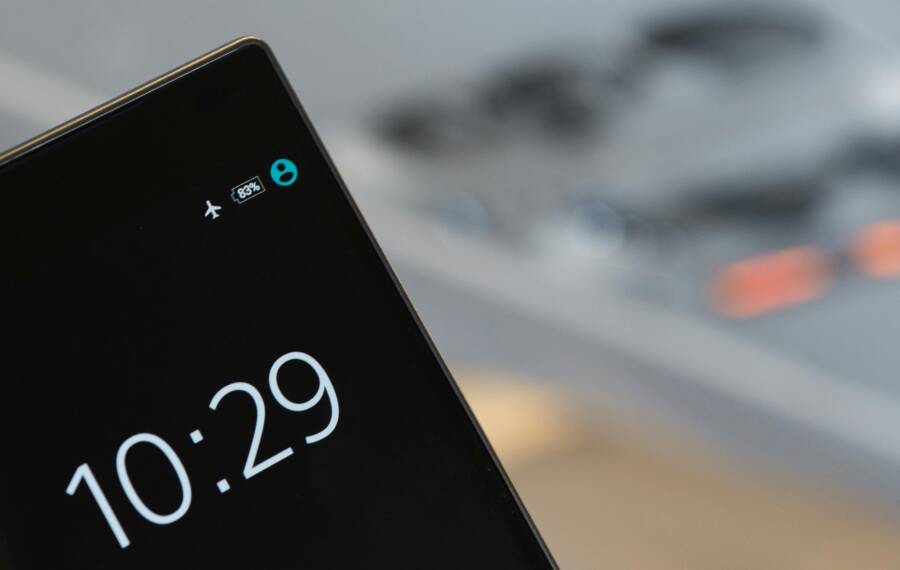
Airplane Mode is your primary defense against rapid battery depletion. Your smartphone constantly searches for cellular towers, Wi-Fi signals, and Bluetooth devices even when you are thousands of feet in the air. This active searching consumes a significant amount of power because the device increases its radio frequency signal strength to find a connection.
When you toggle this mode on, the smartphone immediately ceases these attempts to maintain a cellular link. The transmitter turns off, and the battery load decreases because the processor stops managing background handshake signals with ground-based networks.
- Turn on Airplane Mode through your settings menu or the quick access panel.
- Verify that the cellular icon disappears from the status bar.
- Keep this mode active for the entire duration of the flight.
You might want to use Wi-Fi for in-flight entertainment or messaging services. Most modern phones allow you to enable Wi-Fi manually after switching on Airplane Mode. This maintains the power savings of the cellular radio while providing access to onboard internet services.
Optimizing Screen Brightness and Auto-Lock
The display is the single most power-hungry hardware component on your smartphone. High brightness levels force the backlight or individual pixels to work at full capacity, which drains the battery rapidly. Reducing your screen brightness is the most impactful step you can take to save power.
Many users leave brightness on automatic settings, but this often keeps the display brighter than necessary for a dim cabin environment. Lowering the brightness to roughly 30 or 40 percent creates a noticeable difference in how long your battery lasts. You should also check your display timeout or auto-lock settings.
- Set the auto-lock timer to one minute or less.
- Disable features like Always-On Display if your smartphone includes this option.
- Use a dark theme or dark mode to reduce power consumption on devices with OLED screens.
These adjustments ensure the screen does not stay illuminated while you are not actively using the device. A dark background combined with reduced brightness prevents the display from becoming a significant drain on your total power reserves during a long-haul flight.
Smart Background Management for Lower Power Usage
Your smartphone constantly performs tasks in the background to keep data current. While this process is helpful on the ground, it wastes energy during a flight. Many apps sync emails, refresh social media feeds, and upload data without your explicit permission. You can stop this silent drain by adjusting your system settings before you board the plane.
Turning Off Background App Refresh
Background App Refresh allows apps to update their content whenever they have a connection. Because you likely enabled Airplane Mode to stop cellular signals, your phone might struggle to find new data, which drains the battery. Disabling this feature tells your smartphone to stop looking for updates until you open the app manually.
Follow these steps to stop unnecessary background activity:
There Is a Frequency That the Wealthiest Families Have Used for Generations and Most People Will Never Know It Exists
>>> Open the Door <<<

- Open the Settings app on your device.
- Select General from the menu.
- Tap on Background App Refresh.
- Toggle the setting to Off to stop all apps from updating automatically.
Alternatively, you can keep the master switch on and disable the feature only for specific high-drain apps. This approach lets you keep critical services running while stopping others from consuming power. You will notice that your battery percentage remains stable for much longer when these processes stop running in the background.
Restricting Location Services and Push Notifications
Location services use a combination of GPS, Bluetooth, and nearby Wi-Fi signals to determine your position. This process requires significant power because the smartphone must keep its internal radios active to triangulate your location. On a long-haul flight, your phone will try to map your location even though you are moving through the air. You should turn off location tracking to save a large portion of your battery life.
Constant push notifications create a similar problem. Every time an app sends a notification, the phone must wake up its processor and display screen to alert you. Even if you don’t read the message, the act of waking up the system uses energy. You can manage these pings by enabling Do Not Disturb mode while you travel.
He Was Drowning in Bills and Burnout Until a Simple Daily Ritual Rewired His Brain for Wealth in Less Than a Week
>>> Start Your Shift Today <<<

- Go to your Privacy or Location settings -> Disable location access for all apps.
- Navigate to your Notifications settings -> Turn on Do Not Disturb.
- Check individual app settings for any features that require constant background connectivity.
Disabling these features prevents your phone from waking up unnecessarily. A device that stays in a low-power state will last through the longest international flight. You can re-enable these services once you land and reach a stable Wi-Fi or cellular network.
Using Low Power Mode and Power Saving Features
Modern smartphone software offers built-in tools designed to manage energy consumption during periods when you cannot access a charger. These settings adjust system behavior to stop energy waste, extending the utility of your device throughout a long flight. You should view these features as a primary management strategy rather than an emergency fix. Activating them early prevents your battery from hitting a critical level, which keeps your phone functional for essential tasks like checking travel documents or landing information.
When to Activate Low Power Mode
You receive the most benefit from power-saving modes when you activate them before your battery level drops significantly. While many users wait until their phone hits 20 percent, this approach is often too late to be effective on long-haul flights. Once your battery drops below this threshold, the system is already struggling, and you have less flexibility to perform tasks.
Turning on Low Power Mode immediately after you board the plane keeps your battery cool and slows the chemical drain on the battery cells. This setting restricts background synchronization, reduces processor speed, and turns off visual effects that consume power unnecessarily. By starting the flight with this mode enabled, you stabilize your power usage from the very beginning.
Consider these factors when deciding on your timing:
- High-capacity batteries in modern smartphones still lose energy faster when background tasks run constantly.
- Airplane cabin temperatures often vary, and heat further reduces the efficiency of your battery.
- Early activation ensures your device stays in a dormant state, which preserves a higher percentage for your arrival.
You do not need to worry about the phone losing core functionality by enabling these settings early. You can still make emergency calls, view offline maps, and access saved documents while the power-saving mode is active. If you know your flight time exceeds six hours, turning on this feature during boarding is a smart preventative measure. Taking action early ensures your device remains a reliable tool until you touch down at your destination.
Practical Hardware Habits for Travelers
Your physical smartphone handling plays a major role in battery longevity during travel. While software settings manage how your device consumes power, the environment impacts how efficiently your battery stores energy. Managing these hardware factors prevents unnecessary drain and keeps your device ready for use upon arrival.
Temperature Control and External Battery Packs
Batteries perform best within a narrow temperature range. Extreme cold or heat stresses the internal chemistry, causing the battery to drain faster than it would under normal conditions. Airplane cabins often experience temperature shifts, and storing your smartphone in a seat-back pocket or near a cold window can negatively affect performance.
You should keep your device in a temperate environment, such as a carry-on bag or your jacket pocket, to maintain consistent battery health. Avoid leaving your device on the tray table for extended periods if the cabin air feels particularly cold or hot. If you must use the phone, keep it close to your body to leverage your natural heat, which helps the battery maintain its charge capacity.
Carrying an external power bank is a necessary backup plan for any long-distance traveler. Even with strict power management, some trips exceed the natural limits of a modern smartphone battery. A high-capacity power bank ensures you have a safety net for navigation or ride-sharing apps once you land.
Consider these factors when you choose or pack a power bank:
- Check that the capacity is allowed under airline safety regulations, as most carriers limit lithium-ion batteries to 100 watt-hours.
- Use a high-quality charging cable to minimize energy loss between the power bank and your device.
- Keep the battery pack accessible in your personal item so you can connect it without moving your entire carry-on bag.
A reliable power bank acts as an insurance policy for your device. If your battery drops to critical levels, you can replenish it without hunting for a wall outlet at a busy airport terminal. This habit removes the stress of monitoring your percentage during the final hours of your flight.
Conclusion
Effective battery management on long flights requires proactive adjustments before you reach your seat. By prioritizing Airplane Mode, lowering screen brightness, and silencing background activity, you preserve your smartphone power for when you actually need it upon landing.
Use this quick checklist every time you fly to maintain device longevity:
- Enable Airplane Mode immediately after boarding.
- Lower display brightness to 40 percent or less.
- Turn off Background App Refresh for non-essential apps.
- Activate Do Not Disturb to stop push notification pings.
- Keep your device away from cold or hot surfaces.
Small, deliberate changes to your settings keep your device operational throughout your journey. These habits ensure you land with a functional phone ready for travel requirements and communication.
She Pressed Play on a Strange Audio Track and Within Days Her Financial Reality Started Shifting in Ways She Could Not Explain
>>> See How It Works <<<