Can you imagine needing help and your phone being the quickest way to get it? An SOS alert can instantly share your status with trusted people and local responders. It’s a simple tool that can make a real difference in an emergency.
This guide explains what an SOS alert does in plain language and why it matters for your safety. You’ll learn how to trigger it, what information gets shared, and how to set up emergency contacts and location sharing. We’ll cover common shortcuts on iPhone and Android so you know what to press when seconds count.
By the end, you’ll have practical steps you can follow right away. You’ll know how to turn on alerts, test them safely, and keep your contacts ready. This is about quick access, clear information, and better smartphone safety when things go wrong.
What is an SOS alert and when to use it
An SOS alert is a quick way to tell people you trust that you might be in danger or need urgent help. It automatically shares essential information with your trusted contacts and may connect you to local responders. The goal is simple: get help faster when every second counts. This section breaks down what an SOS alert does, when to use it, and how it fits into everyday safety on your smartphone.
 Photo by Tima Miroshnichenko
What gets sent in an SOS alert
An SOS alert is designed to share only what helps responders locate and assist you quickly. The main pieces of information typically included are:
- Your location at the moment of the alert. This can be updated as you move, providing responders with your latest coordinates.
- Time and date of the alert. This establishes when you needed help.
- An optional message. You can add a brief note about what happened or any immediate needs.
- Medical and contact details (if you’ve set them up). This can include essential health information and who should be contacted.
Keep in mind that the exact data shared may vary by device and service. The common thread is clarity: more precise location and a concise description help responders arrive faster. When you set up an SOS alert, test it safely so you know what to expect under pressure.
Who receives the alert and how location works
SOS alerts are designed to reach a predefined circle of people you trust and, if needed, local emergency services. Here’s how it typically works:
- Default emergency contacts. These are the people you select in your device’s emergency settings. They receive a notification that you may need help and, in many cases, your location.
- How contacts are alerted. Depending on the platform, your contacts may get a push notification, an SMS, or both. Some systems also share a live location link for a short period.
- Location sharing and accuracy. The alert uses GPS data to show your current position. Accuracy can vary with conditions like building layout or signal strength. Most devices continuously update location as you move, improving the chances responders find you quickly.
- Privacy options and controls. You can usually adjust what gets shared, who sees it, and when. It’s wise to review privacy settings regularly and tailor them to your comfort level.
- Adjusting settings. If you want to modify your emergency contacts or the level of location sharing, go to your device’s safety or health app. On iPhone, this is often found in the Emergency SOS area; on Android, look for Safety or Location settings.
For more on how emergency systems handle data, you can read about the privacy details from Apple’s Emergency SOS policy and related help articles. These resources explain what is shared and why it matters for your privacy and safety. Apple also notes that location sharing may occur with emergency contacts, depending on the situation. You can review those policies here: Apple Privacy – Emergency SOS.
If you’re curious about how SOS works beyond basic calls, some iPhone models support satellite messaging for emergencies in remote areas. This adds another layer of connectivity when cellular networks are unavailable. Learn more about satellite options here: Use Emergency SOS via satellite.
Real world examples where SOS helps
Think of an SOS alert as a reliable ally when you’re in risky or uncertain situations. Here are common scenarios where it makes a difference:
- Walking home at night. You can send an SOS to friends or family, with your live location and a short note that you’re feeling unsafe. This immediate visibility reassures you and prompts quicker check-ins.
- Hiking or traveling alone. In rugged areas, getting help quickly is critical. An SOS alert can share your exact trail location and show responders where you are, even if you’re not sure how to describe it.
- Car trouble or breakdown. If you’re stranded, SOS can notify contacts and emergency services with your location, making it easier for a tow or assistance to find you.
- Medical concern or injury. A quick alert can transmit essential health data (if you’ve set it up) and guide responders to your location and needs.
Using an SOS alert adds a sense of security. It reduces the delay between danger and help, especially when you’re in unfamiliar places or under stress. As you prepare, test the alert in a safe, controlled way to confirm your contacts know what to expect and how to respond.
If you want more practical tips on setting up and testing, I’ve covered the steps in our guide to triggering SOS alerts quickly and safely. And if you’d like to see how these features are explained in official guidance, Apple’s support articles offer clear notes on what information is shared during emergencies. These resources help you tailor the system to your situation and preferences.
Set up SOS alerts on your phone
Emergency SOS alerts can be a quick lifeline when seconds matter. By setting up trusted contacts, enabling automatic dialing or messaging, and understanding how location sharing works, you can move from uncertainty to action with confidence. This section covers how to configure SOS features on iPhone and Android, and how to tailor alerts so the right people get timely, useful information.
iPhone emergency SOS settings
iPhone makes it straightforward to trigger an SOS alert and share essential information with your trusted circle. Here’s how to set it up and use it effectively, with notes on differences between iOS versions.
- Enable Emergency SOS and automatic calls. Open the Settings app, then go to Emergency SOS. Turn on options like Call with Hold and Release and Auto Call if you want the device to dial emergency services automatically when you press the side button a certain number of times. In newer iPhone models, the automatic call feature may trigger immediately after you complete the hold sequence, so practice with care.
- Set up emergency contacts in Health or Settings. On iPhone, you can add emergency contacts in the Health app under Medical ID or directly within Settings > Emergency SOS. Your chosen contacts will be notified when you use SOS. They may also receive your location and details about the emergency depending on your settings.
- Test safely. It’s wise to test in a controlled way. Use the built-in demo or do a quick, non-emergency run with a trusted contact to confirm what they receive. Apple’s guidance emphasizes understanding what happens when you trigger SOS, including how location data is shared and for how long.
- Version differences. The exact menu names shift slightly between iOS versions, but the core steps stay the same: find Emergency SOS in Settings, enable automatic calls if desired, and add Health or Emergency contacts. If you’re using an older device, you may need to first enable Hey Siri or adjust accessibility settings to reach SOS features quickly.
- Quick tips for testing. Practice during daylight and in a safe area. Tell your test contact in advance that you’re running a test, and monitor what they receive. If you have an Apple Watch, you can also review how on-wrist alerts behave, since some actions mirror the iPhone setup.
For official details about what gets shared during emergencies, Apple provides clear guidance on their support pages. If you want to see how location sharing and emergency contacts are handled, start here: Apple Privacy – Emergency SOS. You can also explore satellite options for emergencies on iPhone if you’re in areas without cellular coverage: Use Emergency SOS via satellite.
If you’re curious about the practical steps, Apple’s step-by-step guides explain how to start a call or text from your iPhone and Apple Watch when you trigger Emergency SOS: Make an emergency call or text on iPhone or Apple Watch.
Real-world tip: keep your Health IDs up to date. In an emergency, responders may access vital medical details from your Medical ID, so review and refresh allergies, medications, and blood type regularly.
Android SOS settings
Android devices offer SOS or Safety features that can vary by brand and model. The core idea is the same: you can alert trusted contacts and share your location with minimal taps. Here’s how to navigate the process on most devices, plus a few brand-specific notes.
- Find the SOS or Safety features. On most Androids, look for Safety, SOS, or Emergency in the Settings menu. Some brands place these under Security, Privacy, or a dedicated Health app. If you own a Samsung device, for example, you’ll often find these options under Settings > Safety and Emergency.
- Set emergency contacts. You’ll typically add contacts in the Safety or Emergency section. Choose people you trust to respond quickly. Some phones allow you to designate multiple contacts who will receive alerts via push notification, SMS, or both.
- Choose what gets shared. Android often lets you control what information is sent, including location updates, a short message, or health data if your device supports it. Review these options so you’re not sharing more than you’re comfortable with.
- Test with minimal steps. A quick, low-risk test can confirm that your contacts are reachable and that the alert reaches them in a usable format. If your device supports a demo mode, use it; otherwise, coordinate a scheduled test with a trusted friend or family member.
- Brand variations. Features differ by manufacturer. If you’re on a Google Pixel, you’ll find SOS under Safety settings with straightforward steps to add emergency contacts. On Samsung devices, expect a dedicated Safety and Emergency menu that guides you through adding contacts and enabling features like Send SOS messages.
- Privacy considerations. Even when you enable location sharing for SOS, most platforms let you adjust who sees your data and when. It’s wise to review these permissions periodically and update them as your situation changes.
To explore official guidance across devices, you can consult Android help resources from Google and device-specific manuals. When you need a concise overview of how emergency calls and texts work on iPhone and Android, these references provide solid context and steps you can follow today.
Section takeaway: set up SOS features on your phone with a clear plan. Add trusted contacts, confirm what information they’ll receive, and practice a safe test to build confidence before you actually need help.
Choose emergency contacts and tailor alerts
The people you select as emergency contacts are the backbone of a successful SOS plan. This subsection covers how to pick the right folks, what they’ll receive, and how to manage messages and location sharing. It also covers privacy and consent so you can approach SOS configuration ethically and practically.
- Who to add as emergency contacts. Choose people you trust who can respond quickly. This could be a family member, a close friend, a neighbor, or a coworker who is familiar with your routine. It’s wise to include someone who knows your typical routes and habits.
- What comes to them. Your contacts generally receive a notification that you may need help, plus a link to your current location. Depending on settings, they may also get a brief message or status update and, in some cases, a live location share for a limited window.
- Location sharing controls. Location can be shared continuously for a short period after activation, or only when the alert is triggered. Some systems allow you to set the frequency of location updates, while others push a single snapshot at the moment of SOS.
- Message customization. A short, clear message can help contacts understand the situation before responders arrive. For example, “I’m in a residential area, feeling unsafe, staying on the line with you,” can prompt quicker check-ins.
- Privacy and consent considerations. Always inform your emergency contacts about what you’ve enabled and why. If you’re in a situation where privacy is a concern, you can limit what’s shared and who receives it. Review permissions regularly and adjust as needed.
- Ethical use and boundaries. Use SOS features for genuine emergencies or legitimate safety checks. Overloading contacts with non-urgent updates can lead to confusion and fatigue, reducing the feature’s effectiveness when it matters.
Practical tip: keep a short, up-to-date list of emergency contacts somewhere you can access quickly, and note any preferred contact methods. If you ever need to update your circle after a life change, revisit the settings promptly.
Additional considerations: if you travel or move, consider adding a local contact at your destination. This person can act as a point of contact if you’re in a new area and need faster coordination with local responders.
Linking to official guidance helps readers understand the scope of what SOS alerts can do. For iPhone users, Apple’s documentation provides detailed explanations of how to set up and modify emergency contacts and location sharing, including safety tips for using these features in daily life. See their guidance here: Apple Privacy – Emergency SOS. If you want to learn about how iPhone supports satellite messaging for emergencies, check out: Use Emergency SOS via satellite. For emergency call and text specifics on iPhone and Apple Watch, Apple’s official steps are helpful: Make an emergency call or text on iPhone or Apple Watch.
Final note: review your emergency contacts and location sharing settings at least once every few months. A quick audit keeps your SOS alerts relevant and effective, even as your contacts or routines change.
External resources you can consult as you fine-tune your setup include official guides and privacy details from Apple. For a broader look at how SOS works across devices, consider exploring manufacturer support pages and reputable tech help sites that walk you through step-by-step configurations.
How to trigger an SOS quickly
When seconds count, knowing exactly how to trigger an SOS on your phone can be the difference between a quick rescue and a long wait. This section breaks down the most reliable shortcut methods for iPhone and Android, then offers practical tips for safe practice. You’ll learn what to expect during a trigger, how the alerts reach your trusted contacts, and how to tailor settings so the right people get the right information.
Photo by Tima Miroshnichenko
Common shortcut methods on iPhone
iPhone makes SOS quick to access, even if you’re panicking. The typical method involves a side button sequence combined with a hold action, followed by a countdown and an automatic call or alert depending on your settings.
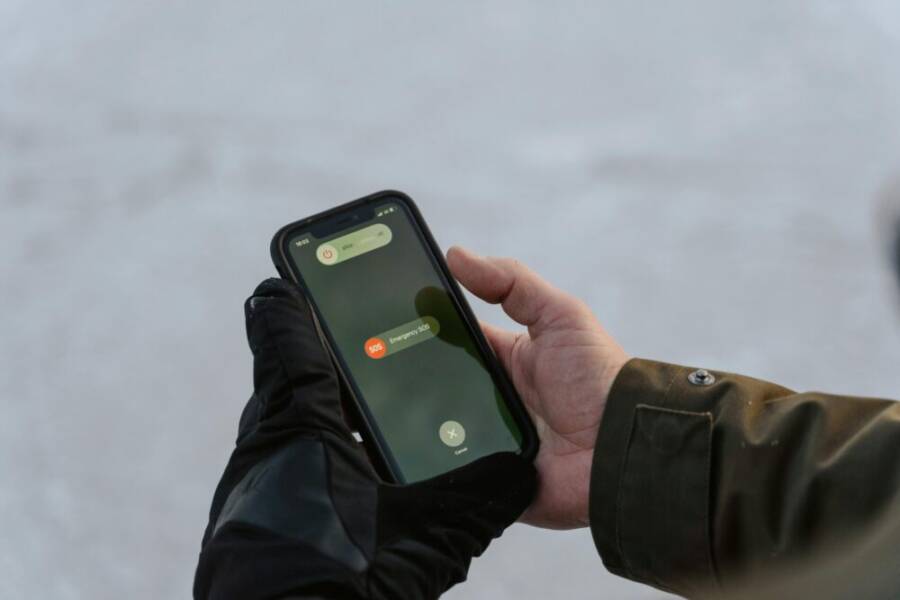
- Side button hold with a countdown. Press and hold the side button along with one of the volume buttons. A countdown appears on the screen. If you release during the countdown, you cancel the trigger. If you continue, the device proceeds with the emergency action.
- Automatic call behavior. If you’ve enabled Auto Call, the phone will dial emergency services automatically once the countdown ends. In newer iPhone models this can trigger immediately after the hold sequence, so practice with care.
- What you’ll see and hear. You’ll see a prominent “cancel” option and hear a warning tone as the countdown runs. After the call is placed or the alert is sent, your emergency contacts are notified with location details.
- Where to customize. Go to Settings > Emergency SOS to toggle Call with Hold and Release and Auto Call, and add trusted contacts in Health > Medical ID or Settings > Emergency SOS.
For official guidance on what gets shared and how to control location sharing, check Apple’s resources. See: Make an emergency call or text on iPhone or Apple Watch. Apple’s privacy policy for Emergency SOS is also helpful: Apple Privacy – Emergency SOS.
Common shortcut methods on Android
Android devices vary by brand, but the core idea remains the same: a quick sequence or accessibility shortcut triggers an SOS and notifies your chosen contacts. Here are the most common patterns you’ll encounter.
- Power button sequences. Many Androids use a rapid press pattern on the power button to trigger an SOS. Some devices require a long press, others use a triple press within a short window. The goal is a fast, repeatable gesture you can perform under stress.
- Accessibility shortcuts. Some phones offer SOS via an accessibility feature. You may enable a shortcut that can be activated with a screen gesture or a button press combination if the device is locked.
- Emergency contacts and messages. When activated, the alert reaches your preselected contacts via push notification, SMS, or both. Location data can be shared for a limited period to help responders find you.
- Brand differences you should know. On Google Pixel, SOS is typically found under Safety settings with straightforward steps to add contacts. Samsung devices often place this under Settings > Safety and Emergency and may include features like Send SOS messages.
To learn official guidance for your exact device, consult your manufacturer’s help pages or Google’s Android help resources. The key is to practice your chosen gesture until it feels reliable.
Tips to practice safely
Practicing your SOS workflow builds confidence and reduces panic during a real emergency. Safe practice means you test only what you need to confirm your setup and responses.
- Test with a trusted contact. Tell someone you’ll run a test and arrange a time. Use a non-emergency test so they know it’s you and what to expect.
- Use a demo mode if available. Some devices provide a simulated SOS mode that mimics the real trigger without contacting emergency services. This is ideal for thorough testing.
- Limit the data shared during tests. If possible, switch to a test contact or disable live location sharing during practice. Return to full settings after.
- Document your steps. Keep a simple checklist: confirm contacts, confirm location sharing scope, confirm how to cancel, and confirm what your tester sees.
- Review after testing. After a test, verify that the right people received the alert and that any location data is correct. If not, adjust settings and test again.
In addition to testing, consider a short readiness drill with a neighbor or friend who lives nearby. A quick check-in practice helps you confirm timing and response without relying entirely on your device.
External guidance can provide device-specific details. For iPhone users, you can review Make an emergency call or text on iPhone or Apple Watch, and for broader context, Apple’s Privacy pages explain what gets shared during an SOS. See: Apple Privacy – Emergency SOS and Make an emergency call or text on iPhone or Apple Watch. For satellite options, Apple also offers guidance: Use Emergency SOS via satellite.
Images and flow help readers visualize the moment of triggering an SOS can boost comprehension. If you’d like a handy visual accompanying this section, the image above shows a user initiating an SOS on a phone in a calm setting, underscoring how quick and deliberate the action should be.
Final note: keep your emergency contact list up to date, and review your SOS settings every few months. Small changes in routine or contacts can affect how quickly you get help. For a broader view of how these features work across devices, explore manufacturer guides and trusted tech help sites that walk you through step-by-step configurations.
What happens after you send SOS and how to respond
Triggering an SOS is just the first step. The seconds that follow matter just as much. This section explains what unfolds behind the scenes, what your trusted contacts and local responders see, and how to react when the alert goes out. You’ll learn how location data is shared, what you should expect during a real emergency, and how to respond if you receive a notification yourself.
Immediate actions after triggering
When you press the SOS button and the alert goes out, stay as calm as you can. Your first moves set the pace for everything that follows.
- Stay still and assess the situation. Take a quick breath, confirm you’re safe to move, and decide if you need to speak with emergency services now.
- Call emergency services if needed. If you’re in immediate danger, let the device auto-dial or manually contact emergency responders. If you can, provide a brief description of your location and situation.
- Share accurate location. Your device will send your current location to responders and your trusted contacts. If you’re moving, location updates may continue to arrive, helping responders track you.
- Follow on-screen prompts. The SOS screen often offers a cancel option and additional steps. If you realize you triggered it by mistake, cancel promptly to avoid unnecessary alerts.
- Keep your device accessible. Place the phone where it can receive messages or calls, and avoid covering it with clothing or debris.
These steps help ensure responders get to you quickly and your contacts know you’re safe. If you’re unsure what to do, choose a simple path: stabilize, inform, and wait for guidance from authorities or your trusted circle.
What the recipient and emergency services see
Understanding what happens after you trigger SOS helps you explain it to others and set proper expectations.
- How alerts reach contacts. Your predefined emergency contacts receive a notification that you may need help. They may receive a location link, a brief message, or both, depending on your settings and platform.
- What responders access. Local emergency services can see your location data and any medical information you’ve allowed. They may also see a short description of the situation if you added one.
- Location data and accuracy. The system uses GPS data to provide your coordinates. Accuracy improves as you move, but it can be limited by walls, trees, or poor signal.
- Privacy controls. You decide who sees what and when. Privacy settings let you limit data sharing and adjust who has access to your location during and after an alert.
- What to expect in real time. In many cases, your contacts receive live updates that show your movement for a limited time. This helps friends stay informed while responders work on the scene.
- Satellite possibilities. For remote areas without cellular coverage, some devices support satellite messaging as an alternative to traditional cellular SOS. This expands the window for getting help when networks are down. Learn more about satellite options: Use Emergency SOS via satellite.
To understand official guidance on data handling, review Apple’s privacy policy for Emergency SOS and related help articles. See: Apple Privacy – Emergency SOS.
Real-world note: if you’re curious about how SOS works beyond basic calls, Apple’s resources provide practical notes on location sharing and emergency contacts. For a quick overview of how location sharing and emergency contacts are handled, check here: Apple Privacy – Emergency SOS.
Following up and turning off alerts
After you determine that help is or isn’t needed, you should close the loop with your contacts and responders. This minimizes confusion and ensures everyone knows you’re safe.
- Cancel the alert if it was a false trigger. If you realize you triggered SOS by mistake, cancel as soon as possible. This stops ongoing notifications and helps avoid unnecessary emergency responses.
- Inform contacts you are safe. Send a quick message to your emergency circle confirming you no longer need assistance. Even a short note can ease worry and free responders to help others.
- Confirm next steps. If you’re continuing to be in danger, tell your contacts what to do next. If you’ve moved to a safer location, share that update.
- Review after-action details. Check which contacts received your alert, what data was shared, and whether you need to adjust settings for the future. Regular reviews keep your system accurate.
If you’ve used an SOS feature, consider a short debrief with a trusted person. It helps you refine what information is shared and how quickly your circle responds. Also, keep your emergency contacts updated, especially after travel, a move, or a change in routine.
- For iPhone users, Apple’s guides explain exactly how to start a call or text from your iPhone or Apple Watch during an SOS and how location sharing works: Make an emergency call or text on iPhone or Apple Watch.
- If you want a deeper dive into the privacy aspects of Emergency SOS, the official Apple policy is useful: Apple Privacy – Emergency SOS.
Final reminder: a quick, honest update to your contacts about your status after a trigger helps everyone stay on the same page. If you travel or change routines, revisit your emergency list and data-sharing preferences every few months.
Images

Photo by Los Muertos Crew
How to trigger an SOS quickly
Knowing how to trigger SOS in a pinch helps you act fast and clearly. Different devices use distinct shortcuts, but the outcome is the same: your contacts and responders are alerted with your location and a brief message.
- iPhone shortcuts. The typical method uses a side button sequence with a hold. A countdown appears, and you can cancel by releasing early. If Auto Call is on, the device dials emergency services when the countdown ends. For some models, the call may start immediately after the hold sequence. You can customize this in Settings > Emergency SOS.
- Android shortcuts. Android devices vary by brand, but common patterns include power button sequences or accessibility shortcuts. The alert reaches your chosen contacts via push notification, SMS, or both, and location sharing may be active for a short period.
Common guidance for official instructions and best practices can be found in device-specific help pages. For Apple users, these resources are especially helpful: Make an emergency call or text on iPhone or Apple Watch and Apple Privacy – Emergency SOS. If you’re curious about satellite options, see: Use Emergency SOS via satellite.
Tips to practice safely
- Test with a trusted contact. Schedule a non-emergency test so your contact knows what to expect.
- Use demo mode if available. A demo lets you verify steps without contacting services.
- Limit data during tests. Disable live location sharing if possible and revert after testing.
- Document your steps. A simple checklist helps you stay consistent.
Images
- Photo by Tima Miroshnichenko
Choose emergency contacts and tailor alerts
Selecting the right people to notify is the bedrock of a solid SOS plan. This subsection covers how to pick the right folks, what they’ll see, and how to handle privacy and consent.
- Who to add. Include someone who can respond quickly, like a family member, close friend, neighbor, or coworker who knows your route.
- What they receive. Contacts usually get a notification that you may need help, a link to your location, and possibly a short message. Some platforms share a live location for a limited time.
- Location sharing controls. You can decide whether to share location continuously for a short window or only when the alert is active. Some systems let you set how often updates occur.
- Message customization. A concise note helps contacts understand the situation until responders arrive.
- Privacy and consent. Always brief your contacts on what will be shared and why. Review permissions regularly.
- Ethical use and boundaries. Use SOS for genuine emergencies or safety checks. Avoid overload to keep the feature effective when it matters.
Practical tip: keep a current list of emergency contacts somewhere you can access quickly. Update it after a move or a change in your routine. If you travel, add a local contact at your destination for faster coordination.
Apple resources are a good starting point for iPhone users. Learn more about setting up emergency contacts and location sharing: Apple Privacy – Emergency SOS. To explore satellite messaging for emergencies, visit: Use Emergency SOS via satellite. For step-by-step actions on starting a call or text, see: Make an emergency call or text on iPhone or Apple Watch.
Final thought: keep your SOS settings fresh. A quick audit every few months helps you stay ready. You can also consult manufacturer guides for device-specific tips and trusted tech sites for practical walkthroughs.
Tips, caveats, and best practices
In an emergency, your SOS alert should be reliable and easy to use. This section offers practical tips, important caveats to watch out for, and best practices to keep your safety setup effective. You’ll get a balanced view of how to test, protect your privacy, manage battery life, and make the most of SOS while traveling or using third party safety tools.
Test regularly and keep contacts up to date
Regular testing helps you feel confident when it matters. Set up a simple, safe test routine and keep your emergency circle current so they know what to expect.
- Schedule safe practice sessions. Tell a trusted contact you’ll run a non-emergency test. Use a controlled environment like a quiet room during daytime.
- Use a demo mode if available. Some devices offer a no-contact test so you can verify what your contacts see without triggering real alerts.
- Update emergency contacts year-round. Review who is on your list, confirm their current contact methods, and remove anyone who can’t respond quickly.
- Maintain a short readiness checklist. Include: confirm contacts, confirm what data is shared, confirm how to cancel, and confirm how responders will contact you.
- Document changes. After any move or routine change, revisit your settings and make adjustments.
Smartphone users often keep a compact copy of their emergency list in a notes app for quick reference during a test or real incident. For iPhone users, Apple’s guides show how to adjust Health IDs and Emergency SOS contacts so responders get the right information. If you want a concise reference, see Apple’s privacy details on Emergency SOS here: Apple Privacy – Emergency SOS. For broader testing guidance, Android’s Personal Safety help also offers clear steps: Get help during an emergency with your Android phone.
Privacy, data sharing, and battery life
Knowing what gets shared and how to conserve power during an SOS event keeps you in control when seconds matter.
- What data is shared. Location, time, and a brief status may be sent to trusted contacts. Some platforms also share a short health profile if you set it up.
- How to limit sharing. Review privacy options in your Safety or Health app. Disable or shorten live location sharing if you’re concerned about privacy.
- Battery saving during an SOS. Turn on Low Power Mode, dim the screen, and reduce background activity before triggering an alert. If you’re in a remote area, conserve energy until help arrives.
- Manage expectations with contacts. Let your emergency circle know when you’ve adjusted data sharing so they aren’t surprised by a change in what they receive.
- Trust and transparency. Always inform your contacts about what will be shared and why. Regular privacy reviews protect everyone involved.
If you want to understand how data handling works in practice, Apple’s Emergency SOS policy explains what is shared and why. You can review their guidance here: Apple Privacy – Emergency SOS. For Android users, Google’s Android Help resources cover safety features and data sharing considerations: Get help during an emergency with your Android phone.
Using SOS while traveling or in areas with poor service
Travel brings new risks, and connectivity can be unpredictable. Plan for offline moments and still get help when networks fail.
- Preload critical contacts at your destination. Add a local contact who knows the area and can coordinate with responders.
- Rely on location data when signal is weak. SOS can share GPS info even if cell service is spotty, helping responders locate you faster.
- Offline workarounds. Save important emergency messages in advance and have a fallback plan if messaging fails. Carry a small printed note with your local emergency numbers.
- Satellite options for remote trips. Some devices support satellite messaging for emergencies when there is no cellular coverage. This can extend your reach in rural or mountainous areas.
- Know the limits. Location accuracy decreases indoors or behind thick walls. Move to an open area if possible to improve GPS accuracy.
For reference on satellite emergency options for iPhone, see Apple’s satellite guidance: Use Emergency SOS via satellite. If you’re curious about general Android safety features while abroad, Google’s Android Help provides an overview to get you started: Get help during an emergency with your Android phone.
Third party safety apps as supplements
Built in SOS features are typically reliable. Third party safety apps can supplement your setup but choose wisely and test thoroughly.
- Trustworthy boosters. Use third party apps to store medical info, share routes, or automate certain notifications. They should not replace core SOS functionality.
- When a safety app helps. If you want extra features like discreet alerts, fall detection, or enhanced check-ins, a well-known safety app can be useful.
- How to choose trusted options. Look for apps with strong privacy policies, good reviews, regular updates, and transparent data handling. Prefer apps from reputable developers with a clear support channel.
- How to test. Always test any third party app with a trusted contact in a low-risk scenario before depending on it in real emergencies.
Remember, built in SOS features are your primary tool. Third party apps should complement, not replace, your base setup. For iPhone users, Apple’s resources explain how to start a call or text using Emergency SOS and how location sharing works. See: Make an emergency call or text on iPhone or Apple Watch. For satellite options, Apple provides guidance here: Use Emergency SOS via satellite.
External guidance can help you compare options. If you’re exploring Android alternatives, Google’s support pages cover personal safety features and how to manage emergency contacts on Android devices: Get help during an emergency with your Android phone.
If you’re unsure where to start, a practical approach is to test one built in feature first, then add a trusted app to fill any gaps. Always review privacy settings after adding a new tool.
Notes for readers: always ensure you have a solid base of emergency contacts and a clear plan before depending on any third party app. Regular reviews keep you in control and ready.
Links for official guidance and comparisons can help readers make informed choices. For iPhone users, see Apple’s privacy and satellite options and their step-by-step actions: Apple Privacy – Emergency SOS, Use Emergency SOS via satellite, and Make an emergency call or text on iPhone or Apple Watch. For Android readers, see Google’s safety support: Get help during an emergency with your Android phone.
End note: keep monitoring how you use third party tools. They should support your safety, not complicate it.
What’s next: this section sets up practical steps you can apply today. The following sections will walk through real world triggers, practical drills, and an end-to-end readiness checklist to keep your SOS ready.
Conclusion
Setting up and using SOS alerts on your phone is a straightforward path to faster help when it matters most. Review your emergency contacts, enable the right SOS options, and understand what data is shared during an alert. Practice safely with a trusted person so your smartphone workflow becomes second nature in a real emergency.
Share what you’ve learned with friends and family so they know how to respond if they receive an alert. Take a few minutes to check your settings today and keep your emergency list up to date.