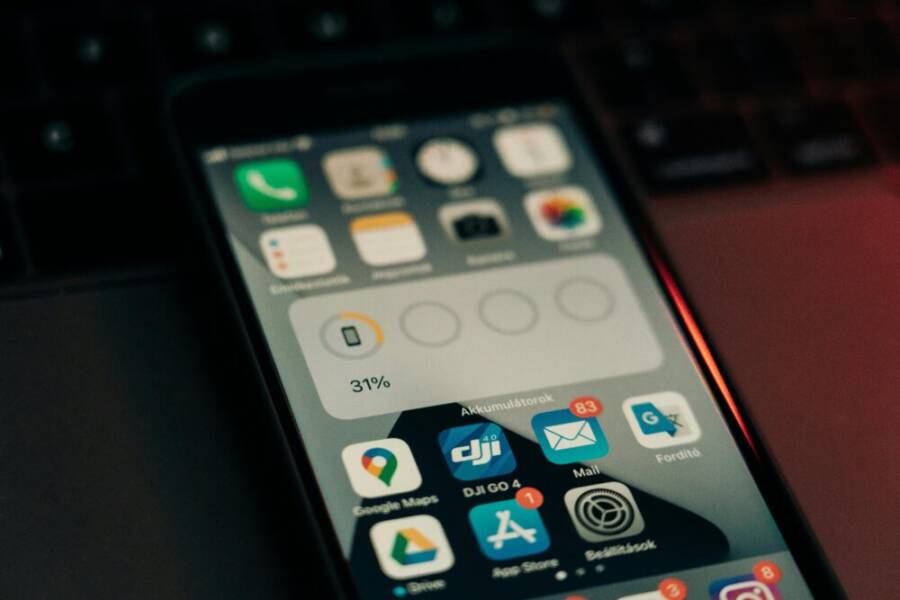
In emergencies, every minute and every percent of battery counts. A dead phone can be a barrier to getting help, checking routes, or reaching loved ones when it matters most. This guide keeps things simple, offering quick steps you can apply right away.
You’ll learn practical ways to stretch your battery without missing critical calls or texts. We’ll cover easy tweaks like screen brightness, app power usage, and offline options that still keep you connected. The goal is to help you stay reachable while conserving energy for the moments you need it most.
Think of the most common needs in a crisis: calling for help, texting family, using maps for directions, and receiving emergency alerts. We’ll focus on keeping those functions available longer. You don’t need fancy gear or complex setups; small, sensible changes add up fast. By the end, you’ll know how to reduce drain, prioritize essential apps, and keep your smartphone ready when it counts.
Prioritize Core Functions to Extend Battery During Crises
During emergencies, your phone needs to stay powered long enough to reach help, share your location, or follow directions. Focusing on core functions can dramatically extend battery life without locking you out of essential communication. The goal is to keep essential calls, texts, and critical updates available while you conserve power in practical ways.
Enable Power Saving Modes
Low Power Mode or similar settings cut back on energy drains by reducing background activity, lowering screen brightness, and throttling nonessential processes. Turn it on when you expect absorption of power to be limited, or when you see battery dipping toward dangerous levels. A quick tap can make a big difference, especially if you’re away from a charger. Be aware that some features like email refreshes or background updates may slow down, but the trade off is longer usable time. For quick guidance, see Apple’s guide to Low Power Mode and its steps to enable it on iPhone, which explains when to switch it on and what changes to expect. Apple Support – Use Low Power Mode to save battery life on your iPhone
Limit Background Apps and Notifications
Closing apps running in the background and reducing nonurgent push notifications can conserve significant power. On iPhones, double-press or swipe up to reveal recently used apps and swipe away to close them; on Android, open the recent apps screen and swipe away or tap “Close all.” For notifications, disable nonessential alerts in Settings so your screen isn’t lighting up constantly. This helps keep the display off for longer stretches and reduces CPU activity. A practical reminder: during a crisis, keep only emergency or critical app alerts active. This approach directly supports longer usage between charges and keeps you focused on what matters most. For additional context on battery saving, see industry guidance that highlights the impact of closing background processes and limiting alerts.
Disable Nonessential Wireless Features
Turn off Bluetooth, WiFi, and mobile data when you don’t need them to save energy, especially if you’re not moving or relying on a map. Keep these on when you expect important updates, emergency alerts, or calls from loved ones. Simple steps are usually found in quick-access menus: toggle off Bluetooth and WiFi from the quick settings panel, and switch mobile data off if you’re not actively using it for navigation or communication. A safety note: always leave enough connectivity to receive emergency alerts and essential calls. For a broader overview of practical battery saving methods, you can review guidance that covers enabling power saving features across devices. EcoFlow – How to Save Phone Battery Life
Conserve Screen Power Without Missing Critical Alerts
In emergencies, your screen is both a lifesaver and a drain. You need alerts and maps, but you also want to stretch every percent of battery. The goal of this section is to show quick, practical tweaks that keep critical alerts alive while minimizing energy use. Small changes add up to meaningful extra minutes of connectivity when you need them most.
 Photo by Szabó Viktor
Dim the Screen and Shorten Timeout
Lowering brightness and shortening the screen timeout are two of the fastest ways to reduce energy drain. Start by setting brightness to at least a moderate level in daytime, then use a shorter sleep timer so the display turns off quickly when not in use. If you enable adaptive brightness, use it sparingly in emergencies to avoid sudden brightness spikes when lighting changes. A quick adjustment now can buy you precious minutes later. For a quick reference on how to implement these steps, see guidance from major platforms: Apple’s Low Power Mode and Android’s display settings can make a noticeable difference.
- Lower brightness to a comfortable level for your environment.
- Set screen timeout to 30 seconds or 1 minute.
- Use adaptive brightness only if you can trust it to respond predictably in your surroundings.
- After changes, test a quick screen wake to confirm readability while saving power. For more on related strategies, check Apple Support’s battery tips and Android’s display-saving article.
Use Dark Mode and Simple Wallpapers
Dark mode and simple wallpapers reduce OLED panel energy use and can extend battery life during power shortages. Dark themes minimize active pixels on OLED screens, while plain wallpapers avoid extra color processing. If your device supports always-on features, consider a minimal clock or disabled visuals to cut idle drain. This approach helps you stay reachable longer without sacrificing essential readability. When possible, pair dark mode with system-wide font adjustments for easier reading in low light. For more context on energy savings with display choices, see practical guidance from MakeUseOf and Android battery-saving articles.
Turn Off Always On Display and Lock Screen Previews
Always On Display (AOD) and lock screen previews keep your device responsive but drain power by keeping the screen partially lit and waking the display for notifications. Disabling them can noticeably extend standby time while you await critical updates. Quick steps:
- iPhone: go to Settings > Display & Brightness > Always On Display and toggle off, then adjust Lock Screen options to show minimal previews.
- Android: Settings > Display > Always On Display or Lock Screen > turn off, or select minimal notification content.
Disabling these features means you may miss nonessential updates, but you’ll gain longer battery life for calls and urgent alerts. If you’re uncertain, turn off AOD during periods of low power and re-enable when you’re near a charger. For broader battery tips, see Android’s battery saving articles and iOS power saving guides. - Quick reminder: keep emergency alerts enabled so you don’t miss critical notifications.
- If you want a middle ground, set a very minimal lock screen wallpaper and time-only hover to balance awareness with power.
External resources for further reading:
- Apple Support – Use Low Power Mode to save battery life on your iPhone
- Android articles on saving battery life and disabling background activity
Smart Data and Location Use During Emergencies
During a crisis, smart data choices can keep you connected longer without draining your battery. This section covers practical, easy-to-apply steps for using text messaging, offline maps, and mindful location habits. You’ll learn how small tweaks can preserve essential connectivity for you and your loved ones when every percent counts.
Use Text Messages Over Voice Calls
Text messages consume far less battery than voice calls, especially when signals are weak. In emergencies, opting for texts helps you stay in touch with family and even emergency services without burning through power. Keep messages short and to the point, and use prewritten templates for quick responses. If a call is unavoidable, a brief voice note or quick exchange is better than a long conversation. For extra guidance on conserving battery while communicating, see FCC/FEMA tips for emergency communication and related resources.
- Short messages save energy.
- Prewritten templates speed up replies.
- Prioritize texts when networks are congested.
External resources for further reading:
- FCC/FEMA Tips for Communicating During an Emergency: https://www.fcc.gov/sites/default/files/fcc-fema_tips_for_communicating_during_an_emergency.pdf
Use Offline Maps and Downloaded Data
Offline maps are a powerful saver during power outages or when cellular signals weaken. Download maps for your area before an emergency, then access them without a data connection. This keeps you oriented and helps you follow directions without hunting for a network or burning battery with continuous map refreshes. In the moment, you can rely on preloaded routes and landmarks to stay on track. If you’re unsure how to get started, search for offline map availability in your map app and keep a small set of essential routes ready. For context, offline navigation is a widely recommended practice in crisis planning.
- Download before you need them.
- Access without data or signal.
- Use preplanned routes for reliability.
External resources for further reading:
- Real First Aid – Mobile phone tips in emergencies: https://www.realfirstaid.co.uk/mobile-phones
Limit Location Services and Background Location Access
Continuous location tracking can drain battery quickly. Turn off always-on location features and enable location services only when you actively need them, such as to navigate or share your location with someone. Quick steps: on iPhone, Settings > Privacy > Location Services, set apps to While Using or Never; on Android, Settings > Location, adjust app permissions. A note on safety: SOS features often rely on location data, so keep them enabled for emergency calls while turning off nonessential tracking. This balance conserves power without compromising critical safety functions.
- Enable location only when needed.
- Review app permissions regularly.
- Ensure SOS features still function with limited tracking.
External resources for further reading:
- Apple Support – Use Low Power Mode to save battery life on your iPhone: https://support.apple.com/en-us/101604
Backup Power and Emergency Planning
In emergencies, planning for power is as important as having a plan for water or shelter. A small, well-thought-out kit can keep your phone usable when networks are crowded or down. This section lays out practical steps to ensure you stay connected without draining your battery quickly. You’ll learn how to choose a portable charger, where to charge safely in public spaces, and how to tailor a quick charging plan for devices with different battery sizes.
 Photo by Evan Mahmud Shuvo
Keep a Portable Charger Ready
Choose a compact, reliable power bank with at least 10,000 mAh for multiple charges. Look for proven brands, a slim form factor, and a USB-C input for faster recharging. Keep it charged at least 50% most of the time; top it up after every use so it’s ready when you need it. In an emergency, use it to power essential apps, messages, and location services. Remember to pack cables and a small wall adapter so you can recharge the battery bank itself. For quick guidance on selecting a charger, check reliable reviews such as The Best Portable Chargers and Power Banks for 2025. The Best Portable Chargers and Power Banks for 2025
Know Where to Charge Safely in Public Spaces
Plan safe charging spots in advance. Look for indoor, well-lit venues like libraries, community centers, or hotels that have outlets and reliable seating. Avoid crowded areas where cables create tripping hazards or attract attention from opportunists. Use adapters that fit standard outlets and keep your charger away from liquids. If you must charge on the go, use a portable charging station in a designated area and stay aware of your surroundings. When possible, charge during daylight hours and near staff who can assist if needed. For broader guidance on staying powered in public spaces, see practical tips from trusted outlets like EcoFlow on battery life and safe charging habits. EcoFlow – How to Save Phone Battery Life
Create a Quick Charging Plan for Different Devices
Not all devices are the same. If you have multiple gadgets, map out a simple charging plan: prioritize your main phone first, then secondary devices like a smartwatch or a GPS unit. For phones with larger batteries, allocate a larger chunk of your portable charger’s capacity, then reserve a smaller piece for auxiliary devices. In emergencies, ration charging to ensure you can call for help, send updates, and navigate when needed most. A practical example: 80% of your banked energy goes to your primary phone, 20% to a critical secondary device. For extra ideas on efficient charging, explore guidance from credible sources on power management and emergency readiness. The Best Portable Chargers and Power Banks for 2025
Conclusion
Small habits can make a big difference when a crisis hits. By prioritizing core functions, limiting nonessential features, and using offline tools, you keep critical calls, texts, and alerts flowing longer. The steps above are simple to adopt and add up to meaningful extra minutes of uptime when you need them most. Remember to plan ahead, store a portable charger, and know how to adjust settings quickly on your device.
Prepare before emergencies to avoid last minute scrambling. Make a quick charging plan for multiple devices and test key actions now so you can act fast later. A ready mindset helps you stay calm and focused, no matter what happens. Try these tips today and share them with friends and family so everyone can stay safer. Your smartphone can be a reliable link to help and support when every percent matters.