What If the Only Thing Between You and the Life You Deserve Is a Hidden Wealth Code Waiting to Be Activated
>>> Open the Door <<<

Can your phone feel like a door that never closes, letting work creep into your personal time? If so, you’re not alone. Keeping a clean line between work and life on your device boosts focus, reduces stress, and protects downtime.
This guide explains why separating work and personal life on your phone matters and what you’ll gain from it. You’ll find four practical strategies you can start today, from creating distinct profiles to scheduling boundaries and controlling notifications. Each step is designed to be simple, doable, and effective.
You’ll learn how to set up clear boundaries that respect your time without sacrificing productivity. Expect practical steps, easy setups, and real-world tips you can apply now to reclaim your evenings and weekends.
Set clear boundaries on your phone for work and life
A clear line between work and personal time on your phone protects your focus, reduces stress, and helps you reclaim evenings and weekends. This section provides practical, ready-to-use methods to separate work and life on your device. You’ll learn how to use Focus modes, organize home screens, and set quiet hours that actually stick.
What If the Only Thing Between You and the Life You Deserve Is a Hidden Wealth Code Waiting to Be Activated
>>> Open the Door <<<
Use Focus modes to separate work time
Focus modes on smartphones are apps or built-in features that filter notifications based on what you’re doing. They’re a simple, powerful way to keep work interruptions out of personal time, and they’re surprisingly easy to set up.
How to enable Focus modes
- iPhone: Open the Settings app, tap Focus, and choose a Focus such as Do Not Disturb, Personal, or Work. You can customize each Focus with a unique Home Screen, lock screen, and notification settings. For quick setup, tap the plus sign to add a new Focus and follow the prompts. You can also turn on a Focus directly from Control Center for fast switching. For a full walkthrough, see Apple’s guide to setting up a Focus on iPhone.
Link: https://support.apple.com/guide/iphone/set-up-a-focus-iphd6288a67f/ios - Android: Settings vary by brand, but most devices offer a Focus or Do Not Disturb option within Sound or Notifications. Create a Work profile with separate notification rules, and enable it automatically during your work hours if your device supports schedules. If your OEM skin supports it, you can even link the Work Focus to a calendar or routine so it switches on automatically.
Auto rules for work hours
- Define work hours in your calendar and align Focus so it activates at the start of your day and ends when your work window closes.
- Set exceptions for essential people and apps. Allow calls or messages from teammates or your boss, but mute nonessential apps during off hours.
- Use a quick toggle in Control Center or Quick Settings to switch Focus on or off when you’re stepping away from the desk or entering a personal activity.
One or two simple tips
- Start with one Work Focus and keep Personal Focus as the default. It’s easier to tune and won’t overwhelm you with too many presets.
- Test the rules for a week. If urgent messages are getting blocked, adjust the allowed contacts or apps. A small tweak can make a big difference.
Helpful reminder: Focus modes can also reduce screen time anxiety by clarifying when you’re “on” and when you’re not. This simple switch can dramatically improve the quality of your downtime. For more ideas on balancing work and life with Focus, see additional perspectives like this practical guide.
Link: https://www.linkedin.com/pulse/how-use-iphone-focus-mode-work-life-balance-dulay-burke-inc-czhzc
Create separate home screens and app folders
A visual separation reinforces mental boundaries. By creating dedicated Work and Personal spaces on your home screen, you reduce friction between tasks and downtime. It also makes one-tap access to the right tools incredibly fast.
How to set up Work and Personal spaces on both platforms
- iPhone
- Create two distinct home screens. On the Home screen, long-press an app, choose Edit Home Screen, and duplicate a page. Place all work-related apps on one screen and keep personal apps on the other.
- Use color labels or app icons that signal purpose. For example, give work apps a muted color or a small badge to indicate relevance.
- Add a few essential widgets to the Work home screen (calendar, to-do list, or project tracker) so you have at-a-glance context without opening multiple apps.
- Android
- Create separate work and personal folders or pages. Move work apps into a “Work” folder at the top of the home screen for quick access.
- Use a color-coded labeling system or distinctive icons to keep the two spaces visually distinct.
- Pin widgets for quick context: calendar, reminders, or a task board on the Work screen, and a weather or news widget on the Personal screen.
One-tap access and workflow tips
- Keep a one-tap launcher for critical work apps on the Work screen. This minimizes the chance you grab a personal app when you’re in a work task and vice versa.
- Use app folders to prevent clutter. A tidy setup reduces decision fatigue and helps you switch modes faster.
- Consider a simple naming convention like “Work – Projects” and “Personal – Health” for easy recognition.
Color labeling and visual cues
- Assign a color theme to each space and stick with it. Consistency builds a mental habit that your brain recognizes instantly.
- Use lock screen hints or notifications banners that reflect the current mode. Subtle cues, like a badge color, can keep you oriented without breaking flow.
Descriptive example: If you’re in a heavy planning phase, your Work screen might show a calendar widget and a to-do list, while your Personal screen displays photo albums and a fitness tracker. This setup makes the boundary tangible, not just theoretical. For additional context on Focus and screen management, you can explore practical tips here.
Link: https://lifeat.io/blog/the-best-work-focus-iphone-settings-for-maximum-concentration
Set quiet hours and auto rules
Quiet hours make personal time truly quiet. This means notifications from nonessential apps stay out of the way, and you can engage in downtime without constant interruptions.
Weekday quiet hours
- Set quiet hours from the end of your workday to your morning routine. For many, 7:00 PM to 7:00 AM works well, covering dinner, family time, and sleep preparation.
- During these hours, allow only essential contacts or apps. You can still access calls or messages from family, close colleagues, or emergency contacts.
Weekend quiet hours
- Extend quiet hours into the weekend but keep a small window open for personal or family needs. For example, 9:00 PM to 9:00 AM can cover social activities while still preserving rest.
- If you have a recurring personal event, add it to your calendar so the system adapts automatically.
Scheduling Do Not Disturb or Focus rules
- Do Not Disturb on iPhone can be scheduled by days and times, with exceptions for calls from favorites or repeated calls from the same person.
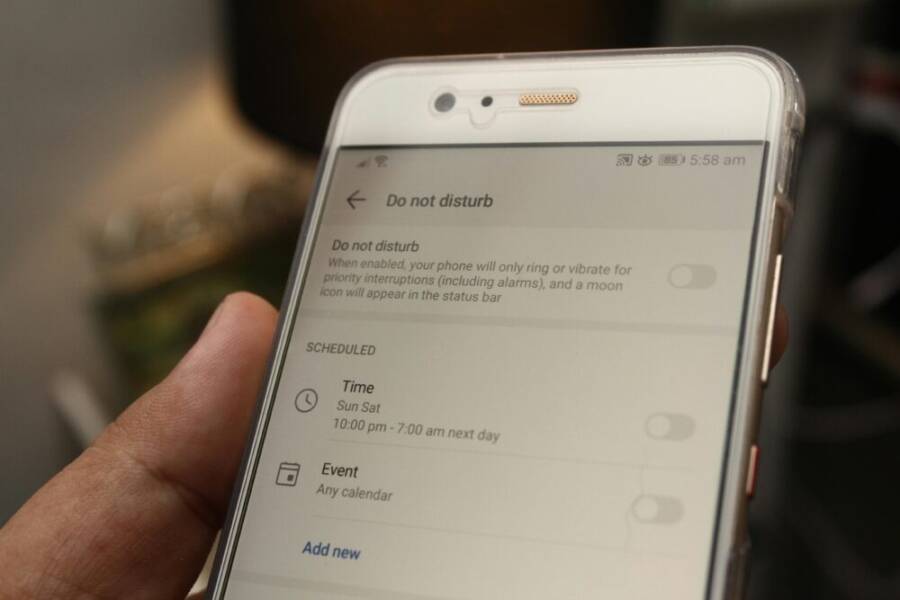
- On Android, Do Not Disturb lets you tailor which notifications break through during your chosen hours. You can tie DND to your calendar or an automation app to keep it in sync with daily life.
Mute nonessential notifications during off hours
- Review app notification settings monthly to keep the list manageable. Disable nonurgent alerts for social media, shopping apps, and games during your downtime.
- Consider smart summaries instead of real-time alerts. A daily digest can keep you informed without interrupting your evening.
Key takeaway: Quiet hours are not a one-and-done setup. They require a quick, periodic check to stay aligned with your life rhythms. If you want a practical reference, Apple’s guidance on Focus can help you fine tune the process.
Link: https://support.apple.com/guide/iphone/set-up-a-focus-iphd6288a67f/ios
As you implement these steps, you’ll notice a calmer device that respects your boundaries. The goal is to create a phone experience that supports your life, not one that demands your attention at every moment. If you’d like to see more real-world setups others are using, I can summarize how people tailor Focus, home screens, and quiet hours to fit different routines.
Keep work and personal life organized with separate apps and accounts
Separating work and personal life on your phone starts with where you store apps and how you manage accounts. A clean layout and clear boundaries reduce friction, cut distractions, and help you switch modes quickly. Below are practical, zero-fluff steps you can apply today to keep work focused and downtime truly personal.
Keep work apps in a dedicated space
A dedicated space for work apps creates an immediate visual cue that you’re in “work mode” or “personal mode.” It reduces the likelihood of grabbing the wrong app midtask and makes it easier to preserve downtime.
- Move all core work tools to a single home screen page or a tightly organized folder. On iPhone, you can create a second page and drag work apps there; on Android, a top-level folder labeled “Work” works just as well.
- Hide nonessential apps from the main page. Keep only the apps you use during work hours visible on the primary screen, and relocate everything else to the dedicated space.
- Keep quick access in mind. Pin a calendar widget or a project tracker to the Work screen so you have at-a-glance context without opening multiple apps.
- Apply a visual cue. Use a distinct color, badge, or icon style for work apps so the difference is instantly recognizable, even at a glance.
- Practice a one-tap workflow. Create a single launcher or shortcut for the most-used work app so you can start a task with one tap rather than hunting through menus.
For further ideas on organizing apps by category, see resources like How to Organize Your Phone. It covers moving apps into folders by category and using color coding to keep things tidy.
Link: https://getorganizedhq.com/how-to-organize-your-phone/
A practical example: on an iPhone, you might place all project management and email apps on the second page, while calendars and time-tracking tools sit on the first page for quick access. On Android, a dedicated Work folder at the top of the home screen can be your go-to hub, with a personal page for everything else. This setup keeps the boundary visible and the workflow smooth.
Smartphone users often discover that a tidy home screen reduces time wasted hunting for the right app. If you want quick layout ideas, check out simple hacks for organizing your phone home screen.
Link: https://techtips.colonielibrary.org/organize-phone-home-screen/
Separate accounts for mail, calendars, and messages
Having distinct work and personal accounts for mail, calendars, and messages is the most reliable way to avoid cross posting and confusion. It also gives you precise control over what notifications come through at the right times.
- Add work and personal accounts. On iPhone, you can add multiple mail, calendar, and contacts accounts in Settings > Mail/Calendar, or by signing into the account in the appropriate app. On Android, go to Settings > Accounts or Accounts and backup, then Add account. Make sure each service is tied to the correct profile.
- Set default calendars per profile. In calendar settings, assign a default calendar for each account so new events land in the intended space automatically. This prevents work events from showing up on your personal calendar and vice versa.
- Avoid cross posting. When composing messages, specify which account you’re using. Some apps let you choose the sending account directly in the composer; double-check before sending.
- Color coding helps. Assign colors to each calendar and mail thread that match the respective profile. A quick color cue keeps you oriented at a glance.
- Manage notifications by profile. Turn on work notifications only during your work hours and keep personal alerts muted when you’re in personal mode. This reduces the chance of overlap during off hours.
If you want a practical, reputable walkthrough of organizing apps and accounts, Apple’s guide on organizing apps and folders is a solid reference for iPhone users.
Link: https://support.apple.com/guide/iphone/organize-your-apps-in-folders-iph822ece7dd/ios
A real-world pattern you can adopt: use separate mail apps or separate sections within the same app for work and personal messages. For example, designate Mail app A for work and Mail app B for personal, or use in-app folders to keep both streams clearly separated. This separation keeps your brain from mixing tasks when you switch contexts.
To explore more insights on managing focus and notifications across work and personal streams on your device, you can review practical guidance here.
Link: https://www.linkedin.com/pulse/how-use-iphone-focus-mode-work-life-balance-dulay-burke-inc-czhzc
By applying these account separation practices, you create reliable boundaries that protect downtime and preserve productivity. If you’d like, I can tailor a step-by-step setup for your specific device and apps, so you’ll have a ready-to-use layout in minutes.
Thousands of People Were Struggling With Money Until They Discovered This One Ancient Secret Hidden in Sound
>>> Unlock It Now <<<

Tune notifications to reduce interruptions
Reining in interruptions starts with how your phone handles alerts. By tuning notifications per app and time, you reclaim focus for work and preserve downtime for personal life. The goal is a calmer device that serves you, not the other way around. Below are practical steps you can implement today, with easy-to-follow checks to keep you productive without missing important messages.
Customize per app and time
Adjust alert styles, sounds, banners, and lock screen visibility for key apps. Create different rules for work versus personal apps so your phone behaves differently depending on the context.
- iPhone setup
- Open Settings > Notifications. Pick a work app and customize how it appears on the Lock Screen, the Banner style, and the notification groupings. Repeat for personal apps. You can also set a dedicated Focus for work and another for personal use, then assign each app to the appropriate Focus.
- Use per-app banners or sounds to quickly distinguish work from personal alerts. For example, work messages can use a muted banner with a distinct sound, while personal apps use louder, friendlier tones.
- Link to official guidance: Change notification settings on iPhone and Use notifications on your iPhone or iPad.
- Android setup
- Go to Settings > Notifications and locate the app. Set priority, banners, and sound preferences. If your device supports it, create a Work profile with separate notification rules and link it to your schedule.
- Define auto rules so work hours trigger a Work Focus and off hours switch to Personal. Keep exceptions for essential contacts.
- A practical reference on Focus and notification management: CUSTOMIZE NOTIFICATIONS ON MY IPHONE and How to Use iPhone Focus Mode for Work-Life Balance.
- Visual separation on the home screen
- Create two distinct spaces for Work and Personal apps. Use color coding, separate widgets, and a simple naming convention to reduce mis-taps.
- Practical examples help: iPhone users place project tools on one page and daily essentials on another; Android users keep a top page labeled “Work.”
- For layout ideas see: How to Organize Your Phone and simple hacks for organizing your phone home screen.
Tip: Start with a single Work Focus and a single Personal Focus. Test the rules for a week and adjust the allowed contacts and apps if urgent messages get blocked. Focus modes can also reduce screen time anxiety by clarifying when you’re “on” and when you’re not.
Images
There Is a Frequency That the Wealthiest Families Have Used for Generations and Most People Will Never Know It Exists
>>> Open the Door <<<

 Photo by Daniel Moises Magulado
Use summaries and Do Not Disturb
Notification summaries and Do Not Disturb or Focus summaries help you decide when to check alerts. Summaries deliver a digest at set times, while Do Not Disturb focuses on silencing alerts during your chosen windows.
- Notification summaries
- Schedule a daily or weekly digest that groups non-urgent alerts. This reduces real-time interruptions and keeps you informed without constant pings.
- Use summaries for social apps and promotional notifications that don’t require instant attention.
- Do Not Disturb / Focus summaries
- Enable Do Not Disturb during personal time and set exceptions for critical contacts. For work blocks, activate a Work Focus with only essential apps allowed.
- On iPhone, you can schedule Focus by day and time, with per-contact or per-app exceptions. On Android, Do Not Disturb can be tied to calendar events or automation apps to stay in sync with your day.
- Daily or weekly discipline
- Review the digest settings weekly to ensure you’re not missing essentials. A quick monthly check keeps the schedule aligned with life changes, like new project deadlines or family routines.
- Quick wins
- Turn on a daily summary for nonessential notifications. It keeps you in the loop without constant disruption.
- Use Focus modes to mark certain blocks as private or quiet, then switch to a personal mode when you want a break.
If you want authoritative guidance on Focus and notification control, explore Apple’s official setup guide and the overview of iPhone notification behavior. Links above provide direct steps and examples you can mirror.
Images
- No additional image needed here.
Key takeaway: Summaries and Focus modes turn a noisy device into a partner that respects your time. Use these tools to balance staying informed with protecting downtime.
For further reading on how to implement these features, you can reference authoritative guides like Apple’s Focus setup and notifications overview.
- Apple: Change notification settings on iPhone
- Apple: Use notifications on your iPhone or iPad
If you’d like, I can tailor a step-by-step setup for your exact device and app list so you have a ready-to-use plan in minutes.
Create a simple routine to switch modes
A clear routine helps your phone become a tool, not a barrier. By pairing a quick morning switch to work mode with an equally simple evening switch to personal mode, you create a reliable rhythm that protects downtime and keeps work focused. The routine should be small enough to stick but effective enough to reduce constant interruptions. Below are practical, repeatable steps you can adapt to your day.
A quick daily routine to switch modes
In the morning, start by setting the day’s boundary on your smartphone. A predictable sequence makes it easy to move from personal time to work time and back again without friction. Use a 20 to 30 minute window to transition so you don’t feel rushed.
- Morning timing example: 6:45 to 7:15 am. During this window you review your plan for the day, turn on your Work Focus, and tidy your home screen to put work tools front and center.
- Evening timing example: 6:30 to 7:00 pm. Switch to Personal Focus, review any remaining tasks, and prepare the device for downtime.
Checklist to complete each morning
- Activate Work Focus and confirm it’s on a schedule aligned with your work hours.
- Move essential work apps to the Work screen or folder and hide nonessential apps from the main page.
- Enable calendar and project tools on the Work page for at-a-glance context.
- Set a distinct notification style for work apps (sound, banners, lock screen visibility).
- Quick check: can you access your primary work app with one tap?
Checklist to complete each evening
- Activate Personal Focus and set the device to quiet or minimal alerts.
- Move personal apps to a separate page, distinct from your Work screen.
- Review notifications for the next day and mute nonessential apps for downtime.
- Prepare your device for the next morning by placing the most common personal tasks on the Personal screen.
- Quick check: are urgent work alerts still accessible if you need them after hours?
In practice, this routine is about posture as much as settings. A simple, repeatable sequence you can do in less than a half hour each day makes it easier to keep work from spilling into personal moments. If you want a ready-made model, Apple’s Focus setup offers clear steps for iPhone users and there are equivalent options on Android [link: Apple Focus setup]. For broader ideas on turning your phone into a productivity tool, see related guidance on how to tune notifications and mode switching [link: Productivity settings guide].
How to keep the routine practical
- Start with one Work Focus and keep Personal Focus as the default. It’s simpler to manage.
- Use a quick toggle in Control Center or Quick Settings to switch Focus when you leave your desk or return to personal time.
- Periodically review the rules. If urgent messages are blocked too often, adjust the allowed contacts or apps.
Examples of visual cues and organization
- Use color coding to signal mode: a muted color scheme on the Work screen and a brighter layout for Personal.
- Place a calendar widget on the Work screen for quick context and a weather widget on Personal for daily planning.
External references can help you tailor these steps. For instance, a comprehensive guide on Focus modes and notification control provides practical, real-world setups you can mirror [link: Focus settings overview].
A one week plan to build the habit
Building the habit takes small, daily actions. This plan keeps things realistic and measurable, with a short weekly review to cement the routine.
- Day 1: Establish boundaries
- Create two distinct home screens or folders: Work and Personal.
- Move core work apps to the Work space and essential personal apps to the Personal space.
- Enable a simple Work Focus and a Personal Focus. Keep the Work Focus on a predictable schedule.
- Day 2: Fine tune notifications
- Set per-app notification rules for urgent work messages.
- Disable nonessential alerts during work hours and quiet hours during personal time.
- Day 3: Add visuals and shortcuts
- Apply color cues and simple icons to distinguish modes.
- Create a one-tap launcher for your most-used work app.
- Day 4: Review and adjust
- Check which apps still pull you into work during downtime.
- Add essential apps to the Work screen and remove nonessential ones.
- Day 5: Practice the switch
- Do a full morning switch to Work Focus and a full evening switch to Personal Focus.
- Note any friction points and fix them.
- Day 6: Extend the boundaries
- Introduce a short mid-day check to ensure you stay in the right mode during peak work times.
- If needed, adjust the schedule so your Focus windows match real life better.
- Day 7: Weekly reflection
- Review what worked and what didn’t.
- Decide one improvement to try next week, such as adjusting the allowed contacts or changing the color cues.
During the week, keep a simple log of actions and outcomes. This makes it easy to measure progress and stay motivated. If you want a structured template to track your progress, you can adapt a weekly checklist from reliable productivity guides [link: Focus and boundary planning resource].
End-of-week quick review prompts
- Which times of day felt smoothest for switching modes?
- Which notifications still disrupted downtime, and how can you fix them?
- Did the two spaces stay visually distinct enough to avoid confusion?
- What one tweak will you implement in week two to improve consistency?
Real-world setup tips
- Use a single Work Focus and a single Personal Focus to reduce cognitive load.
- Keep your essential workflow on the Work screen so you can hit the ground running each morning.
- Confirm your calendar and reminders appear in the correct space to support quick context switching.
If you’d like a tested template for your exact devices and apps, I can tailor a step-by-step setup that fits your daily rhythm.
Troubleshooting and quick wins
Every routine encounters snags. Here are common problems and fast fixes, plus a quick FAQ to keep you on track.
Common problems and fixes
- Problem: You miss some work alerts during off hours.
- Fix: Adjust do not disturb rules to allow a few essential contacts and apps. Recheck after a week.
- Problem: You still grab the wrong app when switching modes.
- Fix: Increase separation on the home screen, pin a Work launcher, and name folders clearly.
- Problem: Focus mode feels flaky or unreliable.
- Fix: Rebuild the schedule around actual work hours or use calendar triggers to automate switching.
- Problem: Notifications overwhelm during downtime.
- Fix: Enable daily summaries for nonurgent alerts and limit banners to essential apps.
FAQ style quick answers
- Q: Do I need to disable all personal apps during work hours?
- A: Not necessarily. Keep nonessential apps quiet but accessible for emergencies.
- Q: How do I test if the routine sticks?
- A: Track your switching moments for a week and note friction points. Adjust gradually.
- Q: Can I use a single device for both roles?
- A: Yes, with clear, consistent boundaries. A dedicated Work screen helps a lot.
- Q: What if someone needs to reach me urgently outside work hours?
- A: Allow contact from trusted people in your Focus settings and calendar reminders for emergencies.
What to do next if you want more help
- Review step-by-step Focus setup guides for iPhone and Android to align with your device. These guides give concrete steps you can mirror [link: iPhone Focus setup] [link: Android notification management].
- If you’d like, I can tailor a quick-start plan for your exact device and app list so you have a ready-to-use routine in minutes.
Images and quick visuals can reinforce the routine. For example, a screenshot showing two distinct home screens with Work and Personal apps can help readers picture the setup and apply it faster. If you want, I can suggest layout ideas tailored to common smartphone models.
External links used to support the routine
- Apple Focus setup: https://support.apple.com/guide/iphone/set-up-a-focus-iphd6288a67f/ios
- Apple notification management: https://support.apple.com/guide/iphone/change-notification-settings-iph7c3d96bab/ios
- Android Digital Wellbeing and focus options: https://www.android.com/digital-wellbeing/
- How to organize your phone and apps: https://getorganizedhq.com/how-to-organize-your-phone/
- Practical tips for organizing a home screen: https://techtips.colonielibrary.org/organize-phone-home-screen/
If you’re ready, share your device details and I’ll tailor the two-screen layout, Focus presets, and the step-by-step weekly plan so you can implement this with minimal setup in minutes.
Conclusion
Separating work and personal life on your phone yields calmer days, sharper focus, and better downtime. By using Focus modes, tidy home screens, quiet hours, and separate accounts, you create reliable boundaries that protect what matters most. Try the steps, then reflect on what changed in your routine and how you feel after a week of consistent practice. If you’re ready, share your progress and I’ll tailor tweaks to fit your device and schedule for even smoother transitions.
What If the Only Thing Between You and the Life You Deserve Is a Hidden Wealth Code Waiting to Be Activated
>>> Open the Door <<<