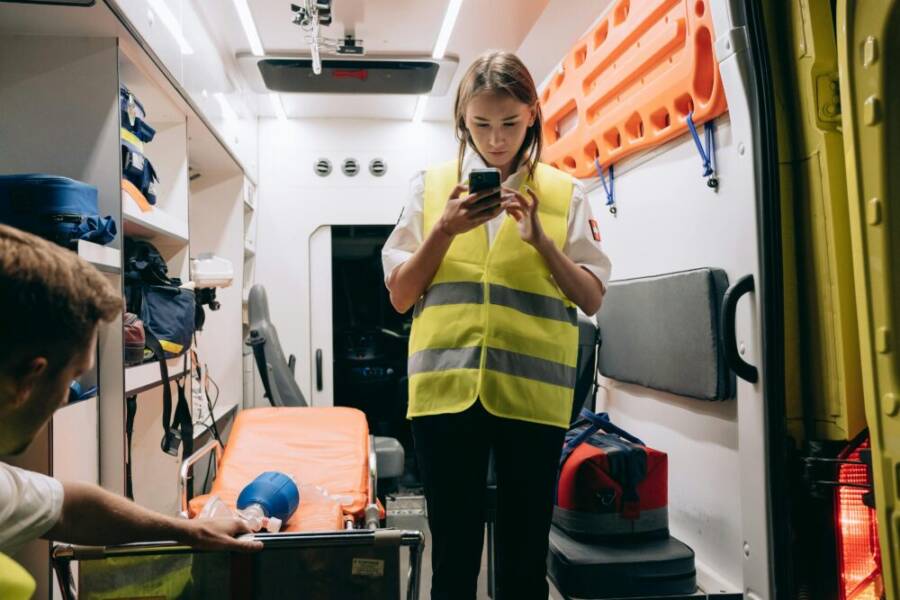
When disaster hits, your smartphone can be your lifeline. It keeps you in touch, guides you to safety, and helps you stay calm when minutes count. This post shows you how to use your phone to stay informed, fast.
You’ll learn which alert sources you can trust, simple tools to monitor updates, and how to verify information before you act. We’ll cover practical steps you can take right away, from setting up alerts to organizing essential contacts and offline resources. The goal is clear: get you accurate updates when you need them most.
A small, repeatable plan can make all the difference. You’ll get a straightforward disaster information plan, plus tips to recover after an event. Your phone can keep you safe if you know where to look and how to organize it.
Know Your Alerts: Trusted Sources and How to Enable Them
In emergencies, reliable alerts save time and reduce confusion. This section explains which sources you can trust, how to enable them on iPhone and Android, and why sticking to official channels helps you dodge misinformation. You’ll get practical, step by step guidance you can act on today.
Public Alerts from Government Agencies
Official alerts come from government bodies and are designed to cut through the noise. They can include weather warnings, safety advisories, and evacuation orders. Relying on these channels helps you receive consistent, time stamped information that’s based on verified data from authorities.
- Weather alerts cover sudden storms, heat waves, flooding, and tornado warnings. They’re typically pushed when conditions meet predefined thresholds, so you get timely warnings even if you’re not actively monitoring the news.
- Safety alerts might include amber alerts, public safety notices, or information about hazardous materials incidents. These messages focus on what you need to know to stay safe.
- Evacuation orders advise you on whether to leave your area, where to go, and how to get there. They’re issued by local or state authorities and often come with instructions on shelters and road conditions.
How to enable government alerts on iOS (iPhone)
- Open the Settings app.
- Tap Notifications.
- Scroll to Government Alerts and Emergency Alerts.
- Turn on the alerts you want, including Emergency Alerts and any local or test alerts your region supports.
- Make sure Do Not Disturb isn’t silencing alerts during critical times.
How to enable government alerts on Android
- Open the Settings app.
- Tap Apps & notifications, then Advanced.
- Look for Emergency alerts or Wireless Emergency Alerts (WEA).
- Enable the alert types you need, such as Extreme threats, Severe threats, and Test alerts if available in your region.
- If your phone supports multiple carriers, confirm alerts from all carriers you use so you don’t miss messages.
A quick note on reliability: government channels reduce misinformation because they’re managed by authorities who verify information before distribution. This doesn’t mean you should stop using other trusted sources, but it does mean you have a dependable baseline to compare other alerts against. For quick reference, official support pages describe how these alerts work on your device and how to customize settings on both major platforms. As you set up, you’ll feel more confident in what you’re receiving and what you can ignore.
Useful official resources
- Apple’s guide on emergency alerts for iPhone users explains where to find and customize alerts on iOS. It’s a reliable starting point for setting up your device to receive government alerts. See: About emergency and government alerts on iPhone.
- FEMA also offers practical tips and test alert information you can apply to your devices. See: Tip 26: How to Receive WEA Tests on Android & iOS Phones.
- For iPhone users who want a quick how-to, you can explore community discussions that recap the steps, such as: How to enable emergency alerts on an iPhone.
Tips for staying aligned with official channels
- Enable alerts for your primary location and any places you spend time, like work or school.
- Regularly review alert settings to ensure you haven’t accidentally disabled important notices.
- Cross check any urgent message with a government site or official news source before reacting.
Weather and Community News Apps
Apps add a layer of immediacy beyond official alerts. They deliver real time updates, location specific warnings, and push notifications that can cut through clutter. The key is to pick reputable sources and tailor them to your needs so you get relevant alerts without feeling overwhelmed.
What you get from weather and community news apps
- Real time updates: As conditions change, you’ll see updates slip into your feed or as push alerts. This is especially valuable during rapidly evolving events like flash floods or storms.
- Location specific warnings: Apps can zero in on your neighborhood, your route, or areas you commute through. That precise targeting helps you decide when to move or shelter in place.
- Quick actions: Most apps provide quick access to preparedness steps, evacuation routes, and nearby shelters. They may also offer offline maps and battery saving modes for when power is scarce.
Choosing reputable apps
- Look for apps developed by recognized weather agencies, local government portals, or well known news organizations.
- Check reviews, update frequency, and the presence of reliable data sources. Trustworthy apps cite their data and time stamps.
- Favor apps with clear privacy policies and transparent data usage.
Customizing alert regions
- Set your home, work, and any frequently visited locations as separate alert regions. This ensures you only receive alerts that matter to you.
- If you travel often, add destination cities or regions to receive advance notices before you arrive.
- Turn off alerts for areas you rarely visit to avoid alert fatigue.
Avoiding alert fatigue
- Limit the number of apps sending alerts for the same event to prevent duplicate notifications.
- Use quiet hours or priority alert settings to manage when alerts interrupt you.
- Periodically review active alerts and prune those you no longer need.
Practical example
- You’re at work in a city with a looming thunderstorm. A trusted weather app sends a push alert about a approaching line of storms within a 10 mile radius. You also get traffic impact updates on your usual commute route. You can quickly check the map, see the storm path, and plan a safe departure time or alternative routes.
How to integrate with your overall disaster plan
- Use apps as a first line of situational awareness, then verify any critical information with official sources before making a decision.
- Save essential emergency contacts and a quick reference to local shelters within the app for fast access.
- Keep a backup offline map or a downloaded emergency guide in case you lose network connectivity.
Helpful sources for app selection and setup
- iOS users can customize push alerts in Settings under Notifications for Government alerts and selected weather apps.
- Android users can typically manage alerts within the app itself or via the system alert settings, with additional options in Wireless Emergency Alerts if supported by the device.
Spotting Fake Alerts and Verifying Quickly
Misinformation spreads fast, especially during emergencies. A few practical checks can protect you and others from acting on false claims. Rely on trusted channels, verify quickly, and don’t let rumors dictate your actions.
Checks to confirm alerts are real
- Cross check with a second trusted source. If an alert seems urgent, compare it with official government sites or a reputable newsroom.
- Verify time stamps. Real alerts include when the message was issued and sometimes when it expires. If this information is missing or vague, treat it with caution.
- Look for official logos and URLs. Government and large news organizations use consistent branding and verified domains. If you’re unsure, don’t click suspicious links.
Guidelines for rapid verification
- Start with the source: is the alert published by a government agency, a known meteorological service, or a major newsroom?
- Check the date and time. Outdated alerts can still appear in feeds, but they won’t reflect current conditions.
- Inspect for actionable details. Real alerts provide where to go, when to act, and how to stay safe.
What to do if you encounter questionable alerts
- Do not act on rumors. Wait for confirmation from official channels or multiple trusted sources.
- Report suspicious content to your local platform or emergency management office if you can.
- If in doubt while you’re in danger, prioritize established safety instructions and seek local assistance.
Putting it into practice
- Build a quick cross check routine: read an alert, verify with an official source, and then decide on your immediate steps.
- Keep a simple one page plan ready with your primary shelter, meeting place, and contact list. The aim is fast, accurate action.
Links to trusted verification resources
- Official emergency alert support pages and handling tips from trusted organizations can help you quickly validate messages. See resources like the Apple and FEMA links cited earlier for straightforward steps.
- In addition, you can refer to reputable guidance on verifying alerts and avoiding misinformation from established sources during emergencies.
By focusing on trusted sources and clear verification steps, you reduce the chance of acting on bad information. Your smartphone becomes a reliable tool you can trust, not a source of confusion. Keep your alert setup simple, verify what you receive, and follow official guidance when lives are on the line.
Keep Your Phone Ready: Essential Tools and Settings
When disasters strike, a well prepared phone makes the difference between staying informed and getting overwhelmed. This section outlines practical steps to preload critical data, conserve power, and organize alerts so you can act quickly and calmly. Think of your smartphone as a pocket command center: fast, reliable, and easy to use when you need it most.
 Photo by Mikhail Nilov
Offline Maps and Data for Areas with Poor Service
Preloading maps and saving routes ensures you can navigate even when networks go down. Here’s how to set up offline access across popular map apps and why a small regional data cache matters.
- Preload maps in Google Maps: Open Google Maps, tap your profile, then Offline maps. Choose a region you’ll travel through and save it. This gives you turn‑by‑turn directions without data access and keeps you moving toward safety. If you’re often on long trips, save multiple regions along the route.
- Save essential routes and destinations: Pin places you rely on—home, work, shelters, clinics, and the route to them. In Google Maps you can save custom maps or offline routes for quick access later.
- Apple Maps offline options: Apple supports offline map downloads for select areas. Save important regions so you can view maps and navigate even without a cellular signal. See Apple’s official guide for steps and tips.
- Regional data cache: Keeping a small cache of essential data reduces lookup times, speeds up navigation, and helps with battery life. A regional cache is especially useful if you travel between areas with spotty coverage.
Practical tip: save one offline map for your home base and another for your most frequent route. If you drive long distances, consider a separate offline map for each major segment of your trip. For quick setup guidance, see the official how‑to pages for offline maps on iPhone and Google Maps.
- iPhone offline maps: https://support.apple.com/en-us/guide/iphone/download-offline-maps-iphcfb5f5bc6/ios
- Google Maps offline maps: https://support.google.com/maps/answer/6291838?hl=en&co=GENIE.Platform%3DiOS
A quick example: you’re heading to a shelter district where cell service is unreliable. You’ve downloaded the area in Google Maps, saved the shelter’s address as a favorite, and kept a fallback route in Apple Maps. When you lose signal, you still have turn-by-turn guidance and safety checkpoints at your fingertips.
Power Saving and Quick Access to Alerts
Disasters demand careful power management. Set up your phone so it stays responsive when you need it most, while clutter and drains are kept to a minimum.
- Enable low power mode when you’re not plugged in: This reduces background activity and keeps essential functions alive longer. Activate it proactively during a forecasted event or when you’re outside for extended periods.
- Prioritize essential apps: Permit critical apps to run in the background. Limit nonessential apps to manual refresh or offload them temporarily to conserve energy.
- Dedicated home screen for alerts: Create a folder or a home screen page with urgent alerts and quick actions. This reduces search time and helps you react faster.
- Carry a portable charger: A compact power bank with a full charge can save you in a pinch. Keep cables organized in a small pouch so you can power up anywhere.
- Organize power sources: Label charging cables and keep them with your emergency kit or bag. Consider a solar charger for extended outages.
Tiny but mighty steps add up. You’ll gain more minutes of usable phone time and quicker access to alerts, which matters when every second counts.
Image and quick reference resources
- Official guidance on offline maps for iPhone: see Apple’s support page.
- Offline maps help for Android and iPhone users: see Google’s support article.
- Portable charging tips and best practices for disaster readiness: consider checking reputable tech safety sites or official preparedness guides.
Section takeaway
- Preload maps and save critical routes in multiple apps to ensure navigation remains available offline.
- Enable low power mode early and keep essential apps allowed to run in the background.
- Organize a dedicated alert hub on your home screen and carry a portable charger to stay powered long enough to reach safety.
Spotting and reducing alert overload
- Keep notifications from only the most trusted sources active.
- Use quiet hours and priority settings to balance awareness with rest.
- Regularly prune alerts you no longer need, especially if you travel to different regions.
Organized Notifications and Quick Actions
Clear, purposeful alerts help you stay informed without feeling overwhelmed. This subsection explains how to optimize alert delivery, set distinct sounds, and create fast access points for emergency actions.
- Turn on only critical alerts: Filter to essential updates, such as weather warnings, evacuation notices, and emergency broadcasts. This reduces the noise and makes real alerts stand out.
- Distinct alert sounds: Assign a unique tone to urgent messages. A specific ringtone or vibration pattern helps you distinguish safety notices from routine alerts.
- Dedicated emergency notification group or widget: Create a group in your messaging app or a home screen widget that aggregates critical contacts and updates. This keeps important information within reach.
- Reduce alert fatigue: Limit duplicate alerts from multiple apps for the same event. Use priority settings to ensure the most important messages interrupt you in a controlled way.
To build effective quick actions, place essential tools where you naturally look first. A weather app with a direct link to nearby shelters, a maps app with offline routes, and your SOS contacts should be a single tap away. This consolidation makes it easier to respond quickly.
- Useful practice: add a dedicated emergency contact on your home screen with a single tap to call or message if you need help.
- For iPhone users: manage notifications in Settings > Notifications for Government alerts and chosen weather apps. See official help pages for setup.
- For Android users: adjust alerts in the app or system settings, and check Wireless Emergency Alerts if your device supports multiple carriers.
Image and quick reference resources
- Official guidance on emergency alerts setup on iPhone and Android.
- Tips for configuring essential alerts and sounds to improve recognition during chaos.
Tools and tips for quick actions
- Create a simple emergency kit note on your phone with meeting points and shelters.
- Save a small offline map of your area for fast access during outages.
- Keep a short, printable copy of emergency contacts in your bag as a backup.
Section takeaway
- Tailor alerts to your needs, using distinct sounds and a dedicated quick-access area for emergency info.
- Consolidate key tools into a single, easy-to-reach spot on your device.
- Have a plan for continuous power and quick actions when seconds matter.
Images and context for quick actions
- Using a single, well-organized home screen can cut minutes from response time during a disaster. Consider placing your maps, emergency contacts, and a weather widget in a single, clearly labeled area, so you can act fast.
Stay Safe: Verify Alerts Before Acting
When disaster strikes, you need not just alerts but trustworthy alerts. Verifying messages before you act can save time, prevent mistakes, and keep you and others safer. Use a quick, proven routine to cross-check information and confirm details like location and timing. This section provides practical steps you can implement today, with reliable sources to reference as you go.
Cross Check with a Second Source
A fast cross-check can be the difference between a smart, safe move and a risky one. Use the following checklist to confirm that an alert matches official channels and current conditions.
- Compare primary details: Read the alert and note the location, event type, and time window. Look for the same information in a second source.
- Pick reliable second sources: Use official channels like national or local authorities, and reputable news outlets that cite official data.
- Verify timing and scope: Confirm the issuance time, expiration, and the area covered. Real alerts include a timestamp and an area description.
- Check branding and URLs: Government and major outlets use consistent logos and verified domains. If anything looks off, pause before acting.
- Quick example: You receive a local weather warning about a flash flood near your neighborhood. Check the city emergency portal or state weather service for the same warning and compare the map, the affected streets, and the expected start and end times.
Trusted second-source examples
- FEMA IPAWS resources and checklists for alert validation: use the IPAWS standardization materials to confirm that alerts meet established criteria. See: IPAWS EAS, WEA, and NWEM alert standardizations checklists.
- Ready.gov Know Your Alerts guides for public warnings: confirm you’re reading the right notice and understand how it applies to your area.
External references you can consult as you verify alerts:
- IPAWS standardization checklists and related guidance from FEMA
- Ready.gov Know Your Alerts overview and practical tips
How to Confirm Location Specific Alerts
Alerts can be broad or highly targeted. The key is to ensure the message applies to where you are, not just a general broadcast.
- Check the city or district in the alert text. Many alerts include a specific location or bounding area.
- Look for GPS or map tags: some apps display a location tag or radius around your current position.
- Compare with your known locations: confirm whether your home, workplace, or regular routes fall inside the alert area.
- If you travel, adjust settings: add travel destinations to your alert regions so you receive notices for those places ahead of time.
- Verify with a trusted map source: cross-check the alert area against a current map in a reputable app or official portal.
Practical tips
- Maintain separate alert regions for home, work, and common travel routes to avoid missing important notices.
- When moving between areas, update GPS-based alerts to reflect your new location.
- If you receive a powerful notification while moving, pause and confirm the area before taking action.
Recommended sources for location verified alerts
- Local government portals for evacuation or shelter guidance
- State weather service updates tied to your city or county
- Reputable local news outlets that cite official data
What Actions to Take Right Away
Once an alert is confirmed and location-specific, you can act with confidence. Prioritize safety and keep things simple.
- Move to a safe location: follow evacuation orders or shelter in place as directed. If you’re told to go to a shelter, do so promptly.
- Secure loved ones and pets: bring nearby family members and pets to a safe area. Have a plan for carers or guardians if you’re in a public place.
- Prepare essential supplies: gather your emergency kit, including water, medications, a flashlight, and a charged power bank.
- Protect important data: ensure your phone is charged, keep offline maps ready, and have a quick access list of emergency contacts.
- Stay in communication: keep lines open for updates and avoid crowded areas if guidance favors safer routes or shelters.
Concrete example
- You receive a local warning about a developing wildfire nearby. You verify the alert, check that your address falls within the affected zone, and decide to move to a designated shelter with your family. You grab your water, meds, charger, and a printed list of emergency contacts before leaving.
How to translate alerts into quick actions
- Prioritize safety first: if the alert asks you to shelter, do not delay.
- Use offline resources: maps and routes saved in advance help when networks fail.
- Communicate clearly: tell a trusted contact where you are headed and your status.
Trusted guidance to support immediate actions
- Confirm with official sources before starting any evacuation or sheltering plan
- Have a prioritized list of steps ready for different scenarios
- Keep a single, simple plan that you can communicate quickly to others
Remember, you don’t need to react to every alert in the same way. Verify, then decide whether to act, adjust, or wait for further instructions.
Images and context for quick actions
- None included in this section
External links for quick reference
- IPAWS and official alerting resources from FEMA
- Ready.gov Know Your Alerts guidance
Section takeaway
- Use a two-source check to validate alerts fast
- Verify location accuracy before acting
- Prioritize immediate safety steps and keep essential supplies ready
Image and quick reference resources
- Official guidance on emergency alerts setup and verification from trusted agencies
- Quick-start tips for reducing alert overload and staying informed
Make a Disaster Plan for Your Phone
A clear, repeatable plan keeps you calm and in control when disaster strikes. Your phone becomes a compact command center that guides you to safety, confirms the best actions, and keeps your loved ones informed. In this section, you’ll learn how to set up a quick reference hub, protect your important documents, and keep your plan fresh through regular practice.
Create a Go-To Emergency Page and Contacts
Set up a simple, quickly accessible place on your phone that holds key numbers, family plans, and critical contacts. A dedicated emergency page acts as your central hub when every second counts.
- Build a quick reference page on your device. Use the Notes app or a dedicated widget to store:
- Primary emergency numbers (police, fire, medical)
- Family member contacts with roles (who calls whom, who leads the plan)
- Short family plan with meeting points and shelter locations
- Use a home screen widget or a single notes shortcut for fast access. Widgets let you view essential information without unlocking your phone.
- Include non-phone numbers and offline routes. Save a nearby shelter, clinic, or police station with addresses and a quick map link.
- Keep this page updated. After big life changes like a new job, new address, or a school change, revise the contacts and plan.
To make setup easy, consider using a dedicated emergency widget that aggregates contacts and updates. For iPhone users, a widget centered on personal emergency contacts is available through several guides that show how to place this information on your Home Screen. For Android users, many devices support locking screen or home screen widgets that display emergency contacts without unlocking the phone. Quick setup references:
- How to create widgets for personal and emergency contacts on iPhone: https://appleinsider.com/inside/ios/tips/how-to-create-widgets-for-personal-emergency-contacts-on-iphone
- How to easily set up and manage emergency contacts on smartphones: https://smart.dhgate.com/how-to-easily-set-up-and-manage-emergency-contacts-on-your-smartphone/
Image for this section
 Photo by Gustavo Fring
Practical tips
- Keep the page concise: list names, roles, and two or three actions per person.
- Add a “test this week” reminder to ensure the numbers are reachable and the plan remains accurate.
- Share the page with a trusted family member so more than one person can act if you’re unreachable.
Key takeaway
- A well organized go to emergency page speeds up decision making and reduces confusion during chaos.
Save Important Documents and Health Info
Storing medical data, IDs, and insurance details on your phone or in the cloud can be a lifesaver. Prioritize privacy and choose accessible, protected methods so you can retrieve critical information fast.
- Use a digital Medical ID or health profile on your device. This can include allergies, medications, blood type, and emergency contacts. If you choose cloud storage, ensure you use a trusted service with strong encryption.
- Keep copies of essential documents in a secure, accessible location. Consider scanning or photographing:
- Government issued IDs (masked if you’re sharing publicly)
- Health insurance card and policy numbers
- Medical history and current medications
- Insurance and responder contact info
- Privacy and protection
- Enable device level security with a strong passcode or biometric lock.
- Turn on two factor authentication for cloud storage.
- Regularly review access permissions and revoke shared links you no longer need.
- Quick access options
- Use a password protected vault app to store sensitive files.
- Save a lightweight version of critical documents offline for emergencies with no network.
- Create a dedicated “Emergency Docs” folder in your cloud storage with clear labeling.
Practical tips
- Limit sensitive data on easily accessible places. Keep the most critical items in a protected area of your device.
- Test access under offline conditions to ensure you can retrieve documents even when networks fail.
- Periodically update documents after changes like new insurance cards or updated medications.
Helpful setup ideas
- For iPhone users, add a Medical ID that displays on the lock screen and includes emergency contacts.
- For Android users, check your device’s Emergency Information settings to store essential data that’s viewable without unlocking.
Image for this section (No image required here if not available)
Section takeaway
- Protect privacy while ensuring quick access to health and ID information. Keep a lightweight offline copy for emergencies.
Practice Drills and Review Frequency
A predictable practice routine keeps your plan reliable. Schedule quarterly drills, refresh contact info after major life changes, and review alert settings after software updates. Keep the cadence simple so you actually do it.
- Quarterly drills
- Run a 5 minute drill to verify quick access to emergency pages, documents, and offline maps.
- Simulate a common scenario such as a neighborhood evacuation or power outage to test your speeds and actions.
- Update after life changes
- Update emergency contacts when a family member moves, changes a phone, or a new caregiver joins.
- Review health and insurance information after renewals or changes in coverage.
- Review after updates
- After major OS updates, recheck alert settings to ensure you receive the most important notifications.
- Verify any new app permissions that affect emergency information and offline access.
Keep it simple
- Use a single monthly reminder to review the plan, then a quarterly drill to practice the steps.
- Maintain a one page plan you can share with a partner or family member.
Concrete example
- Every quarter you run a quick drill: you check the emergency page, confirm the backup offline map, verify your Health IDs are up to date, and test a quick call to a trusted contact.
External resources you can reference for setup ideas
- Emergency alerts and verification guidance from FEMA IPAWS
- Ready.gov Know Your Alerts overview
Section takeaway
- A short, repeatable routine keeps your plan effective year after year.
- Regular updates prevent outdated information from slowing you down.
- A clear practice path reduces stress during real events.
Images and quick reference resources
- Image not required for this subsection.
Images
- A well organized home screen with emergency widgets is a strong visual cue for readers. If you include an image here, ensure it shows a clean, simple phone layout with emergency contacts visible.
Overall section takeaway
- Build a concise, actionable emergency hub on your phone.
- Store and protect essential documents with smart backups.
- Keep a simple, repeatable practice routine to stay ready.
Links used in this section
- How to create widgets for personal and emergency contacts on iPhone: https://appleinsider.com/inside/ios/tips/how-to-create-widgets-for-personal-emergency-contacts-on-iphone
- How to easily set up and manage emergency contacts on smartphones: https://smart.dhgate.com/how-to-easily-set-up-and-manage-emergency-contacts-on-your-smartphone/
After the Disaster: Reconnect and Rebuild
Reconnecting with the people you care about and rebuilding routine in the days after a disaster is just as important as staying informed during the event. This section provides practical, phone-first steps to re-establish contact, assess readiness, and reset your digital life for the road ahead. You’ll learn how to check in with loved ones, verify what happened to your devices and data, and reset tools so you can move forward with confidence.
Check In with Friends and Family
After chaos, a quick, calm check-in helps everyone regain a sense of security. Use a trusted messaging app to confirm safety, share updates, and establish a simple plan for next steps.
- Create a routine: send a brief status message to key people within the first hour, then follow up with non-urgent updates as conditions change.
- Keep conversations concise: share only essential facts. Avoid long threads that drain battery and create confusion.
- Confirm safety and location: include your general area, current needs, and where you plan to go next. If possible, share a rough route or shelter location.
- Use a trusted channel: rely on a familiar app that you know works in your region. Consider enabling read receipts so you know who saw your message.
- Share essential updates: water, shelter, medications, or power status are common topics. Avoid posting sensitive details publicly.
Tips to reduce confusion
- Set expectations: tell friends and family when you’ll check in again.
- Create a small group with your household members to coordinate updates.
- Avoid spreading rumors by waiting for official sources before sharing new information.
Guidance for apps and etiquette
- Prefer a single, dependable messaging app for quick status updates.
- Use calm, brief messages to prevent misinterpretation.
- If networks are unstable, fall back to SMS for crucial alerts to ensure delivery.
Helpful reminder
- If you’re coordinating with others who rely on you, designate one person as the primary update point to avoid mixed messages.
External reference ideas
- FEMA offers guidance on staying connected and sharing safety updates with loved ones via official channels. See: FEMA Mobile Products and related resources for alerts and shelters.
Review Data Usage and Device Health
The days after a disaster are a good time to audit your phone’s readiness. Check battery life, storage space, and any apps that may have been affected by the event. A quick tune-up now saves you from trouble later.
- Battery life: note any rapid drain and adjust power settings. Consider enabling low power mode during ongoing outages.
- Storage space: delete or offload unused files and apps to free space for critical data and offline maps.
- Damaged apps: verify that essential apps still function, especially those you rely on for alerts, navigation, and SOS contacts.
- Backups: ensure recent backups exist, preferably in a protected cloud and a local copy if possible.
- Software updates: install pending security or stability updates once service returns to help protect data and improve performance.
Practical steps to get back on track
- Re-establish backup routines: automatic backups after major events help preserve new information like photos or documents.
- Re-check offline resources: confirm offline maps, emergency guides, and contact lists are updated and accessible without network.
- Schedule a post-disaster software check: set a calendar reminder to review critical apps within 48 hours of the event.
What to carry over into daily use
- A lightweight suite of essential apps for alerts, maps, and health data.
- A compact backup plan that covers important documents and contacts.
- A simple routine to monitor battery health and storage usage.
Recommended resources
- Official guidance and tips on mobile preparedness can help you optimize your device after a disaster. For example, FEMA’s mobile products and public alerts provide reliable reference points you can return to during recovery.
Reset and Restore Tools
After the initial response, it’s time to reset alert preferences, re-download essential apps, and confirm that offline maps and emergency pages are up to date. Keep this process practical and non technical so everyone can follow.
- Review alert preferences: reselect the specific alert types you want to receive for your home area and any places you frequent.
- Re-download essential apps: reinstall weather, map, and safety apps if you had to uninstall them or if they were removed during the event.
- Confirm offline resources: verify that offline maps and emergency pages remain accessible and up to date.
- Refresh emergency contacts: update numbers and roles if there have been changes in household or caregiving arrangements.
- Keep step-by-step guides ready: have a short, printable checklist for quick reference during future events.
A simple, repeatable sequence
- Step 1: Open Settings and confirm alert categories are active for your area.
- Step 2: Reinstall or update top safety apps, then test a sample alert.
- Step 3: Open offline maps and verify they show your current region and shelters.
- Step 4: Update emergency contacts and coordinate with household members.
Minimal, user-friendly checks
- Ensure your preferred map app shows a recent location and route.
- Confirm a backup contact can be reached by text or call.
- Double-check that your emergency page can be accessed without full device unlocking in case of lock screen changes.
Practical example
- After a wildfire nearby, you reset your alert preferences to include local evacuation notices, re-download the weather and map apps, and verify offline routes to a designated shelter. You also update the emergency contact for your partner and rehearse a quick message you’ll send if you need to relocate.
Helpful resources
- Official guidance on emergency alerts setup and verification from trusted agencies
- Ready.gov Know Your Alerts overview
Image and quick reference resources
- Official guidance on emergency alerts setup and verification from trusted agencies
- Quick-start tips for reducing alert overload and staying informed
Section takeaway
- Rebuild your notification profile to reflect current needs.
- Restore offline maps and essential apps so you stay informed without a data connection.
- Keep a simple, repeatable routine to stay prepared for the next incident.
External links you can consult for quick reference
- FEMA IPAWS resources for alert validation and verification
- Ready.gov Know Your Alerts overview and practical tips
By reconnecting with loved ones and restoring system health, you set a clear path from response to recovery. Your phone becomes a steady anchor, helping you rebuild routines, stay informed, and protect those who matter most.
Conclusion
Staying informed during disasters with your phone is about simplicity and trust. Rely on a small set of official alerts, then add reputable apps to fill in gaps, and verify quickly before you act. A well organized plan lets you move faster and reduces mistakes when seconds matter. Your smartphone becomes a steady tool you can trust, not a source of noise.
Key takeaways
- Build a simple alert system from trusted sources and keep it up to date.
- Use offline maps and stored routes to stay mobile even with patchy networks.
- Verify urgent messages with a second source before acting.
Take a quick drill this week to set up your alerts, test offline maps, and rehearse your emergency page. Set it up once, then practice regularly so your smartphone helps you stay calm and safe when disaster strikes.