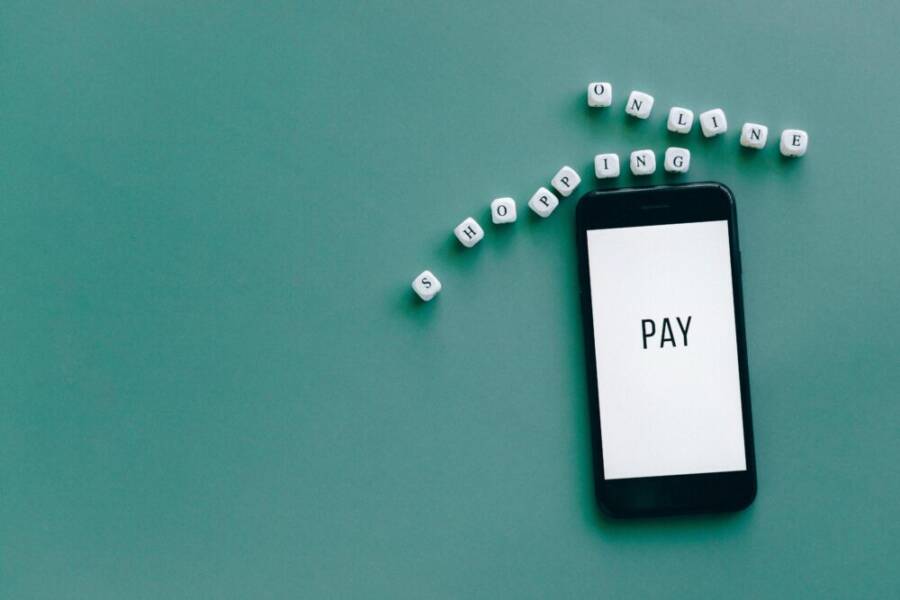
A quick story to start: a friend tucked a payment app into their day, then a text message tricked them into approving a fake transfer. In minutes, money vanished and trust dropped faster than they could blink. It’s a stark reminder that payment apps on our phones are convenient but not risk free.
Your smartphone holds your payment apps and a lot of personal data. When you use them, you gain speed and ease, but you also open windows for clever scams and theft. This guide helps you spot the common risks and simple steps to keep your money safe.
First, you’ll learn the basics of strong protection. We cover secure passwords, two factor authentication, and why you should update apps and your phone regularly. You’ll also see how to spot suspicious activity and what to do if something looks wrong.
Next, we walk through practical habits you can adopt today. From enabling app lock features to reviewing connected accounts and payment methods, these steps are small but powerful. The goal is to build a shield around your money without slowing you down.
By the end, you’ll have a clear, doable plan to secure payment apps on your phone. You’ll know what to check, what to change, and how to respond quickly if you notice anything off. This is about peace of mind and keeping control of your finances in a busy, connected world.
Spot the Top Risks to Your Phone’s Payment Apps
Your payment apps on a phone are convenient, but they come with real risks. Attackers keep finding new ways to access accounts or trick you into revealing sensitive information. Being able to spot the most common threats helps you guard your money without slowing down your day. In this section, you’ll learn what to watch for and how to respond quickly when you spot a red flag.
Phishing Scams That Trick You into Sharing Details
Phishing messages arrive as if they’re from a bank, a payment service, or a trusted merchant. They can look surprisingly authentic, with logos, sender names, and even recent transactions to seem legitimate. Common tactics include urgent language like “Your account will be closed” or “You must verify immediately to avoid a charge.” The goal is to spark fear so you click a link or share login details right away.
Signs to watch for:
- Bad links or misspelled domains. Hover over links to see the real destination; if it looks off, don’t click.
- Generic greetings and odd requests. A message that starts with “Dear user” rather than your name is a warning.
- Urgency and threats. Messages pressing you to act now often lead to hurried mistakes.
Always verify the sender before taking action. If you’re unsure, open the official app directly from your device rather than following a link. When in doubt, contact the support channel listed on the official site, not the one provided in the message. For more on recognizing phishing, check out the guidance from consumer protection authorities and trusted financial media.
- Learn more about recognizing phishing scams: https://consumer.ftc.gov/articles/how-recognize-avoid-phishing-scams
- A quick guide on scam signs from a fraud expert: https://www.cnbc.com/select/fraud-expert-the-first-sign-youre-being-targeted-by-a-scammer/
- How scammers target payment apps and what to do: https://www.flagstar.com/personal/learn/learning-hub/protecting-your-finances/even-tech-savvy-users-are-falling-for-payment-app-scams.html
When a suspicious message arrives, pause before acting. Don’t share credentials, approve transfers, or install apps prompted by the message. If you suspect fraud, report it to your bank or payment service and review recent activity in the official app.
(Image)

Photo by Nataliya Vaitkevich
Malware Hiding in Downloads and Links
Malware can sneak onto a phone through apps, websites, or files that seem harmless. A malicious app might stay hidden in a fake app store, or a link could trigger a drive-by download. Once installed, it could capture payment details, login credentials, or push fraudulent transactions. The risk is higher when you download from unfamiliar sources or click on deceptive ads.
What to do to stay safe:
- Prefer official app stores and verify publisher names before installing. Read reviews and check app permissions.
- Scan new downloads before opening them. A quick antivirus or device security check can catch malicious packages.
- Keep your device and apps updated. Software updates often include security patches that block known threats.
- Be mindful of permissions. If an app requests access to messages, contacts, or payments without a clear need, reconsider installing it.
- On Android versus iPhone: Android devices often allow sideloading, which can increase risk if you stray from the official store. iPhone devices rely more on the App Store, but phishing and profile-based attacks still exist. Always verify the app source and developer, regardless of platform.
If you notice unusual activity, such as unexpected charges or unfamiliar devices connected to your account, act quickly. Change your passwords, revoke suspicious session access, and contact your payment provider immediately.
If you want more on guarding against download-based threats, see trusted resources from major outlets and banks.
- Learn more about recognizing phishing scams: https://consumer.ftc.gov/articles/how-recognize-avoid-phishing-scams
- A guide to safeguarding against payment app scams: https://www.flagstar.com/personal/learn/learning-hub/protecting-your-finances/even-tech-savvy-users-are-falling-for-payment-app-scams.html
(Image)
Optional: you can add an image here if it fits naturally with your layout.
Build Strong Locks on Your Phone First
Your phones carry the keys to your money, messages, and that’s why securing the lock screen is the first line of defense. A strong lock slows down attackers, buys you time, and reduces the risk of casual access to payment apps. The steps here are practical and quick to implement, so you can lock down your device without slowing your workflow. Think of a sturdy lock as the gatekeeper for your digital life.
Create a Tough Passcode or PIN
A robust passcode or PIN is your first shield against unauthorized access. Start with a 6-digit code or longer, and avoid obvious patterns like 1234 or 0000. A longer numeric code adds layers of guessing resistance, while some devices support alphanumeric passcodes that combine letters and numbers for extra security. If your phone offers a Passcode option with letters included, use it when you don’t mind typing a bit more during unlocks.
How to set it up quickly:
- Open your device’s Settings.
- Choose Security or Lock screen, then select Screen lock.
- Pick a 6-digit PIN or an alphanumeric passcode if offered.
- Turn on automatic wipe after several failed attempts if available.
If you’re switching from a simple PIN, give yourself a moment to re-enter and memorize a longer code. On many Android devices you can start with a longer numeric code and then switch to an alphanumeric option later. For iPhone users, the recommended path is similar: enable a strong passcode and consider adding Face or Touch ID as a secondary unlock method to speed things up when you’re in a hurry. For more specifics, see guides on how to set a passcode on iPhone and Android: Apple support provides clear steps for iPhone users, and Android support covers the Android path.
- Apple guide: Set a passcode on iPhone
- Android guide: Set screen lock on an Android device
A solid passcode is your cheapest insurance. It dramatically reduces the chance that a thief can reach your apps, especially payment apps, when the device is lost or stolen.
Switch On Fingerprint or Face ID
Biometric unlocks combine speed with security. When configured properly, fingerprints or facial recognition offer quick access while still keeping your data protected behind a strong passcode. Use biometrics as a convenience layer, but always keep a strong backup passcode in place.
How to enable biometrics:
- On iPhone: Go to Settings > Face ID & Passcode or Touch ID & Passcode, then turn on the desired option.
- On Android: Settings > Security or Biometrics, then enable fingerprint or face unlock.
Why biometrics help:
- Speed without sacrificing security for daily tasks.
- Quick access to payment apps when you’re in a rush.
- A fallback to your passcode if biometrics fail due to moisture, gloves, or lighting.
Common issues and quick fixes:
- If biometric fails, ensure your sensors are clean and your hands/face are properly positioned.
- Re-train the biometric data after a software update or hardware change.
- Disable biometrics if you suspect a breach and rely on your passcode temporarily.
Pair biometrics with good habits: never rely on biometrics alone for sensitive actions. Use it for fast unlocking, and require a passcode for transactions and app-specific actions. Some devices allow you to require the passcode after sleep or after a short period of inactivity, adding an extra layer of protection. For more on setting up biometrics, see Apple’s and Android’s official guidance.
- Apple guide: Set up Face ID or Touch ID
- Android guide: Set screen lock with biometrics
Biometrics speed up everyday use. When you’re paying through an app, you’ll notice how much faster it is to unlock and approve payments, yet still protected by your main lock.
Turn On Find My Phone Features
If your phone goes missing, a Find My service can be a lifesaver. Both Apple’s Find My and Google’s Find My Device help you locate, lock, or erase your device remotely. This is particularly important for payment apps, because it prevents a thief from unlocking the device or draining accounts.
What you get with Find My features:
- Location tracking to recover your device.
- Remote locking to prevent access to apps and data.
- Remote wipe to erase sensitive information if the device is not recoverable.
How to use Find My on Apple devices:
- Ensure Find My iPhone is turned on in Settings.
- Enable location services and share your location with trusted contacts if you want extra help.
- Use the Find My app on another Apple device or the web to locate, lock, or erase the device.
How to use Find My on Google devices:
- Turn on Find My Device in Settings > Security > Find My Device.
- Make sure the device is linked to your Google account and has location services enabled.
- Access the service from a web browser to ring, locate, lock, or erase the device.
Practical benefits for payment apps:
- If the device is lost, you can lock the screen quickly and prevent unauthorized purchases.
- You can erase payment app data remotely to protect your finances.
- You gain peace of mind knowing you can act fast rather than waiting for someone to return the device.
If you want more on Find My features, see Apple and Google’s official instructions. These tools are straightforward and worth enabling now.
- Apple support: Set up Find My iPhone
- Google support: Find My Device setup and security
External resources for further safety steps:
- Find My guidance from consumer protection authorities
- Practical tips from trusted financial outlets on managing lost devices
Links
- Set a passcode on iPhone
- Set screen lock on an Android device
- Find My iPhone setup
- Find My Device setup
If you’d like, you can add a quick checklist to your post so readers can tick off these steps as they complete them.
Lock Down Each Payment App with Best Practices
Your payment apps on a smartphone are powerful tools. They speed up how you pay, but they also carry serious risks if not protected. In this section, you’ll find practical, high-impact practices to lock down every payment app you use. The goal is simple: reduce exposure without adding friction to your day. If you treat your phone like a wallet, these steps keep your money safer while you stay productive.
Keep Apps and Your Phone Updated Always
Software updates aren’t just about new features. They fix security holes that attackers could exploit to access your accounts. Keeping both your apps and your phone up to date closes those gaps before they can be abused. Turn on automatic updates so patches install in the background, then check monthly to confirm everything installed correctly.
To enable auto updates:
- iPhone: Settings > App Store > turn on Automatic Updates
- Android: Settings > Apps & notifications > Special app access > Install unknown apps (disable where not needed) and ensure Play Store updates are automatic
Beyond device updates, keep an eye on the OS itself. When a critical vulnerability is disclosed, vendors push a security patch quickly. Delaying updates leaves a window for thieves to move in. For most users, automatic updates strike the right balance between security and convenience. If you want a quick refresher on how to update, these guides are a solid start: https://support.apple.com/en-us/102629 and https://www.flagstar.com/personal/learn/learning-hub/protecting-your-finances/even-tech-savvy-users-are-falling-for-payment-app-scams.html
Review and Limit App Permissions
Each app asks for access to features and data. Payment apps often request permissions that aren’t essential for day-to-day use. Limiting these reduces the risk of data leaks or misuse if an app gets compromised. Start with a permissions audit, then revoke anything you don’t truly need.
Steps to review permissions:
- iPhone: Settings > Privacy > choose each category (Camera, Photos, Location, Microphone) to see which apps have access
- Android: Settings > Apps > [Your App] > Permissions, disable access you don’t need
Focus on the big hitters: camera, location, microphone, contacts, and storage. If a payment app doesn’t need a feature, turn it off. Also monitor new permissions after updates. Sometimes updates request new access; assess whether it’s genuinely necessary. Revisit permissions monthly to avoid creeping access. The goal is minimal exposure: the fewer doors open, the harder it is for an attacker to walk through.
Why this matters: once a thief has access to location data or camera, they could infer spending habits or capture receipts that aid fraud. By restricting permissions, you limit what an attacker could learn or manipulate. For further reading on recognizing and avoiding scams, see resources from consumer protection authorities such as the FTC. https://consumer.ftc.gov/articles/how-recognize-avoid-phishing-scams
Add Two-Factor Authentication Everywhere
Two-factor authentication adds a critical barrier. It makes even stolen credentials far less useful by requiring a second form of verification. In practice, 2FA turns a one-click fraud risk into a two-step process that an attacker is far less likely to bypass. Apply 2FA to every payment app you use and prefer app-based codes over SMS codes for reliability.
Practical steps to enable 2FA:
- Open the payment app and locate the security settings
- Enable two-factor authentication and choose an authentication method
- If available, set up an authenticator app (like Google Authenticator or Authy) instead of SMS
- Save recovery codes in a secure place, separate from your phone
For most users, 2FA is the difference between a quick breach and a difficult one to pull off. It adds a layer that an attacker must overcome, even if they have your password. If you need guidance on actual setup flows, consult the official help sections of your device and apps. While the exact steps vary by app, the principle remains the same: protect access with a second factor and keep recovery options secure.
Additional best practices:
- Use push-based 2FA when available so you approve login attempts directly in a trusted app
- Regularly review trusted devices and sessions, removing anything you don’t recognize
- Keep backup codes in a secure location separate from your phone
By adopting 2FA across your payment tools, you harden your defense without adding noticeable friction to everyday usage.
Adopting Safe Habits for Every Payment
Protecting your money on a smartphone isn’t one big move. It’s a daily habit set. This section covers practical steps you can apply now to reduce risk without slowing you down. From avoiding risky networks to keeping a close eye on transactions, you’ll build a steady shield around your payments.
Skip Public Wi-Fi for Money Moves
Public Wi-Fi networks look convenient, but they are not safe for money moves. On open networks, data can travel in the clear, making it easier for attackers to intercept traffic, capture login details, or push fraudulent alerts. If you must use a public network, keep your payments off it whenever possible and switch to mobile data for transactions. A quick VPN setup can add a layer of protection, though it’s not a perfect shield. Turn on a reputable VPN and use it only for essential tasks that require privacy, then disconnect when you’re finished.
Key tips to stay safer:
- Prefer your mobile network over public Wi-Fi for payments.
- When using a VPN, choose a trusted provider and enable it before you start any money moves.
- If you notice unusual prompts or requests on a public network, stop and switch networks.
For deeper reading on the risks and mitigations of public Wi-Fi, see trusted resources like Norton’s guide to staying safe online and consumer protection guidance. Public Wi-Fi: A guide to the risks and how to stay safe and consumer alerts on spotting phishing and risky networks. If you want additional context, you can review authoritative explanations from financial media and consumer safety sites. https://consumer.ftc.gov/articles/how-recognize-avoid-phishing-scams
Check Transactions Daily and Set Alerts
Staying on top of your payment activity is the fastest way to catch problems early. Make it a daily habit to inspect recent transactions in each app. Look for unfamiliar merchants, unexpected refunds, or transfers you don’t remember authorizing. Turn on push notifications for all payment apps so you receive real time alerts the moment a purchase is made or a transfer occurs.
What to check regularly:
- Recent payments and transfers, with timestamps and locations if provided.
- Linked cards and bank accounts connected to the app.
- Newly added payment methods or unfamiliar devices logged in.
If you spot anything off, pause, don’t act on requests coming from messages, and verify through the official app or the provider’s official site. Report suspected fraud to your bank or payment service immediately and request a review of the activity. For more guidance on recognizing and responding to suspicious activity, see industry resources and consumer guidance. Is Online Banking Safe? How to Boost Your Banking Security
Act Fast If Your Payment App Gets Compromised
If you suspect your payment app is breached, speed matters. A quick response can stop unauthorized transfers, limit damage, and get you back to safe usage faster. This section lays out a clear, actionable plan you can follow the moment you notice something off.
 Photo by Zulfugar Karimov
Confirm the Breach Quickly
First, verify what happened. Look for unfamiliar transactions, new devices linked to the app, or changed security settings. Compare recent activity in the app with bank statements. If something doesn’t match, assume the worst and act.
- Check recent payments and transfers with timestamps.
- Note any unfamiliar devices or sessions in the app.
- Look for sudden changes to linked cards or payment methods.
If you aren’t certain, pause and use the official app to review activity rather than following prompts from messages. Quick confirmation helps you decide the right steps and avoid chasing false alarms.
Immediately Lock Down Access
Lock the app and your device to prevent further unauthorized activity. Use these steps to minimize exposure while you investigate.
- Sign out of the payment app on all devices.
- Change your passwords for the affected accounts from a secure device.
- Turn off or revoke access for unfamiliar devices and apps in the security settings.
If your phone supports it, enable a temporary lock on the device until you resolve the issue. This buys you time to assess and respond without letting the intruder progress.
Contact Support Without Delay
Report the incident to your payment provider as soon as you detect it. Quick reporting helps the provider stop fraud, start an investigation, and guide you through recovery steps.
- For Venmo users, contact support through the app or official help channels to report an unauthorized charge.
- For PayPal, use the “Report Fraud & Unauthorized Activity” path in the account security section.
- If you use another provider, visit the official support site and follow the fraud reporting flow.
Links to official guidance:
- Report fraud for PayPal: https://www.paypal.com/us/security/report-fraud
- What to do about unauthorized charges in Venmo: https://help.venmo.com/cs/articles/what-do-i-do-if-theres-an-unauthorized-charge-on-my-account-vhel309
Keep records: save screenshots, transaction IDs, and any correspondence with support. You may need them for disputes or police reports.
Freeze Funds and Review Linked Methods
Ask the provider to freeze or limit activity on the compromised account. Review and remove any linked cards, bank accounts, or other payment methods that could be used to drain funds.
- Remove unfamiliar payment methods from the app.
- Re-link trusted cards or accounts only after verification.
- Consider a temporary payment suspension if the option exists.
This step reduces the risk of further unauthorized charges while you recover.
Gather Evidence for the Investigation
Collect everything that might help the investigation. This includes dates, times, amounts, merchant names, and any messages or prompts you received. Documentation speeds up the review by the provider and supports any police report you file.
- Log the exact sequence of events.
- Preserve all related emails or in-app messages.
- Note the device and location where the breach occurred, if known.
Take Preventive Actions After Initial Response
Once you’ve contained the breach, shift to prevention. Set up stronger protections, and monitor activity closely for the next several weeks.
- Enable 2FA if you haven’t already, and consider app-based codes over SMS.
- Update passwords and review security questions.
- Reinstall the app from the official store to ensure you have a clean version.
- Set up real-time alerts for all transactions.
Learn from the Experience
Treat this as a learning moment. Build a simple, repeatable process to respond quickly in the future. A short checklist saved in your notes can be your go-to guide.
- Verify activity first, then act.
- Use official channels for reporting.
- Maintain a habit of daily transaction checks after any incident.
Supporting resources you can consult:
- How to recognize and avoid phishing scams: https://consumer.ftc.gov/articles/how-recognize-avoid-phishing-scams
- Guidance on safeguarding against payment app scams: https://www.flagstar.com/personal/learn/learning-hub/protecting-your-finances/even-tech-savvy-users-are-falling-for-payment-app-scams.html
For quick steps to report fraud, see these official options:
- Venmo unauthorized charge guidance: https://help.venmo.com/cs/articles/what-do-i-do-if-theres-an-unauthorized-charge-on-my-account-vhel309
- PayPal fraud reporting: https://www.paypal.com/us/security/report-fraud
If you want more practical examples of what to do next, you can review consumer guidance and banking security articles. Is Online Banking Safe? How to Boost Your Banking Security offers a broad view on recognizing and stopping fraud: https://www.nerdwallet.com/banking/learn/online-banking-security
Key takeaway: acting fast limits damage and speeds recovery. Keep the evidence intact and follow official channels precisely to maximize your chances of reversing losses and restoring security.
Conclusion
Securing payment apps on your phone should feel empowering, not overwhelming. By locking down your device, reviewing permissions, enabling 2FA, and staying alert to scams, you build a strong shield around money moves on your smartphone. Small, steady habits add up to real peace of mind while you stay productive.
Recap of key steps:
- Use a strong passcode or PIN and enable biometrics as a quick unlock method
- Turn on Find My features and keep your device recoverable
- Update both the phone and apps automatically
- Limit app permissions to only what’s necessary
- Activate 2FA and prefer app based codes over SMS
- Check transactions daily and set real time alerts
- Avoid public Wi Fi for money moves and use a trusted network
Start with one tip today and build from there. Checking back for updates helps you stay ahead of new threats and adapt to safer practices. If you’ve had success or questions, share your experiences in the comments and let others learn from your approach.