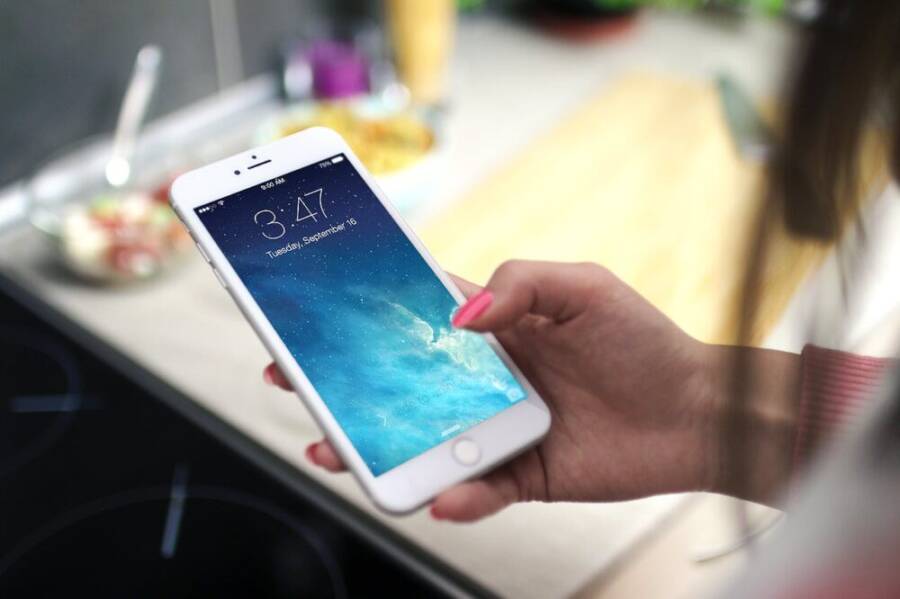
A quick story to kick things off: imagine someone who left a banking app unlocked, and a simple tap on their phone’s screen led to a lost sum and a sleepless night. It sounds like a nightmare, but it’s avoidable with a simple layer of protection on your financial tools.
This guide shows you how to add a password lock to your financial apps, so your money stays where it belongs. You’ll learn why extra protection matters, especially if your phone gets lost or borrowed, and what to know before you start.
For iPhone users, you’ll discover how to use built in app protection and Face ID or a strong passcode to secure banking, wallets, and payment apps. The steps are direct and quick, and you’ll see how to enable multi factor options for added safety.
Android users will find clear, straightforward steps to lock sensitive apps with your device’s secure folder, biometric options, or app specific lock apps. These protections work even if your device is unlocked, guarding against accidental taps or curious hands.
Why this matters comes down to two risks that hit close to home: theft and kids. A locked app reduces the chance of unauthorized purchases and keeps your financial data private. The payoff is peace of mind, plus a faster recovery if you ever misplace your device.
By the end, you’ll have a practical plan you can customize. You’ll walk away with confidence, knowing you can protect your money without slowing down how you use your phone.
Why Locking Financial Apps Keeps Your Cash Safe
Protecting your money starts with protecting the apps that hold it. A simple password or biometric lock on banking, wallet, and payment apps adds a crucial shield. If your phone is lost, stolen, or borrowed, a locked app prevents quick access to sensitive accounts and reduces the chance of unauthorized purchases. Think of it as a smart barrier that buys you time to respond, while your main device remains usable for calls, messages, and other non-financial tasks.
Common Dangers of Unlocked Banking Apps
When a financial app is left unlocked, the risk isn’t just theoretical. It can unfold in real life and in seconds.
- A stranger grabs your phone at a cafe. In a crowded moment, a swipe or tap can open a banking or wallet app. A simple password stops this before a single purchase is made; even a short lockwall buys you crucial moments to regain control. Learn more about how thieves exploit unlocked devices and what banks do to counteract it. Financial Fraud: The Hidden Inconvenience of Mobile Device Theft
- A curious child taps through apps and accidentally racks up charges. A password or biometric lock blocks access to payment apps, preventing unintended buys or gift cards. Even if a child borrows the phone, the lock turns a potential mishap into a harmless delay.
- Public WiFi or a lost phone intersects with your digital life. An unlocked app can expose session data or leave credentials vulnerable. A password or biometric guard keeps your data private, even if the device is temporarily outside your control. Security guides from credible sources outline the broader risks of mobile banking and how to avoid them. 10 Security Risks of Mobile Banking & How to Avoid Them
- Infections and fake apps can also lead to compromised credentials. A lock on the real app reduces the chance of credential theft and makes it harder for malware to cause damage. For a deeper look at threats, see professional analyses on vulnerabilities in mobile banking. Vulnerabilities and threats in mobile banking
If you want a quick takeaway: a password or biometric lock on each financial app is a simple, highly effective line of defense. It prevents casual taps and buys, buying time to notice a problem and act quickly. For more context on why app-level locks matter, see practical guidance on locking individual apps. A complete guide to locking individual apps on your devices
Top Benefits You Get Right Away
Locking financial apps delivers immediate value without drama or setup headaches. Here’s what you’ll notice as soon as you enable protection.
- Fast setup, big payoff. Most devices offer built-in options to lock apps, so you don’t need to install a third party tool. On iOS, you can use built-in protections and Face ID or a strong passcode to secure banking, wallets, and payment apps. Android users can enable app-specific locks or use a secure folder to keep financial apps separate. You’ll be protected right away and you’ll keep using your phone the same way you always did.
- No need for fancy tools. A password, PIN, or biometric lock is often enough. You don’t have to manage another password manager or complex security suite to start protecting money apps. The goal is to add a barrier that slows down anyone who isn’t you.
- Works on most phones. Whether you’re on an older device or a newer model, there are straightforward options to lock sensitive apps. This approach respects your existing workflow and doesn’t require changing how you use your phone day to day.
- Pairs well with biometrics. If your device already uses Face ID or fingerprint unlocking, you can extend that convenience to financial apps. Biometric checks blend speed with security, so you can approve a payment quickly and safely.
- Improves overall privacy. Locking apps helps with privacy beyond money. It reduces the chance of exposing personal data if your phone is misplaced or borrowed. This small step pays off across all your activity on the device.
To get the most value, keep your device’s general security in good shape as well. Regular updates, a strong main password, and careful app permissions all reinforce the protection you gain from locking individual financial apps. For a broader look at the benefits and risks of financial apps, you can read reputable consumer guidance. Benefits and Risks of Personal Financial Apps and Websites
If you’d like a quick strategy, start with the banking app first, then lock your wallet and payment apps. You’ll notice how much safer you feel when the most sensitive tools have an extra layer of protection. And if you ever suspect your device was compromised, you’ll have a clear, fast path to remote lock or wipe, protecting your money and your identity. For practical steps that walk you through the setup on iPhone and Android, keep reading in this guide.
Lock Apps on iPhone Without Extra Downloads
This section dives into practical, built-in methods to protect your financial apps on iPhone without installing third party tools. You’ll learn two straightforward approaches you can rely on: using Screen Time to lock apps with a timer and passcode, and using Guided Access for focused access to a single app. Both options keep your money apps secure while preserving your normal phone usage.
 Photo by JÉSHOOTS
Step-by-Step Screen Time App Lock
If you want a simple, low friction way to guard sensitive apps, Screen Time is your friend. It lets you set per app limits and, with a passcode, prevents easy access when you don’t want to reveal financial details. This approach works well for banking, wallet, and payment apps, and it requires no extra downloads.
- Enable Screen Time and establish a passcode
- Open the Settings app, tap Screen Time, then choose Turn On Screen Time.
- When prompted, select this device as your iPhone to create a Screen Time passcode. This passcode should be different from your device passcode to avoid accidental sharing.
- If you already use Screen Time for other limits, use your existing passcode or create a new one just for app protection.
- Choose the financial apps to protect
- Go to Settings > Screen Time > App Limits > Add Limit.
- Pick the finance related apps such as banking, wallet, and any payment apps you use.
- Set a short daily limit to trigger a lock when the limit is reached. For quick protection, you can start with a 1 minute limit and adjust later.
- Configure the daily reset trick
- Screen Time resets limits at midnight by default. To reinforce security, set a daily reset time you’re likely to be active.
- When the limit hits, billing apps won’t open without entering your Screen Time passcode. This creates a temporary barrier that buys you time to respond if you misplace your device.
- Test and fine tune
- Try opening each protected app to confirm the lock engages as expected.
- If you’re constantly unlocking for legitimate uses, consider increasing the daily limit or moving the app to a separate Home Screen with clutter free focus.
- Quick tips for a smoother experience
- Use Face ID or the device passcode as a secondary confirmation if your Screen Time passcode is the same as your device unlock. Distinct protection reduces the chance you’ll accidentally share access.
- If you share your iPhone with someone else, disable Screen Time on the main profile and enable it only on the accounts that hold sensitive data.
- Regularly review app permissions. A locked app is only part of the defense; keep general device security strong with long passcodes and up-to-date software.
Reading tip: if you want more precise steps or are curious about alternatives within iOS, Apple’s own guidance covers blocking apps and purchases through Screen Time and Content & Privacy Restrictions. It’s a good reference as you customize protections. Block apps, app downloads, websites, and purchases on iPhone
Photo a Practical Example
Here’s a quick scenario showing how Screen Time can prevent an accidental tap from turning into a purchase. Imagine you’re in a café and your friend borrows your phone for a moment. With Screen Time set up, the banking app stays locked. Your friend can still browse or message, but a password or Face ID is required to proceed with any financial action. In practice, this reduces the risk of unintended charges while you regain control of the device.
If you want a broader look at why app level protection matters and how it complements device security, this guide provides practical context and additional tips. A complete guide to locking individual apps on your devices
Image credit for the example: Photo by JÉSHOOTS
Quick Guided Access for One App at a Time
Guided Access is another built-in method that lets you focus on a single app while keeping the rest of the phone off limits. It’s especially handy for short banking sessions or when you loan your phone to a trusted person and want to prevent navigation outside the intended app. It requires a one time setup to enable and then you can quickly start a session when needed.
- Set up Guided Access
- Open Settings > Accessibility > Guided Access and turn it On.
- Tap Passcode Settings and enable a Guided Access passcode. You can optionally enable Face ID or Touch ID to end sessions.
- If you use a specific banking app frequently, you can set it up so that Guided Access starts directly when you open that app.
- Start a Guided Access session
- Launch the banking app you want to protect.
- Triple-click the side button (or Home button on older devices) to activate Guided Access.
- Use the on screen controls to select “Start”. If you enabled a passcode, you’ll need to enter it to begin.
- Lock down features during a session
- You can disable areas of the screen, hardware buttons, and touch features you don’t want used during the session.
- Keep the session short to avoid frustration; you can end early with the same triple-click method.
- End the session securely
- Triple click again to bring up the Guided Access controls.
- Choose End to exit the session and return to normal device use.
- When this method shines
- Guided Access is ideal for short banking tasks or when you want to hand over your phone to someone you trust for a limited time.
- It minimizes the chance of accidental taps on other apps during the session.
- Limitations to keep in mind
- Guided Access requires manual activation for each session, so it’s not a persistent lock like Screen Time.
- If you forget the Guided Access passcode, you’ll need to restart the device to regain normal control. Use a passcode you can remember but won’t share.
Helpful resource about guided access and related iOS tools provides additional context for someone exploring privacy controls in real life. Block apps and screen time settings with Guided Access on iPhone
Image credit for the section: Photo by JÉSHOOTS
Tip: Combine these approaches for layered protection. Use Screen Time to lock a broad set of financial apps and Guided Access for focused sessions with a single app. This combo keeps money tools from being misused while allowing quick, controlled access when you need it.
External context and practical considerations can help you refine your setup. For example, researchers and security guides discuss how app locks play with overall device privacy, especially in public places or shared devices. 10 Security Risks of Mobile Banking & How to Avoid Them
If you’re ready, implement Screen Time first for a broad shield, then add Guided Access for your most sensitive banking task. This two tier approach makes it harder for anyone to access your money and easier for you to manage on the go.
Easy App Locks Built into Android Phones
Protecting your sensitive financial apps doesn’t require fancy third party tools. Many Android devices come with built in features that let you lock individual apps or keep financial data private by design. This section covers practical, device friendly methods you can start using today. You’ll learn how to lock finance apps on Samsung and similar phones, and then explore Pixel and stock Android tricks that work across many devices.
 Photo by Jakub Zerdzicki
Set Up App Lock on Samsung and Similar
Samsung devices and many Androids offer built in ways to lock specific apps, especially finance apps, without additional software. This keeps your money tools private even if someone borrows your phone or you need to lend it for a moment. The setup is straightforward and relies on the device’s security options, not on external apps.
- Go to Biometrics > App Lock, then pick your finance apps and choose PIN as the lock method. You’ll be prompted to confirm your decision with your Samsung account or device credentials.
- Enable auto-lock after you close the app. This is a small but effective habit shift; the moment you switch away, the app will require re authentication before you can open it again.
- If you’re unsure which apps to lock, start with your banking app, then add wallet and any payment apps you use regularly. The more you protect, the safer your money stays.
For reference, you can review official guidance on setting up a screen lock on Galaxy devices, which covers the range of available lock screen types and how they interact with app level protections. Set up a screen lock on your Galaxy phone or tablet
If you’d like a broader how to, a helpful third party guide walks through locking apps on Samsung devices and lists practical lock methods. How to Lock Apps on Samsung Devices
Quick tip: after you lock, test by closing the app and reopening it to ensure the prompt appears. If you share your device with family members, consider pairing app locks with a separate user profile to keep a clean boundary between personal and shared usage.
External context helps validate the approach. Some security writers emphasize the value of combining device level protections with app level locks for stronger defense against casual taps. 10 Security Risks of Mobile Banking & How to Avoid Them
A quick takeaway: start with the banking app first, then guard wallet and payment apps. The incremental effort yields a big safety boost without changing how you use your phone.
Google Pixel and Stock Android Tricks
If you’re on a Google Pixel or a phone that runs near stock Android, there are reliable, built in options to safeguard finance apps. The goal is to create a barrier that slows down anyone who isn’t you, without making everyday use cumbersome. Here are practical steps you can implement now.
- Use App Pinning for fast, temporary protection
- Hold the overview button (the square recent apps button) to reveal the multitasking view.
- Tap the pin icon on the app card to pin the finance app. This prevents leaving the app without unpinning.
- To unpin, press and hold the back and recents button together or use the PIN you set. This method is especially useful if you lend your phone for a moment or want to ensure the app stays front and center during a quick task.
- Pair with a third party if you need additional controls, but most users find App Pinning adequate for focused sessions.
- Combine pinning with a biometric or strong lock
- After pinning, ensure your device requires a biometric or PIN to resume from that state.
- This layered approach makes it much harder for someone to grab the phone and tap through to sensitive data.
- If you want more control, consider alternative third party apps carefully
- There are apps that offer more granular control, such as hiding or password protecting specific apps. Always verify reviews and permissions before installing any third party tool.
- Practical notes for daily use
- App pinning works well for brief lending or quick assistant tasks.
- It does not replace a full device lock; keep your device protected with a strong screen lock and regular software updates.
For more on Google’s approach, you can look at official Android accessibility and security resources that describe how App Pinning and related features function. While not all devices ship with the exact same features, the core idea remains consistent across many stock Android experiences.
Photo by Jakub Zerdzicki showing a smartphone in everyday use can illustrate how these protections fit into daily life. If you’re curious about broader context on app level protections across platforms, consider reading practical guidance that compares different approaches to locking individual apps on devices. A complete guide to locking individual apps on your devices
Tips for smoother experiences
- Keep your main unlock method distinct from your app locks to reduce the chance of accidentally sharing access.
- If you share your device often, review who has access to your phone and ensure sensitive apps stay protected.
If you want a quick, device specific reference, Samsung’s and Google’s own help articles are excellent starting points. They’re designed to help you quickly implement safe practices without extra software. Set up a screen lock on your Galaxy device [Block apps and screen time settings with Guided Access on iPhone] is included here for readers who want cross platform context, though you’ll focus on Android for this section.
Images and examples in this section are chosen to reflect everyday usage. The idea is to show how a smartphone can stay secure without slowing you down. If you’re curious about broader security considerations around financial apps, a number of credible guides discuss how app level protections fit into a wider privacy strategy. Benefits and Risks of Personal Financial Apps and Websites
Remember, the aim is to deliver practical steps you can apply this week. Start with the method that matches your device, test thoroughly, and keep your device software up to date for the best protection.
Best Free Third-Party Apps for Any Phone
When you want to add a protective layer to your financial apps without paying for premium software, third-party app locks can be a smart option. They’re especially handy if your device’s built-in protections don’t cover every scenario or if you want a second line of defense. In this section, you’ll get a clear look at the best free options for both Android and iOS, plus practical setup guidance so you can start protecting money apps today.
Top Pick for Android Users
If you’re looking for a robust free solution on Android, a well-supported AppLock offers a solid balance of simplicity and features. The standout benefit is quick, reliable locking of banking, wallet, and payment apps with a PIN, pattern, or biometrics. A true win for daily life is the photo intruder capture feature, which snaps a photo of anyone who tries the wrong code. That little detail can deter casual snoops and give you a heads up if someone is testing your device.
What to expect with a strong free Android app lock:
- Easy setup: Install the app, grant the requested permissions, and choose which financial apps to lock.
- Flexible lock methods: Pick a PIN, pattern, password, or biometric option to unlock protected apps.
- Intruder capture: If someone enters an incorrect PIN, their photo is saved and can be reviewed later, helping you identify who tried to access your phone.
- Auto-lock behavior: Configure the app to re-lock as soon as you leave a protected app, or after a short period of inactivity.
- Quick bypass controls: You still use your phone normally for calls and non-financial tasks, while money tools remain shielded.
- Cross-app consistency: Locking multiple financial apps maintains a consistent protection level without extra steps each time you open an account.
Getting started is straightforward:
- Install the app from a trusted store, then select the finance apps to lock.
- Set the preferred unlock method, and enable intruder capture if available.
- Test by opening each protected app to ensure the lock prompts correctly.
If you want a reliable starting point, look at popular Android applock guides from reputable sources to compare features and setup tips. For example, you’ll find detailed explanations of how to lock apps on Samsung devices and other Android phones, including practical examples of when to use intruder alerts. These resources can help you pick the right free option for your device. 3 best Android applocks and privacy lock apps Set up app locks on Samsung devices Best app locks for Android and iPhone in 2024
Tips for Android users starting out:
- Start with your banking app first, then add wallet and payment apps so you gain momentum without feeling overwhelmed.
- Regularly review the list of locked apps and update permissions as your apps evolve.
- If you share your device, consider pairing app locks with a separate user profile for added privacy.
A quick takeaway: a solid, free AppLock can deliver strong protection with minimal friction, especially when you enable intruder capture and auto-lock after use.
iOS-Friendly Options That Work Well
iPhone users typically rely on built-in protections, but there are free third-party options that complement native features without requiring extensive setup. For many, the best route is to combine iOS shortcuts with existing safeguards to create a fast, reliable gate before opening financial apps. The aim is to buy you extra seconds to notice activity that doesn’t belong to you, without complicating your daily use.
One free approach that pairs nicely with iOS is using the Shortcuts app to prompt for a password or biometrics before launching a financial app. You can set up a simple shortcut that triggers whenever you open a banking or wallet app, providing a light but effective barrier. This method preserves the smooth feel of iOS while adding a predictable, repeatable step to access sensitive data.
Key considerations for iOS users:
- Shortcuts for access prompts: Create a shortcut that asks for a passcode or Face ID before launching a chosen app. It acts as a quick, passive reminder to verify identity.
- Built-in screening options: Rely on Screen Time and Content & Privacy Restrictions to block or limit access to specific apps if needed, giving you an additional layer under the hood.
- Simplicity matters: The goal is to add a barrier that’s easy to use daily, not to create friction that leads you to disable protections.
Practical steps to set up a Shortcuts-based prompt:
- Open the Shortcuts app and create a new automation that triggers when you open a financial app.
- Add an action to request a passcode or Face ID, then proceed to open the app if authentication succeeds.
- Save and test the automation by launching the financial app and confirming you’re prompted before it opens.
For a broader context on iOS privacy controls and app access, Apple’s official guidance covers app blocking and purchases through Screen Time and related features. This can be a solid reference as you fine tune protections. Block apps, app downloads, websites, and purchases on iPhone
If you want a quick, hands-on example, imagine setting up Shortcuts to require authentication before your banking app launches. It’s unobtrusive and highly effective for adding a final check before sensitive data comes into view.
A practical note about iOS shortcuts: this approach works best when you keep the prompt lightweight and fast. Pair it with a strong device passcode and biometric unlock for the best balance of security and usability.
Why this approach fits well on iPhone: it respects the built-in privacy architecture while giving you a simple, repeatable gate before sensitive apps come into view. If you want more than one layer, you can combine Shortcuts with existing iOS protections for a layered defense.
External resources can provide additional ideas and validation for iOS users. For example, a quick guide on locking apps and screen time settings can help you explore more options across Apple devices. Block apps and screen time settings with Guided Access on iPhone
If you’re ready, start with Shortcuts to prompt for authentication before opening each financial app. It’s a lightweight, native approach that keeps your workflow smooth while adding a security reminder you’ll notice every time you reach for a money tool. Remember to test thoroughly and adjust as you go so the prompts feel natural rather than disruptive.
External context and practical considerations can help you refine your setup. The right mix of Shortcuts prompts and existing iOS protections gives you a durable shield that stays out of the way during normal tasks. For broader reading on app protection across platforms, see practical guides that compare different methods for locking individual apps. A complete guide to locking individual apps on your devices
Note: the goal is to keep money tools secure without slowing you down. With the right free options and careful setup, you’ll have a dependable shield that blends with how you use your iPhone every day.
Smart Tips to Make Locks Even Stronger
Protecting financial data goes beyond turning on a lock. With a few smart adjustments, you can create layered defenses that slow down attackers and buy you precious time to respond. Here are practical, easy-to-apply tips that reinforce the protections you already have.
Layered defenses work best
Think of your security as a chain. Each link strengthens the whole. Use both device-wide protections and app-specific locks to create multiple barriers. If one layer falters, another remains in place to deter unauthorized access. For a holistic view on combining protections, see guides that compare app locks across platforms and outline best practices for layered privacy. A complete guide to locking individual apps on your devices
- Start with a strong main lock on your device. A robust passcode or biometric unlock sets a solid foundation.
- Lock financial apps individually. This prevents casual taps from leading to sensitive data exposure.
- Where possible, enable an auto-lock or timeout after you leave an app. The moment you switch apps, the lock re-engages.
Strong passcodes and smart biometrics
Biometrics speed up everyday use, but they’re not a substitute for a good password strategy. Use biometrics to complement, not replace, a strong main password or passcode.
- Use a different passcode for your device and for app locks. This reduces the chance of cross-access if one credential is compromised.
- Prefer longer biometrics prompts. Face ID or fingerprint verification paired with a quick main unlock keeps things fast yet safer.
- Consider enabling two-factor authentication (2FA) where available. A second hurdle, usually a code or prompt, adds significant protection against credential theft. See practical guidance on 2FA and banking apps for grounding details. Lock down your financial accounts with multi-factor authentication
Regular updates and permission hygiene
Updates are not just about new features. They patch known weaknesses that attackers exploit.
- Keep all finance apps and the device OS up to date. Enable automatic updates if you can.
- Review app permissions periodically. Revoke unnecessary access like location or contacts for financial apps.
- Turn on automatic security features when available, such as remote wipe or account alerts. These can alert you to suspicious activity quickly.
Test and tune your protections
The best security plan is the one you actually use. Regular testing helps you catch gaps before they matter.
- Open each protected app occasionally to verify the lock prompts correctly. If a delay feels burdensome, adjust the lock timing or method.
- Simulate a loss scenario with a trusted friend to confirm your response steps. Knowing you can remotely lock or wipe the device reduces stress if real trouble occurs.
- Keep a short, private log of changes you make to security settings. This helps you remember what works and what doesn’t.
Quick wins you can implement this week
If you want fast results, start with these easy wins. They don’t slow you down but dramatically raise protection.
- Lock your banking app first, then wallet and payment apps. Prioritizing the most sensitive tools yields immediate safety benefits.
- Use a distinct unlock method for protected apps. Separate prompts reduce the risk of accidental sharing.
- Add a lightweight iOS Shortcut or Android pinning routine to catch quick misuse during shared device moments. See how iOS Shortcuts or Android app pinning can add a subtle gate before sensitive apps. For iOS, a Shortcut prompt can act as a quick authentication gate before opening a financial app. For Android, App Pinning can keep a finance app front and center during a brief task.
Practical reminders for everyday use
Security should feel seamless. Here are small habits that matter.
- Test after every change. A quick test confirms the lock works as intended.
- Don’t rely on a single method. A mix of app locks and device protections creates robust defense.
- Stay mindful in public or shared spaces. A masked or hidden screen, plus a locked app, reduces the chance of prying eyes.
External insights can reinforce these practices. For broader guidance on app level protections and cross-platform strategies, see established resources that discuss locking individual apps and its role in overall privacy. Benefits and Risks of Personal Financial Apps and Websites
Images enhance understanding and illustrate real-world use. The following photo shows how a strong security mindset looks in daily life.
 Photo by Towfiqu barbhuiya
If you’re unsure about the best combination for your devices, start with layered defenses and adjust as you observe how you use your phone daily. The goal is to create a resilient setup that feels natural, not one that adds friction every time you check your banking app. For more on how to balance security with usability, you can explore general guides on app protection across platforms. A complete guide to locking individual apps on your devices
Conclusion
Protecting your money starts with locking the apps that hold it. On iPhone, use Screen Time with a dedicated passcode or Guided Access for single app control, and consider a lightweight Shortcuts prompt to gate access before opening a banking or wallet app. On Android, start with built in options like Samsung App Lock or Pixel App Pinning, and add a Secure Folder or repeated app re locking for extra protection.
Apply these steps in a single, clear rhythm: choose the strongest main lock for your device, then add per app protection for banking, wallet, and payments. If you want extra insurance, pair app locks with a robust device passcode and regular updates. The goal is a quick, reliable barrier that won’t slow you down.
One-step callout you can action right now: enable a solid main lock and lock at least your banking app today. Your future self will thank you for the extra peace of mind.
If you’ve set up a layered approach, you’ve built a sturdier shield for your finances. Share your setup in comments so others can learn from your choices and you can inspire tighter safety habits for smartphone use. Peace of mind comes from simple, consistent practices.