
Are you balancing client payments on the go and want a setup that’s fast, secure, and simple? This guide shows how to configure your phone so payments flow smoothly without wasting time or risking data. You’ll learn practical steps you can apply today to keep clients confident and your workflow steady.
First, the core goal is clear: a reliable system that protects client data, speeds up transactions, and works wherever you operate. A well planned phone setup reduces friction for both you and your customers, making receipts instant and records accurate. We’ll cover the essential tools, from secure payment apps to trusted hardware practices, with straightforward steps you can implement right away.
A solid phone setup starts with security. Use a strong screen lock, enable biometric access where possible, and keep payment apps updated. Choose reputable payment processors and configure multi factor authentication to guard accounts. Next, optimize payment speed by selecting a single, trusted wallet or app as your primary method, while keeping backup options ready for offline or low connectivity situations. A well organized home screen and clear naming of payment apps cut down on confusion during busy moments.
Finally, establish a clean workflow that translates to better client trust. Create consistent invoicing notes, save contact details securely, and back up transaction data regularly. With these habits, your smartphone becomes a dependable tool for handling client payments, reinforcing professionalism and efficiency in every interaction. Keep it simple, stay secure, and your clients will notice the difference.
Why a Strong Phone Setup Helps You Get Paid Faster
A solid phone setup isn’t just about looking professional. It directly speeds up how you request, receive, and confirm payments. When your on-the-go payment system is reliable, clients feel at ease and payment friction drops. In this section, you’ll learn how the right configuration reduces delays, prevents miscommunications, and strengthens your cash flow. A practical setup means you can move from asking for payment to confirming receipt in fewer steps, every time.
 Photo by Tom Tillhub
Understand the Payment Flow
Understanding the steps from request to receipt helps you streamline every transaction. Start with a clear request, then present a single trusted payment method on the spot. Confirm the payment with a verification notification, and finally deliver a receipt and a confirmation note. Keep it simple:
- Ask for payment at the end of the service or delivery, using a concise, friendly message.
- Share a single primary payment option to minimize confusion.
- Send an immediate digital receipt once the payment is confirmed.
- Save a copy of the receipt to your records and back it up in a secure drive or note.
A practical example: you finish a consult, say, “I can charge you $80 now. You can pay with Apple Pay here,” tap to generate the payment link, and send the receipt instantly. If offline, have a backup option ready, such as a QR code that aligns with your primary method. For extra reliability, pair reputable processors with multi factor authentication. This keeps the flow fast without sacrificing security. For more on invoicing and mobile processes, see Mobile Invoicing and Invoice Processing guides.
Impact on Trust and Professionalism
A clean, reliable phone setup signals professionalism and builds client confidence. When the process is seamless, clients perceive you as competent and trustworthy. A few concrete habits matter:
- Use a dedicated device or a secured profile for payments to minimize cross-usage errors.
- Keep payment apps updated and tested before client interactions.
- Deliver receipts promptly; a quick confirmation reinforces transparency.
- Communicate clearly if there’s a delay or issue, offering a direct fix or alternative method.
These small touches reduce friction and reassure clients that their information is protected. The psychology is simple: when your payment experience feels controlled and predictable, clients are more likely to complete the transaction without second thoughts. For further reading on practical mobile payment workflows, explore how mobile payment processing works.
Key Metrics to Track
Track tangible indicators to keep the payment flow sharp and predictable. Focus on metrics you can monitor without extra tools:
- Average checkout time: time from start of the payment prompt to receipt delivery.
- Payment error rate: how often a payment attempt fails or is canceled.
- Receipt delivery rate: percentage of successful receipt deliveries on the first try.
Quick tips to monitor these without extra tools:
- Record the timestamps of each payment attempt in your notes.
- Note any failed attempts and the reason, then adjust the flow to fix the root cause.
- Review a weekly digest of receipts sent versus payments completed to catch gaps early.
By keeping these metrics visible, you’ll spot bottlenecks fast and iterate toward a smoother, faster payment experience. If you want more depth on how to optimize invoicing and payment processing, check out the linked resources on mobile invoicing and invoice processing best practices.
Choosing Payment Apps and Hardware That Fit Your Day
A practical payment setup works as a quiet backbone for your business. It should be fast, reliable, and easy to manage from anywhere. In this section, you’ll find clear guidance on the apps that handle invoices, receipts, and payments, plus the hardware and simple setup steps that keep you moving smoothly from client to client.
Must Have Apps for Invoices, Receipts, and Payments
Essentials keep you efficient. For invoicing, receiving payments, and sending receipts, choose a trio that plays well together and fits your workflow. Common choices include integrated systems like invoicing software paired with a card processor, plus a lightweight mobile wallet for quick on-the-spot payments. Pros and cons vary by feature sets and fees, so pick a primary solution for speed and a backup for offline needs. Real-world examples show small teams succeeding with Stripe or Square for payments, PayPal for familiarity, and Zoho or QuickBooks for invoicing.
- Pros: fast onboarding, strong security, automatic receipts.
- Cons: fees can add up, some integrations are option heavy.
- Real-world examples: use Stripe for online bookings and a Square reader for in-person payments; PayPal can serve as a familiar on-the-go option. For invoicing, consider Zoho Invoice or QuickBooks Invoicing to sync with your payments.
Images can help you visualize a smooth workflow. 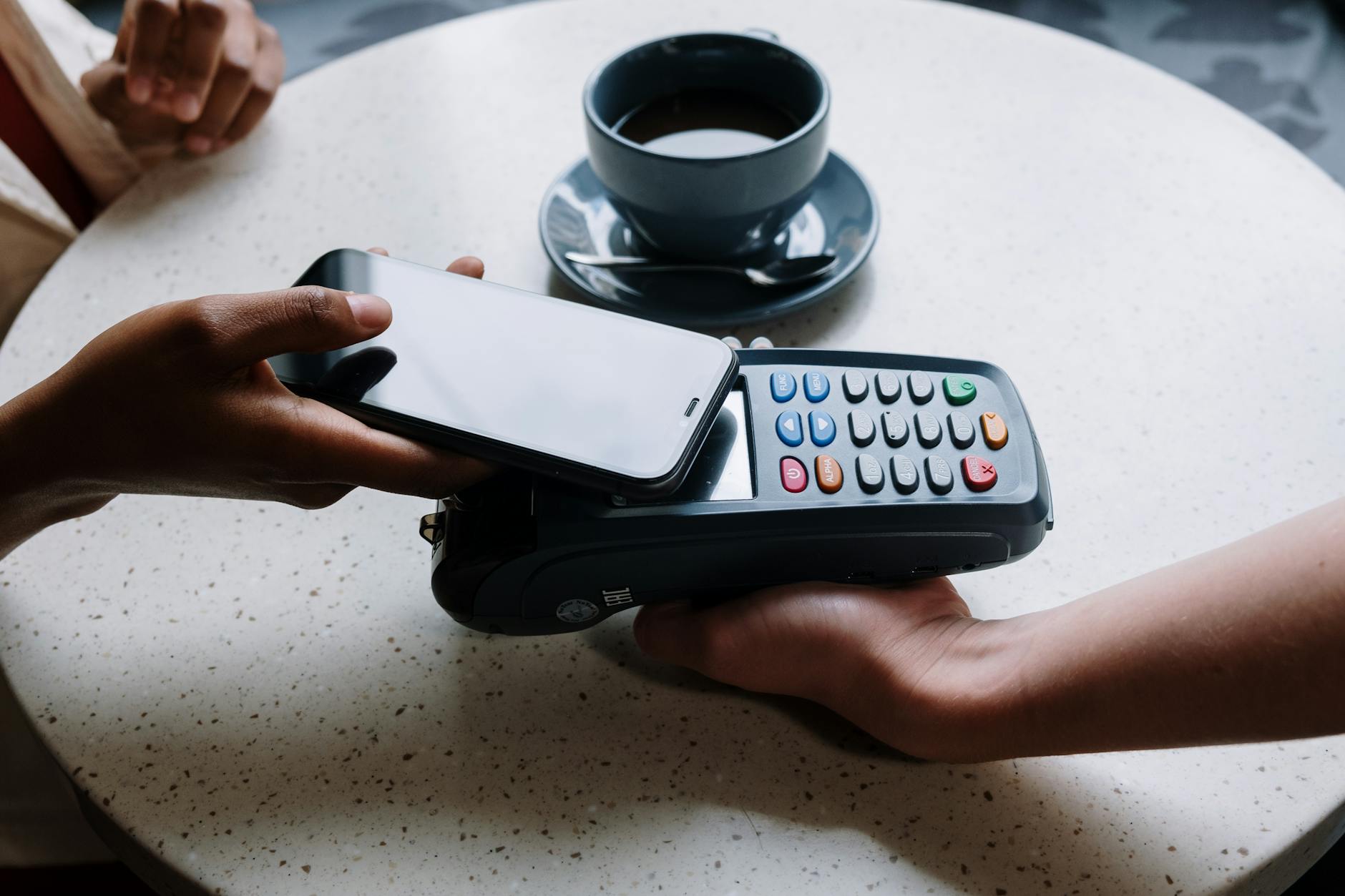 Photo by cottonbro studio
For further reading on mobile invoicing and payment workflows, see:
What Hardware to Add
Hardware choices shape how fast you move during client visits. A portable card reader is essential for in-person payments, especially if you want to accept cards anywhere. A Bluetooth printer lets you hand clients a physical receipt on the spot, while a stand or dock keeps your device steady and accessible on a desk or counter. When selecting hardware, check compatibility with popular phones and current OS versions. Most readers support iPhone and Android via Bluetooth, and many offer wallet-friendly apps that work offline when connectivity is spotty. Keeping a single, trusted hardware setup reduces hassles during busy days.
- Portable card reader: ideal for on-site payments, quick pairing and simple receipts.
- Bluetooth printer: useful for customers who prefer a paper receipt or for your records.
- Stand or dock: keeps your device at eye level, reduces slips, and simplifies charging.
To verify compatibility, confirm that the device supports your phone’s latest OS, and test the setup before any client meeting. Good options typically support both iOS and Android, with straightforward pairing for a smooth start.
For a broader look at payment hardware and options, you can explore guides like 12 Best Payment Processing Apps for GoHighLevel and the secure mobile payments overview.
Phone Setup Tips for Reliability
Reliability comes from simple, steady routines. Start with battery management and offline capability checks to ensure you can complete a transaction even if signal drops. Organize apps so the most used ones stay top of the list and remove clutter that slows you down. A fast, well-structured phone minimizes errors and keeps your focus on your client.
- Battery: enable low power mode only when needed, keep a portable charger handy, and test charging during longer sessions.
- Offline mode: know which steps work offline, such as generating a payment link or producing an offline QR code for your primary method.
- App organization: place the payment app and invoicing tool on the home screen, with backup options tucked away but accessible.
A simple pre client call checklist helps you stay ready:
- Confirm the client’s preferred payment method and any special instructions.
- Open the primary payment app, verify balance and connectivity.
- Have a backup option ready, such as a QR code or a secondary wallet.
- Check that receipts are enabled to auto-send after payment confirmation.
This approach reduces hesitation and speeds up the payment moment, boosting confidence for your client and your cash flow. For practical tips on mobile payment workflows, check out resources on mobile invoicing and invoice processing best practices.
Securing Client Data and Transactions
A secure mobile payments setup protects client trust and your bottom line. In this section you’ll find practical steps to guard data, ensure smooth transactions, and stay compliant while you work from the road or on-site. Each sub-section offers concrete actions you can apply today, with quick reads and reliable best practices.
Security Basics for Mobile Payments
Keep payments on a strong foundation. Start with a locked device and updated apps, then tighten access with biometrics where possible. Use a dedicated payment app rather than mixing tasks on a single phone profile. Always use secure connections; avoid public WiFi for payment activity and enable VPN if you must connect to unsecured networks. Turn on two-factor authentication for all payment accounts and review permissions regularly. Consider tokenization and encryption as core guards if your platform supports them. For more practical guidance, see trusted summaries on mobile payment security practices and app permissions. Business.com: Online Payment Security Tips. You can also explore tokenization as a key security measure in The Boss Magazine.
Compliance and Privacy
Understand the essentials so you handle client data correctly. Prioritize PCI DSS compliance where you process card information. Minimize data collection and only store what you need, with strong access controls. Use end-to-end encryption for data in transit and at rest. Train your team to recognize phishing attempts and secure sharing practices, such as never emailing raw card data. Maintain clear consent records and provide clients with straightforward privacy notices. Regularly audit your processes and keep software up to date. For deeper reading, refer to PCI guidance and security best practices from reputable sources. Motus Cash Control: Best Practices for Secure Payment Processing Online. Comerica: Digital Payment Security Risks and Best Practices.
Best Practices for Passwords and Access
Control access with strong, unique passwords and robust authentication. Create long, memorable passphrases and rotate them periodically. Enable two-factor authentication wherever possible, using hardware keys or authenticator apps. Limit who can use the payment setup; designate a primary user and review access rights monthly. Keep recovery options current and avoid sharing credentials in messaging apps. Regularly log out after sessions and use auto-lock features to minimize unattended access. For practical guidance on these steps, see articles covering MFA and secure password strategies. Business.com: Online Payment Security Tips
Optimizing the Checkout Experience for Clients
A smooth checkout experience is a competitive edge. When clients feel confident and in control, they complete payments faster and are more likely to return. This section covers clear payment options, frictionless flows, and how to handle currencies and taxes without slowing anyone down. Think of your checkout as a well lit path: simple to follow, secure, and fast. Use a consistent interface across devices, especially on your smartphone, so clients recognize your process immediately and feel trusted from first tap to final receipt.
Clear Payment Options and Receipts
Present payment methods in a single, obvious place. Show only what you accept on the spot to avoid confusion and speed up decisions. After a payment succeeds, send an instant receipt in the client’s preferred channel. A straightforward sequence keeps trust high: request, confirm, and deliver. For added clarity, consider displaying estimated total and any taxes up front. If you must change methods mid transaction, offer a simple fallback option. For more guidance on mobile checkout clarity, see The Mobile Checkout Experience from NNGroup.
https://www.nngroup.com/articles/mobile-checkout-ux/
Frictionless Checkout Flows
Reduce the number of taps required to complete a purchase. Use a primary payment option and auto-fill known client details where appropriate, while keeping sensitive data secure. Prefill shipping or contact fields from your CRM when consent allows, then confirm one final time before charging. Provide guest checkout if possible to avoid forcing sign-ins, and let clients review the total before submitting. If offline, have a quick QR code method ready as a backup. For device specific interfaces, Adyen’s guidance on optimizing mobile payment experiences is a solid reference.
https://www.adyen.com/knowledge-hub/optimizing-mobile-payment-experience-to-increase-checkout-conversion
Handling Different Currencies and Tax
If a client pays in a currency other than your base, show the equivalent amount clearly and indicate the exchange rate used. Display taxes transparently on the receipt, with a breakdown by tax type and location when relevant. Offer currency and tax notes near the total so there are no surprises at checkout. Keep the receipt player-friendly, showing both the local currency and any conversion details. For practical tips on converting currencies and presenting tax clearly, explore mobile checkout best practices from The Good and Stripe.
https://thegood.com/insights/mobile-checkout-best-practices/
https://stripe.com/resources/more/mobile-checkout-best-practices-for-ecommerce-businesses
Practical Daily Setup Checklist and Maintenance
A reliable daily routine keeps your payment workflow fast and secure. Use this section to ground your morning prep, weekly upkeep, and upgrade planning in practical steps. The goal is to ensure your phone, apps, and hardware are ready to process client payments without a hitch. Keep this as a tight checklist you can complete in minutes between client calls. Remember, consistency beats complexity when it comes to trust and speed in mobile payments.
Daily Prep Before Client Calls
Start every day with a quick, focused routine to race through payments with confidence. Check that the phone is unlocked with a secure method, and the primary payment app is the first app you open. Verify connectivity, balance, and that receipts auto-send after a successful payment. Confirm backups like a secondary wallet or a QR code option are in place for offline moments. Open your invoicing tool to confirm today’s client list and any notes. A well prepared device feels reliable to clients, and that trust speeds up the check out. For more on how daily routines boost payments on the go, see The Beginner’s Guide to Mobile Payment Apps for Small Business Owners.
Weekly Clean Up and Data Backup
Set aside a short window each week to tidy records and secure data. Archive old receipts to a dedicated folder in your cloud drive and back up the latest batch to a secure local drive. Create a simple naming convention for receipts and invoices, so searching is fast. Confirm that backups include both transaction data and important client notes. Delete unused apps and clear cache on the payment tools to maintain speed. This light refresh prevents clutter from creeping into your cash flow and makes audits smoother. For a practical overview of mobile payment app setup, check out The ultimate guide on mobile payment app for small business.
When to Upgrade Tools
Signs point to upgrade when performance slows, new features unlock real value, or security updates become mandatory. If your phone runs hot during transactions, or your card reader pairing becomes flaky, plan a budget friendly upgrade. Start by evaluating a reasonable timeline for replacement, such as every 2–3 years for devices and yearly for core apps. Compare total cost of ownership, including accessories like stands or Bluetooth printers. If you’re unsure, pilot a tested, mid range update on a single client day to gauge impact. For guidance on starting a mobile payment platform, refer to How To Start a Mobile Payment Platform Business.
Conclusion
A simple, reliable phone setup makes client payments faster and more secure. With a focused smartphone workflow, you reduce friction, boost trust, and protect client data every time you close a deal. Prioritize a single trusted payment method, strong device security, and a clear receipts process to keep momentum on your side.
Start today by implementing the essentials: keep a dedicated profile or device for payments, enable MFA, and test your receipt delivery before your next client meeting. Your smartphone becomes a dependable tool for smooth transactions and professional client interactions.
Next actions
- Choose a primary payment app and a backup option for offline moments.
- Harden security with a strong lock, biometrics where available, and MFA; verify backups and receipts auto-send.
- Create a 5 minute pre client call checklist and run it for the first three days.
Key tip: keep things simple, stay secure, and your clients will notice. If you’re ready for a quick win, set up the three steps now and monitor how it speeds up your payments this week.