Ever notice how some apps seem to know more about you than you expected after you tap install? That happens because apps ask for privacy permissions to access your camera, location, contacts, or microphone. These permissions can be useful, but they also create opportunities for data leaks or tracking if they’re not managed.
In this quick guide, you’ll learn what privacy permissions really mean in plain terms and why it matters for your smartphone. We’ll show you how to spot risky requests, what to check first, and how to balance usefulness with safety. With clear steps, you’ll gain control without the guesswork.
You’ll find practical, action oriented steps for both Android and iPhone devices. You’ll also get tips to review apps you rarely use, understand why some permissions are granted by default, and learn how to adjust settings to reduce surprises. The goal is simple: you should know what each app can see and what you can change.
It only takes a few minutes to start. By the end, you’ll have a solid routine to keep your data safe and your smartphone running more privately.
Privacy Permissions Explained: What They Do on Your Phone
Permissions are the gatekeepers of your data. They decide what an app can see or do on your device. When you install an app, it asks for access to things like your location, camera, and contacts. Some requests are essential for functionality, while others are conveniences you can live without. Understanding these requests helps you stay in control of your privacy without sacrificing usefulness.
Why permissions matter
Permissions protect your personal information from being accessed without your knowledge. They also give you a chance to evaluate risk before you share anything sensitive. If you grant a permission, you’re basically telling the app, “Yes, you may use this data.” If you don’t, the app may still work, but some features could be limited. Keeping permissions tight reduces the chances of data leaks or unexpected tracking.
How permissions work on Android and iOS
- Android: Apps request permissions at install or at first use. You can manage each permission in the device settings and revoke it at any time. Android provides a privacy dashboard and clear device permission controls to see which apps have access to what data. For a comprehensive overview, check Android’s official guidance on permissions and privacy settings. https://www.android.com/intl/en_us/safety/privacy/
- iPhone (iOS): Apps request access when you use a feature for the first time. You can review and adjust permissions later in Settings > Privacy. Apple emphasizes minimizing data access and offering fine-grained controls.
Common permission categories and what they do
- Location: Lets an app know where you are. This can power maps, local weather, or delivery apps. Location data can be precise or approximate. If an app doesn’t need your location, turning this off is a quick privacy win.
- Camera and Microphone: Required for taking photos, recording video, or video calls. Some apps request access even if you never use the feature. If you don’t trust an app with media capture, deny it and see if core features still work.
- Contacts and Call Data: Access to contacts helps with friend requests or sharing content. It can also enable caller ID features or social integrations. If you rarely use a feature that needs contacts, consider denying.
- Photos and Media: Access to photos can be for saving images or selecting files. Granting broad access can expose more of your media than needed. Use selective access or only the photos you choose.
- Messages and Calendar: Permissions here support messaging, scheduling, and reminders. If you don’t rely on in-app scheduling, keep these restricted.
- Device and Analytics Data: Some apps request readouts about device state or usage patterns. This is often used for optimization but can reveal more than you expect. Review whether you need this level of data sharing.
How to review permissions on your phone
- Start with a quick audit: Open your device settings and navigate to apps or permissions. Look for any app that has access to sensitive data you’re not comfortable sharing.
- Check apps you rarely use: Even inactive apps can hold permissions that quietly collect data. Revoke permissions from apps you don’t open regularly.
- Prioritize essential permissions: Trustworthy apps should only request data they need for core features. If an app seems to demand more than necessary, question the request.
- Test after changes: After revoking a permission, use the app as you normally would. If something stops working, consider granting the permission back for that specific feature.
A practical review workflow you can follow
- Do a one-time sweep of all installed apps and their permissions.
- Revoke location unless the app truly needs it for core features.
- Limit camera and microphone access to apps that rely on them for functionality.
- Narrow access to contacts and photos to apps that genuinely require them.
- Keep a record of apps you’ve granted permissions to and revisit every 3–6 months.
- Enable system protections like a privacy dashboard or permission manager if your device supports them.
How to enforce safer permissions in the future
- Install from trusted sources: Apps from known developers tend to manage permissions more responsibly.
- Read the permission prompts: Don’t rush through the screens. If an app asks for more data than it needs, question the request.
- Update regularly: App updates can alter permission needs. An update might add new features that require new access, so re-evaluate after updates.
Tools and resources to help you stay in control
- Android privacy settings and permissions: A central place to review what apps can access on Android devices. This resource helps you understand the layout of the permissions system and how to fine tune them. For more details, visit Android’s official privacy settings page. https://www.android.com/intl/en_us/safety/privacy/
- Understanding app permissions: A broad overview of why permissions exist and how they impact privacy across devices. This guide helps you interpret what each permission means in practice. https://www.mcafee.com/learn/understanding-app-permissions/
- Developer guidance on permissions: If you’re curious about how permissions are structured and implemented, this overview explains the permission workflow and best practices. https://developer.android.com/guide/topics/permissions/overview
- Practical explanations of app permissions: A reader-friendly article that walks through common permission scenarios and what to do about them. https://www.androidauthority.com/app-permissions-explained-and-how-to-use-them-886758/
Quick takeaways to remember
- Permissions are not optional if you want full feature use; they are negotiable.
- Review regularly, especially after app updates or new installs.
- When in doubt, restrict first and test the app’s essential functions later.
- Use the built-in privacy controls to gain a clear view of who has access to what.
This section sets the foundation for a smarter, safer approach to using your phone. Next, we’ll dive into a hands-on, step-by-step review of permissions on both major platforms so you can apply what you’ve learned right away.
How to Review All Permissions on Android Phones
Reviewing app permissions on an Android phone is one of the most effective ways to protect your privacy. A quick audit can reveal which apps have access to sensitive data and whether that access is actually needed. This section breaks down a practical, easy-to-follow process that you can complete in just a few minutes. You’ll learn to filter by permission type, understand what toggles mean, and spot apps that should be tightened up or removed. We’ll also cover auto-reset features that help keep unused apps from lingering with access. Start with the apps you use most often, like social media and browsers, then expand to lesser-used programs.
Access and Sort App Permissions List
- Open Settings on your Android phone and go to Privacy, then Permission manager (or Apps > See all > Permissions on some devices).
- Choose a permission type to filter the list, such as Camera, Location, Microphone, or Contacts. This makes it easy to see which apps have access to each data category at a glance.
- Review each app’s toggle state. The options are: Allow all, Deny, and Ask every time. If an app doesn’t need a permission for core features, set it to Deny or Ask.
- Use auto-reset for unused apps if your device supports it. This feature revokes permissions from apps you haven’t opened in a while, reducing unseen data sharing.
- Create a short priority checklist: top five apps to audit first, then work through the rest. For most users, social media apps, browsers, messaging tools, and finance or health apps deserve the closest look.
Simple screenshot descriptions:
- A view of the Permission manager with a list of permissions filtered to Camera.
- An example app row showing a toggle between Allow and Deny.
- The Auto-reset toggle in the Privacy or Permissions section.
Images:

Photo by Watford London Media
Check Recent Activity with Privacy Dashboard
The Privacy Dashboard is a powerful tool for spotting how apps use your data in real time. It helps you see not only what permissions exist, but when they were accessed. This awareness helps you act quickly if something looks suspicious. You can drill down by app to decide whether a revocation is needed. The big win is detecting hidden use that you wouldn’t notice from a routine permissions screen. For example, you might realize that a social app accessed the microphone during a regular post check-in.
- Open Settings > Privacy > Privacy dashboard.
- Review the last 24 hours (or the available timeframe) to see which apps accessed mic, camera, and location.
- Tap into individual apps to view the exact permissions used and the timing of access.
- If you see unexpected activity, revoke the permission for that app or adjust its level of access.
- Consider a broader revocation for high-risk categories if the app doesn’t need them for core features.
Example you might notice: “See if Facebook used your mic” and you can decide whether to keep or remove that access. The dashboard helps you spot patterns that could indicate overexposure. Regularly checking this dashboard helps you stay ahead of hidden data usage.
Links for further reading:
- Manage permissions from the privacy dashboard on Android: https://support.google.com/android/answer/13530434?hl=en
- Android privacy settings and permissions overview: https://www.android.com/intl/en_us/safety/privacy/
Deep Dive into Location, Camera, and Other Key Permissions
Location, camera, and microphone permissions often determine how useful an app feels. The key is to understand how precise the location needs to be, when the camera or mic are truly required, and what you’re sharing with contacts or photos. You can manage these permissions per app, or apply a global stance that’s stricter but safer.
- Location: Choose precise or approximate location. If an app doesn’t truly need your exact position, keep it at approximate to protect privacy.
- Camera and Microphone: Previews help you gauge which apps request access and why. Deny access unless the feature is essential.
- Contacts and Photos: Limit access to only what’s necessary for the feature you use. For photos, prefer selective access rather than blanket permission.
- Other sensitive permissions: Clipboard, nearby devices, and device diagnostics can reveal more than you expect. Review these with care and deny where possible.
- Google settings: Check Google’s account and devicewide controls for additional privacy layers beyond the device’s built-in controls.
Per-app or global management:
- Per-app: In Settings > Apps, tap an app and adjust its permissions individually.
- Global: Some devices let you enforce stricter defaults, so new apps must ask before using sensitive data.
Risky apps to scrutinize: a social app that asks for location plus contacts, a browser that requests notification access, or a camera app that requests mic access. If an app doesn’t clearly need a permission for its primary function, revoke it and test whether core features still work.
External resources to guide you:
- Android privacy dashboard and device permissions: https://www.android.com/intl/en_us/safety/privacy/
- How to manage camera and microphone permissions on Android: https://www.androidpolice.com/manage-android-camera-microphone-permissions/
- Practical guidance on managing permissions across devices: https://www.theverge.com/24080400/android-app-permissions-manage-how-to
Images:
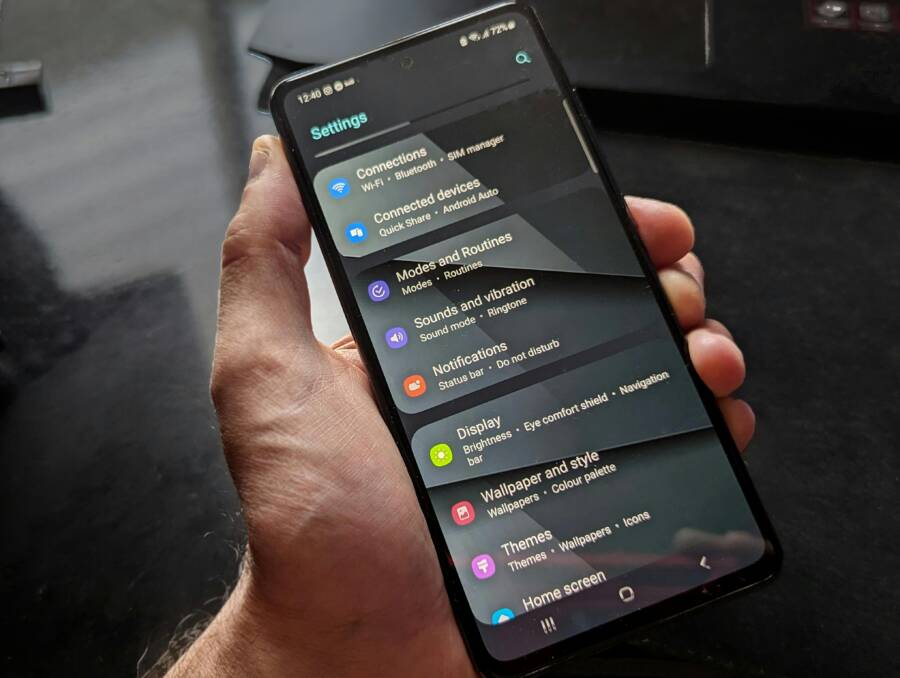
If you want a visual cue for this step, a photo that shows a settings screen with permission toggles can be helpful.
Photo by Watford London Media
Complete Guide to iPhone Privacy Permissions Review
Reviewing privacy permissions on your iPhone is one of the best quick wins for better control over your data. This section walks you through a practical, step by step approach to auditing settings, per app permissions, and the powerful App Privacy Report. Think of it as a safety health check for your phone. By the end, you’ll know exactly which apps have access to your location, cameras, microphones, and more, and you’ll have a clear plan to tighten controls without losing essential functionality. For readers who want deeper context, see the Apple guidance on privacy protections and how to control access in apps.
Navigate to Privacy and Security Settings
From home, open Settings and choose Privacy & Security. This is your command center for every permission category. You’ll see Location Services, Photos, Microphone, Camera, Contacts, and more. If you want to pause all data access temporarily, use the global toggle at the top of the screen. Location Services sub-menu offers granular controls: allow while using the app, allow once, or never; you can switch between precise and approximate location as well. This is a smart place to start because it makes clear which apps can pinpoint you and how often. Every category stores its own set of toggles and prompts, so a quick skim helps you spot anything out of place. If you want a deeper dive into Location Services and the broader privacy framework, Apple’s guide covers what to expect and how to adjust quickly. Control what you share on iPhone and About App Privacy Report provide excellent context for what you’re about to adjust.
Key steps to complete in this sub-section:
- Open Settings > Privacy & Security to view every permission category.
- Note which categories have bold indicators or frequent prompts.
- Use the global off switch if you want to instantly stop all nonessential data sharing.
- Tap Location Services to see per-app rules and the precise vs approximate location options.
- Inspect each category for apps that seem to overstep or don’t clearly need the access. Icons to look for:
- A blue toggle means permission is on.
- A gray toggle means permission is off.
- A small arrow icon next to an app indicates a prompt occurs at feature use.
- A “Never” or “Ask Next Time” option signals stricter controls are in effect.
External resources for further reading:
- Use the built-in privacy and security protections of iPhone: https://support.apple.com/guide/iphone/use-built-in-privacy-and-security-protections-iph6e7d349d1/16.0/ios/16.0
- About App Privacy Report: https://support.apple.com/en-us/102188
Review and Adjust Permissions Per App
Now that you know the buckets, it’s time to tighten permissions on each app. Start with the apps you use most, like messaging, maps, and social platforms. For many apps, you’ll find that you only need a subset of the permissions they request. If a feature works without a permission, keep it turned off. For apps that genuinely rely on a sensor or data, grant only the minimum level required. Don’t be shy about denying access to unknowns; you can always re-enable for a specific feature if needed.
Best practice examples to prioritize:
- Maps and navigation apps: keep Location on only while using the app, or allow precise location only if necessary.
- Messaging and social apps: limit Contacts to help find friends, but avoid mic or camera access unless you actively use calls or video.
- Safari and other browsers: restrict tracking when possible and review site permissions regularly.
Where to look inside each app:
- Location: decide between Precise vs Approximate location. If an app doesn’t need your exact position, choose Approximate.
- Camera and Microphone: grant access only for features you actively use such as video calls or photo capture.
- Photos and Contacts: grant selective access or none if the feature doesn’t require it.
- Notifications and Background App Refresh: disable for nonessential apps to reduce data flow.
Important reminders:
- Always consider the core function of the app. If something seems essential but you’re uncomfortable, test the feature after a restricted setting.
- For a strong privacy baseline, deny access first and only grant if absolutely needed.
- After making changes, test the app to confirm it still delivers the primary experience.
Fast actions you can take now:
- For WhatsApp, Instagram, and other social apps, limit Location and Contacts to minimize data sharing.
- For map or ride-sharing apps, allow Location only while using the app, and disable Background App Refresh if possible.
- For news or entertainment apps, disable microphone and camera unless you use voice or video features.
Apple resources that help you master per-app controls:
- Control app tracking permissions on iPhone: https://support.apple.com/guide/iphone/control-app-tracking-permissions-iph4f4cbd242/ios
- How to manage app permissions on iPhone: https://www.asurion.com/connect/tech-tips/manage-app-permissions-iphone-tt/
- How to manage app permissions on your iPhone, The Verge’s practical guide: https://www.theverge.com/24087604/iphone-app-permissions-how-to
Practical example to illustrate per-app setup:
- WhatsApp: Location — While Using; Camera — While Using; Microphone — While Using; Contacts — Deny if you don’t need to find contacts via WhatsApp.
- Instagram: Location — Deny; Camera — While Using; Microphone — Deny; Photos — Selected Photos only when posting.
Takeaway: tighten first, test second. If a feature stops working, grant the minimum needed permission back for that feature only.
External references for further context:
- Review Your iPhone’s App Permissions (Consumer Reports tool): https://securityplanner.consumerreports.org/tool/review-iphone-app-permissions
- How to manage app permissions on iPhone (Asurion): https://www.asurion.com/connect/tech-tips/manage-app-permissions-iphone-tt/
- How to manage app permissions on your iPhone (The Verge): https://www.theverge.com/24087604/iphone-app-permissions-how-to
Activate App Privacy Report for Full Insights
The App Privacy Report is your most powerful visibility tool. It shows which apps access data like location, camera, microphone, contacts, and which domains they contact over the network. It also reveals which sensors get used and how often. Turn it on and review a weekly summary to see patterns you might miss in the standard permissions screens. The goal is to catch quiet activity and revoke or tighten access where it isn’t essential.
How to enable and use the App Privacy Report:
- Go to Settings > Privacy & Security > App Privacy Report and flip it On.
- The weekly summary appears in the report. It lists which apps accessed which data and when.
- Tap any app in the list to see granular details, including which sensors were used and network connections.
- If you notice unexpected activity, revoke the permission or adjust its level of access.
- Use the report to decide whether broad access is worth it for rare features, or if you should remove it entirely.
Tips to maximize value:
- Review the list of network domains each app contacts. Unfamiliar domains can indicate hidden data sharing.
- Look for sensors that are used repeatedly without a clear need. If a feature isn’t used, revoke access.
- Use the data to inform future app installs and permission prompts you accept.
Example notes you might see in the App Privacy Report:
- A social app that accesses location and mic during a routine post check-in.
- A news app that connects to multiple domains in the background for content loading.
- A photo app that requests access to Photos only when you choose to attach an image.
Apple resources to guide you:
- About App Privacy Report: https://support.apple.com/en-us/102188
- Control access to information in apps on iPhone: https://support.apple.com/guide/iphone/control-access-to-information-in-apps-iph251e92810/ios
Power tip:
- Set a quarterly reminder to review the App Privacy Report. The pattern of data access can shift with updates or new features, so a regular check keeps you in the driver’s seat.
This section equips you with a straightforward, repeatable process to tighten permissions while preserving essential iPhone functionality. In the next section, we’ll translate these steps into a quick, practical routine you can run in under five minutes each month.
Smart Habits to Keep Phone Permissions Secure Long-Term
Keeping your phone permissions in check isn’t a one-time task. It’s a small, repeatable habit that pays off with fewer surprises and more control over your data. Think of it as a regular tune-up for your digital life. In this section, you’ll learn practical, repeatable habits you can apply every month to stay ahead of changes in apps and operating systems. You’ll also find quick templates and a simple checklist to keep you organized. Whether you’re at home or on the go with your smartphone, these habits help you maintain privacy without slowing you down.
Schedule Monthly Permission Audits
Set a calendar reminder for a quick, 10-minute audit. Use this as a regular checkpoint to answer one simple question: what changed since last month? New apps might request new access; existing apps can also adjust their needs after an update. A fast, structured review keeps you in control without turning into a chore.
Use a lightweight template to stay consistent:
- What changed since last month (new apps, new permissions, or permission removals)
- Apps with access you seldom use
- Permissions you’re comfortable dropping or tightening
- Any feature that stops working after a change (and what to adjust)
Quick template you can copy-paste:
- Date:
- Apps added with permissions:
- Permissions removed or reduced:
- Apps kept with tight permissions:
- Follow-up actions:
Tip: keep a simple log on your phone or in a notes app. It creates a trace you can review quickly if a privacy concern ever comes up. For Android users, the privacy dashboard can help you see permission trends over time, while iPhone users can rely on App Privacy Report to spot persistent access patterns. Learn more about Android’s privacy settings and iOS privacy tools here and here.
Revoke Access from Unused or Sketchy Apps
Dormant apps can quietly collect data you forgot about. If an app isn’t used often, it’s a prime candidate for tightened or removed permissions. Signs of trouble include an app asking for more permissions than its core features require. When in doubt, uninstall if possible; you can always reinstall later if you need its functionality.
What to look for during audits:
- Apps with location, contacts, or mic access that you rarely open
- Apps from unknown developers or those with a history of permission creep
- Features you don’t use that still rely on sensitive data
Examples to illustrate the approach:
- A social app asking for location and contacts, but you mostly browse and message
- A game requesting camera or microphone access without a clear reason
- A utility app that doesn’t need access to your photos or clipboard
If you can’t uninstall, switch to Deny or Ask every time and monitor for any impact on core features. Android’s permission controls and iPhone’s per-app settings make this straightforward, and you’ll often find you don’t miss a thing after tightening up. For reference, see official Android guidance on changing app permissions and a step-by-step on revoking permissions from apps.
Update OS and Apps for Better Privacy Controls
Keeping your device and apps up to date is one of the simplest, most effective privacy safeguards. Automatic updates ensure you get security fixes and improved permission controls as soon as they’re released. Look for features like permission indicators or clearer prompts that help you decide in the moment whether to grant access.
What to do:
- Enable automatic updates for the OS and apps
- Verify that new features align with your privacy preferences
- After updates, recheck critical permissions to confirm they’re still aligned with how you use the apps
How to enable automatic updates:
- On Android, turn on auto-update in the Google Play store and in system settings for the OS
- On iPhone, enable automatic updates in Settings > General > Software Update > Automatic Updates
If you want deeper reading on how to keep devices and software current, official guidance from Android and privacy-focused outlets offer practical steps and rationale. You’ll also find resources detailing how to keep Android’s privacy dashboard and device permissions up to date, and why automatic updates matter for privacy reliability.
Conclusion
Reviewing privacy permissions is a practical step that pays off in real days. You gain clarity about what data sits in the hands of apps and you reduce the risk of hidden tracking. A clear, repeatable process keeps you in control without slowing you down.
Here is a quick-start checklist you can use right now, in any order:
- Do a one time audit of all apps and their permissions
- Revoke location when it isn’t essential
- Limit camera and microphone access to core features
- Restrict access to contacts and photos to what is truly needed
- enable a monthly quick review to spot changes
The routine brings lasting benefits. You sleep easier knowing you aren’t sharing more than you need. You avoid surprise data usage and sudden prompts for new permissions after every update. This approach also prevents clutter from dormant or sketchy apps quietly siphoning data.
A few smart habits reinforce the gains. Keep app updates set to auto and revisit permissions after major updates. Use the built in dashboards on Android and iPhone to spot unusual activity. And when you install a new app, pause and think before granting access.
If you found this guide useful, take action now and tighten permissions on your device. Share this post with friends and family so they can protect their own data too. Small steps today build lasting peace of mind for your digital life.