Picture yourself trying to make a call and the screen shows a stubborn message: SIM not allowed. It blocks calls, texts, and data on your smartphone, and it can pop up on both Android and iPhone models. The good news is that this error is often fixable at home with a few practical checks and small resets.
In this guide you’ll learn the most common causes and the simplest fixes first. A loose or wrong SIM, a misconfigured network setting, or a temporary software hiccup can trigger this alert. We’ll start with quick checks you can do in minutes, then move to more thorough steps if the problem sticks around for you. By the end, many readers walk away with their service restored without needing a repair.
We’ll cover step by step actions like confirming the SIM fits properly, ensuring the phone isn’t set to an incompatible network mode, and resetting network settings. You’ll also see how to test with a different SIM or slot if you have a dual SIM phone. If the issue seems tied to software, a few targeted resets often clear the error and bring back service. If it’s a hardware or carrier problem, you’ll know what to tell your carrier or technician to speed things up.
This guide is written for everyday users who want a clear, proven path to fix fix SIM not allowed Android iPhone issues. It’s practical, it’s direct, and it focuses on actions you can take now. If you’re ready, let’s walk through the fixes that have helped thousands regain phone service quickly.
Common Causes of the ‘SIM Not Allowed’ Error
When your phone suddenly shows a SIM not allowed message, it can feel like a stubborn roadblock. The good news is that most cases stem from simple, fixable issues. Below are the three most common causes you’ll encounter, with practical steps to verify and resolve them quickly at home. Each subsection includes immediate checks and reliable resources to guide you if you need a deeper dive.
Wrong SIM Card Size or Damage
A misfit SIM card is often the quiet culprit behind a SIM not allowed alert. If the tray doesn’t hold the card snugly, or if the contacts are dirty or scratched, the phone may fail to read the micro contacts correctly. Start with a quick physical check and move through more careful inspections as needed.
- Check that the SIM sits in the tray perfectly. Power off the device, eject the tray with the SIM tool, and reseat the card until it sits flat and secure. A tiny angle or a loose fit can trigger read errors.
- Clean the SIM contacts gently with a soft, lint-free cloth. Avoid abrasive materials or liquids; a dry wipe is usually enough to remove dust or smudges.
- Inspect the card for scratches or edge damage. If you notice any serious wear or a mismatch in size (for example, a nano SIM being used in a micro SIM slot without an adapter), replace the card. If the device uses nano, micro, or standard SIMs, ensure you have the correct size for your tray. If needed, obtain the right-size SIM from your carrier or swap to a physical SIM that matches the slot.
Tip: If you recently upgraded or switched phones, confirm you’re using the correct SIM size for that model. A standard SIM in a nano slot will never align properly without an adapter, and a damaged SIM can fail to register with the network. For quick background on SIM sizes, see articles that break down nano, micro, and standard sizes and their compatibility with current devices. AirVoice Wireless: Nano, Micro, Standard SIM sizes
If you want a quick visual guide to SIM compatibility by device, you can also reference generic explanations of SIM types and their uses in modern phones. SIM Card Sizes Explained
What this means for you: a properly seated, clean, and correctly sized SIM cures most “SIM not allowed” messages caused by hardware misfit. If the problem persists after these checks, the issue is likely tied to network settings or carrier status, which we cover next.
Network Settings or Carrier Mismatch
Sometimes the problem isn’t the card itself but how the phone talks to the network. Incorrect APN settings, a locked device, or a carrier mismatch can all trigger a SIM not allowed error. Here are the most common culprits and how to correct them.
- APN settings and network type: The Access Point Name (APN) governs how your phone connects to the carrier data network. If the APN is misconfigured or the device is set to a network type that isn’t supported by the carrier, the phone may fail to register with the network. If you’re using a dual SIM setup, make sure the active line matches the correct carrier profile and data settings.
- Carrier locks and SIM compatibility: Some devices arrive carrier-locked. If you insert a SIM from a different carrier while the device is still locked, you’ll see a not allowed message. In a dual SIM phone, ensure each SIM’s line is configured with the correct carrier settings and that the primary line matches your plan.
- Dual SIM switching: On phones with two SIM slots, you might need to switch the active data or voice line to the correct slot. Misfire here can result in the phone appearing to reject a valid SIM.
To get your APN settings right, you may need to adjust them manually or ensure your device is allowed to update carrier configurations. If APN changes are blocked, you’ll want to verify whether your carrier locks or restricts those changes, and then follow the carrier’s recommended setup for MMS, VoLTE, and data.
Further reading on APN management and automatic updates can help you resolve stubborn issues. Can’t Change APN Settings? Here’s How I Fixed It and APN Settings Greyed Out (easy) Causes & Fixes offer practical steps for Android and iPhone users alike.
What this means for you: if you recently changed SIMs or carriers, or if you’ve moved to a different network mode (for example, from 5G to 4G only), rechecking APN entries and carrier compatibility can clear a lot of confusion and restore service. If the problem continues after adjusting APN and confirming your dual SIM settings, the issue may be tied to the device’s carrier status, which leads us to the final common cause.
Phone Blacklisted by Carrier
A less common but critical cause is when a device is blocked by a carrier. This happens if the IMEI has been reported as lost or stolen, or if there are unpaid bills associated with the account. When a phone is blacklisted, the carrier often blocks its ability to connect to the network, resulting in a SIM not allowed or similar message.
- Start with a free IMEI check to see if the device has any blacklisting or carrier blocks. Reputable online services can confirm if your IMEI is clean or flagged. Be sure to use trusted sources and avoid sites that require payment for basic information you can verify elsewhere.
- If a block exists, contact the carrier with your proof of purchase and any relevant account information. In some cases, blocks can be lifted after settlement of outstanding balances or after the device is paid off.
- If you’re considering purchasing a used phone, check its IMEI first to avoid inheriting a blocked device. A quick IMEI check saves time and money.
Reliable places to verify IMEI status include free IMEI checkers and official carrier lookups. For a starting point, you can consult a few reputable resources to confirm the device’s status. Free IMEI Blacklist Check and BLACKLIST status check services | IMEI24.com can be helpful when you need to verify quickly. Another option is a broader IMEI verification site that covers iPhone and Samsung devices. IMEIpro.info: Check IMEI number / ESN
If these checks show a block, you’ll know whether the issue is a carrier decision or something that can be resolved with payment or documentation. If the IMEI is clean and you still see a SIM not allowed message, it’s worth taking the next step to speak with customer support or a technician to verify there aren’t other underlying issues.
Links and resources you may find useful:
- Free IMEI Blacklist Check: https://www.doctorsim.com/us-en/phone-imei-checks/?srsltid=AfmBOorO2rLlrBPyqhRjRkY8CaWgBFXxo-bTBMdXs-04WTCy-xFafUy9
- IMEI blacklist status check: https://imei24.com/services/blacklist/
- IMEI check for FMI and activation status: https://imeicheck.com/imei-blacklist-check
What this means for you: if your device is blacklisted, you’ll need to resolve the underlying block with your carrier or the seller. If the IMEI is clean, the SIM not allowed error is more likely tied to a device setting or network configuration, which you’ve already started to diagnose in the previous sections. With these steps, you’ll have a clear path to identify the root cause and move toward a fix.
Quick Checks to Get Service Back Fast
When a SIM not allowed message pops up, you want fast, solid steps that get you back on the network without a trip to the shop. These quick checks focus on what you can test in minutes, with clear guidance for both Android and iPhone. Think of this as your first-aid kit for mobile service. If one step doesn’t fix it, the next often does, and you’ll know exactly what to tell your carrier if help is needed.
Clean and Reseat Your SIM Card
A sloppy fit or dirty contacts is the number one cause of SIM read errors. Start with a careful physical check and reseat the card to rule out a simple misalignment.
- Power off the device, eject the SIM tray with the SIM tool, and inspect the card and tray. Make sure the card sits flat and secure in the tray.
- Clean the SIM contacts gently with a soft, lint-free cloth. Avoid liquids and abrasive materials; a dry wipe is enough to remove dust or smudges.
- Inspect the card for scratches or edge damage. If the card is worn, bent, or the wrong size for your tray (for example, a nano SIM in a micro SIM slot without an adapter), replace it. If you have a dual-SIM phone, try the other slot to see if the first slot is the issue.
Tip: If you recently upgraded or switched phones, confirm you’re using the correct SIM size for that model. A standard SIM in a nano slot will not align correctly without an adapter, and a damaged SIM can fail to register with the network. For quick background on SIM sizes, see resources like AirVoice Wireless’s guide on nano, micro, and standard SIM sizes. AirVoice Wireless: Nano, Micro, Standard SIM sizes
If you want a quick visual guide to SIM compatibility by device, check out explanations of SIM types and their uses in modern phones. SIM Card Sizes Explained
What this delivers: a properly seated, clean, and correctly sized SIM cures most SIM not allowed messages caused by a hardware misfit. If the issue persists, the problem is likely in network settings or carrier status, which we cover next.
Restart Phone and Toggle Airplane Mode
Sometimes a simple reset clears a stubborn network glitch. A quick restart plus a temporary airplane mode toggle can reestablish clean connections without affecting your data.
- Restart your phone first. This closes all background tasks and resets the radio interface cleanly.
- Turn on Airplane Mode for about 30 seconds, then turn it off. This forces the device to renegotiate with the cellular network and can clear minor registration hiccups.
- After you exit Airplane Mode, give the phone a few moments to re-establish connections. You should see the network bars return if everything recalibrates correctly.
Why this works: phones constantly renegotiate with carriers. A brief disable/enable cycle can reset stuck network states and refresh SIM detection. If you’re curious about broader guidelines, there are recent walkthroughs and videos that cover this exact approach for both Android and iPhone. For example, a practical guide explains SIM not allowed and the role of restarting and airplane mode in resolving it. SIM 1 Not Allowed Error: What It Means & How To Fix It
If you still see the error after a restart and airplane mode toggle, the next steps help isolate whether the issue is the SIM card, the device, or the carrier.
Test SIM in Another Phone
Testing the SIM on a different device is the fastest way to identify where the fault lies. If the same SIM works in another phone, the problem is likely the original device or its settings. If it doesn’t work elsewhere, the SIM itself may be faulty or blocked by the carrier.
- Insert the SIM into a different phone and check for service, calls, and data. If it’s detected and works, the issue probably sits with the original phone’s hardware or software.
- If the SIM still isn’t recognized in another device, contact your carrier to confirm the SIM is active and not blocked. They can re-issue a SIM or check for account-level restrictions.
- If you don’t have a second device handy, you can use an inexpensive, unlocked spare to run the same test. This approach saves you time and money while pinpointing the root cause.
What you gain here is a clear yes or no: SIM card problem or device problem. If a third-party SIM or test phone reveals the same issue, most carriers offer a quick swap or remote provisioning to restore service. For helpful context on this approach, see guides that walk Android and iPhone users through SIM testing and device checks. APN Settings Greyed Out (easy) Causes & Fixes and carrier advice on not registered on network provide practical steps if you need a deeper dive. Asurion: How to fix not registered on network on Android
What this means for you: if the SIM works in another phone, the fix likely rests with the original device. If it fails in another phone too, you’re more likely dealing with a carrier or SIM-level issue that requires their involvement.
External references and practical context:
- If you suspect a carrier lock or SIM compatibility problem, you may need to verify device status with your carrier. Detailed steps and updates for 2025 focus on unlock status and carrier settings to restore service. If you see invalid SIM or no SIM on iPhone
By following these checks, you’ll have a streamlined path to identify whether the problem is hardware, software, or carrier related. That clarity makes the rest of the troubleshooting far more efficient and less stressful for you and your smartphone.
Section: Reset Network Settings on Android or iPhone
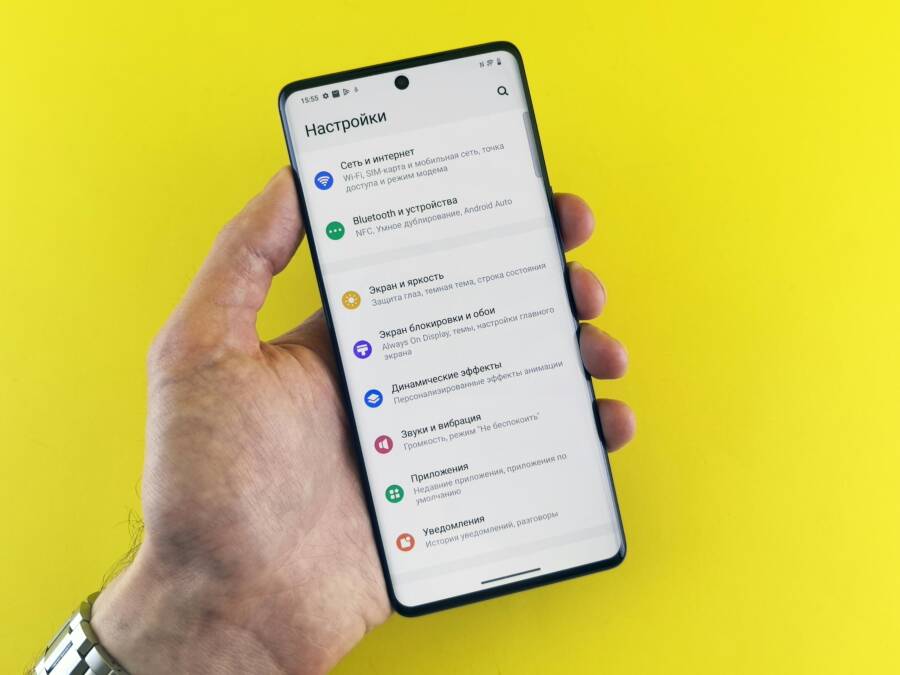
If you’re wrangling a stubborn SIM not allowed message, resetting network settings can be a surprisingly effective move. This reset doesn’t erase your apps or media; it just clears saved networks, passwords, VPN settings, and other cellular preferences. Think of it as a clean slate for how your device talks to carriers. Below are step-by-step guides for both Android and iPhone, with practical tips to avoid repeating the same missteps.
 Photo by Andrey Matveev
Step-by-Step for Android Phones
Resetting network settings on Android varies a bit by brand, but the core steps are similar. Here’s a practical path that works on most devices, including Samsung and Google Pixel.
- Open Settings and find Network & Internet. On Samsung devices, you might see Connections instead; Pixel uses Network & Internet.
- Tap Reset network settings. You’ll typically find this under a submenu like Advanced or Reset options.
- Confirm the reset. You may be asked to enter your PIN or password.
- Reboot the phone. After the reset, your device will reinitialize network modules and prompt you to reconnect to Wi‑Fi and re-enter any saved Bluetooth devices.
- Reinsert or reselect the SIM if prompted. If you use a dual SIM phone, choose the primary data SIM carefully to restore data services quickly.
Why this helps: resetting network settings clears misconfigured APN entries, stale carrier profiles, and any corrupted data that blocks SIM recognition. After the reset, reconfiguring a few essentials gets you back to normal quickly.
Helpful resources for Android users:
- Pixel users can review how to connect to mobile networks on a Pixel phone to ensure the device negotiates with the carrier correctly: Connect to mobile networks on a Pixel phone.
- Link: https://support.google.com/pixelphone/answer/2926415?hl=en
- For other Android devices, a reset network settings guide from a carrier or device help page can offer device-specific tweaks: Resetting network settings on various Android devices.
If the issue sticks after a reset, the problem might be tied to the SIM itself or to the carrier status. Try testing the SIM in another phone to isolate the cause.
Step-by-Step for iPhones
iPhone users have a streamlined path to reset network settings that is usually quick and effective. This often resolves issues tied to carrier updates, APN mismatches, or stuck network configurations.
- Open Settings, then General.
- Scroll to Transfer or Reset iPhone, and choose Reset.
- Tap Reset Network Settings. You may be prompted to enter your passcode.
- The device will restart automatically. After the reboot, you’ll need to rejoin Wi‑Fi networks and reconfigure Bluetooth if needed.
- If a carrier prompt appears, follow the on-screen steps to update or reapply carrier settings. This can prompt automatic improvements to how the iPhone connects to the network.
Why this helps: a network settings reset on iPhone clears stale carrier data, updates, and network flags that can trigger a SIM not allowed error. It’s a safe, non-destructive step that often resolves the problem without deeper tinkering.
Helpful resources for iPhone users:
- If you need to update iPhone carrier settings after a reset, you can follow guidance from trusted providers on updating carrier settings: How to update iPhone carrier settings.
- Link: https://www.asurion.com/connect/tech-tips/how-to-update-iphone-carrier-settings/
- For a broader overview of resetting network settings on iPhone, a well-trafficked how-to guide covers the basics: Reset Network Settings on iPhone.
- Link: https://www.wikihow.com/Reset-Network-Settings-on-iPhone
What to expect after a reset: you’ll reconnect to known networks and re-pair any Bluetooth devices. If you still see SIM not allowed after this step, the root cause may lie with the SIM card, device hardware, or the carrier account.
Images and visuals can help you navigate these menus more confidently. Consider snapping a quick screenshot as you navigate Settings so you can retrace your steps if you need to redo any portion.
Section takeaway: A network settings reset is a safe, quick diagnostic that often clears the blocks causing SIM not allowed messages. If the error remains after the reset, it’s time to test the SIM in another device and contact the carrier for account-level checks.
External references and practical context
- For Android network resetting and APN management on Pixel devices, Google’s official guidance confirms how to adjust network usage and carrier settings on Pixel phones: Connect to mobile networks on a Pixel phone.
- Link: https://support.google.com/pixelphone/answer/2926415?hl=en
- Carrier settings updates on iPhone are a common source of connectivity issues. Learn how to update iPhone carrier settings when prompted or manually if needed: How to update iPhone carrier settings.
- Link: https://www.asurion.com/connect/tech-tips/how-to-update-iphone-carrier-settings/
- If you want a general reset network settings guide for iPhone, the step-by-step resource from WikiHow can be a quick reference: Reset Network Settings on iPhone.
- Link: https://www.wikihow.com/Reset-Network-Settings-on-iPhone
What this means for you: a reset is a low-risk, high-reward move that often resolves SIM not allowed issues. If the problem persists, you’ll want to move to the next checks, such as testing with another SIM or contacting your carrier for a more thorough review.
Images enhance comprehension
- An image showing a smartphone settings menu can help readers visually identify the right menus. Photo by Andrey Matveev from Pexels.
- Image: Close-up of a hand holding a smartphone with settings menu on a bright yellow background.
- Credit: Photo by Andrey Matveev, https://www.pexels.com/@zeleboba
Next steps
- If resetting network settings doesn’t fix the issue, test the SIM in another phone to determine whether the problem is the SIM card or the original device. You’ll also want to verify there are no carrier blocks on the IMEI and review any recent changes to the account.
- When you’re ready, we’ll dive into more targeted steps such as testing with a different SIM, checking for carrier locks, and investigating IMEI status. This will help you decide whether you need a carrier intervention or a device repair.
Links to deepen your understanding
- Android: Clear guidance on connecting to mobile networks and adjusting network settings on Pixel phones.
- https://support.google.com/pixelphone/answer/2926415?hl=en
- iPhone: How to update carrier settings to restore proper network behavior.
- https://www.asurion.com/connect/tech-tips/how-to-update-iphone-carrier-settings/
- General iPhone reset network settings reference.
- https://www.wikihow.com/Reset-Network-Settings-on-iPhone
End of section.
Advanced Fixes and When to Call Your Carrier
When simple at home tweaks fail, you’ll want a clear, decisive plan for advancing the fix. This section covers two critical steps that sit between quick DIY checks and formal carrier intervention. You’ll learn when to push a software update, and why a factory reset might be the final step before involving your network provider. Think of these as the hinge points that decide whether you can fix it yourself or need outside help.
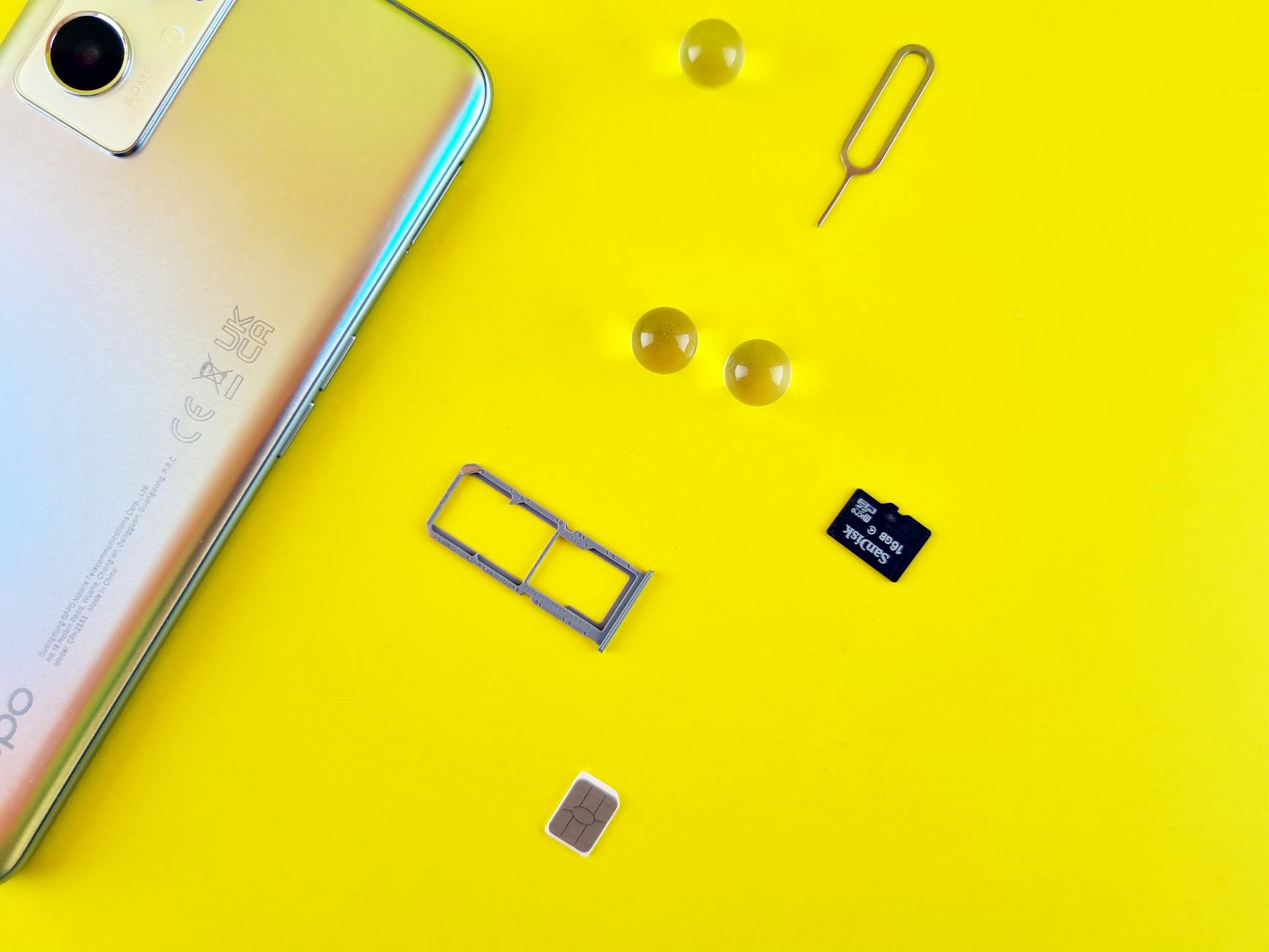 Photo by Andrey Matveev
Update Your Phone Software
Software updates aren’t just about new features; they fix bugs that can disrupt SIM recognition and carrier compatibility. If your device has pending updates, install them. Updates often include security patches, improved network profiles, and bug fixes for SIM handling.
Key reasons to update now:
- Patches for SIM read errors that surface after minor OS changes.
- Carrier profile updates that ensure your phone can connect to the correct network towers and services.
- Stability improvements for dual SIM configurations and eSIM management.
How to proceed:
- Android: Open Settings > System > Software update (the path can vary by brand). If an update is available, download and install it, then restart your device.
- iPhone: Open Settings > General > Software Update. If an update is listed, download and install it, then restart.
If you’re unsure whether a patch addresses your exact issue, a quick check of reputable carrier and device support pages can confirm known SIM-related fixes in the current release. For example, updates may fix issues that appeared after a carrier change or after enabling a new network mode like 5G. When you’re ready, re-check the SIM status after the update and test with a known good SIM to verify the fix.
For Android and iPhone users alike, keeping the system and carrier settings in sync reduces the odds of a recurring SIM not allowed error. If the problem persists after updating, the next step often confirms whether the issue is software or hardware tied. You can read more about APN management and carrier updates to ensure you’re following the latest guidance. See these resources for practical steps:
- Can’t Change APN Settings? Here’s How I Fixed It.
https://hello-apn.com/fixing/cant-change-apn-settings-locked - APN Settings Greyed Out (easy) Causes & Fixes
https://hello-apn.com/fixing/apn-settings-greyed-out-causes-fixes
When to call your carrier after an update:
- If the SIM still isn’t recognized or you see a locked or restricted message, your carrier may need to re-provision the line or check for an account block.
- If you recently migrated to a new carrier or switched from an eSIM to a physical SIM, carrier-side updates can resolve lingering mismatches.
- If the update reduces performance or introduces new prompts about carrier settings, contact support with the exact error text and any recent changes you made.
Why this matters: many SIM problems originate from mismatched software profiles rather than the SIM card itself. Updating both the OS and the carrier configuration aligns the device with the network’s current requirements, reducing false positives that look like hardware faults.
External references and practical context
- Guidance on updating iPhone carrier settings after a software update can help avoid confusion with network prompts.
https://www.asurion.com/connect/tech-tips/how-to-update-iphone-carrier-settings/ - Pixel and other Android devices also benefit from keeping network settings up to date.
https://support.google.com/pixelphone/answer/2926415?hl=en
What this means for you: a quick software refresh can clear a surprising number of SIM not allowed issues. If it doesn’t, you’ll be equipped with solid reasons to move forward to more targeted steps or to contact your carrier for a definitive check.
Factory Reset as Final Step
If software updates and network resets haven’t resolved the SIM not allowed error, a factory reset is the last large, device-level action you should take before engaging your carrier or visiting a repair shop. This step wipes personal data, so back up first. A full reset can clear stubborn config errors that other methods miss.
Backup guide:
- Android: Use Google Backup or your device’s built-in backup service. Ensure photos, messages, app data, and settings are securely saved to the cloud or a local drive.
- iPhone: Use iCloud Backup or a local computer backup via Finder (macOS) or iTunes (Windows). Include Messages, Photos, Settings, and App data in your backup.
Full reset paths for both OS:
- Android reset path (general): Settings > System > Reset options > Erase all data (factory reset). Confirm with your PIN or password, then allow the device to reboot and restore to factory defaults.
- iPhone reset path (general): Settings > General > Transfer or Reset iPhone > Erase All Content and Settings. After the reset completes, the phone will reboot to the setup screen.
What to expect after a reset:
- The device will boot with fresh, default network settings.
- You’ll reconnect to Wi-Fi and re-pair Bluetooth devices.
- You may need to re-enter APN details if those are required by your carrier.
Why this step matters: a factory reset eliminates corrupted system files or stubborn network caches that no other fix touches. It’s a broader reset than a simple network settings refresh, so it should be used when more targeted fixes fail.
When to contact your carrier after a reset:
- If the SIM still isn’t recognized after the reset, there may be a carrier lock, an IMEI block, or an account issue. Have your purchase details, device serial, and IMEI ready when you call.
- If you recently bought a used phone, verify unlock status and ensure it’s not blacklisted. Carrier support can confirm and guide you through unlocking or provisioning steps.
Useful references for this stage:
- Apple and carrier settings after reset, including how to apply updates.
https://www.asurion.com/connect/tech-tips/how-to-update-iphone-carrier-settings/ - General Reset Network Settings on iPhone as a non-destructive diagnostic.
https://www.wikihow.com/Reset-Network-Settings-on-iPhone
What this means for you: a factory reset is powerful but final. Back up first, then reset. If the SIM problem persists, you’ll have a clear path to discuss with your carrier or consider device-level repair options. This step often resolves issues caused by corrupted configurations or lingering software glitches that other methods miss.
Next steps
- If you’ve completed these sections and the SIM still isn’t allowed, test the SIM in another phone to isolate whether the problem is the SIM, the device, or the carrier account. If possible, try a different SIM in your device as well.
- When you’re ready, we’ll move into deep-dive checks such as examining carrier locks, validating IMEI status, and evaluating potential hardware faults. This will help you decide whether you need a carrier intervention or a device repair.
Links to deepen your understanding
- How to verify carrier lock status on iPhone and Android
https://help.alosim.com/hc/en-us/articles/24052127891853-How-do-I-know-if-my-phone-is-carrier-locked - Guidance on connecting your iPhone to a carrier and managing profiles
https://help.backmarket.com/hc/en-us/articles/4413810243218-I-need-help-connecting-my-iPhone-to-my-carrier - General carrier and SIM troubleshooting for iPhone and Android
https://screenrant.com/sim-1-not-allowed-error-meaning-fix/
End of section.
Conclusion
Most fixes for a SIM not allowed error come from simple, repeatable checks. Start with the easiest steps, like reseating and cleaning the SIM, then move to quick resets and software updates. These at home actions solve the majority of cases and save you time and money.
If the error persists, test the SIM in another phone to confirm whether the problem is the card or the original device. A second device that works points to the phone or its settings, while a failure in the other phone signals a SIM or carrier issue. In both paths, contact your carrier for account or unlock checks as soon as you suspect a carrier block or a provisioning problem.
Prevention matters as well. Handle SIMs with care, store them away from magnets and moisture, and avoid bending the tray. When swapping devices or carriers, confirm you’re using the correct SIM size and that carrier profiles are up to date. Regularly updating your phone’s OS and carrier settings helps keep network compatibility solid over time.
If you’re still stuck after trying these steps, don’t hesitate to call or chat with your carrier. They can re-provision the line, lift a block, or issue a fresh SIM when needed. Most fix it themselves with the right guidance, and you now have a structured path to get back online fast.
Have you tried these steps already? Share your experience in the comments so others can learn from what worked for you.