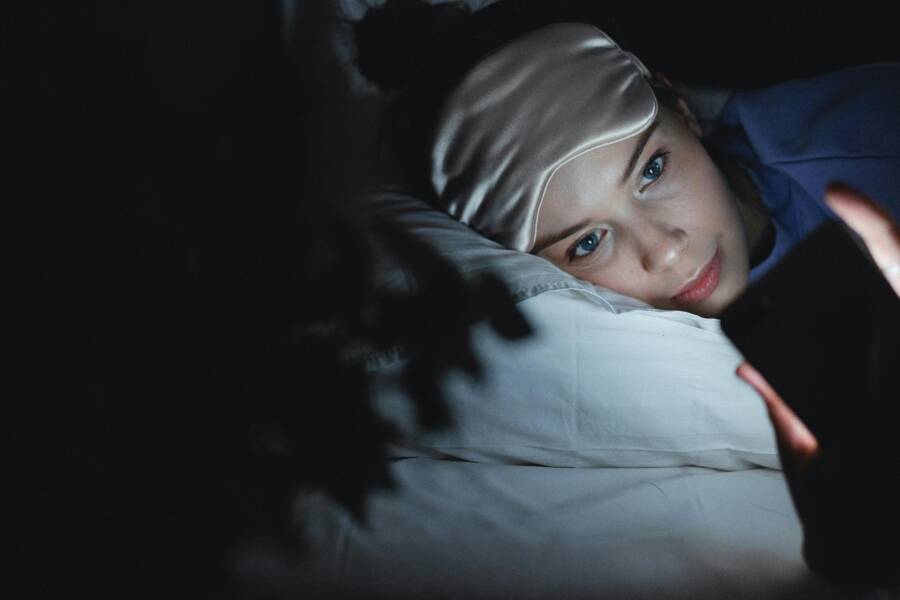
Exposure to blue light from your smartphone late at night disrupts your natural sleep cycles by suppressing melatonin production. This process tells your brain it is time to wake up rather than rest, which makes falling asleep difficult.
Turning on Night Shift or Night Light modes reduces this harsh exposure by filtering out blue wavelengths. Your body then perceives the shift as a signal that the day is ending, which helps you fall asleep faster.
Adjusting your display settings is a simple change that improves your rest without needing extra equipment. Here is how you can manage these settings on your favorite device to protect your sleep quality.
Understanding How Blue Light Affects Your Internal Clock
Your body operates on a natural timer known as the circadian rhythm. This internal clock tells you when to be alert and when to prepare for sleep. Exposure to light plays a primary role in how this clock keeps time. While sunlight helps you stay awake during the day, light from your smartphone after sunset confuses these signals.
The Role of Melatonin in Your Sleep Cycle
Melatonin is a hormone your brain produces when it gets dark outside. This chemical acts as a signal that the day is finished. Once melatonin levels rise, your body temperature drops and your muscles begin to relax. You then feel a natural urge to go to sleep.
Your brain monitors light levels through your eyes to determine when to start this release. It naturally expects a decrease in brightness as evening approaches. When you stare at a smartphone screen, the blue light tricks your brain into thinking it is still daytime.
Artificial light stops the production of melatonin in several ways:
- High-energy blue light signals your brain to remain alert.
- The suppression of melatonin prevents your body from feeling drowsy.
- Your sleep cycle shifts, making it harder to fall asleep at a normal hour.
Because your brain cannot produce enough melatonin under bright light, your entire sleep schedule suffers. You might find it hard to drift off, or you may wake up feeling tired even after a full night in bed.
Why Screens Are More Disruptive Than Lamps
Many people wonder why a bright living room lamp is less harmful than a handheld phone. The difference lies in the proximity and intensity of the light source. Your smartphone usually sits just a few inches from your face, which allows the light to flood your eyes directly.
Ambient room lighting creates a softer glow that spreads across the entire space. Because the light source is further away, your eyes receive a much lower concentration of blue wavelengths. The intensity of a smartphone screen is significantly higher because it lacks this distance.
Consider these factors that make handheld devices the primary culprits for sleep disruption:
- Direct exposure means the light hits your retina with maximum strength.
- Interactive content on a smartphone keeps your brain engaged and alert.
- Most people hold their devices close enough to fill their entire field of vision.
Your brain is sensitive to this intense, concentrated light. Even if you turn down the brightness, the short distance ensures the blue light still hits your eyes hard. This is why putting the phone away early is often more effective than simply adjusting the screen settings.
How to Enable Night Shift and Night Light Modes on Your Devices
Reducing blue light exposure is a practical way to help your body prepare for sleep. Most modern smartphones include built-in features that adjust your display temperature based on the time of day. These tools automatically shift colors toward warmer, amber tones as evening arrives. You can configure these settings once to run indefinitely, which removes the need for manual adjustments each night.
Activating Night Shift on Apple Devices
Apple includes Night Shift on all iPhones and iPads running iOS. This feature uses your device clock and geolocation to determine when the sun sets in your specific area. You can find these controls by opening your Settings app and selecting the Display and Brightness menu.
Once you reach that menu, look for the Night Shift option. You have two main ways to manage this setting:
- Select Scheduled to set a specific timeframe. You can choose to have the display warm up from sunset to sunrise or pick your own custom hours.
- Use the Color Temperature slider to adjust how much blue light the screen filters out. Sliding it toward the warmer end creates a deeper amber tint, which is often more comfortable for reading in low light.
If you prefer to toggle the setting quickly, you can also access it through the Control Center. Swipe down from the top-right corner of your screen and long-press the brightness slider. A sun icon will appear, which allows you to turn the feature on or off with a single tap.
Turning on Night Light for Android Users
Android devices feature a similar tool known as Night Light, though its location can vary slightly depending on your manufacturer or software version. Most recent versions of Android store this setting within the primary display menus. You should start by opening your Settings app and tapping on the Display section.
Look for a menu labeled Night Light or Eye Comfort Shield. Inside this section, you will typically find options to turn the feature on immediately or create a recurring schedule.
If you use a phone with stock Android, you can set the schedule to trigger at sunset or choose a custom time range. Many manufacturers also provide a slider to control the intensity of the filter. You might want to experiment with different levels to find a balance that feels natural while still minimizing eye strain.
For quick access, swipe down twice from the top of your screen to open the full Quick Settings panel. Most devices include a Night Light toggle that you can add to this menu. This allows you to enable or disable the filter instantly without digging through your system settings. Keep in mind that some third-party apps or reading modes might conflict with these system settings, so check your display preferences if the screen color doesn’t change as expected.
Proven Strategies Beyond Built-in Software
While software filters on your smartphone offer a baseline for light management, physical barriers provide additional protection. These tools physically block or alter blue light before it enters your eyes. Many users find these physical options helpful because they work regardless of the software settings or app brightness levels.
Using Physical Screen Protectors and Glasses
Physical screen protectors designed for blue light reduction utilize specialized coatings or tinted materials to scatter shorter wavelengths. You simply apply the thin film directly over your glass surface. These protectors stay active all day, so you do not need to toggle any menus when the sun goes down. They often come with anti-glare properties, which can help reduce strain from overhead lights as well.
Blue light blocking glasses offer another layer of defense. These lenses feature an amber or yellow tint that neutralizes blue light waves before they reach your eyes. Wearing these glasses allows you to use your smartphone or other monitors without worrying about the specific color output of the device itself.
Consider these benefits when choosing between hardware additions:
- Screen protectors offer constant filtration that works every time you look at the display.
- Specialized eyewear protects your eyes from all sources of blue light, including lamps and televisions.
- These physical solutions remove the need to manage system-level software configurations.
If you choose a screen protector, look for one that keeps the display clarity high. Some cheaper options add a heavy orange tint that makes viewing photos or videos difficult. Conversely, high-quality glasses usually balance visual comfort with color accuracy, making them a popular choice for night-time reading.
Creating a Better Bedtime Environment
Controlling the light in your entire room supports your body’s transition to sleep. Even if you manage your smartphone output perfectly, bright white lights in your bedroom can override those gains. Your brain processes the total light environment to determine if it is time to produce melatonin.
Consider replacing bright white or cool-toned LED bulbs with warm-toned alternatives for your bedside lamps. These warm bulbs emit lower levels of blue light and mimic the color of a sunset. This creates a psychological and biological signal that the day is nearing its end.
You can manage your light environment with these simple adjustments:
- Dim your primary bedroom lights at least one hour before you plan to sleep.
- Swap standard cool-white bulbs in your reading lamp for soft-white or amber options.
- Use floor lamps or wall sconces to keep the light level low and directed away from your eyes.
Keeping your smartphone use to a minimum remains the best way to help your body rest. When you do use the device, however, the combination of a warm-toned room and a filtered screen creates the best conditions for sleep. You will likely notice that your eyes feel less tired and your mind feels calmer when you remove harsh light sources from your immediate vicinity.
Common Myths and Realities About Blue Light Blocking
Many people believe that blocking all blue light from a smartphone screen guarantees better sleep, but this claim oversimplifies how the body regulates rest. While light exposure does affect your internal clock, color filters alone do not solve every sleep difficulty. Understanding the gap between marketing promises and biological reality helps you manage your screen time more effectively.
Filtering Does Not Replace Better Habits
Software filters shift your display colors to warmer tones, which reduces the intensity of high-energy wavelengths. However, these settings do not stop the brain from staying alert due to the content you view. Engaging with high-stress emails or stimulating videos keeps your mind active regardless of the light color.
If you scroll through your smartphone until the moment you turn off the lights, you still provide your brain with visual stimulation. The blue light filter might reduce the chemical signal to wake up, but your cognitive load remains high. Most people find that putting the device away thirty minutes before bed works better than relying solely on software adjustments.
The Role of Natural Light Exposure
A common misunderstanding involves the idea that blue light is always harmful to your health. Your body actually requires exposure to blue wavelengths from natural sunlight during the day to keep your circadian rhythm in balance. This light signals your brain to stay alert and productive throughout the morning and afternoon.
Problems only arise when you subject your eyes to artificial, intense blue light after the sun goes down. A smartphone creates a concentrated source of this light that disrupts your evening transition to sleep. You do not need to avoid blue light throughout the day, as your primary goal should be limiting this specific type of exposure during the hours before you sleep.
Comparing Software Filters and Physical Hardware
You can choose between built-in software tools and physical accessories like tinted glasses or screen films. Each option offers different benefits based on your specific needs and daily habits. The following table compares these two approaches to light management.
Software settings are sufficient for most users who want a simple solution on their smartphone. Physical glasses provide better protection if you work under bright artificial lighting or use multiple screens simultaneously. Choose the method that fits your routine without adding unnecessary friction to your evening schedule.
Conclusion
You can manage your sleep quality by using the built-in software tools found on your smartphone. These settings filter out blue light and help your brain recognize that the day is coming to an end. However, software filters work best when you combine them with shorter screen time before bed and a dim, warm-toned bedroom environment.
Building these habits takes practice, but the payoff is a more natural sleep cycle. Focus on small, consistent changes to your nightly routine to see the best results. You now have the tools to create a better environment for rest each night.