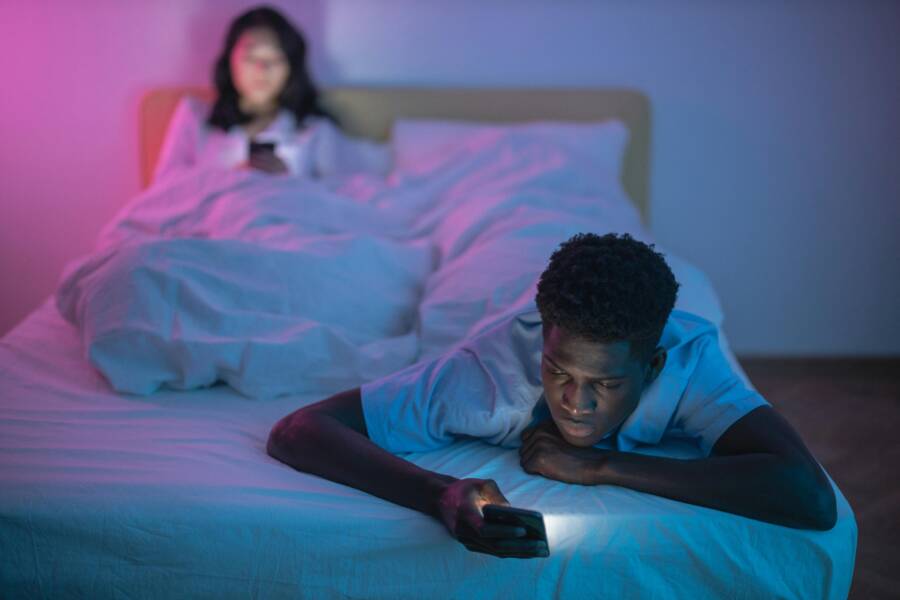
You can track your sleep habits using the smartphone already in your pocket. Both iPhone and Android offer built-in tools that monitor your rest patterns without requiring extra hardware. By using these features, you gain clear insights into your sleep cycles and nightly disruptions.
Understanding your rest quality is a primary step toward better health. Regular data helps you identify habits that interfere with deep sleep, such as late-night screen time or inconsistent bedtimes. Consistent tracking encourages better routines, which often leads to higher energy levels during the day.
Setting up these features takes only a few minutes. Whether you use the Health app on an iPhone or the Bedtime mode on Android, the process is simple and intuitive. You do not need expensive wearables to start gathering meaningful health metrics today.
The following sections will show you how to configure these tools on your specific device. You will learn to set schedules, monitor progress, and interpret the data your phone collects.
Why You Should Use Sleep Tracking on Your Smartphone
Using your smartphone for sleep tracking turns a common household device into a personal health monitor. You gain access to detailed data about your rest patterns without buying expensive hardware. This information helps you make informed changes to your daily schedule and nighttime environment.
Identify Hidden Sleep Disruptions
Many people wake up feeling tired without knowing why. Your smartphone detects subtle movements or noises throughout the night that interrupt your sleep cycles. Tracking these patterns reveals whether external factors like room temperature or light affect your rest quality. Once you identify these triggers, you can adjust your habits to improve your recovery time.
Build Consistent Evening Routines
Regular bedtimes stabilize your body clock and help you fall asleep faster. Smartphone tools often include gentle reminders that alert you when it is time to wind down. These prompts encourage you to put away distractions, dim the lights, and prepare for rest. Consistent timing leads to better sleep quality over the long term.
Monitor Trends Over Time
Individual nights provide limited context, but long-term data tells a clearer story. Smartphones generate weekly or monthly reports that highlight changes in your sleep duration and consistency. You might notice that your rest suffers on specific workdays or weekends. Observing these trends allows you to adjust your activities during the day to ensure better sleep at night.
Compare Rest Metrics
Modern tracking tools offer several ways to visualize your nightly performance. The data typically captures your total time in bed, time spent awake, and your overall sleep efficiency. You can use these metrics to see how changes in your exercise or caffeine intake affect your rest.
Comparing these numbers helps you see if your recent adjustments to your lifestyle actually improve your rest. A steady increase in your consistency score often correlates with higher energy levels during the day.
How to Set Up Sleep Tracking on iPhone
Your smartphone contains built-in tools that turn the device into a comprehensive sleep tracker. You do not need additional apps or external hardware to start gathering health metrics. The Health app integrates directly with your iPhone to monitor your nightly rest and provide detailed visualizations of your cycles. You can activate this feature by following a few initial setup steps within the Health settings on your device.
Configuring Your Sleep Schedule
Setting a consistent schedule helps your body maintain a healthy circadian rhythm. You can manage these settings through the Health app to ensure your device tracks sleep during the hours you actually rest.
- Open the Health app and tap the Browse tab at the bottom.
- Select Sleep from the list of categories.
- Scroll down and tap Set Up Sleep under the Sleep Schedule section.
- Follow the on-screen prompts to define your target sleep duration.
You should designate a wind-down period to prepare for bed. This timeframe encourages you to limit your screen use and finish evening tasks before you sleep. During this period, the smartphone automatically triggers features like Do Not Disturb to minimize interruptions from notifications.
You can also customize your wake-up alarm to match your daily needs. The app allows you to set different schedules for weekdays and weekends if your routine changes throughout the week. If you need to adjust these times later, return to the Sleep category in the Health app and select Edit under your active schedule. This ensures your tracking window remains accurate as your habits shift.
Reviewing Your Sleep Data
Once you use the tracking feature for a few days, the Health app populates your dashboard with specific insights. You can find this information by opening the Health app and navigating back to the Sleep section. The interface displays your data through clear, interactive graphs that show how your sleep patterns evolve over time.
The main graph highlights your total time in bed versus your actual time asleep. You can toggle between daily, weekly, monthly, and six-month views to spot long-term trends. A color-coded legend helps you distinguish between periods of deep sleep, core sleep, and time spent awake.
Pay attention to the Sleep Duration and Consistency cards located below the main chart. These tools show how closely your actual rest matches the goals you set during the initial configuration. If you notice a high number of interruptions, check the bars on the graph to see if they consistently occur at the same time each night. This data provides the evidence you need to refine your environment or your evening routine for better results.
Getting Started with Sleep Tracking on Android
You can monitor your nightly rest using your Android smartphone without purchasing extra sensors. Most modern devices include built-in tools that track movement and ambient noise to estimate your sleep cycles. These features run in the background while you rest, providing a simple way to observe your habits over time. By configuring your device correctly, you gain access to data that helps you adjust your routine for better recovery.
Setting Up Bedtime Mode
Bedtime mode acts as a central hub for your sleep habits. It reduces distractions by silencing notifications and adjusting screen colors to help your brain prepare for sleep. You can find this setting inside the Digital Wellbeing menu on most Android devices.
Follow these steps to enable the feature:
- Open your phone Settings app.
- Select the Digital Wellbeing and parental controls option.
- Tap on Bedtime mode or Bedtime schedule.
- Set your preferred sleep and wake times to create a consistent schedule.
- Customize the screen options, such as grayscale mode or light dimming, to lower eye strain.
- Toggle on “Do Not Disturb” to block alerts while you rest.
Once you finish these steps, your smartphone automatically enters this state at your chosen time each night. It remains active until your set wake-up time. This setup minimizes the urge to check social media or work emails right before you close your eyes. If your plans change, you can quickly override the schedule from the quick settings panel at the top of your screen.
Understanding Your Sleep Insights
After you use the feature for several nights, your smartphone gathers enough data to create a summary of your rest. You can view these metrics within the Digital Wellbeing dashboard under the Sleep section. The interface shows how long you spent in bed and how often you were likely awake.
These metrics provide a clear view of your nightly health:
- Total time in bed shows how long you stayed still during your scheduled window.
- Daily consistency highlights whether your wake and sleep times align with your goals.
- Disturbance indicators reveal if the phone detected frequent movement or loud noises during the night.
These numbers act as a baseline for your habits. For example, if you notice a high count of disturbances, you might check if the phone is placed too close to a noisy window or a vibrating appliance. While this data is an estimation, it serves as a useful tool for spotting patterns. Use this information to decide if you need to adjust your evening caffeine intake or change the temperature in your bedroom to help you sleep more soundly.
Tips for Getting Accurate Results
Your sleep data is only as good as the input your smartphone receives. Small adjustments to your environment and device placement produce more reliable insights. Follow these practices to ensure your nightly reports reflect your actual rest patterns.
Optimize Device Placement
The location of your phone dictates how well it monitors movement and sound. Most tracking apps rely on the internal accelerometer and microphone to detect activity. Place your device on a nightstand within arm’s reach of your pillow.
Avoid placing the phone under a thick pillow or buried beneath blankets. These materials muffle sound and block the sensors from picking up subtle movements. A stable, flat surface like a nightstand is the ideal spot for consistent readings. If you prefer keeping the phone on the mattress, ensure it remains in a clear area where it cannot fall off the edge or slide under heavy bedding.
Manage Ambient Noise
Background noise often confuses sleep tracking apps that use audio sensors. Sounds from a fan, air conditioner, or passing traffic might trigger false wake-up events in your data. Consider these steps to reduce external interference:
- Keep your windows closed to block outside street noise.
- Use a white noise machine at a steady, consistent volume if you prefer background sound.
- Distance your phone from other devices that produce mechanical hums or periodic vibrations.
Testing your environment for a few nights helps you identify the baseline noise level. If the app consistently records disturbances at the same time, investigate if a household appliance or a nearby clock is the cause. Isolating your smartphone from these sources leads to a much clearer picture of your true sleep quality.
Maintain Consistent Habits
Sleep tracking functions best when your behavior follows a predictable pattern. Frequent changes to your bedtime or wake-up time make it difficult for your smartphone to differentiate between normal rest and genuine disruption. Try to stick to a routine that aligns with your natural rhythm during the work week and weekends.
Consistency also improves the accuracy of the trends you view in your health dashboard. When your schedule stays stable, the software better understands your sleep cycles and provides more actionable feedback. If you frequently shift your sleep windows, the data will appear fragmented and less helpful for spotting long-term habits. Treat your sleep schedule with the same regularity you apply to other important parts of your day.
Conclusion
Tracking your sleep is a simple, effective way to gain control over your nightly habits. By using your smartphone as a dedicated monitor, you turn everyday technology into a valuable health resource without any extra cost.
Try using these built-in tracking features for at least one full week. This timeframe provides enough data to spot patterns in your sleep duration, consistency, and nighttime disruptions. Pay attention to how small adjustments in your routine affect your energy levels throughout the day.
You now possess the tools to better understand your rest. Start your tracking today to build a more informed approach to your sleep health.