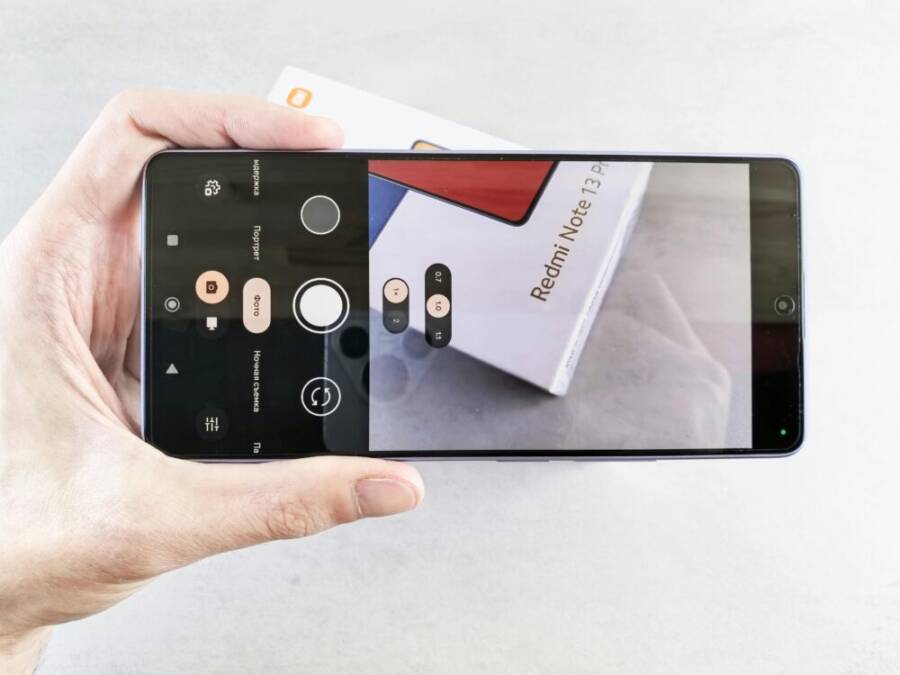
You don’t need fancy gear to make Instagram posts that stop the scroll. Anyone with a phone can produce pro-level shots, videos, and Reels that build real engagement. I grew my own account by 150% last year after simple tweaks to my device; now followers message me for the exact steps.
Most creators struggle with grainy photos, choppy videos, laggy edits, and slow uploads that kill momentum. Your phone holds back Instagram content creation until you optimize it right. Better camera settings mean sharper images; streamlined apps speed up editing; and battery tricks keep you posting all day.
This guide walks you through easy fixes for iPhone and Android. You’ll learn to adjust camera resolution for crisp 4K video, clear storage for smooth apps like CapCut or Lightroom, and enable features like VoLTE for reliable uploads on the go. Start with these quick wins today:
Pick your photo app: Switch to ProCamera or Adobe Lightroom Mobile for manual controls that beat the stock camera.
Free up space: Delete old files and offload unused apps to gain gigabytes fast.
Boost battery: Turn on low power mode during shoots and charge with a 20W adapter for longer sessions.
These steps take under 30 minutes and work on any recent smartphone. By the end, you’ll post faster, edit smoother, and watch likes roll in. Ready to level up your feed? Let’s dive into the full setup.
Update Software and Clear Junk for Speedy Performance
Outdated software and built-up junk files drag down your smartphone’s speed, making Instagram Reels choppy and edits lag. Fresh updates fix bugs and boost efficiency, while clearing RAM and cache frees resources for smooth video recording. You will notice quicker app launches and faster exports right away. Tackle these tasks first to keep your device running at peak for content creation.
Steps to Update Your Phone Fast
Back up your smartphone before any update. Use iCloud for iPhone or Google Drive for Android to save photos, Reels, and apps. This takes just minutes and protects your work. Check for updates weekly; new patches improve camera performance and battery life, which helps with long Instagram sessions.
Follow these steps for Android:
- Open the Settings app.
- Scroll to System or Software update (varies by brand like Samsung or Google Pixel).
- Tap Check for updates.
- If available, hit Download and install. Keep your phone plugged in.
For iPhone, the process stays simple. Head to Apple’s official update guide for visuals, but here are the basics:
- Open Settings.
- Tap General > Software Update.
- If an update shows, tap Download and Install.
- Enter your passcode if asked, then let it run.
Updates often arrive overnight, so schedule them then. Your smartphone will handle 4K video better post-update, cutting lag during Reels shoots.
Quick Ways to Free Up RAM and Cache
RAM overload from open apps slows everything, from previewing edits in CapCut to live Instagram Stories. Clearing cache removes temporary files that pile up without eating storage. This leads to smoother Reels recording, as your phone focuses power on the camera instead of background clutter.
Start by force-closing apps. On Android, swipe up from the bottom (or use the recent apps button), then swipe away unused ones like browsers or games. For iPhone, swipe up from the bottom edge and pause, then flick apps upward to close.
Next, clear app cache one by one, since blanket clears hurt performance:
- Android: Go to Settings > Apps > select Instagram or your editor > Storage > Clear cache. Repeat for CapCut or Lightroom.
- iPhone: No direct cache button exists, so offload apps via Settings > General > iPhone Storage > pick an app > Offload App. This keeps data but dumps extras.
Use built-in cleaners for bulk work. Android’s Device Care (Samsung) or Files by Google scans junk fast. Restart your phone weekly too; it flushes everything in seconds. Test by recording a quick Reel afterward, you will see fluid playback and exports that used to stutter. Keep this routine, and your content workflow stays snappy.
Tune Camera Settings for Sharp Instagram Shots
Your smartphone packs serious camera power for Instagram content that stands out. Stock settings often fall short on detail and clarity, so tweak them for sharp photos and smooth videos. These changes make your shots pop without extra apps. You will see the difference in every Reel or post.
 Photo by Andrey Matveev
Best Resolution and Focus Tricks
Crank up resolution first to capture every detail your smartphone sensor can grab. High settings deliver crisp 4K videos and full-sensor photos that hold up on Instagram feeds. Low res leads to pixelated zooms and dull exports.
Set the highest photo and video resolution on your device. For iPhone, go to Settings > Camera > Record Video and pick 4K at 60 fps for buttery Reels. Photos default to max, but toggle Formats > Apple ProRAW & Resolution Control if you edit heavily (check these top iPhone tweaks). Android users head to Camera > Settings (gear icon); select 4K UHD or Photo resolution > Max on Samsung or Pixel models.
Next, enable auto HDR to balance bright skies and shadows in one tap. iPhone turns it on by default in Settings > Camera > Smart HDR, which stacks exposures for richer tones. On Android, find HDR or Scene optimizer in camera settings and switch to auto. This fixes washed-out shots common in outdoor Stories.
Lock focus for total control. Tap the screen to set it, then hold for a yellow AE/AF lock box. Slide your finger up or down to adjust exposure without losing sharpness. This trick shines for portraits or products, as noted in solid phone camera guides. In low light, steady your smartphone on a surface, enable Night mode (auto on most new models), and hold still for 3-5 seconds. Avoid flash; it flattens details. Test on a dim cafe table, and watch grain vanish.
Use Grid and Level for Perfect Framing
Frame like a pro with the grid overlay and level tool built into your smartphone camera. These simple toggles align shots to proven rules and keep horizons straight, boosting that polished Instagram look.
Turn on the grid for rule of thirds. Open Settings > Camera > Grid on iPhone, or Camera settings > Grid lines on Android. The lines divide your screen into nine boxes; place key subjects at intersections, not dead center. Your food pics or landscapes gain balance and draw eyes right to the focal point.
Enable the level for dead-straight horizons. On iPhone, it appears as a yellow horizon line in the camera viewfinder when tilted; match it flat. Android often bundles it with grid under composition aids. Shoot ocean views or table setups this way, and crooked frames disappear.
Practice these in Stories for quick wins. Snap a row of coffee cups off-center on thirds, level the table edge, and post. Repeat with selfies or cityscapes. Your smartphone feed fills with composed shots that earn more saves and shares. Stick to these habits, and framing becomes second nature.
Grab Top Apps to Level Up Your Content Game
Stock tools on your phone work fine for basics, but top apps unlock pro edits that make your Instagram feed shine. After tuning your camera and clearing junk, grab these free or low-cost picks to handle colors, transitions, and exports with ease. They run smooth on any recent smartphone and save hours on repetitive tasks. Download from the App Store or Google Play, then follow the tips below to match your style across posts.
Editing Apps That Make Colors Pop
Lightroom Mobile stands out for preset packs that apply consistent looks in seconds. You import a pack once, then tap to edit dozens of photos at once. VSCO offers quick filters for that film-like vibe without much fuss. Both apps keep your feed cohesive, so followers recognize your brand right away.
Start with Lightroom presets. Download free or paid packs designed for mobile; they tweak exposure, contrast, and tones perfectly for Instagram. Search for natural tones or creamy beige styles that suit outdoor shots. Apply them like this:
- Open Lightroom and import your photos.
- Tap the presets icon at the top.
- Select a pack (try VSCO-inspired ones for Lightroom to blend apps).
- Adjust sliders for intensity if needed, then copy settings to batch edit the rest.
This method cuts edit time from hours to minutes. Your beach pics gain depth; cityscapes pop with balanced highlights.
Switch to VSCO for filters. It packs over 200 options, many free, with simple sliders for fade or grain. Hit the filter tab, pick one like A4 for warm minimalism, and stack two for custom looks. Preview on your full feed to ensure harmony.
Batch edit feeds in either app by selecting multiples. In Lightroom, use the copy-paste tool: edit one photo fully, select all others, then sync changes. VSCO lets you apply a recipe across albums. Test on 10 recent posts; export as JPEG at 2048px wide for Instagram’s sweet spot. Your smartphone turns raw snaps into scroll-stoppers fast.
Video Tools for Smooth Reels and Stories
CapCut leads for Reels with slick transitions and speed ramps that add polish. You layer effects without lag, even on mid-range phones. Pair it with Instagram’s specs for exports that load quick and play flawless. No watermarks on free exports make it a creator favorite.
Dive into CapCut transitions. Import clips, drag to timeline, then tap the transition icon between them. Choose fades, zooms, or glitch styles; most last 0.5 seconds. Preview in full screen to match your beat. This keeps viewers hooked from frame one.
Master speed ramps for dynamic energy. Select a clip, tap speed, and curve the line: slow-mo at 0.5x for intros, ramp to 2x for action peaks. Add keyframes for smooth shifts. Your workout Reels or travel montages feel cinematic without pro gear.
Nail export settings for Instagram. In CapCut, go to export: pick 1080×1920 (9:16), 30-60 fps, and H.264 codec. Bitrate at 10-15 Mbps ensures quality without huge files. Disable watermarks, then share direct to Reels. For Stories, trim under 15 seconds first.
Practice on a quick Story series. Record walking clips, ramp speed on turns, fade transitions, export, and post. Likes climb as playback stays buttery. Keep these apps updated; they optimize for your smartphone’s hardware and fix glitches quick. Your content flows pro now.
Manage Battery and Storage for Non-Stop Creating
Non-stop Instagram content creation means you need a phone that keeps up without interruptions. Battery life and storage space often bottleneck your workflow, forcing pauses for charging or file management. This section zeroes in on practical, phone-centric strategies to extend battery life and keep storage lean, so you can shoot, edit, and post all day with confidence. You’ll learn straightforward habits, quick tweaks, and reliable workflows that fit real-world creators.
Smart Storage Hacks to Keep Space Free
A tight storage setup prevents app slowdowns and lets you keep capturing content without hunting for a microSD card or external drive. The core idea is to back up what you don’t need immediate access to, then trim the rest so your phone stays zippy. Here are tried-and-true steps you can implement today.
- Auto-backup and delete originals
- Enable cloud backup for photos and videos, then configure your device to remove local originals once they’re safely uploaded. This keeps your gallery lean while preserving a copy in the cloud for retrieval. On iPhone, iCloud Photos can manage this process with optimized storage settings; on Android, Google Photos and other cloud services offer similar options. For a clear guide on how iPhone users can optimize storage through iCloud, see Apple’s official guidance on managing photo and video storage. Manage your photo and video storage
- After enabling backup, set a routine to review the local camera roll weekly. Look for duplicates, long-screen recordings, and large RAW files that aren’t essential for your current projects.
- Review large files before they pile up
- Regularly scan for video clips longer than you need, high-res screen recordings, and unneeded RAW bursts. Delete or offload them to your computer or an external hard drive when you’re not actively editing.
- Create a quick triage system: categorize recent footage as “keep for edits,” “backup only,” and “delete.” This keeps your on-device catalog compact and speeds up editing apps like CapCut or Lightroom.
- Use external storage strategically
- If you regularly shoot long formats or multi-camera reels, pair your phone with a fast external SSD or USB-C drive. Many modern phones support direct transfer or mobile apps that move files quickly without a PC.
- When you offload to external storage, maintain a simple naming convention and folder structure. Examples: “Reels_2025_04” or “Projects_TasteOfTaiwan.” Clear organization saves time during edits and reexports.
- Keep what you need most on-device
- Save only the current project’s media on the phone. Archive completed projects to the cloud or a hard drive, and wipe the local cache of those apps if you’re space constrained.
- Use a lightweight file manager to spot large files fast. On iPhone, the built-in Files app can help you identify space hogs; on Android, Files by Google (or your device’s file manager) is a solid option.
- Practical setup you can copy
- Daily routine: back up, delete originals from the camera roll, offload older projects to the cloud or an external drive, and keep a tidy on-device gallery with only the most recent clips.
- Weekly routine: audit Your “Downloads” and “Videos” folders for duplicates and long unedited clips; delete or move them as needed.
- Quick win: enable storage optimization features
- For iPhone, turn on Optimize iPhone Storage so full‑quality originals are kept in iCloud while device copies stay lighter. For Android, enable similar “free up space” features in the Photos and Files apps and set automatic cleanup rules that fit your workflow.
- Real-world example
- You shoot three Reels per day, each 60 seconds in 4K. Without optimization, your phone would drift toward full capacity in a week. With auto-backup, regular cleaning, and external backups, you sustain a fast, uninterrupted editing cycle. You’ll notice faster previews, quicker exports, and less time spent managing files.
- Quick actions to implement now
- Turn on automatic photo and video backups to your preferred cloud service.
- Schedule a 15-minute weekly cleanup window to prune large files and duplicates.
- Set up an external drive or high-speed SD card kit for offloading projects weekly.
- Keep the most recent project media on device, and archive the rest.
- Additional resources for storage management
- For iPhone users, Apple provides detailed steps to manage storage and optimize space using iCloud Photos. This resource helps you tailor storage settings to your actual usage and preferences. Manage your photo and video storage
In practice, a disciplined approach to storage is a direct boost to your content cadence. When your device isn’t bogged down by cached data and unneeded files, you gain more time for planning shoots, editing, and posting. This, in turn, accelerates your ability to stay on schedule and grow your Instagram presence with consistently high quality posts. The result is a smoother workflow and fewer interruptions during key moments like a live field shoot or a time-limited Reels session.
Conclusion
Optimizing your phone for Instagram content creation pays off in every post. By keeping your strategy simple and focused, you can post more often with less friction and bigger results. The goal is smoother shoots, faster edits, and reliable uploads that don’t stall your momentum.
Recap of key steps
- Update your phone regularly to improve performance and camera stability.
- Free up space and clear cache to keep editing apps responsive.
- Use high quality video and photo settings for crisp results.
- Enable grid and level to improve framing quickly.
- Choose reliable editing tools that fit your workflow.
- Manage battery and storage with smart backups and external options.
- Keep a clean on-device gallery with current projects only.
- Establish quick export settings tailored to Instagram.
Try one tip now Pick a single change you can do in 30 minutes. For example, switch to a preferred editing app and apply a consistent preset to your latest batch of posts. See how a uniform look makes your grid feel cohesive and your audience recognize your brand faster.
Share your results in the comments and tell us which tip helped most. Follow for more practical, step by step guides to keep your smartphone content sharp and posting on schedule. With steady effort, you’ll see consistent growth in reach and engagement as you build a reliable rhythm for your Instagram feed.