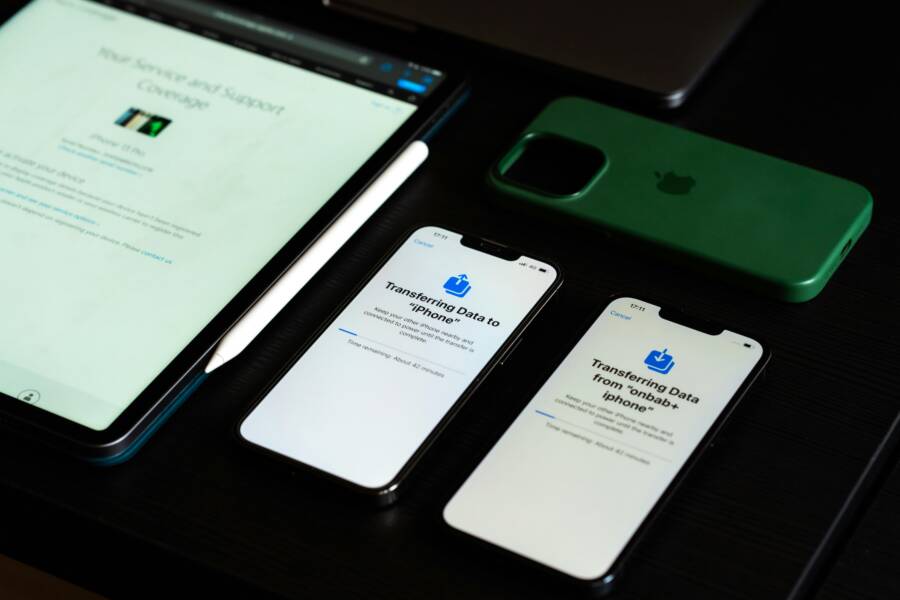
Switching to a new phone feels great until you realize your WhatsApp chats might vanish. You pour time into those conversations, from family memories to work deals and friend banter. Losing them hurts, and it happens more often than you think during upgrades.
Don’t worry. You can transfer WhatsApp to your new phone without dropping a single chat. This guide shows you simple ways to keep everything intact, no matter your setup.
First, grasp why chats matter so much. They store photos, voice notes, and contact details you reference daily. For work, they hold client info or project updates. Backups make recovery easy, but you need the right method for your phones.
We cover two main paths. Use built-in backups for same-platform moves, like Android to Android or iPhone to iPhone. These sync chats via Google Drive or iCloud. For cross-platform switches, such as Android to iPhone, rely on direct transfer tools WhatsApp provides.
You’ll get step-by-step instructions tailored to each case. Android users start with Google Drive setup. iPhone owners use iCloud links. Mixed transfers follow WhatsApp’s official chat mover during setup.
This works for most users on recent phones. You need a stable internet connection and enough storage. Follow these steps, and your new smartphone keeps all chats ready to go.
Expect clear screenshots and tips to avoid common pitfalls, like forgotten backups. By the end, you’ll switch phones with zero stress. Let’s dive into the details and get your WhatsApp moved today.
Back Up WhatsApp Chats on Your Old Phone First
Start with your old phone. You must back up chats there before the switch. This step saves everything from messages to media files. Skip it, and you risk losing years of conversations. Think of the backup as a safety net for your smartphone data. Most users forget this, but it takes just minutes.
Android and iPhone handle backups differently. Android taps Google Drive. iPhone uses iCloud. Pick the right path based on your device. Check storage space first. Full drives block backups. Free up room if needed. Once set, your chats stay safe during the move.
Set Up Google Drive Backup on Android
Android users rely on Google Drive for WhatsApp backups. This method stores chats in the cloud. You control frequency and what gets included. Set it up now to avoid last-minute stress.
Follow these steps to create your first backup:
- Open WhatsApp on your old Android phone.
- Tap the three dots in the top right, then select Settings.
- Go to Chats and choose Chat backup.
- Under Back up to Google Drive, pick your Google account. Add one if you lack it.
- Set the backup frequency: daily, weekly, or monthly. Pick daily for peace of mind.
- Toggle Include videos if you want media files. Skip it to save space.
- Tap Back up to start. Wait for the green checkmark.
Media options matter. Photos and videos balloon backup size. Test a small backup first. WhatsApp’s official backup guide covers extras like error fixes.
Watch storage. Google Drive offers 15 GB free, but chats fill it fast. Buy more space or delete old files. Log into drive.google.com to check. A full drive halts backups mid-process. Your old smartphone deserves this prep before the handover.
Enable iCloud Backup on iPhone
iPhone owners turn to iCloud. It syncs chats across Apple devices with ease. Manual backups pair with auto options. You keep control while staying hands-off long-term.
Here is the quick process:
- Launch WhatsApp on your old iPhone.
- Go to Settings (bottom right tab).
- Select Chats, then Chat Backup.
- Tap Back Up Now to run an instant save.
- Toggle Auto Backup on. Choose daily, weekly, or monthly.
- Enable Include Videos only if space allows.
iCloud storage limits free users to 5 GB. Check yours in iPhone Settings under your name. Upgrade plans start cheap if needed. Backups include most media by default. Run one now and verify it completes.
This setup protects group chats, voice notes, and stickers. Your smartphone switch stays smooth. Test restore on the same phone if you want proof. iCloud locks data to your Apple ID, so use the same one later.
Transfer WhatsApp from Android to New Android
Moving WhatsApp to a new Android device without losing chats is entirely doable. This section walks you through a practical, step-by-step approach that keeps your message history intact. You’ll learn how to install and restore on the new phone, then how to handle large media files during the process. Follow along, and you’ll have your chats ready to go in just a few taps.
Install and Restore on the New Phone
When you set up a brand new Android phone, the first thing to do is get WhatsApp installed and ready to receive your backups. The process hinges on having a valid backup ready on Google Drive from your old device and using the same Google account on the new device. Here’s a straightforward path to follow:
- Prepare your old Android phone
- Make sure WhatsApp backup is up to date on Google Drive. If you haven’t backed up recently, open WhatsApp on your old device, go to Settings > Chats > Chat backup, and perform a fresh backup. This creates a secure restore point for the move.
- Verify that you’re connected to a stable Wi‑Fi network and have enough Google Drive storage for the backup. If your Drive is full, free up space or purchase more storage before attempting the transfer.
- Confirm the Google account used for backups is easy to access on the new device.
- Set up the new Android phone
- Power on the new device and follow the on‑screen prompts to reach the Home screen.
- Sign in with the same Google account you used on the old phone. This step is crucial because the backup is tied to that account.
- Install WhatsApp on the new device
- Open the Google Play Store and search for “WhatsApp Messenger.” Install the app on the new phone.
- Open WhatsApp and verify your phone number. Use the same number that you used on the old device.
- Restore from Google Drive
- After verification, WhatsApp will prompt you to restore your chat backup from Google Drive. Tap “Restore” and wait.
- The restoration time depends on the size of your backup and your internet speed. Large backups can take longer, especially if you’re restoring media.
- Once the restore completes, your chats will appear on the new device. You’ll see your messages, media, and stickers as they were on the old phone.
- Complete the setup
- Continue through WhatsApp’s setup prompts. If you included media in the backup, you’ll see your photos and videos return with your chats.
- Take a quick check of a few conversations to ensure the history is intact. If anything is missing, revisit the backup step or consider extending the backup frequency on the old device for future moves.
Helpful references:
- Transfer WhatsApp data to a new Android: official guidance from Google and WhatsApp. These steps cover what you need to transfer chats and data to a new Android device. https://support.google.com/android/answer/14669513?hl=en&co=GENIE.Platform%3DAndroid
- WhatsApp for Android on Google Play: download page for the app on Android devices. https://play.google.com/store/apps/details?id=com.whatsapp&hl=en_US
- Download WhatsApp: official download hub for Android and other platforms. https://www.whatsapp.com/android
If you want to confirm the process with official steps, the “Transfer WhatsApp data to a new Android” guides provide a clear baseline. They explain what you need and how the transfer works, including edge cases where the move might not complete as planned. https://support.google.com/android/answer/14669513?hl=en
Tip: If you encounter a message about missing backups, double‑check that you’re signed into the correct Google account on the new device. Also confirm you’re restoring the correct phone number. A mismatch here blocks the restoration process.
Handle Large Media Files During Restore
Media files can dramatically increase restore times and backup sizes. If your chats include a lot of photos, videos, voice notes, or audio messages, you might want to optimize the process so you’re not stuck waiting long.
Here are practical strategies to handle large media during the restore:
- Skip media during the initial restore
- WhatsApp allows you to restore messages first and fetch media later. If you’re pressed for time or have a slow connection, opt to restore only chat messages. You can download media after you’ve confirmed chats are in place on the new device.
- This approach minimizes data transfer and lets you start messaging immediately while media catches up.
- Verify media availability after restore
- After you’ve restored chats, go to each conversation and download media in smaller batches. This reduces the chance of hitting data limits or network hiccups during a big pull.
- If you want to limit data usage, toggle data saver options in WhatsApp settings and reenable full media downloads when you’re on a stable network.
- Manage media in Google Drive
- Backups with media can be sizable. If your Drive storage is tight, consider excluding videos from the backup and re‑acquiring media on the new device from within chats. This keeps the backup lean while preserving the essential chat history.
- Regularly monitoring the backup size helps you avoid surprises during the move. You can check Drive storage space at drive.google.com.
- Test with a small backup first
- Before performing a full transfer, run a small test backup with limited media. This gives you a quick sense of how long the restore will take and whether you’re comfortable with the process on your network.
- Alternative routes for large backups
- If Google Drive backups become too unwieldy, consider a staged approach. Create a chat backup on the old device with media disabled, restore on the new device, then selectively download media from the chat threads.
- Some users explore third‑party tools for more granular control over backup content. If you go this route, proceed with caution and only use reputable tools.
For reference, you can review guidance on restoring chat history for WhatsApp across devices. While this article focuses on Android to Android transfers, the underlying principles apply to most standard moves. https://faq.whatsapp.com/618575946635920
If you’re curious about preventing media from automatically restoring from Google Drive in future moves, that scenario is discussed in community discussions and developer forums. It can be useful to know how others manage large backups when switching devices. https://android.stackexchange.com/questions/133066/prevent-whatsapp-from-restoring-media-from-google-drive-backup
A quick reminder: even with careful planning, large backups can take time. Plan for a window where you won’t need to use the phone actively during the restore. A steady connection and ample storage are your best allies.
By following these steps and tips, you’ll move WhatsApp to your new Android phone with your chats intact and media restored in a controlled way. The process is straightforward, and with a little patience, you’ll be back to normal conversations on your new device in no time. If you want to explore more options for media handling, there are tutorials and guides that cover a variety of backup and restore scenarios. https://www.whatsapp.com/android
If you’re unsure about any step, you can always start a fresh backup on your old device, then walk through the restore on the new device again. This approach minimizes surprises and gives you a reliable baseline for future phone upgrades. For more context on backing up without media, you can explore options listed by trusted software providers and community resources. https://discuss.grapheneos.org/d/422-how-to-restore-a-whatsapp-backup
In short, you can control how much media you restore right away and when to pull larger files. Your chats stay safe, and your new smartphone becomes a familiar space within minutes rather than hours.
Move WhatsApp from iPhone to New iPhone
Upgrading to a new iPhone is exciting, but you don’t want to lose your WhatsApp history. The good news is that if you stay on iPhone, you can move with minimal friction using iCloud backups and WhatsApp’s transfer features. This section covers quick, reliable steps you can follow right after unboxing your new device so your chats appear just as they were on the old one.
 Photo by Sami Abdullah
Quick iCloud Restore Steps
iCloud is the simplest path for a seamless WhatsApp move between iPhones. The trick is ensuring you have a recent backup on the old device and that both phones are signed in to the same Apple ID. When you set up your new iPhone, you’ll restore apps and data from iCloud, and WhatsApp will retrieve its chat history during the first run. The process is straightforward, and most users complete it in under 20 minutes, depending on your backup size and internet speed.
- On your old iPhone, confirm a fresh iCloud backup. Open WhatsApp, go to Settings > Chats > Chat Backup, and tap Back Up Now. If you enable Auto Backup, you’ll have new backups created automatically going forward.
- On the new iPhone, sign in with the same Apple ID and restore from your iCloud backup during device setup. After the home screen loads, install WhatsApp from the App Store and verify your phone number. WhatsApp will prompt you to restore your chat history from iCloud. Tap Restore and wait for the process to complete.
- If you run into a prompt about insufficient iCloud storage, free up space or upgrade your plan. You can check storage in iPhone Settings > [your name] > iCloud > Manage Storage.
- After restoration finishes, verify a few chats to ensure messages and media have returned. If anything seems missing, recheck the backup date on the old device and try again.
For official guidance, see WhatsApp’s support article on transferring chat history and restoring backups on iPhone. It walks through both restoring from iCloud and addressing common backup issues. https://faq.whatsapp.com/209942271778103/?cms_platform=iphone&helpref=platform_switcher
If you prefer a practical walkthrough, Apple’s discussions thread offers tips from users who’ve swapped iPhones with exact steps that worked for them. https://discussions.apple.com/thread/255510423
Tip: Make sure you’re connected to a reliable Wi-Fi network and there’s ample battery life on both devices. A fragile connection or a low battery can interrupt the restore and leave you with partial data.
What to Do If iCloud Backups Fail
Backups can fail for a few reasons, but you can usually troubleshoot quickly. Start with the basics: confirm you’re using the same Apple ID on both devices, verify you have enough iCloud storage, and ensure WhatsApp has permission to access iCloud Drive.
- Check iCloud Drive is enabled on both phones. Go to Settings > [Your Name] > iCloud, then toggle iCloud Drive on.
- Ensure WhatsApp can access iCloud Drive. In Settings, scroll to WhatsApp and make sure iCloud Drive is enabled for the app.
- If the backup still won’t restore, try a manual backup on the old phone, then reattempt the restore on the new device.
If you’re moving from iPhone to iPhone and prefer alternatives, you can opt for WhatsApp’s dedicated chat transfer feature available during initial setup on the new device. This method is designed to streamline the process and reduce reliance on iCloud alone. For official instructions, check WhatsApp’s transfer guide. https://faq.whatsapp.com/209942271778103/?cms_platform=iphone&helpref=platform_switcher
Quick Checks Before Start
Before you begin, a few quick checks save time and frustration:
- Confirm both devices use the same iCloud account and have WhatsApp installed.
- Ensure you’re on the latest iOS version on both phones.
- Verify you have a stable internet connection and enough free space for the backup and restore.
- Back up again on the old device if you’re unsure when the last backup was created.
If you want a backup-free route, WhatsApp’s iPhone transfer feature can move your account information and history between iPhones without needing a previous iCloud backup. The official help center outlines what data is included and what isn’t. https://faq.whatsapp.com/209942271778103/?cms_platform=iphone&helpref=platform_switcher
Restore Verification and Next Steps
After the restore, do a quick sweep of several chats to ensure messages and media loaded correctly. Open a few conversations, check for recent messages, and confirm media shows up as expected. If you find gaps, reinitiate the backup on the old device and retry the restore on the new one.
- Verify group chats and media-heavy threads for completeness.
- Check voice notes and stickers to ensure they’re present.
- If you see missing items, consider performing a fresh backup on the old iPhone with media included, then run another restore on the new iPhone.
If you want to explore more about WhatsApp data transfer options for iPhone users, WhatsApp’s official support page is a reliable starting point. https://faq.whatsapp.com/209942271778103/?cms_platform=iphone&helpref=platform_switcher
Photo by Sami Abdullah on Pexels
Alternative Methods: Direct Transfer Between iPhones
For users who want to bypass iCloud and rely on a direct transfer method, WhatsApp now supports direct transfer between iPhones using the Move to iOS flow during initial setup. This approach transfers chat history securely as part of the device provisioning process. While it’s a newer option, it’s worth considering if you’re setting up a brand-new iPhone from scratch. Official guidance and user experiences can be found in the WhatsApp support center and Apple community forums. https://faq.whatsapp.com/209942271778103/?cms_platform=iphone&helpref=platform_switcher
Final Thoughts on the iPhone to iPhone Move
Moving WhatsApp from one iPhone to another is one of the smoother experiences in mobile life. The key is a solid backup and a careful restore. With iCloud as the backbone, you can keep your conversations intact across devices with minimal fuss. If you plan ahead and keep a routine backup on your old device, future switches become even easier. Ready for your next upgrade? Your chats will be there waiting when you complete the setup.
- Quick recap: Back up on the old iPhone, restore on the new iPhone, verify, and you’re done.
- Keep a habit of auto backups if you switch devices often.
- Consider the direct transfer option if you want to avoid cloud dependencies.
External resources you might find useful:
- WhatsApp transfer and backup overview for iPhone: https://faq.whatsapp.com/209942271778103/?cms_platform=iphone&helpref=platform_switcher
- Apple discussions on iPhone to iPhone transfers: https://discussions.apple.com/thread/255510423
If you’d like, I can tailor the steps to your exact setup, whether you’re coming from a much older iPhone model or moving to a new iPhone with the latest iOS.
Switch WhatsApp Between Android and iPhone
Moving WhatsApp between Android and iPhone can feel daunting, but the core goal is simple: keep your chats intact while you switch devices. Whether you’re upgrading to a newer model or trying out a different ecosystem, you want a smooth ride with minimal hiccups. In this section, you’ll find practical guidance you can implement today, with clear steps and reliable options that work across common smartphone setups. The focus stays on keeping chat history, media, and settings aligned with the device you’ll use next.
Use WhatsApp’s Direct Chat Transfer Tool
If you’re crossing platforms, WhatsApp offers a direct transfer path that moves your account information, profile photo, chats, media, and settings during the device setup. This method minimizes steps and helps you land on your new phone with everything in place. To use this option effectively:
- Prep both phones: update WhatsApp to the latest version, connect the devices with the recommended cable or setup method, and follow the prompts during the new phone’s initial setup.
- Confirm you’re using the same phone number on the new device, since the transfer ties to your account identity.
- Complete the on-screen prompts in the WhatsApp setup flow to finalize the transfer. If you encounter any roadblocks, recheck the connection and try again with the latest app version.
A quick reminder: the official WhatsApp help center provides a detailed walkthrough for Android to iPhone transfers, including requirements and what data can be moved. You can review it here: https://faq.whatsapp.com/686469079565350
This approach keeps your chats, photos, and voice notes intact as you move between ecosystems. It also avoids the extra step of exporting chats individually, which can be time consuming if you have many conversations. If you’re curious about the broader support options, WhatsApp’s guidance covers edge cases like platform limitations and device compatibility, ensuring you know exactly what’s possible on your setup.
- Pro tip: test the transfer with a smaller chat first if you’re unsure about the network conditions. This helps you confirm the process works on your specific devices before migrating your entire history.
- Practical note: plan for a short window during setup. The direct transfer runs best when both phones have solid Wi‑Fi or a reliable wired connection and ample battery life.
For additional context on iPhone to Android transfers and related cross-platform moves, official guidance describes the steps and the expected outcomes. See the Android to iPhone transfer overview for a broader view of cross-platform moves: https://faq.whatsapp.com/686469079565350
Fallback Options for Cross-Platform Moves
Sometimes the direct transfer tool isn’t feasible due to hardware, software versions, or other constraints. In those cases, you’ll still have solid options to keep your chats. The common fallback is exporting key conversations via email, which lets you preserve important threads even if the full history can’t be migrated in one go.
- Identify critical chats to export: prioritize conversations with work notes, family memories, or essential decision points.
- Export as email: you can attach chat histories and share them to your email or cloud storage. This creates a readable record you can reference later, even if the on-device history isn’t fully migrated.
- Combine with regular backups: while the full history may not transfer, you can still keep new messages moving forward on the new device through standard cloud backups.
If you want a deeper dive into exporting chats, you’ll find practical, step-by-step guidance that explains how to preserve important threads and data outside WhatsApp. For a complete export guide, explore this resource: https://www.zapptales.com/en/how-to-export-whatsapp-chat-android-iphone/
- Important nuance: exporting chats is best reserved for key threads rather than all conversations, especially if you have large media or lengthy threads.
- Security note: protect exported files with a strong email password or encryption if you’re storing sensitive information.
- Quick check: after exporting, verify the file shows the expected conversations and dates.
In practice, you can pair the export approach with your normal backup routine. If one path stalls, exporting a few essential chats gives you a safety net while you evaluate other options. For users who want official validation, WhatsApp’s support pages outline what data can be moved and how to approach cross-platform moves in a way that minimizes data loss. See the official cross-platform transfer overview here: https://faq.whatsapp.com/686469079565350
- Useful tip: keep a separate record of critical chats in case you need to reference them during the transition period.
- Extra safeguard: ensure you have sufficient storage on your email or cloud account for the exported chats.
If you’d like broader context on cross-platform chat migration, this Android to iPhone transfer guide covers the essentials and related considerations: https://faq.whatsapp.com/general/chats/how-to-migrate-your-whatsapp-data-from-android-to-iphone
- Quick tip: the more you prepare ahead of time, the fewer surprises you’ll encounter during the move.
By combining the direct transfer option with a targeted export strategy, you can adapt to most cross-platform scenarios without sacrificing important conversations. The key is clear planning and careful verification at each step.
If you’re researching alternatives, you’ll find credible reviews and user experiences that describe what to expect when moving between Android and iPhone. A practical overview is available at Talk Android, which walks through common challenges and practical fixes: https://www.talkandroid.com/505233-switching-phones-how-to-move-your-whatsapp-chats-from-iphone-easily/
- Real-world tip: after you complete the transfer, do a quick sweep through several chats to confirm media, stickers, and voice notes have carried over as expected.
- Follow-up: if any chats are missing, recheck backups from the old device and attempt the restoration again, focusing on ensuring the correct account and phone number are used.
The fallback options give you a reliable plan B when direct transfer isn’t possible. They’re not as frictionless as the direct move, but they’re effective in preserving critical conversations and ensuring you can continue messaging on your new smartphone without starting from scratch. For additional context on backup strategies and data integrity, consider exploring general backup guides and WhatsApp’s own recommendations. A helpful overview is available here: https://faq.whatsapp.com/686469079565350
- Final takeaway: use exports for key threads, keep backups current, and verify data on the new phone before you rely on it for daily chats.
Note: If you’re moving between iPhone models and want a streamlined experience, WhatsApp also provides a dedicated chat transfer feature during the new device’s setup. This option reduces reliance on iCloud alone and can be a good fit if you want a more direct handoff between iPhones. Official guidance covers how to access and use this feature: https://faq.whatsapp.com/209942271778103/?cms_platform=iphone&helpref=platform_switcher
External links referenced in this section are provided to help you validate options and tailor the approach to your exact devices and needs. Always start with a current backup on the old device, then test the chosen method on the new one to confirm everything arrives intact. For more context on backups and restoration across devices, you can consult the WhatsApp Android and iPhone transfer guides: https://faq.whatsapp.com/686469079565350
Fix Common Transfer Problems
Transferring WhatsApp to a new phone should be straightforward, but hiccups happen. This section pinpoints two common trouble spots and gives concise, practical fixes. Follow these steps to keep your chats intact and get back to messaging quickly.
Photo by Torsten Dettlaff
Backup Not Detected? Check These Settings
If WhatsApp reports that a backup isn’t found or detected, the issue usually comes down to three factors: account match, internet connectivity, and storage. Start by confirming you’re using the same account and number across devices, then verify your internet is stable, and finally check that there’s enough storage for the backup on the cloud drive.
- Account match: On Android, the Google account tied to your backup must be the same one you sign in with on the new phone. On iPhone, the Apple ID used for iCloud backups must be the same as on the old device. If the account is even slightly different, WhatsApp won’t pull the backup.
- Internet: A weak or intermittent connection can prevent the backup from appearing during the restore. Use a reliable Wi‑Fi connection and avoid mobile data for this step.
- Storage: Both Google Drive and iCloud require free space to store backups. A full drive stops backups mid process. On Android, check drive.google.com; on iPhone, review your iCloud storage in Settings.
Helpful tips:
- Recheck the backup date on the old device to ensure you’ve captured the latest messages.
- If you see a “backup not found” message, sign out and back in to the cloud service, then retry the restore.
If you want official guidance on backup and restore basics, review WhatsApp’s support articles and platform-specific tips. For Android users, a solid baseline is the Google/WhatsApp transfer guidance. https://support.google.com/android/answer/14669513?hl=en&co=GENIE.Platform%3DAndroid
If you’re troubleshooting iCloud backups on iPhone, WhatsApp’s help center explains common restore issues and how to fix them. https://faq.whatsapp.com/589979312881396/?cms_platform=iphone&helpref=platform_switcher
Media Missing After Restore
Seeing your chats but not the media you expect is frustrating. There are a few practical ways to address this, depending on whether you want to restore quickly or preserve data usage.
- Re-download media in batches: After the initial chat restore, go through conversations and download media in smaller groups. This avoids network hiccups and keeps you in control of data usage.
- Verify media settings: In WhatsApp, ensure that media auto-download is enabled for Wi‑Fi or cellular as you prefer. Then check if the media shows up once you re-download.
- Consider re‑initiating a selective restore: If large media files caused the original delay, start with messages only, then fetch media later. This approach speeds up the first sign of life on your new device.
If you’re dealing with stubborn media issues, third‑party tools sometimes help with extracting or restoring media content. Use them with care, and only from reputable sources. For a detailed look at common media restoration issues and fixes, see guides that focus on restoring media from backups. https://faq.whatsapp.com/618575946635920
For a broader take on media restore problems and practical fixes, you can explore articles that tackle the “restoring media stuck” scenario and offer step by step remedies. https://itoolab.com/whatsapp-tips/fixed-whatsapp-restoring-media-stuck/?srsltid=AfmBOoq4P0DcRi640V0f4ux4pVV7sovhPAkCE0S7V1Z4WQOCuQt_8Ts5
If your backup includes media but you still don’t see it, you may choose to re-create a smaller backup first or export essential conversations while you troubleshoot. For a quick method to handle large backups, review strategies for reducing backup size and re-adding media after the move. https://www.whatsapp.com/android
By following these steps, you’ll minimize delays and keep your memories in reach. If you still face trouble, validating the exact backup date and reattempting the restore often clears the obstruction.
Conclusion
Moving WhatsApp to a new phone without losing chats is doable with a clear plan. The fastest path is to back up on the old device first, then restore on the new one. Android users should rely on Google Drive, while iPhone owners use iCloud. For cross platform moves, WhatsApp direct transfer or targeted exports keep you in control.
Start with immediate backups on the old device. A fresh backup reduces surprises and gives you a solid restore point. On Android, confirm the same Google account is ready on the new device; on iPhone, verify iCloud is the same account. Then follow the on screen prompts on the new device to complete the restore.
Quick checks help too. Verify chat history appears as expected and test media reattachment in a few chats. If media arrives late, you can fetch it in batches or adjust download settings to save data. For cross platform moves, use the direct transfer option when possible and export key conversations if needed as a safety net. Keep the app updated to avoid compatibility issues during transfers.
Final tips: run a test restore on a linked device before you switch, keep backups current, and confirm you have a stable connection during the move. Share your experience below so others can learn from your setup. With preparation, your chats stay intact and your smartphone transition feels effortless. Your messages will be waiting when you complete the setup.