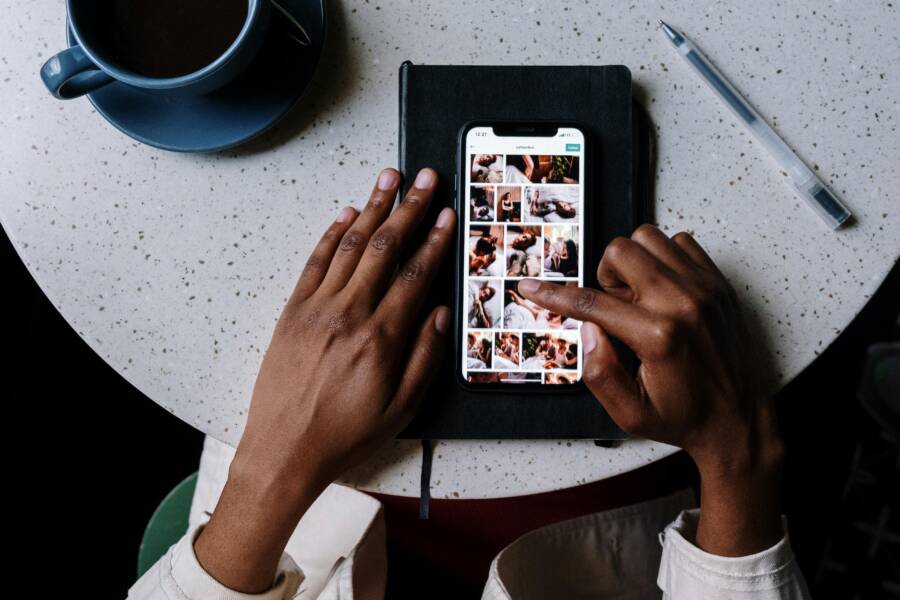
You can make a photo collage quickly on your smartphone by using built-in photo gallery tools or simple third-party apps. This process turns your scattered memories into one clean, organized image ready for social media or printing.
Creating a layout on your phone saves time because you don’t need a computer or complex editing software. Whether you have an iPhone or an Android, the following steps will show you how to combine your best shots into a single file.
The Easiest Ways to Build a Collage Without Extra Apps
You don’t need to download external software to combine your photos into a single frame. Most modern smartphone devices include built-in tools that handle basic layouts and grids. These tools provide a quick way to share memories without the clutter of additional accounts or subscriptions.
Using Native Gallery Features on Your Smartphone
Manufacturers like Samsung and Google integrate collage-making capabilities directly into their default photo applications. These features exist to help users create simple, clean arrangements without wasting storage space on extra programs.
On a Samsung device, open your Gallery app and select the photos you want to include. Tap the Create button or the three-dot menu icon to find the Collage option. From here, the interface allows you to choose from various grid layouts, change the border width, or adjust the aspect ratio to fit your social media feed. Once you are satisfied with the arrangement, hit Save to keep the new file in your camera roll.
Google Photos users can also access these tools easily. Open the app and tap the Library tab at the bottom, then select Utilities. Scroll down to find the Create New section and choose Collage. Pick your images and the app will generate a grid automatically. You can rearrange the photos by dragging them into different slots or swap images if the layout feels off. This process takes less than a minute, making it perfect for sharing a quick update or a collection of vacation shots.
Limitations of Built-in Tools
Native collage builders prioritize speed over customization. While they handle basic grids perfectly, they often lack the depth required for creative projects. If you need specific artistic features, you might find the default tools restrictive.
For example, built-in apps usually offer a limited selection of background patterns or solid colors. They rarely support custom border shapes, such as rounded edges, torn paper effects, or non-traditional geometric layouts. You also miss out on advanced editing options like layered stickers, text with custom typography, or complex filters that blend individual photos together.
If your goal is a professional graphic or a highly decorated scrapbook page, you will likely hit a wall with your phone’s default gallery. Third-party apps remain necessary when you require:
- Advanced blending modes or transparency effects.
- Access to a massive library of stickers, fonts, and seasonal overlays.
- Ability to create freeform collages where images overlap at custom angles.
- Precision control over every individual element’s size and position.
These dedicated apps exist for users who want to treat their smartphone photos as raw materials for digital art rather than just simple grids. If your needs are limited to putting a few pictures side-by-side, however, the native tools on your phone are more than sufficient.
Best Third-Party Apps for Professional-Looking Collages
When default options feel too basic, dedicated photo editing apps provide the creative freedom you need. These tools transform a simple smartphone grid into a polished visual story. Top options like Canva, Layout from Instagram, and Picsart offer specific features that standard gallery apps cannot match. You gain access to high-quality typography, unique frames, and advanced blending modes that make your final image stand out.
Selecting a Template That Matches Your Style
Choosing the right template serves as the foundation for your design. A well-chosen layout dictates how your viewer experiences your photos. Think about your final destination first, because aspect ratios change how content appears on different platforms.
Vertical templates are ideal for Instagram Stories or TikTok, as they fill the entire screen on a smartphone. Square layouts work better for main feed posts where consistency matters. For personal scrapbooking, choose landscape or custom aspect ratios that provide more white space around your images.
Consider these factors before you start:
- Platform constraints: A 4:5 aspect ratio is standard for vertical photos on Instagram, while a 16:9 ratio fits best for landscape shots.
- Layout flow: Place your most important photo in the largest frame of the grid.
- Whitespace usage: Some templates offer generous margins. Use these if you want a clean, minimalist aesthetic.
A crowded collage makes it difficult for viewers to identify the subject. If you have many photos, choose a grid that accommodates them without forcing small, unclear images. Your template should enhance the photos, not distract from them.
Adding Personal Touches to Your Design
Once you set your layout, personalization helps you build a cohesive visual style. Most third-party apps allow you to add custom text, stickers, and unique background colors. You can change border widths or even apply rounded corners to create a softer, more modern look.
Avoid the temptation to fill every empty space with graphics. Your photos are the primary focus of the collage. Follow these guidelines to keep your design professional:
- Use consistent colors: Pick a background shade that complements the dominant tones in your photos.
- Limit your fonts: Stick to one or two readable typefaces to avoid a cluttered look.
- Keep stickers intentional: Add only one or two graphics that add context instead of filling the entire image with icons.
Text should remain brief. A short caption or a date stamp often provides enough context without covering your images. If you choose to add a background, choose simple textures or solid colors that do not compete with the details in your pictures. A subtle approach to decoration ensures your audience focuses on your memories rather than the design elements.
Step-by-Step Guide to Crafting Your Perfect Collage
Creating a professional collage on your smartphone requires more than just picking random photos. You need a strategy to turn a collection of images into a cohesive visual story. A well-organized layout draws the eye and highlights the most important details of your event or theme. Planning your selection before you open your editing app saves time and prevents the final image from feeling cluttered or chaotic.
Organizing Your Images for Better Visual Flow
Successful collages rely on harmony. If your photos clash in color or style, the final result often feels disorganized. Start by selecting a central theme or a specific event to keep your content focused. Once you have a theme, group your images by their dominant colors or similar lighting conditions. Photos with bright, sunny tones work well together, while moody, low-light shots create a better aesthetic when combined in a separate set.
Consider the following strategies to improve your visual arrangement:
- Sort photos by color palettes to ensure the overall tone of the collage stays consistent.
- Select one anchor image that stands out because of its high contrast or clear subject matter to serve as the focal point.
- Mix wide-angle shots with close-ups to provide visual variety and keep the viewer interested in each frame.
- Arrange photos chronologically if you are telling a story about a specific trip or event to help the viewer follow the sequence.
Avoid placing too many busy, high-detail photos next to each other. Instead, alternate complex images with simpler ones, such as a landscape or a blank sky, to provide breathing room. This simple trick makes the final product on your smartphone appear intentional rather than random.
Consistency in image quality also matters. Try to use photos with similar resolutions to prevent blurry images from standing out next to sharp, high-definition shots. If you have a mixture of portrait and landscape orientations, plan your grid layout early so you know which images need to be cropped or resized. You are effectively editing the story before you even apply a single frame or filter.
Taking these few moments to organize your digital assets ensures the final collage looks polished. You are setting yourself up for success by treating the process as a deliberate design task rather than a quick task to finish. When your images share a common thread, the entire composition feels balanced and natural.
How to Troubleshoot Common Collage Issues
You might encounter technical glitches or design frustrations when building a photo collage on your smartphone. Most of these problems stem from file compatibility, storage limits, or app settings. Addressing these issues quickly keeps your creative process moving without unnecessary delays.
Resolving File Compatibility and Quality Errors
Images sometimes fail to import because of their file format or resolution. High-resolution photos from modern cameras can create large data files that older or basic collage apps struggle to process. If your app crashes while loading images, try resizing the photos or converting them to a standard JPEG format.
Many smartphones default to high-efficiency formats like HEIC to save space. While these files are high quality, some third-party collage tools do not support them yet. You can usually resolve this by changing your camera settings to capture images in JPEG or by using a converter app to change the file extension before starting your design.
If photos look blurry after you add them to a layout, check the zoom level. Cropping into a low-resolution image to fit a large frame often results in pixelation. You can fix this by swapping the image for a higher-resolution version or choosing a smaller frame template that requires less stretching of your original file.
Fixing Layout and Export Problems
Collages sometimes fail to export properly because of limited device memory or background tasks. If the export process hangs or fails, close all other open applications to free up your phone’s temporary memory. A simple restart of your smartphone often clears the temporary glitches that prevent files from saving correctly to your gallery.
Check the storage capacity on your device if you receive an error message during the final save step. High-quality collages can occupy significant space, and a nearly full phone may reject new files. You can free up space by deleting temporary caches or moving older media to cloud storage.
Pay attention to these common export issues:
- Permission settings: Ensure your app has access to your photos by checking the privacy section in your phone settings.
- File size limits: Some free versions of apps restrict the maximum resolution of your exported images.
- Overlapping layers: If your app uses layers, ensure you have flattened the image or selected the correct export format to include all visible elements.
Updating your applications to the latest version helps prevent these bugs. Developers frequently release patches to address compatibility issues with newer phone operating systems. If a specific app continues to fail, checking for an update in the app store is often the most effective solution.
Conclusion
Building a photo collage on your smartphone is a quick way to organize your visual memories. Whether you rely on simple gallery tools or professional third-party apps, this skill helps you save storage space while keeping your favorite moments together.
You no longer need a computer to create clean layouts. Start experimenting with different grid styles today to see how easily you can turn scattered photos into a single, polished image.