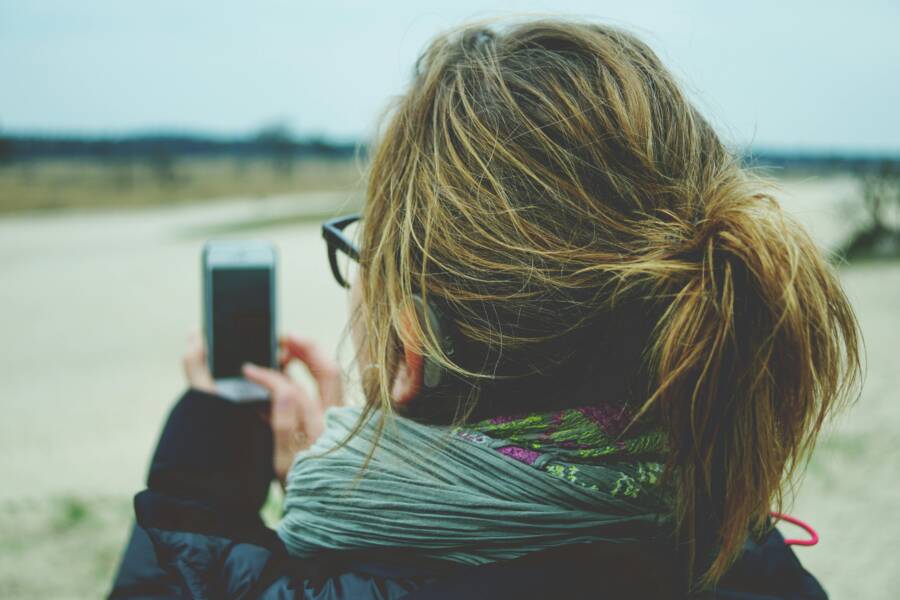
You can easily add a professional blur effect to photos you already took using your smartphone. Modern AI tools and built-in gallery settings allow you to adjust depth and focus in seconds without expensive equipment.
This process works on most recent devices through native software or third-party applications. By modifying the metadata or using smart depth detection, you gain complete control over your image composition.
Follow this guide to learn how you can transform your existing gallery photos into polished, portrait-style shots.
Why You Might Want to Add Blur to Your Existing Photos
Adding blur to your photos helps you isolate the main subject and create a professional look. Many smartphone cameras capture clear images, but they often struggle to separate a subject from a busy background. By applying a blur effect, you direct the viewer’s eye exactly where it needs to go. This simple edit transforms an ordinary snapshot into a polished image.
Emphasizing Your Main Subject
A cluttered background often competes with your subject for attention. When you add blur, you reduce visual noise and make the subject stand out. This technique mimics the shallow depth of field found in high-end camera lenses. Your smartphone photos gain a sense of professional composition when the background remains soft and out of focus.
- Portraits: You soften distracting elements behind a person to keep the focus on their expression.
- Product shots: You isolate an object from its environment to highlight specific details.
- Travel photos: You remove busy textures from a landscape to feature a specific monument or landmark.
Correcting Compositional Errors
Sometimes you cannot change your physical location when taking a photo. A distracting sign, a random passerby, or a messy room might appear in your frame unexpectedly. Applying a selective blur allows you to mask these imperfections after the fact. You turn an otherwise unusable image into a clean composition without needing to crop out important details.
Software on your smartphone now identifies layers within an image with high precision. You can choose exactly which parts stay sharp and which parts disappear into a gentle haze. This level of control provides a second chance for photos that might otherwise end up in your trash folder.
Creating Artistic Depth
Blur isn’t just for hiding mistakes; it is a tool for creative expression. A soft background adds a layer of depth that creates a three-dimensional feeling in a flat image. You can use different types of blur to achieve specific moods, such as a smooth bokeh effect that highlights light sources in the distance.
Using this effect makes your smartphone gallery look consistent and intentional. You might find that your casual hobby photos begin to carry the same visual weight as professional portraits. Once you see the impact of controlled focus, you will likely apply it to many of your older files to refresh your entire collection.
How to Use Built-in Tools on iPhone
Modern versions of iOS include powerful image editing software directly in the Photos app. You can modify the depth of field on any image originally captured in Portrait mode using these tools. This functionality lets you refine the look of your images without needing extra software.
Adjusting Depth for Portrait Mode Captures
Your iPhone stores depth data when you take a picture in Portrait mode. This metadata allows you to change the blur level after you finish taking the shot. You have complete control over how much the background fades compared to your subject.
- Open the Photos app and select the image you want to edit.
- Tap the Edit button in the top right corner of your screen.
- Locate the f-number icon in the top left corner of the editing screen.
- Drag the slider that appears below the image to adjust the depth effect.
- Move the slider to the left to increase the blur or to the right to sharpen the background.
- Tap Done to save your changes to the original file.
You can return to this menu at any time to reset the depth or change the effect again. Because the smartphone keeps the original depth data, you never lose the ability to revert to the initial shot. This makes experimenting with different blur levels risk-free.
What to Do If the Photo Was Not Taken in Portrait Mode
Not every image in your gallery supports native depth editing. If you did not use the Portrait setting when you originally captured the image, the iPhone camera software did not record the necessary depth information. The f-number icon will not appear in the edit menu for these specific files.
Standard photos and older images lack the layered depth map required for the built-in blur tool. You must use third-party applications to achieve a similar result on these files. These apps rely on machine learning to identify the subject and simulate a blurred background by separating the foreground from the rest of the image.
Many apps offer free or paid versions that analyze the contents of your picture to generate a synthetic depth map. Once an app processes the image, you can apply a blur effect that mimics the quality of a native Portrait mode photo. While the results depend on the complexity of the scene, this method remains the most effective way to modify standard smartphone files.
Using Native and Third-Party Tools on Android
Android devices offer flexible ways to blur backgrounds, whether through built-in software or external applications. Your choice depends on the specific hardware you own and the level of precision you need for your edits. Many manufacturers include dedicated portrait tools, but third-party options often provide better control when the software fails to detect your subject correctly.
Leveraging Google Photos Blur Features
Google Photos provides a robust way to add blur to images on many smartphones. This feature is particularly useful if your original shot did not include depth data. You can access the tool directly from the editing menu to simulate a professional depth of field.
- Open your image within the Google Photos app.
- Tap Edit to view your available adjustment tools.
- Select Tools from the bottom menu bar.
- Choose the Blur option if it appears.
- Use the intensity slider to increase or decrease the background softness.
- Adjust the depth position by tapping on a different part of the photo if the software misidentifies the focal point.
- Save your copy once the subject looks sharp against the blurred backdrop.
The success of this tool relies heavily on how well the algorithm identifies the subject. If you notice strange edges around your hair or clothing, try moving the focus point slightly to see if the subject detection improves. This process works on most Android phones, though the specific availability of the Blur tool may vary based on your subscription status or device model.
Recommended Apps for More Control
Sometimes, built-in tools struggle with complex scenes, such as photos with multiple subjects or overlapping textures. Applications like Snapseed or Lightroom Mobile allow you to manually refine the blur, giving you precise control over exactly what remains sharp in your frame.
Snapseed is a free option that includes a Lens Blur tool. This feature lets you adjust the shape of the blur area, allowing for either circular or linear focus patterns. You can drag the center point to your subject and use your fingers to pinch or expand the blur radius. It remains a reliable choice for users who want granular control without paying for a subscription.
Lightroom Mobile offers advanced masking features. You can use the AI-powered subject masking tool to select the person or object automatically, then invert that selection to apply blur only to the background. This method gives you better results than simple filters, especially when you need to handle fine details like strands of hair or thin objects.
- Snapseed: Best for quick, manual lens blur adjustments and circular focus areas.
- Lightroom Mobile: Ideal for high-end masking and detailed subject isolation.
Using these apps requires more time than simple one-tap tools, but the results often look more natural. By combining these applications, you gain the ability to fix almost any photo in your smartphone gallery, regardless of how it was originally captured.
Pro Tips for Getting the Best Results
Achieving a professional aesthetic in your images requires more than just applying a filter. You need to balance technical settings with a keen eye for composition. When you edit photos on your smartphone, subtle choices often yield the most realistic outcomes.
How to Make the Blur Look Natural
Maximum blur settings often make a photo appear artificial or distorted. When you push the blur intensity to the highest level, the software struggles to maintain realistic transitions between the subject and the background. This creates a fake, cutout appearance around the edges of people or objects. Instead, aim for a moderate level of softness that mimics the look of a physical camera lens.
Lowering the blur intensity helps the background transition smoothly from sharp to out of focus. A soft falloff creates a sense of depth that draws the eye toward your subject rather than highlighting the digital nature of the edit. If you find the edges of your subject looking jagged or fuzzy, try these adjustments:
- Reduce the blur radius slightly to preserve texture in the surrounding environment.
- Adjust the focal point manually to ensure the sharpest part of the image aligns with the subject eyes or the primary product feature.
- Use a circular or gradual blur tool to create a natural transition zone rather than a sharp cutoff line.
Small, incremental changes usually result in a more balanced photo. You should step back from your screen frequently to view the image as a whole. This practice prevents you from over-editing and helps you maintain the authentic quality of the original smartphone shot. Always prioritize the visual flow of the scene over the intensity of the effect itself.
Frequently Asked Questions About Photo Editing
People often have specific concerns when they start modifying their existing smartphone images. Common questions focus on image quality, file compatibility, and the limitations of software tools. Understanding these points helps you achieve better results without losing detail or clarity in your personal photos.
Will editing a photo reduce its original quality?
Most modern editing apps work by creating a copy of your file. They do not overwrite the original, so your high-resolution source remains safe in your gallery. When you save an edited image, the app compresses the file to maintain a manageable size. If you keep your compression settings at the highest level, you will not notice a loss in quality for standard social media sharing or mobile viewing.
Can I remove blur after applying it to a photo?
If you use native tools like Portrait mode settings on an iPhone or the depth editor in Google Photos, you can adjust the blur intensity whenever you want. These apps store the depth map as metadata attached to the image file. If you use a third-party app that renders the blur directly into the pixels, you might not be able to remove it later. Always save a copy of your original photo before using third-party filters to ensure you have a backup.
Why do some photos look fake after adding background blur?
Software sometimes struggles to distinguish between complex subject edges, such as loose hair or thin branches. This error results in a sharp halo around your subject or blurred spots on the wrong parts of the image. You can fix these issues by using manual masking tools in apps like Lightroom Mobile. Adjusting the focus area with a smaller brush size usually solves the problem of artificial-looking edges.
Which tools work best for photos not taken in Portrait mode?
Standard photos lack the depth metadata required for simple one-tap blur tools. You must use apps that employ artificial intelligence to estimate depth within a flat image. Lightroom Mobile and Snapseed are effective choices because they allow you to define the subject manually. These applications create a synthetic depth map that separates the foreground from the background with surprising accuracy.
Is there a limit to how many times I can edit a single photo?
You can edit a photo as many times as you like as long as you do not keep overwriting the same file. Each time you save a new version, the software performs a fresh round of compression. This process can slowly reduce the sharpness of your image over time. To avoid this, always start your edits from the original, unedited file whenever you decide to change your style or intensity.
Conclusion
You do not need an expensive camera to produce professional portraits or focused product shots. High-end hardware is helpful, but modern software provides the tools required to transform ordinary snapshots into polished images.
Experiment with the settings on your smartphone to see how depth adjustments change your photos. Start by testing the native blur features, then move toward manual editing apps if you want more control. Your existing gallery likely holds many images waiting for that final, sharp touch.