Quick Wins to Extend Battery Life
Small changes can yield big gains. In this section, you’ll learn two practical quick wins you can implement today to stretch your phone’s charge. These tweaks are designed to be easy, actionable, and effective on both iOS and Android.
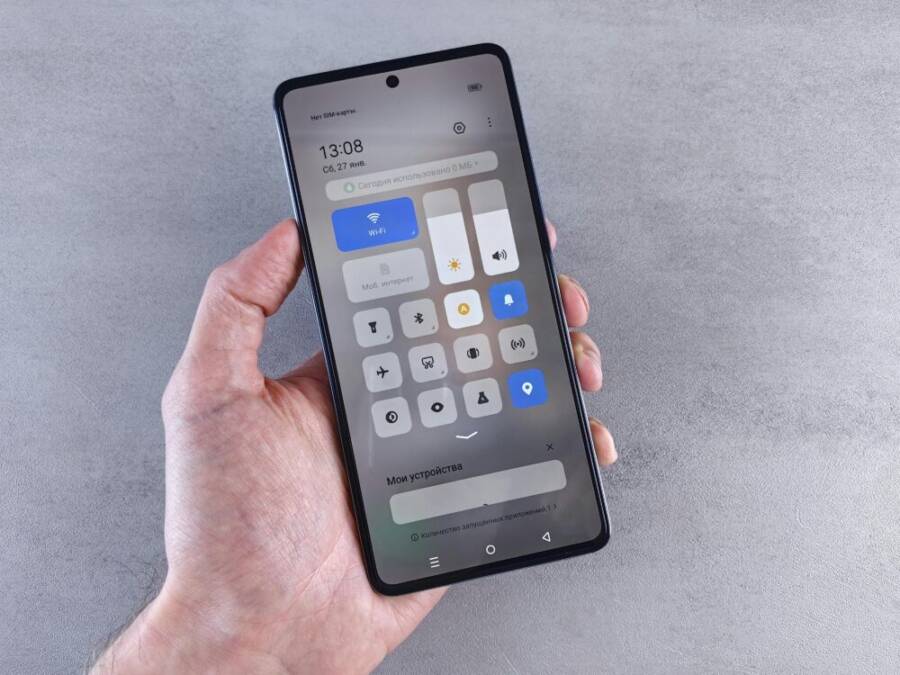
 Photo by Andrey Matveev
Tweak Screen Brightness and Screen Timeout
Brightness and idle time are the fastest drains on battery. The brighter your screen and the longer it stays awake, the more power you pull from the battery. Set reasonable targets and you’ll notice the difference quickly.
- iOS steps:
- Go to Settings > Display & Brightness.
- Turn on Auto-Brightness or manually set brightness around 40–60%.
- Set Auto-Lock to 30 seconds or 1 minute for quicker sleep when not in use.
- If you use Low Power Mode, it reduces brightness and minimizes animations automatically.
- For a quick adjustment, open Control Center and slide the brightness to the bottom for a moment of saving.
- Android steps:
- Open Settings > Display > Brightness.
- Enable Adaptive/Auto-Brightness and aim for about 40–60% brightness during daytime use.
- Go to Display > Screen timeout and set to 30 seconds or 1 minute.
- If available, enable a Battery Saver or Sleep mode when the battery is low.
- Use the quick settings shade to adjust brightness on the fly when you’re indoors.
Practical targets you can aim for:
- Brightness: 40–60%
- Screen timeout: 30 seconds to 1 minute
- Use low power alerts when battery drops below 20%
For more on how these settings impact battery life, see official guidance on brightness and battery optimization. Learn more from Apple and Android battery tips. You can also check a quick guide on reducing display power consumption from reputable sources like ZDNet and UsMobile. ZDNet quick settings guide and UsMobile complete guide.
Use Dark Mode and OLED Savings
Dark mode on devices with OLED screens can trim the power used by the display, especially when you view darker interfaces or apps. It’s a simple, chip-friendly change that can add minutes or even hours to a day of use, depending on how often you’re in dark UI environments.
- Quick setup:
- iOS: Settings > Display & Brightness > Dark.
- Android: Settings > Display > Dark theme (or System theme > Dark).
- When it matters most:
- You’re reading in dark environments, using many dark-themed apps, or you’re on the move with a low battery.
- On OLED screens, each lit pixel consumes power; darker pixels use less energy, so black and gray UI can save more than white or light gray tones.
- Real-world note:
- If your device uses LCD, dark mode saves less power, but it can still improve perceived brightness control and consistency. The energy savings are more noticeable on OLED devices.
Practical takeaway: enable dark mode across the system and apps where possible to maximize battery savings without sacrificing readability. For a deeper dive, see discussions on OLED savings and dark mode effectiveness. Can Dark Mode Save Energy and Does Dark Mode Save Battery Life on Android or iPhone. If you want official guidance, Apple’s battery page explains related settings and impact. Apple Batteries: Maximizing Performance and Apple Support: Battery Health Tips.