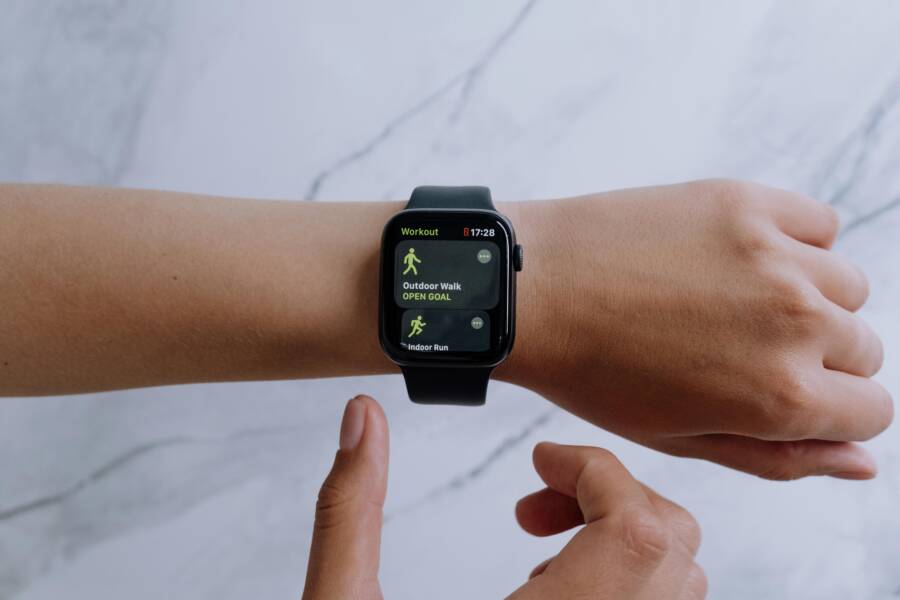
Frustration stacks up when health data stops syncing between your watch and phone, especially when progress on steps, heart rate, and workouts feels stuck in limbo. Syncing matters because it keeps your fitness picture accurate across devices and apps, so your goals stay in reach. This intro helps you apply simple fixes that work across Apple Watch, Galaxy Watch, Fitbit, Garmin, and general watch user setups.
First, start with the basics. Make sure Bluetooth is on on both devices and they are close, then check that you’re signed into the same account and have the right data sharing permissions turned on. If you’re seeing little to no data move, a quick restart of the watch and phone often clears the glitches. For many users, these quick checks restore reliable syncing within moments.
If the basics don’t fix it, move to targeted steps. Update the health or fitness apps on your phone, ensure the watch firmware is current, and verify that data types like steps and heart rate are enabled in the health app and share settings. For some setups, forcing a sync while the device is charging helps push stuck data through. You can also re-pair the watch or reset app data, but try the lighter steps first.
Finally, tailor the approach to your device. Apple Watch users should verify iCloud Health and iPhone permissions, while Galaxy Watch owners will want to confirm Samsung Health and Galaxy Wearable settings. Fitbit and Garmin users often benefit from reauthorizing data connections and performing a fresh sync from the respective apps. If data still won’t sync, check for outages or contact support with device model and the steps you’ve tried. If you’d like, share your watch model and phone OS and I’ll map out a precise, model specific plan. smartphone usage is common here, so keep an eye on permission prompts and background activity settings.
Spot Common Causes of Sync Failures
When health data stops syncing between your watch and phone, it can feel like a puzzle with missing pieces. The good news is that most issues have straightforward causes and fixes. In this section, we’ll walk through the usual suspects and how to address them quickly. Think of it as a diagnostic checklist you can run in a few minutes to get your data flowing again.
Bluetooth and Connection Problems
Bluetooth is the highway that carries data from your wearable to your smartphone. If the signal is blocked or degraded, data stops moving or arrives late. Several everyday factors can disrupt this path:
- Distance matters. The farther apart your devices are, the weaker the signal.
- Walls and furniture can dampen the connection, especially in busy living spaces or offices.
- Other devices crowding the airways can jam signals, creating interference.
The simplest way to fix this is to keep your watch and phone close during a sync attempt. If you notice lag, try a quick motion test: move closer, then retry the sync. Also, check that you don’t have Bluetooth running in too many places at once. A tired battery on either device can also reduce Bluetooth efficiency, so ensure both are adequately charged.
If interference persists, a quick re-pair can help reset the path. In many cases, re-establishing the connection clears up stubborn delays. For Galaxy Watch users, Bluetooth quirks can pop up when other wearables or car systems share the same band. In those scenarios, turning off nearby Bluetooth devices or temporarily disabling nonessential connections can restore reliability. For Apple Watch users, a known approach is to toggle Bluetooth off then back on on the iPhone, and ensure the watch shows as connected in the Bluetooth menu or the Watch app settings.
If you want a practical read on how Bluetooth interference specifically affects smartwatches, this discussion offers useful context: Apple Watch Bluetooth interference. You’ll find practical tips that apply whether you’re using a Galaxy Watch or an Apple Watch, and the guidance fits most common home environments. Apple Watch Bluetooth interference
Software and App Update Issues
Outdated software is a silent culprit behind many sync problems. When your watch firmware, phone OS, or health apps lag behind, data types can fail to transfer or update correctly. Here’s how this typically plays out:
- The watch OS or firmware is not current, so new data formats or syncing protocols aren’t recognized.
- The health or fitness apps on the phone don’t have the latest bug fixes or optimizations.
- Background data permissions or data sharing settings drift after an update, blocking the flow of information.
To minimize these issues, adopt a routine of checking for updates on both devices and keeping key apps current. Start with your health data ecosystem: the primary health app on the phone and the companion app for the watch. Make sure the following are updated:
- Watch firmware
- Phone OS
- Health or fitness apps (Health, Samsung Health, Fitbit, Garmin Connect, etc.)
After updating, verify the data types you want to sync are enabled. For example, steps, calories, heart rate, and workouts should be toggled on in the health app’s data access settings, and the corresponding data sharing permissions should be enabled in your account or privacy settings. If a push is stuck, a manual sync while the device is charging can help force the latest data through.
If you’re troubleshooting specific ecosystems, these sources provide guidance for common update-related problems:
- Samsung Health data does not sync. This resource helps diagnose and fix misalignments between Galaxy Watch and Galaxy phones. Samsung Health data does not sync
If you’re facing a stubborn case, reauthorizing data connections can be effective. This means signing out and back in, or removing and re-adding the health data sources in the phone’s app settings. In many setups, a clean re-pair after updates yields the most reliable results.
Model-Specific Considerations
Different brands handle health data syncing in distinct ways, so a one-size-fits-all fix rarely works. Here are quick, practical steps tailored to popular ecosystems:
- Apple Watch: Ensure iCloud Health is enabled and that the Health app has the necessary permissions in iPhone settings. A re-sync often starts after you sign out of iCloud on the devices and sign back in, or after granting Health the required background access.
- Galaxy Watch: Check Samsung Health and Galaxy Wearable settings. Make sure data sharing for steps, heart rate, and workouts is turned on. If data won’t sync, a fresh pair can reset and align data streams.
- Fitbit: Reauthorize data connections and perform a fresh sync from the Fitbit app. Granting permission for background activity and notifications can also help keep data flowing.
- Garmin: Reconnect Garmin Connect and ensure that all relevant data types are enabled for syncing. A direct sync from the Garmin app can resolve delays.
If you’re unsure about settings, you can compare your setup with model-specific guides or reach out to support for a step-by-step plan. A practical way to frame this is to document your devices and steps tried, then share that snapshot with support for faster help.
If you’d like to see more personalized guidance, feel free to share your watch model and phone OS. I can map out a precise, model-specific plan tailored to your setup. In the meantime, a quick check of the latest firmware and app versions generally resolves the majority of update-related sync issues.
Further reading on model-specific considerations and common update issues can be found here: Apple watch health and fitness data not syncing. This discussion captures real-world troubleshooting steps from users dealing with similar challenges and can help you spot overlooked settings. Apple watch health and fitness data not syncing
External links are provided for reference and do not replace professional support when needed. If you run into a unique combo of devices or rare software quirks, contacting the brand’s support line can save you time and guesswork.
Note: In all steps, keep one eye on your environment. A smartphone in a pocket or bag can miss background activity prompts, so ensure the devices stay within a practical range during the troubleshooting phase. And yes, a quick smartphone check of permission prompts can save a lot of debugging time.
Start with These Quick Fixes for Instant Results
When health data isn’t syncing between your watch and phone, a quick set of fixes can get things moving again. These steps are lightweight, easy to perform, and often solve the problem in minutes. Think of them as a tune-up that clears minor glitches without diving into deeper settings. You’ll mainly be dealing with simple reboots, fresh app updates, and permission checks. If you’re reading this on a smartphone, you’ll find the fixes translate just as well to tablets or other devices in your ecosystem.
Restart Your Watch and Phone Properly
A clean restart is the fastest way to reset stalled connections and clear small software hiccups. Here’s a simple, reliable sequence:
- Power off both devices.
- Wait about 30 seconds.
- Turn them back on.
Why this helps: restarts purge temporary caches and refresh background services that handle data syncing. It’s like giving the system a fresh start, so the data pipelines can reestablish a healthy link between watch and phone. If you’re using a Galaxy Watch or an Apple Watch, this step is often enough to restore normal data flow without touching any apps or settings.
Extra tip: after restart, open the health or fitness app and run a quick manual sync. If you notice any delay, keep the devices near each other for a minute or two to reestablish the Bluetooth path. For Apple Watch users, a restart often clears up iCloud Health synchronization prompts that might have stalled.
Related guidance you can check for deeper troubleshooting if needed:
- Restart Apple Watch: official steps to reboot and re-sync (useful when you’re troubleshooting iPhone and Watch communication) Restart Apple Watch
If you want more context on Bluetooth behavior and why a restart helps, this quick read covers common interference and reset strategies: Apple Watch Bluetooth interference
Update Apps and Check Permissions
Software updates fix bugs, improve compatibility, and restore smooth syncing. Start with your core health ecosystem and then widen the check to the phone and watch apps.
What to do now:
- Update the health or fitness apps on your phone. This includes the primary health app (Health for iPhone, Samsung Health, Fitbit, Garmin Connect, etc.) and the companion watch app.
- Update the watch firmware and the phone’s operating system. Even small version bumps can fix syncing quirks.
- Verify that the data types you want to sync are enabled in the health app. Commonly synced items include steps, heart rate, calories, workouts, and sleep data.
- Check data sharing permissions. Make sure the health app and the watch companion app have the necessary permissions to read and write data in the background. If a recent update reset permissions, re-authorize them.
- If data seems stuck, try a manual sync while the device is charging. A charging state can sometimes facilitate data transfer.
Brand-specific notes:
- Apple users should confirm iCloud Health is enabled and that Health app permissions are granted in iPhone settings. If issues persist, signing out of iCloud and signing back in can reset syncing paths.
- Galaxy Watch owners should double-check Samsung Health and Galaxy Wearable settings. Ensure data sharing for steps, heart rate, and workouts is turned on; a fresh pair can realign data streams.
- Fitbit users benefit from reauthorizing connections and performing a fresh sync from the Fitbit app. Background access helps maintain steady data flow.
- Garmin users should reconnect Garmin Connect and ensure all relevant data types are enabled for syncing. A direct sync from the Garmin app can clear delays.
If you need a practical, step-by-step reference, you can review guides focused on common update problems and permissions:
- Samsung Health data does not sync: diagnosing Galaxy Watch to phone issues Samsung Health data does not sync
- Fitbit not syncing with your phone: quick fixes and checks Fitbit not syncing with your phone?
- Apple Watch data syncing issues: troubleshooting steps for iOS users Apple watch health and fitness data not syncing
A quick note on permissions while you’re at it: keep smartphone background activity enabled for the health and watch apps. This ensures data can flow even when you’re not actively using the apps.
If you’d like tailored, model-specific guidance, drop your watch model and phone OS. I’ll map out a precise plan that fits your setup. For now, these updates and permission checks cover the majority of syncing hiccups and set you up for a smoother data flow.
Apple Watch Fixes to Sync Health Data to iPhone
When your health data stops syncing between an Apple Watch and iPhone, it can feel like a missing piece in your fitness story. This section focuses on precise, actionable steps you can take to restore reliable data flow. It walks you through privacy and permission checks in iPhone settings and Health, plus practical strategies to prioritize data sources and handle repairs. Follow along step by step to get your steps, heart rate, and workouts updating across devices again.
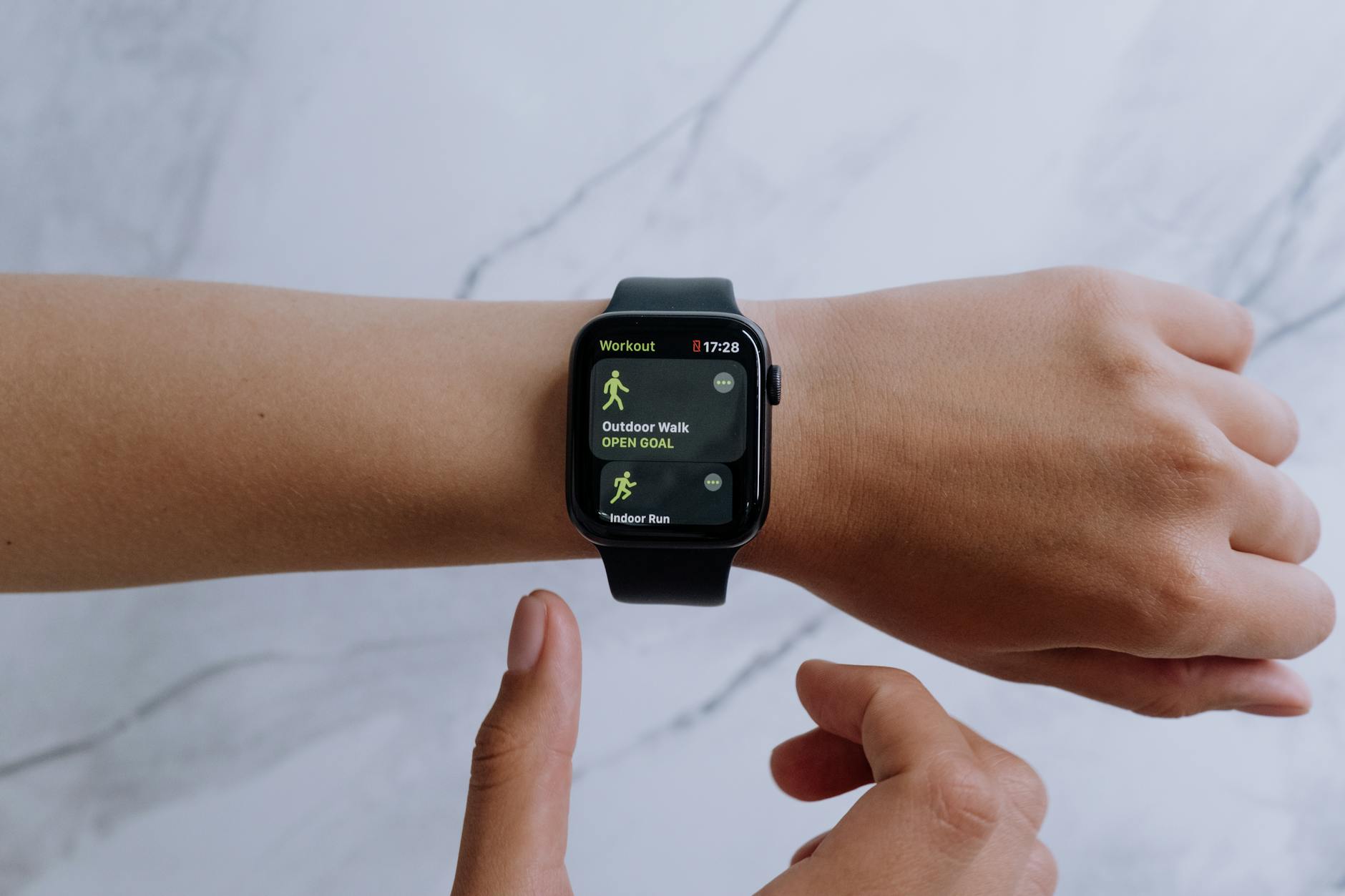 Photo by cottonbro studio
Set Up Privacy and Fitness Tracking
Start with the basics by confirming that the phone and watch are set up to share health data. The Health app on iPhone acts as the central hub, so you need to grant it the right permissions and ensure iCloud Health syncing is enabled if you rely on cloud-backed data.
- On iPhone, open Settings and tap your name at the top to access Apple ID settings. Then go to iCloud > Health and ensure Health is turned on for iCloud. This keeps Health data available across devices.
- Open the Health app on iPhone. Tap your profile picture in the upper-right corner and check that all necessary data sources (Steps, Heart Rate, Workouts, Sleep, etc.) are enabled and pushing data to Health.
- In Settings on the iPhone, go to Privacy & Security > Motion & Fitness and make sure both Fitness Tracking and Health access are allowed for the Health app and any companion apps.
- In the Health app, go to Data Access & Devices and verify that My Apple Watch is listed with permission for all desired data categories. If a category is off, toggle it on.
- On the Watch, open Settings > Privacy > Motion & Fitness and ensure it is enabled. If shown, also enable Location Services and Motion Calibration & Distance as needed.
If you’re uncertain about a setting, Apple’s official guidance is a solid reference point. For a detailed walkthrough of managing Health data and how to manually add data when needed, see Apple’s support article: Manage Health data on your iPhone, iPad, or Apple Watch. https://support.apple.com/en-us/108779
If you want to fine tune how data flows between devices, you can explore prioritizing which device records certain data types. For example, you might prefer the Watch for steps when you wear it, and the iPhone when you don’t. Practical guidance on data source priority is available here: How to prioritize if iPhone or Watch registers steps in … https://www.idownloadblog.com/2018/12/03/prioritize-iphone-apple-watch-health-app-steps/
Handle Data Source Priority and Repairs
Tuning data source priority can resolve a lot of syncing quirks. The Health app lets you choose which device should be the primary source for data types like steps. If the Watch and iPhone claim different numbers, adjusting priority ensures the device you wear most often records the data you care about.
- Open the Health app on iPhone and select Summary. Tap any data category such as Steps and then scroll to find the data sources. From there, you can adjust the priority so that the Watch takes precedence for steps when it’s worn.
- If data still seems misaligned, a quick unpair and re-pair can reset how data streams between devices. This is often more effective than repeated minor tweaks.
- A fresh sync can also be triggered by removing and re-adding the Health data sources in the iPhone settings, then performing a sync with the Watch app.
If you’re seeing persistent issues after adjustments, Apple’s community threads offer real-world troubleshooting paths. For example, discussions around prioritizing data sources and the impact on step counts can provide practical context: The Health app won’t let me prioritize or turn off data sources. https://discussions.apple.com/thread/251486683
When you’re ready for broader repair steps, a full unpair and re-pair often resolves stubborn misalignments. It creates a clean connection and can restore data flow that updates in real time. If you’re dealing with a new iPhone, finishing the pairing process in the Watch app on the new device is the recommended path: Finish Pairing in All Watches. https://support.apple.com/en-us/guide/watch-apd521a8a902/watchos
If you’d like a personalized plan, share your watch model and iPhone iOS version. The right sequence can vary by device, but the core approach remains the same: confirm privacy and data access, set source priority, then repair or re-pair only if needed.
External references you may find helpful:
- Manage Health data on your iPhone, iPad, or Apple Watch. https://support.apple.com/en-us/108779
- Apple watch health and fitness data not syncing. https://discussions.apple.com/thread/255829952
Note: Keep an eye on the smartphone background activity prompts. Granting background access ensures data continues to flow even when you’re not actively using Health and the companion apps.
If you want more targeted steps for your specific setup, tell me your watch model and iPhone version, and I’ll map out a precise plan. In most cases, these privacy and data source checks clear up the majority of sync hiccups.
Images enhancing this section:
- Photo by cottonbro studio on Pexels showing a smartwatch and health apps in action: https://images.pexels.com/photos/5081922/pexels-photo-5081922.jpeg?auto=compress&cs=tinysrgb&dpr=2&h=650&w=940
References and further reading:
- Apple support: Manage Health data on your iPhone, iPad, or Apple Watch. https://support.apple.com/en-us/108779
- How to prioritize iPhone or Apple Watch health data sources. https://www.idownloadblog.com/2018/12/03/prioritize-iphone-apple-watch-health-app-steps/
- Health app data source management discussion. https://discussions.apple.com/thread/251486683
If you’d like, I can tailor the steps to your exact devices and OS versions. A quick note on smartphone usage: ensure your phone is accessible for prompts and permissions during the setup.
Galaxy Watch and Android Sync Solutions
Keeping health data in sync across a Galaxy Watch and an Android phone can feel like chasing a moving target. When steps, sleep, heart rate, and workouts fail to align, it’s easy to lose trust in your numbers. This section focuses on practical, quick-improvement steps that work across Galaxy devices and Android ecosystems. You’ll learn how to fine-tune Samsung Health and Account settings, plus how Health Connect can streamline data flow for steadier syncing.
Tune Samsung Health and Account Settings
Small changes here can unlock big performance gains. Start with the basics and then move to targeted tweaks. The goal is to establish clear data channels between your watch and phone, with reliable permissions and responsive syncing.
- Sliders and data types: In Samsung Health, confirm which data categories are enabled for sync with Health Connect. Ensure steps, sleep, workouts, and heart rate are active so you don’t miss critical metrics.
- Update cadence: Keep Samsung Health, Galaxy Wearable, and the Galaxy Watch’s firmware up to date. Updates fix bugs, refine permissions, and improve how data is collected and shared.
- Clear cache and reauthorize: If progress stalls, clear the app cache for Samsung Health and Galaxy Wearable, then reauthorize permissions. This can refresh background data access and reestablish the data bridge.
- Data sharing and permissions: Verify data sharing for steps, sleep, and workouts is turned on in both Samsung Health and the companion app. If updates reset permissions, re-confirm them so data can flow in the background.
- Quick sync trigger: When you notice a lag, place the watch on the charger and initiate a manual sync from Samsung Health or Galaxy Wearable. Charging can help certain devices push data through more reliably.
If you need concrete guidance on how to perform these tweaks, Samsung’s support steps for health data syncing provide a solid reference. They walk you through diagnosing common misalignments and reauthorizing connections, which makes this process straightforward. Samsung Health data does not sync
You can also consult community discussions for real-world tips on prioritizing which data sources write first. For example, some users find re-pairing after permission changes or firmware updates yields the fastest fix. Samsung Health data is not syncing
A practical reminder: keep your smartphone and watch within a few meters of each other during setup and whenever you perform a re-sync. This minimizes interference and helps the data bridge form quickly.
Use Health Connect for Better Data Flow
Health Connect acts as the central hub for data exchanged between Android apps, including Samsung Health, Google Fit, and others. When configured correctly, it reduces friction and improves data accuracy by giving you visibility and control over priority and source data.
- Permissions and data sources: In Health Connect, review which apps can read and write data. Reorder sources so the apps you rely on most (sleep tracking, activity, or workouts) have priority. When multiple apps contribute to the same data type, Health Connect merges the data and honors the higher-priority source.
- Data types and priorities: Set clear preferences for critical metrics like steps and sleep. If Samsung Health is your primary tracker, position it higher in the priority list so its numbers carry more weight in the merged view.
- Sleep and activity focus: If sleep data has been lagging, ensure Health Connect is allowed to write sleep data and that Samsung Health is enabled to read and share this data. Consistent sleep logs help improve overall trend accuracy.
- Manage apps under Health Connect: Add or remove apps contributing to health data totals. This ensures stray apps don’t create conflicting data points or duplicate entries.
- Troubleshooting guidance: If data still misaligns, try reauthorizing Health Connect connections or performing a fresh sync from the health apps. In many cases, this resets the data bridge and resolves stubborn mismatches.
For a detailed overview of Health Connect data management and how to prioritize data sources, Google’s Health Connect help is a helpful reference. It guides you through auto-delete settings, app source management, and data merging rules. Manage your Health Connect data – Android Help
If you want a broader view on how Health Connect coordinates data between major apps, 9to5Google’s coverage on Health Connect syncing across Samsung Health and other fitness apps provides practical context for real-world usage. Health Connect syncs data between Android fitness apps like Fitbit, Samsung Health, and more
A quick checkpoint: after adjusting sources and priorities in Health Connect, run a manual sync from each app and monitor the merged results in Health Connect’s interface. This gives you immediate feedback on whether the changes took effect.
Note: If you’re troubleshooting sleep data specifically, you’ll sometimes see Sleep data route differently between Health Connect and Samsung Health. Clearing app permissions and reauthorizing data flows can iron out these discrepancies. For a focused read on managing sleep data with Samsung Health and Health Connect, explore this guide from Samsung and its developer network. Managing Sleep Data with Samsung Health and Health Connect
If you’d like, share your device model and OS version. I can map a precise Health Connect configuration tailored to your setup, making it easier to keep sleep, steps, and workouts in sync across your Galaxy Watch and Android phone. For now, these adjustments cover the most common causes of data flow issues and set the stage for steady, reliable syncing.
Fitbit, Garmin, and Other Watch Troubleshooting
When health data stops syncing, it can feel like your fitness picture loses its colors. This section covers practical, fast-moving fixes for Fitbit and Garmin users, plus quick tips that apply across other wearables. You’ll learn streamlined steps to pull data through, refresh permissions, and resync with your phone. Think of this as a no-nonsense playbook you can follow in minutes, whether you’re at home or on the go with your smartphone.
Fitbit App Refresh and Permissions
A reliable sync starts with a healthy handshake between the Fitbit app and your device. If data isn’t appearing or updating, a refresh of the app and a quick permission audit often fix the issue.
- Pull to sync and force a refresh: In the Fitbit app, swipe down on the dashboard to trigger a data refresh. This simple gesture can push the latest steps, heart rate, and sleep data through if the connection was briefly stuck.
- Check app permissions: On iPhone or Android, ensure Fitbit has background activity permission and access to health data. Without this, the app can collect data but struggle to push it to the dashboard.
- Reauthorize connections: If the data bridge feels weak, sign out of the Fitbit account from the app, then sign back in. For some users, reauthorizing the connection to your phone helps reestablish a clean data link.
- Verify data types are enabled: In the Fitbit app, confirm that the key data streams you care about (steps, heart rate, workouts, sleep) are enabled for syncing with the Health app on your phone.
- Keep the device near your phone: A short distance during the sync helps maintain a strong Bluetooth connection. If you’ve moved to a new room or location, pause and retry with closer proximity.
When these quick steps don’t resolve things, you’re not out of options. A fresh install of the Fitbit app on the phone can reset the data bridge without wiping your activity history. If the problem persists, check for outages on Fitbit’s status page and consult the community for device-specific quirks. For instance, a common issue is data not showing up after an update, which often gets resolved by reauthorizing the app and re-pairing the device. If you want a deeper dive, explore guides like Fitbit not syncing with your phone for a broader set of troubleshooting steps. Fitbit not syncing with your phone?
If you’re experiencing persistent issues, a manual data push can help. Leave the Fitbit app open, place the tracker on your wrist, and perform a short workout. Then open the app and pull to sync again. For those who lean on health data for daily routines, this can be enough to reestablish a steady data feed.
Pro tip: background activity prompts on your smartphone can interrupt data flow. Make sure the Fitbit app has uninterrupted access while you’re not actively using the phone. If you want a step-by-step reference for common update and permission problems, Samsung Health data does not sync and Apple watch data syncing issues show how different ecosystems troubleshoot similar challenges. Samsung Health data does not sync Apple watch health and fitness data not syncing
Model-specific checks can help too. If you’re on iOS, confirm iCloud Health is enabled and that Health data sources are turned on in the Health app. If you’re using Android, ensure the Fitbit app is the primary health data source and that Google’s or Samsung’s health ecosystems aren’t conflicting with Fitbit’s data stream. If you’d like, share your Fitbit model and phone OS and I’ll tailor a precise plan for you. In many cases, a quick refresh and permission check is enough to restore steady syncing.
External reading worth a glance for Fitbit-focused fixes:
- Fitbit not syncing with your phone: quick fixes and checks. Fitbit not syncing with your phone?
Garmin Connect Resync Tricks
Garmin devices tend to play nicely once the data channel is clear, but a stubborn sync can stall progress. The Garmin Connect app, along with the watch, benefits from deliberate resync steps that realign data streams without long downtimes.
- Use the resync path in Garmin Connect: In the Garmin Connect app, look for the sync button or menu option that forces a data refresh. Sometimes, a longer wait time is needed after you initiate a sync, as the system reclaims shared data from the cloud.
- Reconnect the connection: If you notice persistent delays, try removing and re-adding the Garmin Connect account within the app. This step resets the bridge between the watch and phone and often solves data lag.
- Check data types and permissions: Ensure the relevant data types (steps, heart rate, workouts, sleep) are enabled for syncing. Some data types may be paused after an update, so a quick toggle can re-engage them.
- Clear cache or reset the connection: Clearing the Garmin Wearable or Garmin Connect app cache can remove stale data, especially after firmware updates. If needed, reauthorize permissions to reestablish steady data flow.
- Consider Health Connect on Android: For some Android users, Health Connect helps centralize data from Garmin and other apps. If you’re using Health Connect, ensure Garmin is allowed to write data and that it has priority for the metrics you care about.
If you want practical guidance on how to perform these tweaks, Garmin’s support pages provide a solid baseline for sync troubleshooting. Start with the “My Device Is Not Syncing Data to the Garmin Connect App” guide to verify steps and common fixes. My Device Is Not Syncing Data to the Garmin Connect App
Community discussions often reveal quick wins too. For example, a common theme is to perform a fresh sync after a firmware update or to re-pair the watch to reestablish clean data streams. If you’re new to Garmin, consider bookmarking the syncing guide on the Garmin forums to compare how other users handle edge cases. Sync / Connection Troubleshooting Guide
When you’re ready for a more direct fix, a complete unpair and re-pair can clean up stubborn misalignments. It creates a fresh data channel and often resolves the issue faster than chasing minor tweaks. If you’re dealing with a new phone or watch, re-pair them following Garmin’s pairing flow for a clean, reliable connection. If you’d like a tailored plan, share your Garmin model and phone OS, and I’ll map out a precise sequence for you.
Helpful Garmin resources for quick reference:
- My Device Is Not Syncing Data to the Garmin Connect App. Garmin Support
A final reminder: during a resync, keep the watch and phone within a few meters. Interference and distance can slow data flow and obscure the success of a fix. If you’re seeing ongoing issues, a Health Connect-based setup on Android can offer centralized, more predictable syncing across your apps. Health Sync Status and guidance
If you want, share your Garmin model and your Android version. I’ll map out a precise, step-by-step plan to get your numbers moving again.
Prevent Sync Issues and Know When to Get Help
Syncing health data across your watch and phone is essential for an accurate fitness picture. When data stalls, you might feel stuck in a loop with unread notifications, delayed steps, or gaps in heart rate history. This section lays out practical indicators that you’re in a syncing lull, quick checks you can perform, and clear signs that it’s time to seek help. You’ll learn a simple, repeatable process to keep data flowing and know exactly when a support chat is worth it.
Quick, Lightweight Checks You Can Do Right Now
If you notice lag or missing entries, start with fast, noninvasive steps. These fixes are designed to be completed in minutes and often restore normal data movement without touching deeper settings.
- Confirm the basics: Bluetooth is enabled on both devices, and they’re within a few feet of each other. Check that you’re signed into the same account and that data sharing permissions are active.
- Restart devices: A short restart of the watch and phone clears minor glitches and resets background services that handle syncing.
- Check for updates: Ensure the watch firmware, phone OS, and health or fitness apps are current. Updates fix known bugs and improve data transfer reliability.
- Verify data types and permissions: Make sure the data you care about (steps, heart rate, workouts, sleep) is enabled in the health app and that background access is allowed for the companion apps.
- Try a manual sync while charging: Some devices move stalled data more easily when they’re charging. This can nudge a stubborn queue back into action.
- Keep devices in range: During troubleshooting, keep your smartphone within reach and avoid bags or pockets that block background activity prompts.
If you want a quick, ecosystem-specific primer, see guidance for common update problems and permissions for Apple, Samsung, Fitbit, and Garmin. These checks cover the most frequent culprits and often fix things without a deeper reset. For Apple focused steps, the Apple Health data management article is a solid reference: Manage Health data on your iPhone, iPad, or Apple Watch. https://support.apple.com/en-us/108779
For Galaxy Watch users, Samsung Health and Galaxy Wearable settings matter a lot. A fresh pair can realign data streams when updates drift permissions. See Samsung Health data does not sync for practical steps to diagnose and fix misalignments. https://www.samsung.com/us/support/troubleshooting/TSG01003270/
If you’re using Fitbit or Garmin, reauthorizing connections and performing a fresh sync often clears minor hiccups. Quick troubleshooting guides from Garmin and Fitbit communities are helpful starting points:
- Garmin: My Device Is Not Syncing Data to the Garmin Connect App. https://support.garmin.com/en-US/?faq=9BcXLSQ4A22gasLarkUvH6
- Fitbit: Why won’t my Fitbit device sync? https://support.google.com/fitbit/answer/14236618?hl=en
When to Dig Deeper and Seek Help
Most syncing issues respond to quick fixes. Yet some scenarios signal a deeper problem where professional guidance saves time and frustration.
- Persistent data gaps across multiple metrics: If steps, heart rate, and workouts all fail to populate over several days, a deeper diagnostic is warranted. This could be a data source mismatch, an account privacy change, or a backend outage.
- Outages or service disruption: If the ecosystem you rely on reports an outage, you’ll likely see a broad impact. Check status pages or official support feeds to confirm.
- Repeated failures after updates: If the problem starts after a firmware or app update and simple clears haven’t helped, it’s time to escalate. Sometimes a targeted reset sequence or account reauthorization clears the path.
- Device or OS quirks: If you use multiple devices from different brands, a cross-ecosystem issue can surface. In such cases, a tailored plan helps avoid trial and error.
- Data misalignment between devices over weeks: When the numbers on your watch and phone diverge consistently, you may need a professional audit of data flow, priority settings, and permissions.
Before you reach out for help, gather a quick snapshot: your watch model, phone OS version, recent updates, the data types you expect to sync, and the steps you’ve already taken. This context speeds up support and reduces back-and-forth.
How to Prepare for Support or a Community Help Session
If you decide to contact support or post for community help, a concise briefing makes a big difference. Use this checklist to prepare:
- Device and app context: List watch model, phone model, and OS versions. Include the exact apps involved (Health, Samsung Health, Fitbit, Garmin Connect, etc.).
- Reproduction steps: Describe exactly what you did and what happened. Note the time frames when data stopped appearing.
- Data scope: Specify which metrics are affected (steps, heart rate, workouts, sleep, calories, distance).
- Troubleshooting history: Share which fixes you’ve tried and the outcomes. If you performed resets or re-pairs, note the results.
- Any outage or account flags: Mention if you saw service alerts or permission prompts during troubleshooting.
If you need targeted, model-specific guidance, I can map out a precise plan once you share your devices. In most cases, a light reauthorization, a fresh sync, or a clean pair resolves the issue.
External references you may find helpful when preparing to contact support:
- Manage Health data on your iPhone, iPad, or Apple Watch. https://support.apple.com/en-us/108779
- Apple Health or Apple Watch syncing guidance. https://discussions.apple.com/thread/255829952
How to Distill Learnings Into a Simple, Reusable Check
Turning this into a routine keeps data accurate without draining time. Use this lightweight, repeatable sequence every few weeks or after major updates:
- Confirm basics: Bluetooth, proximity, signed-in accounts, and permissions.
- Apply quick resets: reboot watch and phone, then retry a sync.
- Check updates: firmware, OS, and health apps.
- Validate data types: ensure all desired metrics are enabled.
- Re-pair if needed: do a light unpair and re-pair rather than a full reset.
- Test with Health Connect (Android) or iCloud Health (Apple): verify cross-platform data flow.
If issues persist after these steps, escalate with a concise report including model, OS, and steps tried. This approach minimizes back-and-forth and gets you back to reliable tracking faster.
For readers using Health Connect on Android, Google’s guidance on data management helps clarify how to prioritize sources and reconcile data from multiple apps. Health Connect: Manage your data on Android devices. https://support.google.com/android/answer/12990553?hl=en
If you’d like, share the watch model and phone OS you’re working with. I’ll tailor a precise, model-specific plan to bring your numbers back in sync and keep them that way.
Conclusion
The path to reliable health data syncing starts with the basics. Confirm Bluetooth is on, devices stay close, and the same account and permissions are in play. A quick restart of the watch and phone often clears glitches and gets data moving again.
From there, keep software current and verify that the data you care about is enabled in the health app. A light push to sync while charging can push stubborn data through. If you’re using multiple ecosystems, reauthorize connections or try a light re-pair to reset the bridge.
Consistency wins in the long run. Regularly check for updates, keep background activity enabled on your smartphone, and remember to review data source priorities when available. This simple discipline reduces gaps and keeps your fitness picture accurate.
If you still see trouble, share your watch model and phone OS in the comments. I’ll map out a precise, model specific plan and help you stay on track with healthier numbers. Your steady tracking today builds clearer insights for tomorrow, so keep the habit and keep your data flowing.