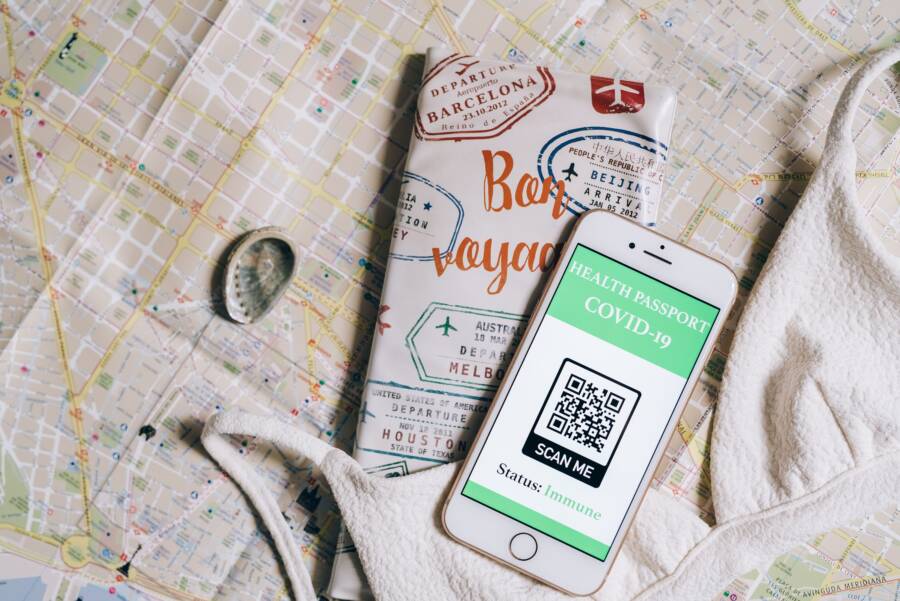
If your smartphone fails to scan an eSIM QR code, the issue is typically a simple error with camera focus, poor lighting, or restrictive network settings. You can resolve this quickly by cleaning your lens, adjusting your environment, or manually entering the activation details provided by your carrier.
Most users face this problem because the camera cannot lock onto the complex pattern of the code. A dirty lens or low light makes the software struggle to read the data correctly. Once you improve the physical conditions, the device usually completes the scan without trouble.
If the camera still refuses to recognize the image, you do not need to panic. You can bypass the scanning process entirely by typing in the activation code manually. This guide shows you how to troubleshoot the camera issues and provides the steps to activate your plan through the settings menu instead.
Check Your Physical Camera and Lighting Conditions
Your smartphone camera relies on high contrast and steady focus to decode the complex data inside a QR code. If the device struggles to capture the image, the software cannot process the activation instructions. Most scan errors relate to obscured optics or environmental interference. You can often resolve these issues by checking the physical state of your camera and the environment where you perform the scan.
Clean Your Lens and Screen
A small smudge on your lens or the screen displaying the code will cause a focus failure. Your smartphone camera cannot distinguish the QR pattern from the blurred noise caused by oil or dust. Take a moment to prepare both surfaces for a clean capture.
Wipe the camera lens on the back of your phone using a clean microfiber cloth. Do not use paper towels or rough fabrics, as these can scratch the glass.
Ensure the screen showing the QR code is free from fingerprints. If you are displaying the code on a laptop or a second device, wipe the screen down with a dry cloth.
Increase the brightness on the secondary screen to the maximum level. High brightness levels help the smartphone camera distinguish the black-and-white patterns more clearly.
Adjust Your Lighting and Distance
Lighting plays a major role in how well your camera interprets the code. Avoid using a flashlight directly on the code, as the reflection will create a whiteout effect that hides the pattern. Instead, find a well-lit area with soft, indirect light that prevents harsh shadows.
Distance is equally important for a successful scan. Move your phone slowly toward the code, keeping it parallel to the screen. If you hold the phone too close, the image will appear blurry; if you hold it too far away, the software cannot resolve the tiny squares inside the code. Start with the phone about 10 inches away and slowly pull it closer until the camera locks onto the image. This gradual movement gives the autofocus system time to adjust to the specific density of the QR data.
Software and Network Settings That Affect eSIM Activation
When your camera lens is clean and your lighting is perfect, a failed eSIM scan often points to a deeper issue with your device configuration. Your smartphone must meet specific software and network criteria before it can successfully provision a digital SIM profile. If these settings are misconfigured, the scanning tool will trigger an error regardless of how clear the QR code appears.
Verify Your Device Is Unlocked
Most smartphones sold through wireless providers come with a carrier lock. This restriction prevents the device from connecting to any network except the one that sold the phone. If your device is locked, it will reject an eSIM profile from a different service provider during the scanning process.
You can verify your status through your device settings:
Open your device settings menu.
Navigate to the cellular or mobile data section.
Select the option for SIM or network status.
Look for a field labeled Network Unlock or Carrier Lock.
If the status indicates that the device is locked, you must contact your original provider to request an unlock. They typically require that your account is in good standing and that you have paid off the device balance. Once the provider removes the restriction from their servers, your smartphone will accept eSIM profiles from any compatible carrier. Note that this process can take up to 48 hours to update in the network database.
Update Your Operating System
Compatibility issues are a frequent cause of eSIM activation failures. Manufacturers frequently release software updates that include patches for network connectivity and support for new mobile standards. If your operating system is outdated, the built-in eSIM manager may lack the instructions required to decode modern QR profiles.
Running an old version of the software creates a communication gap between your device and the carrier servers. You can resolve this by checking for pending updates in your settings menu. Ensure your phone has a stable Wi-Fi connection and at least 50 percent battery life before starting the process.
Following the update, restart your smartphone to clear out temporary cache files that might conflict with the new network configuration. Many users find that a simple software refresh corrects persistent scanning errors. If you still encounter problems after the update, ensure your regional settings match the country where the eSIM provider operates, as mismatched regions can also block the activation request.
Alternative Methods to Activate Your eSIM
If your camera cannot process the QR code, you still have options to activate your cellular plan. Manufacturers design these devices with manual entry fields and digital app integration to account for scanning failures. These methods require the same activation information found on your carrier document or email. You will need your SM-DP+ address, activation code, and confirmation code to finish the setup manually on your smartphone.
Entering Activation Details Manually
Manual entry allows you to input the carrier data directly into your smartphone system. This method bypasses the camera scanner and removes the risk of poor lighting or focus errors. You will find these settings tucked away within the cellular configuration menu on your device.
Follow these steps to access the manual input screen:
Open the Settings app on your smartphone and select Cellular or Mobile Data.
Tap the button labeled Add eSIM or Add Cellular Plan.
Select the option that says Use QR Code or Enter Details Manually.
Choose the option to Enter Details Manually at the bottom of the screen.
Once you arrive at the input fields, copy the information provided by your carrier exactly as written. The SM-DP+ address is the most critical piece of data, as it points your device to the correct server. Double check the address for typos, as even one incorrect character will cause a connection error. After you enter the required codes, your smartphone will attempt to verify the information with the carrier network. This process might take a few moments while the device registers the new profile.
Using Your Carrier Official App
Many network providers offer an official application that manages the entire activation process. These apps remove the need for physical QR codes or manual string entry. The software handles the background handshake between your smartphone and the carrier server, which makes the setup process much smoother for the user.
You can often find these apps in the Apple App Store or Google Play Store. After you download and log in to your account, look for a section titled Activate eSIM or Manage My Device. The application will detect your current hardware and push the necessary configuration profile to your settings automatically.
This approach is beneficial for several reasons:
The app validates your account eligibility before attempting the activation.
It automatically detects your device model to ensure the profile is compatible.
You avoid typing long strings of data that are prone to human error.
Most carriers provide clear status indicators if the activation encounters a delay.
If the app fails to complete the process, restart your smartphone and check your Wi-Fi connection. A stable internet link is mandatory for the app to communicate with the provider. When the activation succeeds, your device will prompt you to label the new plan and set it as your primary or secondary data source.
Troubleshooting Common eSIM Setup Errors
Most activation failures happen because your smartphone cannot reach the carrier server or the network settings conflict with the new digital profile. You can resolve these issues by checking your internet connection, verifying your plan status, or clearing the device cache. When the standard scan fails, these steps help you isolate the specific software glitch.
Fix Connectivity and Network Glitches
Your smartphone needs a stable data connection to authorize the eSIM with your provider. If your Wi-Fi or cellular signal is weak, the device fails to complete the security handshake during installation. Start by toggling Airplane Mode on and off to reset the internal radio hardware. This action forces the phone to re-establish a link with the nearest cell tower or router.
In addition to toggling Airplane Mode, you should ensure your device is not currently restricted by a corporate profile or a VPN. Many work devices prevent the installation of secondary data plans to keep traffic within a controlled network. Disable any active VPN, as this often masks the device identity required by the carrier during activation. If you still have trouble, reset your network settings completely to clear out old configuration files that might interfere with the new eSIM.
Handle Activation Profile Conflicts
Sometimes a previous or partial installation attempt leaves a ghost profile on your smartphone. The system prevents a new scan because it detects a conflict with an existing, incomplete SIM entry. Navigate to your cellular settings and delete any entries labeled as “Pending” or “Activation Error.” Removing these corrupted files allows the system to start the registration process from a clean state.
Check your current data plan limit or account status as well. Some carriers block the addition of a new eSIM if your account has reached its maximum device capacity. You can verify this by checking your online provider dashboard or contacting their support team. If the account status is active and you removed all old profiles, the scan should proceed without further error.
Clear System Cache and Temporary Data
The eSIM manager is a background process that occasionally hangs due to cache buildup. A simple device restart resolves most of these software hangups by clearing temporary memory and refreshing the system services. If the issue persists, perform a forced restart on your smartphone to ensure all background tasks terminate and reload correctly.
These quick fixes solve most issues related to the digital installation process. By resetting the communication channels and removing software conflicts, you allow your smartphone to successfully recognize and install the cellular profile. If you continue to see an error after following these steps, reach out to your carrier to confirm if they have issued an activation block on your device serial number.
Conclusion
Most scanning issues stem from simple environmental factors, such as poor lighting or a dirty camera lens. Cleaning your hardware and adjusting the display settings on your secondary screen often fix the problem immediately. When these physical adjustments don’t work, verify your device settings to confirm your smartphone is unlocked and running the latest software.
If you still cannot activate the service, manual entry or carrier-specific applications provide reliable alternatives. These methods bypass the camera entirely and often work when scanners fail to recognize the pattern.
Should you encounter persistent errors after trying these steps, contact your carrier support directly. They can check your account status and verify if there is an activation block on your specific device. Their team can also push the profile to your device remotely if the standard automated tools fail to function.