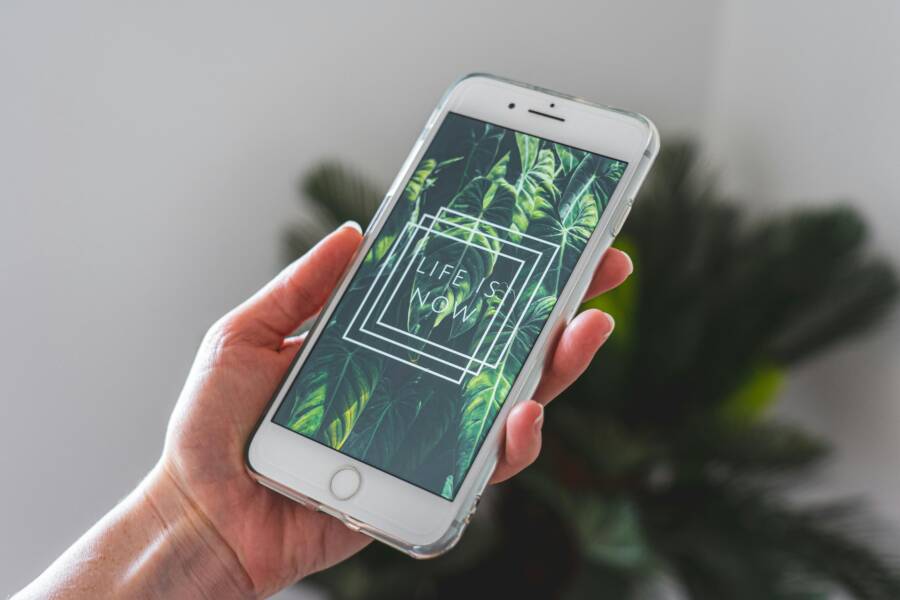
Have you ever set a wallpaper only to find it resets back to the default after a restart, update, or a quick app change on your smartphone? You’re not alone. This guide covers both Android and iPhone, with practical steps you can try today to keep your chosen image in place.
If your wallpaper keeps jumping back, the cause is usually a background process, a recent update, or a third party app that interferes with wallpaper settings. In this post you’ll find quick fixes you can perform right away, plus deeper device level solutions for stubborn cases. We’ll also share prevention tips to reduce future resets so you don’t have to troubleshoot again.
What you’ll gain here is a clear, real world plan you can follow without tech jargon. You’ll learn how to test wallpaper stability after each change, identify apps or settings that trigger the reset, and apply fixes that fit your smartphone setup. By the end, you’ll have a reliable approach to keeping your wallpaper steady, with actionable steps you can repeat across both Android and iPhone.
Why phones reset wallpapers and how to spot the signs
Wallpapers slipping back to default can be frustrating. Often the cause is something outside your direct control, like a software update or a background app. This section helps you recognize the signs and understand why resets happen. You’ll learn quick ways to check if the issue started after an update, and simple steps to confirm what’s really behind the problem.
OS updates and reboots often reset wallpapers
System updates and device restarts can reset wallpaper settings in a few common ways. Updates may refresh system themes, alter display settings, or reapply default preferences after a reboot. A quick restart can also trigger the OS to reinitialize certain UI elements, momentarily replacing your chosen wallpaper with a default image. The result is a seamless, hidden reset that leaves you wondering what changed.
What to look for
- The reset happens soon after you install a major update or security patch.
- The wallpaper reverts on device restart or after closing a heavy app.
- Both home screen and lock screen images revert, not just one.
Simple verification checklist
- Note the date of the last OS update and compare with the first reported wallpaper reset.
- After a restart, check if the wallpaper returns to the previous image within a few minutes.
- Test by changing the wallpaper again, then reboot. Does it revert again?
- Try a different image stored locally to see if the issue persists with all wallpapers.
- If the problem repeats only on one account or profile, switch to a guest or second user to test.
If you’re curious about real-world scenarios, users have reported wallpaper changes following updates on both Android and iPhone. For Android users, issues often surface after security patches or major Android version updates. For iPhone users, some wallpaper behavior changes appear after iOS updates, especially when the system theme or “Dark Appearance” options shift during installation. See discussions and user experiences here:
- After the security update my wallpaper home screen keeps changing from the one I set as wallpapers. (Pixel phones) https://support.google.com/pixelphone/thread/365858675/after-the-security-update-my-wallpaper-home-screen-keeps-changing-from-the-one-i-set-as-wallpapers?hl=en
- Newest update has changed my wallpaper settings. (Apple) https://discussions.apple.com/thread/254943284
To further understand automatic wallpaper behavior on Android, you can explore apps that refresh lock screen images, which can intersect with OS-level wallpaper settings. For example, some users rely on wallpaper apps that auto-change or synchronize with the launcher, which can inadvertently trigger resets after updates. Learn more about relevant launcher options and testing steps:
- Smart Launcher 6 ‧ Home Screen (example of a launcher that can influence wallpaper behavior) https://play.google.com/store/apps/details?id=ginlemon.flowerfree&hl=en_US
- Best Apps to Auto Change Lock Screen Wallpapers on Android https://beebom.com/best-apps-auto-change-lock-screen-wallpapers-android/
If you want a broader view of how updates affect wallpaper behavior across platforms, Apple and Android user communities offer ongoing discussions that shed light on common patterns and practical fixes.
App conflicts and launcher interactions
Third party launchers, wallpaper apps, and theme packs can clash with the system wallpaper settings. A launcher might override wallpaper choices or misinterpret the active wallpaper, causing it to revert or appear to reset after actions like unlocking the device, switching apps, or returning from a deep sleep. Theme packs that change icons or UI colors can also influence how wallpaper is applied, especially if the theme expects specific display settings.
Concrete examples
- A launcher applies a dynamic wallpaper every time the home screen refreshes, overwriting your fixed image.
- A wallpaper app caches multiple images and re-applies a default when it detects a glitch or low memory.
- A theme pack changes color accents and inadvertently resets wallpaper to match the theme’s baseline.
Safe testing steps
- Temporarily disable the launcher and use the device’s stock home screen. Then set your wallpaper again and observe for a full day.
- Remove or disable nonessential wallpaper apps; try changing wallpapers from the device’s built-in wallpaper picker.
- Clear the cache of any wallpaper or launcher apps you use, then reapply your image and test for several unlocks and reboots.
- If possible, create a second user profile or safe mode session to test wallpaper behavior without third party apps running.
Practical approach you can try today
- Disable any nonessential launchers or theme packs.
- Reassign the wallpaper using the stock picker, then reboot and check stability.
- Reinstall one wallpaper app at a time, testing after each install.
- If the issue stops in safe mode, one of the disabled apps is likely the culprit.
For readers who want to dig deeper into how launcher interactions influence wallpaper behavior, see apps and discussions around launcher features and wallpaper changes:
- Wallpaper Changer app on Android stores and its impact on wallpaper control: https://play.google.com/store/apps/details?id=de.j4velin.wallpaperChanger&hl=en_US
- Wallcraft – Wallpapers live on iPhone and iPad (examples of native wallpaper apps with high user interaction): https://apps.apple.com/us/app/wallcraft-wallpapers-live/id1348676585
Wallpaper storage and cache issues
Sometimes resets come from storage problems or cached images. If the device runs low on space or the wallpaper app cannot access the image file, it might default back to a saved image. Clearing caches, freeing space, and ensuring the image is stored in a reliable location can prevent resets.
Key causes to check
- Low storage space on internal or SD storage.
- Wallpaper image files moved, renamed, or deleted from their original location.
- Temporary cache corruption in wallpaper apps or the system wallpaper service.
Actionable checks
- Free up space by removing unused apps, large videos, and old downloads.
- Clear cache for wallpaper apps, and if available, reset their data.
- Move your wallpaper image to a known, easily accessible folder (e.g., a dedicated “Wallpapers” folder in the device’s internal storage).
- Use images stored locally rather than streaming or cloud-synced assets during testing.
- Reapply the wallpaper after a device reboot to confirm stability.
If you want a starting point for counting space or cleaning caches, you can reference general guidance on managing storage and app caches:
- Wallpaper storage and cache management resources and apps that help organize wallpapers or free space (examples include Wallpaper Changer and related tools) https://play.google.com/store/apps/details?id=de.j4velin.wallpaperChanger&hl=en_US
- Wallcraft – Wallpapers, live (a source of high-quality wallpapers for Apple devices) https://apps.apple.com/us/app/wallcraft-wallpapers-live/id1348676585
What to do next
- After clearing space and caches, reapply your preferred wallpaper and monitor for several device cycles.
- If the problem persists, try choosing a new wallpaper from a different source to see if the issue is tied to a specific image set.
By understanding these three angles—OS updates, app and launcher interactions, and storage or cache issues—you can pinpoint the likely cause of wallpaper resets. Remember to test after each change and keep a small log of what you tried and when. This approach makes it much easier to spot patterns and confirm a fix.
If you’d like, I can tailor these sections further to fit your specific audience, whether you’re addressing Android, iPhone, or both, and align with your site’s preferred style.
Fast fixes you can try right now
If your wallpaper keeps resetting on Android or iPhone, you’re not out of luck. Quick, targeted actions can clear up most resets without diving into deep system tweaks. This section provides concise, practical steps you can perform today. Think of these as fast confidence checks that help you confirm where the problem is coming from, whether it’s a launcher, a cache, or a simple setting misfire. And yes, you’ll be testing on your smartphone as you go, so you can see immediate results.
 Photo by Castorly Stock
Android quick fixes
On Android, wallpaper resets are often tied to a launcher, a wallpaper app, or a recent update. Start by reapplying your image and keeping home and lock screens separate if you use different pictures. If you’re using live or dynamic wallpapers, switch to a static image to rule out a runtime glitch. Then test with suspect apps or launchers disabled to see if the problem stops.
- Reapply the wallpaper: Set the image again for both home and lock screens. Verify stability after a reboot.
- Use separate images: If you have different pictures for home and lock screens, test with identical images first to see if the issue recurs.
- Disable live wallpapers: If you’re on a live wallpaper, switch to a static image for a period to check if the reset stops.
- Check for recent app updates: Open the Play Store and review recent wallpaper or launcher app updates. After updating, test the wallpaper by rebooting and unlocking the device.
- Test suspect apps: Disable or uninstall nonessential wallpaper apps one by one. After each change, reapply the wallpaper and monitor results for several unlocks and reboots.
Here are quick references to common threads about Android wallpaper resets from the community:
- Wallpaper resets to default when charging overnight (wired) and wifi is on. https://support.google.com/pixelphone/thread/343389446/wallpaper-resets-to-default-when-charging-overnight-wired-and-wifi-is-on?hl=en
- Reset wallpaper and lockscreen to default styles and values without knowing the default styles. https://support.google.com/pixelphone/thread/251662196/reset-wallpaper-and-lockscreen-to-default-styles-and-values-without-knowing-the-default-styles?hl=en
- How to stop daily wallpaper changes on Android. https://support.google.com/android/thread/264278350/how-do-i-stop-wallpaper-from-changing-daily?hl=en
If you want deeper context on launcher interactions, explore launcher-related discussions:
- Smart Launcher 6 and its impact on wallpaper control. https://play.google.com/store/apps/details?id=ginlemon.flowerfree&hl=en_US
- Best Apps to Auto Change Lock Screen Wallpapers on Android. https://beebom.com/best-apps-auto-change-lock-screen-wallpapers-android/
Practical tip: keep a small log of when you change settings and when resets occur. A simple pattern often points to a specific app or a recent update, making the fix faster the next time around.
iPhone quick fixes
iPhone users typically see resets tied to iOS updates, wallpaper caching, or Focus modes interfering with background settings. Start with the simplest steps: reselect the wallpaper for both home and lock screens, restart the device, and ensure iCloud syncing isn’t pulling a cached image. If the issue persists, a quick iOS update or a cache reset can clear many stubborn cases.
- Restart the device: A quick reboot can refresh the wallpaper cache and apply your chosen image cleanly.
- Re-select wallpapers: Pick your home screen image and then your lock screen image again. Do this for both screens after a fresh reboot.
- Update iOS: Check for any available iOS updates. Installing the latest version can resolve wallpaper glitches caused by system bugs.
- Check iCloud and cache: Ensure your photos are available locally and not only in iCloud. If needed, download the image to your device first to avoid caching issues.
- Test Focus interactions: If you use Focus modes, temporarily disable them to confirm they aren’t triggering a reset when you unlock or wake the device.
User conversations around iPhone wallpaper behavior show several common threads:
- iPhone 15 Pro and iOS 18 dynamic wallpaper issues. https://discussions.apple.com/thread/255952948
- Can’t change wallpaper when there is no focus. https://discussions.apple.com/thread/255896865
- My iPhone 15 pro’s wallpapers change on their own. https://discussions.apple.com/thread/255221965
If you want more grounding on iOS wallpaper behavior, these discussions provide practical steps and real-world outcomes from other users. They can help you decide whether you should push for a software update or a reset of certain settings.
How to test and verify
- After each change, wait a few minutes and then lock and unlock the device to see if the wallpaper sticks.
- Try a different image entirely to confirm the issue isn’t image specific.
- If the problem persists across multiple images, it’s a stronger signal to check for Focus or iCloud cache issues.
By following these fast actions for Android and iPhone, you can quickly determine if the wallpaper reset is caused by a launcher, a cache, or a recent update. Keep the process simple, test after every change, and you’ll isolate the culprit faster than you think.
Would you like me to tailor these steps to a particular phone model or your audience’s preferred terminology? I can adjust the language and add device-specific tips to fit your site’s style.
Deep fixes for Android devices by type
If your goal is stable wallpapers across devices, it helps to tailor fixes to the specific environment. Below are focused guides for Samsung Galaxy with One UI 8 dynamic wallpapers, Google Pixel with stock Android, and other Android phones with common launcher considerations. Each subsection includes practical steps, testing tips, and notes on known issues reported up to late 2025.
Samsung Galaxy and One UI 8 dynamic wallpapers
Samsung’s dynamic wallpaper system can reset after updates or launcher interactions. The key is ensuring the Samsung Wallpaper app stays current and that home and lock screens use stable images you control. Start by updating the Samsung Wallpaper app from the Galaxy Store to the latest version, then set distinct images for the home screen and the lock screen to isolate resets.
What to do
- Update the Samsung Wallpaper app to the latest release (example: 2.5.80.0 or newer) via the Galaxy Store.
- Set separate images for home and lock screens to see if one surface triggers a reset while the other remains stable.
- If you use dynamic or Colors-based wallpapers, switch to a static image temporarily to test for a runtime glitch.
Steps to test after updates
- Update the Wallpaper app, then reboot your Galaxy device.
- Reapply wallpaper for both home and lock screens.
- Lock the device, then wake it after a few minutes and check for changes.
- Reboot again and verify stability across several unlock cycles.
Notes on glitches from December reports
- Some users saw issues after major One UI updates where dynamic wallpapers reverted to defaults. Keeping the Wallpaper app updated reduces this risk.
- If glitches persist, Samsung’s support pages suggest clearing the app cache or data for the Wallpaper service and reapplying images after a fresh boot.
- Consider avoiding third party launchers during testing, as they can influence how dynamic wallpapers are rendered on the home screen.
Helpful references
- Dynamic wallpaper reverts to default on Galaxy devices: Samsung support page notes updating the Samsung Wallpaper app helps resolve the issue. https://www.samsung.com/us/support/troubleshoot/TSG10007558/
- Community reports about wallpaper resets after updates on Galaxy devices. https://us.community.samsung.com/t5/Galaxy-S24/Phone-keeps-resetting-my-wallpapers/td-p/3388622
Practical takeaway
- Regular updates to the built-in wallpaper tools and a clean test cycle after each update are your best defense. If a reset happens, reapply the image, reboot, and test with and without launchers to identify the trigger.
Google Pixel and stock Android
Pixel devices with stock Android can see resets tied to themed icons, wallpaper cache, and storage. The fix path focuses on icon theming settings, reapplying wallpapers from stable save locations, and clearing caches that could cause a misread of the current wallpaper.
What to check
- Themed icons: If enabled, they can alter how icon colors interact with wallpaper, sometimes triggering a reapply behavior.
- Save location: Ensure wallpaper images are saved in a stable, accessible folder and not moved by cloud syncing or backup apps.
- Wallpaper cache: Pixel’s wallpaper cache can hold onto older images; clearing it forces a clean reapply.
Key steps
- Turn off themed icons if they are active and observe whether resets stop.
- Reapply the wallpaper from a local, fixed path. After applying, reboot and verify the image remains on both home and lock screens.
- Clear the wallpaper cache and storage space if needed. This helps prevent partial or corrupted image data from triggering a reset.
Testing approach
- After each adjustment, restart the device and monitor for several unlock cycles.
- Try a different image to confirm whether the issue is image-specific or systemic.
- If you use a secondary user profile, test wallpaper stability there to rule out profile-specific settings.
Quick checks you can perform
- Check wallpaper cache status in Settings > Storage, then clear the cache for the wallpaper app if available.
- Ensure the image file is not being moved or renamed by any cloud sync service.
- Reapply and lock the device to confirm persistence over a short wait.
Helpful resources
- How to change wallpaper on a Pixel phone and understand the steps for home/lock screen customization. https://support.google.com/pixelphone/answer/7289143?hl=eN
Practical takeaway
- The Pixel path often boils down to cache hygiene and ensuring icons do not interfere with wallpaper rendering. Keep a local copy of your preferred image and test with manual reapplication after a reboot to confirm stability.
Other Android phones and launcher considerations
For non Samsung and non Pixel devices, the interaction between launchers, third party wallpaper apps, and the system wallpaper service is the main culprit. Bypassing or disabling problematic launchers, or using the default launcher, can stabilize wallpaper behavior. If you must use a third party launcher, choose one with clear settings for wallpaper management and test before committing to it long term.
Key points
- Third party launchers can override wallpaper choices or reapply a default image after sleep, unlock, or app switching.
- Theme packs and icon packs can influence wallpaper rendering, particularly if the theme expects a certain color surface or image source.
- Some wallpaper apps cache multiple images and reapply a default when a glitch is detected or memory is tight.
Safe testing steps
- Temporarily disable the launcher and switch to the stock launcher. Reapply the wallpaper and monitor for a day.
- Remove or disable nonessential wallpaper apps. Use the stock wallpaper picker to set an image and observe.
- Clear caches for wallpaper and launcher apps. Reapply the image and test across several unlocks and reboots.
- If possible, create a second user profile or use Safe Mode to isolate issues from third party apps.
A practical workflow
- Disable nonessential launchers or theme packs.
- Reapply the wallpaper using the stock picker, then reboot and test stability.
- Reinstall one wallpaper app at a time, testing after each install.
- If the issue stops in Safe Mode, one of the disabled apps is likely the culprit.
Launcher and wallpaper references
- A launcher can influence wallpaper control; explore how launcher options affect wallpaper behavior. https://play.google.com/store/apps/details?id=ginlemon.flowerfree&hl=en_US
- Apps that auto-change lock screen wallpapers and their impact on stability. https://beebom.com/best-apps-auto-change-lock-screen-wallpapers-android/
Keeping wallpaper storage stable
- Ensure images are stored in a stable folder on internal storage. Avoid relying on cloud-synced or streaming images during testing.
- Free space if the device is low on storage. A nearly full storage environment can cause cached images to fail to load properly, leading to resets.
- Clear app caches for both wallpaper and launcher apps as part of routine maintenance after updates.
Practical takeaway
- On diverse Android devices, the safest approach is to minimize third party interference during testing. Use the stock wallpaper picker first, then reintroduce launchers or wallpaper apps one at a time, testing thoroughly after each change.
Helpful resources
- Android launcher and wallpaper interactions, with context on how color theming can affect icons and wallpaper rendering. https://android.gadgethacks.com/how-to/unlock-themed-icons-android-12-for-colors-dynamically-shift-with-your-wallpaper-0384890/
Final testing tips you can apply today
- After each change, test across several unlock cycles to confirm stability.
- If you use multiple wallpapers, test with different images to ensure not image-specific.
- Maintain a simple test log that notes the change, the time, and the observed outcome. This makes it easier to spot patterns and identify the root cause quickly.
External resources and quick checklists
- Samsung Galaxy wallpaper updates and troubleshooting. https://www.samsung.com/us/support/troubleshoot/TSG10007558/
- Pixel wallpaper change guidance and save location tips. https://support.google.com/pixelphone/answer/7289143?hl=eN
If you’d like, I can tailor these sections to a specific device lineup or audience preference, and add more precise steps for models you frequently address.
Deep fixes for iPhone and iOS
If you’re dealing with wallpapers that reset after updates, restarts, or app changes, this section helps you dig into iOS behavior and apply solid, practical fixes. We’ll cover how updates can shift wallpaper settings, how to keep home and lock screen images stable, and how iCloud and caches play a role. Think of this as a focused playbook for readers who want reliable, repeatable results on their iPhone.
iOS wallpaper behavior and updates
iOS updates can nudge wallpaper behavior in subtle ways. A new build might refresh system themes, tweak display settings, or reapply defaults after a reboot. In practice, this can show up as either the same image becoming unavailable or the system briefly showing a stock background before your chosen image reappears. The key is to verify settings after updating and reapply if needed.
What to check after an update
- Verify that the wallpaper you selected remains linked to the correct surface (home screen, lock screen, or both).
- Confirm that the updated OS isn’t forcing a default image on restart or during wake events.
- Reapply your chosen wallpaper if you notice a reset within the first few hours after updating, then test across multiple reboots.
How to verify and re-apply quickly
- Open Settings > Wallpaper and confirm your current home and lock screen images.
- After a restart, observe whether the images hold for several unlock cycles.
- If a reset occurs, re-select the wallpaper from a locally stored file rather than a cloud source.
- Test by rebooting again. If it sticks, you’ve identified a reproducible pattern.
References and real-world notes
- Apple’s guidance on changing wallpapers confirms how to set a wallpaper pair and customize from Settings, which is essential when updates blur the distinction between surfaces. Change the wallpaper on iPhone
- Apple’s official instructions for adding new wallpapers and setting them as a pair can help you lock in a stable configuration: Change your iPhone wallpaper
- If you’re exploring differences across iOS versions, Apple’s official change wallpaper guide remains a reliable reference for the current steps and options. Change the wallpaper on iPhone
Practical takeaway
- After a firmware update, always recheck both surfaces. Start with the stock picker to ensure the image is correctly assigned, then reapply your preferred wallpaper pair and test through several cycles. If a problem persists, it’s worth testing with a fresh image to rule out the file itself.
Setting separate home and lock screen wallpapers on iOS
iOS supports different images for your Home Screen and Lock Screen, but updates or certain app interactions can reset this pairing. Here’s a clear, step-by-step approach to set distinct wallpapers and reduce the chance of automatic resets after reboot or updates.
Step-by-step guide to independent wallpapers
- Open Settings and tap Wallpaper.
- Tap Add New Wallpaper. Choose a photo or a built-in option for one surface.
- Repeat the process for the other surface with a different image.
- Tap Set as Wallpaper Pair and then customize as needed, but keep the two images distinct if you want to avoid confusion.
- Confirm by locking and unlocking the device to verify the chosen images remain stable.
Tips to prevent auto resets
- Use static wallpapers instead of dynamic or live options during testing. Dynamic content can reapply automatically after certain triggers.
- Avoid Focus or Focus-related wallpaper tweaks while testing stability. If needed, disable Focus modes temporarily to check whether they influence the wallpaper assignment.
- When updates occur, re-check both surfaces and, if necessary, reapply the pair. A quick recheck can save hours of puzzling resets later.
Common scenarios and fixes
- If you notice the lock screen image changes while the home screen stays the same, reapply the two images and confirm that both surfaces are saved as you intend.
- If a reset happens after a reboot, reassign the pair and test again after powering off and back on.
Pointers for readers
- Apple’s wallpaper setup supports explicit pairing of images for home and lock screens, so make this pairing a standard part of your setup process after any major change. Change the wallpaper on iPhone
- The official Apple guide also covers adding new wallpapers and customizing for each surface, which helps you keep a consistent playbook across updates. Change the wallpaper on iPhone
Smartphone behavior note
- If you use a third-party launcher or accessibility tweak on your iPhone, it can complicate wallpaper control. In most cases, sticking to the built-in wallpaper tools improves stability and predictability.
Managing iCloud and wallpaper caches
iCloud syncing can influence how wallpapers appear or get applied, especially if photos are stored in iCloud and accessed on demand. Caching behavior and cloud syncing may cause delays or misreads in the current wallpaper, leading to a temporary reset. Keeping caching simple and ensuring local availability of the image can minimize these issues.
How iCloud can affect wallpaper settings
- If the photo is primarily stored in iCloud, the device may fetch it in the background. A hiccup in connectivity or a temporary cache miss can result in the wallpaper reverting to a previously cached image.
- When you enable iCloud Photos, new devices or fresh installs may pull a different thumbnail or resized image for display, which can appear as a reset.
- Syncing can also impact the availability of certain image formats or resolutions, especially for live or dynamic wallpapers.
Practical cache management steps
- Ensure your chosen wallpaper image is stored locally on the device before applying it as wallpaper. This reduces reliance on live cloud fetches during testing.
- Clear the wallpaper cache if your device offers this option in Settings or within the wallpaper app. Then reapply the image.
- Free up space to avoid cache corruption. A little extra storage can go a long way in preventing flaky image loading.
- If you use iCloud Photos, verify the specific image is downloaded to the device. Open Fotos, locate the image, and confirm it’s filled with a cloud icon or a solid local file.
Actionable checks you can perform
- In Settings, confirm iCloud Photos is set up as you want, then verify the image is accessible offline. If not, download the image to your device first.
- Reapply the wallpaper after ensuring the image is fully available offline, then reboot and test stability.
- If you have multiple devices, test the image on another device to see whether the issue is device-specific or account-wide.
Guidance and references
- Apple’s support on iCloud Photos syncing provides steps to resolve syncing issues that could influence how images appear across devices. If your iCloud Photos are not syncing
- For practical notes about syncing wallpaper and apps, user discussions can offer real-world patterns that complement official guidance, though always prioritize official steps for critical fixes.
Best practices for long-term stability
- Keep a local copy of your preferred wallpaper. Relying on cloud storage alone increases the chance of a hiccup that looks like a reset.
- Periodically re-check wallpaper settings after iPhone updates and after any major app changes.
- Maintain a small, simple test routine: apply wallpaper, reboot, verify both surfaces, and confirm no automatic swap occurs.
Incorporating these steps gives you a reliable workflow for maintaining wallpaper stability as iCloud and caches operate in the background. If you’d like, I can tailor these steps to your audience’s device mix or focus on a specific iPhone model you frequently address.
Prevention, ongoing maintenance, and when to seek help
Maintaining wallpaper stability across Android and iPhone requires a proactive approach. This section gives you a compact, practical playbook: how to prevent resets, how to monitor after updates, and when to seek official support. Use these steps as a lightweight routine you can repeat after every major change.
Best practices to prevent resets
A concise checklist readers can follow to minimize resets, including steps to manage wallpaper apps, avoid unnecessary changes, and monitor after OS updates.
- Start with the stock path: set wallpapers using the built-in picker first. This reduces the chance of third party apps overriding the image.
- Keep launchers and wallpaper apps in check: disable nonessential launchers or themes, then test stability for several days. If the issue stops, you’ve likely found the culprit.
- Use static wallpapers during testing: if you’re troubleshooting, switch away from dynamic or live wallpapers to rule out runtime glitches.
- Separate home and lock screen testing: apply different images to each surface during diagnosis to identify surface-specific resets.
- Verify after updates: after an OS update or app update, recheck both surfaces and reapply images if needed. This is especially important after major security patches or system upgrades.
- Clear caches and free space: a cluttered storage can affect image rendering. Clear wallpaper app caches and ensure there’s adequate free space.
- Keep local copies handy: store at least one stable, locally saved image and test it after each change before moving to cloud-synced or newly downloaded images.
- Document your steps: maintain a simple log of changes, reboots, and observed outcomes to spot patterns quickly.
Practical tip: if you suspect an app is the trigger, reintroduce wallpaper apps one by one after a clean test cycle. This helps isolate the culprit without guessing. For quick reference on common Android surface questions, see discussions about launcher interactions and wallpaper stability. You can read more here:
- https://www.samsung.com/us/support/troubleshoot/TSG10007558/
- https://support.google.com/pixelphone/answer/7289143?hl=en
For iPhone users, the focus is on keeping iCloud and wallpaper caches predictable. A simple rule is to ensure the image is available locally before applying it as wallpaper and to test after any iOS update. If you want deeper context on iOS wallpaper behavior, consider Apple’s official guidelines for changing wallpapers and pairing home and lock screen images:
- https://support.apple.com/en-us/guide/iphone/change-the-wallpaper-iph3d267104/ios
- https://support.apple.com/en-us/guide/iphone/change-the-wallpaper-iph3d267104/ios
How to report bugs and get support
Explain how to collect logs, screen recordings, and steps to reproduce the issue. Provide guidance on where to submit feedback for Android and iPhone and what information helps support teams diagnose wallpaper reset bugs.
- Gather evidence: capture a short screen recording that shows the exact moment of the reset, note the time, and record the sequence of actions leading up to it.
- Reproduce steps: write a clear, repeatable set of steps that trigger the reset. Include device model, OS version, and any apps running in the background.
- Collect logs: on Android, enable bug reports or use developer options to capture logcat for a short window around the incident. On iPhone, reproduce the issue and include screenshots of Settings > Wallpaper and any Focus or iCloud-related settings.
- Provide context: note whether the reset occurs after a reboot, after unlocking, after app changes, or during a particular screen transition.
Where to submit feedback
- Android devices: use the Android Beta Feedback app or Settings > Tips & Support > Send feedback. You can also file issues with the Android Open Source Project’s bug tracker. See these starting points for guidance:
- Android Beta Feedback: https://www.google.com/android/beta/feedback
- Android bug reporting and tracking: https://source.android.com/docs/setup/contribute/report-bugs
- iPhone and iOS devices: use Apple’s feedback channels and the official support discussions to share reproducible cases. Useful starting points include:
- Apple Support change wallpaper guidance: https://support.apple.com/en-us/guide/iphone/change-the-wallpaper-iph3d267104/ios
- General Apple change wallpaper reference: https://support.apple.com/en-us/guide/iphone/change-the-wallpaper-iph3d267104/ios
What information helps support teams diagnose wallpaper reset bugs
- Device model and carrier (if applicable)
- Exact iOS or Android version, and any beta software you’re testing
- Screenshots or screen recordings showing the before and after states
- The steps to reproduce, including app names and settings touched
- Whether the issue affects home screen, lock screen, or both
- Any related settings like Focus, Dynamic/Live wallpapers, or cloud syncing
If you’d like more concrete paths for reporting, you can start by submitting feedback through official channels and then sharing the case with relevant support communities. For Android, content on beta feedback and bug tracking can help you navigate the process, while for iPhone, Apple’s support guides provide the formal routes.
- Android Beta Feedback: https://www.google.com/android/beta/feedback
- Android bug reporting: https://source.android.com/docs/setup/contribute/report-bugs
- Apple wallpaper guidance and pairing: https://support.apple.com/en-us/guide/iphone/change-the-wallpaper-iph3d267104/ios
If you want, I can tailor these sections to your audience’s device mix or add step-by-step templates you can paste into a form when readers submit their bug reports.
Conclusion
Most wallpaper reset issues have practical fixes you can apply today, often without advanced troubleshooting. Start with the simplest steps, such as reapplying your wallpaper for both surfaces and testing after a reboot, then move to checking launcher and app conflicts or storage issues. If problems persist, a targeted test cycle across updates and resets usually reveals the culprit, whether it’s a third party launcher, a wallpaper app, or a cache glitch on your smartphone. Save this guide for future reference, and share any tips or questions in the comments so we can tailor fixes to your specific device.