
There Is a Frequency That the Wealthiest Families Have Used for Generations and Most People Will Never Know It Exists
>>> Open the Door <<<

Picture this: you hit your daily step goal, but your fitness app stays silent. Or your location tracker fails to buzz when you reach a checkpoint. These missed alerts happen because focus modes on your phone quiet apps to cut distractions. Focus modes, like Do Not Disturb or Work profiles, block notifications from tracker apps that monitor steps, habits, or GPS.
This problem hits iPhone and Android users alike. Your smartphone switches to these modes during work hours or sleep, silencing even important pings. The good news? You can fix it fast with simple steps. This guide walks you through spotting the issue and restoring alerts. Stay on top of health goals or activity logs without constant checks. Quick tweaks mean you get back notifications in minutes.
What Are Focus Modes and Why Do They Block Tracker Notifications?
Focus modes help you stay productive. On iPhone, they include Do Not Disturb, Personal, Work, and Sleep. Each one mutes sounds, vibrations, and banners from apps. Android offers similar tools through Do Not Disturb or Focus mode in settings.
These features block tracker notifications to reduce interruptions. Fitness apps like Strava or MyFitnessPal, habit trackers such as Habitica, or GPS tools like Life360 often go quiet. Ever wonder why your step counter stays silent during work hours? It’s the mode at play.
He Was Drowning in Bills and Burnout Until a Simple Daily Ritual Rewired His Brain for Wealth in Less Than a Week
>>> Start Your Shift Today <<<

Users miss goals because alerts don’t show. Data logs in the app, but your phone skips the nudge. Common culprits include auto-schedules that activate at set times.
Popular apps affected:
- Fitbit
- Google Fit
- Apple Health
- Strava
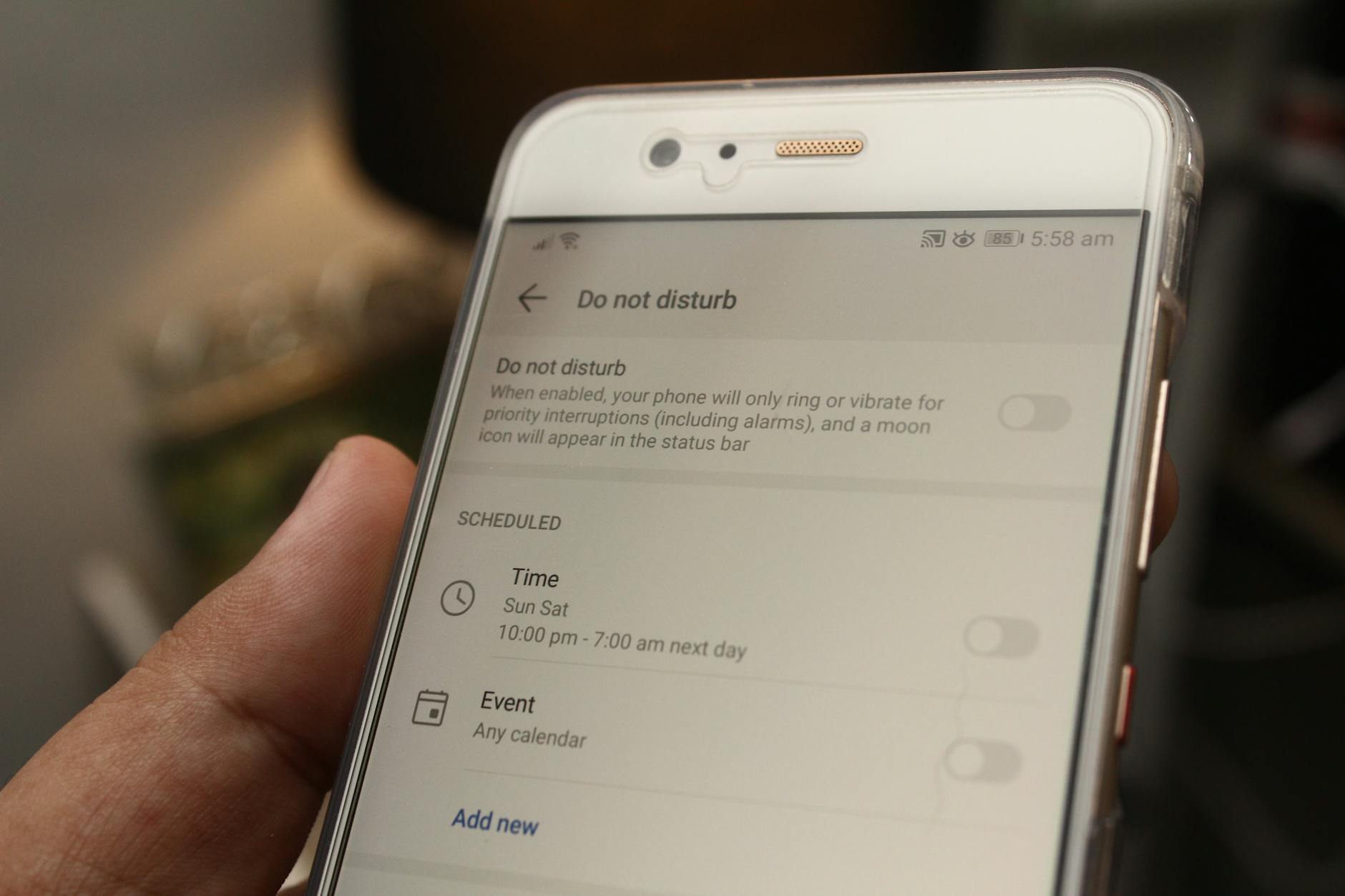
Photo by Daniel Moises Magulado
Spot the Signs Your Tracker Alerts Are Silenced
Check for these clues to confirm focus modes block your trackers.
No vibration or sound when the app updates. Your phone feels dead quiet during a run.
Badge counts missing on app icons. Steps rack up inside, but no red number appears.
Lock screen stays blank. Swipe down; no banners pop for location hits.
App data updates, but no push. Open the tracker; it logs fine, yet no phone alert.
Silent during active mode. Test by triggering a milestone; nothing happens.
These signs point straight to focus settings.
Key Differences Between iPhone and Android Focus Settings
iPhone uses preset Focus profiles like Work or Sleep. Tap one in Control Center to activate.
Android relies on Do Not Disturb with schedules or app exceptions. Samsung adds One UI tweaks; Pixel keeps it stock.
Both block notifications the same way. They mute apps unless you add exceptions.
| Feature | iPhone | Android |
|---|---|---|
| Main Tool | Focus Modes | Do Not Disturb/Focus |
| Activation | Control Center | Quick Settings |
| Exceptions | Per app/people | Apps/Conversations |
iPhone shares modes across devices. Android varies by brand. These steps ahead match each platform.
Fix Blocked Tracker Notifications on iPhone
Start in Settings to check active Focus. Swipe down from top right for Control Center. Tap the moon icon; see the current mode.
If a mode runs, edit it now. Follow these steps to let trackers through.
Allow Tracker Apps in Your Current Focus Mode
Open the Settings app. Scroll to Focus and tap it.
Pick your active mode, like Work. Tap Apps under Allowed Notifications.
Hit Add Apps. Search for your tracker, such as Fitbit or Strava. Select it.
Do the same for People if shared trackers send alerts from contacts.
Tap Done. Send a test notification in the app. Does it buzz now? Check sound and banner.
This fix works for most cases. It keeps the mode on but lets key apps talk.
Your smartphone stays focused overall. Trackers get priority.
Adjust Focus Schedules to Let Alerts Through
Schedules auto-turn on modes. Edit them to avoid blocks.
Go to Settings > Focus. Tap the mode, then tap People or Apps again if needed.
Under Turn On Automatically, edit times. Shorten work hours or add exceptions.
Delete a schedule with the trash icon. Or create a custom mode: Tap the plus icon.
Name it Fitness. Set it for mornings only. Allow all tracker apps there.
What If the Only Thing Between You and the Life You Deserve Is a Hidden Wealth Code Waiting to Be Activated
>>> Open the Door <<<

If you use multiple Apple devices, toggle Share Across Devices. Changes sync fast.
Test by waiting for the next auto-switch. Alerts should flow free.
Restore Tracker Alerts on Android Smartphones
Android steps vary by phone. Samsung, Pixel, or others use similar paths. Search “Do Not Disturb” in Settings for quick access.
Pull down Quick Settings. Tap the Do Not Disturb tile to turn it off first. Test your tracker.
Exceptions bring alerts back without full disable.
Set App Exceptions in Do Not Disturb
Open Settings. Go to Sound & vibration, then Do Not Disturb.
Tap Exceptions > Apps. Turn on Allow notifications.
Pick your tracker app from the list. Toggle it on.
For priority talks, check Conversations. Add contacts if trackers link to them.
Tap back. Trigger a test alert in the app. Vibration or sound should hit.
Pixel users see this under Notifications. Samsung calls it Notifications exceptions.
Your smartphone now prioritizes trackers during quiet times.
Customize Schedules and Priority Modes
Schedules trigger blocks at set times. Fix them next.
In Do Not Disturb settings, tap Schedules. Edit start and end times.
Add your tracker to Priority only apps. It breaks through any mode.
Samsung One UI: Go to Modes and Routines. Create a routine for fitness apps.
Set rules like “During run hours, allow Strava.” Save and test.
Prevent repeats by reviewing all schedules. Delete unused ones.
Alerts stay steady across days.
Extra Tips to Keep Tracker Notifications Flowing
Set app-specific profiles early. On iPhone, make a Fitness Focus. On Android, use app exceptions by default.
There Is a Frequency That the Wealthiest Families Have Used for Generations and Most People Will Never Know It Exists
>>> Open the Door <<<
Restart your phone weekly. It clears glitches that mute alerts.
Update apps and OS. Old versions clash with focus rules.
Battery saver can silence notifications. Turn it off during tracking.
If fixes fail, reset Focus settings. On iPhone: Settings > Focus > Focus Status off. Android: Reset app preferences.
Check permissions too. Trackers need notification access in app settings.
Try this to stay ahead: Pin tracker apps to your home screen. Quick opens mean less reliance on alerts.
Balance matters. Mute non-trackers at night. You get nudges without overload.
Conclusion
You now know how to spot blocked tracker notifications and fix them on iPhone or Android. Allow apps in Focus modes, tweak schedules, and set exceptions. These steps restore alerts fast.
Apply them today. Never miss a step goal or location ping again.
Which tip worked for you? Share in the comments. Subscribe for more smartphone guides to keep your digital life smooth.
Stay connected to your goals. Your trackers have your back.
(Word count: 1492)
She Pressed Play on a Strange Audio Track and Within Days Her Financial Reality Started Shifting in Ways She Could Not Explain
>>> See How It Works <<<
