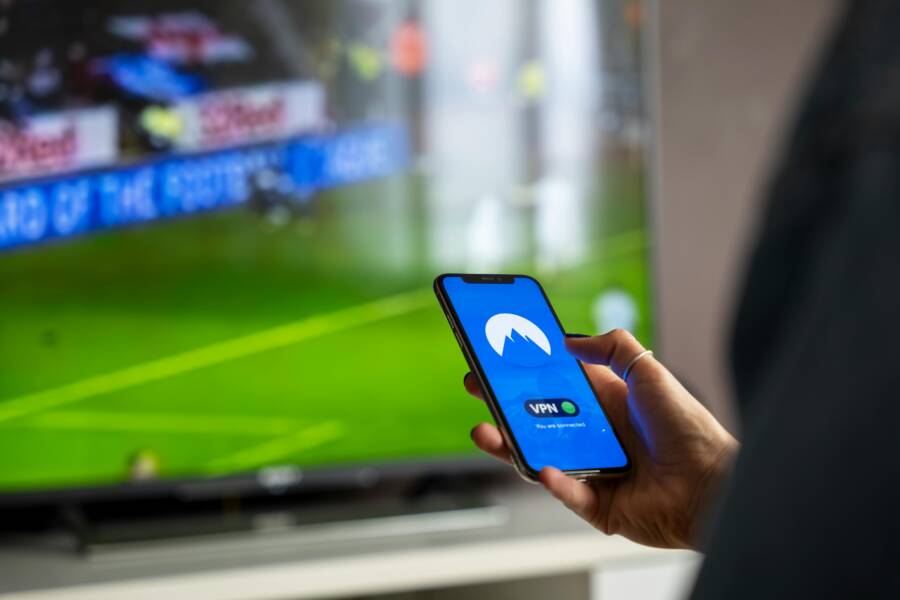
You pull up Netflix on your phone to catch that hilarious scene everyone talks about. You hit record, but the screen goes black. Frustration hits hard. This block happens on apps like Netflix, Disney+, Hulu, and Prime Video. They use copyright protection to stop pirates from copying content.
The issue stems from Digital Rights Management (DRM) tech. It spots screen recording and blanks the video. Both Android and iOS smartphones face this problem. No worries, though. You can bypass it with simple tricks. No need for jailbreaking on iPhone or rooting on Android. These methods keep your device safe and warranty intact.
This guide walks you through step-by-step fixes. Start with why it happens, then jump to Android solutions. iPhone users get their own section next. Pick what fits your setup and record clips for personal use. Fair use lets you save funny moments or tutorials. Let’s get those recordings working.
Why Streaming Apps Block Screen Recording
Streaming services fight piracy with smart tech. DRM software checks for recording apps. If it finds one, it blacks out the screen. This keeps high-quality copies from spreading online.
Popular apps enforce this rule. Netflix leads the pack. Disney+ follows close. HBO Max and YouTube Premium join in too. Hulu and Prime Video block just as firm.
They rely on HDCP, a protocol that locks video signals. Think of it like a guard at a theater door. It stops unauthorized grabs during playback. Your phone’s built-in recorder triggers the flag every time.
Ignore it, and risks pile up. Apps might flag your account. Repeated tries could lead to bans. Plus, shady apps promise fixes but deliver malware.
Good news: safe workarounds exist. You can record without breaking rules or your phone. Next sections show how.

Photo by Yan Krukau
Quick Fixes for Android Phones
Android offers flexible options. Stick to non-root methods for safety. These three work on most devices. Test them in order. Your smartphone stays secure.
Toggle Developer Settings for Built-in Recording
Unlock hidden tools first. Go to Settings, then About phone. Tap Build number seven times. Enter your PIN if asked. Developer options now appear under Settings.
Open Developer options. Scroll to Hardware accelerated rendering. Turn off “HW overlays.” Find Force GPU rendering and enable it. Also, toggle “Don’t keep activities” off.
Test with your streaming app. Start playback, then use the built-in recorder. Video shows clear now. This tweak fools DRM detection by changing how the screen renders. Works on Samsung, Google Pixel, and more. Restart if glitches occur.
Pick the Right Third-Party Recorder App
Head to Google Play Store. Search for XRecorder or ADV Screen Recorder. Both rate high and stay free for basics.
Install one, say XRecorder. Grant permissions for overlay and audio. Open the app. Select internal audio mode. Pick no watermark and 1080p quality.
Play your stream. Hit record from the floating button. Stop after the clip. Free versions cap long recordings. Upgrade if needed, but test limits first.
XRecorder tips: Enable “Record with audio” for sound. ADV shines on older Androids. Compatibility varies, so try both.
Mirror and Record via Computer
Free tool scrcpy beats phone limits. Download it from GitHub. It’s open-source and safe.
Enable USB debugging in Developer options. Connect your phone to PC with USB cable. Run scrcpy from command line or app.
Phone screen mirrors on PC. Use OBS Studio or built-in tools to record. Get full HD with no blackouts. Pros include top quality and no phone heat. Cons mean a cable tether.
Steps: Install ADB drivers if needed. Run “scrcpy –record=file.mp4” for direct save. Perfect for long sessions.
Simple Solutions for iPhones
iOS locks down tighter. Apple design prioritizes security. Still, no jailbreak required. These tricks use built-in features or safe apps. They work on recent iPhones like iPhone 13 and up.
Use QuickTime Player on a Mac
Mac users get the easiest win. Grab a Lightning cable. Connect iPhone to Mac.
Open QuickTime Player. Click File, then New Movie Recording. Next to the record button, pick your iPhone from the dropdown.
Hit record. Play the stream on phone. Audio captures internal too. Stop and save. Trim in QuickTime for clean clips. This method shines for quality since it mirrors natively. No apps needed.
Try iOS Screen Recorder Apps
App Store has options. Search Record it! or Screen Recorder – No Ads. Pick one with good reviews.
Install and launch. Grant microphone and screen permissions. Start the recorder from control center or app.
Switch to Netflix. Play content. Internal audio works via app tricks. Record your clip. Export to Photos.
Note: Free tiers add watermarks sometimes. Test short clips first. Works offline too.
Bonus Tips and What to Avoid
Picture-in-picture mode helps some apps. Swipe up on Netflix during playback. Record the small window. Downloads for offline let you grab legal clips without streams.
External camera serves as backup. Prop your phone and film the screen. Low-tech but reliable.
Skip rooting or jailbreaking. They void warranties and open security holes. Malware loves those gaps.
Legal side: Personal fair use covers memes or notes. Don’t share publicly.
Advanced users try OBS Studio on PC. Pair with casting for pro results.
Pick one method above and test today. Results beat black screens every time.
Conclusion
Android fans can tweak developer settings, grab recorder apps, or use scrcpy. iPhone owners rely on QuickTime or App Store tools. All bypass DRM blocks safely.
Choose based on your setup. Test a short clip now. You’ll capture those moments without hassle.
Share your wins in the comments. Which fix worked best? Subscribe for more smartphone tips on apps and troubleshooting. Happy recording.