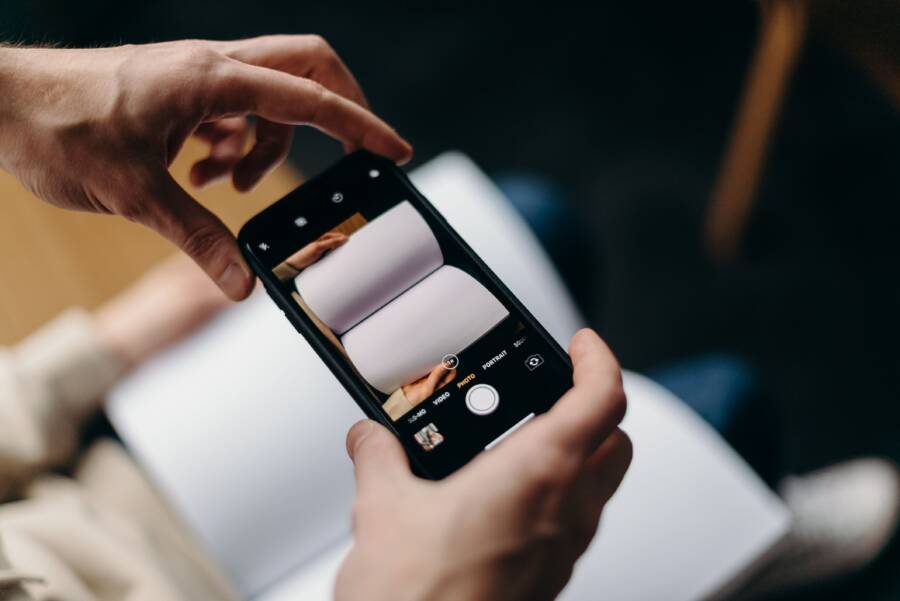
It is frustrating when you open your camera app to capture a moment, only for it to crash the second you apply a filter. This issue usually stems from software bugs, temporary memory overload, or conflicting background processes. Most of the time, you can resolve these glitches with simple adjustments to your settings.
Your smartphone needs enough free memory and stable software to run advanced image processing tasks. When the camera software struggles to handle heavy filter data, it shuts down to prevent system instability. This guide covers how to identify the cause and fix your camera for good.
Quick Fixes for a Crashing Camera App
When your camera app quits unexpectedly, the culprit is often a simple software conflict rather than a hardware defect. You can solve most of these crashes by refreshing your system resources or managing how your apps share limited memory. These immediate steps restore stability to your smartphone so you can get back to taking photos without interruption.
Restarting Your Smartphone to Clear Cache
A full system reboot is the most effective way to eliminate temporary glitches. Your smartphone stores transient data in a temporary memory bank while apps run. Over time, this cache can become cluttered with corrupted fragments that force the camera to close when you add filters.
Turning your device off and back on flushes the random access memory and resets the background environment. This process forces the operating system to clear out stalled processes that might be hogging the camera interface.
Follow these steps to perform a clean restart:
Press and hold the power button until the menu appears on your screen.
Select the restart option or slide to power off if your model requires it.
Wait at least 30 seconds before you turn the device back on.
Open the camera app immediately to verify if the filter crash persists.
If the camera works after a reboot, the issue was likely a temporary memory pileup. You should perform this routine whenever the system feels sluggish or apps stop responding as expected.
Managing App Permissions and Background Processes
High-demand camera filters require significant processing power to render images in real time. If too many other apps run in the background, your smartphone may struggle to allocate the resources needed for your camera. These secondary applications compete for the same processor cycles, which causes the camera to lock up during heavy rendering tasks.
You can improve performance by closing unnecessary applications before you open the camera. Many modern phones also include a battery or device care setting that shows which apps consume the most power. Identifying and stopping these background hogs provides the camera app with the priority it needs to apply filters correctly.
Consider these tips to keep your system resources clear:
Check your recent apps list and swipe away anything you are not actively using.
Review your background activity settings to limit apps that refresh data while you use the camera.
Disable high-power features like live location sharing or heavy data syncing while you take photos.
Giving the camera app breathing room prevents the system from triggering a crash. If you notice specific apps always run in the background, you might want to restrict their permissions or uninstall them to prevent recurring conflicts.
Software and Storage Solutions for Stable Performance
Reliable camera performance depends on how well your smartphone manages internal resources. When software is outdated or storage is full, the device lacks the breathing room to process complex image filters. You can usually restore stability by verifying your system health and clearing unnecessary data.
Updating Your Device Software
Operating system updates contain important patches that fix bugs within the camera interface. Smartphone manufacturers frequently release these updates to improve how hardware interacts with intensive software features. If your camera crashes while applying filters, an outdated operating system often causes this incompatibility.
You should check your settings to see if an update is waiting. Follow these steps to locate your software status:
Open the Settings app on your smartphone.
Scroll down and tap System or General Management.
Select Software Update or System Update.
Tap Check for updates to see if a newer version is available.
Installing pending updates allows the device to run more efficiently. These patches often resolve conflicts between the camera app and modern filter plugins. If your phone offers an automatic update setting, keep it turned on to maintain long-term stability.
Freeing Up Storage Space on Your Phone
Low storage space significantly impacts how your camera saves and processes temporary image files. Your smartphone requires free disk space to store the high-resolution data generated by live filters. When your internal storage is nearly full, the system struggles to write this data, which leads to sudden app crashes.
Check your storage levels in your settings to identify what is consuming your space. You can gain extra room by removing items that do not add value to your device:
Delete large videos you no longer need.
Uninstall applications that you haven’t opened in months.
Clear the cache for apps that handle massive amounts of media.
A good rule is to keep at least ten percent of your total storage capacity empty at all times. This provides enough buffer for the camera engine to render filters without encountering read or write errors. Managing your files keeps the processor focused on your photography instead of fighting for space.
Dealing with Filter-Specific App Conflicts
When your camera crashes only while using specific filters, the root cause usually lives within the app data or a compatibility mismatch. These filters often rely on temporary image processing files that can become corrupted or outdated. While this problem feels complex, you can resolve most app-specific conflicts through basic file management and reinstallation.
Clearing Data and Cache for Camera Apps
Applications store temporary information in a cache to load features like filters faster. Over time, these files grow or become corrupt, which leads to sudden crashes when the camera attempts to process a new filter request. Clearing this data removes the junk files without erasing your personal photos or videos.
To clear the cache for your camera or social media apps, follow these steps:
Open your smartphone Settings and select Apps or Application Manager.
Find the camera app or the social media app that causes the crash.
Tap on Storage or Storage and Cache.
Select Clear Cache first to see if the problem resolves.
If the crash continues, tap Clear Data or Clear Storage to reset the app to its original state.
This process forces the app to rebuild its temporary file library from scratch. Your saved photos remain safe because they are stored in a separate gallery partition. Once you clear the data, restart the app and test the filter again.
Checking for App-Specific Compatibility Issues
Sometimes the fault lies with the software code of a single app rather than the smartphone system. You can determine if the issue is isolated by testing filters in different applications. Open your default camera app, then try a filter in a different social media app like Instagram or Snapchat.
If the crash occurs in every app, the conflict is likely a deeper system issue or a driver bug. However, if only one app crashes, that specific software needs attention. Check the app store for available updates, as developers frequently release patches to fix filter rendering problems.
If the app is up to date and still fails, a clean install is the most effective fix:
Uninstall the problematic app from your smartphone.
Restart your device to wipe any remaining temporary registry files.
Reinstall the app from the official app store.
Grant the necessary camera permissions when the app prompts you after the first launch.
This process clears out deep-seated configuration errors that standard updates might miss. Most filter-related crashes disappear once the application registers itself fresh on your operating system.
When to Consider Professional Support or Hardware Repair
Sometimes your smartphone camera issues persist despite your best efforts. You might have cleared the cache, updated the software, and reinstalled apps, yet the camera still crashes when you apply filters. If these software fixes fail, the problem often sits deeper within the hardware or the internal firmware.
Identifying Potential Hardware Damage
Physical damage often interferes with how your camera sensors communicate with the processor. Even if the outer lens looks clean and intact, internal components suffer from drops, moisture exposure, or vibration damage. You should inspect your phone for signs that a physical repair is necessary.
Sudden crashes that happen every time you use specific camera modes might suggest a failing sensor.
Visible cracks or dents near the camera housing often indicate that the alignment of delicate internal parts is compromised.
Excessive heat from the camera area during normal use could mean the hardware is drawing too much power, which points to a failing component.
Liquid damage remains a primary cause of mysterious hardware failures. Even if your smartphone is rated as water-resistant, seals degrade over time. If you notice fog inside the lens or inconsistent performance, professional inspection is the safest path.
Knowing When to Seek Expert Assistance
Repairing internal hardware on a modern smartphone requires specialized tools and technical experience. Attempting to open your device at home often voids your warranty or risks permanent damage to sensitive internal ribbons and connections. You should reach out to a professional repair service if you suspect a hardware fault.
A certified technician can run diagnostic tools to determine if the camera module itself requires a replacement. They can also test for motherboard issues that prevent the software from reading image data from the camera sensors. If your device is still covered under a manufacturer warranty, contacting official support is your first priority.
If you reach the point where standard troubleshooting no longer works, professional support offers the most reliable solution. Trying to force a fix on damaged hardware often leads to more costly repairs. A qualified professional will save you time and help you decide if a repair is worth the expense compared to upgrading your device.
Conclusion
Most camera crashes trace back to simple software conflicts or insufficient system memory. You can often restore stability by clearing your app cache, managing background processes, and keeping your smartphone software updated to the latest version. These proactive maintenance steps clear the path for your camera to process filters without interruption.
If these basic fixes do not solve the problem, verify your storage space to give the device room to breathe. When the issue persists despite these efforts, check for app-specific updates or consider a clean reinstallation. You will find that your camera remains a reliable tool for capturing your memories once you address these common digital bottlenecks.