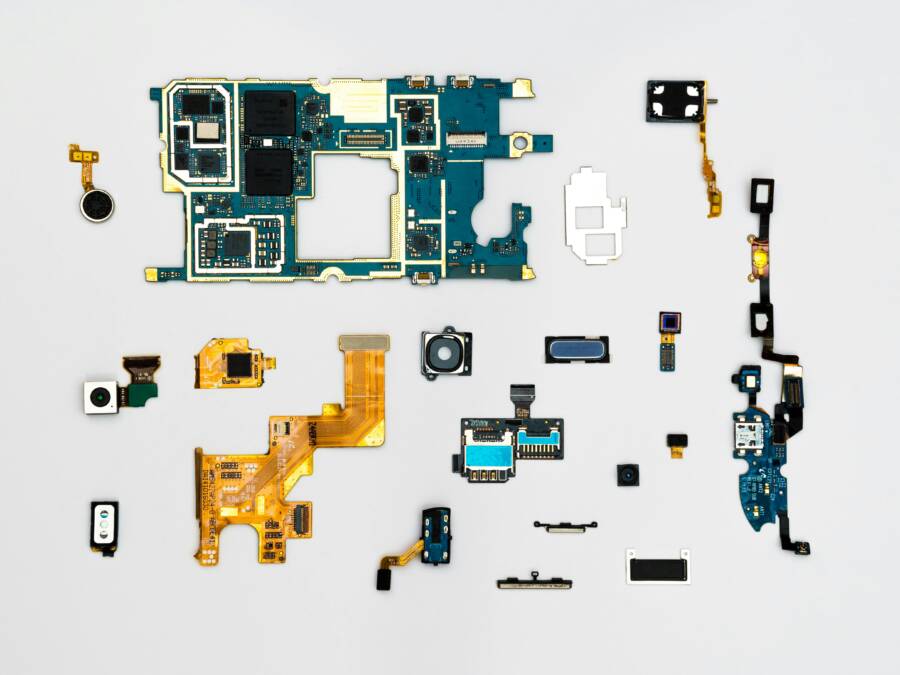
A friend lined up a perfect family photo, only to watch the background stay stubbornly in focus while the subject stayed sharp. That moment is common after a phone update or when a glitch sneaks into the camera app. Portrait mode should blur the background like a pro shot, but sometimes it just won’t cooperate.
Portrait mode is a camera feature that blurs backgrounds for pro like shots on smartphones. It helps separate your subject from the scene by using depth sensing and software tricks. When it stops working, it feels like you lose a useful tool in your pocket. This guide walks you through simple fixes that work for both iPhone and Android devices.
If you’re wondering whether the problem is simple or serious, you’re in the right place. We’ll cover quick checks you can do right away, then walk through iPhone fixes and Android fixes step by step. You’ll learn how to spot common culprits like blocked lenses, wrong lens selection, dim lighting, or a misconfigured setting. And you’ll see how a quick update or a reset can clear up most issues. The goal is to fix it fast, with no special tech skills.
After updates or small glitches, portrait mode can misfire for a few reasons. We’ll look at causes like lens cleanliness, distance to the subject, lighting, and software quirks. You’ll get a practical checklist you can follow in minutes. The steps are designed to restore the blur effect without turning your phone into a science project.
Finally, we’ll outline what to do if the fix doesn’t work. If the depth sensor or camera module is faulty, you’ll know your next best move. The fixes here apply to most recent models and can be done with basic settings, not deep tech know how. Try the steps now and see if you can regain those pro like portraits on your next photo session. Your smartphone photos deserve crisp, layered depth once more.
Common Reasons Portrait Mode Stops Working on Your Phone
Portrait mode relies on precise depth mapping and software processing. When it fails, everyday factors often play a role. You might notice sharp subjects with no background blur, or the whole image stays in focus. Let’s break down the main causes so you can spot them quickly on your iPhone or Android smartphone.
Software Glitches After Updates
Phone makers push OS updates to add features and patch bugs. Yet these changes sometimes mess with portrait mode’s focus or blur tools. Recent iOS versions have caused focus shifts on faces or objects, while Android updates tweak depth sensors and leave shots without bokeh.
Signs include blurry photos across the board or zero background separation. Users report this right after installs, like on Apple’s community forums.
Check your update history first. On iPhone, go to Settings > General > About. For Android, tap Settings > About Phone > Android Version. A pending patch might resolve it. Restart your device too. These glitches hit many, but they clear up fast with awareness. (98 words)
Camera Settings and Permissions Problems
Simple toggles can block portrait mode without warning. Lens correction might sit disabled, forcing flat images. Or your camera app lacks permission to access hardware, so depth data fails to load.
On iPhone, denied access shows in Settings > Privacy & Security > Camera. Android checks live in Settings > Apps > Camera > Permissions. Third-party apps need the same green light.
Quick fixes start here: toggle permissions on, then hunt for settings like “Portrait Lighting” or “Scene Optimizer.” Test in good light. If apps prompt for access, approve them. One overlooked switch often restores the blur effect you expect. Don’t skip this; it’s the easiest win. (102 words)
Buildup in App Cache or Data
Camera apps store temporary files for speed. Over time, junk piles up and slows processing. Portrait mode suffers most, as it demands heavy computation for subject isolation.
This hits Android smartphones harder due to customizable apps. iPhones face it less, but heavy use builds residue too. Symptoms: mode loads slow, crashes mid-shot, or skips bokeh entirely.
Clear it via Settings > Apps > Camera > Storage > Clear Cache (Android) or Offload App (iPhone). Avoid full data wipes unless needed, as they reset preferences. Run this weekly for smooth performance. Your photos regain that pro look once clutter vanishes. (99 words)
Quick First Steps to Try on Any Phone
When portrait mode won’t cooperate, fast, practical steps can restore the blur and keep your subject poppin. Start with quick tests that don’t require tools or resets. These steps work whether you’re using an iPhone or an Android device, and they set the stage for more involved fixes if needed. Think of them as the warm-up phase before you dive into deeper camera troubleshooting. A well-timed restart, a quick space check, and a fresh look at updates and permissions can resolve many sight-line issues and speed up your next shot.
Restart and Test Basics
A clean restart can clear minor software hiccups that scramble depth sensing. For iPhone, perform a force restart by holding the side button and either volume button until the power off slider appears, then slide to power off and turn the device back on. If you’re on Android, use the power menu to restart, which often clears stuck processes that affect portrait mode. Before testing again, step back a bit and reframe. Face or object should be at a comfortable distance, and good light is key. If you’re indoors, aim for ambient lighting rather than direct glare. After reboot, open Camera and switch to the Portrait lens (where available) to compare results. For a quick reference, see Apple’s guidance on force restarting iPhone devices. If you need Android tips, a friendly overview from a trusted guide can help you navigate the process. https://support.apple.com/guide/iphone/force-restart-iphone-iph8903c3ee6/ios
Free Space and Update Checks
Portrait mode relies on processing power and available storage. Start by checking your usable space; low storage can slow the camera’s depth mapping. On iPhone, go to Settings > General > iPhone Storage to see a breakdown and recommendations. On Android, open Settings > Storage to review space and clear unnecessary files or apps. Next, ensure the camera app is up to date. iPhone users should check the App Store for any pending camera app updates or iOS patches; Android users should inspect the Google Play Store for camera app updates and system updates. A fresh install or recent patch often fixes depth sensor or processing glitches that dull the blur. If you’re curious about common Android camera issues and fixes, this guide offers practical steps. https://www.asurion.com/connect/tech-tips/android-camera-not-working/
Fix Portrait Mode on iPhone Step by Step
Portrait mode adds depth to photos by softly blurring the background. When it refuses to cooperate, a quick, methodical approach helps restore the pro look you want. This section covers two focused fixes that apply across iPhone models and even help when you’re juggling Android devices nearby in the same family selfie session. Think of it as a mini maintenance routine for your smartphone camera that keeps your subjects sharp and the background pleasantly softened.
Turn On Lens Correction and Permissions
If lens correction or camera permissions are off, you may lose the edge the blur relies on. Start by confirming these two settings are enabled, then test Portrait mode again.
- Exact paths to check:
- Settings > Camera > Lens Correction on
- Screen Time > Content Restrictions > Camera on
- After you toggle these, restart your iPhone to ensure the changes take effect.
Lens correction helps fix distortion that can throw off depth mapping, while proper camera permissions ensure the hardware can feed depth data to the software. If you see prompts asking for access, grant them. This step often restores the blur without altering any other preferences. After you confirm the changes, open the Camera app and switch to the Portrait lens if available to verify the improvement.
Tips and context:
- Lens correction is particularly useful when you shoot with wide or ultra wide lenses, where distortion is more noticeable.
- If Screen Time restrictions were accidentally enabled, they can block camera features mid session, so a quick review matters.
For deeper guidance on lens correction and related camera controls, see Apple’s guide on changing advanced camera settings and related resources. You can also reference this practical walkthrough on enabling lens correction for iPhone photography to visualize the steps.
- https://support.apple.com/guide/iphone/change-advanced-camera-settings-iphb362b394e/ios
- https://www.tomsguide.com/how-to/how-to-enable-lens-correction-on-iphone
If you’re curious about how Screen Time interacts with app permissions, Apple’s help articles cover common scenarios and how to adjust restrictions.
- https://support.apple.com/guide/iphone/block-access-to-apple-intelligence-features-iph3fed3f2c3/ios
Update iOS and Reset Settings
Software updates can reset or tweak Portrait mode behavior. If your shots suddenly drift or stop showing the blur, a targeted update followed by a clean reset can fix the issue without erasing your data.
- Steps to follow:
- General > Software Update to install the latest iOS version your device supports
- Transfer/Reset > Reset All Settings to refresh system preferences without wiping your photos
- Backup tip: Before resetting, back up your iPhone via iCloud or a local computer. If you rely on specific camera presets or third party apps, note them so you can reconfigure after the reset.
Why this helps
- Updates often include fixes for camera processing and depth mapping. A fresh install can replace corrupted files that slow Portrait mode.
- Resetting all settings returns camera and system preferences to baseline, which clears misconfigurations that block depth sensing.
Practical notes
- After a reset, you’ll need to re-enable preferences like Wi-Fi passwords and wallpaper choices. It’s not a data loss, but it does require a quick re-tune.
- If you keep a lot of video or high-res photos on the device, ensure you have reliable storage available during updates and resets to prevent slowdowns.
If you want a broader read on iPhone camera care and common fixes after updates, Apple’s support and other trusted guides provide a solid map.
- https://discussions.apple.com/thread/255121886
- https://support.apple.com/guide/iphone/change-advanced-camera-settings-iphb362b394e/ios
- https://support.apple.com/en-bh/guide/iphone/iphd7d3a91a2/ios
As you follow these steps, keep an eye on real-world results. If your smartphone still shows flat photos or lacks background blur after a restart and a settings refresh, the problem might be deeper hardware or app specific. In that case, moving to a more advanced check or professional service could be the next best move.
Restore Portrait Mode on Android Phones Like Samsung or Pixel
Portrait mode adds depth to your shots, making the subject pop against a softly blurred background. When it stops working, it can ruin family photos, product shots, or anything with a clear subject. This section gives practical, easy-to-follow steps to bring back that professional blur, whether you’re using a Samsung Galaxy, a Google Pixel, or another Android smartphone. We’ll focus on solutions that don’t require specialized tools and can be completed in minutes.
Clear Cache and Reset App Settings
If portrait mode suddenly acts up, the camera app might be storing corrupted or outdated data. Clearing the cache and, if needed, the data can often restore the feature without reconfiguring everything. This fix is especially effective for Android devices, where third-party camera apps can accumulate more debris over time.
Start with a simple cache wipe:
- Go to Settings > Apps > Camera > Storage.
- Tap Clear Cache. If the problem persists, you can also choose Clear Data or Clear Storage to reset the camera app to its default state.
If you’re using a Samsung Galaxy, this approach is commonly recommended after updates that disrupt camera behavior. You may also want to reset the camera settings within the app to default values. After clearing cache and data, restart your phone and try Portrait mode again to compare results.
If the issue continues, a broader reset can help. For Android devices, a full data reset is rarely necessary, but a quick app-level reset often is. On Samsung phones, you can reset the Camera app settings from within the app itself, or perform a broader reset of settings from the device menu if needed. This approach clears conflicting preferences that can block depth data from feeding the blur algorithm. Once you’ve completed these steps, reopen the camera and retry Portrait mode on a well-lit subject.
For reference and deeper guidance on clearing camera data and related steps, see:
- https://www.samsung.com/us/support/answer/ANS10001372/
If you want practical tips from others who’ve faced similar issues, check this community discussion about camera cache and portrait adjustments:
- https://r1.community.samsung.com/t5/galaxy-s/camera-issues-of-s23-after-one-ui7-update/td-p/33401890
A quick reminder: after any cache or data clear, you may need to reconfigure some camera preferences. The goal is to return to a clean slate where the software can re-establish accurate depth mapping. With the cache refreshed, your smartphone should deliver crisper subject edges and a believable background blur once more.
Key takeaway: start with a cache clean, then move to a light data reset if needed. This minimizes disruption while addressing the most common culprits behind a stubborn portrait blur.
Safe Mode and Software Updates
If the blur still won’t appear after clearing cache, a deeper test is in order. Safe mode lets your device run on the core system apps, temporarily disabling third-party software that could interfere with portrait processing. This is a fast way to determine whether the problem comes from an app you installed or from the OS itself.
To enter Safe Mode on most Android phones:
- Press and hold the Power button.
- Tap and hold Power Off until Safe Mode appears, then confirm.
- Reboot to return to normal mode after testing.
In Safe Mode, open the Camera app and try Portrait mode with the same lighting and distance. If it works, a recently installed app is the likely culprit. If portrait mode still fails, the issue is more likely tied to the system or the camera hardware.
Software updates can fix underlying depth sensor or processing glitches. Check for updates and install any available patches. On Samsung devices, you’ll often see a combined update for both OS and camera components. Pixel and other Android phones may also receive targeted camera fixes in system updates.
To verify and apply updates:
- Samsung: Settings > Software update or About phone > Software updates.
- Pixel: Settings > System > Advanced > System update.
- For both, a restart after updating helps ensure changes take effect.
If you suspect an app conflict after updates, Safe Mode allows you to identify the troublemaker. Uninstall recent apps one by one, then test portrait shots after each removal. If the blur returns in Safe Mode but disappears in normal mode, a specific app is causing the problem.
Helpful resources for deeper guidance:
- Safe Mode on Android devices from major carriers and manufacturers
- https://www.att.com/device-support/article/wireless/000094890/Google/GoogleGLBW0
- Google Pixel support on identifying problem apps via Safe Mode
- https://support.google.com/pixelphone/answer/2852139?hl=en&sjid=16911438374090510819-AP#hcfe-content
Practical tip: keep your phone charged and free storage available when applying updates. A smartphone with limited space can slow processing enough to affect depth mapping and portrait rendering. After updating, test portrait shots at different distances and lighting to ensure stability. If you still see issues, consider a targeted reset of network settings or a more comprehensive device reset as a last resort, always backed up first.
External references offer additional context:
- How Safe Mode helps isolate issues on Android devices
- https://www.att.com/device-support/article/wireless/000094890/Google/GoogleGLBW0
- Pixel guide to safe mode and problem apps
- https://support.google.com/pixelphone/answer/2852139?hl=en&sjid=16911438374090510819-AP#hcfe-content
Final note: Safe Mode and updates serve as robust, user-friendly diagnostics. If portrait mode still refuses to blur after these steps, the problem might be hardware-related or tied to a deeper software conflict. In that case, consulting a tech professional or the device manufacturer’s service channels can help you decide the right course. For more on common Samsung and Pixel portrait issues and fixes, you can explore additional guides and tutorials.
When to Get Professional Help or Prevent Future Issues
Portrait mode is usually fixable with a few quick tweaks, but there are times when a professional diagnosis makes sense. If you’re frequently struggling with blur or you notice persistent hardware or software oddities, a professional service can save time and prevent worse problems down the line. This section helps you decide when to seek help and what steps you can take to minimize future issues.
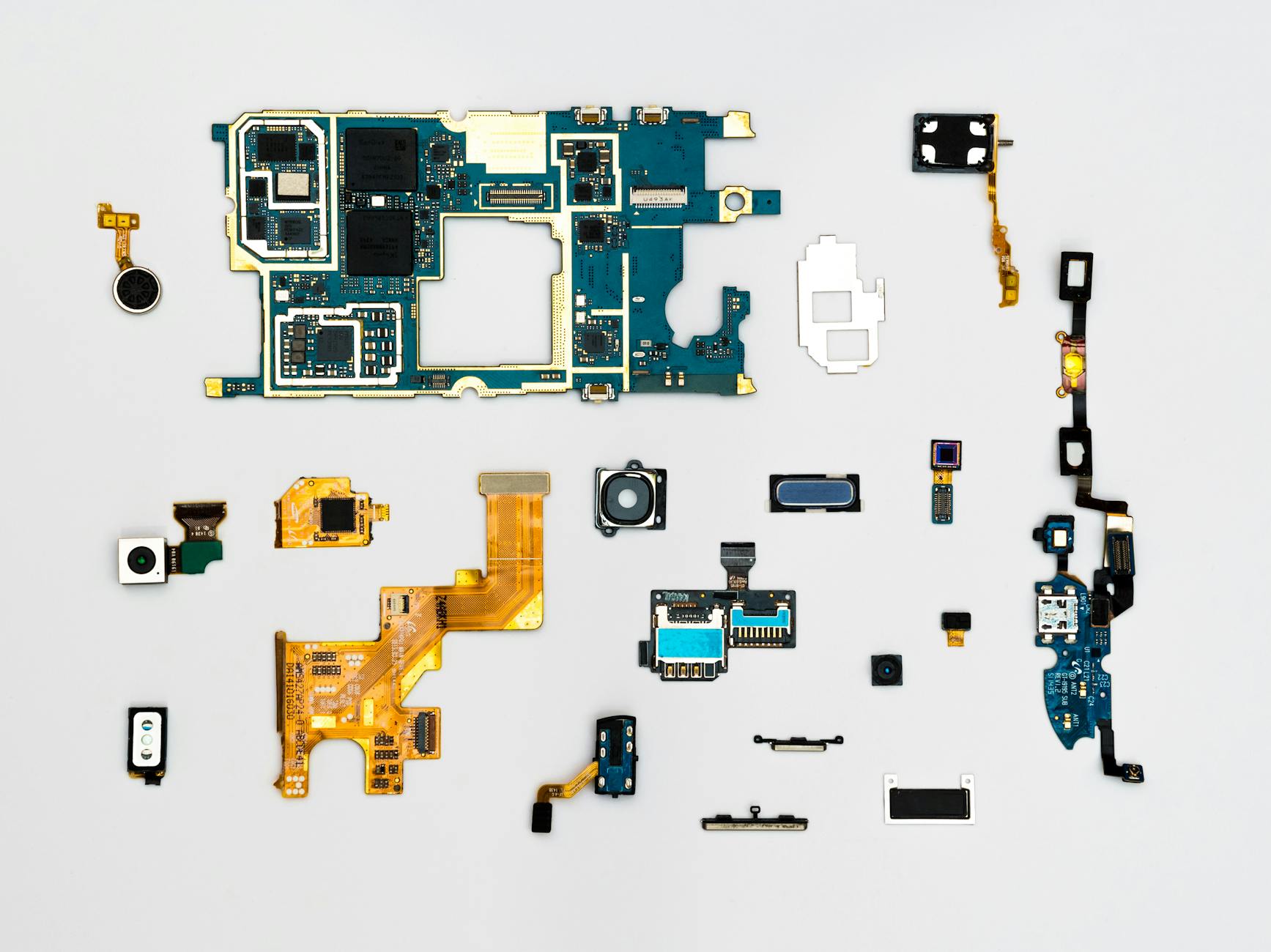 Photo by Dan Cristian Pădureț
When it makes sense to seek professional repair
- The depth sensor or rear camera is physically damaged. Cracks, misalignment, or water exposure can permanently affect portrait processing.
- Portrait mode works intermittently across multiple apps or after factory resets. If the issue persists after standard troubleshooting, a deeper diagnosis is likely needed.
- You’ve exhausted software fixes and the phone still refuses to blur or misreads depth data in all lighting situations.
- The device is still under warranty or covered by an official service plan. Using authorized repair channels preserves warranty coverage and part quality.
In these cases, professional service is the prudent path. Official repair centers offer genuine parts and calibrated depth sensors, ensuring color accuracy and consistent blur results. For iPhone users, Apple’s repair network provides access to certified technicians and parts. Learn more about official repair options here: Apple Repair. https://support.apple.com/en-lamr/repair
How to prepare before handing it in
- Back up your data. A repair visit can involve resets or part replacements that affect settings or apps.
- Note when the issue occurs. Record lighting conditions, distances, and whether lens correction or lighting effects were used.
- Gather your device details. Have your model, OS version, and any error messages ready for the technician.
- Remove sensitive data if possible. Log out of accounts and disable features you don’t want accessed during service.
If you suspect a software issue, technicians can often re-flash the camera firmware or reinstall the OS without erasing personal data. Apple provides guided steps and diagnostics to help you decide on the best repair path. For device owners, Apple’s repair manuals and warranty tools are reliable starting points. iPhone repair resources include iPhone Repair Manual and Find an Apple Authorized Service Provider. https://support.apple.com/en-us/100464
When to consider authorized repairs versus third-party shops
- Authorized repair centers ensure genuine parts and maintain warranty status. They’re the safest option when depth sensors are involved.
- Reputable third-party shops can be faster or more affordable, but verify certifications and parts quality first.
- If your device is out of warranty, weigh the cost of repair against buying a new device with a stronger camera system.
Google and Samsung provide guidance on repair options and authorized partners. If you’re using a Pixel or Samsung Galaxy, start with their official repair resources to locate authorized service near you. Pixel repair options and authorized repair partner information are available here: Find an authorized repair partner for your Pixel phone. https://support.google.com/pixelphone/answer/10227672?hl=en&visit_id=637582689201742503-3045411359&rd=1
Preventive practices to keep Portrait mode reliable
- Clean the camera lens regularly. A dusty or smudged lens can degrade depth mapping and edge detection.
- Protect the depth sensor from impact and moisture. Use a sturdy case and avoid exposure to water or high humidity.
- Keep software lean. Regular updates keep the camera stack current and less prone to glitches.
- Use a single camera app to avoid conflicts. If you rely on third-party apps, test Portrait mode within the stock camera first to establish a baseline.
In addition to hardware care, maintaining a healthy software environment helps prevent future issues. For Android users, Safe Mode testing can reveal app conflicts that might disrupt depth processing. Learn more about safe mode and problem apps: Safe Mode on Android devices. https://www.att.com/device-support/article/wireless/000094890/Google/GoogleGLBW0
When to opt for a targeted reset or a full device reset
- If settings corruption seems widespread or multiple features misbehave, a targeted reset can fix core issues without data loss.
- A full device reset is a last resort when other fixes fail. Always back up before proceeding.
Apple and Google outline these paths to help you decide the right level of reset. For iPhone, you can reset all settings without erasing your media, then reconfigure preferences. This approach restores camera and system defaults, which often resolves portrait quirks after updates. For Android, resetting camera app settings or performing a broader device reset clears conflicting preferences that block depth data. See Apple and Google guidance for resets and troubleshooting: iPhone change advanced camera settings and Pixel safe mode and problem apps. https://support.apple.com/guide/iphone/change-advanced-camera-settings-iphb362b394e/ios https://support.google.com/pixelphone/answer/2852139?hl=en&sjid=16911438374090510819-AP#hcfe-content
How to decide on professional help versus DIY fixes
- If the issue is clearly hardware related or tied to the depth sensor, DIY fixes may not help and could void warranties.
- If you can reliably reproduce a software cause after safe mode testing and updates, it’s worth pursuing a software-focused repair path first.
- When in doubt, contact the manufacturer’s support team. They can guide you to the right service channel and help you avoid unnecessary costs.
For iPhone users, Apple’s repair resources outline the official paths to service and diagnosis. If you want a broader read on iPhone camera care after updates, consider these guides: Apple Support – Repair and Apple Diagnostics for Self Service Repair. https://support.apple.com/en-us/repair https://support.apple.com/en-us/101965
Quick reference checklist
- Back up data before any repair.
- Check for recent OS updates and camera app updates.
- Test lens correction and camera permissions.
- Clear camera cache or data if on Android.
- Use Safe Mode to rule out third-party apps (Android).
- Consider authorized repair if hardware is involved.
- Schedule professional help when the issue recurs after software fixes.
If you’d like more targeted guidance for tricky cases or model-specific steps, I can tailor the advice to your exact device and region.
Conclusion
If portrait mode still refuses to blur, start with the fixes that fit your phone type. For iPhone users, ensure lens correction is on, camera permissions are granted, and iOS updates are installed. A quick reset of all settings can fix stubborn quirks without touching your photos. If problems persist, a hardware check may be needed. For Android users, clear the camera app cache, test in Safe Mode to rule out third party apps, and apply the latest system and camera updates. A targeted app reset or a broader device reset can resolve lingering depth data issues.
Try these steps now to improve your smartphone photos. Clean the lens, confirm lighting, and test at different distances to gauge depth mapping. When you shoot, pick subjects with clear edges and simple backgrounds to highlight the blur effect.
A good portrait subject helps too. People with defined features against a darker backdrop often render the strongest bokeh. With proper care, your smartphone photos can regain depth and crisp subject edges.
Share your experience in the comments or subscribe for more practical fixes. Regular upkeep helps smartphones live longer and stay reliable for everyday moments.