She Pressed Play on a Strange Audio Track and Within Days Her Financial Reality Started Shifting in Ways She Could Not Explain
>>> See How It Works <<<

Notice a yellow tint creeping into your phone photos or colors that just don’t look right. You’re not imagining it—most cases come from a few common settings and lighting quirks that you can fix in minutes.
This guide shows practical, cross platform fixes for iPhone and Android, so you’ll get truer colors in your smartphone photography. You’ll learn quick wins like checking white balance and cleaning the lens, plus simple steps to adjust color accuracy after you shoot.
By the end, you’ll know how to spot the problem and apply fast, reliable adjustments that restore natural tones without a headache. Whether you shoot indoors or out, these tweaks keep your photos looking sharp and true to life.
Understanding color issues and causes
Color accuracy in smartphone photos hinges on several moving parts. By understanding what goes wrong, you can spot issues quickly and apply practical fixes. This section breaks down the core reasons your whites look off and yellows creep into your images. You’ll learn how white balance, lighting, and phone processing interact to shape color, and you’ll get actionable tips you can apply today.
What If the Only Thing Between You and the Life You Deserve Is a Hidden Wealth Code Waiting to Be Activated
>>> Open the Door <<<

White balance and color temperature
White balance is the camera’s way of telling the sensor what “true white” looks like under the current light. If white balance is off, whites won’t look pure and all colors can shift. In a room lit with warm bulbs, for example, a photo can take on a yellow cast because the camera is trying to render the warm light as neutral. Think of white balance as the oven temperature for colors: too hot or too cold and everything bakes toward the wrong shade.
Kelvin is the scale behind white balance. Lower Kelvin values (roughly 2000–3500K) lean warm, giving you yellowish or orange tones. Higher values (5000–7500K and beyond) lean cool, pushing blues. Most phones offer presets like “Auto,” “Tungsten,” or “Daylight,” plus a manual slider in some apps. Presets are quick and often good enough, but manual settings give you precise control when lighting is tricky. For a consistent look, set white balance to match the strongest light source in your scene or use a neutral gray card to calibrate.
Practical tips:
- If whites look yellow indoors, try a cooler white balance or switch to a daylight setting.
- In mixed lighting, use a neutral white balance target or shoot in RAW if your device supports it to fix later.
- Keep a small white or gray card handy for quick reference in familiar spaces.
Relevant resources:
- Understanding color temperature and its practical use in photography. Link
- White balance basics explained in a quick, visual way. Link
- A beginner-friendly white balance tutorial. Link
Photo: A quick visual reminder of white balance in action.
Photo by Andrea Piacquadio
Lighting and color casts
Different light sources produce distinct colors that can cast a tint over your entire image. Sunlight is often balanced but shifts as the day moves; tungsten bulbs emit a warm, yellowish light; LEDs vary widely, with some leaning blue and others warmer. When you mix light sources, color casts multiply, making skin tones look off and whites turn yellow, pink, or gray.
Real-world scenarios and simple fixes:
- Indoor parties with warm tungsten lights can push skin tones toward orange. If possible, introduce a neutral fill light or switch to a daylight-balanced setting on your phone.
- Outdoor sunset shoots bring a rich orange glow. You can embrace the warmth, but keep whites accurate by dialing white balance toward warmer tones only if needed.
- Mixed lighting in a room with natural light and artificial lamps often leads to inconsistent color across frames. Shoot in a single lighting zone when possible, or rely on RAW to adjust later.
Tips to avoid color casts:
- Prefer light sources that align with your target mood. If you want neutral whites, use light that’s closer to daylight or constant LED with a neutral color temperature.
- Use reflectors to bounce neutral light onto your subject and minimize harsh shifts.
- When in doubt, reset to Auto white balance and then adjust after reviewing a histogram if your phone supports it.
Linking to credible lighting discussions can help you pick the right gear and settings for common environments. See resources on LED lighting color consistency and practical lighting approaches:
- LED lighting and skin tone accuracy in photography. Link
- Lighting strategies for group photos and consistent color. Link
- How different artificial lights influence color in photography. Link
Photo: A simple indoor setup showing how light color affects skin tones.
Photo by Andrea Piacquadio
Camera processing and screen color
Your phone does more than just capture light. The software behind the camera, in-app filters, and even the screen you use to preview frames can shift how colors look. Some apps apply aggressive color enhancements or extra contrast that exaggerate yellows, while others aim for a flat baseline that preserves color data. What you see on the phone screen is not always the final color that ends up saved or shared.
Key points to keep in mind:
- Preview on screen can be warmer or cooler than the saved image. If your phone’s display is set to a color mode or night shift, the screen may mislead you about the actual color.
- Filters and auto-enhance tools can push yellows forward or mute other tones. It’s often best to shoot without filters, then apply color correction later if needed.
- Shooting in RAW (when available) preserves more color data for accurate correction in post. If RAW isn’t an option, shoot with minimal processing and adjust in a photo editor later.
Practical steps to avoid confusion:
- Disable heavy filters while reviewing color accuracy in the moment.
- Check color accuracy on a neutral reference target when possible.
- Compare your photo to a calibrated display or print proof to verify true color.
If you want to dive deeper into how phone software handles color, these resources offer practical explanations:
- White balance cheat sheet and practical tips. Link
- Understanding color temperature and how phones render color. Link
Photo: A phone screen showing color adjustments in progress.
Photo by Andrea Piacquadio
Images: Integrating color-friendly visuals helps readers see the concepts in action. If you want a specific shot illustrating white balance, consider a side-by-side comparison of warm vs cool white balance in the same scene.
- Photo by Andrea Piacquadio
What you learned in this section
- White balance directly shapes how colors render in your images.
- Color temperature is measured in Kelvin; warmer light falls at lower Kelvin, cooler light at higher Kelvin.
- Lighting sources and mixed light create color casts that impact skin tones and whites.
- Phone processing and screen color can mislead your perception of the final result; shoot with minimal in-app edits or shoot RAW when possible.
In the next section, we’ll translate these ideas into practical, step-by-step actions you can take on your device to fix a yellow tint and get truer skin tones. You’ll learn quick checks before you shoot, plus post-processing tweaks that don’t require fancy software.
Quick pre-shot fixes to prevent yellow photos
Color accuracy starts before you press the shutter. Small, deliberate checks can stop yellow tints from sneaking into your shots. These quick, practical fixes help you lock in the right whites and keep skin tones natural, whether you’re indoors or outside. Think of this as a pre-shot checklist you can run in under a minute.
 Photo by Deni Iqbal
Clean lens and remove obstructions
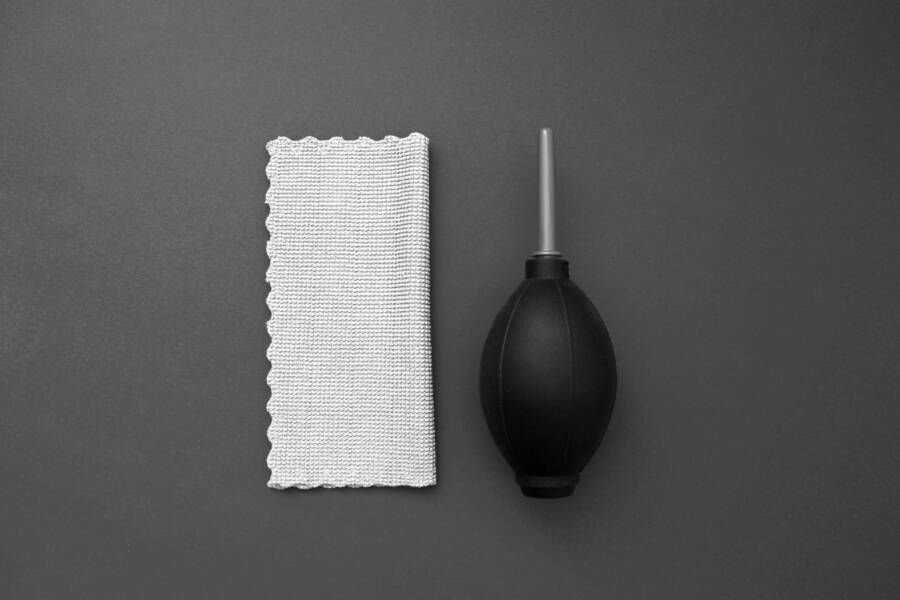
Smudges, dust, and fingerprints on the lens shift color and reduce clarity. A dirty lens can make whites look warm or yellow because the light bounces differently off the surface. Quick cleaning is easy:
- Power off your phone.
- Use a clean microfiber cloth to wipe the lens in gentle circular motions.
- If needed, use a tiny amount of lens cleaning solution or isopropyl alcohol on the cloth (never directly on the lens). Blowing away dust with a can of compressed air can help, but don’t breathe or blow hard.
- Check for cases or screen protectors that cover part of the lens. Remove any that block the glass and retest.
Keep the lens clean as a habit. A clear surface preserves true color and sharpness, making white balance corrections more reliable. For a deeper guide on lens cleaning steps, see this practical walkthrough: A Guide to Properly Cleaning Your Phone’s Camera Lens
Photo: A neatly cleaned lens stays sharp and true.
Photo by Deni Iqbal
Check lighting and avoid mixed lighting
Color casts usually come from lighting. Stable light sources prevent the warm glow of tungsten from colliding with cool daylight in the same frame. Aim for consistent lighting and avoid mixing very warm and cool lights in one shot:
- If possible, shoot near a window with diffused light. It gives a soft, even tone.
- Use a simple lamp setup with a neutral color temperature (around 4000–5000K) to create a balanced scene.
- If in doubt, turn on the room’s main light and avoid placing the subject under directly colored light.
When you’re unsure about color, a single, steady light source is your best friend. For more on handling mixed lighting, explore these resources:
- Mixed lighting conditions in photography and how to fix it: Mixed Lighting Conditions in Photography and How to Fix It
- Color casts and practical fixes in varied lighting: How Do You Avoid Color Casts in Mixed Lighting Situations?
If you want a quick reference on lighting strategies for consistent color, this guide is worth a look: 5 Easy Ways to Avoid & Fix Color Cast Photos in 2025
Photo: A clean, softly lit setup reduces color shifts.
Photo by Deni Iqbal
Use white balance presets or quick WB tweaks
White balance presets are the fastest way to correct a yellow cast, then you can fine tune with small tweaks:
- Start with a preset that matches your light source. Common picks are Daylight for outdoors and Tungsten for warm indoor light.
- If the image still isn’t perfect, nudge the temperature (toward cooler or warmer) and adjust tint to counter any green or magenta cast.
- Presets are a solid first fix. Manual tweaks can polish tricky light or mixed lighting.
When you’re dealing with tricky scenes, shooting in RAW (where available) helps you perfect color later without sacrificing data. For further reading on white balance presets and quick tweaks, check out these resources:
- Get the perfect white balance in smartphone photography: How I Get the Perfect White Balance in My Smartphone Photography
- Adjust White Balance on iPhone for Natural-Looking Shots: Adjust White Balance on iPhone for Natural-Looking Shots
Example of a simple workflow:
- Shoot in Auto WB first, then switch to Daylight if you’re outdoors.
- If indoors under mixed light, try Tungsten for a warmer baseline and adjust in post if needed.
- Compare a neutral gray reference in the frame to guide your tweaks.
Photo: White balance adjustments in progress on a phone screen.
Photo by Deni Iqbal
What you learned in this section
- Smudges and dust alter color and reduce clarity.
- Stable, single light sources minimize color shifts.
- Presets offer quick fixes; manual tweaks fuse accuracy with nuance.
- RAW capture preserves color data for precise post-processing.
In the next section, you’ll find a fast, practical sequence to apply these ideas on your device. We’ll cover a ready-to-use pre-shot checklist and a post-shot quick edit routine that doesn’t require advanced software. This will help you consistently avoid yellow tints and keep skin tones natural across environments.
In-camera fixes you can use today
When yellow tints creep into photos, the fastest path to truer color is to work with your camera’s built-in tools before you reach for post-processing. These in-camera fixes are designed to be quick, reliable, and available on most devices straight away. Think of them as your first line of defense against warm casts, especially in mixed or tricky lighting. Along the way, I’ll point to simple presets and modes you can trust to get you closer to neutral without a ton of tinkering.
Auto white balance vs presets
Auto white balance (AWB) can be a reliable starting point, but it isn’t perfect. AWB analyzes the scene and tries to render whites neutral, yet strong warm lighting or mixed light sources can throw it off. When AWB misjudges, you’ll notice a persistent yellow or orange cast, especially under tungsten bulbs or mixed LEDs. In those moments, switching to a preset designed for the lighting you’re in gives you a predictable baseline and helps you avoid chasing color accuracy.
Switching to presets is straightforward. Look for common scene-based options such as Daylight for outdoor scenes, Cloudy when the sky is gray and warm, or Tungsten for indoor warm lighting. Presets act like a quick calibration, nudging the camera toward the color you expect. They’re especially useful in rooms with mixed lighting, where AWB tends to struggle.
A brief note about avoiding overreliance on AWB in tricky lighting: if the scene contains multiple light sources or unusual colors, AWB can produce inconsistent results from shot to shot. When in doubt, start with a preset that matches your primary light source and review a preview image before you keep shooting. For scenes with persistent color issues, shoot a raw capture when available, then fine-tune after the fact.
ExternalDepth:
- White balance basics and practical tips can help you understand how presets map to lighting. White Balance Kelvin Meter apps and general guidance White Balance Kelvin Meter on Google Play provide a reference point for precise measurements in the field.
- If you want a quick read on the behavior of AWB and presets, explore beginner-friendly explanations such as Cellphone Photography: All About White Balance and practical discussions on how light shifts color.
What to do in practice:
- Start with AWB to get a baseline, then switch to a Daylight preset for outdoor scenes or Tungsten for indoor warm light.
- If the image still reads yellow, adjust the temperature slightly cooler and tweak the tint to counter any green or magenta cast.
- Shoot in RAW when your device supports it to keep more color data for post-editing.
What you learned here
- AWB is a good starting point but can misjudge under mixed lighting.
- Presets provide fast, reliable baselines for common environments.
- Don’t rely solely on AWB in challenging lighting; presets and later tweaks can save the shot.
External resources:
- White Balance Kelvin Meter apps for quick reference on iPhone and Android. White Balance Kelvin Meter – App Store | White Balance Kelvin Meter – Google Play
Manual white balance in Pro mode
Manual white balance in Pro or Manual mode gives you precise control when lighting is tricky. Access to Pro mode is widely available on both iPhone and Android, often labeled as Manual, Pro, or Raw. In this mode you can set the white balance using Kelvin temperatures or a dedicated white balance slider.
A simple path to access Pro or Manual white balance on popular devices:
- On many iPhones, open Camera, enter the “Photo” mode, then tap the tool icon to reveal white balance controls. Some models expose a Kelvin temperature slider or a white balance option within the ProRAW workflow.
- On most Android devices, switch to Pro/Manual mode from the camera app’s modes menu, then choose Kelvin or a WB slider. If you see a gray card or gray target within the UI, you can use that for calibration.
Using Kelvin or a white balance slider, with a short example:
- Kelvin: Set a cooler value, such as 5200K to 5600K, when indoor yellow light dominates. This pulls the image away from the warm cast and brings whites back toward neutral.
- Slider approach: Move the white balance slider toward the cooler side until skin tones look natural and whites appear balanced. A quick test is to shoot a white or gray reference in frame then compare.
Why this helps: manual WB removes the guesswork. You lock in the color temperature that matches your dominant light source, so skin tones stay accurate and whites stay neutral. It’s especially useful for scenes with mixed lighting, where AWB can bounce between frames.
ExternalDepth:
- If you’re curious about precise tools, consider WB measurement apps for iPhone and Android to gauge color temperature in real time. White Balance Kelvin Meter – App Store | White Balance Kelvin Meter – Google Play
What you learned here
- Pro or Manual WB gives exact control over color.
- Kelvin values help you standardize color across shoots.
- A cooler WB is a quick fix for indoor yellow light.
Shoot in RAW when available
RAW captures more color data than standard JPEG, which makes color correction easier and more precise after the shot. When you shoot in RAW, you preserve the full sensor data, including color information that gets compressed in JPEG. This gives you more latitude to correct white balance and remove casts in post.
She Pressed Play on a Strange Audio Track and Within Days Her Financial Reality Started Shifting in Ways She Could Not Explain
>>> See How It Works <<<
Key points:
- RAW preserves color accuracy, especially in challenging lighting.
- Post-processing is typically easier with RAW because you can adjust WB, exposure, and color without degrading quality.
- Some devices require a separate editing app or desktop software to process RAW files, and RAW files take more storage.
A quick practical note: if your device supports RAW, enable it in the camera settings and shoot a few test captures in different lighting. Then, edit the RAW files in a dedicated app like a mobile editor or desktop software to fine tune white balance and color.
Related reading:
- A beginner-friendly guide to shooting in RAW with cameraphones and why it matters. A Beginner’s Guide to Shooting in Raw With Your Cameraphone
What you learned here
- RAW provides more color data for corrections.
- It often requires extra storage and an editing app.
- RAW is a reliable way to preserve color accuracy for post edits.
Avoid color filters that distort color
Many phones offer built-in filters or color effects. While they can be fun, they often push colors away from natural tones. If you’re aiming for accurate skin tones or product colors, turn off heavy filters or use them sparingly.
What to watch for:
- Filters can intensify yellows, greens, or magentas, especially when combined with in-camera sharpening.
- Even subtle effects can shift color balance and make whites look off.
Practical tips:
- Review photos with filters off first. If color looks correct, only then reapply a gentle, neutral filter if you want a consistent look across a series.
- For product photography or skin tones, keep filters off during shooting and apply color corrections later in a dedicated editor.
External guidance:
- Practical discussions on how filters influence color in smartphone photography. Cellphone Photography: All About White Balance
What you learned here
- Built-in filters can distort color, especially for skin tones and products.
- Turn filters off for the best chance at true color.
- Save edits for post-processing if you want a uniform look.
What comes next
- In the following section, we’ll map these ideas into a practical, step-by-step workflow. You’ll get a ready-to-use sequence for both pre-shot checks and post-shot tweaks that keep yellow tints at bay across environments.
Post-processing fixes to fix colors after shooting
Color accuracy after the fact is where many photos finally shine. When a yellow tint sneaks in or skin tones look off, post-processing becomes the bridge between a good shot and a great one. In this section, you’ll learn practical, step by step adjustments you can apply after you’ve left the scene. We’ll focus on white balance, color correction, and targeted edits that keep your images natural without turning into an editing marathon. Whether you shot with an iPhone, an Android device, or a dedicated smartphone, these techniques stay consistent across apps and workflows.
What If the Only Thing Between You and the Life You Deserve Is a Hidden Wealth Code Waiting to Be Activated
>>> Open the Door <<<
Correct white balance in editing apps
Neutralizing color casts starts with white balance in your editing app. Begin with a quick auto-correct pass to get a baseline, then refine the look manually for the most accurate result.
- Start with auto temperature and tint: most editors offer an Auto WB or a one-tap temperature/tint adjustment. This gets you close without guessing.
- Tweak temperature (the warmth or coolness): push toward cooler values to remove a yellow cast or toward warmer values if you want a sunlit feel. The goal is whites that look white, not yellowed.
- Adjust tint (green–magenta): after temperature, fine tune the tint to neutralize any gray or greens that creep in. If skin tones lean green, add a touch of magenta; if they lean pink or magenta, push toward green carefully.
Practical tip: shoot in RAW whenever possible. RAW preserves color data, so you have more latitude to correct white balance without quality loss. If you’re stuck with a JPEG, rely on precise tweaks and compare before/after with a neutral gray reference.
Where to look for reliable guides and tools:
- A visual primer on color temperature and practical use in photography. https://progradedigital.com/understanding-and-using-color-temperature-in-photography/
- Quick white balance basics explained in a visual format. https://www.youtube.com/watch?v=wuH80kGnM9I
- A beginner-friendly white balance tutorial you can apply today. https://crawfordphotoschool.com/digital/whitebalance/whitebalance3.php
For hands-on examples, many editors also offer a dedicated WB control that maps to Kelvin values. If you want to dig deeper into how presets map to lighting, see this overview of white balance concepts and practical tips. Link references provide context for how to approach real-world scenes.
What you’ll take away:
- Auto WB is a solid starting point, but manual tweaks deliver precision.
- Temperature and tint adjustments work in tandem to neutralize color casts.
- RAW captures simplify post processing and preserve color details.
In the next subsection, we’ll move into color correction with temperature, tint, and curves to craft a balanced look that remains true across common displays.
Adjust temperature, tint, and curves
Fine tuning color is a balance act. With temperature and tint set, RGB curves let you push the tonal range while protecting color integrity. Keep the explanations practical so you can apply these steps in minutes.
- Temperature and tint refinements: use temperature to fix the overall white balance, then use tint to address residual greens or magentas. A small nudge can make a big difference.
- RGB curves basics: adjust the red, green, and blue channels to tame color shifts without affecting skin tones. Start with a gentle S-curve to boost contrast while preserving midtones.
- Local adjustments: after global tweaks, use selective edits to prevent background shifts from creeping into the subject.
Practical workflow you can follow:
- Apply a light S-curve on the overall image to restore contrast without crushing shadows.
- If the scene still reads warm, reduce the red channel slightly in the shadows and midtones, then peek at the highlights to maintain detail.
- Use the blue channel to pull whites toward neutral if you notice blue casts in bright areas.
A quick example: you’ve corrected white balance, but the whites in the shirt still look a touch yellow. Lift the blue channel in the highlights a touch and trim the red channel in the same range. The shirt should read closer to pure white while skin tones stay natural.
Helpful resources for readers who want deeper dives:
- A practical guide to color grading on a smartphone photo. https://makeuseof.com/master-color-grading-smartphone-photos
- A color grading app that supports RGB curves for precise edits. https://apps.apple.com/us/app/photo-curves-color-grading/id1606599231
Key takeaways:
- Temperature sets the base color, while tint corrects remaining green/m magenta casts.
- RGB curves give precise control over tonal balance across channels.
- Keep edits subtle; small changes at the curve level prevent unnatural results.
In the next subsection, we’ll explore selective edits to fix any remaining issues without overhauling the whole image.
Use selective edits to fix remaining issues
Selective editing is the secret weapon when only parts of a photo need color correction. With brushes, masks, or selective color tools, you can tighten skin tones, fix a background hue, or neutralize a washed-out sky without altering the rest of the frame.
- Skin tone correction: use a brush or selective color tool to adjust only the skin areas. Increase warmth or reduce yellowness where needed, but leave eyes, lips, and hair untouched.
- Background adjustments: target the background separately to prevent a color shift from leaking onto the subject. This keeps the person looking natural while the scene gains balance.
- Color picker precision: use an eyedropper to sample neutral skin parts, clothing whites, or a gray card if present, and apply targeted corrections.
A quick scenario to illustrate the approach:
- You shot indoors and the subject’s skin looks yellow, while the background is fine. Use a selective brush on the skin area, raise the white balance slightly, and cool the temperature just for those pixels. Then, if the background shifts, apply a separate pass to restore its color without touching the corrected skin.
Practical tips for fast, reliable results:
- Work in small, incremental passes. It’s easier to undo and redo than over-correct.
- Use a neutral reference in the frame when possible to guide your edits.
- Review on a neutral screen after each major change to ensure you’re moving in the right direction.
External references to broaden your toolkit:
- BeFunky’s AI face editor for quick skin retouching and color refinements. https://befunky.com/features/touch-up/
- Snapseed’s selective tools and brush for targeted corrections. https://play.google.com/store/apps/details?id=com.niksoftware.snapseed&hl=en_US
What you’ll learn here:
- Selective edits prevent over-processing and preserve overall image integrity.
- Brush and color target tools let you fix skin tones without affecting the background.
- A measured, iterative approach yields natural results.
In the final subsection, we’ll discuss how to verify edits across devices and ensure your color corrections hold up on different screens.
Compare color profiles across devices
Color on one device rarely looks identical on another. The goal is consistency across the screens your audience uses most, whether a tablet, a computer monitor, or another phone. Here’s how to approach this check without getting overwhelmed.
- Test across devices: view your edited photo on at least two additional displays, such as a tablet and a laptop. Look for consistency in whites, skin tones, and overall balance.
- Calibrate when possible: if you do color work often, consider a basic calibration process or use a reference image to compare against a known standard.
- Be mindful of display differences: some screens run warmer or cooler by default, and evening lighting or brightness settings can shift perceived color.
Practical steps you can take:
- Start with a neutral test shot in good lighting, then apply your edits and compare on a tablet and a computer.
- If you notice a persistent shift, re-tune WB and the global color balance so the image reads the same across devices.
- Save a version with a short, descriptive name like “WB-balanced” to avoid confusion later.
Helpful resources to learn more about device color behavior:
- An analysis of how color reproduction differs across mobile displays. https://www.mdpi.com/2076-3417/15/12/6915
- Research on how color accuracy is affected by different devices. https://open.clemson.edu/cgi/viewcontent.cgi?article=2808&context=all_theses
What you learned here:
- Consistency across devices is the practical measure of color accuracy.
- Simple cross-device checks can reveal gaps in your adjustments.
- Calibrating displays helps you build a reliable baseline for future edits.
This section gives you a compact, actionable workflow you can adopt right away. The next sections will build on these ideas with more scenarios and quick edit templates to keep your color work fast and reliable across environments.
When to seek help and hardware checks
Color issues on phone photos can be caused by software quirks, lighting, or real hardware problems. This section guides you through signs that point to hardware faults and when it’s time to seek a professional check. It also outlines practical steps you can take to verify whether the problem is ongoing after initial fixes.
Hardware sensor issues and camera module
Hardware problems show up as persistent color faults that refuse to respond to software tweaks. Possible culprits include a damaged image sensor, a misaligned lens, or faults in the color sensors themselves. Other telltale signs are color banding, unusual artifacts, or colors that shift unpredictably from shot to shot even when lighting stays the same. If you notice that yellows, magentas, or greens remain consistently off across multiple apps and cameras, the issue may be hardware related.
- Sensor damage: Drops, pressure, or moisture exposure can affect color accuracy. You might see unexpected color casts, blown highlights, or subtle color speckles that do not disappear after resets or updates.
- Lens misalignment: If the lens sits slightly out of alignment, even sharp images can carry odd color shifts or blur toward the edges.
- Color sensor fault: A fault in the sensor’s color filter array can cause skewed color rendering that won’t fix with software changes.
What to do next:
- Run a diagnostic check if your device offers built-in hardware tests. Some manufacturers provide diagnostics in the support app or service menu.
- If colors remain off across all apps and in both RAW and JPEG modes, consider a professional inspection. A trained technician can verify sensor alignment, inspect the lens assembly, and test color channels outside consumer software.
When in doubt, don’t push continued use in hopes a deeper software fix will appear. A hardware issue usually needs a hands-on assessment. For a deeper look at how to tell if a cellphone camera sensor or lens is damaged, see expert guidance from photography communities. How can I easily tell if a cellphone camera sensor or lens is damaged?
Software updates and troubleshooting
Software can mask hardware issues, but it can also create odd color behavior through bugs or conflicting settings. Before you assume a hardware fault, confirm you’ve covered the common software culprits. Keeping your OS and camera app current is the first line of defense.
A practical troubleshooting checklist:
- Update the OS and camera app to the latest available version.
- Clear the camera app cache or data if the option exists, then reopen the app.
- Try a soft reset or reboot to clear any transient software glitches.
- Boot into Safe Mode (Android) or perform a clean start (iPhone with minimal background apps) to rule out third-party interference.
- Test with a different camera app to see if the issue persists across apps.
- If you shoot in RAW, verify whether color issues appear in RAW files as well as JPEG; it helps determine whether the problem is in the pipeline or in the sensor data.
Useful reference steps:
- Pixel users can follow Google’s guidance to fix camera app issues on Pixel devices. Fix your Camera app on your Pixel phone or tablet
- For iPhone users, a discussion thread in Apple’s support ecosystem often pinpoints whether a color shift comes from software or hardware. iPhone 16 pro yellowish display tint
Why this matters: software fixes can be quick and inexpensive, but they won’t fix a hardware fault. If you go through the checklist and the problem persists, it’s time to escalate to service.
When to contact support or service
If your testing and updates don’t restore accurate color, it’s appropriate to reach out to official support or service centers. Before you contact support, gather a small set of data to speed up the process and improve your chances of a fast resolution.
What to report and prepare:
- Model and variant of your device (for example, iPhone 14 Pro, Galaxy S23, etc.).
- Your current OS version and the exact camera app you use.
- A couple of photos clearly showing the color issue, ideally one indoors and one outdoors to demonstrate consistency.
- Any recent incidents that could relate to the fault, such as a drop, moisture exposure, or a repair.
What to include when you contact support:
- A brief description of the issue, including when it started and whether it affects all apps and modes.
- Links to any relevant tests you performed (software update status, Safe Mode test results, RAW vs JPEG comparisons).
- The photos you captured to illustrate the problem, along with details about the lighting used in each shot.
Backup first, then proceed:
- Back up your data before sending the device for service. If the unit needs internal testing or repair, you’ll want a current restore point or a clean slate for the technician.
- If you’re near a service center, consider scheduling an appointment to avoid long wait times.
Where to go for help:
- Manufacturer support threads can provide device-specific guidance and appointment options. For example, discussions about color issues and device behavior on Apple’s support forum can be informative. iPhone 16 pro yellowish display tint
- If you’re using Samsung devices, community threads often surface practical steps and service routes. Yellow photos with 50MP camera in s23
What you’ll take away
- Hardware faults typically require a hands-on inspection.
- Collecting photos and device details speeds up the support process.
- Always back up before service to protect your data.
If you’re ready to explore, the next section maps these ideas into a concrete, end-to-end workflow. You’ll find clear steps for confirming color accuracy and deciding when it’s time to call in a pro.
Conclusion
You now have a clear, practical path to fix yellow or strange colors in smartphone photos. The core fixes boil down to correct white balance, manage lighting, and keep color processing in check both before and after you shoot. A simple, repeatable workflow helps you stay consistent across environments, devices, and apps. Try these steps: clean the lens, pick the right white balance preset or manual Kelvin, shoot in RAW when possible, and use targeted color corrections in post for true color accuracy.
If you try the workflow and still see persistent tint issues, share your results in the comments or with fellow smartphone photographers. I’d love to hear what worked for you and what didn’t. For more practical camera tips and updates on color accuracy, consider subscribing to the blog.
There Is a Frequency That the Wealthiest Families Have Used for Generations and Most People Will Never Know It Exists
>>> Open the Door <<<
