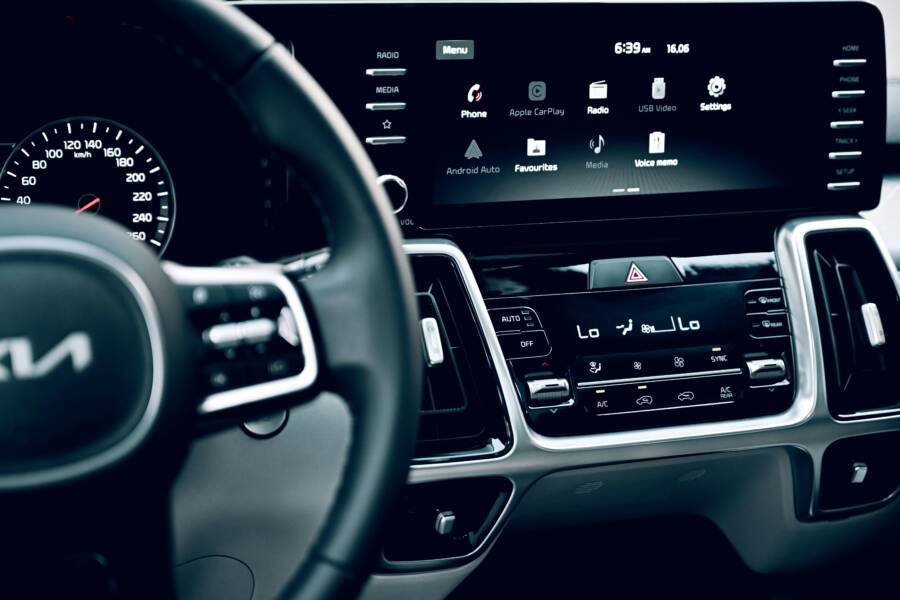
Why does your phone refuse to connect to Apple CarPlay when you’re navigating or streaming music on a quick drive? This guide cuts through the mystery with practical fixes that work for both wired and wireless CarPlay. You’ll learn simple checks, fast resets, and reliable steps backed by recent user reports.
In minutes, you’ll know exactly where to start. We cover the common culprits like cables, settings, and interference, then move to quick wins you can test right away. A stuck connection usually isn’t a feature of your smartphone or car, but a hiccup you can fix with minimal fuss.
Think of this as a clear, no-nonsense playbook. You’ll get easy-to-follow steps, plus what to try if the basics don’t solve the problem. By the end, you’ll be back to maps, playlists, and hands-free calls with confidence, using straightforward fixes that don’t require expert help. If you’re short on time, start with the quickest checks, then progress to the more thorough steps as needed.
Quick Checks to Restart Your CarPlay Connection
When CarPlay stops playing nice, the fastest fix is often a simple restart. This section outlines quick checks you can run right away to clear glitches and get you back to maps, music, and messages without a tech call. We’ll cover restarting both devices, testing cables and ports, and ensuring wireless CarPlay is ready to go. If you’re short on time, start with the first two subsections and move deeper if needed.
Restart Your iPhone and Car Infotainment
Power cycling is the easiest way to clear temporary hiccups that block CarPlay from connecting. Start with a full restart of your iPhone, then reset the car’s infotainment system. This sequence refreshes memory, resets drivers for the USB stack, and reinitializes wireless radios for CarPlay to negotiate a clean handoff.
- iPhone: Hold the side button and a volume button until the power off slider appears. Drag to shut down, wait 10–15 seconds, then press the side button to turn it back on.
- Car infotainment: Use the proper power cycle for your system. Typically, you can turn the car to accessory or off, wait 30–60 seconds, then restart the ignition. If your system supports a soft reset option in the settings menu, run that first; otherwise a full power cycle will do the job.
Why this helps: rebooting clears temporary software glitches, resets the USB stack, and reestablishes the CarPlay handshake between your iPhone and the head unit. After the reboot, test CarPlay by connecting again. If it still won’t connect, move to the next checks.
If you want more guided steps, Apple’s official CarPlay support page covers wired and wireless connections and what to do if CarPlay isn’t working after updates. For a concise, practical walk-through, you can also review a scenario-based guide from a dealer article that walks through the same restart logic in real world terms. Apple support: https://support.apple.com/en-us/105109
Swap Out Faulty Cables or Ports
Cables and ports are the most common culprits in CarPlay failures. A bad cable or a worn-out USB port can create a flaky connection that looks like software trouble. Start by testing with a known good, Apple-certified cable and try different USB ports if your car has multiple options.
- Use an Apple‑certified USB cable. Cheap third-party cables are more prone to failure or may not handle the data rate CarPlay requires.
- Try a different USB port on the car’s console. Some vehicles have multiple ports that only one fully supports CarPlay.
- If you’re using wireless CarPlay, swap to wired for a moment to rule out wireless interference and confirm the car recognizes the iPhone properly.
What you’re looking for is a clean, stable connection. If the connection works with a different cable or port, you’ve identified the hardware fault. If it still misbehaves, you can proceed to checks that focus on settings and wireless behavior.
Notes from the field show that replacing a damaged cable or using a higher-quality adapter can solve most issues quickly. For more context on wired CarPlay issues and what dealers recommend, see guidance from automotive service resources. Quick reads: https://www.asurion.com/connect/tech-tips/apple-carplay-not-working-here-is-how-to-fix-it/
Turn On Bluetooth and Wi-Fi for Wireless CarPlay
Wireless CarPlay relies on Bluetooth and Wi-Fi to establish and maintain the connection. If your car supports wireless CarPlay, ensure both radios are on and that auto-join is enabled so your iPhone reconnects without you having to manually pair every time.
- Enable Bluetooth on the iPhone and in the car’s system.
- Make sure Wi-Fi is on, even if you don’t plan to use data from the car’s network.
- In iPhone settings, confirm Auto‑Join for the car’s network is enabled. This makes future connections smoother and faster.
- If you’ve previously paired the car, you may need to forget the car and re-pair to clear stale profiles.
Guiding principle: wireless CarPlay should hand off quickly once both devices see each other. If you notice sporadic reconnects, turn off other Bluetooth devices temporarily to see if interference is the culprit. Apple’s official Connect iPhone to CarPlay guide provides step-by-step setup and troubleshooting for wireless mode: https://support.apple.com/guide/iphone/connect-to-carplay-iph6860e6b53/ios
If you’ve updated iOS recently and your CarPlay keeps dropping, check whether the car head unit firmware is current. In many cases, a firmware update to the head unit is required to maintain compatibility with new iPhone software. You can find more on how CarPlay works with iPhone and what to check in the official CarPlay help article here: https://support.apple.com/en-us/108415
Quick wins to try in wireless mode:
- Turn Auto-Join off and back on.
- Re-pair the iPhone to the car from scratch (forget this car, then reconnect).
- Temporarily disable any watch or additional Bluetooth devices to reduce cross-talk.
If wireless CarPlay still won’t connect after these steps, it may be time to check deeper settings or firmware, or consider a factory reset of the head unit as a last resort. For a practical overview of common wireless CarPlay fixes, see the general guide from a trusted tech source: https://www.asurion.com/connect/tech-tips/apple-carplay-not-working-here-is-how-to-fix-it/
Additional tip: avoid heavy VPNs or VPN profiles while using CarPlay. VPNs can block CarPlay traffic even when it seems the connection is fine. If you must use a VPN for work, disable it temporarily while CarPlay is active and then re-enable after you disconnect.
If you’ve run through these checks and still face trouble, you’re not alone. Many users see improvements after minor adjustments or a quick firmware update from the car manufacturer. Apple’s official help center and user communities can be a good resource for model-specific quirks and fixes. CarPlay support: https://support.apple.com/en-us/105109
You’ve got a solid toolkit now: restart, swap cables or ports, and confirm wireless radios and Auto-Join are configured. If you need a quick recap, the fastest path is to restart both devices, test a different cable and port, then switch to wireless CarPlay and enable auto-join. If nothing sticks, the issue may live in the car’s head unit firmware or a rare iOS edge case that needs a specific fix. For tailored guidance, share your car model, iPhone model, and iOS version, and I’ll map out the next precise steps.
Adjust iPhone Settings to Allow CarPlay
When CarPlay won’t connect, the issue often hides in the iPhone’s permissions or how the phone talks to the car. This section helps you confirm CarPlay is allowed by your iPhone settings and that Screen Time or Siri restrictions aren’t blocking the connection. It’s a quick, practical check that can save you a lot of head-scratching on the road.
Enable CarPlay in General Settings
Before you dive into cables or firmware, make sure CarPlay is enabled in your iPhone settings and that your car is recognized as a trusted device. This step sets the foundation for a smooth pairing, whether you’re using a wired or wireless setup.
- Start by verifying the car appears in the CarPlay list on your iPhone. Go to Settings > General > CarPlay. If your vehicle isn’t listed, reconnect the cable for a wired setup or re-pair a wireless connection. Sometimes a fresh listing is all that’s needed.
- Confirm that your car is marked as trusted. If you see a prompt on the iPhone asking to allow CarPlay while the phone is locked, accept it. This trust relationship is essential for automatic handshakes after every restart.
- Test the pairing after each change. Connect the iPhone to the car via USB or enable wireless CarPlay, then check if the home screen of CarPlay appears on the head unit. If it doesn’t, try a different USB port or reset the head unit as a quick fallback.
- If the car doesn’t appear at all, consult Apple’s CarPlay support for wired and wireless setups and how to troubleshoot after updates. You’ll find step-by-step guidance here: https://support.apple.com/en-us/105109
Why this matters: CarPlay relies on a trusted link between your iPhone and the head unit. If the car isn’t listed or the trust prompt isn’t acknowledged, the system may stay in limbo. By validating the listing, you clear a common roadblock and set the stage for a clean re-pair.
If you want a concise reference, Apple’s official guide covers the basics of connecting to CarPlay and what to do when it isn’t working after updates. For a quick, practical walkthrough in everyday terms, you can also review dealer resources that walk through the same steps. Apple support: https://support.apple.com/en-us/105109
Check Screen Time and Siri Restrictions
Sometimes, restrictions block CarPlay from showing up or functioning correctly. This is a common pitfall for users who set limits on apps or voice features without realizing it.
- Open Settings > Screen Time. If Screen Time is enabled, check the following:
- Content & Privacy Restrictions are not blocking CarPlay. If enabled, navigate to Content & Privacy Restrictions > Allowed Apps and ensure CarPlay is allowed.
- Allow CarPlay under your device’s restrictions. If CarPlay is restricted, toggle the setting to allow it.
- Check Siri and dictation permissions. CarPlay relies on Siri for hands-free controls. Go to Settings > Siri & Search and make sure that:
- Siri is enabled with “Listen for ‘Hey Siri’” turned on if you use voice commands.
- CarPlay is allowed to use Siri in the app permissions list.
- After adjusting Screen Time and Siri settings, re-test CarPlay. If you’re using wireless CarPlay, ensure Bluetooth and Wi-Fi are enabled on both devices and that Auto-Join remains enabled for a smoother reconnection.
If you need a more detailed, user-friendly walkthrough, Apple’s guide offers clear steps for Screen Time and restrictions related to CarPlay: https://support.apple.com/guide/iphone-connect-to-carplay-iph6860e6b53/ios
Key takeaway: a quick pass through Screen Time and Siri restrictions often reveals the simple barrier blocking CarPlay. A few taps can restore full control to maps, music, and hands-free calls, without touching cables or head units.
Extra tip for the road: if you’re using a privacy or security app, disable it temporarily while trying to connect CarPlay. Some apps block background connections or alter network behavior, which can interfere with CarPlay handshakes. If you still run into trouble after these checks, you can explore more targeted fixes or reach out with your car model, iPhone model, and iOS version for precise guidance.
Re-Pair Devices for a Clean CarPlay Link
When CarPlay starts acting up, the culprit is often a stale pairing. Re-pairing your iPhone and the car’s head unit can wipe out conflicting profiles and reset the handshake between devices. Think of it as giving CarPlay a fresh first impression. This section walks you through two precise paths to a clean link: forgetting the car from your iPhone and vehicle, then resetting network settings on the iPhone if needed. You’ll reconnect with a straightforward setup and get back to maps, music, and hands-free calls without fuss.
Forget This Car from iPhone and Vehicle
A clean re-pair starts with removing the old relationship from both sides. This prevents the head unit from trying to reuse a broken profile and stops the iPhone from barking at a previously paired car. Follow these exact steps on both devices to ensure a clean slate.
- On the iPhone
- Open Settings, then General, then CarPlay.
- Tap the car name you want to forget. Swipe left on the car, then tap Forget.
- If prompted, confirm that you want to forget this car. This removes the profile from your iPhone.
- Reboot the iPhone to ensure the change takes full effect.
- On the car
- Access the head unit’s Settings or Bluetooth/Wi‑Fi management area.
- Locate CarPlay or iPhone pairing, and choose to remove or forget the iPhone.
- If your car supports a “forget all” or reset option for CarPlay, use it to clear the prior pairing profile.
- Restart the head unit if available. In some cars a full power cycle is best; turn the vehicle off, wait 30–60 seconds, then start it again.
- After both sides are cleared
- On the iPhone, re‑enable CarPlay by connecting via USB for wired or enabling wireless CarPlay in Settings.
- In the car, start a fresh pairing prompt. Follow the on-screen prompts to complete the setup.
Why this helps: the old profile can carry misconfigurations that brief troubleshooting can’t fix. A fresh pair ensures the iPhone and head unit negotiate a clean handshake, reducing the chance of random dropouts or a failed connection. If you want a quick reference, Apple’s official CarPlay help covers wired and wireless pairing steps and what to do if CarPlay isn’t working after updates [Apple support]. https://support.apple.com/en-us/105109
If you’ve tried similar steps before, this time approach the process with a true reset mindset. Forgetting the car on the iPhone and on the head unit eliminates stubborn cached data and forces both devices to rebuild their shared state from scratch.
Pro tip: during the re-pair process, use a short, sturdy cable for wired CarPlay and avoid periphery devices that could interfere with the connection. A well‑made cable helps a lot when you’re testing a new pairing.
Reset Network Settings on Your iPhone
If re-pairing doesn’t deliver the expected results, a network reset can clear stubborn network misconfigurations that block CarPlay from recognizing the iPhone or from negotiating a stable link. This step is broader than a simple toggle; it resets Wi‑Fi, Bluetooth, and cellular networks to their default states. It’s a safe step when nothing else works, and it doesn’t affect your data.
- What you should know before you start
- A network reset will remove saved Wi‑Fi networks and passwords, Bluetooth devices, and VPN configurations. You’ll need to rejoin networks and re-pair accessories after the reset.
- Your apps and data stay intact. This is a settings reset, not a data reset.
- How to perform the reset
- Open Settings, then General.
- Scroll to Transfer or Reset iPhone.
- Tap Reset, then Reset Network Settings.
- Enter your passcode if prompted, then confirm. The device will restart.
- After the iPhone restarts, reconnect to Wi‑Fi, re‑enable Bluetooth, and re-pair CarPlay as needed.
- What it does for CarPlay
- Reinitializes the iPhone’s network stack, clearing any stuck Bluetooth or Wi‑Fi handshakes that block CarPlay.
- Forces a clean negotiation when you reconnect, which can fix intermittent connection drops or a failure to start CarPlay.
Backup and recovery notes
- If you use a trusted VPN profile or security app, disable it temporarily while testing CarPlay after the reset. Some tools can block CarPlay traffic or complicate the re-pair.
- After the reset, test CarPlay with a fresh pairing. If you still see issues, it’s worth checking for a head unit firmware update or consulting the car manufacturer’s guidance. Apple’s official CarPlay support page remains a solid, model‑specific reference if problems persist [Apple support]. https://support.apple.com/en-us/105109
Why this matters: sometimes the issue isn’t the iPhone or the car itself, but how they talk to each other over local networks. A network reset removes the stale, misbehaving states that hide behind multiple troubleshooting steps and gives you a clean start.
Extra context from reliable sources
- If wireless CarPlay continues to misbehave after a reset, verify the car’s head unit firmware is up to date. In several scenarios, a firmware update is required to stay compatible with new iPhone iOS changes. A practical overview of common wireless CarPlay fixes can help you decide if you should pursue a firmware update or a factory reset of the head unit [Asurion guidance]. https://www.asurion.com/connect/tech-tips/apple-carplay-not-working-here-is-how-to-fix-it/
- For broader CarPlay troubleshooting, Apple’s support page covers both wired and wireless setups and how to troubleshoot after updates. If you’re looking for model‑specific quirks, dealer resources often provide practical steps tailored to the year and model of your car [Apple support]. https://support.apple.com/en-us/105109
Key takeaway: resetting the iPhone’s network settings is a powerful, low‑fuss step that clears hidden network culprits. After you reset, re-pair CarPlay and test in a controlled way. If the problem persists, you’ve now isolated the likely source to either the head unit firmware or a persistent iOS edge case that needs a targeted fix. If you want tailored guidance, share your car model, iPhone model, and iOS version and I’ll map out the next precise steps.
External resources you can consult
- Apple CarPlay help and troubleshooting: https://support.apple.com/en-us/105109
- Apple Connect to CarPlay guide for wireless setup: https://support.apple.com/guide/iphone/connect-to-carplay-iph6860e6b53/ios
- Asurion: Apple CarPlay not working? Here’s how to fix it: https://www.asurion.com/connect/tech-tips/apple-carplay-not-working-here-is-how-to-fix-it/
Update Software to Fix Deeper CarPlay Bugs
When CarPlay acts up in ways that basic resets can’t fix, the problem often lives deeper in the software stack. Upgrading the right components can resolve stubborn issues and restore a stable, reliable connection. This section explains what to update, why it matters, and the practical steps to apply updates safely. Think of it as the behind‑the‑scenes maintenance that keeps your maps, music, and hands‑free control running smoothly.
Install Latest iOS and Check Car Firmware
Keeping your iPhone on the latest iOS version is the foundation for a stable CarPlay experience. New iOS updates include fixes for CarPlay connectivity, improved compatibility with newer head units, and bug patches that can prevent dropouts. After any iPhone update, you should also verify that your car’s head unit firmware is current. In many cases, a firmware update from the dealer or automaker is required to maintain seamless compatibility with the newest iOS features.
- Verify iOS freshness: Go to Settings > General > Software Update on the iPhone. If a newer version is available, install it. Apple’s support resources highlight the sequence for CarPlay troubleshooting after iOS updates, making this a reliable first step: Apple support. https://support.apple.com/en-us/105109
- Check car head unit firmware: Some cars handle CarPlay through a dedicated head unit that can receive firmware updates. If you’re not seeing CarPlay behave, ask your dealer or the vehicle manufacturer about the latest display unit or gateway updates. Automotive service resources often point to updating the infotainment system and related modules to preserve CarPlay compatibility: Uconnect software update center, Honda display audio updates, and similar channels. For a sense of how dealers present these steps, see the dealer and OEM guidance linked in practical CarPlay troubleshooting guides: https://www.driveuconnect.com/support/software-update.html https://www.hondainfocenter.com/2021/Insight/How-To-Videos/Touring/Audio-and-Connectivity/How-to-Update-Display-Audio-Software-Wirelessly/
- When to update both sides: If you notice dropouts only after an iPhone update, the iPhone side is the likely culprit. If the issue appears immediately after a head unit update or if CarPlay won’t start at all, the head unit firmware is the probable bottleneck. In some vehicles, CarPlay Ultra or other features rely on specific firmware packages that dealers offer as optional updates. If you’re unsure, ask for a “CarPlay compatibility” or “CarPlay Ultra” package check and install if available.
Practical note: a well‑run update sequence often fixes deeper bugs that casual resets miss. If you’re planning a firmware refresh, stay powered up during the process. A laptop battery or a stable car power source helps prevent mid‑update failures. For an overview of what to check when CarPlay isn’t connecting after updates, Apple’s CarPlay help page is a solid reference and the dealer guides provide model‑specific instructions: Apple support. https://support.apple.com/en-us/105109
Extra tip: after any firmware or iOS update, re‑test CarPlay with a known good cable (for wired CarPlay) or a fresh wireless pairing. This helps confirm the update actually resolved the issue and isn’t just a coincidental state. If wireless CarPlay is involved, ensure the car head unit and iPhone keep their radios aligned after the update, since some fixes require re‑pairing to take full effect. For general wireless CarPlay setup and troubleshooting after updates, Apple’s wireless setup guide is a practical companion: https://support.apple.com/guide/iphone/connect-to-carplay-iph6860e6b53/ios
Why this matters: software fixes can address root causes like handshake timing, protocol changes, and driver updates that hardware swaps can’t fix. If you’ve followed the update path and CarPlay still misbehaves, you’re likely dealing with a more nuanced compatibility issue or an edge case that needs targeted adjustments.
Common update pitfalls to avoid
- Don’t skip the iPhone update when the issue started after a software change. The phone may be requesting features unsupported by the head unit’s current firmware.
- Avoid updating one side only and assuming the problem is solved. Both the iPhone and the head unit may need synchronized improvements.
- If your car uses a radios or gateway module, an OTA update may not cover all components. In‑person dealer updates can be necessary for full coverage.
If you want to see a practical, model‑specific plan, share your car make, model, year, and iPhone model with iOS version. I’ll map out the exact firmware packages and installation steps that tend to work for your setup.
Test with Another Phone or Reset Everything
If firmware updates don’t fix the problem, it’s time to isolate the fault. Testing CarPlay with a different phone or performing a complete reset helps you determine whether the issue lives with the iPhone, the car, or a shared path. This method is simple but powerful, and it often reveals the real bottleneck without guessing.
- Why test with another phone: If CarPlay works on a different iPhone, the problem likely sits on the original device. If it still fails, the issue is closer to the car or the head unit.
- How to approach a reset: A full reset helps clear stubborn misconfigurations that survive usual troubleshooting. Start with a simple, non‑destructive reset like re‑pairing or forgetting the car, then move to more thorough steps if needed.
- VPN and privacy considerations: While testing, avoid VPNs or security apps that could block CarPlay traffic. They can create a false sense of normal operation by masking underlying issues.
Practical steps you can take
- Swap to a different iPhone: Connect the other phone via USB (wired) or enable wireless CarPlay on the backup device. If CarPlay works, the original iPhone is the likely culprit.
- Forget and re‑pair from scratch: On the iPhone, go to Settings > General > CarPlay, select the car, and choose Forget. In the car, remove the iPhone from the CarPlay settings and reset the head unit if available.
- If you still see trouble, perform a broader reset: On the iPhone, you can reset network settings to wipe out stale connections. This is a powerful but safe move that clears Wi‑Fi, Bluetooth, and cellular defaults, often restoring CarPlay’s handshake. Remember, you’ll need to rejoin networks and re‑pair devices after the reset. Apple’s guidance on CarPlay troubleshooting after updates remains a solid reference: Apple support. https://support.apple.com/en-us/105109
When to escalate
- If a different iPhone works but your primary device does not, inspect the iPhone’s settings and accounts for anything unusual, like a missing CarPlay trust prompt or profile restrictions.
- If both phones fail on the same car, the head unit or vehicle gateway is the likely source. Dealers can perform deeper diagnostics and firmware checks.
Extra context from reputable sources
- Wireless CarPlay disconnects at the same place on a commute can point to interference or a persistent radio handshake issue. Community threads and discussions offer practical pointers that align with formal guidance from Apple and automakers: Apple discussions and support. https://discussions.apple.com/thread/253935799
- If you’re updating or reconfiguring a head unit, manufacturer centers often publish specific steps for updating display audio software wirelessly. This can be a faster route than dealer visits in some cases: Honda Info Center and Uconnect documentation provide relevant procedures: https://www.hondainfocenter.com/2021/Insight/How-To-Videos/Touring/Audio-and-Connectivity/How-to-Update-Display-Audio-Software-Wirelessly/ https://www.driveuconnect.com/support/software-update.html
Key takeaway: when the simple fixes fall short, confirming the software layer is the right next move. Update iOS, verify head unit firmware, and test with a different iPhone or a clean re pairing. This approach often uncovers the real cause and sets you up for a reliable CarPlay experience on every drive. If you want tailored steps for your exact setup, share your car model, iPhone model, and iOS version and I’ll map out the precise path.
Conclusion
Fixing a phone that won’t connect to Apple CarPlay is usually a straight path of checks, in a sensible order. Start with quick hardware tests, then move to settings and firmware. A fresh pair or a clean cable often resolves the issue fast.
Key takeaways to remember:
- Use a known good, Apple certified cable and try a different USB port if needed.
- Restart both the iPhone and the car’s head unit, then re-pair if you switched to wireless CarPlay.
- Update iOS and check head unit firmware; after updates, re-test with a fresh pairing.
- Check iPhone settings, Screen Time and Siri permissions, and ensure Auto‑Join is enabled for wireless CarPlay.
Prevention tips to keep you on the road longer:
- Keep your iPhone and car software current, and test after each major update.
- Use quality cables and avoid extra adapters that can degrade signals.
- Limit VPNs or security apps during CarPlay testing to rule out interference.
If you still face trouble, try swapping devices or performing a network reset as a last step. A well‑timed firmware update can fix stubborn handshake issues, while a clean re pairing removes stale data. Have you solved CarPlay problems recently with a simple cable swap or a Settings tweak? Share your experiences in the comments, and stay safe behind the wheel.