You’ve turned up the volume, but your phone’s speakers stay silent. Calls ring through headphones that aren’t there, and music skips straight to your ears, or nowhere at all. It’s maddening when your phone thinks headphones are always plugged in, even though nothing’s connected.
This glitch hits millions of users across Android devices and iPhones. Debris like lint or dust clogs the headphone jack, or a software hiccup fools the audio routing. Your smartphone routes sound wrong, blocking speakers until you fix it.
Good news: simple steps sort this out fast. For Android, clean the jack gently, restart your device, or toggle settings. iPhone owners can reset audio with a quick call trick, plug cycles, or accessibility tweaks. We’ll walk you through each method step by step.
These fixes come from real user reports and tech forums where folks share what works. No need for fancy tools or repair shops yet. Stick with us, and you’ll get sound blasting from speakers in minutes.
Why Does Your Phone Think Headphones Are Always Connected?
Your phone routes all audio to headphones that aren’t there. Speakers stay mute during calls or music playback. This problem stems from a few key triggers that fool the detection system. Let’s break down the main culprits so you understand what’s going on before you fix it.
Dirt and Debris in the Headphone Jack
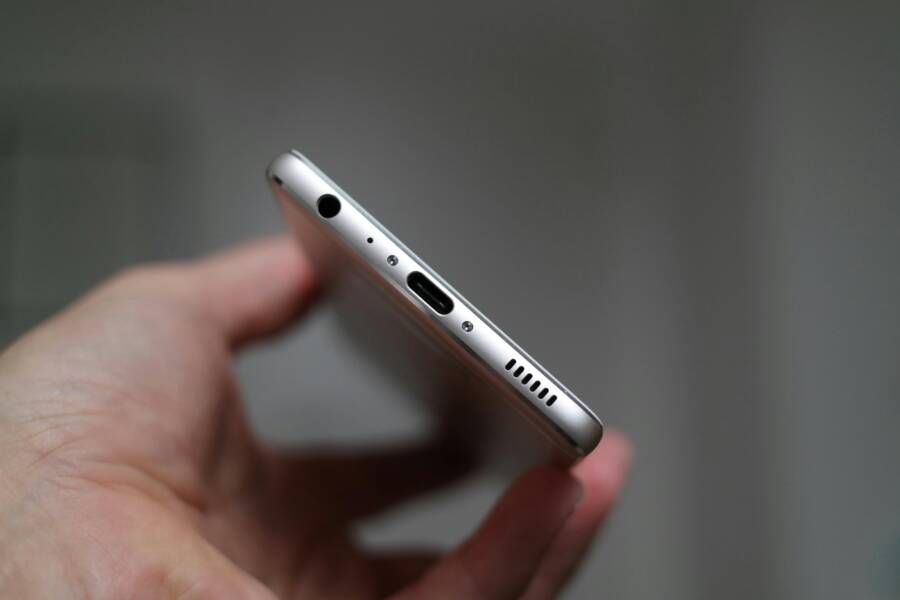
Pocket lint and dust love to hide in your headphone jack. Over time, they build up and press against the tiny sensor inside. That sensor acts like a switch: it flips when you insert headphones to reroute sound. But lint jams it in the “on” position, so your smartphone thinks headphones stay plugged in.
This issue hits hard on devices you carry everywhere. Fuzz from clothes or debris from bags wedges deep into the port. Your phone can’t tell the difference between real headphones and this gunk. Users report no sound from speakers until they clear it out.
Safe cleaning starts with the right tools. Grab a toothpick, soft brush, or compressed air to nudge debris free without damage. Avoid metal objects that scratch the contacts. Many fix this at home, as shared on forums like Quora discussions. Preview the process: shine a light, work gently, and test after. It often restores normal audio right away.
Software Glitches or Bluetooth Confusion
Software bugs can lock your phone in headphone mode too. Cached settings from past connections linger and block speaker output. Apps might interfere by holding audio routes open, or a glitch in the system misreads the jack.
Bluetooth adds another layer. Forgotten devices stay paired in the background. Your phone routes sound there instead of speakers, even if nothing connects. This confuses the audio system. It’s common on Android phones due to diverse hardware and apps that handle Bluetooth differently.
Picture it like a ghost connection: your smartphone chases a signal that vanished. Restarting clears minor hiccups, but paired lists need a check. Google notes this in their Bluetooth troubleshooting guide. Clear old pairings to free up audio paths. Users on Android forums confirm it resolves stubborn cases without hardware tweaks.
Quick and Easy Fixes to Restore Your Speakers
When your phone acts like headphones are always plugged in, the room goes quiet and frustration climbs. These quick fixes focus on common causes, from physical port debris to software quirks, so you can get back to lively sound without a repair bill. Below you’ll find straightforward steps that work for many users, with practical tips and safe practices to protect your device.

Photo by Jens Mahnke
Restart or Force Reboot Your Device
A simple reset clears minor software glitches that lock audio routing in the wrong path. Here are exact reboot methods for the two most common ecosystems.
- Android: press and hold the Power button plus Volume Down until the screen goes dark and the device restarts. On some models you may need to hold Power + Volume Up, then select Reboot. This forced reboot clears temporary caches and resets drivers that may misreport headphone presence.
- iPhone: quickly press Volume Up, then Volume Down, then hold the Side button until the Apple logo appears. This force reboot can flush out stuck audio routes and misread sensors.
Why this helps: resets refresh the system’s audio routing tables and clear transient faults. It’s like giving your phone a quick wake-up call so it stops listening to phantom accessories.
If you want extra background, check out guidance on Android restart options and how these resets help with stubborn issues in common troubleshooting guides. References from reputable sources discuss how a fresh boot clears cached Bluetooth and audio routing glitches, which often resolves phantom headphone mode. You’ll find practical steps and explanations in discussions and official support pages.
Plug and Unplug Headphones Multiple Times
This manual reset of the physical jack can coax the sensor back to life. Perform the cycle 5–8 times, applying steady but gentle pressure.
- For most Android devices: firmly insert and remove the headphone plug while keeping a light grip on the device. Pause briefly between cycles to let the sensor settle.
- For iPhone: perform the same plug-unplug cycle, but you can add a slight twist to the plug as you remove it. This twist helps free any minor resistance caused by lint or debris.
Important notes:
- Do not force the plug. If it feels stiff, stop and inspect the port.
- Gentle handling matters. Repeated aggressive poking can damage the contacts.
- After the cycles, test the speakers by playing a song or a video with audio.
This step mirrors common recommendations you’ll see in quick-fix videos and how-to guides. It’s a low-risk, high-reward method that often resolves phantom headphone detection. If you want a deeper dive, several reputable guides cover the plug-unplug technique in various phone models.
Clean the Jack with Simple Tools
A dirty jack is a frequent culprit. A tiny amount of lint or dust can press on the internal switch that signals “headphones connected.”
- Tools you can use: a wooden or plastic toothpick, a soft brush, or a can of compressed air. Avoid metal objects that could scratch contacts.
- Check the port: use a small flashlight to inspect the opening for lint, crumbs, or bent pins.
- Cleaning steps:
- Power off the device.
- Gently insert the tool at the edge of the port and loosen debris.
- Lightly twist or wiggle as you lift out small particles.
- Blow out remaining dust with compressed air from a safe distance.
- Reinsert a headphone jack briefly to test if the port recognizes the connector normally.
- For iPhone users: be extra careful around the Lightning port. A cotton swab or microfiber cloth slightly dampened with isopropyl alcohol can be used sparingly around the exterior, but never push liquid into the port.
Caution: do not use metal tools or harsh chemicals inside the port. If debris resists, consider a professional cleaning service or a dedicated port-cleaning kit designed for electronics. Debris removal has helped many users regain speaker output, and you’ll find practical advice in several practical cleaning guides.
If you’d like to explore more on port cleaning, see guides on common charging port cleaning and safe removal techniques from credible tech outlets. These resources cover best practices and safety precautions to prevent port damage.
Tips for safer cleaning and testing:
- Always power down before cleaning.
- Work in a well-lit area to avoid missing debris.
- After cleaning, test with the device’s own speaker before trying louder sources.
External resources with step-by-step visuals and safety notes can help reinforce these techniques. For a broader look at cleaning and maintenance, refer to trusted how-to pages and port-care guides.
Links for further reading:
- How to fix Android stuck in headphone mode and related troubleshooting
- Methods to clean a headphone jack and charging port safely
- Practical video guides showing plug-unplug cycles and cleanings
By following these steps, you often restore normal speaker output quickly. If the problem persists after cleaning and resets, it may indicate a deeper hardware issue or a more complex software fault. In that case, exploring reputable service options or manufacturer support becomes the next best move.
Android-Specific Steps to End the Headphone Glitch
When your device acts like headphones are always plugged in, it disrupts everything from music to calls. Android users have a few reliable routes to snap back to normal without hardware repair. Below are two focused subsections that address the most common culprits: lingering Bluetooth data and problematic apps. Follow along, and you’ll often regain sound through the phone’s speaker in minutes.
Turn Off Bluetooth and Check Connected Devices
Bluetooth quirks can keep the audio path locked to a headset, even when nothing is connected. A quick reset of Bluetooth and a review of paired devices usually clears the path.
- Start with a fresh Bluetooth cycle: turn Bluetooth off, wait a few seconds, then turn it back on. This flushes stale connections that might be confusing the audio router.
- Check the list of paired devices: go to Settings > Bluetooth, then review and forget any devices you no longer use. Old profiles can linger and hijack the route.
- Reconnect intentionally: pair a known device only when needed. If nothing should be connected, make sure speaker output is selected in your media apps and during calls.
- If you still see the headphone icon after these steps, consult the Android Bluetooth troubleshooting guide for deeper checks and manufacturer-specific tips. Fix Bluetooth problems on Android
Why this helps: clearing stale Bluetooth data prevents the system from chasing phantom connections and re-establishes the correct audio path. It’s a quick, non-destructive step that works across most Android phones.
Boot into Safe Mode to Spot App Issues
Safe Mode disables third-party apps, letting you determine whether a downloaded program is triggering the headphone mode. If the problem vanishes in Safe Mode, an app or service is the likely culprit.
- How to boot into Safe Mode:
- On most Android devices: press and hold the Power button, then tap and hold Power off until you see the Safe Mode prompt. Confirm to reboot into Safe Mode.
- If your device uses a different gesture, check Settings > System > Advanced > Reset options or search for Safe Mode in the device’s help section.
- What to check in Safe Mode:
- Play audio and test speaker output. If sound plays normally, a recent app is likely causing the issue.
- Review recently installed apps or updates. Uninstall or disable suspects one by one, then reboot to normal mode to test.
- Pay attention to apps that access audio or manage Bluetooth, as these are common triggers.
- What to do if Safe Mode resolves it:
- Reintroduce apps one at a time, testing after each install. When the problem reappears, you’ve found the culprit and can remove it permanently or replace it with a safer alternative.
- If Safe Mode doesn’t help, it’s probably a hardware or OS-level issue. In that case, broader diagnostics or manufacturer support may be needed. For broader guidance, see Android troubleshooting resources and official help articles.
Evidence from user guides and troubleshooting resources confirms Safe Mode is a practical test to separate causes. If you want a visual walkthrough, there are quick-start videos and step-by-step guides available from reputable sources. For additional context, you can view related advice here: Android Bluetooth problems guide and related safe-mode discussions on tech resources.
iPhone Fixes for Persistent Headphone Detection
If your iPhone keeps acting as if headphones are plugged in, you’re not alone. The issue can be maddening, but a few targeted steps often reset the audio path quickly. In this section, you’ll find two concise, practical subsections that tackle the most common causes: how the iPhone routes audio and a reliable reset approach that clears stubborn glitches. Think of it as a quick tune-up for your smartphone, aimed at getting you back to clean speaker sound without extra drama.
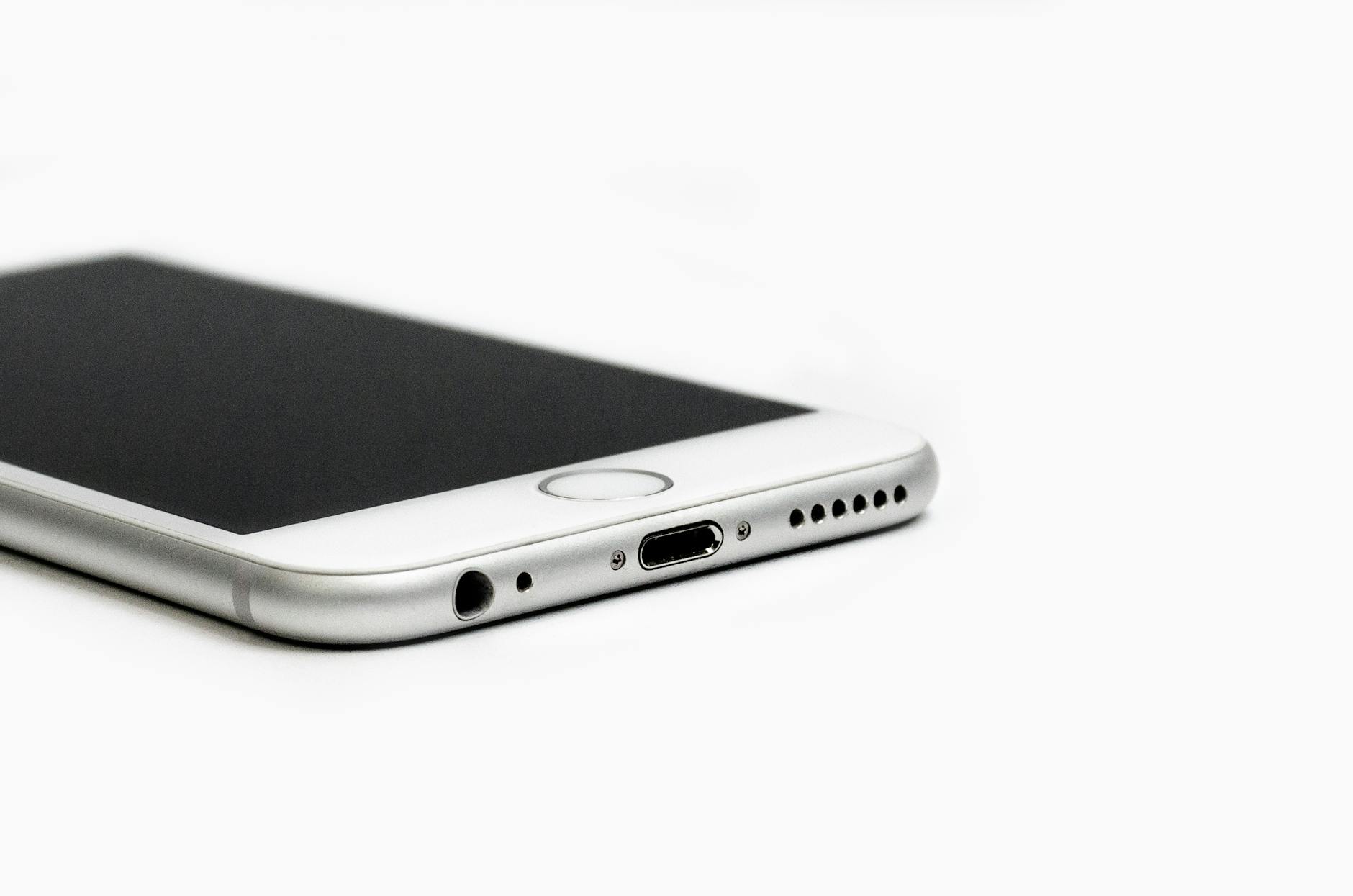 Photo by Math
Adjust Call Audio Routing in Settings
If the phone keeps routing calls to headphones, a quick reconfiguration of the call audio routing can solve it. This is especially useful when the system defaults to a paired device or a Bluetooth headset, even if nothing is actively connected.
- Open the Settings app and go to Accessibility, then Audio/Visual. If your iPhone uses a different path, look for Settings > Accessibility > Audio Routing.
- Set the default audio routing to Speaker for both calls and media when you want. On many iPhones, you can also use the Call Audio Routing option in the Phone settings to choose Automatic, Headset, Speaker, or Bluetooth.
- Make a quick test: place a call or play video, then switch the route to Speaker and back to automatic, ensuring the sound comes from the phone’s speakers.
Why this helps: sometimes the routing table gets stuck in a queue that points to a ghost device. Resetting the route to Speaker and then returning to automatic clears that stale path, much like rebooting a tangled wire.
If you want to dig deeper into the official guidance, Apple’s support article covers how to manage call audio routing on iPhone. You can read more here: https://support.apple.com/guide/iphone/call-audio-routing-iph29145acf1/16.0/ios/16.0. It’s a reliable reference for menu names and the exact steps across iOS versions.
Tips for real-world use:
- Perform the route switch during a test call or while playing media to confirm the change is effective.
- If you have multiple Bluetooth accessories, temporarily forget them in Settings > Bluetooth to ensure the path isn’t hijacked by an old device.
- After you confirm the speakers work, you can re-pair any devices you actually use.
If the problem persists after adjusting the routing, move to the next step. Sometimes a deeper reset is needed to clear stubborn software hiccups that cloak themselves as hardware issues.
Perform a Full Force Restart
A force restart can flush out stubborn software quirks that keep the iPhone in headphone mode. This is a safe, quick step that resembles a hard reboot, and it often resolves issues without touching personal data.
- On iPhone with Face ID: quickly press and release Volume Up, then Volume Down, then press and hold the Side button until the Apple logo appears.
- On iPhone with a Home button: press and hold the Home button and the Top (or Side) button until the Apple logo shows.
Why this helps: a forced reboot clears temporary cache, resets the audio drivers, and reinitializes the sensors that detect headphones. It’s like giving your iPhone a fresh start, removing stray signals that keep the headphone mode active.
For extra context, Apple’s official guide provides the steps to force restart iPhone models. Refer to the support article here: https://support.apple.com/guide/iphone/force-restart-iphone-iph8903c3ee6/ios. Use this as a quick reminder of the button sequences and model-specific notes.
If you’d like more perspectives, you can also explore discussions about force restarts and headphone mode. Community threads often reveal model-specific quirks and how different iOS versions respond to these resets, such as the discussion here: https://discussions.apple.com/thread/6591631
When the Apple logo reappears, test the speakers right away. Open a music app or video and confirm that sound streams through the device’s speakers rather than headphones. If the issue lingers after a force restart, there may be a deeper software fault or a hardware fault that warrants further diagnostics.
Additional options if needed:
- Update iOS to the latest version. Software updates frequently fix audio routing bugs.
- Reset network settings if you notice similar problems with wireless connections; this won’t erase personal data but can clear stubborn routing caches. Apple’s official guidance covers force restarts and related recovery steps, and you can consult it for model-specific instructions as you navigate through versions. (Link above)
- If the problem continues, contact Apple Support or visit an Apple Store for a hardware check. A hardware fault in the headphone jack or the audio IC can mimic software issues and needs professional attention.
Pro tip: after performing a force restart, keep an eye on new app updates. Some apps request extra audio permissions that can intercept routing paths. If a recently updated app seems to trigger the issue again, consider rolling back the update or replacing the app with a safer alternative until a fix arrives.
Where to go from here
- If you’re still stuck, revisit the call routing settings and Bluetooth list with a fresh perspective. Sometimes the culprit is a stray Bluetooth device or a stuck system preference.
- For ongoing problems, Apple’s support ecosystem offers guided diagnostics and service options that align with your model and iOS version.
By following these steps, most users reclaim speaker output in minutes. If the problem endures after a forced restart, the next moves involve deeper system checks or hardware evaluation, which are worth pursuing to protect your daily workflow and entertainment.
When Nothing Works: Reset or Get Help
When your phone acts like headphones are always plugged in and the usual fixes miss the mark, it’s time to decide between a clean slate and professional help. A factory reset can clear stubborn software faults, but it isn’t always the right move. If the problem lingers, a repair shop or manufacturer support may be the safer path. Below, you’ll find two practical subsections that help you decide the best course and how to proceed.
Factory Reset as a Clean Slate
A factory reset returns your device to its original state, removing apps, data, and settings that might be secretly triggering the phantom headphone mode. Think of it as a fresh start for your phone, especially when software glitches or corrupted caches are at the root.
- Why consider a reset: If basic fixes fail, a reset often clears stubborn routing faults and resets hardware drivers. Always back up first so you don’t lose photos, contacts, and messages.
- Android: A typical path involves Settings > System > Reset options > Factory data reset. Some devices offer a quick reset path from Settings > Backup and reset. Check your model’s exact steps, but the goal is the same: erase all content and restore factory settings. For guidance, see how to reset Android devices and why it matters.
- iPhone: On iPhone, you’ll erase all content and settings via Settings > General > Transfer or Reset iPhone > Erase All Content and Settings. Backups are essential, so plan to restore later from iCloud or a local backup. Apple provides official steps to factory reset for iPhone, iPad, or iPod touch.
- Before you reset: Consider what you’ll lose and whether you can re-install essential apps and data easily. If you rely on device security features, make sure you can reconfigure them after the reset.
- After the reset: Set up the phone as new or restore selectively to avoid bringing back the same glitch. Test the speaker output after the initial setup to confirm the issue is resolved.
If you’d like step-by-step guidance, reputable sources walk through the exact menus for both Android and iPhone resets. For Android, you can start with How to Factory Reset Your Phone and System Settings, which explains the process and what to prepare. For iPhone users, Apple’s official instructions detail the reset path and how to back up before erasing. These resources provide model-specific notes to prevent missteps. See: How to factory reset your iPhone, iPad, or iPod touch and How to Factory Reset Your Phone and System Settings | Android.
External references you may find helpful:
- Android reset guidance: https://www.android.com/intl/en_uk/articles/how-to-reset-android-device/
- iPhone factory reset guidance: https://support.apple.com/en-us/108931
Pros of a factory reset
- Clears lingering software faults that hide in caches or old settings.
- Forces a fresh start for memory and drivers, which can fix phantom headphone detection.
Cons of a factory reset
- Data loss if not backed up properly.
- Time and effort to reinstall apps and reconfigure preferences.
If a reset resolves the issue, you’ll save time and money. If not, you’ll know you’re looking at a hardware or deeper software problem, which brings us to the next section.
Signs You Need a Repair Shop
When resets and cleanings don’t restore normal sound, the problem might be hardware or a deeper software fault that requires hands-on diagnostics. Here are clear signs it’s time to seek professional help.
- Persistent hardware symptoms: The jack or port feels loose, clicks in an unusual way, or the device misreads every plug as connected even with nothing inserted. If the port shows visible damage or wiggling changes behavior, a repair is likely needed.
- Inconsistent audio routing: Even after resets, the phone occasionally flips between speaker and headphone modes without input. A tech can test internal sensors and the audio IC to identify faults.
- Loud crackling or one-sided sound: If the problem is limited to output quality rather than routing, internal components may be failing.
- Software instability after repair attempts: If Safe Mode, fresh OS installs, or app removals don’t fix the issue, a hardware check is prudent.
- Where to go for help: Start with authorized service centers or reputable repair shops that specialize in headphone jack or audio IC work. If you prefer manufacturer-backed support, official service options or authorized repair networks ensure genuine parts and proper diagnostics.
When you’re deciding where to go, you’ll want to verify a few practical details:
- Reputation and reviews: Look for recent customer feedback about headphone jack or audio repairs.
- Turnaround times: Some shops offer same-day service for common issues; others may require a few days.
- Warranty and parts: Ask about parts coverage and whether the work is guaranteed.
- Pricing transparency: Request an upfront quote for the suspected scope of repair to avoid surprises.
If you’re seeking a nearby option, reputable chains and local specialists commonly advertise portable device repairs, including headphone jack work. For reference, you can explore networks like uBreakiFix, which lists services for smartphone headphone jack repair, along with nearby shop options. Also, consider local electronics repair shops that advertise mobile device diagnostics and port cleaning.
Useful starting points for finding a shop:
- Smartphone headphone jack repairs | uBreakiFix by Asurion
- Cleveland area iPhone repair shops for quick diagnostics
- Local repair services with at-home or in-store options
If you decide to proceed with a repair, bring a clear description of the issue, the steps you’ve already tried, and any relevant device details (model, OS version). This helps the technician pinpoint the problem faster and can reduce diagnostic time.
In short, use a factory reset to clear software culprits first. If the issue persists after a reset, and especially if you notice hardware symptoms or stubborn routing quirks, a professional repair can save time and prevent further damage. For many users, this two-step approach offers a reliable path back to clear, loud sound from speakers without guesswork.
Conclusion
If your phone keeps acting like headphones are always plugged in, follow these fixes in order and you’ll likely get back to clear speaker sound fast. Start with a careful cleaning of the headphone jack, then try a simple restart. If the problem remains, cycle the headphones in and out a few times, and recheck the speakers. For Android, test in Safe Mode to rule out rogue apps; for iPhone, adjust the call audio routing and perform a force restart. If the issue still shows, consider a factory reset as a last resort and only after backing up your data. In many cases, these quick steps restore normal audio without hardware work.
Prevention matters too. Clean the jack regularly to stop debris from triggering the sensor. When you use wireless audio, fully disconnect Bluetooth devices and remove old pairings so the system isn’t chasing phantom connections. Keeping Bluetooth clear and the port free helps your smartphone stay true to its built in speakers.
These fixes offer fast wins you can trust. They’re simple, safe, and often effective, helping you avoid unnecessary repairs. If you try them in order and still face trouble, you’ll know you’re looking at a deeper issue and can plan the next move with confidence.
Have you fixed headphone mode on your device recently? Share your experience in the comments and tell us which step worked for you. Your tips could save someone else time and frustration.