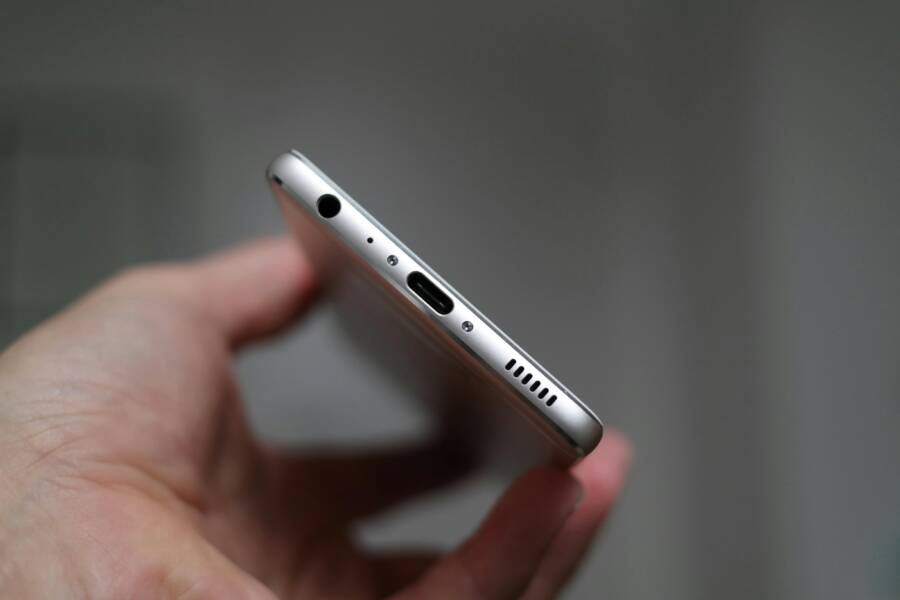
It’s one of the most annoying things that can happen to your phone. You finish listening to music, you carefully unplug your headphones, but the audio still won’t play through the main speaker. Your smartphone stubbornly insists the headset is still connected, leaving you stuck trying to hear calls or videos at a snail’s pace.
This common frustration happens to both iPhone and Android users alike. Often, the phone’s software simply gets confused about the audio output source. That confusion keeps the device locked, preventing sound from escaping the headphone jack area.
Don’t worry about taking your device to a specialized repair shop right away. Most of the time, the fix is incredibly simple and something you can perform right now at home. We’ll walk you through straightforward troubleshooting steps for both major operating systems.
This guide shows you exactly how to get your phone to recognize that the headphones are gone. We cover basic restarts up to gentle cleaning techniques that clear out common debris causing this issue. Soon, your phone’s speaker will work properly again.
Immediate Fixes: Quick Checks When Your Phone Speaker Is Muted
When your smartphone refuses to let go of headphone mode after you’ve unplugged your earbuds or disconnected your Bluetooth headset, it means the internal audio routing signal is jammed. Before you start looking for complex software solutions or potential hardware failures, you need to perform a series of very quick, non-invasive checks. These initial steps focus on sending a clear, strong signal to the operating system to reassess its active audio output device. We are essentially trying to jolt the system back to reality using simple interactions the phone recognizes instantly. These immediate actions resolve the majority of these frustrating audio glitches for both iPhone and Android users.
The Classic Restart: Forcing the Smartphone Audio System to Reset
A full reboot is the most reliable immediate action you can take. When you restart your device, you force the entire operating system to shut down all active processes and clear temporary memory caches. This process effectively wipes clean the confused state that told your smartphone the headphones were still connected, making it re-evaluate all hardware connections upon startup.
The steps for this simple reset vary slightly between the two major mobile platforms:
- For iPhone Users: You must perform a hard restart if the issue persists after a simple power cycle. Generally, you press and hold the side button and either volume button until the power-off slider appears, then slide to power down. After waiting about 30 seconds, press the side button again to turn the device back on. This hard reset is sometimes needed to clear deep software locks.
- For Android Users: The exact steps depend on the manufacturer, but usually, it involves pressing and holding the power button until the power options appear on the screen. Select Restart or Power Off then power it back on. This straightforward restart often corrects general operational bugs affecting audio output.
Toggle Bluetooth On and Off to Jolt the Sound Settings
Even when you are certain you were using wired headphones, the audio pathways on your phone can sometimes become confused between the 3.5mm jack sensor (or USB-C connection) and the active Bluetooth profile. This happens because both functions control external audio output, and a momentary glitch can cause an overlap in signals. Cycling the Bluetooth radio briefly often clears this confusion.
Think of it like this: you are momentarily forcing the phone to check its other primary set of external audio gear. If it detects no Bluetooth device, it should default back to the internal speaker.
Here is the quick procedure for both systems:
- Access your device’s Quick Settings panel by swiping down from the top of the screen.
- Locate the Bluetooth icon.
- Tap it once to turn Bluetooth off. Wait a minimum of five seconds; this gives the internal system time to reroute the sound priority.
- Tap the Bluetooth icon again to reactivate it.
If you were using Bluetooth headphones when the issue began, this toggle often immediately restores the internal speaker output on your smartphone.
Plug It Back In and Pull It Out Again Properly
This technique relies on making the smartphone experience the connection event again, but doing so in a deliberate, controlled manner. When you unplug quickly, the sensor might not register the ‘off’ signal clearly. By inserting the plug fully, waiting a beat, and then removing it slowly and smoothly, you give the sensor the necessary duration to send a clean, definitive closing signal to the audio software.
Follow this specific sequence to maximize your chances of success:
- Take your headphones and insert the connector fully into the jack or port until you feel it seat securely.
- Allow the headphones to remain plugged in for about three full seconds. Listen carefully; you might hear a brief click or tone indicating the phone has registered the connection.
- Unplug the headphones slowly and very smoothly. Do not yank them out quickly. A steady withdrawal ensures the electrical contact breaks cleanly, registering the ‘unplugged’ state accurately in the operating system hardware readout.
This precise plug-and-pull maneuver is sometimes the only thing needed to snap the audio register into the correct ‘speaker only’ configuration. For more in depth troubleshooting guides, checking resources on common smartphone fixes can be helpful, like those found at https://shop.lagenio.com/blogs/news/android-phone-stuck-in-headphone-mode#:~:text=Restart%20Your%20Phone&text=Restarting%20your%20phone%20refreshes%20the,your%20phone%20in%20headphone%20mode.
Deeper Software Troubleshooting: Addressing Audio Routing Glitches
When the simple plug-and-pull trick fails, we must look deeper into the operating system itself. Sometimes, the problem isn’t just a physical connection error; it’s a software conflict where one application might stubbornly refuse to release control over the device’s audio output pathway. That little headphone icon stays illuminated because a program is holding the virtual door open, preventing your smartphone from sending audio to its built-in speakers. We need to identify and neutralize these rogue processes to restore normal speaker functionality. Finding the culprit requires a systematic check of running applications and system states.
Closing Background Apps to Release Audio Control
It is very common for third-party applications, especially those that heavily manage media or communication, to improperly maintain their hold on the audio stream after you disconnect your headset. Thinking about how sound is managed, imagine an app keeps the audio “line” open, assuming the headphones are still attached and expecting sound to travel down that line. When you unplug, the operating system signals the change, but a poorly coded or lagging app might ignore this, thus keeping the sound output trapped.
To regain system control over audio routing, you must physically force these background processes to terminate. This ensures the phone’s core system re-establishes primary control over the speakers. The method for force-closing applications differs depending on whether you use an iPhone or an Android device.
For both systems, the goal is to force the smartphone to close the app completely, not just minimize it.
- For iPhone Users: Swipe up from the bottom of the screen (or double-press the Home button on older models) to reveal the App Switcher. You will see cards representing all recently used apps. Find the application you suspect might be causing the issue, or simply close all of them by swiping each card upward off the screen. This clears any persistent audio lock held by those background processes.
- For Android Users: The procedure generally involves swiping up and holding from the bottom of the screen, or tapping the square navigation button if you use gesture navigation. This opens the recent apps overview. You can then swipe each app card away horizontally to close it. Some Android interfaces feature a Clear All button at the bottom or top, which closes everything at once, quickly releasing any digital hold on the audio output.
If you were using a VoIP service, a recording app, or a particular music streaming service right before the issue started, focus on closing that specific app first. If the speaker returns immediately, you’ve found your conflict source for this session.
Testing the Speaker with Different Sound Sources
Once you believe you have reset the audio control by closing applications, it’s time to verify if the fix applied system-wide or if only certain parts of the sound system are affected. A truly stuck headphone mode prevents all sound from reaching the main speaker, regardless of the source sending the signal. If only one specific area is silent, the problem might point back to that single application or service remaining unresponsive in the background.
You need to check the speaker using distinct, independent sound triggers that utilize different audio drivers within the operating system. This multi-point testing isolates the problem effectively.
Run through these specific tests on your smartphone:
- Initiate a Standard Phone Call: Dial a friend or voicemail service (if possible, without pressing the button to keep it on speakerphone). When the call connects, try adjusting the standard in-call volume using the side buttons. If you hear the remote party through the main earpiece/speaker, the base call audio routing is functional.
- Play Media via a Web Browser: Open a mobile web page known to host video content, such as a common video sharing site. Play a short clip. If the video audio plays through the main loudspeaker, the media playback drivers are correctly routed.
- Use the Native Music Application: Open your phone’s built-in music player or gallery app and play an audio file saved locally on the device. This uses the operating system’s most fundamental audio playing function, bypassing internet buffering or third-party interface concerns.
If all three sources (call audio, browser media, and local music) fail to produce sound from the main speaker, the system software is definitely locked into headphone mode. If, however, one source works while others fail, you can narrow down the malfunctioning component, directing you toward a specific app or system setting that needs further attention on your device.
Check Silent Mode and Volume Levels for Physical Devices
Before concluding that software corruption or hardware sensors are at fault, we must perform the most basic, yet frequently overlooked diagnostic step: confirming that physical controls aren’t mistakenly restricting output. It’s easy to accidentally activate a silent profile or drop the media volume slider to zero while trying to adjust the ringer volume, especially when moving quickly between activities. Do not assume the basics are covered until you physically check them.
This step ensures the issue isn’t simpler than it appears, saving valuable troubleshooting time. We are checking two separate volume controls that often confuse users.
Review the following settings immediately:
- Silent or Ring/Silent Switch: If you use an iPhone, check the small physical switch located on the upper left side of the phone. If it is toggled toward the back of the device, the phone is in Silent mode, indicated by an orange visibility of the switch. Although this usually silences notifications and rings, it can sometimes interfere with media volume pathways when the system is already confused. Ensure this switch is set to the ring position.
- Media Volume Level: On both Android and iPhone, the volume rockers usually control media playback when an app is actively outputting sound (like music or video). Even if the phone isn’t stuck on headphones, if the media volume is at zero, you won’t hear external playback. Open your music player (or start playing a video) and press the volume up button multiple times until the visual indicator confirms the media volume is significantly raised. Don’t rely on vibration feedback; look at the on-screen slider.
If media volume is low, raising it solves the perceived headphone mode issue immediately. If these basic physical checks yield no change, you can proceed with more technical software adjustments.
Clearing Cache for Audio Related Apps (Android Focus)
Android devices, due to their open architecture and numerous background services, sometimes suffer from audio routing confusion caused by corrupted temporary files stored within application caches. When an app caches data, it stores bits of information for speed, but if this cached data becomes stale or damaged, it can send incorrect status signals to the core operating system audio manager. This is particularly true for apps that interact heavily with audio ports, like the default media player or system launcher components.
For Android users experiencing persistent headphone mode locks after unplugging, strategically clearing specific caches can force the system to rebuild clean dependency data, resolving the routing error without wiping user data. This is a powerful middle-ground fix before attempting a factory reset.
Here is the process to target potentially problematic application caches:
- Go to your main Settings menu on your smartphone.
- Locate and tap on Apps or Applications Manager. You may need to tap on See All Apps depending on your Android version.
- Scroll through the list and find apps heavily involved with sound, such as Music, Media Storage, or your default Browser.
- Tap on the application name to open its information screen.
- Select Storage & Cache (or similar wording).
- You will see two options: Clear Cache and Clear Storage (or Clear Data). You must select Clear Cache. Do not select Clear Storage unless you are prepared to log back into the app and lose saved preferences within that specific application.
- Repeat step 4 through 6 for any other suspected audio-related apps.
After clearing the cache for these core components, restart your device one more time. This ensures the system loads fresh, uncorrupted data when checking audio source availability, which often corrects the phantom headphone connection on Android phones.
Advanced Fixes: Unsticking the Headphone Jack on Your Smartphone
When the simple restarts and toggles don’t immediately resolve the phantom headphone connection, the responsibility shifts to investigating potential physical obstructions or outdated software configurations. The audio sensors inside the headphone port on your smartphone are extremely sensitive. They look for specific electrical contact to confirm a plug is seated correctly. If dust, pocket lint, or grime manages to accumulate, it can bridge the gap between the contacts. This debris tricks the internal circuitry into believing a plug is permanently inserted, locking your speakers out. Addressing this physical impediment requires a careful, systematic approach. Furthermore, if the phone’s operating system hasn’t been refreshed recently, built-in software quirks can mimic hardware failure, demanding our attention next.
Gently Cleaning the Headphone Port for Sensor Issues
The number one physical culprit behind a stuck headphone mode is usually common pocket fluff or fine grit. This debris compresses over time, acting like a permanent electrical shunt, signaling the phone that something is connected. Your goal is to dislodge this compacted material without damaging the delicate metal contacts inside the port. You must treat this area with extreme caution; aggressive probing can scratch sensitive components, leading to actual permanent hardware damage. We are aiming for coaxing the dirt out, not scraping it away.
When cleaning the port on your smartphone, never use metal objects. Avoid anything that can scratch the internal sides or cause a short circuit. Instead, rely on non-conductive, soft tools that can gently lift or blow away the obstructions.
Consider these safe cleaning methods to restore proper sensor function:
- Using Compressed Air: If you have a can of compressed air intended for electronics, use short, controlled bursts. Hold the can upright and keep the nozzle a safe distance away from the port. Aim the air across the opening rather than directly down into it. This technique is effective for blasts of debris that aren’t severely packed in. You can review guides on safely using compressed air for delicate ports for extra reference How to Clean a Headphone Jack Properly.
- The Dry Toothbrush Method: A common household item that works well is a new, clean, soft-bristled toothbrush. With the phone powered off for added safety, gently brush the inside of the port. Use very light, short strokes, moving the brush in and out slightly, much like sweeping dust off a delicate surface. The tiny bristles can often snag and pull out lint that seems stuck fast.
- Tapping and Gravity: Sometimes, simply tipping the phone upside down and giving it several firm taps against your palm can use gravity to encourage loose debris to fall out. Perform this after using compressed air or brushing to see if anything shifts loose.
Remember: Patience is key here. If you rush the cleaning process or use tools that are too stiff, you risk turning a fixable software glitch into an expensive hardware repair for your smartphone.
 Photo by Jens Mahnke on Pexels
Does Your Phone Have a Headphone Jack or Is It a Ghost?
This issue often crops up because modern design trends have left the traditional 3.5mm headphone jack behind. If your smartphone is a recent model, it likely relies entirely on a USB-C port (on most Androids and some iPads) or a Lightning port (on iPhones) for wired audio input. When you use wired headphones on these devices, you are utilizing an adapter or a dongle. This external piece of hardware, not the phone itself, has the audio conversion circuitry built into it.
If you unplugged your headphones and the audio remains stuck, the initial troubleshooting focus must shift to that adapter. This small piece of plastic and metal acts as the intermediary between your cable and the phone’s logic board. If the adapter fails or its internal connection to the phone momentarily drops, the phone might interpret this as a broken connection rather than a clean disconnection of the headphones.
Here is how to diagnose if the adapter is the true source of your audio annoyance:
- Test with Another Adapter: If you have a spare USB-C to 3.5mm adapter or a third-party Lightning adapter, swap it out immediately. Plug your headphones into the new adapter and then connect that to your phone. Disconnect the headphones, and monitor the phone’s audio behavior. A faulty adapter is far more common than a suddenly failed internal port sensor.
- Inspect the Adapter Port: Look closely at the female end of the adapter where you plug the headphones in. If you see accumulated fuzz or dirt inside that port, it’s the adapter confusing the phone, not the phone itself. Clean both the headphone plug and the adapter port gently.
- Consider Digital Handshakes: For USB-C audio, the connection requires a precise digital handshake between the adapter and the software. If the handshake is interrupted, the phone defaults to believing no output device is attached, even if the indicator remains lit. Trying a different, perhaps manufacturer-approved, adapter often forces a fresh, successful handshake.
If swapping the adapter resolves the problem instantaneously, congratulations; you’ve avoided complex software hunting for a simple accessory failure.
Updating Your Smartphone’s Operating System
System software provides the rules for how your smartphone interacts with all its connected hardware, including the port sensors that detect audio plug insertions. Occasionally, defects appear in these rules. These bugs, sometimes introduced during a major refresh or even a minor patch, can cause the accessory detection routine to fail intermittently. When this happens, the phone software might simply hold onto the “headphones connected” status indefinitely, even after physical removal.
Manufacturers release software updates specifically to correct these detected flaws and improve overall stability across the operating system. If you haven’t updated in a while, installing the latest available version is a highly recommended step before assuming a hardware fault exists. You are essentially giving the phone’s internal logic a chance to catch up and fix the known error in accessory detection.
Here’s how you should check for and initiate the necessary updates for sound recognition smoothness:
- Check Wi-Fi Connection: Make sure your device is connected to a stable, fast Wi-Fi network, as OS updates can involve large file downloads.
- Locate the Update Menu:
- For iOS (iPhone): Go to Settings, then tap General, and finally select Software Update. If an update is available, you will see a download prompt.
- For Android: Open Settings, scroll down to System or About Phone, and look for System Update or Software Update. Newer versions of Android often place this option near the top or under a dedicated “Security & Updates” menu.
- Install and Reboot: Allow the phone to download and install the software patch completely. This process requires a full device reboot. Pay close attention to the performance of the headphone jack after the phone restarts and you attempt to play media through the main speakers again. Fixing accessory detection bugs is a common reason for smaller system updates. For general stability, staying current is always smart; you can find more information on major mobile operating system releases from reputable sources detailing their ongoing support.
Conclusion
The recurring issue of a smartphone locking into headphone mode after unplugging is frustrating, but you now have proven pathways to resolve it. Remember, this situation almost always stems from one of three areas, all addressable without an immediate trip to the repair store. The most frequent fix involves gently cleaning the port; lint and debris commonly trick the internal sensor into thinking headphones remain connected. If physical cleaning doesn’t work, a simple phone restart often wipes the temporary software confusion clean. For persistent problems, updating your operating system provides the phone’s internal logic with the latest instructions to correctly manage accessory connections. By systematically applying these troubleshooting steps—restart, port cleaning, and OS updates—you regain control over your audio output. Don’t let a stuck indicator silence your sound; your smart device is designed to function correctly, and simple steps will restore its full speaker capability.