You hit play on your favorite playlist, but your phone stays silent. No sound from the speaker at all. Then you plug in headphones, and it works fine. Has this happened to you?
It’s frustrating when your smartphone pulls this trick. You expect clear audio anytime, anywhere. Good news: most cases of phone no speaker sound have simple fixes you can do at home, often without tools.
Common culprits include a dirty headphone jack that tricks your phone into headphone mode, Bluetooth sending sound to another device, low media volume, or a software glitch.
In this guide, you’ll check settings first, clean the jack safely, restart to clear bugs, try advanced tweaks, and know when to get pro help. These steps fix phone no speaker sound for most users fast. Let’s get your speaker working again.
Check Basic Settings to Restore Speaker Sound Fast
Your smartphone might send audio to Bluetooth devices or mute media sounds without you noticing. These quick checks fix phone no speaker sound issues in seconds. Start here before deeper troubleshooting.
Turn Off Bluetooth and Disconnect Devices
Phones route sound to Bluetooth by default when a device pairs. Even if no headphones show as connected, an old speaker or car system could grab the audio. This tricks your phone into silence from the built-in speaker.
Follow these steps to stop it:
- Open Settings and tap Bluetooth.
- Toggle the switch to off. Wait 10 seconds.
- Tap on paired devices. Select Forget or Unpair for any you see.
- Check for auto-connect: Scroll to advanced options and disable media audio if listed.
Hidden connections happen often with smartwatches or TVs. After changes, play a video in YouTube or your gallery. Sound should blast from the speaker now. If not, move on.
Samsung users report success with this in their community forums.
Boost Media Volume and Turn Off Do Not Disturb
Volume sliders differ by type. Media volume controls videos and music. Ringtone or alarm volumes stay separate, so max one does not fix the other. Do Not Disturb mutes media too, even if volume sits high.
Test and adjust like this:
- Play a song or video.
- Press side volume buttons. Slide media to max (look for the media icon).
- Swipe down for quick settings. Toggle Do Not Disturb off if lit.
- Go to Settings > Sound (or Apps > specific app). Crank app volumes.
Some apps like Spotify hold their own sliders; check inside them. Google’s Do Not Disturb guide details how modes silence speakers.
Press play again. Your smartphone speaker roars back to life in most cases. These tweaks restore sound without restarts or cleaning.
Clean Your Headphone Jack and Speakers Properly
Dust and grime can quietly creep into small openings on your phone. If you hear crackling, muffled sound, or intermittent audio, a careful clean can restore clarity without expensive repairs. This section walks you through practical, safe cleaning techniques for the headphone jack and the speaker grills. It’s quick, effective, and all you need is common tools and patience.
Remove Dust from the Headphone Jack
Image: A close-up view of a person holding a smartphone, focusing on the charging port and headphone jack.
Photo by Jens Mahnke
Dust in the headphone jack is a common culprit that triggers false headphone mode or muffled sound. Start with a gentle, repeatable routine to avoid damaging the port. Here’s a simple, safe approach you can follow.
- Step 1: Plug and unplug your headphones 5 to 10 times. This helps loosen debris stuck inside the jack.
- Step 2: Shine a light inside the port. Look for visible dust or lint and identify stubborn particles.
- Step 3: Use a dry toothbrush or a soft, lint-free cloth to lightly brush the inside. Work in small circles and avoid applying heavy pressure.
- Step 4: If you have access to compressed air, use short bursts from a safe distance to dislodge dust. Do not shake or blow air directly into the port.
- Step 5: Shake out any remaining debris by gently tapping the phone with the jack facing down.
- Step 6: Let the jack dry completely before testing. Reconnect headphones and play audio to verify the fix.
For added assurance, you can perform a quick test with a few audio apps. If you still hear muffled sound or static, move to the next step or consider a professional inspection. Safe cleaning can make a big difference, especially on older devices where dust buildup is more pronounced.
Helpful reference: cleaning guidance from reliable tech sources like Galaxy Audio and tech-focused guides offer additional tips and cautionary notes for handling delicate connectors. You can explore practical tips here:
- How to Clean a Headphone Jack – Galaxy Audio: https://galaxyaudio.com/blog/how-to-clean-a-headphone-jack/?srsltid=AfmBOoql_ECFedGP9ixC1RxXF0T-LGfXoLA9RrNZj1s1HCrnaEOg6943
- How to Clean The Headphone Jack In 4 Foolproof Ways: https://techcult.pages.dev/posts/how-to-clean-the-headphone-jack-in-4-foolproof-ways
- Safe guidance on dust removal for headphone jacks: https://www.windowsdispatch.com/safely-clean-dirty-headphone-jack-aux-port/
If you’re working with wired headphones regularly, keeping the port clean is worth the small effort. A clean jack prevents misreads by the device and reduces crackling during playback. After cleaning, test with music at a moderate volume to ensure the fix holds across different apps and file types.
Brush Away Grime from Speaker Grills
Speaker grills collect dust, pocket lint, and skin oils over time. Grime can muffle sound, reduce high frequencies, and create fluttery, tinny audio. A careful cleaning routine helps restore sharpness and fullness to your device’s speakers. Use a gentle touch and follow these steps to avoid pushing dirt deeper into the grille.
- Step 1: Use a soft brush and work in one direction. A clean, small-bristled brush is ideal.
- Step 2: Gently sweep across the grill, keeping strokes light to avoid pressing dirt into the holes.
- Step 3: If you encounter stubborn particles, switch to short, controlled motions rather than heavy scrubbing.
- Step 4: Apply brief bursts of compressed air from a safe distance to loosen embedded dust. Do not linger with airflow directly on any one spot.
- Step 5: After brushing and air, play a variety of sounds—music, podcasts, and calls—to confirm the grills are delivering clean, balanced audio.
In addition to manual cleaning, you can check app-specific audio settings in case the problem is not hardware related. Some apps have their own volume and equalizer controls that can influence perceived speaker quality.
For further reading on safe speaker cleaning, see:
- How to Clean Dust & Water from a Phone Speaker: https://www.wikihow.com/Clean-a-Phone-Speaker#:~:text=Cleaning%20Phone%20Speakers%20Safely
- Tips on How to Clean Your Phone Speakers: https://blog.affinitycellular.com/2024/03/how-to-clean-phone-speakers/
Tip: if you notice persistent rattling, crackling, or no sound even after cleaning, the issue might be deeper, such as moisture inside the speaker or a software glitch. In that case, a professional evaluation can prevent further damage.
Images and visual cues can help confirm you’re cleaning the right areas. Here is a reference image showing a typical smartphone speaker grill and how grime can accumulate around the mesh. If you’d like a visual guide, you can check out related demonstrations from tech channels and audio equipment blogs.
- YouTube example: Easy Way to Clean Phone Earpiece Speaker Grill: https://www.youtube.com/watch?v=dkvLMa59oS8
By following these steps, you’ll maintain the longevity of your device’s audio hardware and keep your listening experience clean and clear. A little regular maintenance now pays off with noticeably crisper sound and fewer odd audio quirks later. If you’re dealing with a stubborn buildup or suspect moisture, don’t hesitate to seek professional support.
Additional reading and trusted sources for safe cleaning practices:
- How to Clean Dust & Water from a Phone Speaker: https://www.wikihow.com/Clean-a-Phone-Speaker#:~:text=Cleaning%20Phone%20Speakers%20Safely
- Tips on How to Clean Your Phone Speakers: https://blog.affinitycellular.com/2024/03/how-to-clean-phone-speakers/
Photo credits and image sources are included to help you visually verify the steps. If you’d like more on DIY audio care or want deeper guidance on preventing debris buildup, you can browse the linked articles and videos for expanded tips and best practices.
Restart Your Phone and Test Apps One by One
When a phone seems to mute its own speaker, a quick reset can clear stubborn glitches. Restarting helps refresh system processes and resets temporary states that might be sending audio to the wrong path. After the reboot, testing apps individually lets you pinpoint whether the issue is system-wide or app-specific. This section guides you through a reliable restart strategy and a careful app-by-app sound check so you can get back to listening without guesswork.

Photo by Kelvin Valerio
Do a Full Phone Restart
A full restart clears temporary bugs and resets hardware interfaces that might have wandered into a no-sound state. If the normal restart doesn’t fix things, a force restart can jolt the system back to life. The goal is a clean boot, so wait for the device to finish loading before testing the speaker again.
- On most phones: press and hold the power button, then choose Restart. If the device feels unresponsive, perform a force restart by pressing and holding the volume down and power buttons together for about 10 seconds until the screen lights up again.
- After the reboot: play a short audio clip or a video from a trusted source to check the speaker. If you still hear nothing, proceed to more targeted checks.
Tips to help ensure a smooth restart:
- Make sure any ongoing downloads or updates are paused or finished before rebooting.
- If you use a keyboard or Bluetooth accessories, disconnect them briefly to rule out external routing of audio.
- For iPhone users, a force restart follows a specific pattern depending on the model, so refer to the official guide if the standard reboot doesn’t work. See Apple’s guidance on forcing a restart for your model if needed.
Common indicators that a simple restart resolved the issue include clear, immediate sound from the built-in speaker when you test video or music playback and consistent audio across apps during a follow-up check.
If the problem persists after a full restart, the next steps involve isolating whether a particular app is the source or if the issue is hardware or OS related. A careful, staged approach yields the fastest, most reliable results.
Play Sound from Various Apps to Isolate Issues
Testing audio across different apps helps you determine if the problem is universal or tied to a specific app. Start with everyday scenarios like browser videos, a streaming app, a podcast player, and a phone call to see where the sound path breaks.
What to test:
- Browser videos (YouTube, news sites) to confirm video playback audio is intact.
- Music or podcast apps to check whether streaming audio follows the same pattern.
- Phone calls and voice messages to determine if the microphone and earpiece are affected.
- In-app media players within messaging apps to catch any app-specific quirks.
If you notice that only one app misbehaves while others play normally, try these fixes for that app:
- Clear the app cache: this removes temporary files that might block audio paths.
- Clear data or reinstall the app: this resets its internal settings and permissions.
- Check the app’s volume controls: some apps include separate sliders that can mute or reduce volume independently from the system.
Patterns to watch for as you test:
- If all apps work except one, focus on that app’s settings or consider a fresh install.
- If no app plays sound, the issue is likely system-wide and may need a deeper reset or hardware check.
- If only video sounds fail but music plays fine, video encoding or a video player setting could be the culprit.
For additional approaches, you can review expert guidance on isolating audio problems across apps. For example, testing strategies and app-specific troubleshooting tips are covered in reputable help resources and forums. If you want to explore hands-on testing tools, there are dedicated apps designed to assess speaker output and detect inconsistencies across frequencies. This can be especially helpful if you’re troubleshooting a stubborn, nonhardware-related issue.
- When you’re testing, keep a brief log of what works and what doesn’t. This makes it easier to spot patterns over time and communicate a clear summary to a technician if you need one.
- If you find a pattern like “only voices are muffled in video apps,” note whether it happens with both front and bottom-firing speakers. This detail can guide further steps or professional help.
External resources and additional reading:
- How to force restart an Android phone when it’s not responding: https://www.howtogeek.com/724436/how-to-force-restart-an-android-phone-when-its-not-responding/
- Force restart iPhone guidance from Apple: https://support.apple.com/guide/iphone/force-restart-iphone-iph8903c3ee6/ios
After you complete the app-by-app testing, you’ll have a clearer view of the issue. If you still don’t hear sound from the speaker, it’s time to move beyond software tweaks and consider hardware or more advanced software checks. The next steps will help you decide whether you should pursue a repair, a replacement, or a deeper diagnostic.
Advanced Fixes Like Safe Mode and Cache Clear
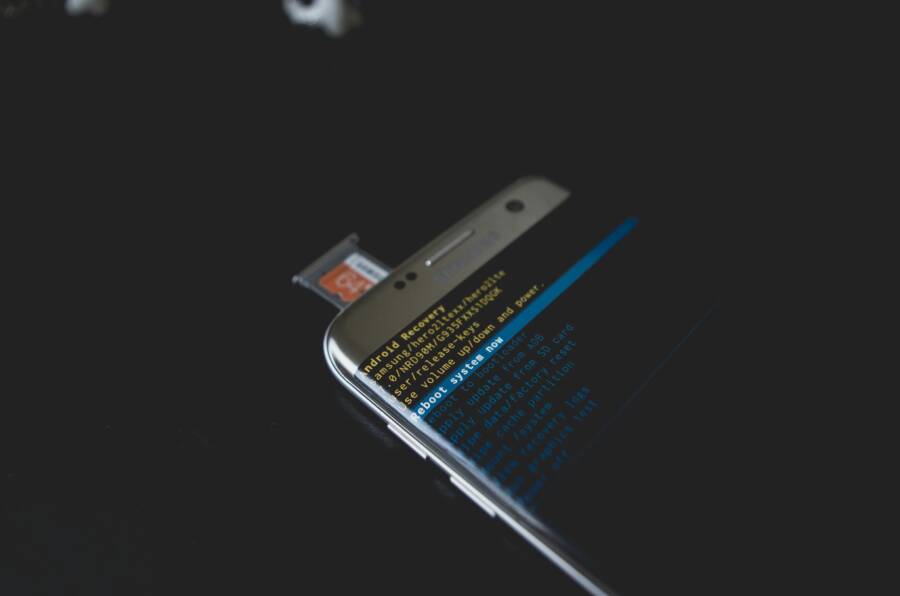
When basic checks don’t restore speaker sound, advanced fixes can zero in on software glitches or rogue apps. Two reliable techniques are booting into Safe Mode to test for misbehaving software and clearing cached data along with resetting sound settings. These steps are quick, non-destructive, and often resolve issues without a full reset or hardware service. Think of Safe Mode as a reality check for apps, and cache clearing as a tidy-up that removes hidden clutter clouding audio paths.
Boot into Safe Mode to Check for Bad Apps
Safe Mode loads the device with essential software only. If the built-in speaker suddenly works in Safe Mode, a third-party app is likely the culprit. Here’s how to use this approach effectively:
- Initiate Safe Mode: Hold the power button, then long-press restart or power off to reveal Safe Mode. On many devices, you’ll see “Safe mode” appear after the restart.
- Test the speaker: Play a video or music to confirm whether sound comes from the speaker. If it does, the issue is most likely caused by an app you installed recently.
- Identify the culprit: Exit Safe Mode and uninstall apps one by one, starting with the most recently installed or updated. Reboot to normal mode after each removal and test audio.
- If Safe Mode doesn’t fix it: The problem may be deeper, possibly a system glitch or hardware issue. Consider additional steps like cache wipes or factory reset as a last resort.
Some users report success with this method across devices; it’s a fast way to separate software from hardware concerns. For further context, you can review related discussions and troubleshooting threads that walk through Safe Mode tests.
If you want extra guidance beyond Safe Mode, see how other users approached similar speaker issues in official support forums and expert articles:
- Android: Audio issues and Safe Mode testing guidance in community forums
- Pixel devices: Android audio troubleshooting and Safe Mode threads
Clear Cache and Reset Sound Settings
Clearing cached data can remove corrupt files that interfere with audio routing. Resetting sound settings provides a clean slate without wiping your personal data. Here’s a practical, safe sequence you can follow:
- Clear cache for media apps: Go to Settings > Apps, select a media app (like a music or video player), choose Storage, and tap Clear Cache. Repeat for other media apps if needed.
- Clear system cache (where available): Some devices offer a system cache wipe in recovery or maintenance menus. This action can help if the OS misreads the audio path.
- Reset sound settings as a milder option: Settings > System or Settings > General Management > Reset, then choose Reset Settings. This option resets only preferences related to sounds, layout, and permissions, leaving your data intact.
- Recheck audio after each step: Play audio from a few different apps to confirm consistent speaker performance.
- When to escalate: If resetting sounds still leaves you without built-in speaker audio, a more thorough software refresh or hardware check might be necessary.
In practice, many users find that clearing app caches and resetting sound preferences resolves quirky audio behavior without a full device reset. If you want to explore more structured guidance, you can compare how different platforms describe resetting sound settings and handling common audio paths:
- How to reset sound settings in Android
- Android Do Not Disturb and volume controls as part of audio recovery
In the event that software adjustments don’t restore speakers, a hardware check could be the next step. You may want to consult a technician if you notice physical signs of damage or moisture.
To round out this section with reliable context, consider these hands-on references:
- How to force restart an Android phone when it’s not responding
- I have no sound on phone speaker but works on headphones and ear speaker
- How to fix no sound on Android phones (video guide)
Last Resorts: Reset or Visit a Repair Shop
If the built-in speaker still won’t play sound when you remove headphones, you’ve reached the point where two paths make sense: a careful reset to clear software glitches, or a certified repair if hardware is suspect. This section lays out when to push reset first and when to hand off to a pro. It also offers practical tips for making the decision, balancing cost, time, and the risk of data loss.
Back Up and Factory Reset Your Phone
Before wiping your device, back up your data so you can restore photos, messages, and apps later. A factory reset wipes settings and apps to a clean slate, which often fixes deep software conflicts that muffled or redirected audio. Here’s a practical, no-nonsense plan to back up and reset without leaving important data behind.
- Cloud backups first:
- iPhone: use iCloud to back up your data automatically or on demand.
- Android: back up to Google Drive or your preferred cloud service. Check Settings > [Your Account] > Backup to confirm automatic backups are enabled.
- Local backups as a safety net: connect to a computer and copy essential folders (photos, videos, documents) to a secure drive.
- Reset path by platform:
- iPhone: Settings > General > Transfer or Reset iPhone > Erase All Content and Settings.
- Android: Settings > System > Reset options > Erase all data (factory reset).
Note that a factory reset removes apps and customizations while returning the phone to its out-of-the-box state.
- What it fixes vs erases:
- Fixes: software glitches, misrouted audio paths, corrupted preferences, lingering background processes.
- Erases: installed apps, account logins, saved Bluetooth connections, and locally stored data. You’ll need to reinstall apps and reauthorize accounts after the reset.
- After the reset, restore from your backup: sign in to iCloud or Google Drive and select the most recent backup to recover your data.
If you want extra guidance on backing up data across platforms, reputable resources provide detailed steps and caveats. For example, a comprehensive backup guide covers both iPhone and Android workflows, including how to restore from backups when you set up a new device. You can explore trusted guides like these:
- How to back up and restore your Android device
- How to back up and restore data on your phone
If you’re weighing whether a reset is worth it, consider this: many users find that a clean boot restores all speaker behavior without touching hardware. Keep a quick record of your backup status and reset progress in a short note so you can reference it if you end up needing professional help.
Know When to Take It to a Pro
If you’ve tried the basics and the speaker still refuses to cooperate, it’s time to evaluate the cost and the odds of a fix. A pro can diagnose whether the issue is moisture, a loose connector, or a failing speaker. Here’s a practical framework to decide what to do next.
- Look for clear symptoms that point to hardware:
- Water exposure or visible moisture inside the device.
- A history of drops or hard impacts, especially around the speaker area.
- Distorted or rattling sound that worsens over time.
- Do the math on repair cost vs buying a new device:
- If the repair bill nears or exceeds 40–60% of a new phone, replacement often makes more sense.
- For high-end flagship models, a repair could hit $200–$300; a new or certified pre-owned model might offer better value.
- For budget devices, a repair may still be worthwhile if the phone otherwise meets your needs.
- Local shop tips to maximize value and minimize risk:
- Check reviews and ask about certifications.
- Inquire about a diagnostic fee and whether it’s waived if you proceed with a repair.
- Request a written estimate with parts and labor before any work starts.
- Confirm warranty on the repair and the returned parts.
- Ask about a loaner device or quick-turn options if you depend on your phone for work.
If you’re in doubt, start with a diagnostic visit to a trusted shop. A technician can confirm whether moisture has invaded the speaker, if the membrane is torn, or if the issue is purely software. For reliable guidance on choosing a repair shop, consider checking up-to-date resources from professional services and consumer guides:
- How to choose a phone repair service
- How much a cell phone repair costs and what to expect
Tips to prepare for a pro visit:
- Bring the phone’s original charger and any accessories you still use.
- Note recent drops, exposure to water, or software changes.
- Have a recent backup ready, in case a data reset is recommended during the repair.
If the pro confirms a hardware fault, you’ll have a clear path forward, whether that means a controller replacement, a new speaker module, or a more extensive internal repair. In many cases, you’ll leave with a working model and a clear understanding of the expected timelines and costs.
Extra context on repair decisions can be helpful when you compare options. For instance, some readers weigh the option of a device upgrade against repair, especially when the cost difference is small. Community discussions and repair-focused outlets often summarize practical costs and outcomes, helping you make a grounded choice.
- For perspective on repair costs and when to sell or repair, see articles like “Why Phone Speakers Fail and When to Sell vs Fix” and “Repair vs. Replace: The Smart Choice for Your Phone.”
- If you want a quick rule of thumb on durable options, look into guides covering common price ranges and service options from local shops.
When you decide to see a pro, you’ll gain clarity on whether the issue is isolated to the speaker or part of a broader hardware problem. A professional diagnosis can save you time and prevent further damage, especially if moisture or impact is involved.
Conclusion
If your phone only plays sound through headphones, the top fixes work about 80 percent of the time. Start by turning off Bluetooth and restarting the device, then check that media is routed to the built-in speaker and not a hidden audio path. Clean the headphone jack and speaker grills gently, and test across a few apps to rule out app-specific issues.
A quick prevention plan helps long term: clean the ports monthly, keep software up to date, and monitor any new apps that affect audio. For most users, these steps restore reliable speaker performance without tools or trips to the shop. If the problem persists, a professional check is the safest next move.
Have you found a fix that works for you? Share your experience in the comments so others can benefit from your workaround. Your tip could help a fellow reader save time and money, and it keeps this guide useful for future updates.
Keywords: phone no speaker sound, headphone mode, smartphone audio, speaker repair, audio routing, software update, hardware check