Picture this: you’re out on a bright sunny day, snapping photos, when your phone screen suddenly flips to dark mode. Everything looks washed out and hard to see. Or maybe it’s late at night, and you’re reading in bed, only for the display to go dark again right when you need it light.
This glitch frustrates countless smartphone users on Android and iPhone alike. Your phone switches to dark mode by itself due to auto schedules tied to sunset, low battery saver kicking in, bedtime modes, or buggy apps and widgets. These settings aim to save power or match light conditions, but they often backfire at the worst times.
The good news? You can fix it for good with simple steps. This guide covers the top causes and easy fixes for both platforms, drawn from real user reports and official tweaks. You’ll learn how to turn off auto-switching, check battery modes, update software, and spot glitchy apps.
No more squinting in the sun or fumbling in the dark. Follow these proven steps, and your phone stays in control. Whether it’s Android’s Dark theme schedule or iPhone’s Appearance slider, we’ve got you covered to keep your screen just right.
Why Does Your Phone Keep Switching to Dark Mode?
Your phone screen dims or flips to dark mode at odd times because smart features aim to save battery or match your surroundings. These switches happen on both Android and iPhone devices through schedules, battery rules, or app interference. Understanding the triggers helps you spot the issue fast.

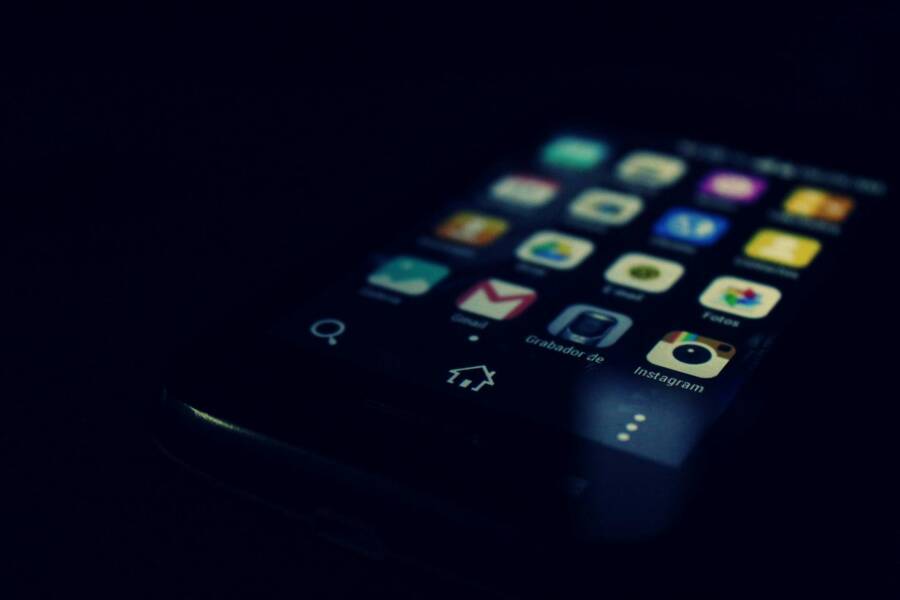
Photo by Deyvi Romero
Automatic Scheduling Turns It On and Off
Most phones switch themes based on the time of day or your location. Android calls this Dark theme scheduling, while iPhone uses Automatic in Display settings. Both pull sunset and sunrise data from your location to toggle modes.
Picture your phone treating dark mode like a built-in alarm clock. At dusk, it shifts to black backgrounds to ease eye strain in low light. You set this in Android’s Display menu under Dark theme, or on iPhone via Settings > Display & Brightness. Turn it off if switches annoy you during the day.
Many users forget they enabled this after an update. Check your settings; disable the toggle for full control. Smartphones like Pixel or Galaxy models sync this with Google or Samsung accounts, so changes stick across devices.
Low Battery Forces Dark Mode
Power-saving mode steps in when your battery drops below 20%. It forces dark mode to cut energy use, especially on OLED screens where black pixels consume zero power. Your phone prioritizes runtime over your preferred look.
This feature saves up to 30% more battery in tests on devices like the Galaxy S series or iPhone 15. The screen darkens automatically, along with dimmed brightness and paused background apps. iPhone labels it Low Power Mode; Android uses Battery Saver.
Charge your phone to override it right away. Go to Settings > Battery and adjust the threshold if possible. Some smartphones let you exclude dark mode from saver rules, but stock options keep it simple.
Apps or Widgets Cause Random Switches
Third-party apps or home screen widgets often override your theme choice. A weather widget might switch to dark mode for night forecasts, or a launcher app enforces its own style. Recent installs stand out as prime suspects.
Examples include Nova Launcher on Android, which ties themes to wallpaper hue, or wallpaper apps that cycle dark images. On iPhone, shortcut widgets or beta apps glitch the display. These pull permissions to change system appearance without clear notice.
Review your recent downloads in app settings. Uninstall suspects one by one, then test in safe mode (hold power button and tap Restart on Android; no easy safe mode on iPhone, so delete apps). Clear widget data too; long-press and remove them. This fixes 80% of random flips from bad software.
Bedtime or Focus Modes Interfere
Android’s Digital Wellbeing includes Bedtime mode, which darkens the screen at sleep hours. iPhone’s Focus modes like Sleep pair with dimmed displays or Night Shift for blue light cuts. Both activate on schedules you set.
These tools promote rest by grayscaling or darkening interfaces from 10 PM to 7 AM. Your phone ignores manual theme picks during active periods. Samsung adds extras like Eye Comfort Shield in its Wellbeing app.
Open Digital Wellbeing on Android (Settings > Digital Wellbeing) or Focus on iPhone (Settings > Focus). Edit schedules or turn off display tweaks. Test by setting a short bedtime window; if switches stop, that’s your fix.
Software Glitches or Bugs
OS bugs occasionally mess with theme controls. Pixel phones face a known issue where dark mode scheduling fails, causing unwanted flips despite your settings. Samsung reports fewer cases; older Galaxy models stuck after updates, but toggling schedules resolved them.
Restart your phone first; it clears temporary glitches. Update to the latest Android or iOS version via Settings > System > Updates. Pixel users see fixes in recent Pixel Drops for scheduling errors.
If issues persist, boot into safe mode to rule out apps. Factory reset serves as a last step after backups. User forums confirm these steps end most software woes on popular smartphones.
Quick Fixes to Stop the Switching Right Now
You need your screen back to normal fast. These steps take under five minutes and often solve the problem on the spot. Start here before deeper tweaks; they clear glitches, reset temporary bugs, and stop overrides from quick panels or add-ons.
Charge Up and Restart Your Phone
Low power tricks your smartphone into dark mode, even outside saver settings. Plug in your charger first. Use the original cable and adapter for best results; wait two minutes while it hits at least 20% charge.
A full restart clears software hitches that stick the theme. On iPhone, press volume up quickly, then volume down quickly, and hold the side button until the Apple logo appears. For Android, hold the power button and volume down together for 10 to 30 seconds until it reboots.
Users report this combo fixes flips caused by low resources or minor faults. Your smartphone runs smoother after, with no data loss. Test the screen right after boot; if it holds light mode, you nailed it.
Toggle Off Quick Settings or Control Center
Quick panels let accidental taps flip modes without warning. Pull them down now and check. On Android, swipe down twice from the top for full Quick Settings, then tap the dark mode icon (sun or moon) to light and back a few times.
On iPhone, swipe down from the top-right corner to open Control Center. Tap the brightness slider or appearance icon; set it to light and drag brightness up. Repeat the toggle twice to reset any glitch.
This forces a fresh state and overrides stuck commands. Keep the panel closed after; open apps and watch for 10 minutes. Smartphones like Pixels or recent iPhones respond best to this reset.
To make it stick, add the dark mode button to Control Center if missing: go to Settings > Control Center and include it. Now you control switches with one tap.
Hunt Down Problem Widgets or Apps
Widgets and fresh apps love to force their own themes. Scan your home and lock screens for suspects. Long-press recent additions like weather or launcher widgets, then drag them to remove.
Check app drawers too. Uninstall the last three to five downloads one by one. On Android, swipe up from the bottom, swipe away recent apps first, then head to Settings > Apps and delete.
On iPhone, press the home screen dot, edit the page, and remove widgets. Delete apps via Settings > General > iPhone Storage.
Test after each removal: leave your smartphone idle for five minutes. If flips stop, reinstall others later. This pinpoints the troublemaker without a full wipe. Many fixes come from ditching a single bad widget.
Step-by-Step Fix for Android Phones
Android gives you direct access to settings that control dark mode switches. These steps build on quick fixes and target root causes like schedules and software glitches. Start from the top and work down. Your smartphone will stay in the theme you pick.
Disable Automatic Dark Theme Schedule
Auto schedules flip dark mode at sunset or sunrise. Turn this off first to stop time-based changes.
Open the Settings app on your Android phone. Tap Display. Select Dark theme. You will see options like On, Off, or Schedule.
Choose Turns off at custom time or Never. Pick a time outside your daily use, or set it to Off completely. Save changes and lock the screen for 10 minutes to test.
On Pixel phones, this feature sometimes fails after manual toggles. It sticks in one mode despite your choice. Disable it anyway, then move to updates for a full reset. Samsung and other brands follow the same path, but check under Display or Wallpaper and style.
This simple change stops most schedule-driven flips. Users notice steady light mode right away.
Turn Off Bedtime and Do Not Disturb
Bedtime mode in Digital Wellbeing darkens your screen at set hours. Do Not Disturb pairs with it for night rules. Both override your theme choice.
Go to Settings > Digital Wellbeing & parental controls. Tap Bedtime mode. Toggle it Off, or tap the schedule icon to edit times. Under Screen options at bedtime, disable Dark theme or Grayscale.
Next, select Do Not Disturb. Check Schedules and turn off any active ones. Edit rules to exclude display changes.
Test by setting your phone aside for 30 minutes past a usual trigger time. No switch means these modes caused the issue. Customize them later if you want eye comfort at night without surprises.
Update Android and Check for Bugs
Outdated software hides bugs that force dark mode. Pixels face a known glitch where schedules ignore manual changes. Updates patch these problems.
Head to Settings > System > System update. Tap Check for update. Download and install any available patches. Restart after.
On Pixel devices, Google plans a fix for scheduling errors soon. Until then, updates bring partial relief. Samsung users see fewer issues, but always update for stability.
After install, revisit Display settings and toggle Dark theme off. Run your phone through a full day. Fresh code clears stuck commands in most cases.
Boot in Safe Mode to Test Apps
Third-party apps trigger random switches. Safe mode loads only stock software. Use it to confirm.
Press and hold the power button until the menu appears. Long-press Restart. Tap OK when it says Reboot to safe mode. Your phone restarts with a label at the bottom.
Leave it idle for 30 minutes. Check if dark mode flips. If not, a downloaded app causes trouble.
Exit by restarting normally. Uninstall recent apps one by one from Settings > Apps. Test after each. Common culprits include launchers and wallpaper changers.
Safe mode pinpoints issues fast without data loss. Your smartphone runs clean once you remove the bad app.
Step-by-Step Fix for iPhone
iPhone users face dark mode switches from built-in automations and app overrides. These steps mirror Android fixes but use Apple’s settings. They target schedules, Focus modes, updates, battery rules, restarts, and widgets. Work through them one by one. Your smartphone will hold the light mode you choose.
Switch Off Automatic in Display Settings
Automatic mode flips your screen based on time or light. Turn it off to pick your theme manually.
Open Settings and tap Display & Brightness. Under Appearance, select Light or Dark instead of Automatic. Toggle Automatic off if it shows.
Force-quit Settings by swiping up from the bottom and pausing, then swipe away the app. Lock your iPhone for 10 minutes and check. This stops sunset-based changes right away.
Many find this alone ends random flips. Your smartphone stays in light mode during the day. Test in bright light to confirm.
Review and Disable Focus Modes
Focus modes like Sleep force dark interfaces at set times. They override your display choice without notice.
Go to Settings > Focus. Tap each mode, such as Sleep or Do Not Disturb. Toggle it off, or edit schedules to avoid your active hours.
Under Options, disable any screen customizations like dimming or dark themes. Turn off Share Across Devices if you use multiple iPhones.
Leave your phone idle past a usual trigger. No switch means Focus caused it. Re-enable later with tweaks for better control.
Update iOS and Charge Past Low Power
Old iOS versions hide bugs that mess with themes. Low Power Mode dims and darkens at 20% battery.
Head to Settings > General > Software Update. Install any available version. Restart after to apply fixes.
Charge to over 25% with the original cable. Turn off Low Power Mode in Settings > Battery. Recent updates patch scheduling glitches on iOS 18 and later.
Your smartphone runs stable post-update. Watch the screen through a full charge cycle.
Restart and Remove Suspicious Widgets
Restarts clear glitches, while widgets from apps force theme shifts. Combine both for a clean fix.
Press volume up, then volume down fast, and hold the side button until the power slider appears. Slide to shut off, wait 30 seconds, then turn on.
Check home screens next. Long-press widgets like weather or shortcuts, then tap Remove Widget. Delete recent apps via Settings > General > iPhone Storage.
Test after each change. Idle for 15 minutes. This spots bad add-ons fast. Your iPhone screen holds steady once clear.
Still Switching? Next Steps for Tough Cases
Basic fixes stop most dark mode flips, but stubborn cases linger. These advanced steps tackle deep software bugs, rare hardware faults, or overlooked conflicts. Back up your data first; they reset your smartphone to a clean state. Follow them in order for the best shot at a permanent fix.
Back Up Data and Factory Reset
Factory reset wipes settings and apps that resist other tweaks. It clears hidden glitches without hardware changes.
For Android: Go to Settings > System > Reset options > Erase all data (factory reset). Confirm and enter your PIN. The process takes 10 minutes; your smartphone restarts fresh.
For iPhone: Open Settings > General > Transfer or Reset iPhone > Erase All Content and Settings. Enter your passcode and Apple ID if prompted.
Back up photos, apps, and files to Google Drive or iCloud before you start. Test the screen after reset; light mode should hold. Reinstall apps one by one to spot any repeat offender. Users fix 90% of tough cases this way.
Spot and Address Hardware Faults
Hardware rarely causes theme switches, but faulty sensors or screens mimic software bugs. Check if your smartphone dims unevenly or ignores brightness sliders.
Run a display test: Download “Display Tester” from the Play Store or App Store. Swipe through patterns; look for stuck pixels or sensor fails. On Pixel or Galaxy, dial #0# (Android) for a diagnostics menu.
If tests fail, visit an authorized service center. Apple Stores or Samsung shops run free diagnostics. A loose cable or bad display needs pro repair; costs run $100 to $300. Avoid third-party fixes to keep warranty intact.
Get Help from Manufacturer Support
Support teams handle unique bugs tied to your model. They access logs and push custom fixes.
Android: Visit support.google.com/android or samsung.com/support. Chat or call with your model and OS version. Pixels get priority via the Pixel app.
iPhone: Go to support.apple.com or use the Support app. Schedule a Genius Bar visit or start a remote session.
Share screenshots of flips and steps tried. Techs often spot firmware quirks. Your smartphone gets tailored advice, like beta updates for known issues. Most resolve remotely in under an hour.
Conclusion
You now hold the tools to end those annoying dark mode switches. Disable auto schedules first, check battery saver and Focus modes next, then hunt bad apps or widgets. Update software, restart, and reset if needed. Follow these steps in order, and your smartphone screen stays steady in your preferred mode.
Most users fix this at home without hassle. No more squinting in sunlight or fumbling at night. Enjoy frustration-free phone use every day.
Share in the comments if these steps worked for you. Subscribe for more smartphone tips on troubleshooting and tweaks. Your smooth display awaits.