How to Fix Phone Stuck at 80% Charge (iPhone & Android)
Smartphones often stop charging at about 80 percent as a built in protection, not a defect. This behavior is common on both iPhone and Android devices and is tied to battery health and heat management. Understanding why it happens helps you decide when to adjust settings or try quick fixes.
If your goal is a full charge for the day, you’ll want a clear plan. This post explains why charging pauses at 80 percent, what to check first, and the simple steps that usually solve the issue. You’ll learn how Battery Management Systems and features like Optimized Battery Charging work in real life, not just in theory.
We’ll cover the main causes in plain terms: battery aging, software settings, and hardware factors like cables and ports. You’ll see practical, step by step fixes you can apply right away on both iPhone and Android. No fluff, just what to do and what to expect. Many fixes are quick and require little time, so you can get back to using your device with confidence.
By the end of this guide you’ll know how to identify whether a charging pause is normal or something to fix. You’ll also get tips to prevent future hiccups, from choosing the right charger to keeping your charging port clean. Follow these steps to get back to full charge and keep your smartphone healthy for the long haul.
Why Your Phone Stops Charging at 80 Percent
Many devices pause charging around the 80 percent mark as a built in protection. This behavior helps preserve battery health over time and manage heat, which can wear cells faster if kept at full tilt for too long. Understanding how these protections work can help you decide when to use a feature or adjust a setting, and when to accept a short-term trade off for longer battery life.
Built-in Battery Protection Features
Your phone uses smart charging rules that kick in automatically. On iPhone, Optimized Battery Charging learns your daily routine and holds charging at about 80 percent until you’re about to use the device, then completes the charge to full just in time. This approach reduces wear on the lithium ion battery by limiting the time it spends at 100 percent. For a deeper explanation, see Apple’s official guide on how Optimized Battery Charging works and why the 80 percent threshold exists. Optimize iPhone battery charging
Android devices offer similar protections with names like Protect Battery or Optimized Charging. Samsung, for example, provides a battery protection feature that can cap charging around 85 percent or be set to a user adjustable range (often 80–95 percent). This protective behavior slows the charge after the 80 percent mark to minimize stress on the cells and heat buildup. The goal is longer overall battery life, even if it shortens daily uptime. If you want to explore Samsung specifics, see the Knox knowledge base on limiting battery charging on Knox managed devices. How to limit battery charging on a Samsung Knox device
In practice, these features mean you’ll occasionally see a charge stop at 80 percent or 85 percent, especially after a long night or during a heavy charging cycle. The benefit is fewer charge cycles that reach 100 percent, which helps the battery maintain capacity over time. If you rely on all-day uptime, you can still get a faster top-up by temporarily disabling the protection, but you’ll trade that convenience for faster long-term wear. For Android users wanting a broad view of charging optimization, Beebom and other guides outline how Android devices implement these limits and when to adjust them. How to Check Battery Health in Android: Step-by-Step Guide
Key takeaways:
- The 80 to 85 percent cap is intentional, not a defect.
- A slower, gentler charge reduces heat and aging.
- You can often adjust or disable these limits if you need a quicker full charge, but expect longer term impact on battery health. For a quick reference on general battery health practices, a reliable overview helps separate myths from engineering realities. Charge Phone to 80%: Battery Health Truth You Need
Overheating or Battery Wear Signs
If your phone is hot or your case traps heat, charging may pause or slow well before you reach 80 percent. Heat is a major accelerator of battery aging, so charging in a cooler spot with a breathable case can help maintain a steady fill. Modern devices also limit charging when the battery health has declined or when a high temperature is detected during a cycle. Regularly checking the temperature and looking for hot spots can prevent unnecessary charging pauses.
Common signs to watch for:
- Rapid warmth during charging that you can feel on the back of the device.
- Charging pauses after short sessions or when you remove a protective case.
- A noticeable drop in overall health or capacity after many charge cycles.
If you suspect wear or degraded health, it helps to verify charging habits and battery health using built in diagnostics or third party health checks. Android Authority provides guidance on monitoring battery health and charging cycles on Android, while Samsung and Pixel devices offer built in tools to gauge health and cycle counts. How to check your battery health and charging cycles on Android
Practical steps you can take now:
- Move to a cooler charging location; avoid direct sun or warm desks.
- Remove bulky or heat trapping cases during charging.
- If a device consistently runs hot, consider a diagnostic check or battery replacement if health is poor.
If the device remains stubborn about charging past 80 percent, you can test with a different charger and cable to rule out a faulty accessory. A clean port helps too; lint or debris can create resistance that causes heat buildup and quicker protective pauses. For Android users needing a health check, Beebom’s guide explains clear steps and recommended tools to assess and maintain battery health. How to Check Battery Health in Android: Step-by-Step Guide
Takeaway:
- Heat is a primary trigger for charging pauses. Keep temps in check and give the device a cool rest if you notice speed changes.
- Battery wear lowers effective capacity, which can also trigger protective pauses as the system tries to preserve what remains. Regular checks help you catch aging early and plan replacements or optimizations. For more on protecting battery health, see the general guidance from Apple and Samsung on battery longevity and optimization. Batteries – Maximizing Performance
Note: If you’d like, I can tailor this section further to align with your current article flow or add specific device examples you’re covering in your post.
First Steps: Check Battery Health and Basics
Before you dive into fixes, take a quick stock of your device’s health and the most common culprits. This section lays out simple checks you can perform on both iPhone and Android, plus a fast hardware sweep to rule out obvious issues. Think of it as the quick triage that saves you time and frustration.
Check battery health on iPhone
Your iPhone stores useful indicators that tell you how much life is left in the battery and how well it’s performing. Start here to understand what you’re dealing with.
- Open Settings > Battery > Battery Health. Look for two key numbers: Maximum Capacity and Peak Performance Capability.
- If Maximum Capacity is well below 100 percent or you see a message about degraded performance, you’re not imagining things. The battery is aging and may need service to restore reliable charging behavior.
- Enable Optimized Battery Charging if you haven’t already. This feature slows the rate of charge above 80 percent to minimize wear, syncing with your daily routine so you’re not left waiting for a full top-off every time you pick up the phone.
- Consider a battery replacement if the health report shows significant wear or if you notice the phone frequently shutting down at higher percentages. Apple’s official guidance provides practical context on when to replace and how optimization works. Apple Battery Health overview
What to watch for:
- Frequent unexpected shutdowns or a rapid drop in usable capacity.
- The device gets noticeably warm during charging or use, even with light tasks.
- The phone requires frequent recharging before the day ends despite normal usage patterns.
Check battery health on Android
Android devices don’t all present health data in the same place, but most manufacturers include a built-in way to gauge battery health and charging cycles.
- Go to Settings > Battery > Battery Health or Battery Usage. If your device shows health metrics, you’ll see estimates of capacity and peak performance.
- If you don’t see a health metric, use the device’s diagnostic tools or a trusted app from the Play Store to assess health and cycle counts. Some brands, like Samsung, offer dedicated battery health diagnostics within the Settings app.
- Look for messages about a degraded battery or warnings that the device may limit performance to protect the battery. This is Android’s way of saying the battery is aging and charging behavior may adapt accordingly.
Tips for Android users:
- Some devices let you view temperature and charging history; use these to spot persistence of heat during charging.
- If the battery health shows wear, a replacement is the most effective long-term fix. If you’re on a device with a non-removable battery, you’ll want a service appointment from the manufacturer or an authorized repair center.
Basic hardware checks: charger, cable, and port
Poor charging progress is often a hardware issue rather than a software one. A quick hardware audit can save you hours of guesswork.
- Inspect the charging cable and brick. Look for frays, kinks, or bent connectors. Swap in a known-good charger and cable to isolate the problem.
- Examine the charging port for debris. Lint, dust, or pocket debris can create resistance and heat. Use a soft brush or a blast of air to clear out the port gently.
- Check the charging case. Some cases trap heat or block the connector, especially if they’re bulky or magnetic. Remove the case during charging to test.
- Assess cable orientation. Some USB-C cables are “one-way” in practice; try flipping or using a different orientation if the connector feels loose.
Tips to prevent recurring issues:
- Use a high-quality charger from a reputable brand. Cheap adapters can deliver unstable power and stress the battery.
- Keep the environment cool during charging. Excess heat accelerates wear and can trigger protective pauses.
- Combine this with a clean, dry charging dock or battey pad if you prefer wireless charging, but ensure it’s compatible with your device to avoid heat buildup.
Quick diagnostic steps you can run
If you want to be sure you’re not chasing a ghost, run these quick checks. They take only a few minutes and often resolve the issue without deeper work.
- Restart the device. A simple reboot can clear software glitches that confuse charging indicators.
- Try a different power source. Plug into a wall outlet instead of a computer USB port, or vice versa, to see if the source is the bottleneck.
- Test with another cable and charger. If charging behavior changes, you’ve likely found the culprit.
- Disable battery-hungry features temporarily. If a background app or feature keeps the CPU busy, it may create heat and mislead the system about charging health.
- Run a battery diagnostic if available. Some devices offer a built-in health check in Settings or via a dedicated app. Use trusted sources to interpret the results.
When to push further
- If you consistently see 80 percent charging despite trying different accessories and a cool environment, the issue may be deeper. Battery degradation or a failing battery module could be the cause. In that case, a professional diagnostic can confirm health status and tell you whether a replacement is the best path.
When to consider a battery replacement
Battery replacement can restore reliable charging behavior and extend the life of your phone. Consider replacement if:
- Maximum Capacity drops meaningfully and shows consistent degradation across charge cycles.
- The device shuts down unexpectedly even when the display shows a high battery level.
- You notice reduced overall performance and longer charging times even after software updates and accessory swaps.
Choosing a service path:
- If your device is under warranty or covered by AppleCare or the manufacturer’s protection plan, start there.
- For older devices, third-party repair shops can be cost-effective, but ensure they use OEM parts and provide a warranty on the repair.
- If you prefer DIY, some phones have user-serviceable batteries staged behind a simple back panel. This option varies by model and should be attempted only if you’re comfortable with small electronics.
Takeaway:
- Start with the health readout if your device supports it, then go through a fast hardware check.
- Temperature matters. Keep the phone cool during charging and avoid heat buildup inside cases or on warm desks.
- If health is the clear issue, a replacement is usually the most reliable path to restore normal charging performance. For general battery health practices on popular devices, refer to official guidance from Apple and major Android manufacturers as you decide how far to go with repairs. Apple Battery Health overview
Additional practical notes
- If you’re testing multiple devices or sharing this section across a guide, keep the tone consistent and focus on actionable steps.
- Use plain language and short sentences to help readers quickly scan and pick the right action.
- Remember that the goal is to help readers quickly determine whether a quick fix or a deeper service is needed.
- If you want, I can tailor these checks to the specific models you’re covering in the article and add localized steps for US readers.
Step-by-Step Fix for iPhone Users
If your iPhone seems stuck at an 80 percent charge, you’re not alone. Modern iPhones use smart charging to protect battery health, which can feel like a snag when you’re in a hurry. This section lays out a practical, step by step approach tailored for iPhone users. It covers settings you can tweak, quick calibration tricks, and when to seek professional help. Follow these steps in order to quickly pinpoint and fix the issue without guessing.
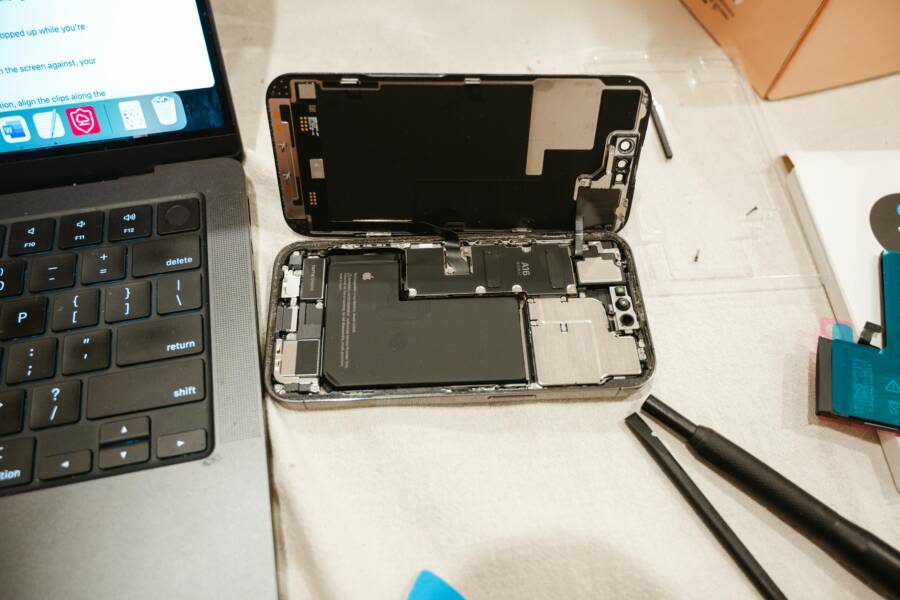
 Photo by Harry Tucker
1) Check Optimized Battery Charging and Charge Limit
The most common reason for the 80 percent stop is Optimized Battery Charging. This feature learns your daily patterns and usually holds charging around 80 percent until you need it. If you’d like a full top-up more quickly, you may adjust or temporarily disable the limit.
- Open Settings > Battery > Battery Health and check if Optimized Battery Charging is on.
- If you prefer a full charge now, temporarily set the limit to 100 percent. Remember to re-enable the optimization after your immediate need.
- If you’re curious about how this works, Apple explains the feature and its impact on charging behavior. About Charge Limit and Optimised Battery Charging on iPhone
2) Enable or Disable Optimized Battery Charging
If you’ve noticed inconsistent charging behavior, toggling the feature can help recalibrate the system’s expectations.
- Turn off Optimized Battery Charging for 24 hours, then turn it back on.
- If your iPhone prompts about calibration, let the device complete a few charge cycles to relearn your routine.
Apple’s guidance on how Optimized Battery Charging interacts with daily use is a reliable reference for this step. Optimize iPhone battery charging
3) Calibrate the Battery (If You Notice Inaccurate Readings)
Sometimes the battery indicator gets out of sync. A quick calibration can fix the misreadings without touching hardware.
- Let the battery drain to around 5 percent, then charge uninterrupted to 100 percent.
- Use the phone normally for a day or two to reestablish a natural consumption pattern.
Keep in mind that calibration does not repair battery health; it simply aligns the gauge with actual capacity. If issues persist after calibration, move to the next steps.
4) Check for Software Updates and Known Issues
A software hiccup can cause charging misreads or odd pauses. Ensure your device runs current software.
- Go to Settings > General > Software Update and install any pending updates.
- Review recent update notes for any known charging issues and fixes.
Apple’s official support resources provide current guidance on performance and charging behavior after updates. If Optimized Battery Charging doesn’t activate – Apple Support
5) Inspect Accessories and Charging Port
Hardware faults often masquerade as software problems. A clean, reliable charging setup is essential.
- Use an Apple-certified charger and cable. Third party accessories can be inconsistent.
- Inspect the charging port for lint or debris. A small brush or compressed air can clear buildup.
- Try a different wall outlet and a different cable to rule out a flaky accessory.
If you suspect a hardware issue, Apple’s support pages outline steps for charging problems and when to seek service. If your iPhone or iPod touch won’t charge
6) Monitor Temperature and Charging Habits
Heat accelerates battery aging and can trigger protective pauses.
- Avoid charging on soft surfaces or under direct sunlight. A cool, hard surface is best.
- Remove bulky cases during charging if they trap heat.
- If the device becomes noticeably warm, pause charging and let it cool.
Apple and other manufacturers highlight the connection between temperature, charging behavior, and long term health. Optimize iPhone battery charging
7) Test with a Clean Boot and Fresh Start
A quick software reset can clear stale charging indicators.
- Restart the iPhone after disconnecting from power.
- If the issue recurs, perform a backup and a fresh restore as a last resort. This should only be done if other steps haven’t resolved the problem.
A clean boot helps determine whether the issue is software related or hardware based. If problems persist after a restore, it’s time to consider service options.
8) When to Seek Professional Help
If you still see the charging stop at 80 percent after trying the steps above, it’s time to involve a professional.
- Battery health may be degraded, or a failing module could be causing the limitation.
- If your device is under warranty or covered by AppleCare, start there for the most cost effective solution.
- For older devices, a reputable repair shop can be a good option, but ensure they use genuine parts and provide a warranty on the repair.
Apple’s battery and performance guidance offers clear criteria for when to replace a battery or pursue service. Set a charge limit on iPhone
Quick reference: what to do in a pinch
- Check if Optimized Battery Charging is active and adjust it if needed.
- Calibrate the gauge by allowing a full cycle from low to 100 percent.
- Swap to a certified charger and clean the port.
- Keep the device cool during charging.
- If all else fails, schedule a service appointment.
Takeaways for iPhone users:
- The 80 percent cap isn’t a defect; it’s a protective feature aimed at preserving battery life.
- You can influence charging behavior with settings, but long term health matters more than a single full charge.
- When in doubt, rely on official guidance from Apple to determine the best path for your device.
If you want this section tailored to specific iPhone models you’re covering, I can adjust the steps accordingly and add model-specific tips.
Step-by-Step Fix for Android and Samsung Users
If your Android device or Samsung phone stalls around 80 percent, you’re not alone. Many devices pause charging to protect the battery and limit heat buildup. Below is a practical, device-aware plan you can follow. It covers general Android tips, Samsung-specific options, quick hardware checks, and when to seek service. Use these steps in order to quickly rule out common culprits and get back to a full charge.
Android-specific fixes you can try first
Android phones vary by maker, but most share a few core ideas. Start with these steps to reset charging behavior and rule out simple causes.
- Verify battery optimization settings are in the right state. Many Android devices have a charging limit or adaptive charging feature that keeps charging around 80 percent to extend battery life.
- Check for temperature during charging. If the device becomes hot, charging may pause or slow down to protect the battery.
- Update your device software. A quick bug fix can resolve charging quirks introduced by a recent update.
- Try a different charger and cable. A worn or incompatible accessory can masquerade as a software problem.
For a broad look at how Android devices handle charging optimization, see guides that explain battery health and charging limits. This can help you decide when to adjust the limit or keep it as is for longevity. Battery health and charging optimization on Android
Samsung-specific considerations and steps
Samsung devices often include a Battery or Care & Maintenance section with optimization controls. If you own a Galaxy phone, you may find a capped charging behavior that you can adjust, depending on your model and security profile.
- Open Settings and locate Battery or Care & maintenance. Look for options like “Protect Battery,” “Optimized charging,” or a user defined charging range.
- If you see a 80–85 percent cap, you can typically adjust the range or temporarily disable it when you need a full top-up.
- Try a full charge from a known-good charger after a short period with the limit disabled to confirm whether the cap is the root cause.
- If you’re managing a device with enterprise controls, your Knox or device management settings might override local preferences. Review those policies if you use a work-issued Samsung phone.
- In persistent cases, consult Samsung’s Battery About Battery guide for model-specific tips and troubleshooting steps. Galaxy Battery – About Battery
If you suspect the cap is stuck or misbehaving, a quick reset of the charging limit can recalibrate the system. Some users report success by briefly turning off the limit and allowing a full charge, then re-enabling the protection after the top-off.
Quick hardware checks that apply to Android and Samsung
A lot of charging trouble stems from hardware rather than software. Do a rapid sweep to rule out simple faults.
- Inspect the cable and power brick. Look for frays, bent plugs, or a loose connection. Swap with a known-good charger to confirm.
- Clean the charging port gently. Lint or dust can block contact and heat up the plug area. Use a soft brush or compressed air.
- Test in a cool environment. Heat is a major driver of protective pauses. If you charge on a warm desk or under direct sun, move to a cooler spot.
- Remove bulky cases during charging. Some cases trap heat or obstruct connectors, causing slower fills or pauses.
For Samsung devices, a worn USB cable or port debris is a common cause of the 80–85 percent stop. If you need official guidance, Samsung’s support pages about charging tips and battery care are a good reference. About Battery | Galaxy Battery
Practical steps to diagnose with confidence
If you want quick confirmation that you’re not chasing a phantom issue, run these checks in order.
- Switch chargers and cables. If the behavior changes, you’ve found the culprit.
- Try a different power source. Plug into a wall outlet if you were using a computer port, or vice versa.
- Check for temperature and charging history in your settings if available. Some devices log charging cycles and heat trends.
- Disable background power-hungry features temporarily. Apps running in the background can heat the device and confuse the charge indicator.
If all hardware checks pass and the problem persists, the issue is more likely battery health or a deeper software problem. Android Authority provides guides on monitoring battery health and charging cycles on Android, which can help you decide when to replace the battery. How to check your battery health and charging cycles on Android
When to consider a battery replacement or service
A battery replacement is often the most reliable fix for ongoing charging limits. Consider it if you repeatedly see a cap around 80–85 percent or if the device shows signs of aging despite software updates.
- If the battery health report shows meaningful wear or if the device shuts down early, replacement is prudent.
- For devices under warranty, start with the manufacturer for the most cost-effective path.
- If you’re out of warranty, a reputable repair shop with OEM parts can be a solid option. Confirm they provide a warranty on the repair.
For Samsung users, official guidance on battery health and optimization can help you decide when to replace. Galaxy Battery – About Battery
Quick reference: in a pinch
- Confirm Optimized Charging or equivalent feature is in the expected state.
- Calibrate by cycling from near full to empty once to realign the gauge if supported by your device.
- Use a certified charger and test a new cable.
- Keep the device cool during charging.
Takeaways for Android and Samsung users:
- Charging pauses around 80 percent are often protective by design, not a defect.
- Hardware quality and heat management matter as much as software settings.
- If the limit is a persistent obstacle, a battery health check or replacement may be the right move.
If you want the steps tailored to a specific model or you’re covering particular Samsung or Android devices, I can adjust the guidance accordingly.
Prevent Future Issues and Best Habits
After you fix the immediate charging hiccup, you’ll want a simple, repeatable routine that keeps your battery healthier longer. This section shares practical habits, quick checks, and smart settings you can adopt to minimize future charging problems. Think of it as the long-term playbook for reliable, safe charging with your iPhone or Android smartphone.
Adopt smart charging practices that fit your life
Smart charging features are designed to reduce wear and heat. Use them consistently, but know when to adjust.
- Enable Optimized Battery Charging on iPhone to slow the top-off and align charging with your daily use. It’s not about avoiding full charge forever; it’s about protecting battery chemistry over time. If you need a full top-up now, you can temporarily disable the feature and re-enable it later. Apple explains how this works and why the 80 percent threshold exists. About Charge Limit and Optimized Battery Charging on iPhone
- On Android devices, look for charging limits or adaptive charging options. If your phone consistently hits a cap, you can usually adjust the range or turn the feature off temporarily for faster top-ups. Manufacturer guides vary, but the goal is the same: reduce heat and extend battery life.
- For devices with enterprise controls, keep an eye on any Knox or device-management policies that could override local settings. If you manage a company phone, these controls can affect charging behavior as well.
Why it matters: these features minimize heat buildup and reduce high-percent charging cycles, both of which accelerate aging. A small change now can pay off in longer daily usability later.
Monitor battery health as a regular habit
Regular checks help you catch problems before they become headaches. Use built-in tools whenever they’re available and supplement with trusted diagnostics if needed.
- iPhone: Check Battery Health in Settings to see Maximum Capacity and Peak Performance. A low capacity or degraded performance often signals aging and potential service needs. Apple provides clear guidance on battery health and replacement timing. Apple Battery Health overview
- Android: Battery health data varies by maker, but most devices include health metrics in Settings. If your model lacks a direct readout, use the manufacturer’s diagnostics or a reputable app to gauge health and cycle counts. Watch for warnings about degraded performance that invite a service decision.
- When in doubt, seek a professional health check. A technician can measure actual capacity versus design spec and test the battery module for faults. This is especially useful for devices that no longer hold a full day of charge.
Tip: keep a rough eye on temperature as you monitor health. If a battery runs unusually hot during normal use or while charging, that’s a signal to pause and investigate. Temperature is a strong predictor of accelerated wear and sudden pauses.
Create a simple charging routine that protects longevity
A routine helps you avoid careless habits that wear batteries out faster. A few repeatable steps can become second nature.
- Charge in a cool environment. Avoid direct sun, hot desks, or charging on soft surfaces that trap heat.
- If you use a case, ensure it doesn’t insulate the back or trap heat during charging. Remove bulky or heat-retaining cases when plugged in.
- Use a high-quality charger and cable from a reputable brand. Substandard accessories can cause voltage fluctuations and heat spikes that stress the battery.
- Whenever possible, keep charging sessions moderate. Overnight charging to 100 percent isn’t always necessary; a mid-day top-up can reduce the duration the battery sits at high voltage. For iPhone users, the built-in optimization helps with this automatically. Optimize iPhone battery charging
- If you notice a hard stop around 80 or 85 percent, respect the limit for daily life. You can still top up quickly when needed by using a fast charger for shorter periods.
A consistent routine reduces surprises. It also makes it easier to decide when a battery health issue is likely a sign of aging rather than a temporary glitch.
Protect charging ports and cables with a quick preventive care routine
Clean ports, proper cables, and dust-free connectors play big roles in reliable charging.
- Inspect and clean ports regularly. Lint and dust can create contact resistance and heat. Use a soft brush or compressed air to clear debris gently.
- Keep cables in good condition. Frayed cords or damaged plugs can cause slow charging and heat spikes. Replace worn cables promptly.
- Be mindful of how you plug in. Some USB-C cables behave differently depending on orientation. If the connection feels loose, try another cable or port to confirm the issue.
- When you’re not using a wireless charger, place the device on a flat, cool surface to avoid heat buildup.
Regular port maintenance reduces the chance of false alarms about battery health and helps you avoid unnecessary replacements.
Prioritize temperature control in daily life
Heat is the hidden enemy of battery longevity. Make temperature a daily consideration.
- Avoid charging in direct sunlight or on hot surfaces. If your workspace warms up, move the phone to a cooler spot during charging.
- Remove insulating cases during charging if they trap heat. This small change can keep temperatures down.
- If you notice the phone gets hot during charging, pause and let it cool before continuing. Repeated heating cycles can degrade capacity over time.
Temperature awareness is simple, but it has a meaningful impact on how long your device remains reliable.
When to replace versus repair
Knowing when to replace a battery versus repair it saves both time and money.
- If health reports show meaningful wear and the device shuts down before the battery level reaches 20 percent, replacement is usually the best path.
- For devices under warranty, start with the manufacturer for coverage and lower cost.
- If you’re past the warranty window, choose a reputable repair service that uses OEM parts and offers a warranty on the repair.
Battery replacements restore reliability and can extend the device’s usable life by years. Official guidance from Apple and major Android manufacturers helps you decide when replacement makes sense. Batteries – Maximizing Performance
Quick win practices you can start today
- Enable Optimized Battery Charging on eligible devices, then re-check after a few days.
- Calibrate the battery gauge if readings seem off, followed by a health check.
- Keep a spare, certified charger and a clean, dry charging area ready for quick swaps.
- If you’re dealing with persistently slow charging, try a different wall outlet or a different charger to pinpoint the bottleneck.
Simple, repeatable steps remove the guesswork and help you keep your smartphone ready for daily use.
Takeaways to remember:
- Smart charging features are tools to extend life, not obstacles to daily use.
- Regular health checks and temperature awareness help you act before a failure.
- A well-kept charging setup with quality accessories reduces the odds of recurring 80 percent stops.
If you want this section tailored to the exact models you’re covering, I can adjust the guidance and add model-specific tips. For further reading, Apple and major Android manufacturers publish clear guidance on battery health and charging practices. Apple Battery Health overview
Conclusion
Smart charging features are helpful tools, not obstacles. They protect battery health while still delivering reliable daily power. The choice between a quick top up and a longer but gentler charge comes down to balancing immediate needs with long term longevity.
You can influence charging behavior without sacrificing too much life. Check your device settings, test with a known good charger, and keep the phone cool during charging. If you notice a persistent 80 percent stop, review battery health and consider a replacement if the health readout shows meaningful wear. These steps apply to both iPhone and Android smartphone users and fit into a practical, real world workflow.
For most users the key move is to keep a small, smart routine. Enable the built in protections when you want to extend life, disable them briefly when you need a full top up, and always monitor temperature. This approach makes charging predictable and reduces surprises in daily life. Share your results in the comments and I’ll help tailor the fixes to your model.
Take action today, try the steps, and learn which settings work best for your smartphone. Enjoy reliable power.