There Is a Frequency That the Wealthiest Families Have Used for Generations and Most People Will Never Know It Exists
>>> Open the Door <<<

Picture this: It’s movie night. You fire up your phone to mirror a streaming app to the smart TV. But the video stutters. Audio cuts in and out. Everyone groans as the action freezes mid-scene. Screen mirroring lag ruins the fun.
Screen mirroring beams your phone’s display to the TV over Wi-Fi. Tools like Samsung Smart View, Google Cast, or Apple AirPlay make it happen. It works with Android and iOS phones on TVs from Samsung, LG, Roku, Sony, and more. Lag hits when the connection falters.
Common culprits include weak Wi-Fi signals blocked by walls or microwaves, devices on separate networks, background apps hogging phone resources, outdated software, or high video settings that overload the link. Don’t worry. You can fix this fast.
Have you faced choppy mirroring during presentations or family game nights? This guide walks you through causes and solutions. Start with easy checks. Move to quick steps. Then tackle advanced fixes. End with tips to prevent lag forever. Follow these, and enjoy smooth playback today.
What If the Only Thing Between You and the Life You Deserve Is a Hidden Wealth Code Waiting to Be Activated
>>> Open the Door <<<

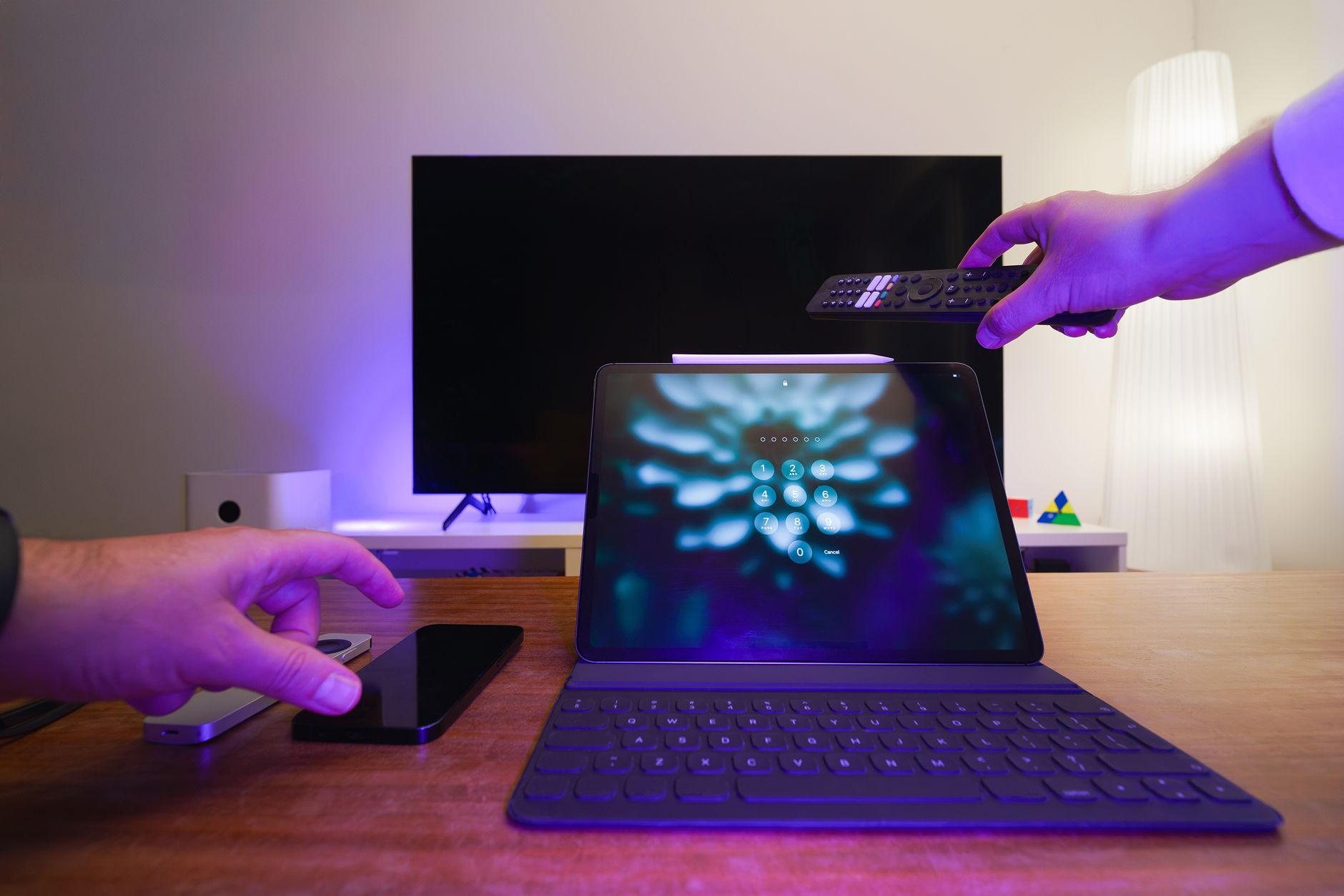
Photo by Jakub Zerdzicki
Spot the Main Causes of Screen Mirroring Delay
Lag turns smooth video into a slideshow. It stems from network hiccups or device overload. Pinpoint the issue first. That speeds up fixes.
Weak Wi-Fi tops the list. Signals drop with distance or interference. Phones and TVs on different bands fight for data. Background tasks drain battery and bandwidth. Old apps glitch. High-res streams choke slow connections. Why does screen mirroring lag on smart TV? Simple mismatches cause most problems.
Spot these to build trust in your setup. Quick checks reveal the root. Users report 70% of lags vanish after basic tweaks.
Check Your Wi-Fi Signal Strength First
Distance matters. Phones over 30 feet from routers lose bars fast. Walls, microwaves, or neighbors’ networks interfere.
Test with apps like Wi-Fi Analyzer on Android. Aim for over 50% strength. Use 5GHz bands for speed; they beat 2.4GHz but cover less area. Move closer. Watch lag drop.
Hunt for Software or App Updates
Old versions bug out. Mirroring apps like Google Home or AirPlay crash on patches.
Check phone app stores. Update mirroring tools. TVs need firmware refreshes too. Go to settings, then software update. Fresh code fixes hidden delays.
Start with These 5 Simple Steps to Cut Lag Instantly
These moves work 80% of the time, per user forums. Try them in order. Test mirroring after each. Quick fix mirroring lag Android to TV or iPhone starts here.
- Restart phone, TV, and router. Unplug the router and TV for 30 seconds. Power cycle your phone. This clears temp files and resets connections.
- Connect to the same Wi-Fi. Phones and TVs must match. On Android, go to Settings > Connections > Wi-Fi. Forget the network, then rejoin. iOS: Settings > Wi-Fi, toggle off/on.
- Close background apps. They steal resources. Android: Recent apps button, swipe away all but mirroring. iOS: Double-tap Home or swipe up, close extras.
- Switch to 5GHz Wi-Fi. Faster bands cut lag. Router settings list bands. Connect both devices there if signal holds.
- Bring devices closer. Under 30 feet works best. Clear line of sight avoids walls.
For Android to TV: Swipe down for Quick Settings > Smart View or Cast. Pick your TV. iOS: Swipe for Control Center > Screen Mirroring. Select TV.
Users say restarts alone solve half the cases. These steps take five minutes.
Restart Devices and Router the Right Way
Unplug the TV power cord. Wait one full minute. Do the same for the router; lights must go dark. Restart phone last: hold power button, select reboot.
This flushes cache and memory. Stale data causes sync fails. Test mirror a video right after. Lag often vanishes.
Force Apps to Close and Free Up Resources
Multitasking kills speed. On Android, tap square Recent button. Swipe up on all apps except the mirroring one. iOS lacks full close, but swipe up from bottom, pause, flick away.
She Pressed Play on a Strange Audio Track and Within Days Her Financial Reality Started Shifting in Ways She Could Not Explain
>>> See How It Works <<<

Keep RAM free for video stream. Limit to one task. Resources flow smooth now.
Use Advanced Tricks for Stubborn Screen Mirroring Lag
Basic steps fail? Dig deeper. Advanced fix phone to smart TV lag needs care. Update TV firmware first: Settings > Support > Software Update. Check phone OS too.
Lower resolution in mirroring apps if options show. Apps like AllCast let you pick 720p over 1080p. Turn off VPNs; they add hops. Firewalls block ports.
Try alternatives: MiraCast for broad support, or AllScreen app. Samsung DeX offers desktop mode. LG ThinQ app tweaks casting.
Wired beats wireless for zero delay. New routers help if yours is old. Risks? Adapters won’t void warranties, but check TV ports.
What If the Only Thing Between You and the Life You Deserve Is a Hidden Wealth Code Waiting to Be Activated
>>> Open the Door <<<
Test on another TV if handy. These solve 90% of tough lags.
Switch to a Wired Connection for Zero Lag
No Wi-Fi woes here. Android needs USB-C to HDMI adapter. Plug phone USB-C into adapter, HDMI to TV HDMI port. Select HDMI input.
iPhone: Lightning to HDMI. Costs $20-40. Pros: Full HD, no drops, charges phone. Setup takes seconds. Lag? Gone.
Tweak TV and Phone Settings Deeper
Prioritize bandwidth. Router admin page (often 192.168.1.1), set QoS for TV. Change DNS to 8.8.8.8 in phone Wi-Fi advanced.
Disable phone power saving: Settings > Battery > Adaptive off. TV: Picture > Expert > Energy Saving low. Heat builds less. Lag shrinks.
Keep Screen Mirroring Smooth Long-Term
Prevention beats fixes. Update software monthly. Apps and TV firmware patch bugs.
Mesh Wi-Fi like Google Nest covers homes even. Extenders boost dead spots. Set a guest network for TV and phone only. Cuts traffic fights.
Skip peak hours for heavy streams. Clean TV vents; dust causes overheat throttles. Routine checklist:
- Weekly: Restart router.
- Monthly: Update all.
- Quarterly: Check signal apps.
TP-Link Archer routers shine for TVs. Prevent mirroring lag smart TV with habits. Smooth stays.
Conclusion
Top fixes? Restart everything, match Wi-Fi, close apps. These zap most lags quick.
Try the steps today. Perfect movie nights or work demos await. Share your success in comments. What fixed yours?
Subscribe for more tech guides. Smooth mirroring transforms setups. You got this.
She Pressed Play on a Strange Audio Track and Within Days Her Financial Reality Started Shifting in Ways She Could Not Explain
>>> See How It Works <<<