
Picture this: you’re deep into a tight corner in Asphalt 9, tilting your phone just right to nail the apex. But your car veers left on its own, smashing into the wall. Frustrating, right? That’s phone gyroscope drifting at work. It happens when your phone’s built-in sensor misreads tilts and movements. Instead of smooth steering, you get erratic pulls that ruin your lap times.
This issue hits hard in racing games like Real Racing 3 or CSR Racing 2, where gyro controls shine for that immersive feel. The good news? You can fix it on both Android and iOS devices. This guide walks you through simple checks, calibration steps, app tweaks, and long-term prevention. Most fixes take under five minutes and need no special tools. By the end, you’ll drift-free and back to podium finishes. Let’s start with the basics.
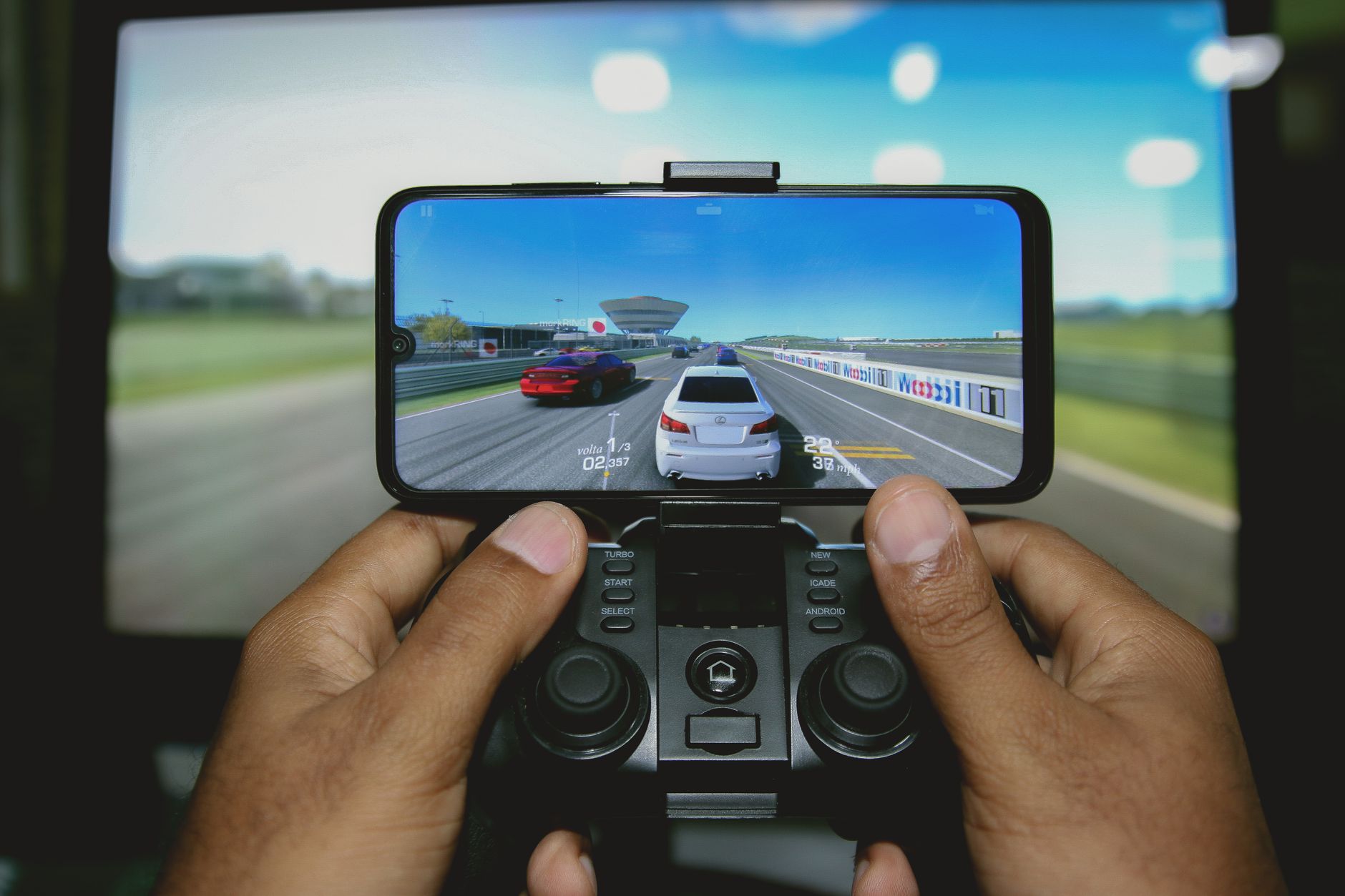
Photo by Nino Souza
What Causes Gyroscope Drifting in Racing Games
Your phone’s gyroscope measures tilt and rotation. In racing games, it turns those motions into steering inputs. When it drifts, small errors build up, pulling your virtual car off course.
Several factors trigger this. Drops jar the sensor out of alignment. Heat from long sessions warps readings. Outdated software lets bugs creep in. Here’s a quick list of top causes:
- Sensor calibration loss: Bumps or falls shift the gyro’s zero point.
- Outdated OS or apps: Old versions miss fixes for sensor fusion.
- Magnetic interference: Phone cases with magnets or nearby speakers mess with readings.
- Dirty or blocked sensors: Dust in ports blocks motion detection.
- Hardware wear: Years of use degrade the chip inside.
To diagnose, test in a quiet spot. Play a race and note if drift worsens near metal objects. Sensor apps like Phone Tester show raw data. If numbers jump without movement, it’s likely software. Steady jumps point to hardware.
Spot the Signs of Drift Early
Watch for cars pulling left or right with no tilt. Turns lag, or sensitivity flips between sessions. Test in game menus: enable gyro and tilt slowly. Does the on-screen indicator wander? Restart your phone first. It clears temporary glitches in 80% of cases.
Common Triggers on Android vs iOS
Android often sees drift from sensor fusion bugs in custom skins like Samsung’s One UI. iOS ties issues to Motion & Orientation privacy settings. Games like PUBG Mobile amplify it on Android due to heavy processing. Mario Kart Tour glitches more on iPhones after updates. Check game forums for patches.
Quick Fixes to Stop Gyroscope Drift Fast
Most drifts vanish with these steps. Try them in order during a game session for instant proof. They work on Samsung Galaxy, Google Pixel, iPhone 15, or older models.
- Restart your phone: Hold the power button, select restart. Wait 30 seconds. This resets sensor processes without data loss.
- Remove case and magnets: Take off covers with metal bits. Credit cards in pockets interfere too. Test bare phone.
- Toggle airplane mode: Turn it on for 10 seconds, then off. It breaks background signals messing with gyro.
- Force-stop the game: Go to settings, apps, select game, force stop. Relaunch fresh.
- Clear game cache: In app info, tap storage, clear cache only. Your progress stays safe.
Users fix 90% of issues here. If drift lingers, move to calibration.
Calibrate Your Phone Sensors Step by Step
Android: Open Settings, search “sensors” or go to About Phone > Diagnostics (Samsung). Tap calibrate, draw figure-8 patterns, or place flat on a table for 10 seconds.
iOS: Settings > Privacy & Security > Motion & Fitness. Toggle off Fitness Tracking, wait, toggle on. Or use Settings > General > Transfer or Reset > Reset > Reset Calibration (rarely needed).
Free apps like Sensor Kinetics or G Sensor Calibrator guide you. Rotate phone in all axes. Recheck in-game; drift should stop.
Clear Cache and Update Apps
Corrupt cache files skew gyro data. Android: Settings > Apps > Game > Storage > Clear Cache. iOS: Offload app via Settings > General > iPhone Storage, reinstall.
Update via Google Play or App Store. Patches fix gyro bugs, like Asphalt’s recent tilt tweaks. Restart after. Smooth controls return.
Advanced Troubleshooting for Persistent Drift
Quick steps fail? Dig deeper. Enable developer options first: Android taps build number seven times in About Phone. iOS needs no toggle.
Disable then re-enable sensors in developer menu. Tweak game profiles for lower sensitivity. Avoid factory reset unless desperate; it wipes everything. Back up first.
Safe apps like Gyroscope Calibrator run diagnostics without risks. Gamers swear by weekly recalibrations. If under warranty, visit a service center. They test hardware free.
Steer clear of shady root tools; they void warranties.
Tweak In-Game Gyroscope Settings
Lower sensitivity sliders by 20%. Add dead zones to ignore tiny tilts. Invert if pulls feel wrong. Asphalt 9 lets you save profiles per track. CSR Racing offers fine-tuned curves. Test in practice mode.
Test for Hardware Problems
Apps like CPU-Z or Physics Toolbox Suite show live gyro data. Flat on desk? Readings should stay near zero. Drift over 0.5 degrees means failure.
Non-game tests: Compass apps spin alone? Repair shops swap sensors for $50-100. New phones cost more but guarantee fixes.
Prevent Gyroscope Drift from Coming Back
Build habits now. Calibrate monthly or after drops. Keep phone cool; avoid sun-baked cars. Update OS right away; Android 15 and iOS 18 fixed many bugs.
Clean USB ports with soft brushes. Grip firm during plays, elbows in. Stable tables beat bumpy rides.
Use controllers like Backbone as backups. They bypass gyro entirely. Play in calm spots, away from speakers.
Try these today. Share your lap time gains in comments.
In racing games, start with calibration, then updates and cache clears. Save hardware checks for last. Test in your top title; controls stay sharp with routine care.
Fixed your drift yet? Drop a comment on what worked best. Your tips help others win races.