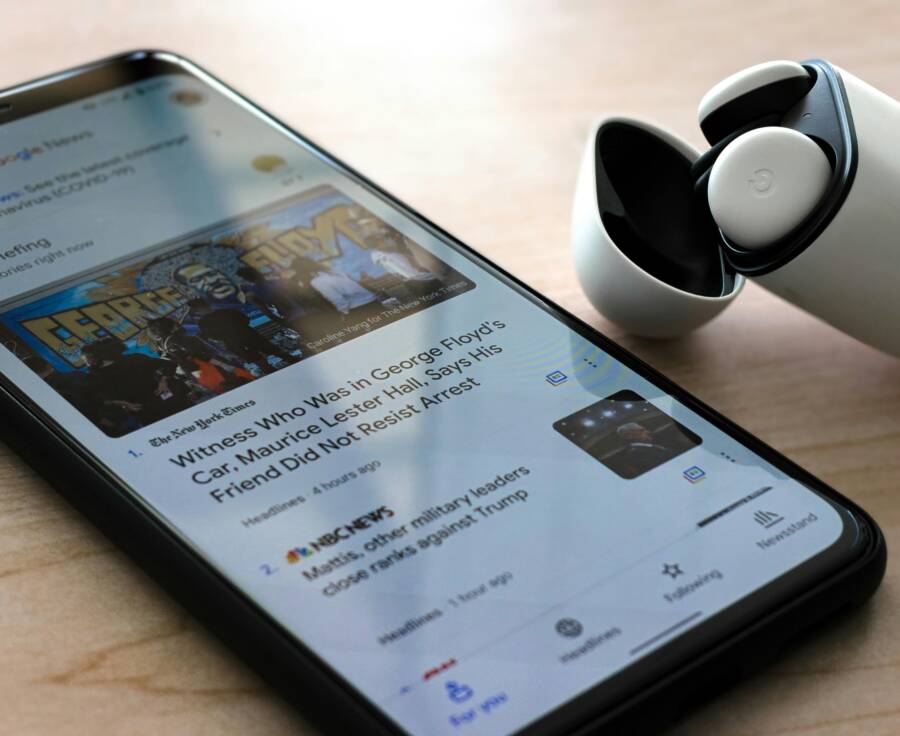
You’ve glanced at your home screen expecting fresh headlines, but your news widgets show the same old stories. Widgets offer quick news updates right on your smartphone’s lock or home screen, yet they often freeze due to spotty internet, outdated apps, power-saving modes, or background data limits. Don’t worry; this guide walks you through simple fixes for both Android and iPhone smartphones, starting with basic checks like connections and updates. You’ll get your feed refreshing smoothly in minutes.
Why news widgets stop refreshing on phones
News widgets are meant to keep you in the loop with a quick glance. When they stop refreshing, it feels like a broken shortcut to the information you rely on. In this section, we break down the everyday culprits that can freeze updates on both Android and iPhone devices, and we explain what to do about each one. Think of it as a practical checklist you can run through in minutes, so your smartphone starts delivering fresh headlines again.
 Photo by Obi Onyeador
Common causes on Android
Android users often run into refresh issues because small, everyday settings get in the way. Here are the main reasons and how they block updates, plus simple fixes you can apply right away.
- Cached widget data: Widgets pull headlines from apps, but stale cached data can cause a widget to display old stories. Clearing the cache or refreshing the widget data forces a fresh fetch.
- Quick fix: Go to the app’s settings, clear cache, then re-add the widget to trigger a new fetch.
- Outdated news apps: If the app behind the widget isn’t current, the widget may fail to request new headlines. Update the app to ensure it works with current feeds.
- Quick fix: Open Google Play Store, check for updates, and install them. If the app auto-updates, you still may want to verify a recent update installed successfully.
- Data saver or battery optimization: When these modes are on, background updates can be restricted. The widget may not fetch new data in the background.
- Quick fix: Exclude the news app from battery optimization and ensure background data usage is allowed.
- Weak internet connection: A slow or intermittent connection makes it hard for the widget to pull fresh stories.
- Quick fix: Run a quick speed test and switch to a stable network, or move closer to the router. If you’re on cellular data, consider a brief data toggle off and on to reset the connection.
- Background data restrictions: Some devices enforce limits on how much data apps can fetch in the background, which can stall refreshes.
- Quick fix: Allow background data for the news app in system settings.
- Widget-specific settings: Some widgets have their own refresh intervals or cache durations. If these are set too long, you’ll see repeats.
- Quick fix: Adjust the widget’s refresh interval to a more frequent cadence or reset to defaults.
For deeper Android widget troubleshooting, you can explore practical guides like “6 Best fixes to Android widgets not updating” which cover many of these scenarios in a concise way. See additional insights here: How to Solve Widgets Problems on Android and related discussions on widget behavior in different Android versions. You may also encounter helpful community Q&As like News & Weather Widget Not Updating for edge cases.
Common causes on iPhone
iPhone users often experience refresh issues tied to system controls and app updates. The explanations below focus on how these settings affect widget behavior on a smartphone.
- Background App Refresh off: If the feature is disabled, widgets cannot fetch new data while the screen is off or in the background.
- Quick fix: Enable Background App Refresh for the widget’s app in Settings > General > Background App Refresh.
- iOS or app updates pending: Outdated iOS or apps can cause compatibility problems that prevent refreshing.
- Quick fix: Install the latest iOS update and update the news app to the latest version.
- Focus modes blocking updates: When Focus modes are active, they can block background activity and push updates to widgets.
- Quick fix: Check Focus modes in Settings and allow the news app to run in the background while Focus is enabled.
- Spotty network: Like Android, a weak connection disrupts data fetches.
- Quick fix: Switch to a stronger network or reset the router connection. If you’re on cellular, try toggling airplane mode briefly to refresh the connection.
- Widget configuration issues: Sometimes the widget’s own settings or a reset is needed after an update.
- Quick fix: Remove and re-add the widget, then reconfigure its display options to ensure it shows the latest data.
If you want a broader look at iPhone widget troubleshooting, see practical guides like “18 solutions to fix widgets not working on iPhone and iPad” that cover common causes and step-by-step fixes. Useful resources include discussions on Home screen widgets not updating in Apple’s support forums and in-depth how-to articles that walk you through enabling background tasks and correcting misconfigurations. Explore a representative guide here: Home screen widgets not updating and a comprehensive fix list at iPhone widgets not working or refreshing.
Images and captions are integrated to support quick scanning and visual clarity. If you’d like more visuals, I can add additional context-aware photos with captions in subsequent sections.
Android fixes that reliably refresh your news widgets
If your Android news widget stalls, you’re not alone. A quick, practical approach can get it pulling fresh headlines again without a full reset. Below are focused fixes that tackle the most common culprits. Try them in order and you’ll likely see a noticeable improvement in how reliably your widget updates.
Clear app cache and data for the news widget
Clearing cache and data can reset the widget’s internal fetch without touching your account. Think of it as giving the widget a clean slate to pull the latest stories.
- Steps to follow:
- Open Settings > Apps > See all apps.
- Find the news app or launcher widget and tap it.
- Go to Storage.
- Tap Clear cache first. If updates or settings feel off, you can also tap Clear data. Note that clearing data resets the app’s local settings, but it won’t remove your account from the service.
- After clearing, remove and re-add the widget to trigger a fresh fetch.
- Why this works: the widget re-downloads headlines from the app, replacing stale entries with current ones.
If you want a quick checklist for similar fixes, see guides like “4 Ways to Fix Widgets Not Updating on Android,” which cover the basics and then move into deeper steps. You’ll find practical steps and screenshots that mirror the flow above. For more context, you can explore: https://www.guidingtech.com/top-ways-to-fix-widgets-not-updating-on-android/
Uninstall updates and reinstall the news app
Sometimes a recent update introduces a hiccup that stops the widget from refreshing. Reverting to the original version and then re-applying updates can clear the snag.
- How to proceed:
- Go to Settings > Apps > [news app] > tap the three-dot menu (or More) > Uninstall updates.
- Open the Google Play Store, search for the news app, and reinstall the latest version.
- If you rely on data, back up any essential offline bookmarks or local settings before uninstalling updates.
- Why this helps: it removes any incompatible change from a recent update and re-syncs the widget with a stable app version.
For further guidance and step-by-step visuals, you can compare how other users fix widget misbehavior by reviewing resources like DigitBin’s guide to widgets not updating on Android: https://www.digitbin.com/widgets-not-updating-on-android-fix/
Check internet connection and data saver settings
A reliable feed needs solid connectivity. Even a small data hiccup can stall widget refreshes.
- Quick checks:
- Connect to a stable Wi-Fi network. If the signal is weak, switch to a stronger network or move closer to the router.
- If you’re using mobile data, perform a quick toggle of airplane mode to reset the connection.
- Data saver adjustments:
- Disable data saver for the news app or allow background data usage so updates can fetch in the background.
- If your device has per-app data restrictions, ensure the news app is allowed to use data in the background.
- Why it matters: widgets fetch content in the background. A sluggish connection or strict data limits directly slow or block updates.
For extended read on Android connectivity and widget behavior, these resources offer additional context and common solutions: https://joyofandroid.com/fixes-to-android-widgets-not-updating/ and https://www.digitbin.com/widgets-not-updating-on-android-fix/
Restart phone and re add the widget
A simple restart can clear stuck processes that prevent a widget from updating. If the issue persists, removing and re-adding the widget often yields a fresh data pull.
- How to do it:
- Restart your device with the standard power cycle.
- On the home screen, remove the news widget by long-pressing and dragging it to the Remove area.
- Re-add the widget from the widget picker. Choose the same size and configuration as before, and place it on your home screen.
- Why this works: a new widget instance starts with a clean connection to the app’s feeds and pulls the latest headlines from scratch.
If you want a broader view on Android widget troubleshooting, these guides offer practical, hands-on steps that align with the approach above: https://www.guidingtech.com/top-ways-to-fix-widgets-not-updating-on-android/ and https://widget-club.com/article/android-widgets-notshowing
Additional tips to keep in mind
- Regularly update the system and apps. Compatibility gaps often appear after big OS changes.
- If you use multiple news sources, consider setting a default widget from your preferred app to avoid mixed fetch behavior.
- Test after each fix. This helps you identify which step actually solved the problem and saves time in the future.
External resources and community discussions can provide additional context, but the core fixes above cover the most common causes. If you encounter unusual behavior after these steps, exploring device-specific forums or the widget’s official support page may reveal version-specific quirks and fixes. For related discussions on widget reliability, you can check: https://android.stackexchange.com/questions/9386/news-weather-widget-not-updating
If you’d like to see more Android widget troubleshooting tips, I can add another section focusing on widget-specific settings, like refresh intervals and cache durations, to help you tailor updates to your routine.
iPhone and iOS fixes that refresh your news widgets
When your news widgets stop pulling in fresh headlines, a quick, focused approach can get them updating again. These fixes center on iPhone and iOS behavior, events you can control with a few taps. Treat this like a checklist you run through to restore reliable updates without wading through a long troubleshooting cycle.
Restart device and enable Background App Refresh
A simple restart often clears transient glitches that block background tasks. After the device restarts, make sure the news apps are allowed to refresh in the background. On iPhone, the setting lives under a single path you can memorize: Settings > General > Background App Refresh. Turn it on if it’s off, and consider enabling it for the specific news apps you rely on.
- Quick steps:
- Restart your iPhone by holding the side button and a volume button, then slide to power off. Turn the device back on.
- Open Settings, go to General, and select Background App Refresh.
- Ensure Background App Refresh is set to either Wi-Fi or Wi-Fi & Cellular Data, and confirm the news app is enabled.
- Why this helps: widgets fetch data in the background, but only when the app is allowed to refresh. A fresh start removes stuck processes and grants the needed permission.
For extra background context, see Apple’s guidance on managing widgets and background tasks, which reinforces how these controls impact refresh behavior. If you want a broader read, an in-depth guide on how Background App Refresh works can provide helpful context.
Links you may find useful:
- https://support.apple.com/guide/iphone/add-edit-and-remove-widgets-iphb8f1bf206/ios
- https://www.idownloadblog.com/2022/05/05/how-to-fix-widgets-not-working-iphone-ipad/
Update apps and iOS
Keeping both your iPhone software and your news apps up to date reduces the chance of refresh hiccups. Updates often fix bugs that block background fetching or widget rendering.
- Quick steps:
- App updates: Open the App Store, tap your profile, and install any available updates for your news app. If auto-update is on, a recent update should install automatically, but a manual check ensures you didn’t miss anything.
- iOS updates: Open Settings > General > Software Update. If an update is available, install it. A fresh iOS version can contain important widget improvements and performance tweaks.
- Why this matters: developers optimize widgets to work with the latest OS changes. When either side lags behind, updates can restore smooth refreshing.
If you’d like a practical read on iPhone widget troubleshooting, see guides that walk through updating apps and iOS, plus common widget refresh tips. For example, this article covers multiple fixes that align with the steps above: 18 solutions to fix widgets not working on iPhone and iPad.
Links you may find useful:
- https://www.idownloadblog.com/2022/05/05/how-to-fix-widgets-not-working-iphone-ipad/
- https://discussions.apple.com/thread/256030114
Check network quality and disable Focus modes if needed
A strong network connection is the skeleton of reliable widget updates. If your Focus mode or Do Not Disturb is active, it can suppress background activity and delay refreshes. Here’s how to keep things flowing smoothly.
- Focus modes and DND:
- Open Settings > Focus and review any active Focus profiles. Temporarily disable Focus or allow the news app to run in the background while Focus is on.
- If you prefer, add the news app to the allowed list for Focus so it can refresh in the foreground or background as needed.
- Network quality:
- Ensure you’re on a stable Wi-Fi or cellular connection. If the signal is weak, move to a better spot or switch networks.
- For cellular users, a quick toggle of airplane mode can reset the connection and help the widget fetch fresh data after the change.
- Why this matters: background data needs a reliable path to the internet. Weak networks and strict Focus settings can create silent refresh failures.
If you want more on Focus related behavior and how it affects widgets, Apple discussions and third party explainers offer practical screenshots and step by step guidance.
Links you may find useful:
- https://discussions.apple.com/thread/254228085
- https://discussions.apple.com/thread/256030114
Remove and re add the widget
When a widget configuration drifts after an update, removing and adding it back can kick off a fresh data pull. This is a simple reset that often resolves stubborn refresh issues.
- Step by step:
- Long-press the News widget on your Home Screen.
- Tap Remove Widget or Remove.
- Return to the Home Screen, then tap the + button to open the Widget Gallery.
- Find the news widget, choose the size you want, and add it again to your Home Screen.
- Reconfigure the widget’s options if needed to ensure it shows current data.
- Why this helps: a new widget instance requests data anew from the app, bypassing any corrupted cache or stale configuration.
For further context, Apple’s official guide on adding, editing, and removing widgets provides the canonical steps and options that align with this approach.
Links you may find useful:
- https://support.apple.com/guide/iphone/add-edit-and-remove-widgets-iphb8f1bf206/ios
- https://www.idownloadblog.com/2022/05/05/how-to-fix-widgets-not-working-iphone-ipad/
Advanced troubleshooting and when to switch apps
If your news widgets keep stalling, you have a few reliable paths to restore freshness. Start with quick checks to confirm the issue and then move to targeted fixes. Sometimes the problem isn’t your device at all but the service behind the feed. In those cases, switching to a different source can be the fastest way to get reliable updates again.
Check regional server status and news source
Occasionally a specific news service experiences outages. A widget may be fine, but the feed it relies on is temporarily unavailable. To verify, test another trusted source on the same widget or add a second widget from a different app. If the alternative updates normally, the problem is likely with the original service rather than your device. This is a practical sanity check you can perform in minutes.
- Quick actions:
- Open a different news app or widget and compare update times.
- Check a service status page or a Downdetector-style resource for regional outages.
- If one source is down, keep the other source feeding the widget while the first recovers.
- Why it matters: the internet is imperfect, and outages are common. A nearby regional issue can halt updates even when your phone is fine.
For a quick read on outages and service status tracking, see real-time outage monitors and guides that discuss Apple News and other big feeds. Useful references include Apple News outage maps and general outage trackers to understand when a problem is likely regional rather than device-related: https://downdetector.com/status/apple-news/map/ and https://downdetector.com/status/google/
Try a different news app or widget
If one widget stubbornly refuses to refresh, another app or widget may pull data more reliably. Switching sources can help you continue getting timely headlines without chasing a single service. This approach also lets you verify data availability from multiple angles.
- What to consider:
- Choose an Android or iPhone widget from a well-rated news app with a solid update history.
- Prefer widgets that pull from multiple sources or offer quick switch options between feeds.
- Keep one secondary source handy so you can compare headlines and verify currency.
- Quick action plan:
- Install a leading alternative news widget, add it to your home screen, and see if it updates more consistently.
- Periodically rotate sources if you notice one feed lagging on updates.
- Why it helps: if the problem is with a single service, a different app can keep you informed while the original gets back on its feet.
If you want to explore solid alternatives, these guides highlight popular widget options and how they perform in real-world use: The Best Android Widget Apps of 2025 and Google News widget on iPhone. See sources like The Best Android Widget Apps of 2025 and Add & customize your Google News widget for iPhone. External references include: https://widgetopia.io/blog/best-android-widget-apps-1764676047771-bgm7 and https://support.google.com/googlenews/answer/10484451?hl=en&co=GENIE.Platform=iOS
Reset app preferences and power settings
A quick reset can clear stubborn widget problems. On Android, resetting app preferences re-enables default behaviors the system might have muted. On both platforms, a reset helps eliminate misconfigured options that block background activity.
- Android steps:
- Go to Settings > Apps > Reset app preferences.
- Reboot the device, then re-add the news widget.
- Check that the widget is allowed to run in the background and that background data is enabled.
- Why it helps: this clears any accidental permission tweaks or disabled services that disrupt fetches.
- Power and background note: ensure the widget isn’t getting pulled into aggressive power-saving modes or battery optimizations that block background work.
If you want deeper Android guidance, a practical guide like “4 Ways to Fix Widgets Not Updating on Android” walks through similar steps and adds context on how to re-establish stable background activity: https://www.guidingtech.com/top-ways-to-fix-widgets-not-updating-on-android/
Review data restrictions and battery optimization
Background data and battery optimizations can silently throttle widget updates. You want to strike a balance between preserving power and allowing timely refreshes.
- How to adjust:
- Allow background data for the news app in system settings.
- Turn off battery saver for the news widget or exclude the app from battery optimization.
- Confirm the widget’s refresh settings are not set to overly long intervals.
- Why it matters: widgets fetch in the background to stay current. If background tasks are blocked, updates will lag or stop.
If you’re curious about how per-app data restrictions work, you can explore related guidance on background data behavior and its impact on widgets: https://joyofandroid.com/fixes-to-android-widgets-not-updating/ and a broader Android widget care guide: https://widget-club.com/article/android-widgets-notshowing
If you’d like to see a broader discussion of data restrictions and widget reliability, a quick read on Android background processing helps connect the dots: https://developer.android.com/guide/components/activities/background-starts
This section keeps you in control of how and when your news arrives on your screen, so you can tailor updates to your daily routine rather than chasing flaky feeds. If you want, I can add a quick appendix on how to set a default widget from your preferred app to reduce mixed fetch behavior.
Best practices to keep widgets fresh over time
Your news widgets should feel like a reliable briefing, not a stale slideshow. The goal is consistent, timely updates without manual tinkering every day. Use a straightforward routine that fits into a busy smartphone life. This section lays out practical, time-tested habits to keep widgets staying current.
 Photo by Nikita Khandelwal
Set up automated updates and refresh intervals
Automated updates are the backbone of reliable widgets. Start by ensuring your apps stay current and your device remains awake during update windows when possible. This reduces the chance of missed refreshes and keeps your feed fresh without constant manual resets.
- Keep apps up to date: Regular updates fix bugs and align with new feed formats. Enable auto updates where you can, but manually verify critical updates for your favorite news apps.
- Optimize refresh windows: If a widget offers configurable refresh intervals, set a sensible cadence. Shorter intervals improve freshness but can increase data usage; balance is key.
- Prevent sleep during updates: On many devices, allowing occasional wake windows helps background tasks finish. Where possible, avoid extended sleep during known update periods.
- Practical tip: For a quick win, enable background fetch for the widget’s app and confirm it can run in the background when the screen is off.
For broader guidance on keeping widgets current, see official and developer resources that discuss updating and maintaining widget functionality: Keeping a widget up to date. You may also find helpful, real-world tips in community guides about Android and iOS widget behavior.
Choose lightweight widgets for faster updates
Smaller, simpler widgets update faster and with less data overhead. They pull essential headlines quickly, which improves reliability and reduces the chance of stalling during poor connections.
- Benefits of lightweight widgets:
- Faster refreshes and lower data usage.
- Fewer moving parts mean fewer hiccups when the network dips.
- Easier to customize for a clean, distraction-free screen.
- Trade-offs to consider:
- Detail vs. speed: You may lose some depth or imagery in exchange for snappier updates.
- Source breadth: Fewer widgets can mean fewer sources unless you pick multi-source options.
- How to implement:
- Select widgets with compact text previews or status lines rather than full article cards.
- Prefer widgets that offer quick switch options between feeds so you can still compare headlines without waiting for a full refresh.
- Practical tip: If you rely on multiple feeds, designate one primary widget for your main source and keep a secondary, lightweight widget as a quick glance backup.
To extend your reading, explore guidance on reliable widget performance and how developers design widgets for speed and stability. Real-world notes from widget developers and power users provide useful perspectives on choosing the right balance of content and performance.
Regular checks and routine maintenance
A monthly refresh of your widget setup helps catch drifts before they become problems. A light audit keeps updates smooth and your preferred news delivery consistent.
- Monthly audit checklist:
- Review installed news apps and widget configurations.
- Verify permissions and background activity for each news source.
- Test refresh behavior by manually triggering updates and observing results.
- Tidy up settings that may have drifted, like cache sizes or interval presets.
- Quick fixes you can rely on:
- Re-add stubborn widgets after updates, which often prompts a fresh fetch.
- Reinstall a problematic app if its widget misbehaves after an update.
- Clear the widget cache if you notice repeated stale headlines.
- Why routine maintenance matters: Over time, app permissions, battery optimizations, and data restrictions can drift. A quick monthly check ensures everything stays aligned with how you use your phone.
If you want a broader look at sustaining widget performance, there are practical guides and troubleshooting frameworks from tech writers and developers that cover routine maintenance as a core practice. They offer step-by-step routines that you can adapt to fit your personal smartphone workflow.
Appendix ideas you can add later include defaulting to a single, trusted widget source to minimize cross-source conflicts and creating a small, repeatable checklist you perform at the start of each month. For context on how different platforms handle background updates, see discussions and guides about widget reliability across Android and iOS ecosystems.
Conclusion
Keeping news widgets fresh on your smartphone is about a simple, repeatable routine. Start with the basics, then move through the fixes in order until you see results. A lightweight, well maintained setup reduces lag and helps your smartphone deliver timely headlines without extra effort. Save this guide for quick reference and come back if a widget starts behaving oddly again; staying informed with reliable widgets makes every day a little smoother.