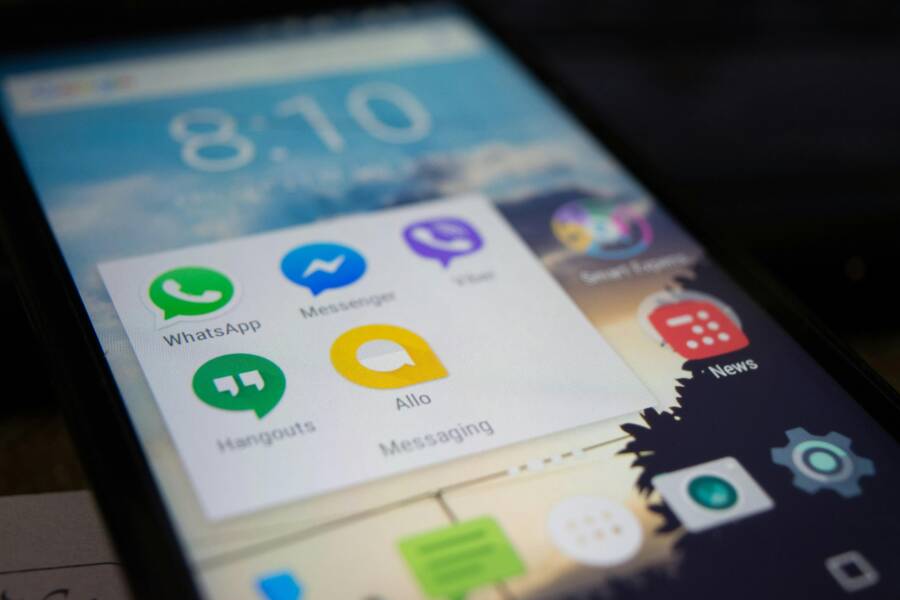
You grab your phone and tap Messenger to check those urgent chats. But nothing loads. The screen spins endlessly, leaving you stuck.
This issue hits many Android and iOS users hard. It breaks conversations right when you need them most. Common on smartphones, it stops work chats, family updates, or friend plans cold.
Top causes include weak internet signals, a full app cache, or missing permissions. Background apps or outdated software play a role too. Do not worry; these stem from simple glitches.
Most fixes take under 5 minutes. You need no tech skills. Just follow straightforward steps on your device.
This guide walks you through checks and solutions step by step. Start with basic restarts, then clear data if needed. Update the app or tweak settings last.
It works for any smartphone, Android or iOS. You will see messages load fast again. Let’s get your chats flowing now.
Check Your Internet Connection
Messenger relies on a solid internet link to load your messages fast. If chats stall on your smartphone, a shaky Wi-Fi signal or spotty mobile data often causes the holdup. Test it quick: open a browser or another app. Does a webpage load smooth, or does it lag too? Slow speeds across apps point to your network. Fix that first before digging deeper. Many users see messages flow again after a simple tweak.
Switch Networks or Restart Router
Switch from Wi-Fi to mobile data, or the other way around, to dodge network glitches. This resets your connection without hassle.
On your smartphone, pull down the notification shade or head to Settings > Network & Internet (Android) or Settings > Cellular (iOS). Toggle mobile data on if you use Wi-Fi, or connect to Wi-Fi if data drags. Open Messenger right away and check your chats.
No luck? Restart your router. Unplug it from the wall for 30 seconds, then plug back in. Wait a minute for lights to steady. Test Messenger once more.
Stuck without options? Turn your phone into a hotspot for another device, or borrow a friend’s network. These steps fix most signal woes in under two minutes. For more tips on network switches, see this Lifewire guide. Your messages should load now.
Restart Messenger and Your Phone
When Messenger won’t load messages, a simple restart can clear minor glitches and get conversations flowing again. This section shows you how to force close the app properly on Android and iOS, then reopen it to verify the fix. A quick reset often stops background crashes and temporary freezes that block new messages from appearing. If you’re short on time, this is your fastest path back to normal.
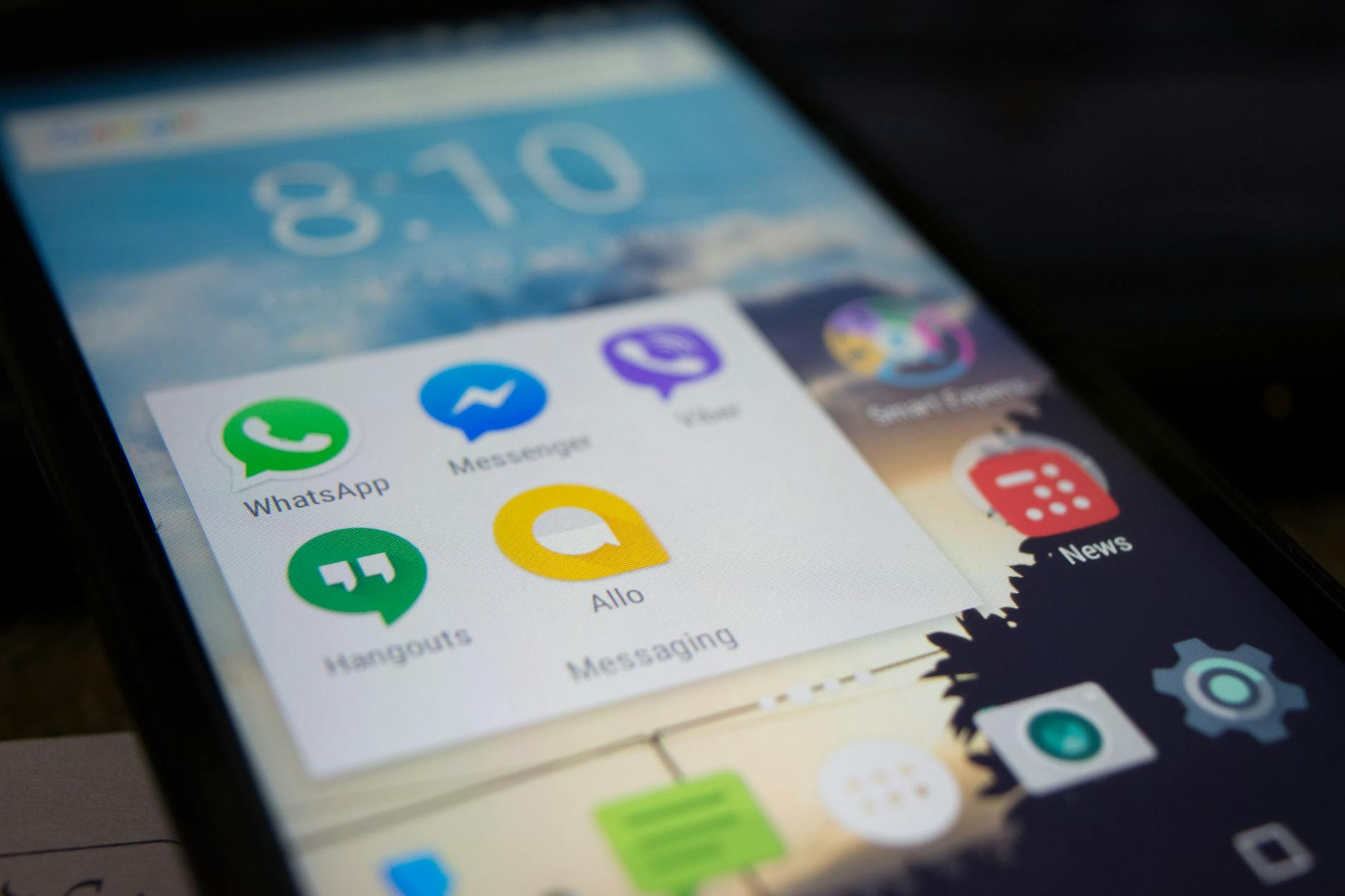 Photo by Alok Sharma
Force Close the App Properly
To clear any stuck processes, you need to close Messenger completely, then relaunch it. Here’s how to do it quickly on both major platforms.
- Android
- Open your recent apps screen (usually a square or pill-shaped button).
- Find Messenger and swipe it off the screen to close it.
- Reopen Messenger from your home screen or app drawer.
- Open a chat to confirm messages load normally.
- iOS
- Double-click the Home button (older iPhones) or swipe up from the bottom and pause (iPhone X and later) to reveal apps.
- Swipe Messenger up and off the top of the screen to quit.
- Reopen Messenger from the home screen.
- Check your chats to ensure new messages appear again.
Why this works: forcing the app to close stops any background crashes or stuck tasks. It gives Messenger a fresh start, so it can reload your conversation data cleanly. If you still see delays after this step, a quick device restart often resolves remaining quirks. For more context on similar fixes, you can review quick guides from reputable sources such as this overview on Messenger troubleshooting and related app issues. https://www.businessinsider.com/guides/tech/facebook-messenger-not-working
If you want broader tips on resolving app errors, this quick reference can help as well: https://www.asurion.com/connect/tech-tips/fix-facetime-and-messenger-app-errors
Remember, after force closing, always reopen Messenger and test a couple of chats. You should notice messages loading again within moments. If not, proceed to the next steps in this guide to tackle permissions, updates, and data usage settings. For a deeper troubleshooting path, see trusted help pages like Facebook’s official Messenger help center. https://www.facebook.com/help/messenger-app/522894144496549
Update Messenger and Clear Cache
If Messenger isn’t loading your latest messages, clearing the app’s cache or ensuring you’re on the latest version can make a big difference. This section covers two practical steps that often fix stubborn loading issues. Follow along, and you’ll have a clean, up-to-date Messenger experience without heavy tech skills.
Clear Cache Step by Step on Android and iOS
Clearing the cache can remove corrupted data that blocks new messages from appearing. Android devices handle cache differently from iOS, so the steps vary. Before you start, consider backing up your chats if you rely on important conversations. After you finish, open Messenger and check if new messages load more quickly.
- Android
- Go to Settings > Apps > Messenger > Storage.
- Tap Clear Cache. This removes temporary files without deleting your chats.
- Reopen Messenger and test loading a few conversations.
- iOS
- iOS doesn’t provide a direct “clear cache” button in the same way. Instead, you can offload the app to remove unused files while keeping your data, or reinstall Messenger.
- To offload: Settings > General > iPhone Storage > Messenger > Offload App.
- After offloading, reinstall Messenger from the App Store. Open the app and verify that messages appear normally.
Differences explained: Android stores cache files locally that you can purge with a tap, while iOS leans on offloading to free space and refresh app data. In both cases, a fresh data surface helps Messenger fetch messages from the server more reliably. After the clearance, monitor how quickly new chats appear; if you still see delays, move to the next step.
Backup chats first, then perform the cache clear. If you use chat backups or export conversations, you’ll have an extra safety net. Once you’re done, re-open Messenger and load a few threads to confirm the fix works across both new and existing messages.
Install the Latest Messenger Version
Running the newest Messenger app is one of the simplest ways to fix loading problems. Updates often include bug fixes, performance improvements, and compatibility tweaks that help the app work smoothly on recent devices. It’s a quick, high-impact step you can complete in minutes.
- Open the store on your device.
- Search for “Messenger” and tap update if available.
- If you don’t see an update, turn on auto-updates in the store settings so you stay current in the future.
- After updating, restart your phone to ensure all new components start fresh.
- Open Messenger and check several chats to confirm messages load properly.
Why updates fix bugs: new releases address known issues, patch security flaws, and improve data handling. If you notice slow loading or occasional freezes, a fresh install of the latest version can often restore normal behavior. Remember to keep your device connected to Wi-Fi or mobile data during the update so it downloads completely. If the problem persists after updating, continue with more advanced checks in the guide.
Fix Permissions and Free Up Storage
If Messenger isn’t loading messages, one of the quickest fixes is to review and grant the right permissions while also freeing up space. Permissions let the app access essential features like storage and photos, which Messenger needs to fetch media and synchronize chats. Clearing space can also prevent slowdowns that make messages appear delayed. This section covers how to grant key permissions and why it matters, plus a quick test to confirm the fix.
Grant Key Permissions to Messenger
Giving Messenger the right permissions is simple and often fixes loading issues. Start by checking storage, photos, and notifications, then test by sending a message to confirm everything flows smoothly. On Android, go to Settings > Apps > Messenger > Permissions and enable Storage, Photos, and Notifications. On iOS, open Settings > Privacy and review Messenger’s permissions, ensuring access to Photos and Notifications is enabled. After updating these settings, restart Messenger and try sending a message to verify that new content appears promptly and media loads without delays. If it still stalls, recheck the app’s permission requests after a short restart, or consult a quick troubleshooting guide like this Lifewire resource for additional network and app checks. https://lifewire.com/messenger-wont-load-messages-5525775
Advanced Fixes: Reinstall or Check Account
If Messenger still won’t load messages after trying the basics, it’s time for advanced fixes. This section focuses on safely reinstalling the app and checking your account status. These steps can resolve deeper issues caused by corrupted data, misconfigurations, or server-side warnings. Follow along, then test Messenger with a couple of chats to confirm the fix. Think of it as giving your app a fresh start while keeping your conversations intact.
Uninstall and Reinstall Messenger Safely
Reinstalling can clear stubborn glitches and corrupted files that block messages from loading. The goal is to remove the app without losing your chats, then install a clean version and restore access to your conversations. Before you begin, back up important chats if you rely on them for reference.
- On Android: navigate to Settings > Apps > Messenger > Uninstall. Reinstall from the Google Play Store, sign in, and allow any required permissions. Open a chat to verify messages load.
- On iOS: press and hold the Messenger icon, choose Remove App, then Reinstall from the App Store. Sign in again and check several chats for normal loading.
After reinstalling, it’s common to see a smoother fetch of messages as the app rebuilds its data surface. If you are unsure how to back up chats, use Messenger’s built-in backup options or export conversations for extra safety. This approach often resolves lingering issues caused by cached data, app misconfigurations, or partial downloads.
If problems persist after a fresh install, it’s worth checking your account status and permissions. A quick visit to the official Messenger help center can confirm whether your account has any restrictions or recent security prompts that block message retrieval. For more detailed guidance, see Facebook’s help resources and troubleshooting tips. https://www.facebook.com/help/messenger-app/522894144496549
Beyond reinstalling, keeping your app on the latest version helps. If you run into compatibility hiccups on an older device, a broader update cycle can restore proper access to messages. For practical, quick troubleshooting steps, Lifewire’s guide offers a concise path for common Messenger loading issues. https://www.lifewire.com/messenger-wont-load-messages-5525775
Tip: after reinstalling, log in on your main smartphone and test both new messages and older threads. A successful test means you’re back to normal, and you can proceed with further account checks if needed. If you still experience delays, the next sections cover permission tweaks and data usage considerations to finish the job.
Conclusion
Recap the core fixes: start with a solid internet check, restart Messenger, clear the cache, and review permissions. Keep updates and storage in mind because these basics prevent many loading glitches on your smartphone. When you handle these steps in order, you’ll clear the most common culprits and see results quickly.
Regular maintenance matters. Stay on the latest Messenger version, keep your device free of clutter, and maintain a stable connection. A little housekeeping goes a long way toward preventing future stalls. In practice, this means scheduling periodic checks for updates, managing storage wisely, and testing after each change to confirm it fixed the issue.
These steps are practical and fast. They don’t require technical skills, just a little time and patience. If a problem resurfaces, you can revisit the sequence from the top and proceed to more advanced checks with confidence. The goal is a reliable flow of messages, so you stay connected with friends and family without interruptions.
If you found this guide helpful, share your own fix in the comments or bookmark this page for later. Your experiences can help others facing the same messenger hiccup. With everything in place, you should enjoy smooth chats again soon.