
Timestamps in messages can be handy for keeping track of conversations, but nothing ruins a chat faster than a time that doesn’t match reality. If you’ve noticed messages showing the wrong time in Messenger, WhatsApp, or other chat apps, you’re not alone. The fix is usually straightforward and depends on a few simple settings. This guide walks you through practical steps for both Android and iPhone users, with easy checks you can perform right away.
Understanding why timestamps drift helps you stop them from popping up again. In most cases the issue isn’t a fault in the app itself but how the phone keeps its clock. Time zones, automatic time updates, and the way apps render server versus device time all play a part. Once you get ahead of these factors, you’ll see fewer mismatches in chats, notifications, and message headers.
Why timestamps go wrong
- Time zone changes and travel. When you move across zones, the clock needs to adjust. If it doesn’t update automatically, messages will appear with the wrong hour.
- Automatic date and time turned off. Some phones let you set the time manually. That works briefly but drifts as you use the device, especially if you travel or switch networks often.
- Network time versus device time. Your carrier provides network time, and the phone can pull this as the default. If that syncs slowly or fails, your clock may lag.
- Daylight saving time. DST adjustments happen twice a year for many regions. If you miss a DST change, message timestamps look off by an hour or more.
- Dual SIM setups. In some devices, time zone and network time come from the active SIM. If the correct SIM isn’t active or the settings are quirky, time can appear wrong.
- App servers versus device clock. Some apps stamp messages using server time. If the server clock differs from your phone clock, the timestamp may look inconsistent even when your device shows the right time.
Quick checks you can do right now
These checks apply to most Android and iPhone setups. They are fast and often fix the problem without deeper tinkering.
For Android phones
- Enable automatic date and time. Open Settings, find Date & time, and switch on Automatic date & time. If you don’t see that label, look for Use network-provided time.
- Turn on automatic time zone. In the same menu, enable Automatic time zone so the phone adjusts as you travel.
- Confirm the time source. If available, select Use network-provided time and Use automatic time zone. If you see a manual option, keep it disabled unless you plan to set time by hand and understand the consequence.
- Reboot. A simple restart can pull the latest network data and re-sync the clock.
- Check the system language and region. Occasionally a mismatch here causes display quirks in some apps.
For iPhone users
- Set automatically. Go to Settings, General, Date & Time, and toggle Set Automatically to On. This pulls time from the carrier network.
- Verify the time zone. If Set Automatically is off, pick the correct time zone manually to align with your location.
- Check for OS updates. Software updates often include time and date fixes that affect a broad range of apps.
- Reboot. A quick restart helps re-sync the system clock with the network time.
- If problems persist, toggle Set Automatically off and on again. Small toggles can trigger a clean refresh.
Image: Smartphone clock in action
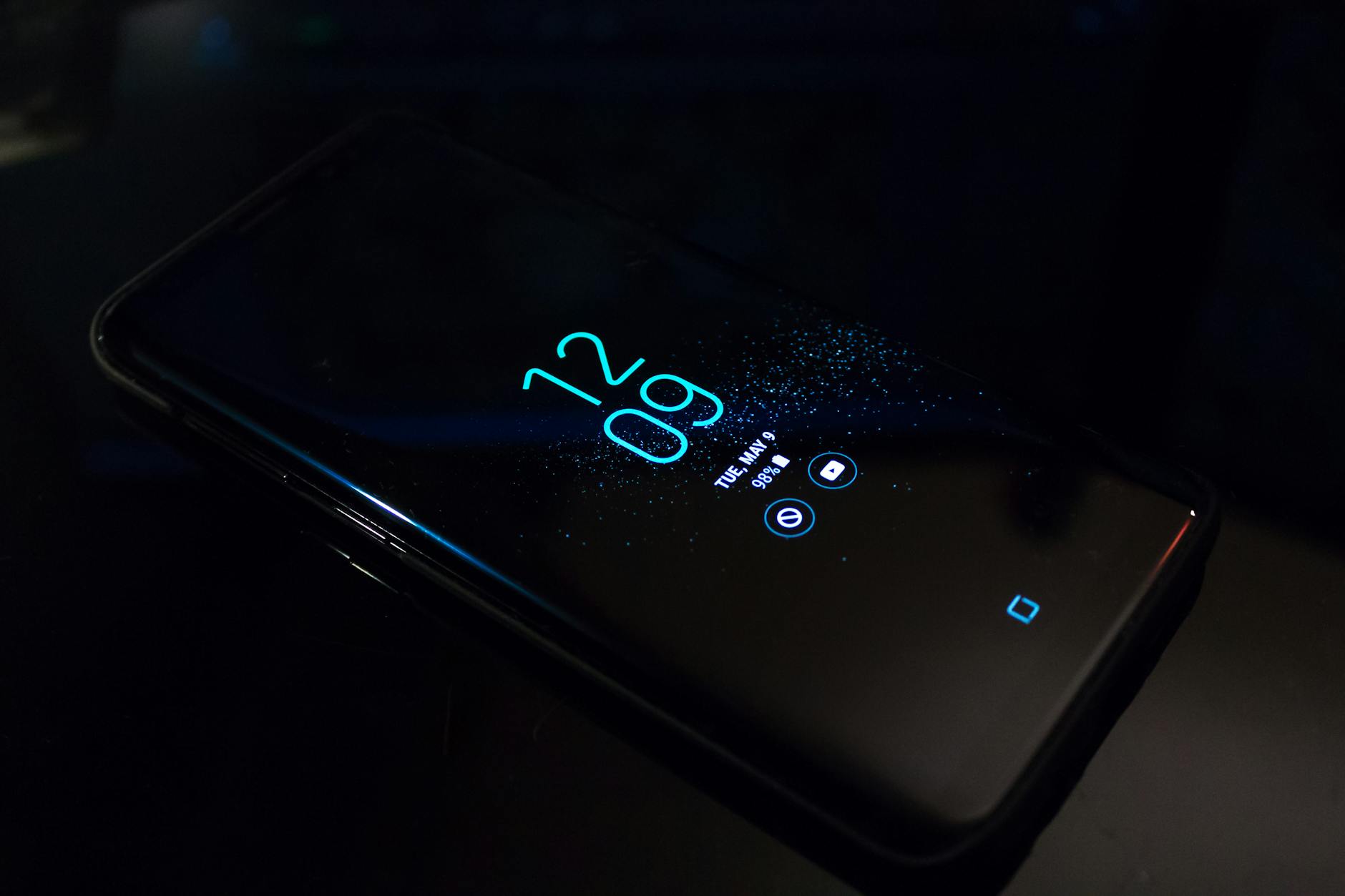 Photo by Noah Erickson (https://www.pexels.com/@noah-erickson-97554)
If the image doesn’t fit your specific phone model, don’t force it. Use it where it makes sense, such as a section about clock settings or general troubleshooting.
App specific fixes for stubborn timestamps
Sometimes the device clock is correct, but a particular messaging app stamps times differently. Here’s how to handle common apps without guessing.
- Ensure the device clock is right, then reopen WhatsApp. A restart can push a fresh time stamp from the app server.
- Update the app. Install the latest version from the Google Play Store or Apple App Store. Developers fix quirks that can affect time displays.
- Clear cache (Android). If your device allows it, clearing WhatsApp’s cache can remove stale data that affects timestamps.
- Reinstall if needed. A clean install fixes persistent issues that other steps don’t touch.
iMessage and Messages (iPhone)
- Check system time again. As iMessage depends on iPhone timing, make sure Set Automatically is On.
- Sign out and back in to iMessage. If the service is momentarily out of sync, a refresh can correct timestamps.
- Ensure iCloud settings are correct. Sync issues can occasionally influence how messages display times, especially when you use multiple Apple devices.
- Update iOS. A current version includes the latest fixes for time display in messages.
Facebook Messenger and other third party chat apps
- Rely on system time first. If the phone time is correct, the problem is likely in the app. Update the app, then recheck.
- Reinstall the app. This clears glitches that simple updates do not fix.
- Check for app-specific settings. Some apps offer a separate time or message stamp option; adjust if present.
Travel, VPNs, and time drift
- Traveling across time zones is the most common cause of drift. Rely on automatic time and time zone then verify after lleging into a new network.
- VPNs may route traffic to a different region. If you notice a mismatch only when connected to a VPN, disconnect and retest. If you need the VPN for work, choose a server in your current region.
- Offline mode shifts. If your phone is in airplane mode or offline for long stretches, re-enable network access to re-sync time.
Deeper fixes when basics fail
If the above steps don’t resolve the issue, the problem might be deeper. Proceed in order, and stop at the step that fixes the issue.
- Check for OS updates and install them. New builds fix clock drift and time data handling that affect a wide range of apps.
- Reset network settings. This clears Wi-Fi, cellular, and Bluetooth settings that could affect clock syncing with the network.
- Reset all settings (without erasing data). On iPhone, go to Settings, General, Transfer or Reset iPhone, Reset All Settings. On Android, look for Reset Settings in the system menu. This returns time settings to factory defaults without removing personal data.
- Back up and perform a factory reset as a last resort. If nothing else works, this can resolve deep software issues. After restoring, set the device to automatically update time and time zone.
Practical tips to prevent future time issues
- Leave automatic time syncing on. It’s the simplest way to keep your clock aligned with the real world.
- Travel with a quick check habit. When you reach a new location, open the clock settings and confirm it’s using the local time zone.
- Keep software current. Regular updates include performance fixes that can affect time stamps in apps.
- Be mindful of dual SIM quirks. If you switch carriers or SIMs, recheck the time settings to avoid drift.
- Consider a quick reboot after major changes. A restart after updates or changes helps the clock stay in sync.
Putting it into practice
Think of time settings as a small but essential part of your phone’s reliability. When messages arrive with the wrong time, it creates confusion, especially in fast moving conversations or when you’re coordinating plans. The fix is mostly about ensuring your device pulls time from the network and that apps don’t override that signal with stale data. A few minutes now can save hours of confusion later.
If you want a simple workflow to follow, try this sequence:
- Confirm Set Automatically is On in your phone’s date and time settings.
- Reboot your device to refresh the clock and app data.
- Open a messaging app and send a test message to confirm the timestamp matches your local time.
- If the time still looks off, update the app and, if needed, reinstall it.
- Check for any pending OS updates and install them.
Common mistakes to avoid
- Relying on manual time during travel. Manual settings are prone to drift, especially with frequent zone changes.
- Leaving a VPN on all the time. If you notice timing issues only when the VPN is active, switch servers or disable it temporarily.
- Ignoring app updates. A small bug can cause big misalignment in stamps across messages.
When to seek help
If timestamps stay wrong after all these steps, it could be a hardware related issue or a rare software bug that needs vendor support. Reach out to your device maker’s support site or visit a local service center. Provide details such as your phone model, OS version, and the exact apps where timestamps mismatch. The more you share, the quicker the fix will come.
Conclusion
Timestamps should reflect the moment you send or receive a message, not create doubt about what happened. A disciplined approach to time settings solves most problems quickly and keeps your smartphone reliable for everyday tasks. Start with the basics—automatic date and time, automatic time zone, and a quick reboot. If needed, move through app updates and resets, ending with a restore only when necessary. By staying on top of time settings and staying mindful of travel and network changes, you’ll keep every message time in line with reality.
Take action now and share your experience if you’ve found another reliable trick that helps you keep timestamps accurate. Your tip could save someone else a minor headache in a busy chat. This small, practical step is one more way to make your smartphone a smoother tool for daily life.