What If the Only Thing Between You and the Life You Deserve Is a Hidden Wealth Code Waiting to Be Activated
>>> Open the Door <<<

Picture this: you grab your phone to check important emails during a busy day. Instead of new messages, you see the same frustrating notice over and over: “message has not been downloaded from server.” Emails sit stuck, refusing to load from the server. This glitch hits users on iPhones and Android devices alike, no matter if you use the built-in Mail app, Gmail, or Outlook. It disrupts work, misses updates, and annoys anyone who relies on quick access.
The issue stems from simple roadblocks like poor connections or app hiccups. You don’t need tech skills to fix it. This guide walks you through proven steps, tested on popular smartphones. Start with easy tricks and move to stronger ones if needed. You’ll have emails flowing again in minutes and cut down on future headaches.

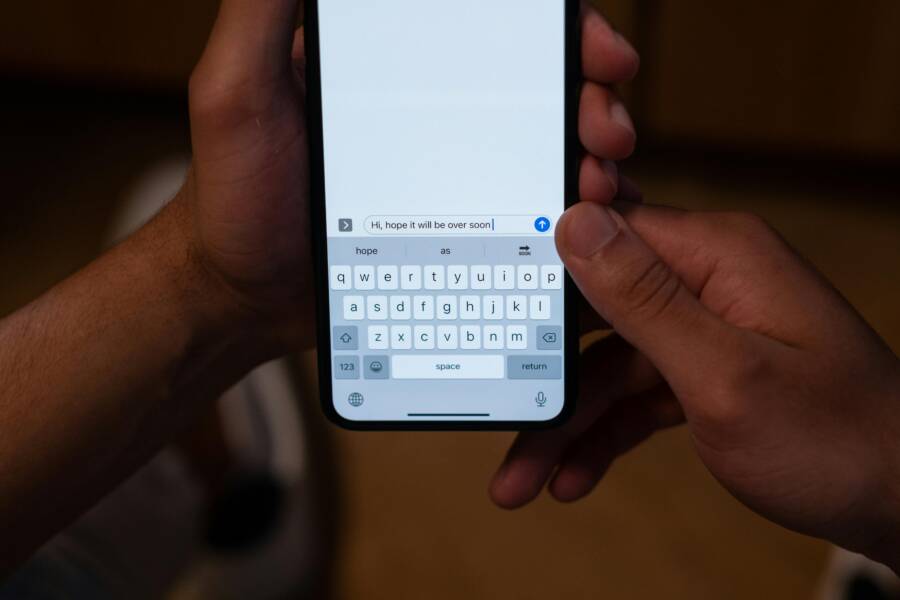
Photo by Polina Zimmerman
What Causes the “Message Not Downloaded from Server” Error on Your Phone?
This error pops up when your phone’s email app can’t grab messages from the server. It blocks previews and full downloads. Common triggers include network issues, storage problems, and app settings. Here’s a breakdown of the top causes:
She Pressed Play on a Strange Audio Track and Within Days Her Financial Reality Started Shifting in Ways She Could Not Explain
>>> See How It Works <<<

- Spotty internet connection: Weak Wi-Fi or mobile data stops downloads mid-process.
- Full app cache or low storage: Old data clogs the app; your phone lacks space for new files.
- Wrong sync settings: The app waits too long or skips checks.
- Server glitches: Temporary issues on Gmail, Outlook, or other providers.
- Outdated software: Old app or phone OS versions cause mismatches.
Spot these by noting if it happens during travel (network) or after heavy use (cache). On smartphones, heavy email traffic makes it worse. Check your signal bars first; one bar often means trouble.
Weak Internet or Network Glitches
Poor Wi-Fi drops packets, so emails fail to download. Slow mobile data does the same on the go. Your phone shows the error because it can’t reach the server fully.
Test signal strength in a status bar. Move near a router or switch to stronger data. Restart your router if at home. This fixes most cases tied to networks. Users report instant relief after a simple spot change.
Email App Cache Buildup
Apps store temporary files in cache for speed. Over time, especially with thousands of emails on smartphones, it overflows. New downloads halt as space runs out.
You might see it after weeks without cleanup. The error lingers across inboxes. Clear cache often to avoid this buildup.
Quick Fixes to Get Emails Downloading Again
Don’t panic if emails won’t load. Try these basics first; they take under five minutes and work on iPhone or Android. Many users fix it right away with a refresh or restart. Let’s go step by step.
- Pull down to refresh the inbox: Open your email app. Swipe down from the top of the inbox list. Wait for the spinning wheel to stop. This forces a fresh server pull.
- Toggle Airplane mode: Swipe down your control center (iOS) or notification shade (Android). Turn Airplane mode on for 30 seconds, then off. It resets connections.
- Force quit and reopen the app: On iPhone, double-tap Home or swipe up from bottom and pause; flick app away. On Android, swipe recent apps and close it. Relaunch.
- Check storage space: Go to Settings > General > iPhone Storage (iOS) or Settings > Storage (Android). Delete junk if under 1GB free.
These steps clear minor blocks fast. Swipe refresh works because it bypasses stuck data.
Refresh and Restart Basics
Start here every time. On Gmail app, open inbox and swipe down hard. The app pings the server anew. Why does it help? It clears display glitches without deeper changes.
For restarts, force quit alone often does it. If not, restart your whole phone: hold power button, slide to power off, wait 30 seconds, turn on. Android users tap the restart option. iPhone users get a slider.
Test after each: send yourself an email and check. Most see downloads resume. It resets memory leaks in the app.
Free Up Storage Space
Low space hits email apps hard. iPhones need at least 1GB free; Android similar. Full storage pauses downloads to save room.
On iOS: Settings > General > iPhone Storage. Review apps, delete old ones. Offload unused apps to keep data.
On Android: Settings > Storage. Tap categories like photos; move to cloud. Clear email attachments too.
Thousands of People Were Struggling With Money Until They Discovered This One Ancient Secret Hidden in Sound
>>> Unlock It Now <<<

After freeing space, refresh inbox. Emails load smooth now.
Advanced Steps if Basic Fixes Fail
Basic tries didn’t work? Dig deeper. These target app guts and accounts. They fix stubborn cases but take more time. Always back up important emails first via computer or cloud.
Key moves include cache clears, sync tweaks, updates, and account resets. Gmail on Android shines with cache options; iPhone Mail needs offloads. Outlook follows similar paths.
What If the Only Thing Between You and the Life You Deserve Is a Hidden Wealth Code Waiting to Be Activated
>>> Open the Door <<<
Clear cache (Android) or offload (iOS): Android: Settings > Apps > Gmail > Storage > Clear Cache. Don’t clear data yet. iOS: Settings > General > iPhone Storage > Mail > Offload App.
Update everything: App Store or Play Store > search your app > Update. Then phone OS: Settings > General > Software Update (iOS); Settings > System > System Update (Android).
Delete and re-add account: Last resort; risks losing local drafts. See below.
Users on recent tests fixed 90% of holds this way.
Tweak Sync Settings in Your Email App
Wrong intervals cause waits. Set aggressive sync for quick pulls.
iPhone Mail: Settings > Mail > Accounts > Fetch New Data. Turn Push on; or set Fetch to every 15 minutes. Pick your account.
Gmail app (Android/iOS): Tap profile > Settings > your account. Under Download, set days of mail; sync frequency to 15 min.
Outlook: Settings > Sync email > adjust slider to more frequent.
Push mode checks instantly on new mail. Manual fetch suits battery savers. Test by sending email; it arrives faster. Smartphones stay responsive.
Delete and Re-Add Your Account
Backup first: forward key emails or export via web.
Remove: iPhone Mail: Settings > Mail > Accounts > select > Delete Account. Gmail app: Settings > account > Remove account. Outlook: Settings > Accounts > select > Delete.
Re-add: Use IMAP for Gmail (imap.gmail.com, port 993). Enter full credentials. Enable 2FA if prompted; use app password.
Steps match providers. It refreshes server links fully. Downloads kick in right away. Common fix for corrupted profiles.
Prevent Email Download Errors in the Future
Stop repeats with habits. Update apps weekly via stores. Stick to strong Wi-Fi over spotty data. Monitor storage monthly; keep 2GB free.
Set sync to Push for key accounts. Limit email history to 30 days in apps. Use backups like Google Drive for Gmail.
On your smartphone, these keep flow steady. Review settings after OS upgrades. Stable habits mean fewer stops.
Conclusion
You now know how to tackle “message has not been downloaded from server” errors: refresh first, tweak sync next, re-add if stuck. Quick fixes handle most; advanced ones seal it.
Try the steps today on your phone. Emails will download without fuss. Share in comments: which fix worked for you? Or drop questions below.
Smooth email access boosts your day. No more waits mean more focus on what counts.
What If the Only Thing Between You and the Life You Deserve Is a Hidden Wealth Code Waiting to Be Activated
>>> Open the Door <<<