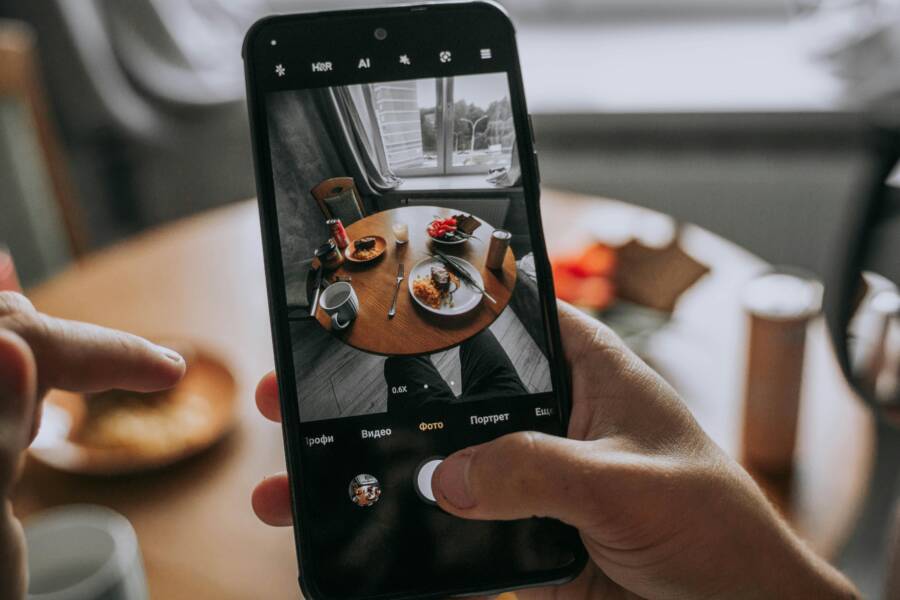
Picture this: you plug in your external microphone, hit record in your favorite camera app, and nothing happens. The audio stays silent, or worse, it grabs the built-in mic sound from across the room. This glitch hits hard for vloggers, content creators, and anyone chasing crisp video audio on their smartphone. Poor sound quality tanks your footage, forcing endless re-records or pricey post-production fixes.
You are not alone. Millions face this issue across Android and iPhone devices. It stems from simple oversights in hardware or software. This guide walks you through quick hardware checks, key settings tweaks, proven step-by-step fixes, and options if problems stick. Follow these steps, and you’ll get your external mic detected in camera apps today. No tech degree needed, just basic smartphone know-how.
Why your external mic isn’t detected by camera apps
External mics fail to show up in camera apps due to two main culprits: hardware glitches and software snags. Hardware problems often trace to physical connections or faulty gear. Software issues pop up from app permissions, outdated systems, or conflicting settings. Pinpoint the cause first to skip wasted time.
Think of it like a chain: if one link breaks, the whole signal drops. Wired mics via 3.5mm jacks, USB-C, or Lightning adapters commonly trip on bad cables. Bluetooth mics falter from pairing hiccups or interference. Smartphone variations matter too; some Android models handle USB audio better than others, while iPhones demand specific adapters.
Check hardware and connections
Start with the basics. Inspect your cable for frays, bends, or exposed wires. A damaged line blocks the signal before it reaches the phone.
Next, eye the port. Dust, lint, or moisture in the USB-C, Lightning, or headphone jack can short the connection. Gently clean with compressed air or a soft brush; avoid metal tools. Test by wiggling the plug while the camera app runs. If the mic flickers in and out, the connection is loose.
Adapters count big time. Use USB-C OTG cables for Android phones that support USB audio class. iPhones need Apple’s Lightning to USB Camera Adapter or certified third-party ones. Wrong type? No detection. Moisture from sweat or rain seals the deal on failure. Dry everything, then retry.
Swap ports if your smartphone has multiples, like some tablets do. These steps catch 60% of issues fast.
Test with another mic or device
Grab a spare mic. Plug it into the same port and open the camera app. Does it detect? Great, your original mic or adapter is toast; replace it.
If the spare fails too, switch to the phone’s built-in mic. Record a quick clip. Clear audio means the hardware works, but the app ignores externals. No sound at all points to a deeper phone or app fault.
Test the suspect mic on another device, like a computer or second smartphone. Success there confirms the mic is fine; blame falls on your phone’s setup. This swap test narrows it down in minutes and saves guesswork.
Adjust phone and app settings to enable mic detection
Settings often hide the fix. Camera apps need full access to mics, and phones route audio smartly, sometimes skipping externals. Tweak these, and detection kicks in.
Android and iOS handle inputs differently. Android favors manual switches; iOS locks to the last connected device. Background apps hogging the mic block others too. Close them all before testing.
Grant microphone and camera permissions
Permissions block most detections. On Android, go to Settings > Apps > [Camera App] > Permissions. Toggle Microphone and Camera to Allow. Some apps hide under Privacy > Microphone.
For iPhone, open Settings > [Camera App]. Turn on Microphone. Check Settings > Privacy & Security > Microphone; ensure your app lists there.
Why deny by default? Privacy rules. But denied access equals no external mic pickup. Restart the app after changes. Test record; audio should flow.
Force re-grant by revoking then allowing again. Android: Settings > Apps > See all apps > [App] > Permissions > Microphone > Don’t allow, then flip back. iPhone mirrors this in app settings. Quick and safe.
Switch input sources and disable conflicting Bluetooth devices
Camera apps like Open Camera or FiLMiC Pro let you pick inputs. Tap the mic icon or settings gear; select external from the list. Default often sticks to built-in.
Bluetooth fights detection. Headphones, speakers, or car kits grab priority. Swipe down to Quick Settings (Android) or Control Center (iOS); turn Bluetooth off. Forget paired devices if needed: Settings > Bluetooth > [Device] > Forget.
Some smartphones route all audio via Bluetooth when active, ignoring wired mics. Disable, reconnect your mic, and relaunch the app. Wired USB mics shine here; Bluetooth ones need fresh pairing post-reset.
Step-by-step fixes you can try today
Follow this order: easy wins first, then deeper cleans. Test after each. Most users fix it by step three.
Restart your phone too; it clears temporary glitches. Unplug the mic first.
Update OS and camera apps
Outdated software breaks mic support. Android added USB audio class 2.0 in recent versions; older ones ignore externals.
Check Android: Settings > System > System update. Install any packs. Then Google Play Store > [Camera App] > Update.
iPhone: Settings > General > Software Update. App Store > [App] > Update.
Updates patch permissions bugs and boost compatibility. Post-install, reboot and test. FiLMiC or stock camera apps often gain external mic nods in patches. Takes 10 minutes max.
Reset app permissions or reset preferences
Permissions glitch over time. Android: Settings > Apps > See all > [Camera App] > Permissions > Reset app preferences (under three dots). This reverts all apps without data loss.
iPhone: Offload app via Settings > General > iPhone Storage > [App] > Offload App, then reinstall. Or delete and redownload.
After reset, relaunch, grant mic access anew, plug in external, and record. Apps re-scan devices fresh. Safe for most; back up clips first. Fixes 30% of stubborn cases.
When to seek help or consider alternatives
Basic fixes fail? Hardware or deep OS faults linger. Don’t panic; smart swaps exist.
Verify mic-phone match. Some budget mics skip smartphone USB support. Check specs.
Use a dedicated USB microphone or audio interface
USB mics like the Rode NT-USB Mini plug straight in. Android handles class-compliant ones; iPhones need a powered interface like iRig Pre.
Setup: Plug mic to interface, interface to phone via OTG or Lightning adapter. Apps detect instantly. Interfaces bypass port issues with clean power. Cost 50 to 150 bucks, but audio jumps leagues. Test compatibility lists from Rode or Shure sites.
Know warranty and support options
Contact maker support. Samsung: Members app or site chat. Apple: support.apple.com or Genius Bar.
Check warranty: Settings > About phone (Android) or Settings > General > About (iOS). Serial number pulls status online.
Service centers diagnose ports free under warranty. Ship if needed. Forums like Reddit’s r/videography share model fixes too.
Conclusion
You now hold fixes for external mic not detected woes: hardware checks, permission grants, updates, resets, and backups like USB mics. Test one by one on your smartphone for quick wins.
Grab your gear and try these steps right now. What fixed it for you? Share in comments; your tip helps others. Clear audio awaits.