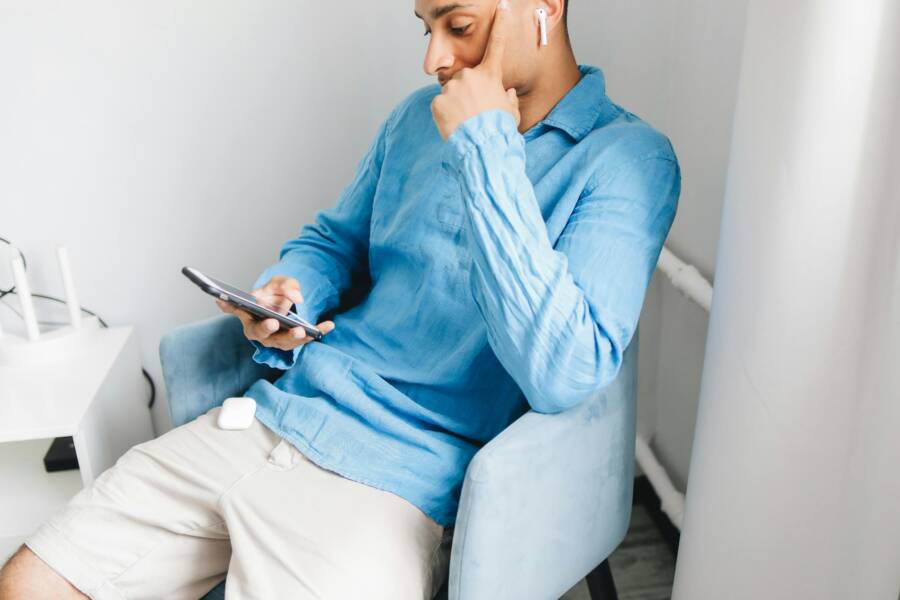
You’ve spent minutes sliding those EQ bars on your phone, chasing the perfect bass boost or crisp highs. Then you pop in your Bluetooth headphones and… nothing changes. The sound stays flat, like your tweaks vanished into thin air. This glitch hits hard when you’re deep into a playlist or podcast.
Equalizer settings shape audio output. They boost lows for thumping beats or cut mids for clearer vocals. Over Bluetooth, though, these changes often fail to stick. Codecs, app conflicts, or simple bugs block them. Don’t worry. This guide walks you through fix equalizer settings Bluetooth headphones issues with step-by-step solutions. Start with quick universal fixes that solve most cases. Then move to device-specific tweaks for Android, iPhone, and PC. You’ll get your sound dialed in fast.

Photo by Karola G
Common Reasons EQ Settings Fail on Bluetooth Headphones
Bluetooth audio throws curveballs at EQ adjustments. Basic connections prioritize speed over quality. That means your custom settings might not transmit fully. Spot the culprit, and the fix gets easier.
Several factors cause this. Phone software fights music apps. Headphones stick to default profiles. Let’s break down the top ones.
Bluetooth Audio Codecs Block EQ Changes
Codecs handle how audio travels from phone to headphones. SBC, the default on most devices, squeezes sound for quick pairing but skips fine EQ details. It caps quality at basic levels.
AAC works better on iPhones and some Androids. LDAC shines on Sony gear with high-res support. Check your setup. Mismatched codecs mean EQ tweaks land on deaf ears. Your Sony headphones pair with a basic Samsung phone? SBC takes over, ignoring boosts.
Developer settings reveal this. Tap into them later to force better options. For now, know this mismatch explains why sliders move but sound doesn’t shift.
App and System EQ Fight Each Other
Music apps like Spotify pack their own EQ. Phone-wide settings clash with them. Spotify’s tool might override your system bass boost.
Permissions play a role. Apps grab audio control first. Toggle Spotify EQ off, and phone settings kick in. Or vice versa. Users report this on cross-platform switches, like Android to iOS.
Cache buildup worsens it. Old data confuses priorities. Spot it when one app’s changes apply but another’s don’t. Clear the conflict, and harmony returns.
Quick Fixes That Work on Any Device
Most EQ Bluetooth woes vanish with basic resets. These steps clear glitches without data loss. They fix 80% of cases. Test sound after each one. Play a familiar track. Adjust EQ sliders. Listen for changes.
Follow the order. Start simple.
- Toggle Bluetooth off and on. Swipe to quick settings. Kill Bluetooth. Wait 10 seconds. Turn it back. Reconnect headphones. This refreshes the link.
- Check volume limits. Some phones cap sound at safe levels. Search settings for “sound limit” or “absolute volume.” Disable it. Crank volume to test.
- Update apps and firmware. Open app store. Search your music player and Bluetooth tools. Hit update. Check headphone app for firmware patches.
Now dive deeper into top steps.
Restart and Re-Pair Your Devices
Glitches hide in temporary connections. A full reset flushes them.
Power off headphones. Hold the button 10-20 seconds until lights flash. Or place in case to reset.
Restart your phone. Hold power button, select reboot.
Open Bluetooth settings. Tap your headphones. Choose “forget device.”
Turn headphones on. Put phone in pairing mode. Search and connect fresh.
Why it works: Re-pairing rebuilds the audio pipeline. EQ data flows clean. Users see changes stick right away. Test with a bass-heavy song.
Clear Cache for Your Music Apps
Apps hoard temp files that jam EQ. Clear them safely.
On Android: Settings > Apps > Spotify (or your player) > Storage > Clear cache. Skip clear data unless needed.
On iPhone: Offload app via Settings > General > iPhone Storage > Spotify > Offload App. Reinstall. Data stays.
Force close the app first. Relaunch. Adjust EQ. Play audio.
No songs lost. This wipes old EQ ghosts. One user fixed a stuck treble cut this way after weeks.
Other quick wins: Uninstall recent updates on buggy apps. Or boot in safe mode to test system EQ alone.
Device-Specific Solutions for Android, iPhone, and PC
Universal steps miss some quirks. Platforms handle Bluetooth differently. Tailor your approach. Reference quick fixes if basics fail.
Android offers codec control. iOS hides EQ deeper. PCs need driver love.
Android Fixes: Enable Better Codecs
Android hides power tools. Unlock them.
Enable developer options: Settings > About phone > tap Build number seven times.
Back to Settings > System > Developer options. Find “Bluetooth audio codec.” Switch from SBC to AAC or LDAC if your headphones support it. Set bitrate high.
Test A/B: Play track with stock codec. Switch. Note clarity. EQ boosts pop now.
Apps help too. Download Wavelet or Poweramp Equalizer. They bypass system limits. Grant permissions. Set as default audio processor.
Samsung users: Open Sound settings > Equalizer > Adapt sound. Toggle advanced. Reapply.
iPhone Fixes: Reset Music EQ
iOS locks EQ tight. Start simple.
Settings > Music > EQ. Pick “Off” then a preset. Or custom if available. Toggle Airplane mode for fresh Bluetooth.
Check Accessibility: Settings > Accessibility > Audio/Visual > Headphone accommodations. Disable tweaks.
Music app stuck? Delete and reinstall. Sign in. EQ applies fresh.
For AirPods: Open case near iPhone. Settings > Bluetooth > AirPods > Forget. Re-pair. Test in Apple Music.
Persistent? Reset all settings: Settings > General > Transfer or Reset > Reset > Reset All Settings. No data wipe.
Windows PC Bluetooth Tweaks
PCs lag on wireless audio. Drivers matter.
Right-click Start > Device Manager > Bluetooth > Update driver. Or download from headphone maker.
Sound settings: Right-click speaker icon > Sounds > Playback > Headphones > Properties > Enhancements tab. Check “Disable all enhancements.”
Realtek users: Open Realtek Audio Console. Set EQ flat. Enable Bluetooth profile.
Update Windows. Search “Bluetooth troubleshooter.” Run it.
Pair again via Settings > Devices > Bluetooth. Test in Groove or VLC.
Prevent EQ Problems in the Future
Stop repeats with smart habits. Pick headphones with AAC or aptX support. Sony WF-1000XM series shines.
Use apps built for EQ over Bluetooth. Poweramp or Neutron handle codecs well. Avoid basic players.
Keep software current. Enable auto-updates for phone, apps, and headphones.
Test new pairs right away. Play tracks with heavy EQ. Adjust and confirm.
Ditch cheap adapters. They force low codecs. Wired fallback works too.
Your setup stays solid.
Conclusion
Bluetooth EQ fails from codecs, app fights, and glitches. Quick restarts, re-pairing, and cache clears fix most. Android codec swaps, iPhone resets, and PC driver updates handle the rest. Prevention keeps it smooth.
Start with quick fixes now. Your favorite tracks deserve that punchy sound.
What worked for you? Drop a comment below. Share your headphone model. Subscribe for more audio tips. Better listening starts today.
(Word count: 1487)